System Setup and Software Installation Guide for Cisco NCS 1001

PDF

System Setup and Software Installation Guide for Cisco NCS 1001

Boot NCS 1001 from a USB drive

Want to summarize with AI?

Log in

Use this procedure set to prepare a bootable USB drive and recover or reimage Cisco NCS 1001 when the internal image cannot boot successfully.


Recover Cisco NCS 1001 from boot failure or reimage the device during upgrades by using a bootable USB drive.

The bootable USB drive is used to re-image the NCS 1001 for the purpose of system upgrade or to boot the NCS 1001 in case of boot failure. A bootable USB drive is created by copying a compressed boot file into a USB drive. The USB drive becomes bootable after the contents of the compressed file are extracted.

This task can be completed using the Windows, Linux, or MAC operating systems available on your local machine. The exact operation to be performed for each generic step outlined here depends on the operating system in use.

Before you begin

  • Use a USB drive with at least 4 GB of storage.

  • Download the Cisco NCS 1001 software image from the Cisco Software Download page.

  • Copy the compressed boot file from the software download page to your local machine. The compressed boot file uses the ncs1001-usb-boot-<release_number>.zip filename format.

Follow these steps to boot your Cisco NCS 1001 using a USB drive:

Procedure

1.

Prepare the USB drive. For details, see Prepare a USB drive for Cisco NCS 1001 boot.

2.

Boot Cisco NCS 1001 from the prepared USB drive. For details, see Boot Cisco NCS 1001 from a prepared USB drive.

Cisco NCS 1001 boots from the USB drive, reimages successfully, and restarts from the new installation.

Prepare a USB drive for Cisco NCS 1001 boot

Create a bootable USB drive that Cisco NCS 1001 can use for recovery or reimaging.

Follow these steps to prepare the USB drive for Cisco NCS 1001 boot:

Procedure

1.

Connect the USB drive to your local machine and format it with the FAT32 file system.

2.

Copy the compressed boot file to the USB drive.

3.

Verify that the copy operation is successful.

Compare the file size at the source and destination. Also verify the MD5 checksum value.

4.

Extract the contents of the compressed boot file directly into the root folder of the USB drive.

Note

The content of the zipped file ("EFI" and "boot" directories) must be extracted directly in the root folder of the USB drive. If the unzipping application places the extracted files in a new folder, move the "EFI" and "boot" directories to the root folder of the USB drive.

The USB drive contains the extracted boot directories at the root and is ready for the device boot procedure.


Boot Cisco NCS 1001 from a prepared USB drive

Start Cisco NCS 1001 from a prepared USB drive after the boot files are extracted to the drive root.

Follow these steps to boot Cisco NCS 1001 from the prepared USB drive:

Procedure

1.

Insert the USB drive in one of the four Cisco NCS 1001 USB ports after removing any other USB drive.

2.

Reboot Cisco NCS 1001 using a power cycle or the console.

3.

Press Esc to enter BIOS.

4.

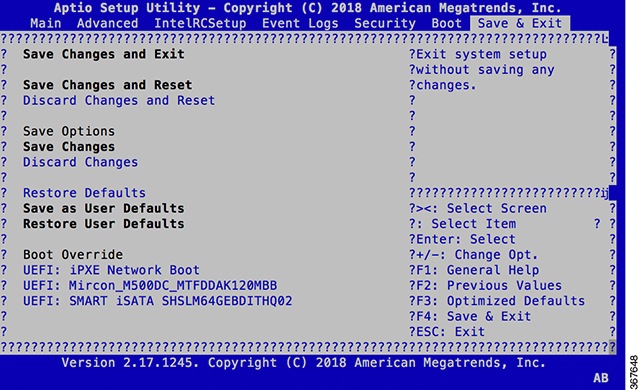
Select the Save & Exit tab in BIOS.

BIOS Save and Exit tab
5.

Choose UEFI based USB device.

The system detects USB and boots the image from USB.


Admin Console:
GNU GRUB version 2.00
Press F2 to goto grub Menu..
Booting from USB..
Loading Kernel..

Validating End Entity Certificate...

Validating SubCA Certificate...

Validating Root Certificate...
Loading initrd..

Validating End Entity Certificate...

Validating SubCA Certificate...

Validating Root Certificate...
CiscoSec: Image signature verification completed.
XR Console:
CiscoSec: Image signature verified.
[    9.957281] i8042: No controller found
Starting udev
udevd[972]: failed to execute '/etc/udev/scripts/network.sh' '/etc/udev/scripts/network.sh': No such file or directory
Populating dev cache
Running postinst /etc/rpm-postinsts/100-dnsmasq...
update-rc.d: /etc/init.d/run-postinsts exists during rc.d purge (continuing)
 Removing any system startup links for run-postinsts ...
  /etc/rcS.d/S99run-postinsts
Configuring network interfaces... done.

The system detects the USB drive and boots the image from USB. The console displays image validation and network interface configuration progress.

6.

Remove the USB drive. The NCS 1001 reboots automatically.


Setting maximal mount count to -1
Setting interval between checks to 0 seconds
Fri Dec 11 20:35:56 UTC 2015: Install EFI on /dev/mb_disk4
Fri Dec 11 20:35:57 UTC 2015: Install finished on mb_disk
Rebooting system after installation ...
[  116.973666] reboot: Restarting system

Version 2.17.1245. Copyright (C) 2015 American Megatrends, Inc.                 
BIOS Date: 11/29/2015 12:02:45 Ver: 0ACBZ1110                                   
Press <DEL> or <ESC> to enter setup.                                            
CiscoSec: Image signature verified.


GNU GRUB version 2.00
Press F2 to goto grub Menu..
Booting from Disk..
Loading Kernel..

Validating End Entity Certificate...

Validating SubCA Certificate...

Validating Root Certificate...
Loading initrd..

Validating End Entity Certificate...

Validating SubCA Certificate...

Validating Root Certificate...
CiscoSec: Image signature verification completed.
Initrd, addr=0xff69a000, size=0x955cb0
[    1.745686] i8042: No controller found

Cisco NCS 1001 completes the USB-based reimage process and boots from the installed image.