Learn how to create and manage port channels between two LAN automated devices.
Port channels are not supported for IPv6 deployments.
Cisco Catalyst Center SD-Access LAN Automation Deployment Guide
Learn how to create and manage port channels between two LAN automated devices.
Port channels are not supported for IPv6 deployments.
Use this procedure to create a port channel between two devices that are discovered through LAN automation.
Ensure that the devices are reachable and in a managed state.
| 1. | From the main menu, choose . |
|
| 2. | In the LAN Automation Devices tab, select . Alternatively, select the check box next to the two devices on which you want to create a port channel, and then select . |
|
| 3. | Select the two devices to create the port channel, if you haven't already. 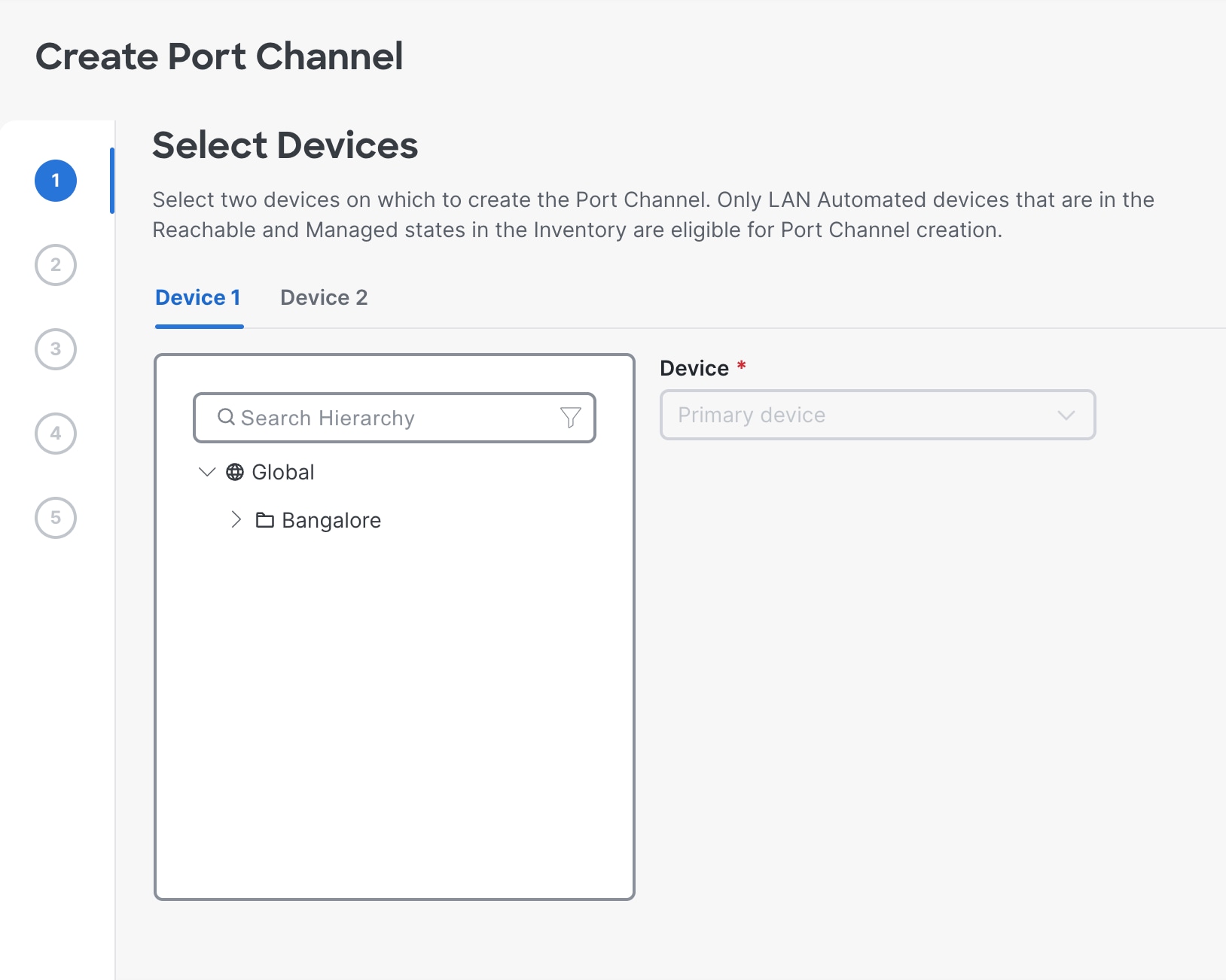
|
|
| 4. | Select the interfaces for the port channel. |
|
| 5. | Click Now or Later to schedule the process. Enter a name for the task in the field provided. |
|
| 6. | In the Summary window, review the configuration settings (to make any changes, click Edit) and create the port channel. |
|
| 7. | You can see the status of the configuration under . |
You can add links to the port channel. See Add links to port channel.
Use this procedure to configure additional links to an existing port channel between two devices.
Ensure that the devices are reachable and in a managed state and there is an existing port channel between the devices.
| 1. | From the main menu, choose . |
|
| 2. | In the LAN Automation Devices tab, select . Alternatively, select the check box next to the two devices on which you want to add links to the port channel, and then select . |
|
| 3. | Select the two devices where you want to add links to the port channel, if you haven't already. 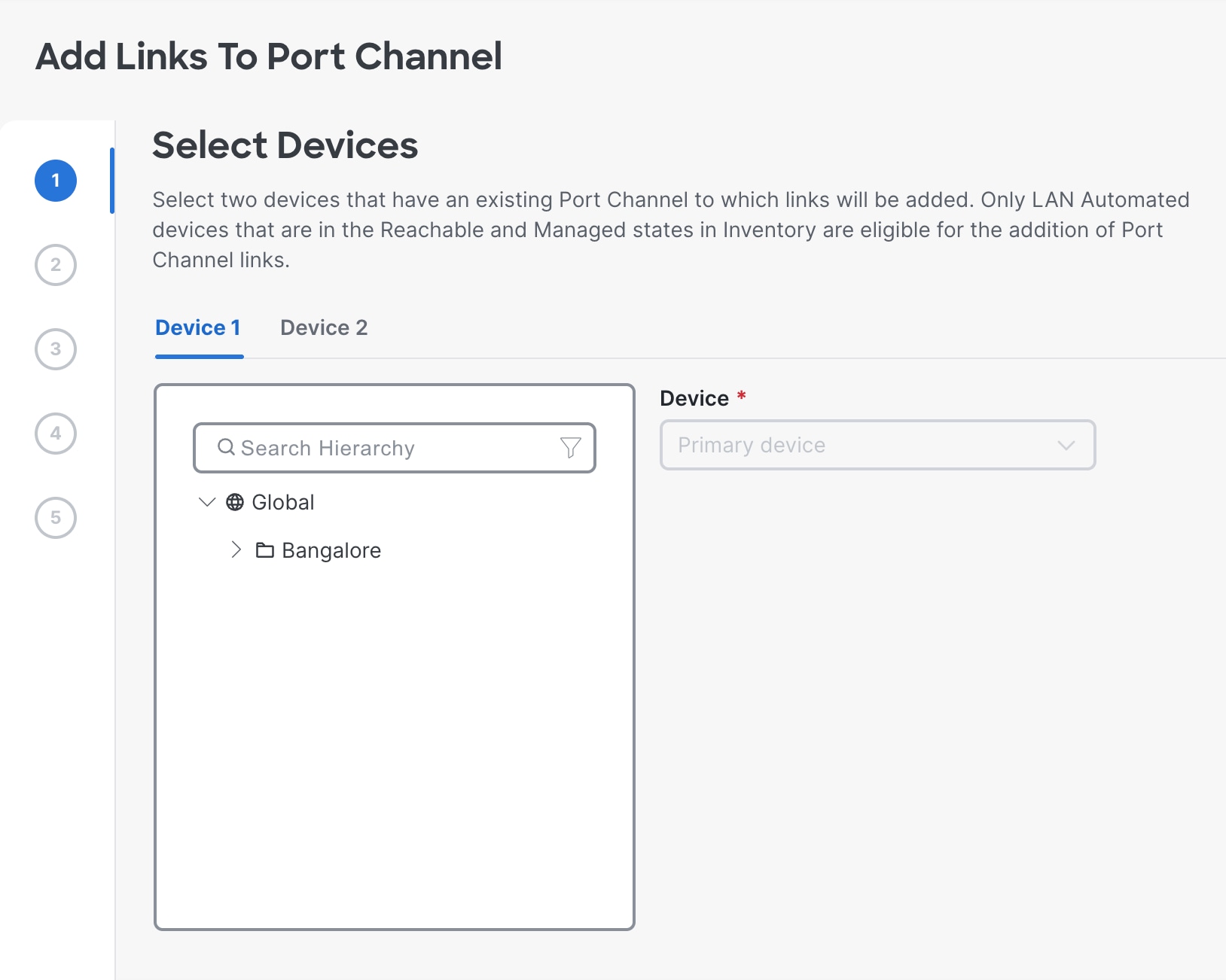
|
|
| 4. | Select the interfaces that you want add to the port channel. |
|
| 5. | Click Now or Later to schedule the process. Enter a name for the task in the field provided. |
|
| 6. | In the Summary window, review the configuration settings (to make any changes, click Edit) and configure the port channel. |
|
| 7. | You can see the status of the configuration under . |
Use this procedure to delete links from an existing port channel between two devices.
Ensure that the devices are reachable and in a managed state and there is an existing port channel between the devices.
| 1. | From the main menu, choose . |
|
| 2. | In the LAN Automation Devices tab, select . Alternatively, select the check box next to the two devices on which you want to delete links from the port channel, and then select . |
|
| 3. | Select the two devices where you want to delete the links from the port channel, if you haven't already. 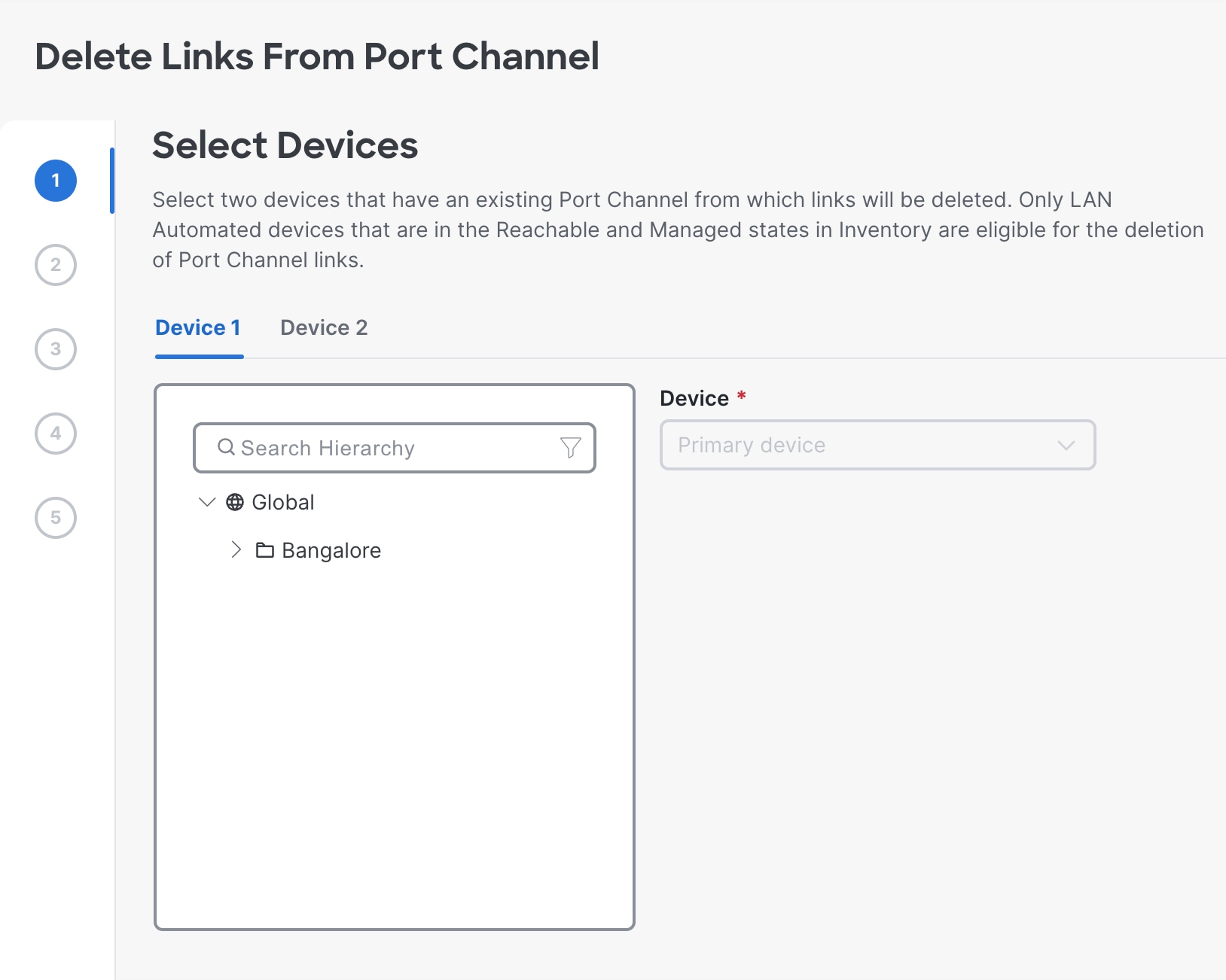
|
|
| 4. | Select the interfaces that you want delete from the port channel. |
|
| 5. | Click Now or Later to schedule the process. Enter a name for the task in the field provided. |
|
| 6. | In the Summary window, review the configuration settings (to make any changes, click Edit) and configure the port channel. |
|
| 7. | You can see the status of the configuration under . |
Ensure that the devices are reachable and in a managed state.
| 1. | From the main menu, choose . |
|
| 2. | In the LAN Automation Devices tab, select . Alternatively, select the check box next to the two devices on which you want to delete the port channel, and then select . |
|
| 3. | Select the two devices to delete the port channel, if you haven't already. 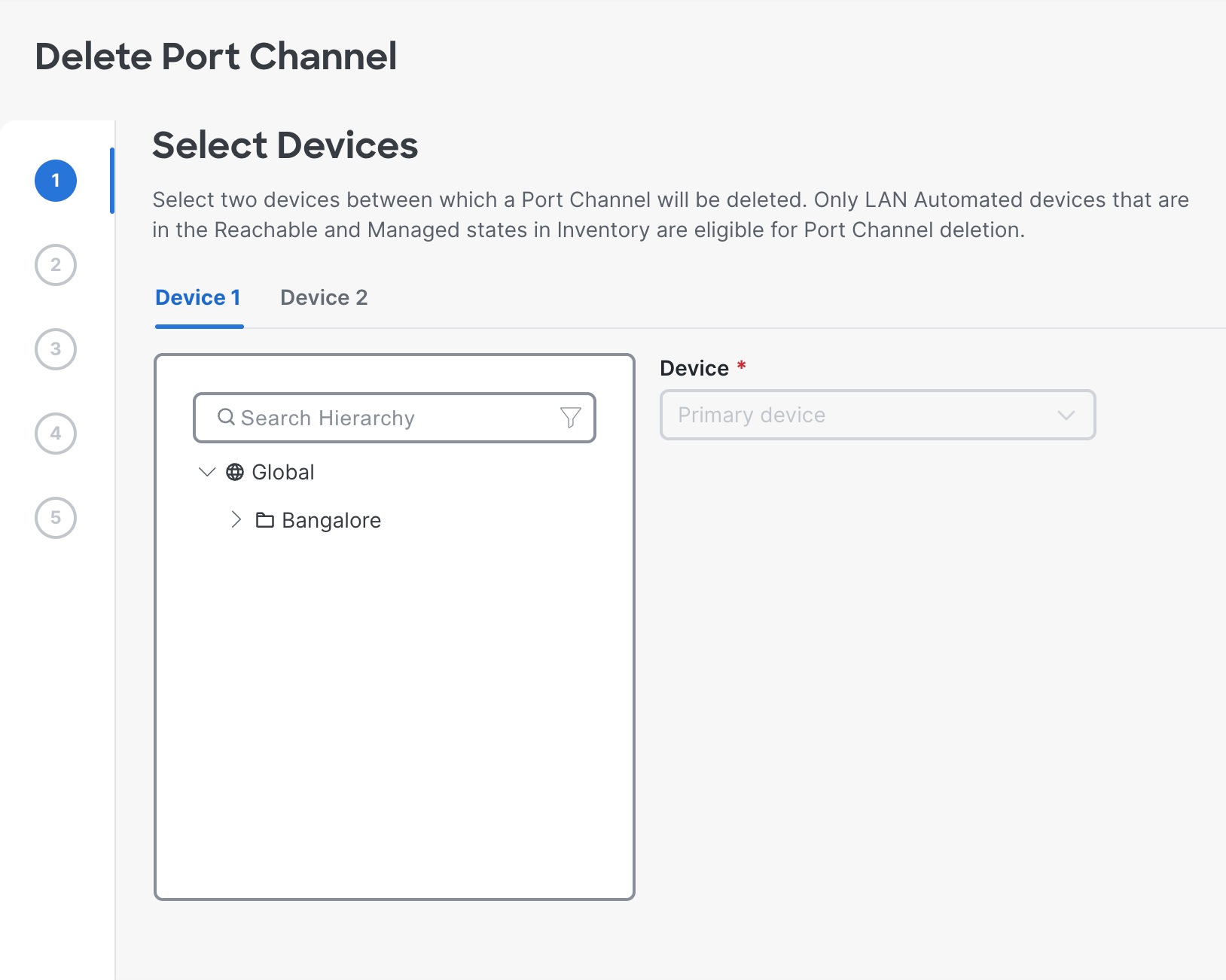
|
|
| 4. | Delete the port channel. |
|
| 5. | Click Now or Later to schedule the process. Enter a name for the task in the field provided. |
|
| 6. | In the Summary window, review the configuration settings (to make any changes, click Edit) and delete the port channel. |
|
| 7. | You can see the status of the configuration under . |