Understand Plan Objects

Cisco Crosswork Planning networks consist of objects, such as nodes (which represent routers), interfaces, circuits, SRLGs, LSPs, ports, and port circuits. A site is also an object, and is a Cisco Crosswork Planning construct for simplifying the visualization of a network by grouping nodes within a site, or even by grouping sites within a site.

Most objects are represented in the network plot, and all of them are represented in Network Summary tables on the right side. They have properties that identify and define them, many of which are discovered. They can also be manually added and changed. For example, all circuits have a discovered Capacity property that can be edited. Other properties are derived. For example, Capacity sim is derived from the Capacity property. Another example is that interfaces have a Util sim property that identifies the percentage of Capacity sim the simulated traffic is using. Properties are viewable and editable through the Edit window. These are represented by columns in the object’s table, or by entries in tables of related objects.

Cisco Crosswork Planning has a Layer 3 (L3) view containing objects. Throughout this guide, the terms node and circuit refer to objects in the L3 view.

This section describes these basic objects and their relationships, as well as how to create, edit, and delete them.

Nodes and sites

A node or site is a network modeling construct that

  • represents devices (nodes) and hierarchical groupings (sites), and

  • provides visual cues and organizational structure for network planning and analysis.

Node: A node is a device in the network, which can be one of three types: physical, pseudonode (PSN), or virtual. The Type property distinguishes whether the node represents a real device or an abstraction, such as a single node representing a number of edge nodes connected in the same way to the network. A physical node is a Layer 3 device, or router. Physical and virtual nodes behave in the same way within Cisco Crosswork Planning. A pseudonode is typically represents a Layer 2 device or a LAN.

Nodes can reside both inside and outside of sites. The external arrangement could be useful for small networks where routers are not geographically dispersed.

Site: A site is collection of nodes and/or other sites, potentially forming a hierarchy of sites. Any site that contains other sites is called the parent site.

Both nodes and sites have simulated traffic, while nodes also have measured traffic.

Network plot visualization

  • Nodes appear as blue router icons () in the network plot. The border color indicates the traffic sourced from and destined to the node. A light blue outline indicates that the node is selected. For more information, click the icon in the network plot.

  • Sites appear as blue circles () in the network plot. The border color indicates the traffic utilization of all the nodes and circuits inside the site, including all nested nodes and circuits. A light blue outline indicates that the site is selected. The number inside the circle indicates the number of nodes in the site. For more information, click the icon in the network plot.

    Note that sites can contain L3 nodes. Empty sites and sites containing L3 nodes appear in the L3 view.

Parent sites and contained objects

A parent site is a site that

  • contains other sites, nodes, or circuits (known as contained objects)

  • defines hierarchical relationships between sites through nesting, and

  • enables filtered views and management of all objects within its hierarchy.

Contained or nested objects are nodes, sites, or circuits that reside within a parent site. These are also referred to as children and are often geographically co-located. For example, a site representing a Point of Presence (PoP) can be a parent site if it contains routers.

The site’s Parent site property defines whether it is nested within another site. If it is empty, the site is not nested.

Network plot visualization

  • In the network plot, the parent site shows all egress inter-site interfaces of all nodes contained within it, no matter how deeply the nodes are nested. This visualization logic applies to each child site plot contained within the parent.

  • Selecting a site from the network plot does not select the sites or nodes under it.

Filtering to contained objects

To filter to the sites or nodes contained within a site, select the site and click > Filter to contained.

  • Direct: filters to only those objects contained immediately within it.

  • All: filters to all objects contained within it, no matter how deeply they are nested.

Delete sites

Selecting a site from the network plot does not select the sites or nodes under it except when deleting the site. In this case, all objects within a site are selected for deletion. However, in the confirmation that appears, you have the option to keep the contained sites and nodes. If you do, then the objects that are contained directly within it are moved to be on the same level as the site that is removed. The other, more deeply nested objects maintain their parent relationships.

PSN nodes

A PSN is a node that

  • represents pseudonodes, which are used to model LANs or switches that connect more than two routers

  • is used for IGP modeling and BGP peer modeling, and

  • has a Type property of PSN.

In IGP networks, a LAN interconnecting multiple routers is represented by a PSN node, with circuits connected to each of the nodes representing the interconnected routers. Both OSPF and IS-IS have a built-in system. In this system, one of the routers on the LAN is the designated router (DR) for OSPF or the designated intermediate system (DIS) for IS-IS. The PSN node uses the name of this designated router. Cisco Crosswork Planning creates nodes with a property Type of PSN automatically during IGP discovery.

When BGP peers are discovered, Cisco Crosswork Planning might find that a router is connected to multiple peers using a single interface. This is typical at switched Internet Exchange Points (IXPs). Cisco Crosswork Planning then creates a node with a property Type of PSN, and connects all the peers to it, each on a different interface.

Points to consider when working with PSN nodes

Consider these points when working with nodes that have PSN as a Type property:

  • Two PSNs cannot be connected by a circuit.

  • If a PSN node is created by Cisco Crosswork Planning, “psn” is added as a prefix to the designated router’s node name.

  • When creating demand meshes, Cisco Crosswork Planning does not create demands with nodes of Type PSN as sources or destinations. Creating demands with nodes of Type PSN as sources or destinations is possible in manual demand creation, but this is not recommended. Cisco Crosswork Planning sets the IGP metric for all egress interfaces from a node of Type PSN to zero. This ensures that the presence of a PSN in a route does not add to the IGP length of the path.

Node configuration fields

These fields are commonly used when configuring a node.

  • Name: Specifies the name for the node.

  • IP address: This value is often the loopback address used for the router ID.

  • Site: Specifies the name of the site in which the node exists. If left empty, the node resides in the network plot. This method provides a convenient way to create a site when creating the node, move nodes from one site to another, or remove nodes from a site so it stands alone in the network plot.

  • AS: Specifies the name of the AS in which this node resides, identifying its routing policy. This field can be left empty if no BGP is being simulated.

  • BGP ID: Specifies the IP address that is used for BGP.

  • Function: Indicates whether this is a Core or Edge node.

  • Type: The node type, which is physical, PSN, or virtual. Because a PSN node represents a Layer 2 device or a LAN, interfaces on a PSN must all have their IGP metrics set to zero, and two PSN nodes cannot be directly connected to one another. If you change a node type to PSN, Cisco Crosswork Planning automatically changes the IGP metrics on its associated interfaces to zero.

  • Longitude and Latitude: Indicates the geographic location of the node within the network plot. These values are relevant when using geographic backgrounds.

To create nodes, refer to Create objects, where Object is Node.

Site configuration fields

These fields are commonly used when configuring a site.

  • Name: Specifies the unique name for the site.

  • Display name: Specifies the site name that appears in the plot. If this field is empty, the Name entry is used.

  • Parent site: Indicates the site that immediately contains this site. If empty, the site is not contained within another one.

  • Location: Select the location from the list of cities. To automatically place a site in its correct geographic location and update the Longitude and Latitude fields, enter the airport code and press Enter.

  • Longitude and Latitude: Specifies the geographic location of the site within the network plot. These values are relevant when using geographic backgrounds.

To create sites, refer to Create objects, where Object is Site.

Merge nodes

This topic describes how to merge multiple network nodes into a single virtual node to simplify network planning and accelerate calculations.

Real network topologies often include several nodes—typically edge nodes—that are connected to the network in the same way. For example, all nodes might connect to the same core node or to a pair of core nodes. For planning and design of the network core, it is often desirable to merge these physical nodes into a single virtual node, which simplifies the plan and accelerates the calculations and simulations performed.


Note


Merging nodes changes the actual plan, not just the visual representation.

The name of a newly merged node can be based on the site name, selected node name (base node), or have a new user-specified name. The effects of merging nodes are:

  • Reattach circuits from other nodes to the base node.

  • Move demands to or from other nodes to the base node.

  • Move LSPs to or from other nodes to the base node.

  • Set base node traffic measurements to the sum of measurements of the selected nodes.

  • Delete other nodes.

Complete these steps to merge nodes.

Procedure


Step 1

Open the plan file (see Open plan files). It opens in the Network Design page.

Step 2

From the toolbar, choose Actions > Initializers > Merge nodes.

Step 3

Select the nodes that you want to merge in the Merge Nodes page. If you do not select any nodes, Cisco Crosswork Planning merges all nodes.

Step 4

Click Next.

Step 5

Select whether to merge the nodes per site or merge them into one node.

  • Separate merge per site: Merges nodes on a per-site basis. For example, if you selected all nodes in the plan, the result would be one merged node per site. If you do not specify a new suffix, the default name is the same as the site.

  • Merge all nodes together into base node: Merges all nodes selected into one node. For example, if you selected two nodes in one site and three nodes in another, the result would be a single node in the site and node combination selected as the base node.

    If you do not specify a new name, the default is to use the name of the base node.

  • Merge nodes table: Merges nodes based on the file containing <MergeNodes> table. You can choose this file either from the user space or local machine.

Step 6

Click Next.

Step 7

Review the effects of node merge. If they are acceptable, then click Merge.


The selected nodes are merged into a single virtual node.

Circuits and interfaces

In Cisco Crosswork Planning, an interface is either an individual logical interface or a LAG logical interface. If there is a one-to-one mapping between a logical and physical interface, then the interface contains both Layer 3 properties (for example, Metric) and physical properties (for example, Capacity). If there is a one-to-many mapping between logical and physical interfaces, then the interface is the logical LAG and the ports are included in the plan file as the physical ports in the LAG. For more information on ports and port circuits, see Ports, port circuits, and LAGs.

Each circuit connects a pair of interfaces on two different nodes. Therefore, an interface always has an associated circuit. Both the Edit Interface and Edit Circuit windows let you simultaneously edit properties for the pair of interfaces and the circuit.

Interfaces have both measured and simulated traffic. The traffic that appears in the Circuits table is the higher of the traffic in the two interfaces.

Circuit and interface configuration fields

These fields are commonly used when configuring a circuit or an interface.

  • Capacity: Specifies the total traffic this circuit can carry. The drop-down displays the most widely used capacities.

  • SRLGs: Assigns the circuit to an SRLG by selecting from the list or creating a new one. For more information, refer to Create SRLGs for circuits only.

  • Parallel group name: Enter the name to include this circuit in a new or existing parallel group.

  • Interface A and B: Identifies the two interfaces connected by the circuit.

To create circuits, refer to Create objects, where Object is Circuit. As a result of creating a circuit, two interfaces are also created.

Merge circuits

This topic describes how to merge circuits between the same endpoints to provide a simplified network design.

You can simplify the plan by merging circuits that have the same source and destination endpoints (nodes). This capability is useful in long-term capacity planning, where multiple parallel circuits can be ignored and only the site-to-site connections are of interest.

Complete these steps to merge circuits.

Before you begin

  • Identify the plan file containing the circuits to be merged.

  • Assess the implications of merging circuits. This operation changes the plan itself, not just the visual representation.

Procedure


Step 1

Open the plan file (see Open plan files). It opens in the Network Design page.

Step 2

From the toolbar, choose Actions > Initializers > Merge circuits.

Step 3

Select the circuits that have the same source and destination endpoints.

Step 4

Review the listed effects of circuit merge.

  • Sets base circuit capacity to the sum of capacities.

  • Sets base circuit metric to minimum of metrics.

  • Sets base traffic measurements to the sum of measurements.

  • Deletes other circuits.

Step 5

If these effects are acceptable, click Submit.


The selected circuits are merged and the plan file is updated.

SRLGs

A Shared Risk Link Group (SRLG) is a network grouping mechanism that

  • contains network elements, such as links or circuits, that may all fail simultaneously due to a single cause, and

  • is commonly used to improve network resiliency by identifying points of shared risk.

Example

An SRLG may contain all the circuits whose interfaces belong to a common line card. If the line card fails, all circuits in that SRLG will be affected at once.

Create SRLGs

Complete these steps to create SRLGs.

Procedure


Step 1

Open the plan file (see Open plan files). It opens in the Network Design page.

Step 2

Create SRLGs using one of these methods:

  • From the toolbar, choose Actions > Insert > > SRLG.

  • In the Network Summary panel on the right side, navigate to the SRLGs tab and then click Add icon.

    For details on showing or hiding network summary tables, see Show or hide tables or columns.

Step 3

Enter the SRLG name.

Step 4

From the Object type drop-down list, choose the type of object that you want to include in the SRLG.

Step 5

For each object to include in the SRLG, check the check box under the Included column.

Step 6

Click Add.


Create SRLGs for circuits only

Complete these steps to create SRLGs for circuits.

Procedure


Step 1

Open the plan file (see Open plan files). It opens in the Network Design page.

Step 2

Open the Add/Edit Circuits page using any of these methods:

  • To create a new circuit, use the steps in Create objects, where Object is Circuit.

  • To create SRLGs for selected circuits, select one or more circuits from the Circuits tab. Then, click Edit icon.

Step 3

Click Edit button associated with the SRLGs field.

SRLGs for circuits

Step 4

Associate the selected circuits with one or more existing SRLGs. Alternatively, create a new SRLG.

To associate circuits with an existing SRLG ...

To create a new SRLG ...

  1. For each SRLG in which you want to include the selected circuits, check the check box.

  2. Save your changes.

  1. Click Add icon.

  2. Enter the new SRLG name, and click Save.

Step 5

Click Add or Save in the Add or Edit Circuit page, as appropriate.


Ports, port circuits, and LAGs

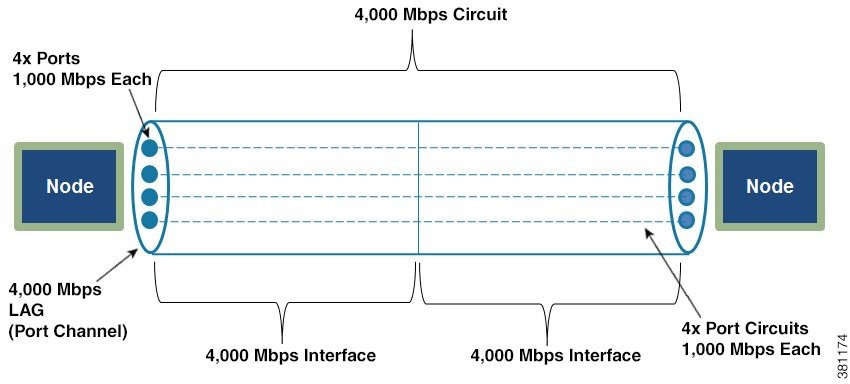
Ports serve as physical interfaces. Port circuits define the logical paths provisioned over those connections. Link aggregation groups (LAGs) bundle physical interfaces to provide increased bandwidth and redundancy for efficient network management.

  • Port: A physical interface on a device. In Cisco Crosswork Planning, ports and port circuits are used to model LAGs and port channels.

  • LAG: A group of physical ports that are bundled into a single logical interface. It is also known as "bundling" or "trunking".

    By default, each logical interface listed in the Interfaces table corresponds to a single physical port. These ports need not be explicitly modeled. The exception is when the logical interface is a LAG, which bundles more than one physical port. In this case, the physical ports are listed in the Ports table.

  • Port circuit: A connection between two ports. Ports are not required to be connected to other ports by port circuits.

Figure 1. Ports, port circuits, and LAGs

Port configuration fields

These fields are commonly used when configuring a port.

  • Name: Name of the port.

  • Site and Node: Site and node on which this port exists.

  • Interface: Logical interface to which this port is mapped. This must be defined to create port circuits using this port.

  • Capacity: The total traffic amount this port can carry. The drop-down list displays the most widely used capacities.

To create ports, refer to Create objects, where Object is Port.

Port circuit configuration requirements

This topic provides requirements for configuring a port circuit, including required fields.

Configuration requirements

To ensure successful configuration of a port circuit, these requirements apply:

  • Both ports must exist and be mapped to interfaces that are connected by a circuit.

  • When selecting two ports for the port circuit, if one port is assigned to an interface, the other must be assigned to the remote interface on the same circuit.

Configuration fields

These fields are commonly used when configuring a port circuit.

  • Site and Node: Site and node on which the port exists.

  • Port: Name of the port.

  • Capacity: The total traffic amount this port circuit can carry. The drop-down list displays the most widely used capacities.

To create port circuits, refer to Create objects, where Object is Port circuit.

Create LAGs

Complete these steps to make one of the existing interfaces into a LAG by assigning ports to it. If the interface does not contain ports, you must first create them (see Port configuration fields).

Procedure


Step 1

Open the plan file (see Open plan files). It opens in the Network Design page.

Step 2

From the Ports network summary table, select all ports that belong to the LAG. You can quickly do this by filtering to their common interface.

Step 3

Select one of the ports and click Edit icon to open the Edit page.

Step 4

Select the interface that contains these ports.

Step 5

Click Save.


Set LAG simulation properties

Each interface is treated as a LAG (port channel). If a LAG loses too much capacity because of non-operational ports, you can configure its properties to automatically take the entire LAG down.

Complete these steps to configure LAG properties.

Procedure


Step 1

Open the Edit page of an interface or circuit (see Edit objects).

Step 2

Click the Advanced tab.

Step 3

In the Port channel section, set one or both of these parameters for one or both interfaces on the circuit:

  1. In Min number of ports, enter the minimum number of ports that must be active and operating for the LAG circuit to be up.

  2. In Min capacity, enter the minimum capacity that must be available for the LAG circuit to be up.

Step 4

Save your changes.


Key operations you can perform on objects

Following sections describe the operations that you can perform on plan objects.

Create objects

This topic describes how to add objects to a plan file.

Procedure


Step 1

Open the plan file (see Open plan files). It opens in the Network Design page.

Step 2

Create objects using one of these methods:

  • From the toolbar, choose Actions > Insert > Object.

  • In the Network Summary panel, navigate to the Objects tab and then click Add icon.

    The required Objects tab may be available under the More tab. If it is not visible, then click the Show/hide tables icon (Show/Hide Tables Icon) and check the relevant Object check box.

Step 3

Enter the required details. The properties differ for each object.

Step 4

Add the object.


The object is added to the plan file.

Edit objects

This topic describes how to edit objects in a plan file.

Most objects in the plot and in the associated tables have a set of properties that you can manage using the Edit page. The system uses these properties to define and simulate an object.

Procedure


Step 1

Open the plan file (see Open plan files). It opens in the Network Design page.

Step 2

In the Network Summary panel, navigate to the desired Object tab, and edit the object properties.

Step 3

To edit a single object, use one of these methods:

  • Select the required object and click Edit icon.

  • In the Actions column, click > Edit for the object whose properties you want to edit.

Step 4

To edit multiple objects (bulk edit), select the required objects and click Edit icon.

Note


In case of a bulk edit operation, you can

  • select all objects and edit them

  • filter objects, then select and edit them, or

  • select objects from the network plot and edit them.

Step 5

Edit the properties as required.

Step 6

Save the changes.


The selected objects are updated with the new properties.

Delete objects

This topic describes how to delete objects from a plan file.

Procedure


Step 1

Open the plan file (see Open plan files). It opens in the Network Design page.

Step 2

In the Network Summary panel, navigate to the desired Object tab, and delete the objects.

Step 3

To delete a single object, use one of these methods:

  • Select the required object and click Delete icon.

  • In the Actions column, click > Delete for the object whose properties you want to delete.

Step 4

To delete multiple objects (bulk delete), select the required objects and click Delete icon.


The object deletion successful message appears.