Update Configuration from One File to Another

Changeover tool

The Changeover tool is a Cisco Crosswork Planning tool that

  • provides a step-by-step sequence of routing configuration changes to move a network safely from an initial configuration to a pre-specified final configuration, and

    optimizes the order of changes to minimize network congestion during intermediate configurations.

Cisco Crosswork Planning lets you model the topology, routing, and utilization of a currently operational network. It enables exploration of modifications, such as adjusting interface metrics or explicit LSP routings to obtain a new routing configuration.

Supported configuration changes between initial and final plans include:

  • Changes to interface metrics

  • Changes to LSP configurations

  • Changes of circuits and nodes between active and inactive states

An individual step in the changeover sequence consists of:

  • A single metric change on a specific interface

  • LSP configuration changes on all LSPs sourced from a specific node

  • The activation or inactivation of a specific circuit or node
Run the changeover tool

Complete these steps to run the Changeover tool.

Use the Changeover tool to analyze differences between two plan files. This tool is useful when you need to evaluate the impact of network changes and ensure optimal utilization during the changeover sequence.

Procedure


Step 1

Open both the initial and final plan files (refer to Open plan files), and choose the desired plan to view.

Step 2

From the toolbar, choose Actions > Tools > Changeover.

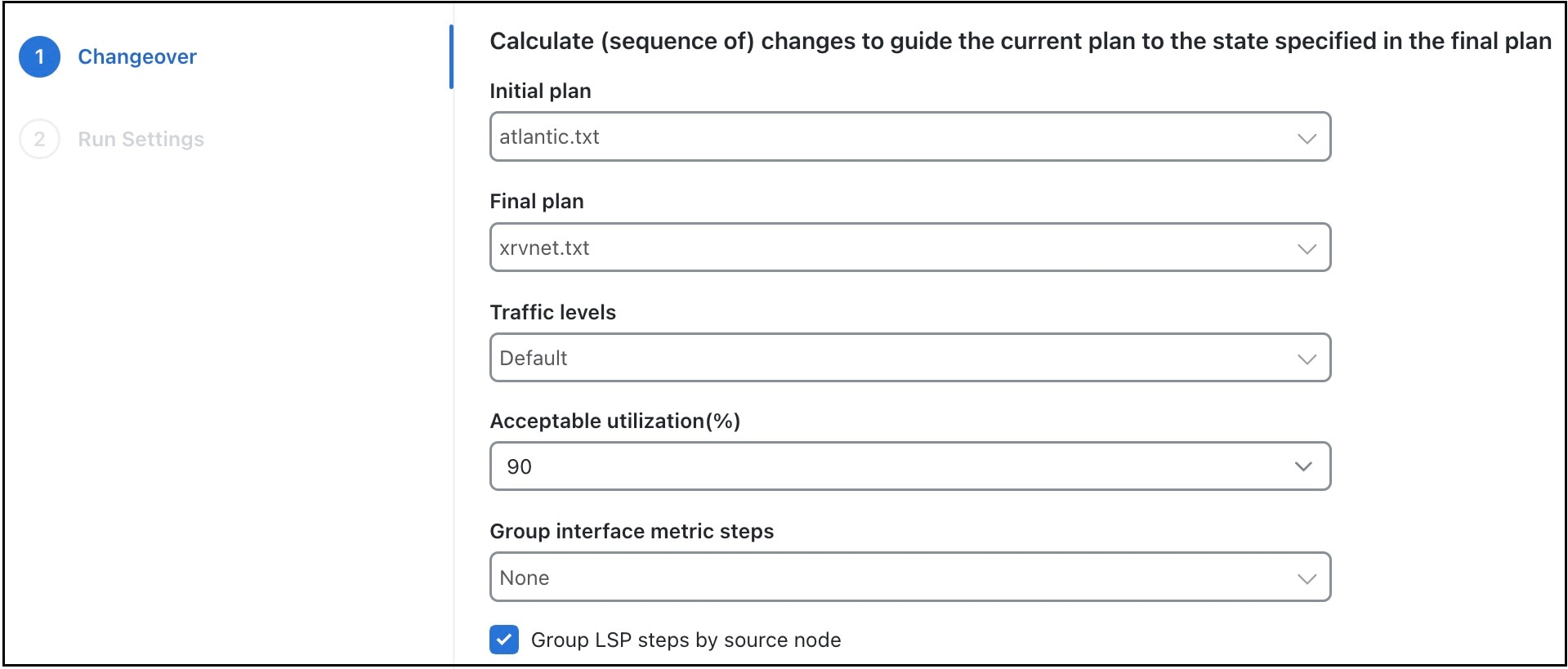
Figure 1. Changeover options
Changeover options

Step 3

Decide on the changeover options to use. For field descriptions, refer to Table 1

Step 4

Click Next.

Step 5

On the Run Settings page, under Execute, choose either of these options:

  • Now: Choose this option to run the tool immediately. Upon completion, a report of the results opens automatically.

  • As a scheduled job: Choose this option to run the tool at a scheduled time. Set these options:

    • Priority: Select the priority of the task.

    • Engine profiles: Select the engine profile as per your requirement. This section lists all the available asynchronous engine profiles.

    • Schedule: Set the time at which you want to run the tool. This option is available only for scheduled jobs.

    The job runs at the scheduled time and using the selected engine profile. You can track the status of the job from the Job Manager page (from the main menu, choose Job Manager).

    Note

     
    Ensure that you save the plan file before you schedule the job. Any unsaved changes in the plan file are not considered when you run the tool as a scheduled job.

Table 1. Changeover options

Field

Description

Initial plan

Name of the initial plan, selected from opened plan files.

Final plan

Name of the final plan, selected from opened plan files.

Traffic levels

Changeover monitors maximum interface utilization levels for all steps in the sequence. The utilizations are calculated using this traffic level.

Acceptable utilization (%)

The percentage of maximum acceptable utilization of any interface at any step during the changeover sequence. Changeover tries to keep utilizations below this level, although it is not always possible. Often the utilization spikes upward during the last few steps of the sequence, if, for example, new ECMP paths must be put in place. Cisco Crosswork Planning tries to keep the number of high-utilization steps to a minimum.

Group interface metric steps

The Changeover tool allows you to group Interface Metric changes together into steps. You can choose from these options:

  • None: Each Interface Metric change is treated as a single step.

  • Parallel: Parallel Interfaces are grouped into a single step.

  • Source Node: Interfaces sourced from the same node are grouped into a single step if there is no impact on maximum utilization.

Group LSP steps by source node

Specify whether to group the LSP steps by source node.

Report analysis

To access the report created by the Changeover tool, choose Actions > Reports > Generated reports link from the right panel.

The report contains several sections that help you review the options used, actions taken, and interface utilizations during the changeover process.

  • Summary: Contains a list of the options used to run the changeover. It also contains a summary of the differences between the initial and final plans, the number of steps taken, and the number of steps resulting in intermediate configurations with utilizations in excess of the acceptable utilization.

  • Steps: Contains details of the actions taken at each step while running the Changeover tool.

  • Utilizations: Contains all utilizations for all interfaces in the network, for each step in the changeover sequence.