Configure RADIUS and TACACS+ for GUI and CLI Authentication on 9800 Wireless LAN Controllers
Available Languages
Download Options
Bias-Free Language
The documentation set for this product strives to use bias-free language. For the purposes of this documentation set, bias-free is defined as language that does not imply discrimination based on age, disability, gender, racial identity, ethnic identity, sexual orientation, socioeconomic status, and intersectionality. Exceptions may be present in the documentation due to language that is hardcoded in the user interfaces of the product software, language used based on RFP documentation, or language that is used by a referenced third-party product. Learn more about how Cisco is using Inclusive Language.
Contents
Introduction
This document describes how to configure a 9800 Wireless LAN Controllers (WLC) for RADIUS or TACACS+ external authentication when accessing its Graphic User Interface (GUI) or Command Line Interface (CLI).
Background Information
When an user is trying to access the CLI or the GUI of the WLC, it will be prompted to input a username and password.
By default these credentials are compared against the local database of users, which is present on device itself.
Alternatively the WLC can be instructed to compare the input credentials against a remote AAA server: the WLC can either talk to the server using RADIUS or TACACS+.
Prerequisites
Requirements
Cisco recommends that you have knowledge of these topics:
- Catalyst Wireless 9800 configuration model
- AAA, RADIUS and TACACS+ concepts
Components Used
The information in this document is based on these software and hardware versions:
- C9800-CL v16.10
- ISE 2.2.0
Configurations
In this example we will configure two types of users on the AAA server (ISE), respectively 'adminuser' and 'helpdeskuser'.
The user 'adminuser is expected to be granted full access to the WLC, whereas the 'helpdeskuser' is meant to only be granted monitor priviliges to the WLC, hence no configuration access.
First we will do the configurations on the WLC and on ISE for a RADIUS authentication, and later we will do the same for TACACS+.
RADIUS WLC configuration
Step 1. Declare the RADIUS server
First of all we need to create the RADIUS server ISE on the WLC.
This can be done from the GUI WLC page https://<WLC-IP>/webui/#/aaa :
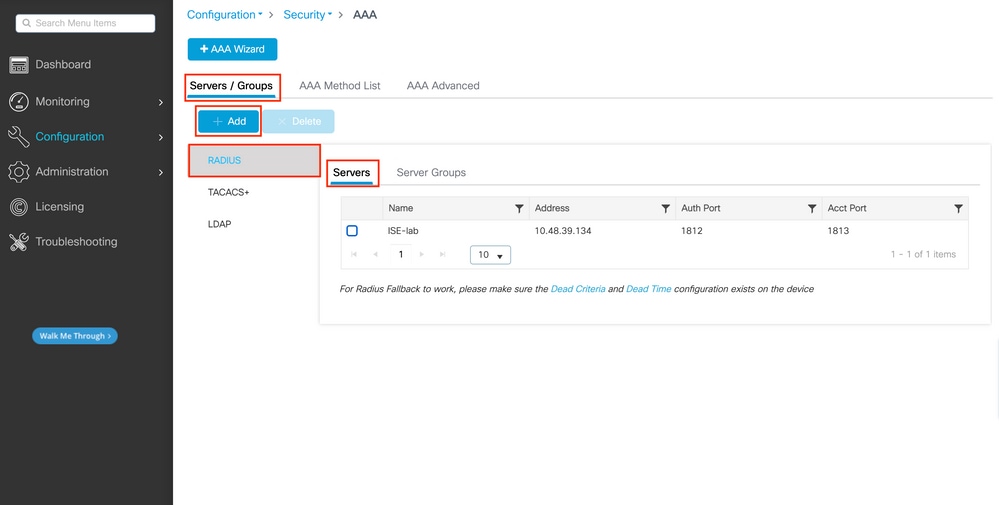
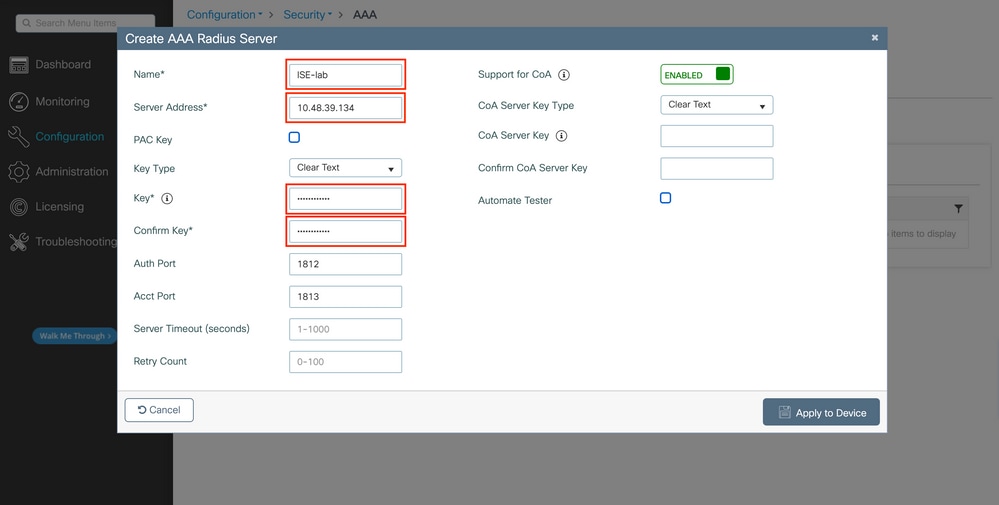
A popup window will open, where you can type the server name (it does not have to match the ISE system name), its IP address, the shared secret, and the port being used for authentication and accounting, along with other paramaters.
From CLI:
paolo-9800(config)#radius server labISE
paolo-9800(config-radius-server)# address ipv4 10.48.71.92 auth-port 1812 acct-port 1813
paolo-9800(config-radius-server)# key Cisco123
Step 2. Map the RADIUS server to a Server Group
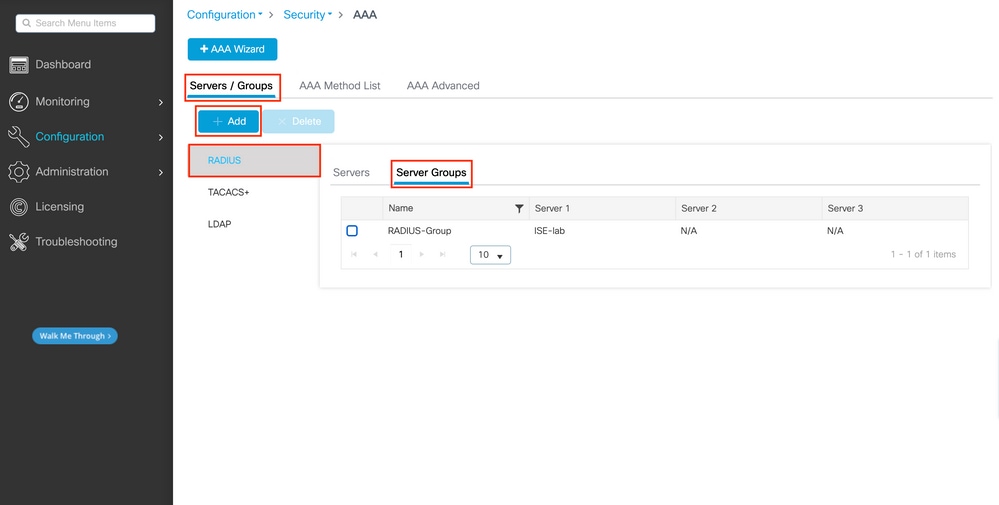
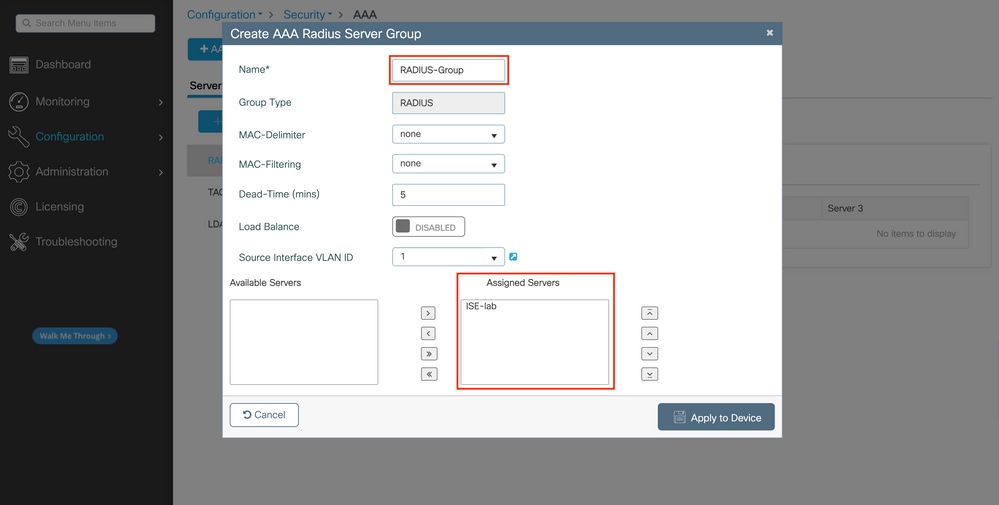
In case you have multiple RADIUS servers that can be used for authentication, it is recomanded to map all these servers to the same Server Group: the WLC will then takes care of load balancing different authentications among the servers in the server group.
From the same GUI tab:
In the popup, give a name to the group, and move the desired servers to the Assigned list.
From CLI:
paolo-9800(config)#aaa group server radius radGroup
paolo-9800(config-sg-radius)# server name labISE
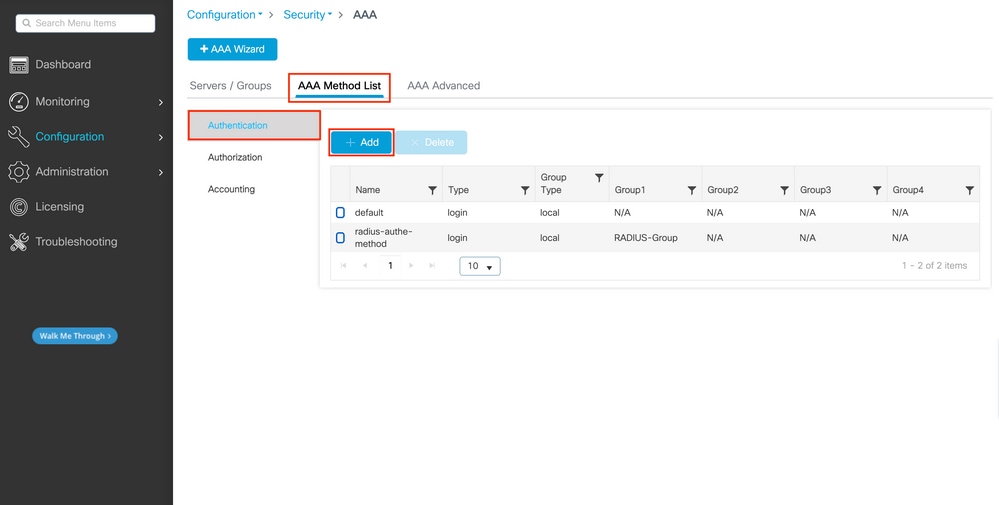
Step 3.Create a AAA authentication login method pointing to the RADIUS server group
Always in the GUI page https://<WLC-IP>/webui/#/aaa , move to the AAA Method list tab, and create the Authentication method:
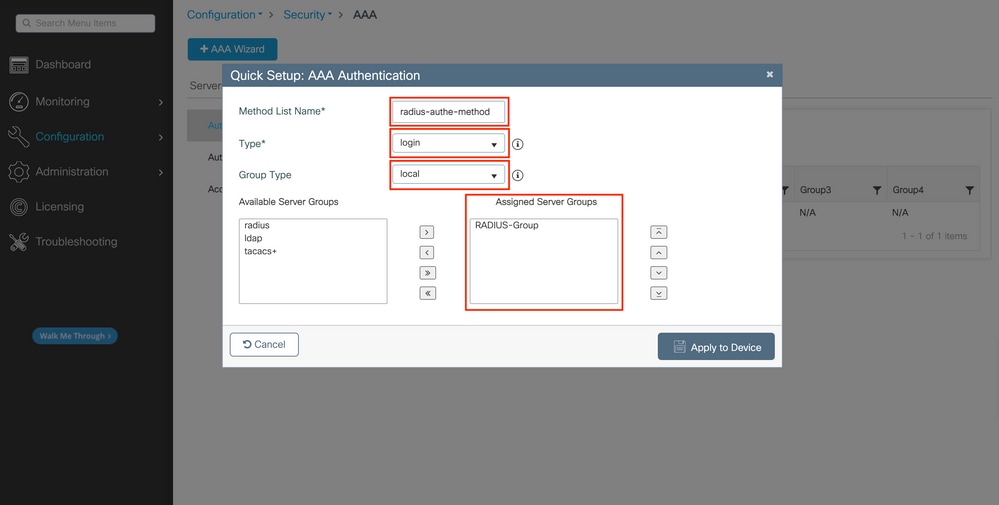
In the popup, give a name to the method, choose type as 'login', and assign the group server created in the previous step.
Note:
- if you select Group Type as 'local' the WLC will first check the if the user exists locally, and will then fallback to the server group
CLI:
paolo-9800(config)#aaa authentication login radAutheMethod local group radGroup
- If you select Group Type as 'group', and no fallback to local option checked, the WLC will just check the user against the server group
CLI:
paolo-9800(config)#aaa authentication login radAutheMethod group radGroup
- If you select Group Type as 'group', and the fallback to local option is checked, the WLC will check the user against the server group, and will query the local database only if the server is not responding: if the server sends a reject, the user won't be authenticated, even though it may exists on the local database
CLI:
paolo-9800(config)#aaa authentication login radAutheMethod group radGroup local
In this example setup, wehave some users which are only created locally, and some users only on the ISE server, hence we use the first option.
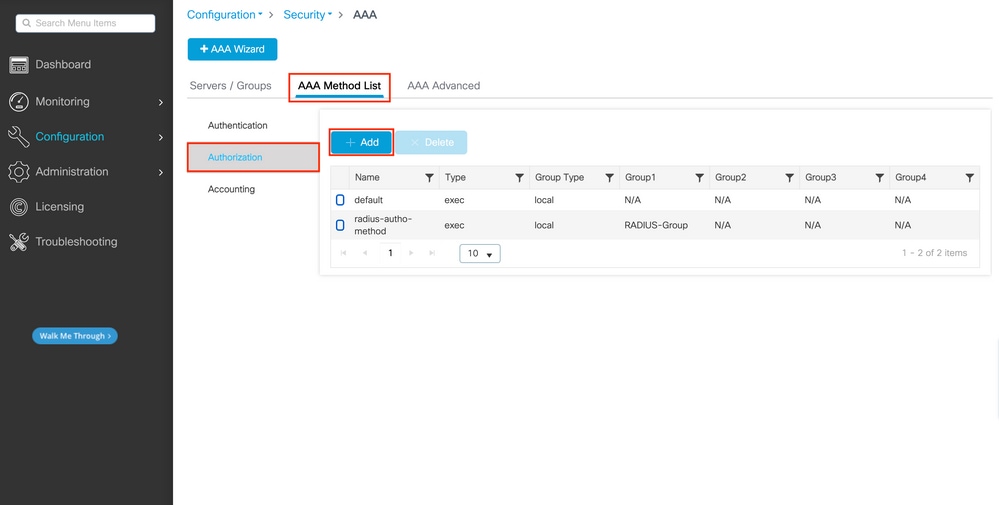
Step 4.Create a AAA authorization exec method pointing to the RADIUS server group
The user has to be also authorized in order to be granted access. From the same tab:
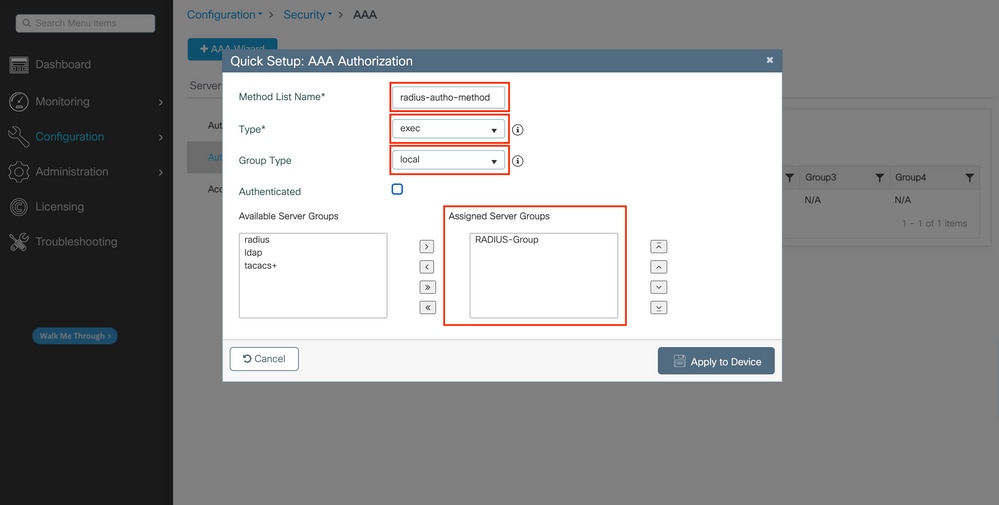
Use the same order of local/group being used for the authentication method in the previous step, and choose type as 'exec'.
From CLI:
paolo-9800(config)#aaa authorization exec radAuthzMethod local group radGroup
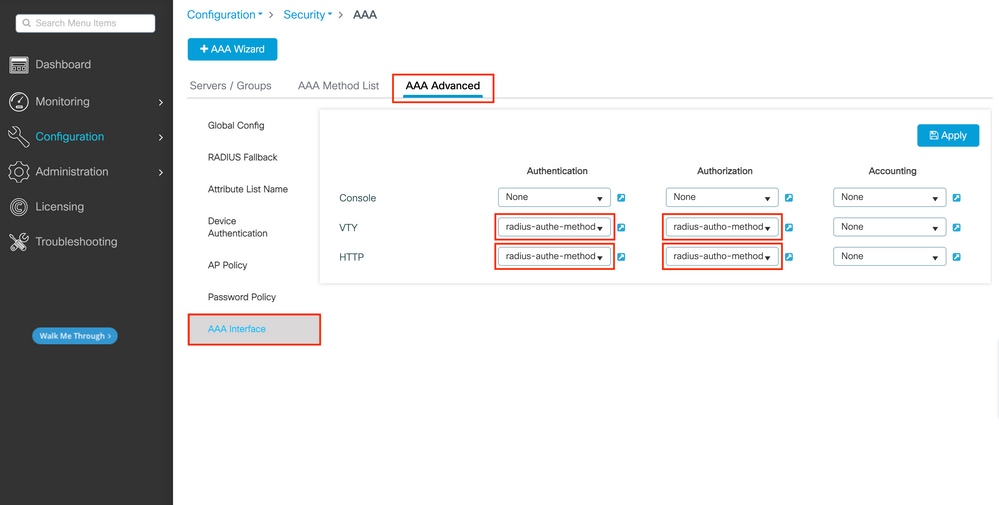
Step 5. Assign the methods to the HTTP configurations and to the VTY lines used for Telnet/SSH
These steps cannot be done from GUI, hence they need to be done from CLI.
- For the GUI authentication:
paolo-9800(config)#ip http authentication aaa login-authentication radAutheMethod
paolo-9800(config)#ip http authentication aaa exec-authorization radAuthzMethod
- For Telnet/SSH authentication:
paolo-9800(config)#line vty 0 15
paolo-9800(config-line)#login authentication radAutheMethod
paolo-9800(config-line)#authorization exec radAuthzMethod
Note: when doing changes to the the HTTP configurations, it is best to restart the HTTP and HTTPS services:
paolo-9800(config)#no ip http server
paolo-9800(config)#no ip http secure-server
paolo-9800(config)#ip http server
paolo-9800(config)#ip http secure-server
RADIUS ISE configuration
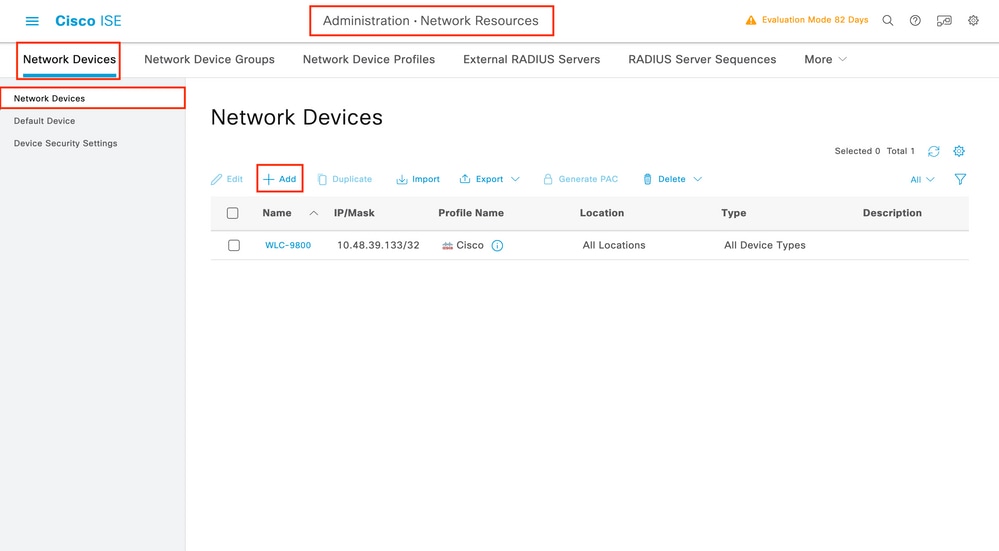
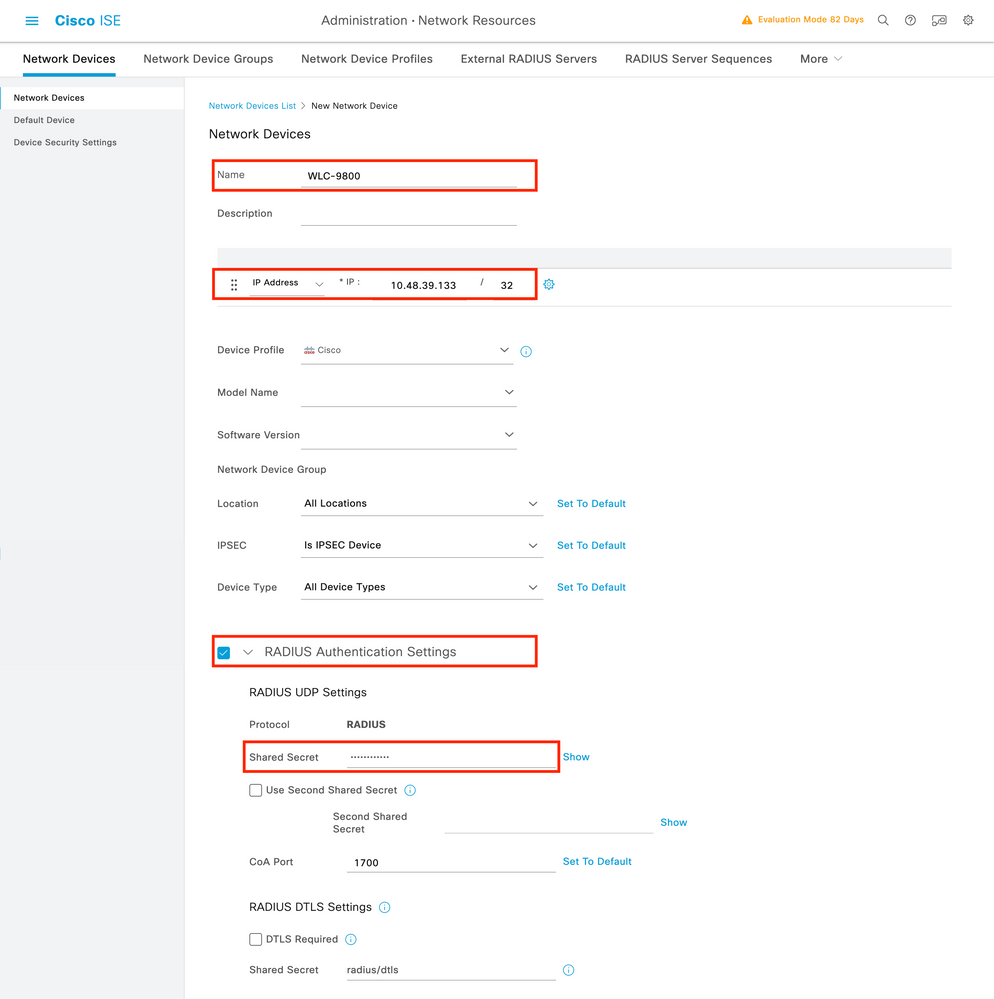
Step 1. Configure the WLC as network device for RADIUS:
In the new window, add the IP address, select RADIUS, and type the same shared secret used on the WLC.
Step 2. Create an authorization result, to return the privilege
In order to do do configurations, 'adminuser' needs to have a privilege level of 15, which will allow to access the exec prompt shell.
The other user instead, 'helpdeskuser' will not need exec prompt shell access, and it can be assigned a privilege level lower than 15.
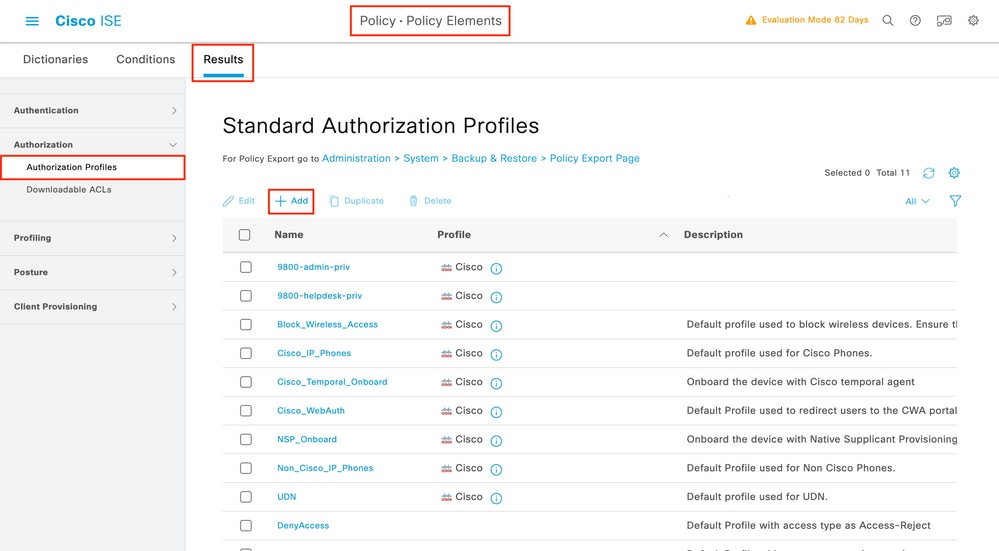
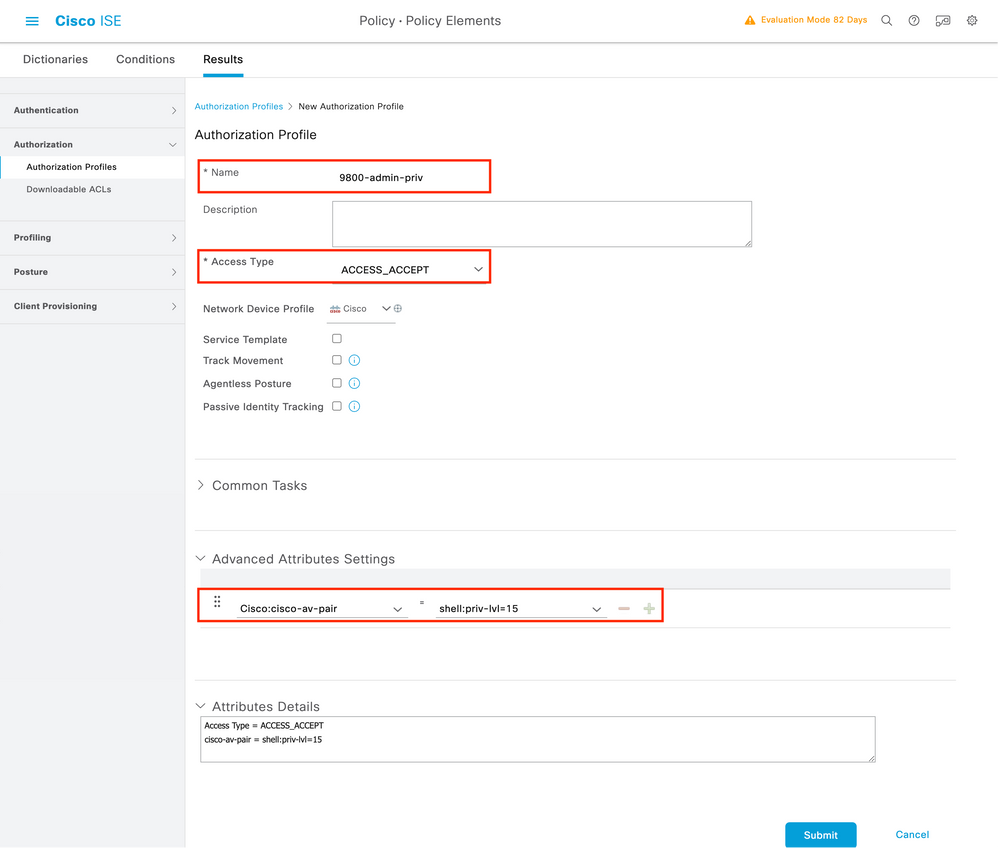
To do so, create an authorization profile result for 'adminuser':
Especially, the profile for 'adminuser' has to look like:
Create then a similar one for the 'helpdeskuser', changing only the string 'shell:priv-lvl=15' to 'shell:priv-lvl=X', and replace X with the desired privilege level.
In this example, we use 1.
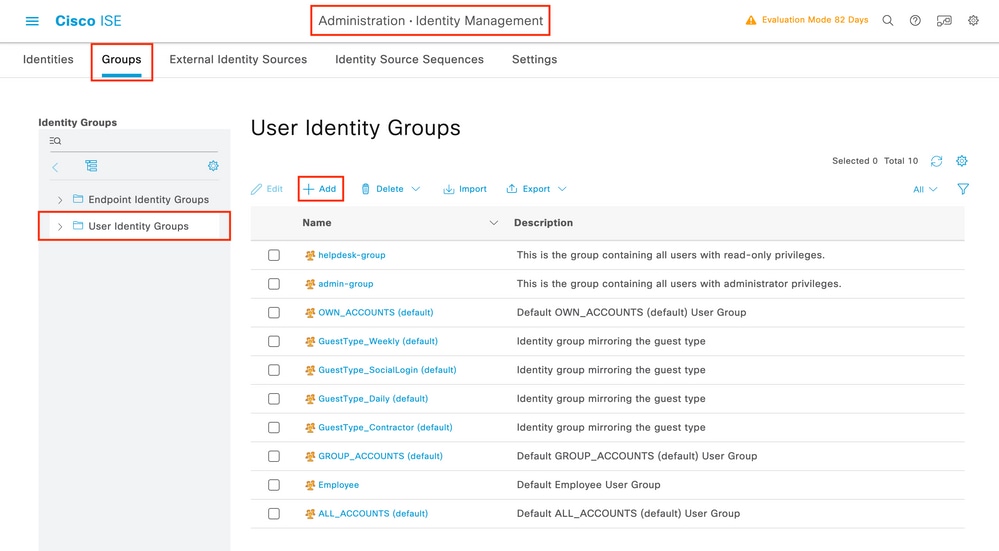
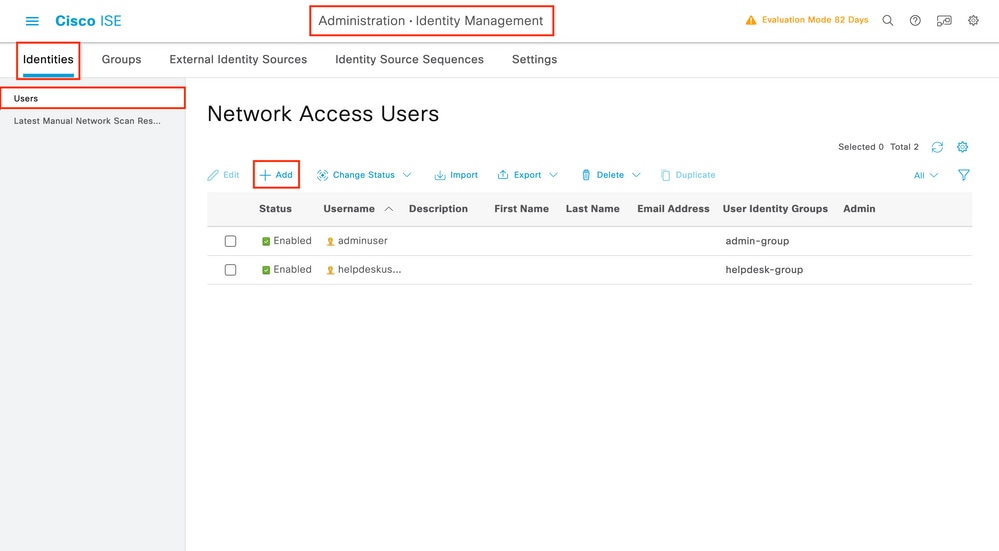
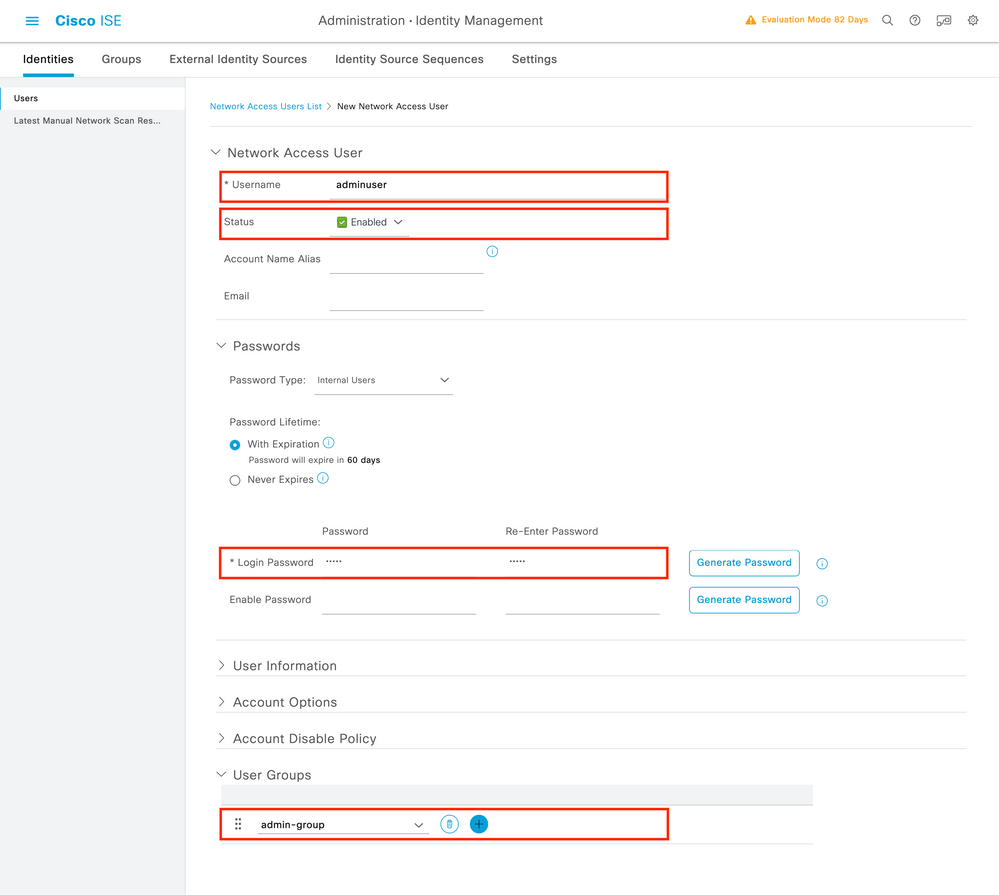
Step 3.Create the users on ISE:
The credentials given to the users will be the ones that you will type in the WLC later when authenticating.
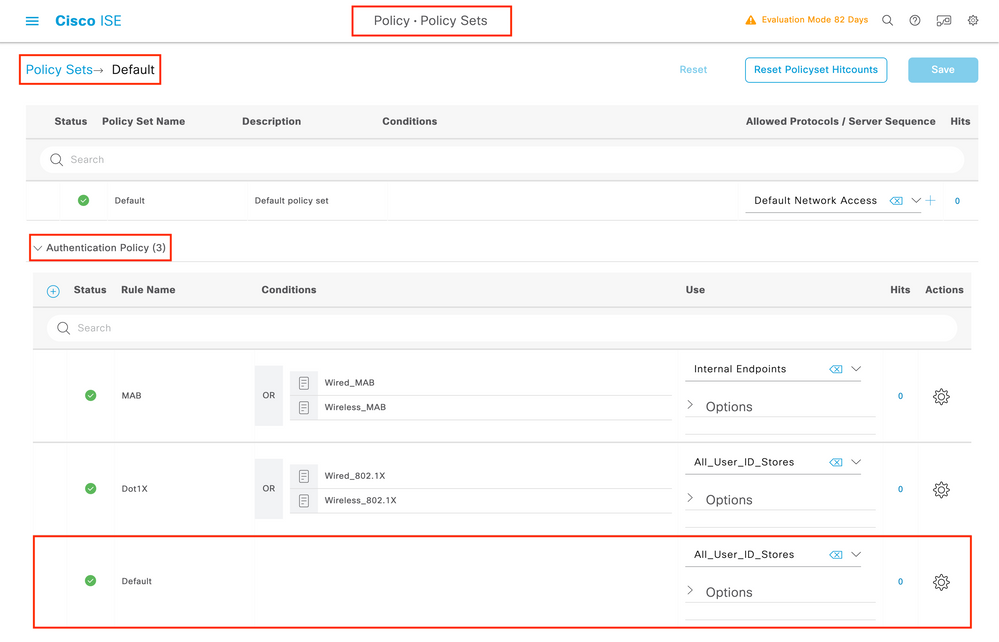
Step 4.Authenticate the users:
In this scenario the default authentication policy rule of ISE preconfigured is already allowing default network access, hence there is no need to change it:
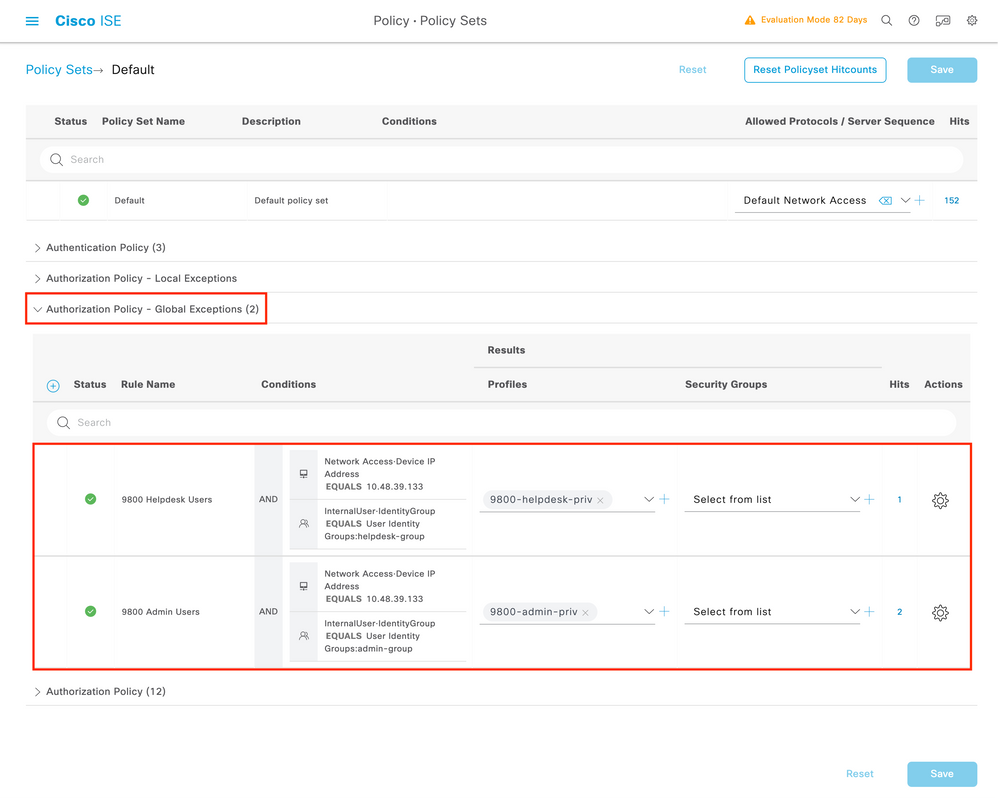
Step 5.Authorize the users:
After the login attempt passes the authentication policy, it needs to be authorized, and ISE needs to return the authorization profile created earlier (permit accept, along with the privilege level).
In this example, we filter the login attempt based on the device IP address (which is the WLC IP address), and distinguish the privilege level to be granted based on the username.
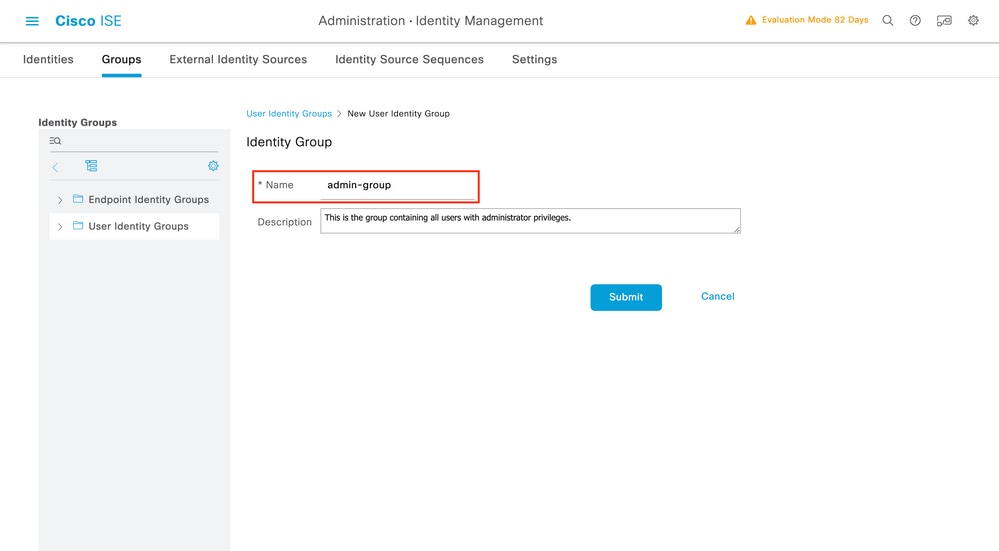
Another valid approach would be to assign all the admin users to a certain group, and to grant privilege level 15 only to the users belonging to such group.
Tacacs+ WLC configuration
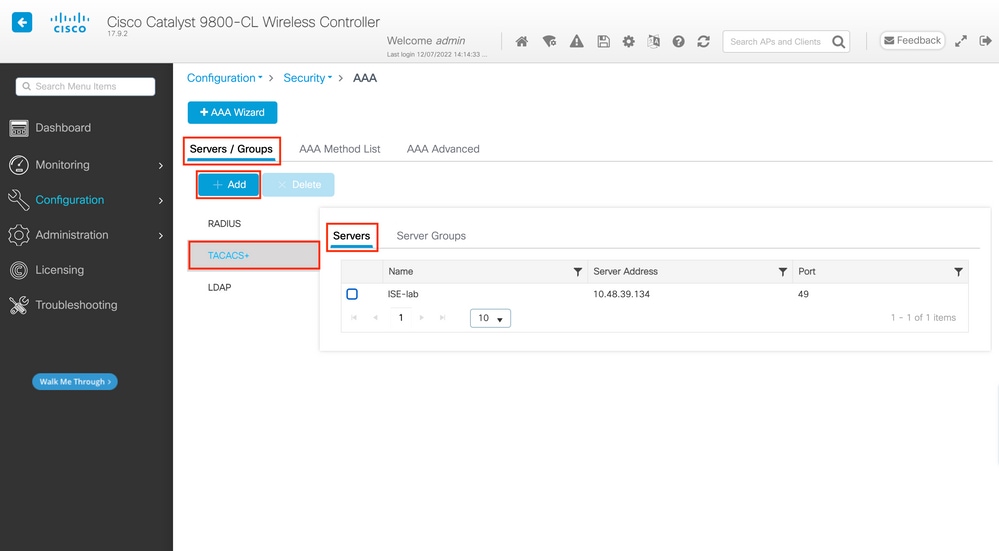
Step 1. Declare the Tacacs+ server
First of all we need to create the Tacacs+ server ISE on the WLC.
This can be done from the GUI WLC page https://<WLC-IP>/webui/#/aaa :
A popup window will open, where you can type the server name (it does not have to match the ISE system name), its IP address, the shared key, and the port being used and the timeout.
From CLI:
paolo-9800(config)#tacacs server labISE
paolo-9800(config-server-tacacs)# address ipv4 10.48.71.92
paolo-9800(config-server-tacacs)# key Cisco123
Step 2.Map the Tacacs+ server to a Server Group
In case you have multiple Tacacs+ servers that can be used for authentication, it is recommended to map all these servers to the same Server Group: the WLC will then takes care of load balancing different authentications among the servers in the server group.
From the same GUI tab:
In the popup, give a name to the group, and move the desired servers to the Assigned list.
From CLI:
paolo-9800(config)#aaa group server tacacs+ tacGroup
paolo-9800(config-sg-tacacs+)# server name labISE
Step 3.Create a AAA authentication login method pointing to the Tacacs+ server group
Always in the GUI page https://<WLC-IP>/webui/#/aaa , move to the AAA Method list tab, and create the Authentication method:
In the popup, give a name to the method, choose type as 'login', and assign the group server created in the previous step.
Note:
- if you select Group Type as 'local' the WLC will first check the if the user exists locally, and will then fallback to the server group
CLI:
paolo-9800(config)#aaa authentication login tacAutheMethod local group tacGroup
- If you select Group Type as 'group', and no fallback to local option checked, the WLC will just check the user against the server group
CLI:
paolo-9800(config)#aaa authentication login tacAutheMethod group tacGroup
- If you select Group Type as 'group', and the fallback to local option is checked, the WLC will check the user against the server group, and will query the local database only if the server is not responding: if the server sends a reject, the user won't be authenticated, even though it may exists on the local database
CLI:
paolo-9800(config)#aaa authentication login tacAutheMethod group tacGroup local
In this setup, some users are only created locally and some users only on the ISE server, hence we use the first option.
Step 4.Create a AAA authorization exec method pointing to the Tacacs+ server group
The user has to be also authorized in order to be granted access. From the same tab:
Use the same order of local/group being used for the authentication method in the previous step, and choose type as 'exec'.
From CLI:
paolo-9800(config)#aaa authorization exec tacAuthzMethod local group tacGroup
Step 5. Assign the methods to the HTTP configurations and to the VTY lines used for Telnet/SSH
These steps cannot be done from GUI, hence they need to be done from CLI.
- For the GUI authentication:
paolo-9800(config)#ip http authentication aaa login-authentication tacAutheMethod
paolo-9800(config)#ip http authentication aaa exec-authorization tacAuthzMethod
- For Telnet/SSH authentication:
paolo-9800(config)#line vty 0 15
paolo-9800(config-line)#login authentication tacAutheMethod
paolo-9800(config-line)#authorization exec tacAuthzMethod
Note: when doing changes to the the HTTP configurations, it is best to restart the HTTP and HTTPS services:
paolo-9800(config)#no ip http server
paolo-9800(config)#no ip http secure-server
paolo-9800(config)#ip http server
paolo-9800(config)#ip http secure-server
Tacacs+ ISE configuration
Step 1. Configure the WLC as network device for Tacacs+:
Note that in this example, the WLC is already added for RADIUS, hence click on edit, and scroll down to TACACS Authentication Settings, and add the needed secret:
Note: in order to use ISE as TACACS+ server, you must have a Device Administration license package, and either a Base or a Mobility license.
Also, once the licenses are installed, you must enable the Device Admin feature for the node. To do so, edit the node deployment node under Administrator > Deployment, and check the box:
Step 2. Create TACACS Profiles, to return the privilege
In order to do configurations, 'adminuser' needs to have a privilege level of 15, which will allow to access the exec prompt shell.
The other user instead, 'helpdeskuser' will not need exec prompt shell access, and it can be assigned a privilege level lower than 15.
To do so, create TACACS Profiles:
Configure an admin profile with privilege 15 as follows :
In the Helpdesk profile instead, the Default Privilege is set as 1.
Step 3. Create the users on ISE:
This is the same as on step 3 of the RADIUS ISE configuration
Step 4. Create a Device Admin Policy Set:
The specific Policy Set "IOS-9800", in this example, filters requests with IP Address equal to the example 9800 IP.
As authentication policy, we leave the Default Rule, and have set up two Authorization rules:
- the first one is triggered when the username is 'adminuser', it permits all commands (via the default 'Permit_all') rule, and it assigns privilege 15 (via 'IOS_Admin)
- the second one is triggered when the username is 'helpdeskuser', it permits all commands (via the default 'Permit_all') rule, and it assigns privilege 15 (via 'IOS_Helpdesk)
Troubleshooting
In order to troubleshoot TACACS+ access to the WLC's GUI or CLI, issue the 'debug tacacs' command, along with 'term mon' and see the live output when a login attempt is made.
A successful login attempt of the 'adminuser' user is shown below:
paolo-9800#terminal monitor
paolo-9800#debug tacacs
TACACS access control debugging is on
paolo-9800#
Apr 17 12:16:55.269: TPLUS: Queuing AAA Authentication request 0 for processing
Apr 17 12:16:55.270: TPLUS(00000000) login timer started 1020 sec timeout
Apr 17 12:16:55.270: TPLUS: processing authentication start request id 0
Apr 17 12:16:55.270: TPLUS: Authentication start packet created for 0(adminuser)
Apr 17 12:16:55.270: TPLUS: Using server 10.48.71.92
Apr 17 12:16:55.270: TPLUS(00000000)/0/NB_WAIT/7FF771A25E18: Started 5 sec timeout
Apr 17 12:16:55.271: TPLUS(00000000)/0/NB_WAIT: socket event 2
Apr 17 12:16:55.271: TPLUS(00000000)/0/NB_WAIT: wrote entire 29 bytes request
Apr 17 12:16:55.271: TPLUS(00000000)/0/READ: socket event 1
Apr 17 12:16:55.272: TPLUS(00000000)/0/READ: Would block while reading
Apr 17 12:16:55.277: TPLUS(00000000)/0/READ: socket event 1
Apr 17 12:16:55.277: TPLUS(00000000)/0/READ: read entire 12 header bytes (expect 15 bytes data)
Apr 17 12:16:55.277: TPLUS(00000000)/0/READ: socket event 1
Apr 17 12:16:55.277: TPLUS(00000000)/0/READ: read entire 27 bytes response
Apr 17 12:16:55.277: TPLUS(00000000)/0/7FF771A25E18: Processing the reply packet
Apr 17 12:16:55.278: TPLUS: Received authen response status GET_PASSWORD (8)
Apr 17 12:16:55.278: TPLUS: Queuing AAA Authentication request 0 for processing
Apr 17 12:16:55.278: TPLUS(00000000) login timer started 1020 sec timeout
Apr 17 12:16:55.279: TPLUS: processing authentication continue request id 0
Apr 17 12:16:55.279: TPLUS: Authentication continue packet generated for 0
Apr 17 12:16:55.279: TPLUS(00000000)/0/WRITE/7FF771A25E18: Started 5 sec timeout
Apr 17 12:16:55.279: TPLUS(00000000)/0/WRITE: wrote entire 25 bytes request
Apr 17 12:16:55.302: TPLUS(00000000)/0/READ: socket event 1
Apr 17 12:16:55.302: TPLUS(00000000)/0/READ: read entire 12 header bytes (expect 103 bytes data)
Apr 17 12:16:55.302: TPLUS(00000000)/0/READ: socket event 1
Apr 17 12:16:55.302: TPLUS(00000000)/0/READ: read entire 115 bytes response
Apr 17 12:16:55.302: TPLUS(00000000)/0/7FF771A25E18: Processing the reply packet
Apr 17 12:16:55.302: TPLUS: Received authen response status PASS (2)
Apr 17 12:16:55.303: TPLUS: Queuing AAA Authorization request 0 for processing
Apr 17 12:16:55.303: TPLUS(00000000) login timer started 1020 sec timeout
Apr 17 12:16:55.303: TPLUS: processing authorization request id 0
Apr 17 12:16:55.304: TPLUS: Inappropriate protocol: 25
Apr 17 12:16:55.304: TPLUS: Sending AV service=shell
Apr 17 12:16:55.304: TPLUS: Sending AV cmd*
Apr 17 12:16:55.304: TPLUS: Authorization request created for 0(adminuser)
Apr 17 12:16:55.304: TPLUS: Using server 10.48.71.92
Apr 17 12:16:55.304: TPLUS(00000000)/0/NB_WAIT/7FF771A25E18: Started 5 sec timeout
Apr 17 12:16:55.305: TPLUS(00000000)/0/NB_WAIT: socket event 2
Apr 17 12:16:55.305: TPLUS(00000000)/0/NB_WAIT: wrote entire 48 bytes request
Apr 17 12:16:55.305: TPLUS(00000000)/0/READ: socket event 1
Apr 17 12:16:55.305: TPLUS(00000000)/0/READ: Would block while reading
Apr 17 12:16:55.335: TPLUS(00000000)/0/READ: socket event 1
Apr 17 12:16:55.335: TPLUS(00000000)/0/READ: read entire 12 header bytes (expect 18 bytes data)
Apr 17 12:16:55.335: TPLUS(00000000)/0/READ: socket event 1
Apr 17 12:16:55.335: TPLUS(00000000)/0/READ: read entire 30 bytes response
Apr 17 12:16:55.335: TPLUS(00000000)/0/7FF771A25E18: Processing the reply packet
Apr 17 12:16:55.335: TPLUS: Processed AV priv-lvl=15
Apr 17 12:16:55.335: TPLUS: received authorization response for 0: PASS
Apr 17 12:16:55.335: AAA Proxy: Couldnt get the login info
Apr 17 12:16:55.426:  Socket I/O cleanup message sent to TACACS

Apr 17 12:16:55.426:  Socket I/O cleanup message sent to TACACS
TPLUS Proc:SOCKET IO CLEANUP EVENT
TPLUS Proc:SOCKET IO CLEANUP EVENT

Apr 17 12:16:55.336: %WEBSERVER-5-LOGIN_PASSED: Chassis 1 R0/0: nginx: Login Successful from host 10.149.4.75 by user 'adminuser' using crypto cipher 'ECDHE-RSA-AES256-GCM-SHA384'
It can be seen that the Tacacs+ server returns the correct privilege 'AV priv-lvl=15'
When doing RADIUS authentication, instead, we will have a similar debug output, concerning the RADIUS traffic.
'debug aaa authentication' and 'debug aaa authorization' will instead show which method list is being selected by the WLC when the use tries to login.
 Feedback
Contact Cisco
- Open a Support Case

- (Requires a Cisco Service Contract)
This Document Applies to These Products
- Collaboration Endpoints - Retired Products
- Conferencing - Retired Products
- Contact Center - Retired Products
- Optical Networking - Retired Products
- Routers - Retired Products
- Security - Retired Products
- Servers - Unified Computing (UCS) Retired Products
- Storage Networking Retired Products
- Switches - Retired Products
- Video - Retired Products
- Wireless - Retired Products