Location Hierarchy
The Location Hierarchy feature simplifies importing locations in the same structure that you define using Cisco AireOS Wireless Controller, Cisco Catalyst 9800 Series Wireless Controller, or Cisco Meraki in your wireless network.
The hierarchical structure in maps imported from Cisco Prime Infrastructure or Catalyst Center is automatically reflected in Location Hierarchy.
In Location Hierarchy window, the default customer name (root location) is automatically selected, and the Map tab displays the location on the map.
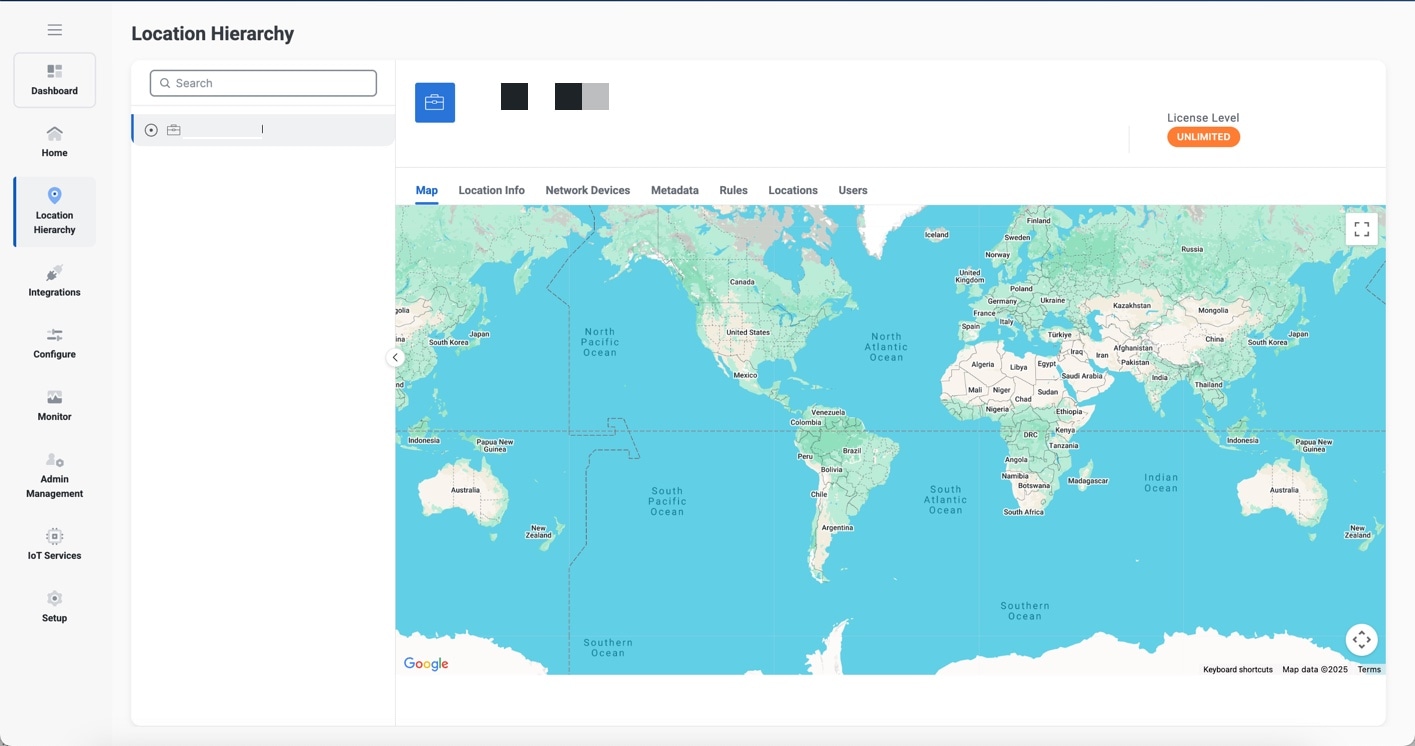
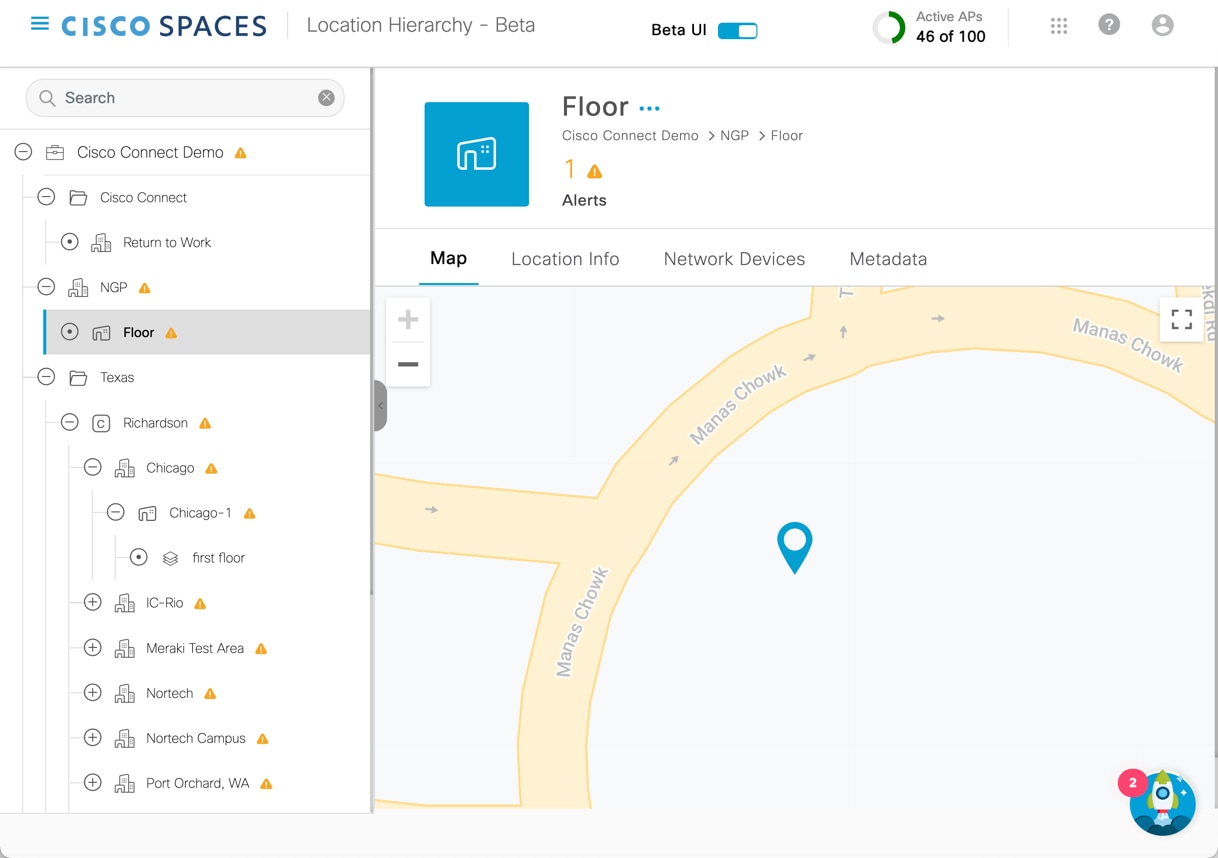
The left pane of the Location Hierarchy window displays the imported root locations with the default customer name (root name). You can click the plus sign to expand and view the hierarchy. You can view the buildings and the associated floors in the root location.
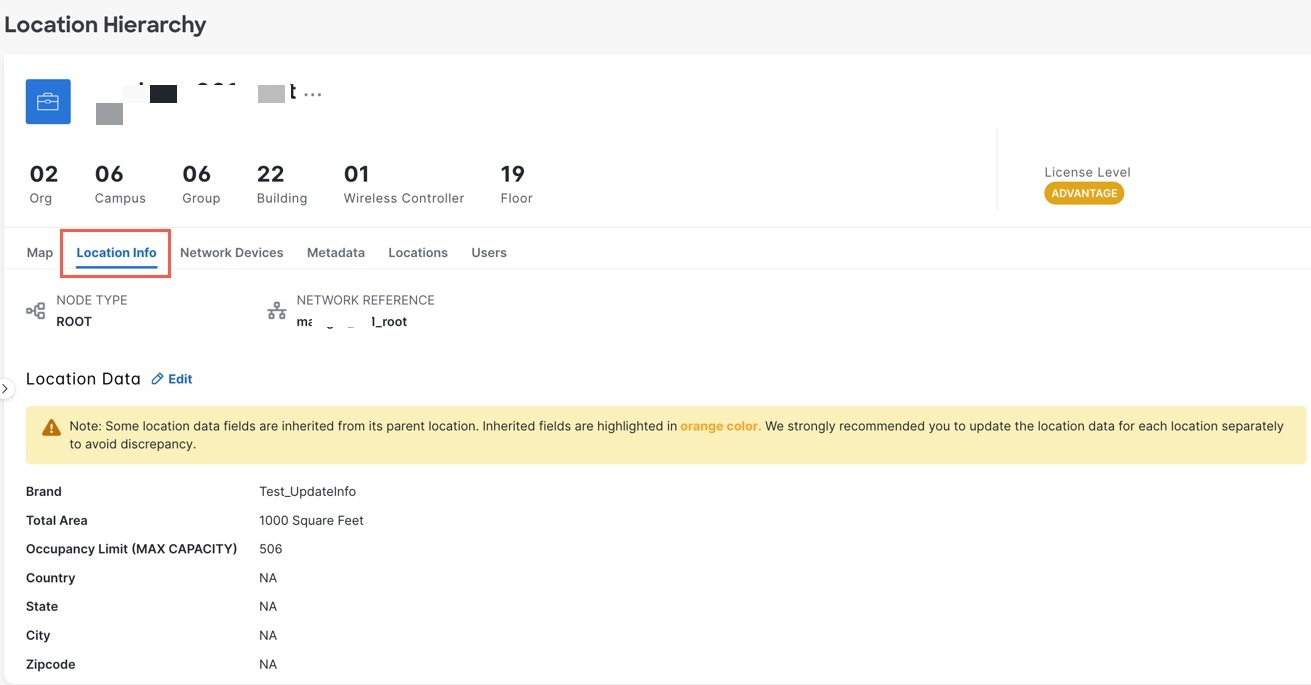
If you select a root location from the left pane, you can also view additional information related to the number of organizations, campuses, wireless controller, buildings, groups, floors and zones.
When Smart Licensing is enabled, Cisco Spaces can display license-level badges next to locations in the hierarchy tree. The badge indicates the license level that is applicable to the corresponding hierarchy node.
For a selected location, building or floor, additional information is displayed in the following tabs:
-
Map: Displays the selected location on the map
-
Location Info: Displays the location data information
-
Network Devices: Displays all the connected network devices and running devices and view the count of these devices
-
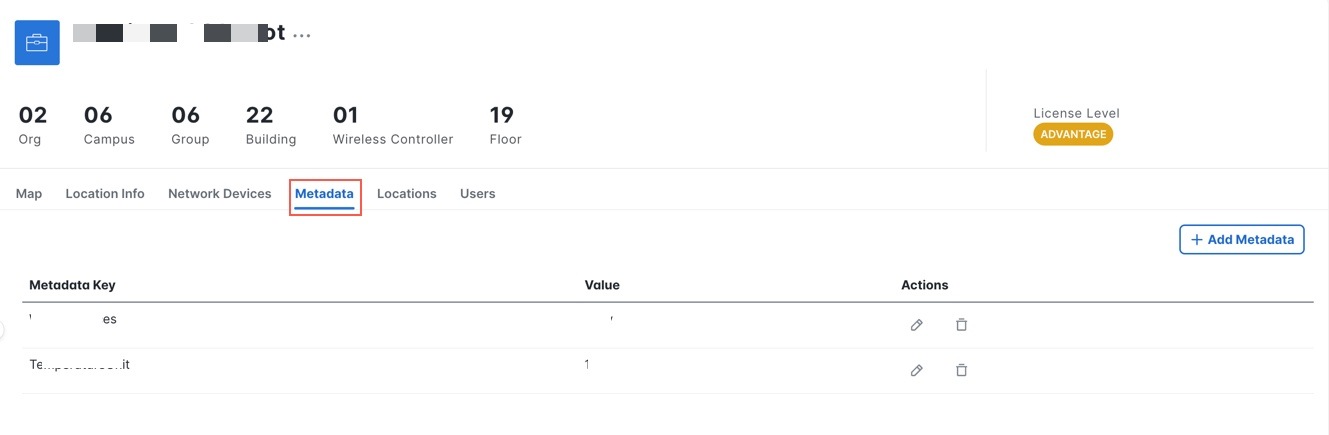
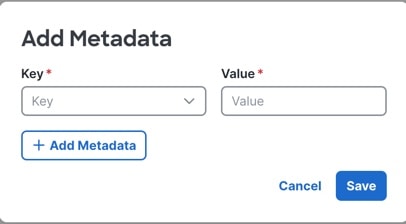
Metadata: Displays the configured metadata information
-
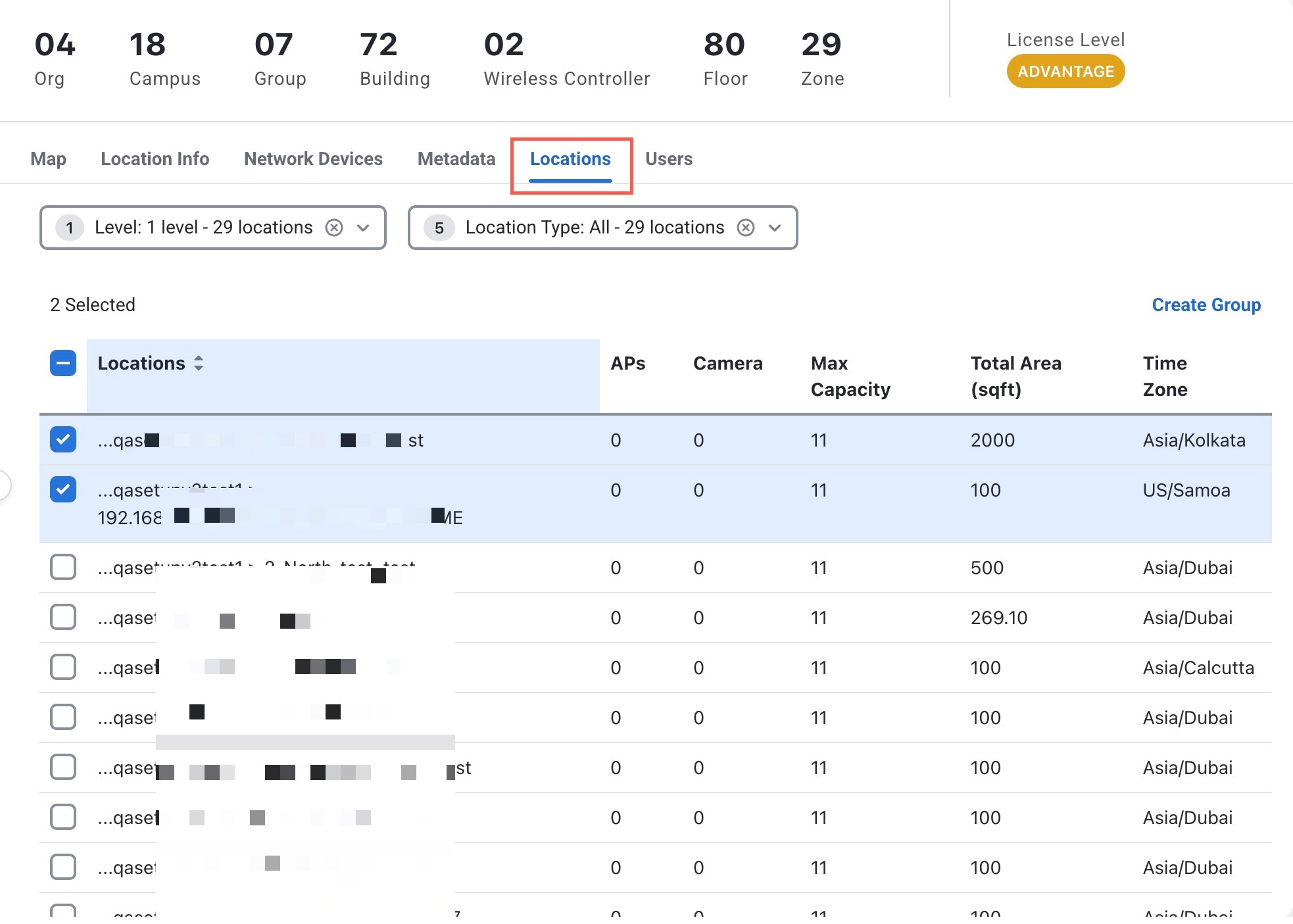
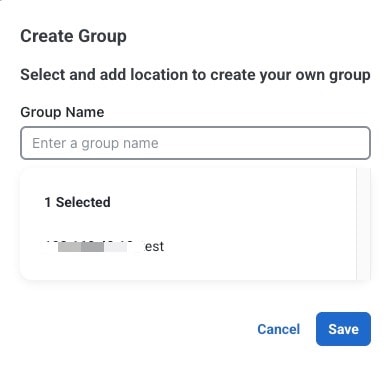
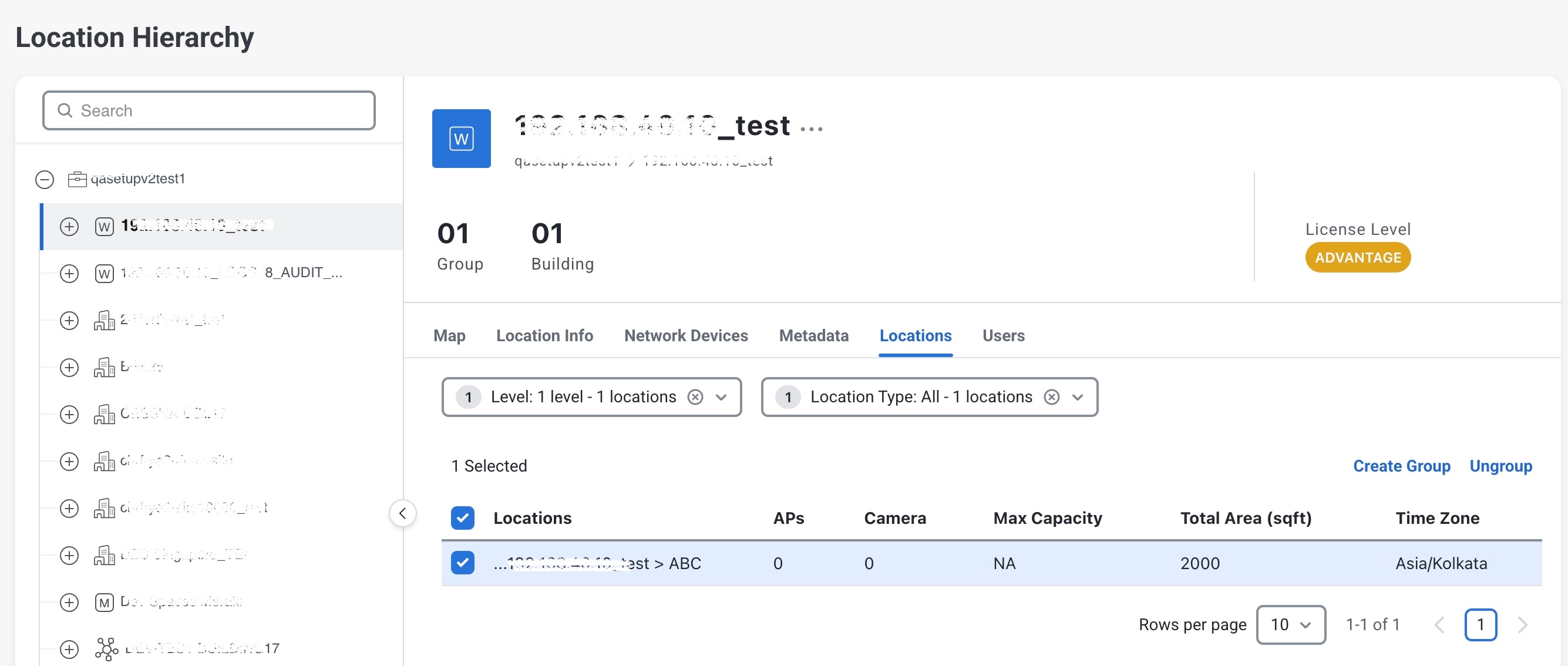
Locations: Displays the location nodes
-
Users: Displays the users
You can perform the following additional tasks in the Location Hierarchy window:
-
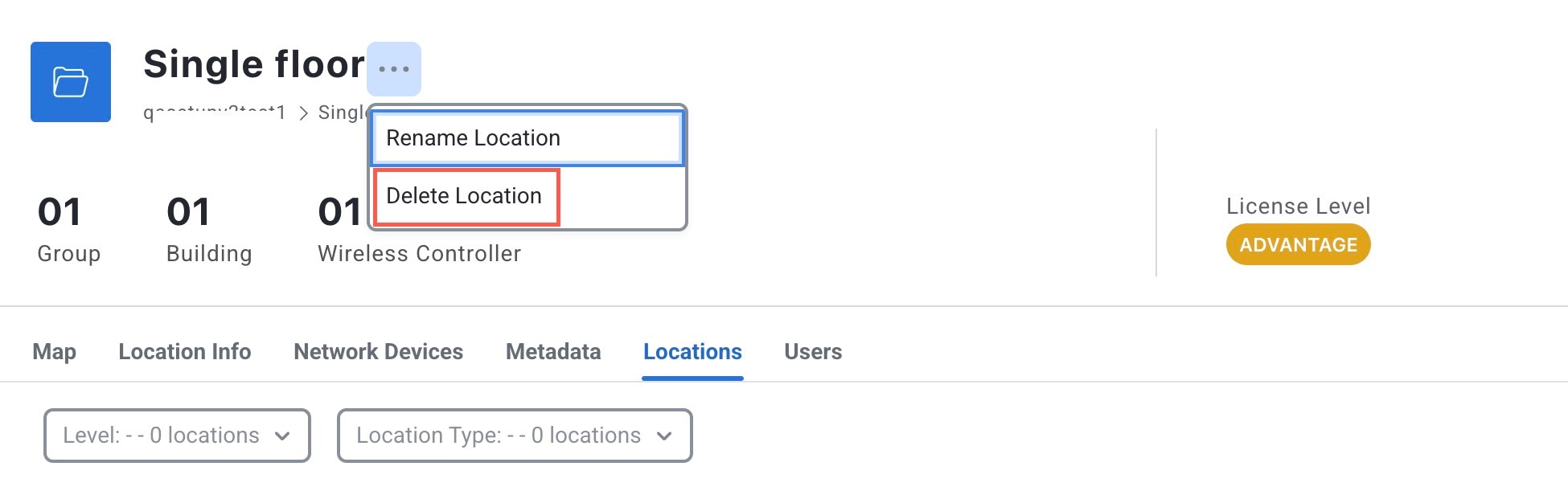
Rename: Click the three dots next to the location and click Rename Location to edit the location name.
-
For the root location, only the option to rename the location is displayed.
-
For all other locations except the root, both the options to rename and delete the location is displayed.
-
-
Delete: Click the three dots next to the location and click Delete Location to delete the location from Location Hierarchy.
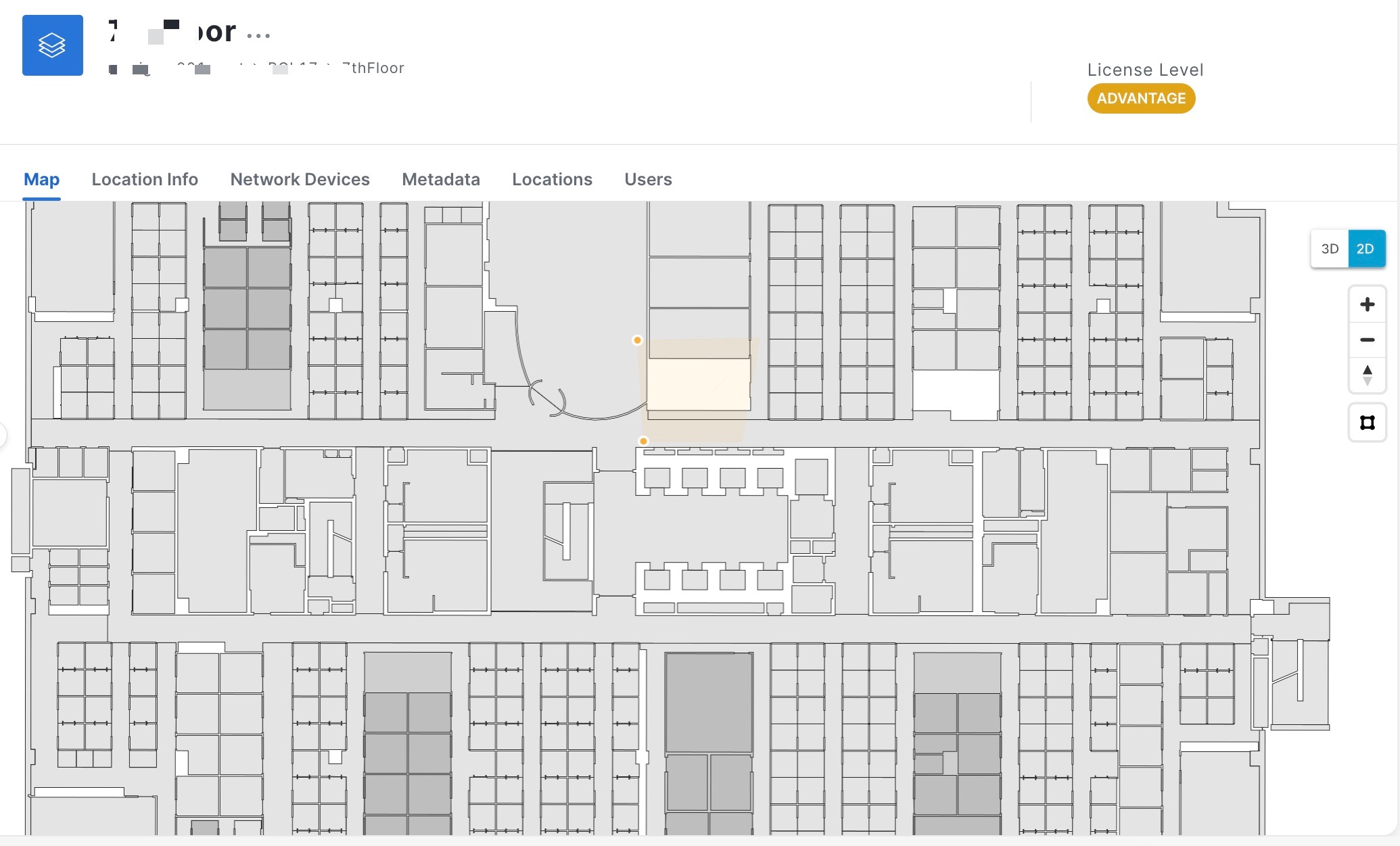
Location Hierarchy shows rich maps, if they are available for a particular floor. The option to upload rich maps is currently available under . Click the 3D toggle button to switch between 2D and 3D floor maps.
In Location Hierarchy, only those locations that a Cisco Spaces user can access are displayed. The accessibility to these locations are defined when you create or edit roles or invite or edit the Cisco Spaces user in Admin Management.
 )
) 
 ) to create zones. For more information, refer to
 Feedback