The documentation set for this product strives to use bias-free language. For the purposes of this documentation set, bias-free is defined as language that does not imply discrimination based on age, disability, gender, racial identity, ethnic identity, sexual orientation, socioeconomic status, and intersectionality. Exceptions may be present in the documentation due to language that is hardcoded in the user interfaces of the product software, language used based on RFP documentation, or language that is used by a referenced third-party product. Learn more about how Cisco is using Inclusive Language.
The Data Export feature in Cisco Spaces helps you to set up the automatic export of raw-level data as CSV files to any available storage destinations.
Cisco Spaces captures a variety of data of users at the location including user acquisition data, user visit data, proximity rule match
data, and so on.
Exports are provided as flat files (CSV) that are uploaded directly to the customer's storage destination. Optionally, this
can be transferred over a VPN connection if the destination server is not accessible over the public internet. The upload
frequency can be customized to suit customer requirements and the volume of data. This supports fully automated ingestion
into customer systems.
For more information about routing the SFTP connection over VPN and additional details, contact Cisco Spaces support.
Note
Customer acquisition data export does not support data for portals with the authentication types: No Authentication and Access Code.
As part of the visits data export, visits with a duration of less than zero minutes (less than 0 min) are excluded. This removes
invalid or transient visit records that could inflate visitor counts.
Visits with a duration of more than 720 minutes are also excluded. This removes long-running, always-on device sessions that
would otherwise inflate visitor counts.
For the Cisco Spaces dashboard EXTEND license customer accounts, data export types such as Captive portal, and Engagement and Location Personas are not
available for export.
For ADVANTAGE license customer accounts, all data types are available for export.
For ESSENTIAL (formerly known as SEE) license accounts, Data Export feature is restricted in the enhanced React version of Cisco Spaces.
Create Export Data
Procedure
Step 1
In Cisco Spaces, click the Menu icon () and choose Setup > Data Export.
Step 2
Click Create New Export.
The Create New Data Export window is displayed with the following configuration options in the chronological order:
Data Type
Locations
Schedule
File Format
Connection
Summary
Figure 1. Create New Data Export
Step 3
From the Data Type drop-down list, select the data type.
The following data types are available:
Table 1. Data Types
Data Types
Description
Visits
Log Timestamp, Timezone, Local Date, Local Hour, Local Minute, Device ID, User ID, User Name, MAC Address, Visit Start Timestamp,Visit
End Timestamp,Visit Duration, Location Information
Right Now - People Count (Wi-Fi)
Log Timestamp, Local Date, Local Hour, Local Minute, Associated Users Count, Estimated Probing Count, Estimated Density, Location
Information
Captive Portal - Customer Acquisition
Log Timestamp, Timezone, Local Date, Local Hour, Local Minute, Acquisition Type, Device ID, User ID, MAC Address, Acquisition
Handle, Opt In, Phone Number, Email, First Name, Last Name, Gender,Age, Business Tag Name, Business Tag Value, Social Network,
Social Network Profile URL, Social Network Picture, CPF Number, Location Information
Note
When you create or edit a Visits export, use the Include PII toggle to control whether the export contains the User Name and MAC Address fields.
The toggle is enabled by default. When enabled, the generated Visits export includes User Name and MAC Address. When disabled,
Cisco Spaces omits both fields from the generated file. Other selected Visits fields are not affected.
For each data type, you must select the levels in Location Hierarchy and location information to include in the export.
The location selection is based on the location type selected in the Data Type field.
The location selection option is not available for the data types Engagement, Captive Portal and Location Personas.
Cisco Spaces captures various user data at location including user acquisition data, user visit data, engagement rule match data, and
so on.
In the Location Information area, the following fields are displayed depending on the selected configuration. All these fields are optional and you can
choose to select them to include in the data export.
Location Name
Location Type
Hierarchy Path
City
State
Country
Capacity
Area
The recent hour data for the selected data type is displayed in the sample export.
Use the INCLUDE PII toggle to choose whether Personally Identifiable Information (PII), such as MAC Address and username, is included in the
export.
Note
This option is available only if you select Data Type as Visits Export in the Create or Edit Export workflow. By default, the toggle is enabled, so the exported file includes the username
and MAC Address fields. You can disable the toggle to exclude these fields from the export.
Cisco Spaces uses standardized values in the Location Type field of export files. Use the these values when processing exported
location data:
Table 2.
Previous value
Current value
Description
cmxzone or merakizone
zone
Unified value for all zone types
meraki
org
Organization associated with a Cisco Meraki network
MSE
cmx
Location associated with Cisco CMX
Update downstream parsers, mapping, and validation rules to accept zone, org, and cmx.
Click Next to navigate to Locations.
Step 4
Check the Enable this export for all locations check box to select all available locations and click Next to navigate to Schedule.
If you want to select the locations to be exported individually, uncheck the Enable this export for all locations check box and select the locations.
Step 5
In the Export Schedule area, from the Recurrence drop-down list, select the export recurrence to schedule a data export. The export is scheduled based on the configured timezone.
The options are:
Hourly: Select this option to schedule data export every hour. From the Timezone drop-down list, select the required timezone.
Daily: Select this option to schedule data export on a daily basis. From the Timezone drop-down list, select the required timezone and also select the hour of the day when the data is to be exported.
Weekly: Select this option to schedule data export on a weekly basis. Select the day and from the Timezone drop-down list, select the required timezone and also select the hour of the day when the data is to be exported.
Step 6
Click Next to navigate to File Format.
Step 7
In the Delimiter area, select the data separator symbol code preference.
The options are:
Pipe
Comma
Tab
Custom character: In the Custom Character field, enter the character of your preference. You can use any special character except /,\, &, ',".
Note
For the options Pipe, Comma, and Tab you must provide additional inputs.
Step 8
In the Compress export data, select Yes or No if you need a compressed export.
Note
We recommend that you select the compressed format for data export.
Step 9
In the File Name Format field, enter the filename prefix and select the format for date and time.
Step 10
From the Select Date & Time Format drop-down list, select the format.
Step 11
Click Next to navigate to Connection.
Step 12
In the Connection Type area, from the Select Destination drop-down, select the destination type.
Depending on the connection type selected, enter the configuration parameters. The available connection types are:
SFTP
Amazon S3
Microsoft Azure Blob Storage
Google Cloud Storage
Box
Enter the following parameters if the connection type is SFTP server:
SFTP Host: Enter the hostname or IP address of the server in the following format hostname.server.com.
Port: Enter the port number you want to connect to the SFTP server.
Username: Enter the username.
Use Password: Choose this radio button and enter your password to connect to the SFTP server.
Use Private Key: Choose this radio button to use the private key to connect to the SFTP server. You must use the Upload Private Key option to upload the private key and enter the passphrase.
Note
You can either choose Use Password or Use Private Key based on the SFTP configuration to establish the connection.
Password or passphrase selection is based on the SFTP server.
We recommend that you use RSA private key because OpenSSH key based authentication is not supported.
Upload Path: Enter the upload path for the export data.
Enter the following parameters if the connection type is Amazon S3:
Access Key: Enter the access key for your Amazon S3 bucket.
Secret Key: Enter the secret key for your Amazon S3 bucket.
Region: From the Region drop-down list, select the region for your Amazon S3 bucket.
Bucket Name: Enter the bucket name depending upon the selected region.
Upload Path: Enter the upload path for the export data.
Enter the following parameters if the connection type is Microsoft Azure Blob Storage:
Account Name: Enter the storage account name for the Microsoft Azure Blob Storage.
Account Key: Enter the account key for your Microsoft Azure Blob Storage.
Container Name: Enter the container name.
Upload Path: Enter the upload path for the export data.
Enter the following parameters if the connection type is Google Cloud Storage:
Bucket Name: Enter the bucket name.
Upload Path: Enter the upload path for the export data.
For the connection type Box, in the Upload Path field, enter the folder name created in Box for exporting the data and click Authenticate.
Ensure that a box account is available to authenticate Data Export.
Enter the same username and password credentials to authenticate to the box. Single sign-on (SSO) method for authentication
is not supported.
Note
After a successful authentication, provide full access to Cisco Spaces to access files in the box location. Click Grant access to box to grant full permission to Cisco Spaces to export the data.
Custom data export is currently not supported for box destinations.
Step 13
Click Connect.
If the connection is successful, the following message is displayed: Connection Established.
Step 14
Click Next to navigate to Summary.
Step 15
In the Add a name to your data export field, enter the name for the data export.
Step 16
Review the data export details and click Export.
A sample file is available in the upload path of the connection type once the export is configured.
In the Create New Export window, the data export details such as name, connection type, schedule, next export detail and the last successful export
information are displayed.

 ) and choose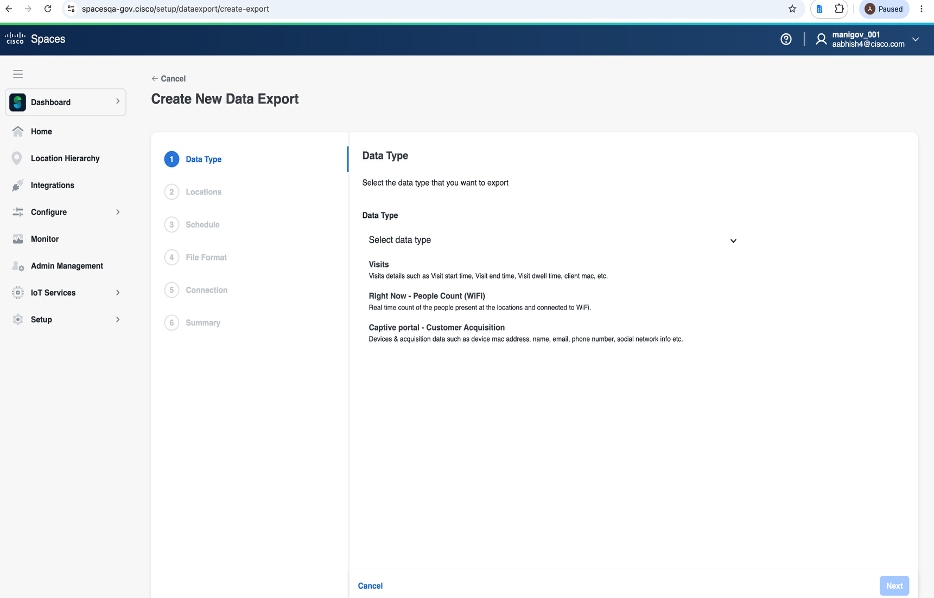
 Feedback