Monitor
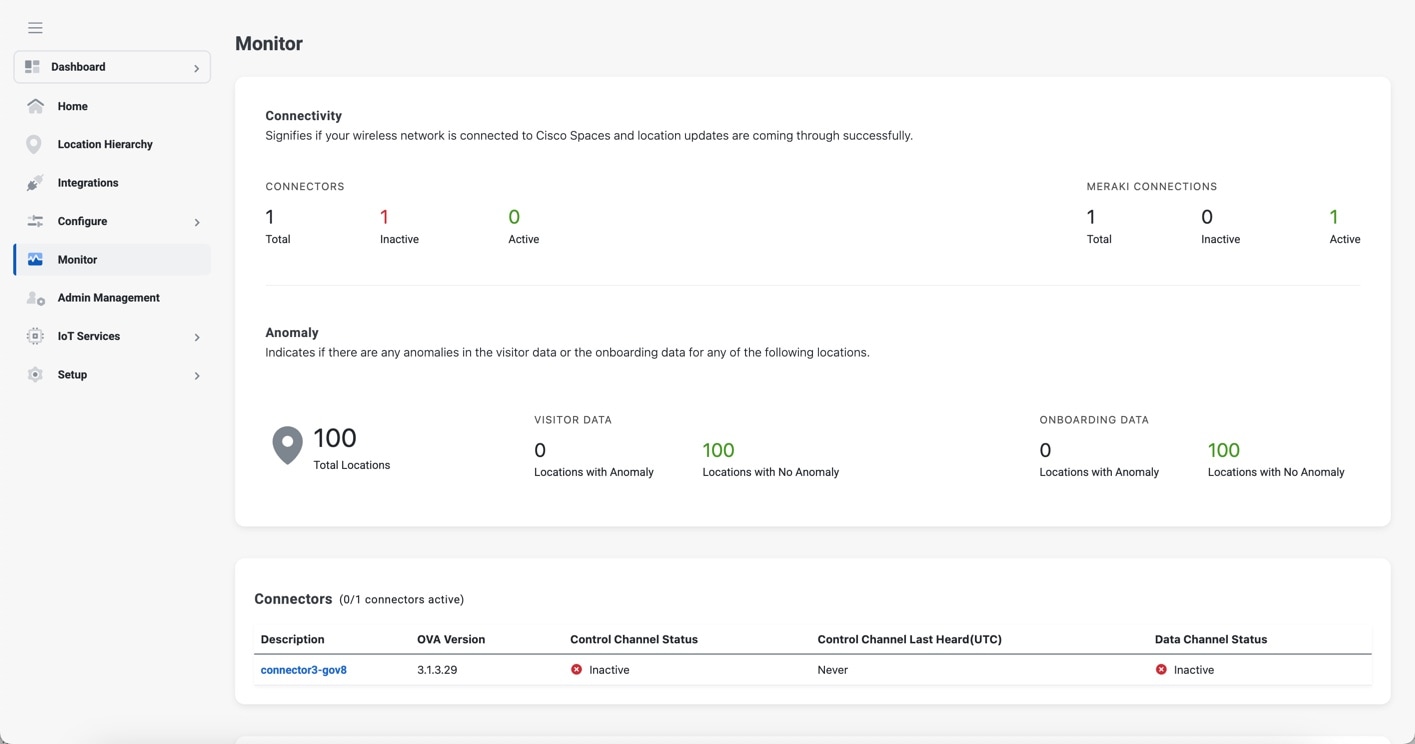
The Monitor window serves as the centralized health and diagnostic hub for your Cisco Spaces environment. Use the Monitor feature to monitor the health details and performance metrics of Cisco Spaces.
By using this feature, administrators can quickly identify connectivity gaps, address data anomalies, and ensure that location services are functioning optimally.
View these details:
-
Connectivity: Signifies if your wireless network is connected to Cisco Spaces and location updates are coming through successfully. View the details for connectors, controllers and Meraki connections.
-
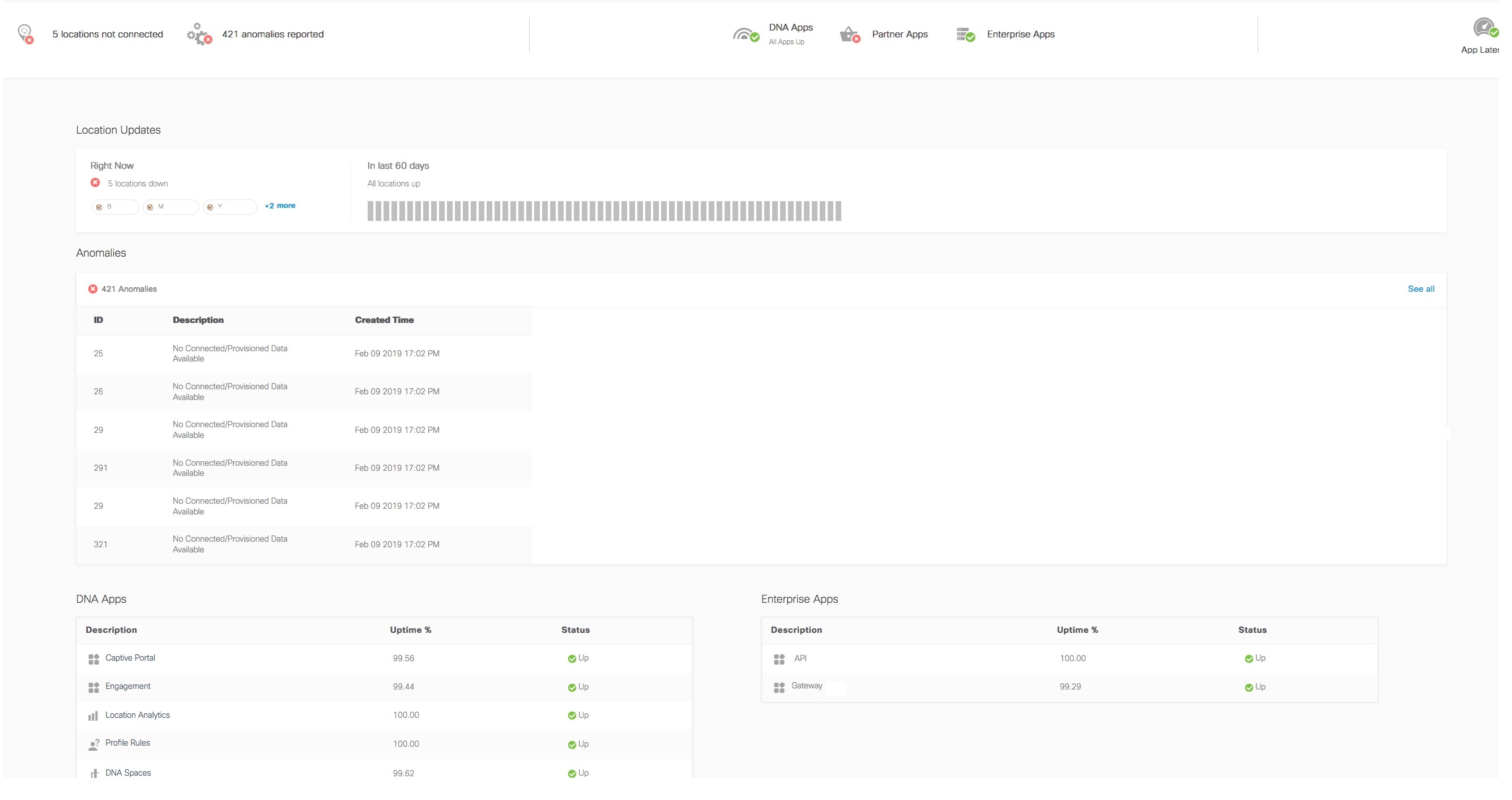
Anomaly: Displays the current status of location updates and internet provisioning (this is applicable only of you have configured customer acquisition through captive portals) in the locations. This section is marked as up if location updates and internet provisioning are happening for all the locations without any issues. If any of them is not happening for any location, the status will be down. If both location update and internet provisioning are not happening for a location, such locations will be listed out.
-
Connectors: Displays the active connectors. Click a controller to view the descriptions, OVA version, control channel status, control channel last heard (UTC) and data channel status for active connectors.
-
Controllers: Displays the active controllers. View the description, type, last geard (UTC) and status for active controllers. You can monitor the status of your wireless controllers. This provides insight into whether your hardware is successfully transmitting data to the platform.
-
Location Updates: Displays the current location update status for the locations to which you have access. This section will be marked as up if location updates are received from all the locations, and the status will be All Locations Connected. If there is any location update issue, this section will be marked as down, and the total number of locations that have location update issue will be displayed.
 Feedback