Cisco Spaces Dashboard

Cisco Spaces Dashboard

Cisco Spaces dashboard is the default home page of Cisco Spaces application. The Cisco Spaces GUI adopts the Magnetic design implementation. Magnetic design follows a persistent header and collapsible left navigation pane.

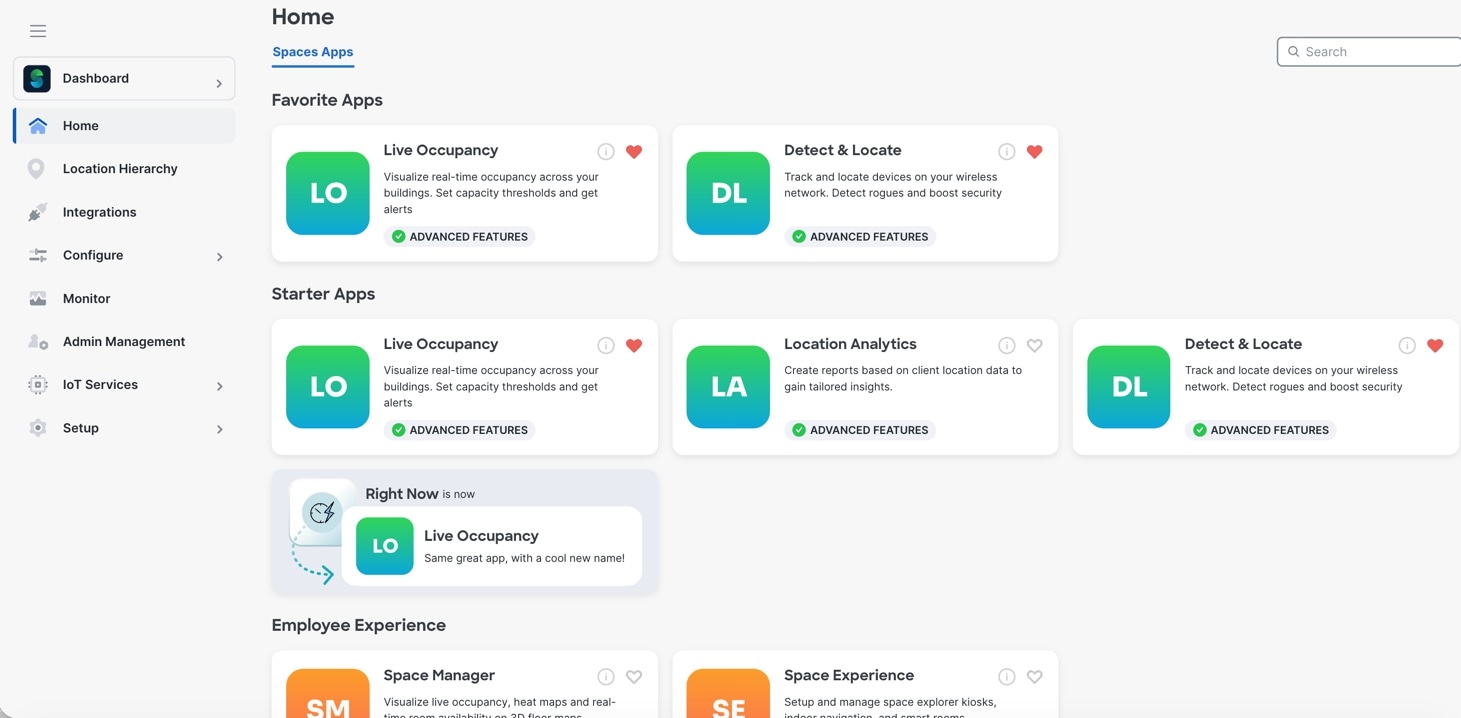
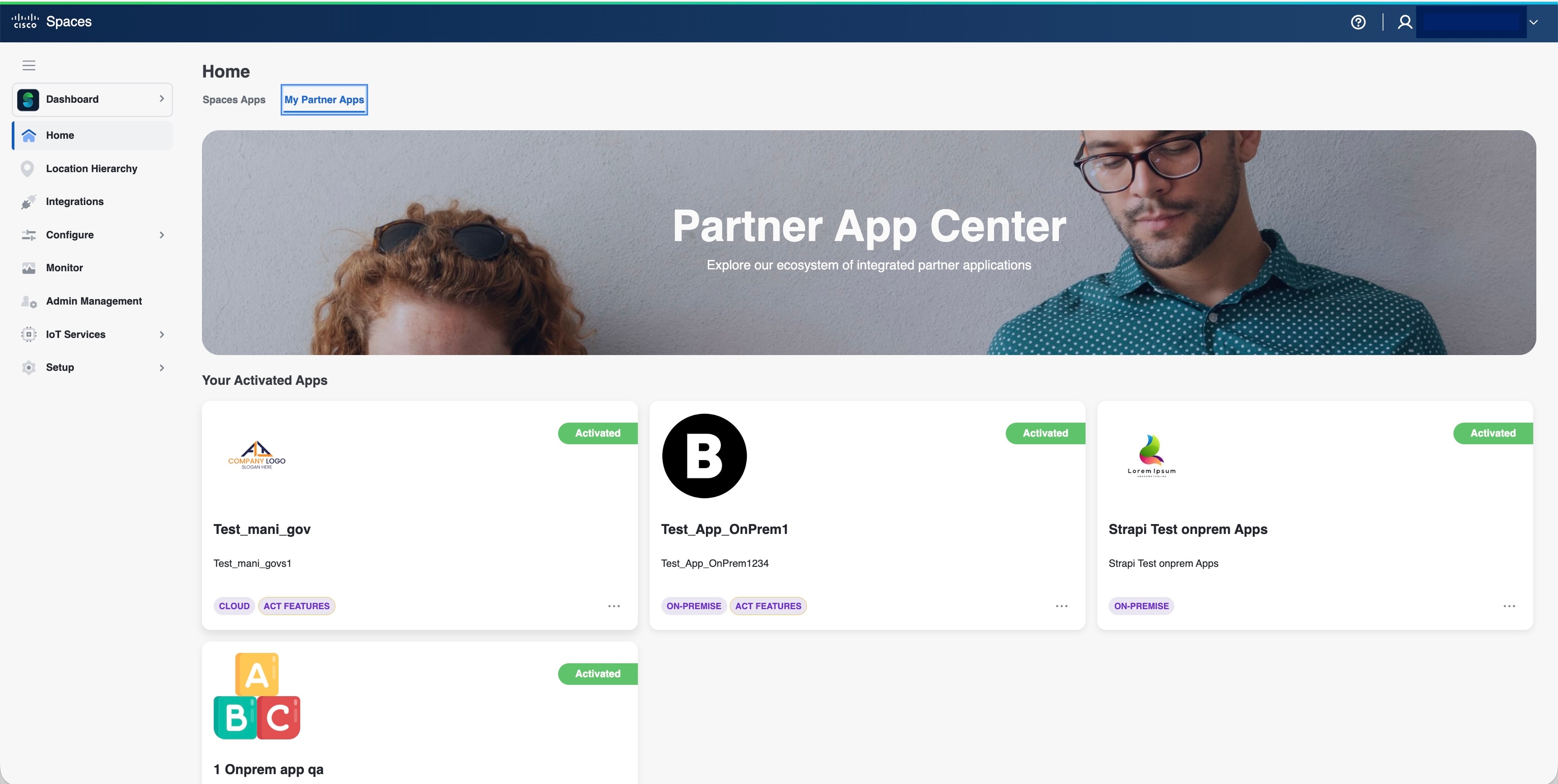
After you log in to Cisco Spaces, the Home window is displayed as shown in the following image:

Figure 2. Cisco Spaces Home

The Cisco Spaces Home window includes the Dashboard drop-down list (in the left navigation pane) which allows you to search and view the available apps associated with your Cisco Spaces license.

Use the Dashboard drop-down list to choose and navigate to any selected app. To navigate back to the Cisco Spaces Home window, choose Dashboard option from the drop-down list.

The dashboard has the following main areas: Menu Bar, Information icon, Profile icon, and various applications available as per your subscription.

Menu Bar

Click the Menu icon () at the left of the menu bar to access the following menu items:

  • Home

  • Location Hierarchy

  • Integrations

  • Configure

  • Monitor

  • Admin Management

  • IoT Services

  • Setup

Icons

Click the icons at the right of the menu bar to perform common tasks:

Icon

Description

Support: Displays help center, support and documentation links.

User Profile: Displays account and logout options. The license information is available under My Account > License Information > License Units Consumed.

For more information, see User Profile.

Cisco Spaces: Connector 3.0

Cisco Spaces: Connector (referred to as Connector in all subsequent references in this document) is a fully redesigned version of the Connector with the capability to efficiently manage multiple services that connect to different network devices such as Cisco Wireless controller and switches for data. The Connector platform makes it easy to add/remove new services from the cloud. It enables enhanced troubleshooting with debugging, log upload, and restart functionalities from the cloud. Connector also provides detailed metrics for each service with CPU, Memory, Connectivity and Up/Down status.

Connector is the next generation connector of Cisco Spaces that provides an enhanced user experience, architecture to support multiple services, simplicity, modularity, seamless upgrade and High Availability. Connector supports an active-active High Availability setup. Unlike the earlier releases of Connector 2.x, you can specifically configure and monitor the High Availability pair. All services and device configurations are managed at the Connector level to make it easy to pair with High Availability.

The Connector and device status is also aggregated at the Connector level from each instance for easy monitoring. Connector provides full visibility to each instance of a High Availability pair. You can view how the services are running on each instance, their upgrade status and so on. You can also perform actions on a particular instance, such as restarting of services.

Cisco Spaces Features

The major features of Cisco Spaces dashboard includes:

Cisco Spaces Apps

In the Cisco Spaces Home page, you can view all available applications. On the left navigation pane, click Dashboard to view the apps.

In the Home page, apps are grouped by use case. Use the Search field to search for apps and features.

Figure 3. Apps

Note


Right Now is now called Live Occupancy app.


Space Manager App

In the Space Manager app, the Space Management tab is renamed to Manage Rooms. All functionalities and features remain the same. You can use the new Export feature to download room details as a CSV file. For any room you select, you can add Capacity and Tags metadata to room details for additional information. These changes are designed to help you manage rooms more efficiently.

Figure 4. Manage Rooms

Location Hierarchy

The Location Hierarchy feature enables you to define your business locations in Cisco Spaces. You can import the locations in the same structure in which they are defined it your wireless network .

Integrations

The Integrations feature enables you to integrate Cisco Spaces with various Cisco and third-party apps, including Catalyst Center, Office 365, and Google Calendar. This integration enables sharing of occupancy, space utilization, and footfall data, and synchronizes meeting room bookings, helping you maximize the value and efficiency of your Spaces deployment.

Configure

The Configure feature options enables you to configureLocation Compute and Notifications in Cisco Spaces.

Monitor

The Monitor feature enables you to monitor the performance status of Cisco Spaces, and its apps. It also displays the app latencies and anomalies.

Admin Management

The Admin Management feature enables you to create Cisco Spaces users. You can restrict the privileges for each user based on the their role.

Setup

Wireless Networks

Wireless Network

Displays features and instructions to connect Cisco Spaces to a particular wireless network through various methods. For more information, see Setting Up Cisco Spaces to Work with Various Wireless Networks.

Wireless Network Status

The Wireless Network Status option enables you to view the synchronization status of your wireless network. You can view the time at which the last synchronization happened.

User Profile

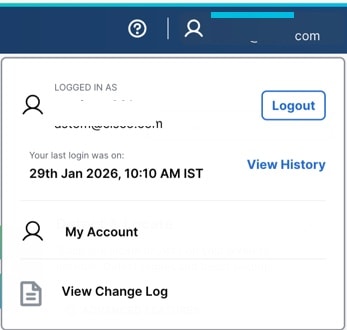
The User Profile option () in the top-right of the Cisco Spaces dashboard helps to view account and logout options.

Figure 5. User Profile

You can view the last login and timestamp details. Click View History to view the recent and failed login attempts.

The User Profile feature includes the following options:

Viewing Cisco Spaces Account Details

Use the My Account window to view the Cisco Spaces profile details, account activity, and other account related information. The My Account window has the following tabs:

  • My Profile: Displays the basic profile information such as first name, last name, email and mobile number.

  • Account Activity: Displays the failed attempt account activity details such as IP address, date and browser in which the account activity failed.

  • Preferences: This tab includes the following options:

    • Add new domain: Click to add a new domain for SSO authentication.

    • Enable Support Access: Click this option to enable or disable access to their account to the Cisco Spaces support team. Enabling this option helps the Cisco Spaces support team to detect and debug issues under exceptional situations.


      Note


      • By default, the Enable Support Access option is enabled.

      • When access is enabled, the Cisco Spaces support team gets access to the customer's Cisco Spaces account.


  • Change Log: Displays the change log details such as user activity, time, app, section and user. Click the Filter option to filter log details.

    The View Change Log feature (Home > Profile) helps you to track audit trail activities for Location & Maps and Space Utilization App in the Cisco Spaces new UI.