Table Of Contents
Cisco Voice Log Translator Version 2.5
User GuideTypical Cisco VLT Use Scenario
Cisco VLT GUI Display and Navigation
Cisco VLT Message Translations
Displaying a List of Trace-Log Messages
Filtering the Trace-Log Message List
Finding Information in Trace-Log Message Text
Obtaining Additional Publications and Information
Cisco Voice Log Translator Version 2.5
User Guide
This document describes how to use Cisco Voice Log Translator (VLT). Primary users are those who use trace-log message files to troubleshoot VoIP network problems.
Contents
Introduction
Cisco VLT is a troubleshooting tool that parses and translates Cisco CallManager (Cisco CM) trace-log message files. Working offline with message files that are stored locally on your system, you can use Cisco VLT to sort, organize, analyze, and interpret messages and to display raw or translated message text.
Cisco VLT handles both Cisco CM and Cisco Java Telephony API (JTAPI) client trace-log message files. Message files can be for calls that involve any of the following signaling protocols (in separate calls or together in a single call):
•
H.225
•
H.245
•
Media Gateway Control Protocol (MGCP)
•
Q.931
•
Skinny (or Simple) Client Control Protocol (SCCP)
Cisco VLT users typically include Cisco systems engineers, TAC engineers, channel partners, and others who perform Cisco CM administrative tasks.
![]()
Note
You can access more information about Cisco VLT, including how to download and install the latest version, from the Cisco VLT website at
http://www.cisco.com/cgi-bin/tablebuild.pl/voice-tool
You can send feedback or questions (VLT engineers will respond as time allows) to the following e-mail address:
voice-log-translator-support@external.cisco.com
Prerequisites for Cisco VLT
Cisco CallManager
•
Run one of the following Cisco CM versions: 3.3, 4.0, or 4.1.
•
Configure Cisco CM to generate system-diagnostic-interface (SDI) trace-log message files.
•
Devise a way to collect Cisco CM message files and store them on your local system—either manually or by means of the Cisco CM Real-Time Monitoring Tool (RTMT) trace-collection function.
System Hardware and Operating System
•
Ensure that your system memory meets the following requirements:
–
At least 24 MB of free memory to start up and parse a 2-MB log file correctly
–
If your system has less than 512 MB of physical memory, virtual memory (swap) not lower than the value recommended by Microsoft Windows
•
Ensure that your system runs one of the following platforms (the platform must support the Sun Microsystems Java runtime environment):
–
Microsoft Windows 2003
–
Microsoft Windows 2000 (including Windows 2000, Windows 2000 Professional, and Windows 2000 Server.
–
Microsoft Windows XP
![]()
Note
You must install Cisco VLT on a machine other than your Cisco CM server. Cisco VLT can use significant system CPU and memory resources and, if installed on the same machine, might impact Cisco CM performance.
Cisco VLT Software
•
Ensure that you have a Cisco login and password.
•
Download and install Cisco VLT.
![]()
Note
Obtain Cisco VLT software from the Cisco VLT website at
http://www.cisco.com/cgi-bin/tablebuild.pl/voice-tool
Although versions earlier than the current version 2.5 may be listed on the website, you can download only the current version.
•
Confirm the location of the Cisco VLT executable file. The default location for Cisco VLT installation is C:\Program Files\Cisco VLT\VLT. You can change this if you wish.
•
If you run Windows 2000 Server, after installation log off and log in again.
•
Create a folder in which to store trace-log message files. This must be on the same physical or logical network drive or on a network neighborhood path (\\<server-name>\<folder-name>\<log-file-name>). It cannot be a URL-style path.
Restrictions for Cisco VLT
Languages
•
Cisco VLT on a Microsoft Windows platform supports only the English operating system and English locale.
File Types
•
Cisco VLT supports only Cisco CM and JTAPI client message files.
•
Cisco VLT supports Cisco CM SDI files but not signal-distribution-layer (SDL) files.
Signaling Protocols
•
Cisco VLT does not support files for Session Initiation Protocol (SIP) calls.
System Resources
•
Cisco VLT can use significant system CPU and memory resources, and can therefore potentially impact performance on a shared system. See the Note above about the importance of installing Cisco VLT on a machine other than your Cisco CM server.
•
Cisco VLT supports a maximum memory usage of 1 GB. It becomes very slow before it hits that limit.
System Performance
•
Cisco VLT installed on a 1.5-GHz IBM T40 laptop PC running Windows 2000 performs approximately as follows:
–
Installation time: 31 seconds
–
Startup time: 6 seconds
–
Memory size: 512 MB
–
File-loading times and memory usage (assume an average file size of 2.5 MB):
Parameter Number of Message Files 0 1 2 3 4 5File-loading time
—
4 sec
9 sec
14 sec
19 sec
25 sec
Memory usage
9 MB
14 MB
28.6 MB
30.3 MB
31.9 MB
38.0 MB
Display Capabilities
•
Although Cisco VLT supports multiple versions of Cisco CM, you can display messages for only a single version (or multiple versions with compatible file formats) in the same pane at the same time.
•
Although Cisco VLT supports both H.225 and H.245 messages, you cannot correlate them because the H.245 port information contained in an H.225 message is not available in the Cisco CM log files.
Endianess
•
Cisco VLT supports only little endian, and is not aware of the endianess of trace files.
![]()
Note
Endianess (sometimes spelled endianness) refers to the order in which a computer processor stores and transmits the individual bytes of a multiple-byte item of data. Big-endian processors store the most significant byte at the memory location with the lowest address. Little-endian processors store it at the location with the highest address.
Processors from different manufacturers differ in endianness (for example, Intel x86 uses little and PowerPC uses big). Difficulties can potentially arise when data moves between systems of different endianess. For example, the IP address 10.1.1.13 can be interpreted as 13.1.1.10.
Information About Cisco VLT
Cisco VLT enables you to display and filter lists of trace-log messages, and then to display associated raw or translated message texts and find specific information within those texts.
This section contains the following information:
•
Typical Cisco VLT Use Scenario
•
Cisco VLT GUI Display and Navigation
•
Cisco VLT Message Translations
Cisco VLT Capabilities
Cisco VLT offers two search functions:
•
The Filter function (see the "Filtering the Trace-Log Message List" section) operates on the list of messages in the Messages upper pane and the associated raw messages in the Messages Translation lower pane.
•
The Find in Messages Translation function (see the "Finding Information in Trace-Log Message Text" section) operates on the current message in the Messages Translation lower pane.
You can do the following with Cisco VLT:
•
Open trace-log message files and display message lists and associated messages for all supported signaling protocols in the same window (see the "Displaying a List of Trace-Log Messages" section).
•
Filter a trace-log message list so as to do the following (see the"Filtering the Trace-Log Message List" section):
–
Display or exclude keepalive messages.
–
Display messages for a particular call (as identified by its call reference) or for all calls involving a particular gateway IP, direction (in or out), protocol, command, message, or channel. For example, you can display all messages related to the T1 1/0:3 on gateway A.B.C.D.
–
Display messages for calls with criteria that you specify.
–
Display messages by call reference; for each message, show timestamp, protocol, calling number, and called number. For example, you can display all messages for a particular call leg (any supported protocol) or for the two legs (SCCP side and MGCP/Q.931 side) of a call.
–
Display messages for calls whose gateway IP, direction (in or out), protocol, command, message, call reference, or channel contain a particular text string.
•
Do the following with the text of a trace-log message (see the"Finding Information in Trace-Log Message Text" section):
–
Specify a level of translation (raw, simple, or detailed).
![]()
Note
If the signaling protocol for a message is invalid or not supported, you can display the message in raw format only.
–
Copy message text to the clipboard.
–
Export translated messages to a text file.
–
Search for a specific text string in message text across all messages.
Typical Cisco VLT Use Scenario
Assume that you are an experienced administrator who is familiar with Cisco products (including Cisco CM, IOS command-line interface, and networking concepts and technologies) and who is responsible for postinstallation support of enterprise voice installations. In a typical troubleshooting scenario, you would do the following:
1.
Receive notification of a problem with a Cisco CM or JTAPI application.
2.
Enable trace logging on relevant Cisco CM servers or JTAPI clients.
3.
Track down the following information about the problem call:
•
Time of call, down to the minute or more
•
Called-party and calling-party phone number
•
Nodes involved (Cisco CM, gateway, JTAPI application, and so on)
•
Call flow (whether transfer, conference, or forward are involved; whether the call is internal or external; types of devices involved; and so on)
4.
Collect trace-log message files from the Cisco CM or JTAPI client, usually several files surrounding the time of the event.
5.
Open the file whose time stamp is closest to the reported trouble time. (Alternatively, depending on circumstances, open the entire collection of trace files at once.)
6.
Search each file's translated message text (by using the Find in Messages Translation function) until you locate the called or calling phone number for the trouble-causing call. Note the call reference.
7.
Filter the display based on call reference to display all messages that pertain to that call.
8.
Troubleshoot as needed. Possible actions depend on the type of problem, but include the following:
•
Save the one or more trace-log message translations that pertain to the call to a flat file, open them with a text editor, and locate the exact timestamp or other helpful information.
•
Compare two or more message translations (typically for different calls) by using the Filter > Log Filter > Selected function to display the translations together. Comparing the translations for a successful and a failed call is a useful troubleshooting technique.
Cisco VLT GUI Display and Navigation
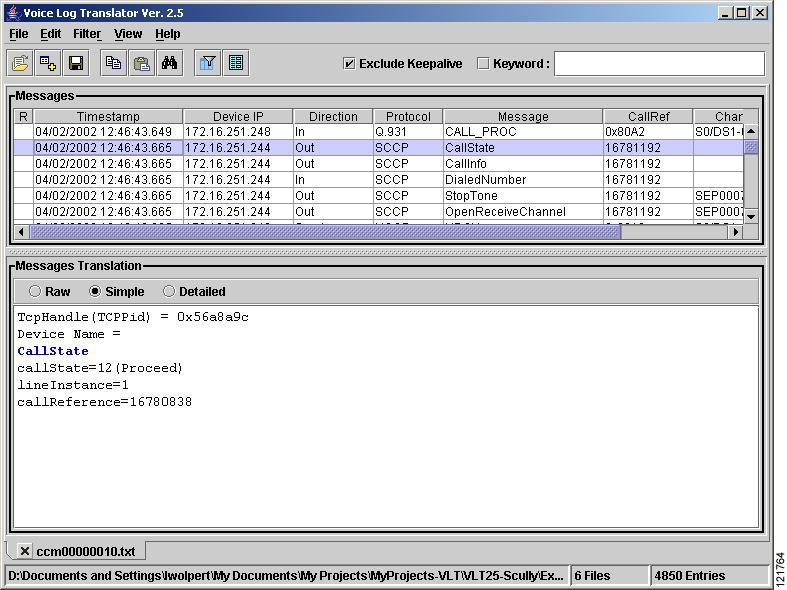
The Cisco VLT user interface has a toolbar at the top, followed by two display panes (Figure 1):
•
Messages upper pane—Displays a list of trace-log messages from one or more files.
•
Messages Translation lower pane—Displays the raw or translated text of a highlighted message.
Figure 1 Cisco VLT User Interface
![]()
The window allows for typical GUI display control such as window resize, column resize, vertical and horizontal scroll, minimize, restore, and close. You can also grab and move the border between the Messages upper pane and the Messages Translation lower pane.
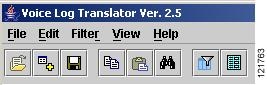
You navigate the Cisco VLT interface by means of the toolbar (Figure 2).
Figure 2 Cisco VLT Toolbar
![]()
The toolbar has both a top line (with words) and a bottom line (with icons).
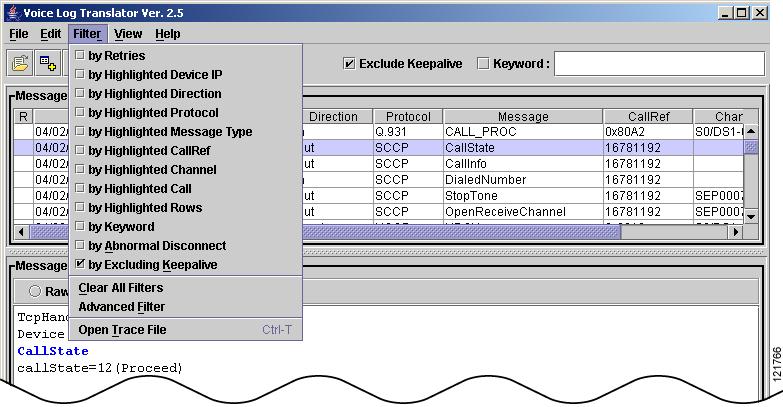
The procedures that follow describe how to navigate using the top line. Clicking one of the displayed choices—File, Edit, Filter, View, and Help—opens a successive context-sensitive display of new choices, which the procedure also specifies (Figure 3).
Figure 3 Cisco VLT Toolbar: Successive Display of Choices
![]()
Alternatively, you can navigate using the icons on the bottom line. Icons for Open Log Files, Open and Add Log Files into Current Log Panel, Save Translated Messages, Copy, Paste, Find in Translated Message, Advanced Filter, and Call References duplicate most of the successive displays of choices for the top line.
Cisco VLT Message Translations
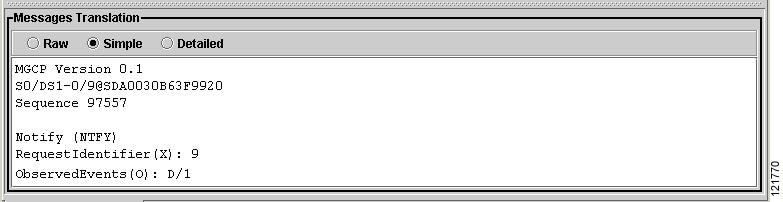
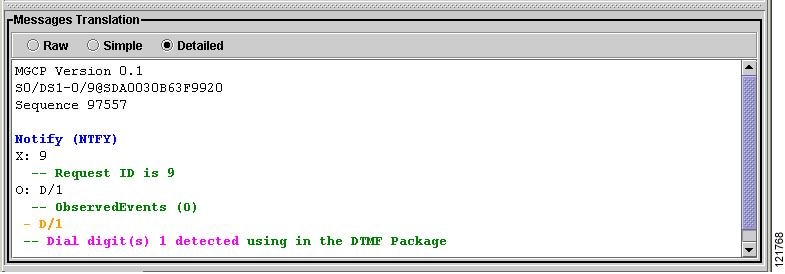
Cisco VLT allows you to view message text, raw or at either of two translation levels. Examples of raw and translated messages, and how they display the same information (in this case, the code word X in an MGCP NTFY message), are as follows:
•
Raw message (Figure 4)—Displays the code word as
X:9•
Simple translation (Figure 5)—Displays the code word as
RequestIdentifer(X): 9•
Detailed translation (Figure 6)—Displays the code word as
X: 9 -- Request ID is 9Figure 4 Cisco VLT Raw Message

![]()
Figure 5 Cisco VLT Simple Translation
![]()
Figure 6 Cisco VLT Detailed Translation
![]()
How to Use Cisco VLT
This section contains the following information:
•
Displaying a List of Trace-Log Messages
•
Filtering the Trace-Log Message List
•
Finding Information in Trace-Log Message Text
Displaying a List of Trace-Log Messages
Information About Displaying a List of Trace-Log Messages
You can open trace-log message files and display a list of messages in the following ways:
•
Display a list of messages for a set of log files (Step 2 below).
•
Display a list of messages for an additional set of log files, in the same or a new pane (Step 3 below).
•
Edit the message-list display (Step 4 below).
SUMMARY STEPS
1.
Start > Programs > Cisco VLT > VLT)
2.
File > Open > Open > Yes/No
3.
File > Append > Open > Yes/No
4.
View...
5.
File > Save Translation
6.
File > Close and File > Exit
DETAILED STEPS
Step 1
Open Cisco VLT by choosing Start > Programs > Cisco VLT > VLT.
Step 2
In the Open Files box, browse to the folder in which you store trace-log message files, highlight one or more filenames (use <Ctrl> or <Shift> as needed to select multiple messages) and click Open.
The first 1000 or fewer selected files open in a single pane, sorted by timestamp.
![]()
Note
The number of files that you can open is limited only by available system memory. If files are large, system performance may be affected.
If you open multiple log files, the tab displays only the first filename.
Step 3
As needed, open an additional set of log files as follows:
a.
Choose File > Append.
b.
Highlight one or more filenames and click Open.
Step 4
Edit the Messages upper pane display as follows:
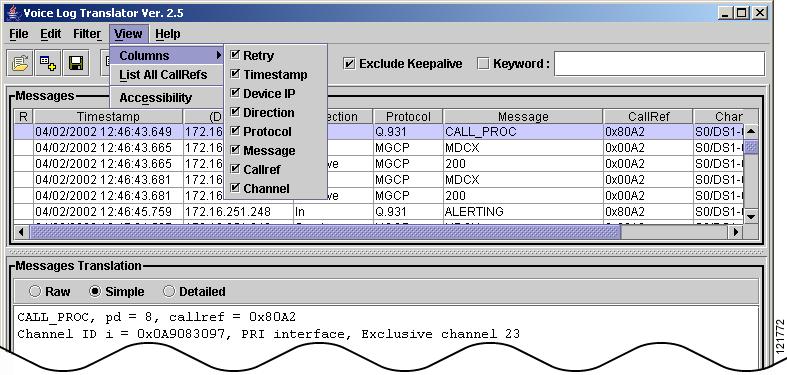
a.
To display or hide columns, choose View > Columns, then check and uncheck columns as needed.
b.
To display all calls in a file, choose View > List All CallRefs. A new window displays the following information (as appropriate for the protocol and message types): timestamp, protocol, call reference, calling party, and called party. Close the window when you are done.
Figure 7 Cisco VLT View Menu
![]()
c.
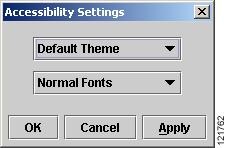
To change display contrast and font size, do the following:
1.
Choose View > Accessibility (Figure 8).
2.
Choose a theme (default or high contrast) and then click Apply.
3.
Choose a font (small, normal, or large) and then click Apply.
4.
Click OK.
Figure 8 Cisco VLT Accessibility Window
![]()
Step 5
Edit the Messages Translation lower pane display by toggling among the following choices: Raw, Simple, and Detailed.
![]()
Note
If the signaling protocol for a message is invalid or not supported, you can display the message in raw format only.
Step 6
To open and display the trace-log files that contain one or more particular messages, highlight the messages, right-click, and select Open Trace File. New windows display the trace-log files. To search for a particular text string, use the Find box. Close the windows when you are done.
![]()
Note
To display a list of allowed wildcards and operations, choose Help > Regular Expression Reference.
Step 7
To save a message translation to a flat text (txt file extension) file, choose File > Save Translation. In the Save File box, enter a location and name for the new file, and click Save.
Step 8
When you are done, do the following:
a.
Close any active messages-list windows by choosing File > Close.
b.
Exit Cisco VLT by choosing File > Exit.
Filtering the Trace-Log Message List
Information About Filtering the Trace-Log Message List
You can filter a trace-log message list so as to do the following:
•
Display or exclude keepalive messages (Step 2 below).
•
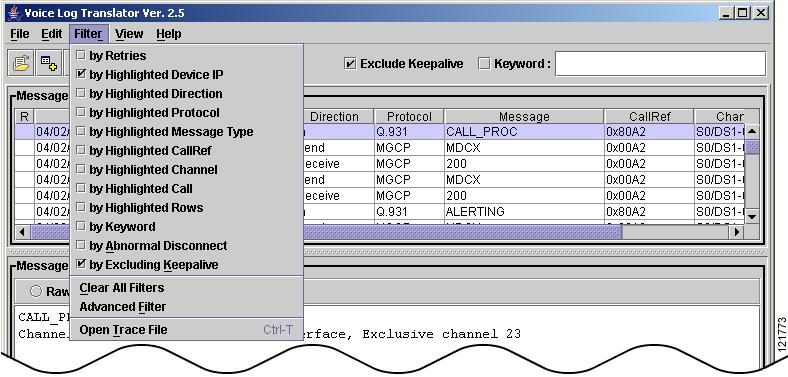
Display a list of messages with criteria that you check or supply, or with the same criteria as those possessed by messages that you highlight (Step 4 below). Criteria include the following:
–
Retries—Messages that are flagged as retried messages.
–
Highlighted device IP—Device IP address from which messages are sent or received. Typically includes Cisco CM, Cisco IOS gateways, IP phones, and more.
–
Highlighted direction—In or out.
–
Highlighted protocol—H.225, H.245, Q.931, MGCP, or SCCP.
–
Highlighted message type—Example: Q.931 SETUP messages.
–
Highlighted call reference—The call-reference string in the CallRef column.
–
Highlighted channel—A voice port on a device. Examples: B channels on a PRI; voice port on an IP phone; a CTI port for JTAPI.
–
Highlighted call—All messages that are associated with the call for which one or more messages are highlighted, across multiple signaling protocols (MGCP, Q.931, and SCCP).
–
Highlighted rows—Only the highlighted messages (use <Ctrl> or <Shift> as needed to select multiple rows). If you highlight multiple messages, the Messages Translation lower pane displays the message for the last-selected message.
–
Keyword—Messages that contain a specified text string.
–
Abnormal disconnect—Messages that have abnormal disconnect causes (cause codes that designate abnormal disconnect vary by protocol). Typically for calls that disconnect for reasons other than Normal Call Clearing or User Busy. Note that calls that disconnect because the user dials an invalid prefix or other numbers is classified as an abnormal disconnect.
–
Excluding keepalive
•
Display a list of messages for calls with criteria that you specify—useful if you prefer to enter parameters directly instead of selecting messages in the Messages upper pane (Step 5 below).
SUMMARY STEPS
1.
Display message list
2.
Exclude KeepAlive
3.
Filter...
4.
Filter > Advanced Filter...
5.
File > Close and File > Exit
DETAILED STEPS
Step 1
Display the desired message list (see the "Displaying a List of Trace-Log Messages" section).
Step 2
To suppress display of keepalive messages, check the Exclude KeepAlive box.
Step 3
To display messages that contain a specific text string, enter the text in the Keyword box and press Enter.
Step 4
To define a filter based on existing message displays, do the following:
![]()
Note
The Filter function (described here) operates on the list of messages in the Messages upper pane.
In contrast, the other type of search function, the Find in Messages Translation function (see the "Finding Information in Trace-Log Message Text" section), operates on the current message in the Messages Translation lower pane.
a.
Highlight one or more messages (use <Ctrl> or <Shift> as needed to select multiple messages) with the desired device IP, direction, protocol, message type, call reference, channel, or call.
b.
Click Filter (or right-click the highlighted message), then check the desired filter criteria and, if prompted, enter needed information such as keywords (Figure 9). (To see a list of filter criteria, see "Information About Filtering the Trace-Log Message List" above.) Column headings for the desired criteria display in parentheses.
c.
Repeat as needed to further filter by subsequent criteria.
![]()
Note
To disable a filter, click the column headings in parentheses or choose Filter >Clear All Filters.
Figure 9 Cisco VLT Filter Menu
![]()
Step 5
To define your own customized filter—useful if you know the parameters and prefer to enter them directly instead of constructing filters by selecting messages in the Messages upper pane—do the following:
a.
Choose Filter > Advanced Filter.
b.
Check and uncheck the displayed conditions as appropriate. Review the displayed values for each condition and edit them as needed (using wildcards and simple AND and OR operations as needed).
![]()
Note
To display a list of allowed wildcards and operations, click ?.
To clear all entries, click Clear. To reload the current filter, click Current.
c.
Click Ok. A filtered list displays.
Step 6
When you are done, do the following:
a.
Close any active messages-list windows by choosing File > Close.
b.
Exit Cisco VLT by choosing File > Exit.
Finding Information in Trace-Log Message Text
Information About Finding Information in Trace-Log Message Text
You can do the following with the text of a trace-log message:
•
Specify a level of translation: raw, simple, or detailed (Step 2 below).
•
Copy message text to the clipboard (Step 3 below).
•
Search for a specific message-text string (Step 4 below).
•
Display the desired message text.
SUMMARY STEPS
1.
Display message list
2.
Raw, Simple, or Detailed
3.
Edit > Copy
4.
Edit > Find in Messages Translation
5.
File > Close and File > Exit
DETAILED STEPS
Step 1
Display the desired message list (see the "Displaying a List of Trace-Log Messages" section).
Step 2
Specify a level of translation by toggling among the following choices: Raw, Simple, and Detailed (see samples of each in the "Cisco VLT Message Translations" section).
Step 3
To copy a message translation to the Windows clipboard, do the following:
a.
Highlight the message or translation that you want to copy.
b.
Choose Edit > Copy. (Or click the Copy icon.)
Step 4
To search for a specific text string in the Messages Translations lower pane for all messages listed in the Messages upper pane, do the following:
![]()
Note
The Find in Messages Translation function (described here) operates on the current message in the Messages Translation lower pane.
In contrast, the other type search function, the Filter function (see the "Filtering the Trace-Log Message List" section), operates on the list of messages in the Messages upper pane.
a.
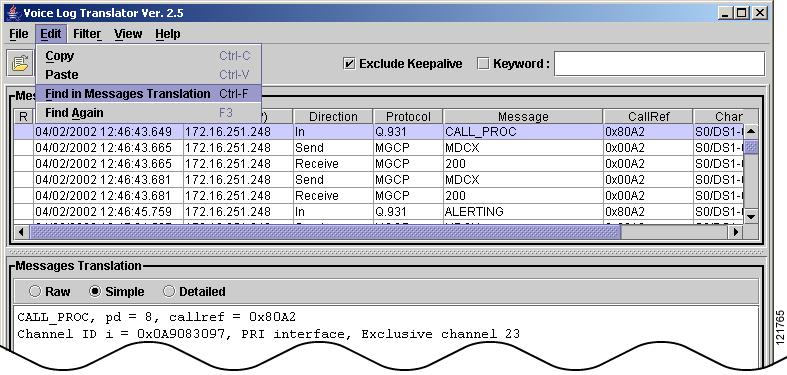
Choose Edit > Find in Messages Translation. (Or click the Find in Translated Message icon.)
b.
In the Text to Find box, type a text string (using wildcards and simple AND and OR operations as needed) and click Find Next. The first match is highlighted (Figure 10).
![]()
Note
To display a list of allowed wildcards and operations, choose Help > Regular Expression Reference.
c.
Choose Edit > Find Again as needed to highlight additional instances.
Figure 10 Cisco VLT Edit Menu
![]()
Step 5
When you are done, do the following:
a.
Close any active messages-list windows by choosing File > Close.
b.
Exit Cisco VLT by choosing File > Exit.
Troubleshooting
Symptom Cisco VLT on a Windows 2000 Server platform cannot be launched by means of a remote desktop tool.
Possible Cause Some Cisco VLT system environment variables are not activated during the same windows-terminal service session in which Cisco VLT is installed on a Windows 2000 Server platform.
Recommended Action Log off and log on again to activate the environment variables.
Symptom A system message suggests that your log files are unsupported.
Possible Cause You are running an older, unsupported version of Cisco CM.
Recommended Action Upgrade (or downgrade) Cisco CM to a supported version. (See the "Prerequisites for Cisco VLT" section.)
Symptom You can display raw but not simple-translation or detailed-translation messages.
Possible Cause The messages or their protocols are unsupported.
Recommended Action None.
Symptom A list of messages shows only those calls at the beginning or end of a call flow.
Possible Cause Calls in the call flow span multiple log files.
Recommended Action Display the first log file in the call flow. Then append subsequent log files. (See the "Displaying a List of Trace-Log Messages" section.)
Symptom A system message asks you to select the version of Cisco CM that produced the log files.
Possible Cause You are trying to display log files from multiple Cisco CM versions (whose file formats are incompatible) at the same time in a single pane.
Recommended Action Display log files for only one Cisco CM version at a time.
Symptom The display does not seem to list all possible call criteria.
Possible Cause Cisco VLT displays only information that is available and appropriate for the protocol and message type. For example, Cisco VLT does not display CallRef information for SCCP keepalive messages because those messages do not contain such information.
Recommended Action None.
Symptom The display shows odd characters.
Possible Cause The Windows platform may not be set to run the English version.
Recommended Action Install English Windows and set the locale to English.
Additional References
This section contains the following information:
•
Obtaining Additional Publications and Information
Related Documents
Related Topic Document TitleCisco CallManager and Cisco CallManager Express documents
Cisco CallManager library at
http://www.cisco.com/univercd/cc/td/doc/product/voice/c_callmg/index.htmCisco IOS Voice Configuration Library documents, including library preface and glossary
Cisco IOS Voice Configuration Library at http://www.cisco.com/univercd/cc/td/doc/product/software/ios123/123cgcr/vcl.htm
Standards
Technical Assistance
Obtaining Documentation
Cisco documentation and additional literature are available on Cisco.com. Cisco also provides several ways to obtain technical assistance and other technical resources. These sections explain how to obtain technical information from Cisco Systems.
Cisco.com
You can access the most current Cisco documentation at this URL:
http://www.cisco.com/univercd/home/home.htmYou can access the Cisco website at this URL:
http://www.cisco.comYou can access international Cisco websites at this URL:
http://www.cisco.com/public/countries_languages.shtmlOrdering Documentation
You can find instructions for ordering documentation at this URL:
http://www.cisco.com/univercd/cc/td/doc/es_inpck/pdi.htmYou can order Cisco documentation in these ways:
•
Registered Cisco.com users (Cisco direct customers) can order Cisco product documentation from the Ordering tool:
http://www.cisco.com/en/US/partner/ordering/index.shtml•
Nonregistered Cisco.com users can order documentation through a local account representative by calling Cisco Systems Corporate Headquarters (California, USA) at 408 526-7208 or, elsewhere in North America, by calling 1 800 553-NETS (6387).
Documentation Feedback
You can send comments about technical documentation to bug-doc@cisco.com.
You can submit comments by using the response card (if present) behind the front cover of your document or by writing to the following address:
Cisco Systems
Attn: Customer Document Ordering
170 West Tasman Drive
San Jose, CA 95134-9883We appreciate your comments.
Obtaining Additional Publications and Information
Information about Cisco products, technologies, and network solutions is available from various online and printed sources.
•
Cisco Marketplace provides a variety of Cisco books, reference guides, and logo merchandise. Visit Cisco Marketplace, the company store, at this URL:
http://www.cisco.com/go/marketplace/•
The Cisco Product Catalog describes the networking products offered by Cisco Systems, as well as ordering and customer support services. Access the Cisco Product Catalog at this URL:
http://cisco.com/univercd/cc/td/doc/pcat/•
Cisco Press publishes a wide range of general networking, training and certification titles. Both new and experienced users will benefit from these publications. For current Cisco Press titles and other information, go to Cisco Press at this URL:
http://www.ciscopress.com•
Packet magazine is the Cisco Systems technical user magazine for maximizing Internet and networking investments. Each quarter, Packet delivers coverage of the latest industry trends, technology breakthroughs, and Cisco products and solutions, as well as network deployment and troubleshooting tips, configuration examples, customer case studies, certification and training information, and links to scores of in-depth online resources. You can access Packet magazine at this URL:
http://www.cisco.com/packet•
iQ Magazine is the quarterly publication from Cisco Systems designed to help growing companies learn how they can use technology to increase revenue, streamline their business, and expand services. The publication identifies the challenges facing these companies and the technologies to help solve them, using real-world case studies and business strategies to help readers make sound technology investment decisions. You can access iQ Magazine at this URL:
http://www.cisco.com/go/iqmagazine•
Internet Protocol Journal is a quarterly journal published by Cisco Systems for engineering professionals involved in designing, developing, and operating public and private internets and intranets. You can access the Internet Protocol Journal at this URL:
http://www.cisco.com/ipj•
World-class networking training is available from Cisco. You can view current offerings at this URL:
http://www.cisco.com/en/US/learning/index.htmlGlossary
![]()
Note
See Internetworking Terms and Acronyms for terms not included in this glossary.
![]()
© 2004-2005 Cisco Systems, Inc. All rights reserved.