Viewing Logs
Available Languages
Contents
Viewing Logs
This chapter includes the following sections:
CIMC Log
Viewing the CIMC Log
Procedure
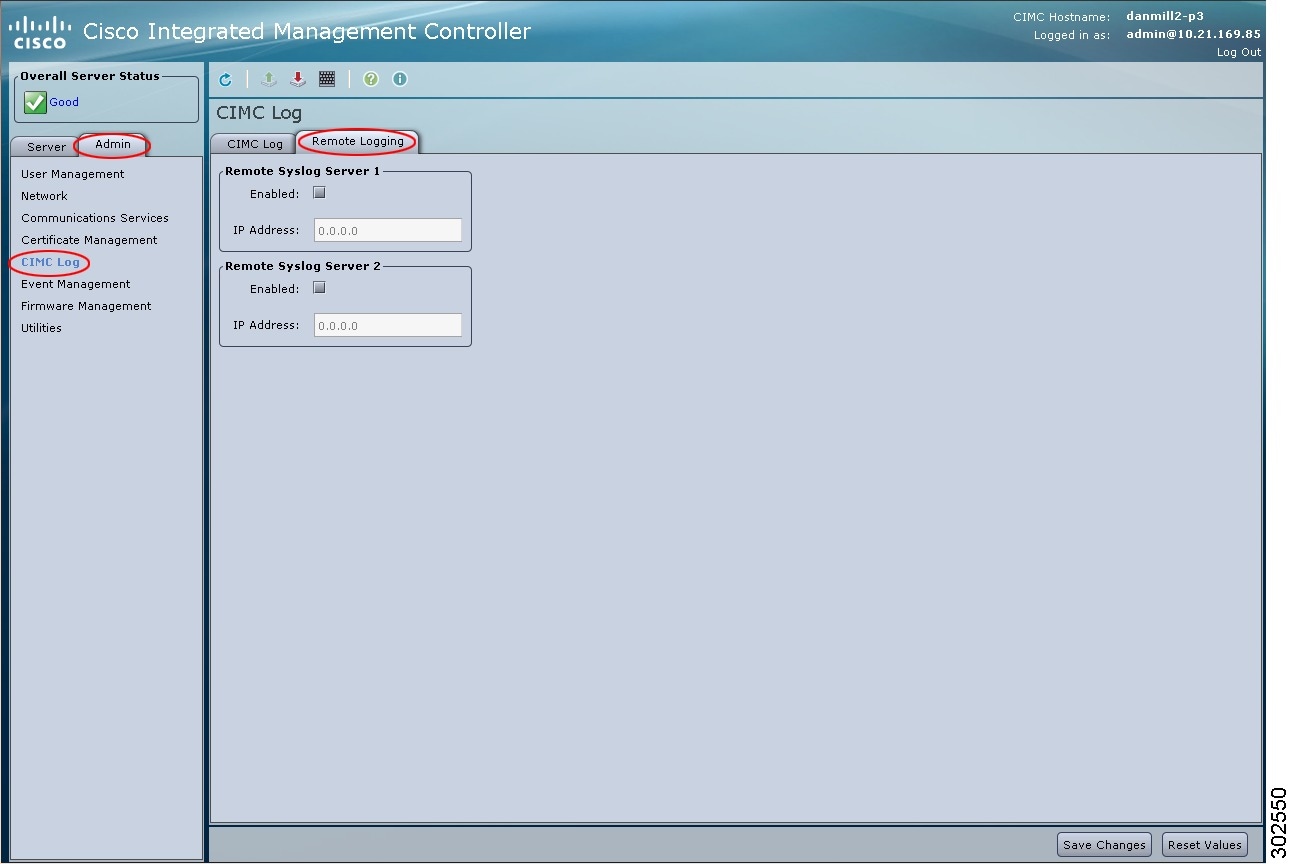
Sending the CIMC Log to a Remote Server
Before You BeginProcedureYou can configure profiles for one or two remote servers to receive CIMC log entries.
Step 1 In the Navigation pane, click the Admin tab. Step 2 On the Admin tab, click CIMC Log. Step 3 In the CIMC Log pane, click the Remote Logging tab. Step 4 In either of the Remote Syslog Server dialog boxes, complete the following fields: Step 5 Click Save Changes.
System Event Log
Viewing the System Event Log
Procedure
Step 1 In the Navigation pane, click the Server tab. Step 2 On the Server tab, click System Event Log. Step 3 Review the following information for each system event in the log:
Name Description Time column
The time the event occurred.
Severity column
The event severity. This can be one of the following:
Tip The severity field includes both text and a color-coded icon. Green indicates normal operation. Yellow is informational. Warning, critical, and non-recoverable errors are displayed in shades of red.
Description column
A description of the event.
Clear Log button
Clears all events from the log file.
Note This option is only available if your user ID is assigned the admin or user role.
Step 4 From the Entries Per Page drop-down list, select the number of system events to display on each page. Step 5 Click <Newer and Older> to move backward and forward through the pages of system events, or click <<Newest to move to the top of the list. By default, the newest system events are displayed at the top if the list.
 Feedback
Contact Cisco
- Open a Support Case

- (Requires a Cisco Service Contract)
This Document Applies to These Products
- Collaboration Endpoints - Retired Products
- Conferencing - Retired Products
- Contact Center - Retired Products
- Optical Networking - Retired Products
- Routers - Retired Products
- Security - Retired Products
- Servers - Unified Computing (UCS) Retired Products
- Storage Networking Retired Products
- Switches - Retired Products
- Video - Retired Products
- Wireless - Retired Products