Installing the Server Operating System
Available Languages
Contents
- Installing the Server Operating System
- Operating System Installation Methods
- KVM Console
- Installing an Operating System Using the KVM Console
- PXE Installation Servers
- Installing an Operating System Using a PXE Installation Server
- Host Image Mapping
- Mapping the Host Image
- Installing Drivers for the Microsoft Windows Operating System
- Unmapping the Host Image
- Deleting the Host Image
Installing the Server Operating System
This chapter includes the following sections:
KVM Console
The KVM console is an interface accessible from CIMC that emulates a direct keyboard, video, and mouse (KVM) connection to the server. The KVM console allows you to connect to the server from a remote location. Instead of using CD/DVD or floppy drives physically connected to the server, the KVM console uses virtual media, which are actual disk drives or disk image files that are mapped to virtual CD/DVD or floppy drives. You can map any of the following to a virtual drive:
Installing an Operating System Using the KVM Console
Procedure
Step 1 Load the operating system installation disk into your CD/DVD drive, or copy the disk image files to your computer. Step 2 If CIMC is not open, log into the CIMC GUI. Step 3 In the Navigation pane, click the Server tab. Step 4 On the Server tab, click Summary. Step 5 From the Actions area, click Launch KVM Console. The KVM Console opens in a separate window.
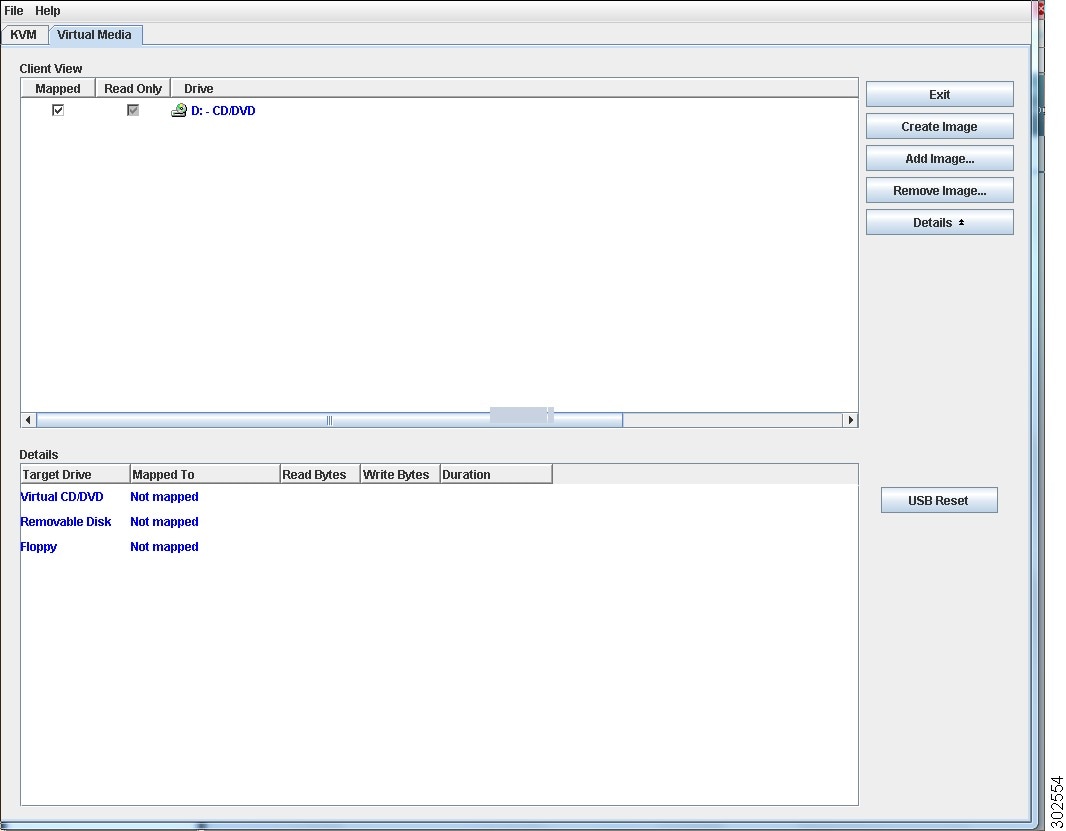
Step 6 From the KVM console, click the Virtual Media tab. Step 7 In the Virtual Media tab, map the virtual media using either of the following methods:
- Click Add Image, navigate to and select the operating system installation disk image, click Open to mount the disk image, and then check the Mapped check box for the mounted disk image.
Note You must keep the Virtual Media tab open during the operating system installation process. Closing the tab unmaps all virtual media.
Step 8 Reboot the server and select the virtual CD/DVD drive as the boot device. When the server reboots, it begins the installation process from the virtual CD/DVD drive. Refer to the installation guide for the OS being installed to guide you through the rest of the installation process.
Step 9 If disk drives are not displayed after you install the Microsoft Windows operating system, you must install drivers. See Installing Drivers.
What to Do Next
After the operating system installation is complete, reset the virtual media boot order to its original setting.
PXE Installation Servers
A Preboot Execution Environment (PXE) installation server allows a client to boot and install an operating system from a remote location. To use this method, a PXE environment must be configured and available on your LAN, typically a dedicated provisioning LAN. Additionally, the server must be set to boot from the network. When the server boots, it sends a PXE request across the network. The PXE installation server acknowledges the request, and starts a sequence of events that installs the operating system on the server.
PXE servers can use installation disks, disk images, or scripts to install an operating system. Proprietary disk images can also be used to install an operating system, additional components, or applications.
Note
PXE installation is an efficient method for installing an operating system on a large number of servers. However, considering that this method requires setting up a PXE environment, it might be easier to use another installation method.
Installing an Operating System Using a PXE Installation Server
Procedure
What to Do Next
After the operating system installation is complete, reset the LAN boot order to its original setting.
Host Image Mapping
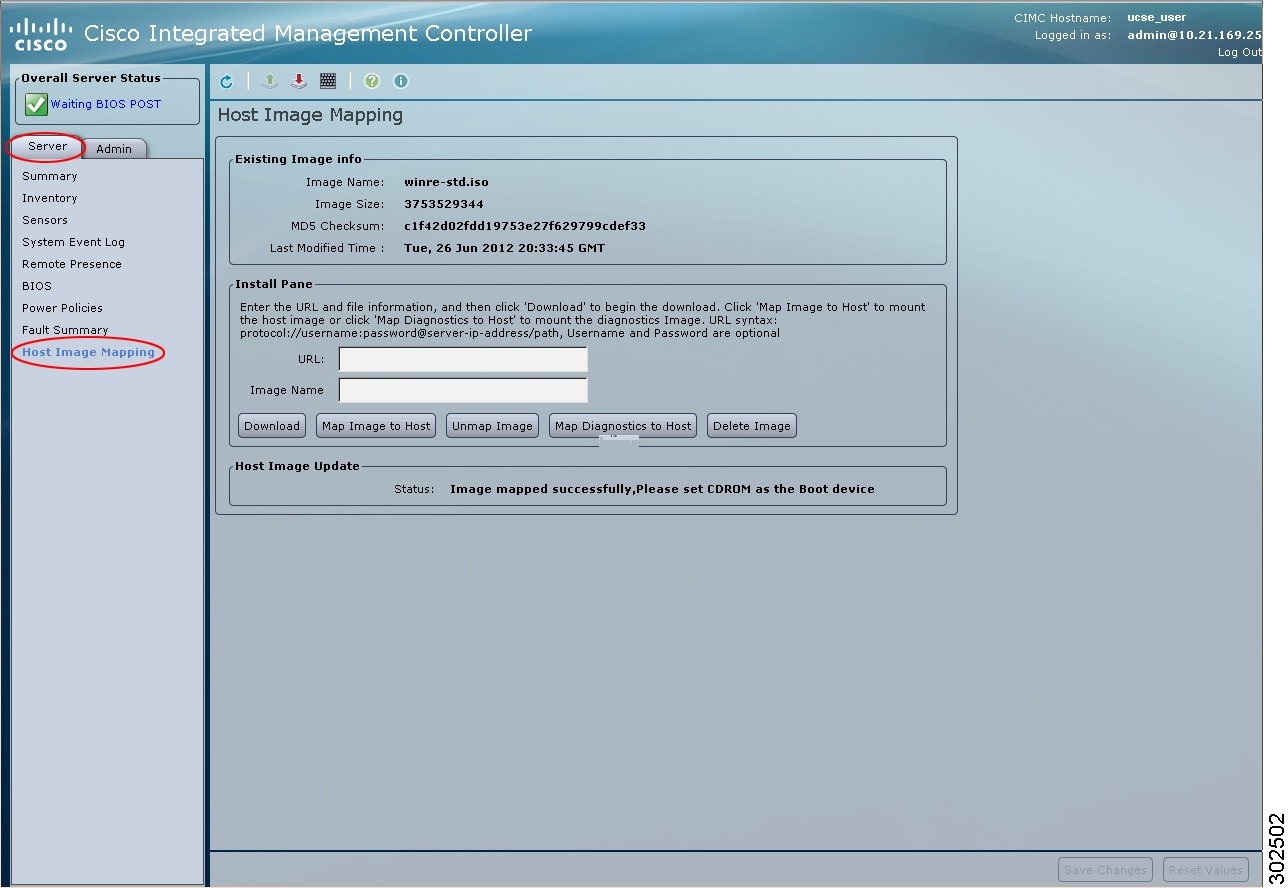
The Host Image Mapping feature allows you to download, map, unmap, or delete a host image. Download a host image, such as a Microsoft Windows, Linux, or VMware from a remote FTP, SFTP, HTTP, or HTTPS server onto an SD card, then map the image onto the virtual drive of a USB controller in the E-Series Server. After you map the image, set the boot order to make the virtual drive, in which the image is mounted, as the first boot device, and then reboot the server. The host image must have .iso as the file extension.
The Host Image Mapping feature also allows you to download and mount a diagnostics image. The diagnostics image must have .diag as the file extension.
Mapping the Host Image
Before You BeginProcedure
- Log into CIMC as a user with admin privileges.
- Obtain the host image file from the appropriate third-party.
Note
If you start an image update while an update is already in process, both updates will fail.
Step 1 In the Navigation pane, click the Server tab. Step 2 On the Server tab, click Host Image Mapping. Step 3 In the Install Pane, complete the following fields:
Name Description URL field
The URL of the remote server on which the image is located.
If the remote server requires user authentication, you must add the username and password of the remote server in the URL. The remote server can be an FTP, SFTP, HTTP, or HTTPS server.
The URL syntax must be: protocol://username:password@server-ip-address/path/filename
Image Name field
The name of the image.
Step 4 Click Download. The image file is downloaded from the specified FTP, SFTP, HTTP, or HTTPS server onto the SD card.
Step 5 Click Map Image to Host. The image is mounted on the virtual drive of a USB controller. The virtual drive can be one of the following:
Step 6 Set the boot order to make the virtual drive in which the image is mounted as the first boot device. To set the boot order, see Configuring the Server Boot Order.
Tip To determine in which virtual drive the image is mounted, see the Host Image Update area in the Host Image Mapping page.
Step 7 Reboot the server. Step 8 If the image contains an answer file, the operating system installation is automated and the image is installed. Otherwise, the installation wizard is displayed. Follow the wizard steps to install the image. Step 9 If disk drives are not displayed after you install the operating system, you must install drivers. See the appropriate operating system documentation for instructions on how to install drivers. For instructions on how to install drivers on a Microsoft Windows operating system, see Installing Drivers for the Microsoft Windows Operating System.
What to Do Next
After the operating system installation is complete, reset the virtual media boot order to its original setting.
Installing Drivers for the Microsoft Windows Operating System
Procedure
Note
If you purchased E-Series Server Option 1 (blank E-Series Server without preinstalled operating system), and you installed the Microsoft Windows operating system, you must install drivers.
Microsoft Windows operating system requires that you install two drivers: LSI driver and Broadcom driver. The LSI driver is installed during the Microsoft Windows installation process. To install the Broadcom driver, see the following procedure.
Unmapping the Host Image
Deleting the Host Image
Procedure

 Feedback
Contact Cisco
- Open a Support Case

- (Requires a Cisco Service Contract)
This Document Applies to These Products
- Collaboration Endpoints - Retired Products
- Conferencing - Retired Products
- Contact Center - Retired Products
- Optical Networking - Retired Products
- Routers - Retired Products
- Security - Retired Products
- Servers - Unified Computing (UCS) Retired Products
- Storage Networking Retired Products
- Switches - Retired Products
- Video - Retired Products
- Wireless - Retired Products