Configuring CTS-Manager
Available Languages
Table Of Contents
Configuring Cisco TelePresence Manager
Microsoft Exchange Deployments
Cisco TelePresence Multipoint Switch (CTMS)
Cisco Unified Video Conferencing (CUVC)
Upgrading to Cisco TelePresence Manager 1.5
CTS-Manager Redundancy Failover Procedure
Configuring Cisco TelePresence Manager
Revised: February 25, 2009, OL-13673-04
First Published: November 27, 2006Contents
–
Generating Security Certificate Reports
–
–
–
–
–
–
–
–
Introduction
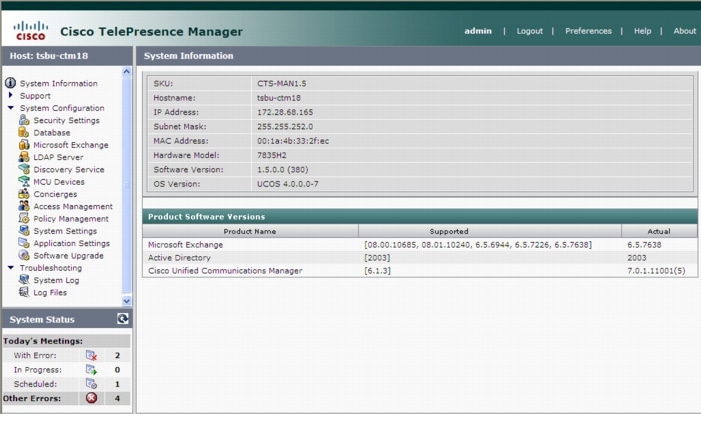
The administrator makes use of the System Configuration window to perform such tasks as upgrading system software, synchronizing system databases, managing security, and reconfiguring system settings.
Figure 3-1 shows the system configuration tasks.
Figure 3-1 Cisco Telepresence Manager System Configuration Window
Security Settings
The Security Settings window assists with managing system security certificates and web services security.
Figure 3-2 System Configuration Security Settings Window
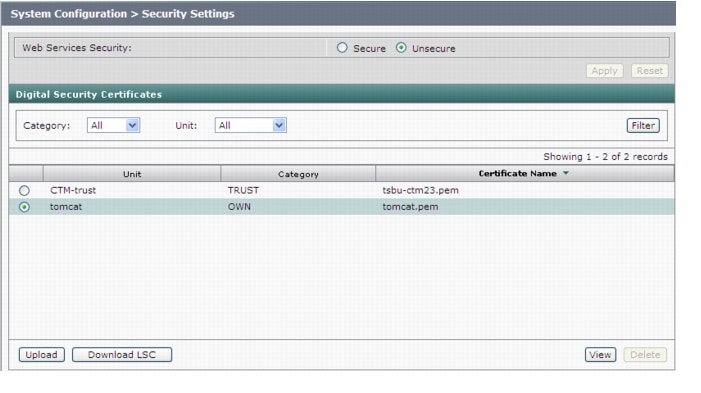
Web Services Security
You can turn on web services security by choosing Secure mode. For more information refer to the Cisco TelePresence Security Solution documentation on Cisco.com.

Caution
Digital Security Certificates
CTS-Manager supports the following security certificates:
•

Note
•
Generating Security Certificate Reports
You can generate a list of certificates containing a specific category and unit by supplying the following criteria:
•
•
•
Viewing Security Certificates
To view the contents of a security certificate click the radio button next to the certificate unit name and click View.
The contents of the certificate can be copied and pasted in a text file.
Deleting Security Certificates
To delete a CTM-trust type security certificate, click the radio button next to the certificate unit name and click Delete.
Note
Uploading Security Certificates
To display the Certificate Upload window, from which you can copy a security certificate to Cisco TelePresence Manager, click Upload.
Caution
Step 1
Step 2
Step 3
Step 4
Database
CTS-Manager uses an Informix database server to store information. The Database window allows the Administrator to view the database status and run backup and restore operations. Open the Database window to see the following choices:
Settings
The Settings window allows you to manage the size and age of meeting information in the Informix database. To register new settings, click Apply. To return to the original settings, click Reset.
Figure 3-3 Database Window Settings Tab
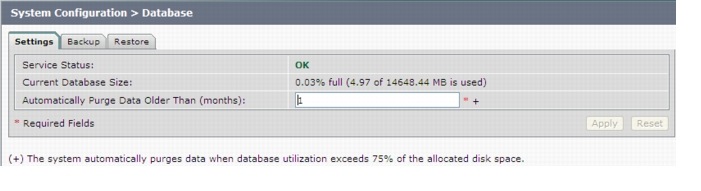
Table 3-1 describes the information and settings that are accessible from the Database window Settings tab.
Backup
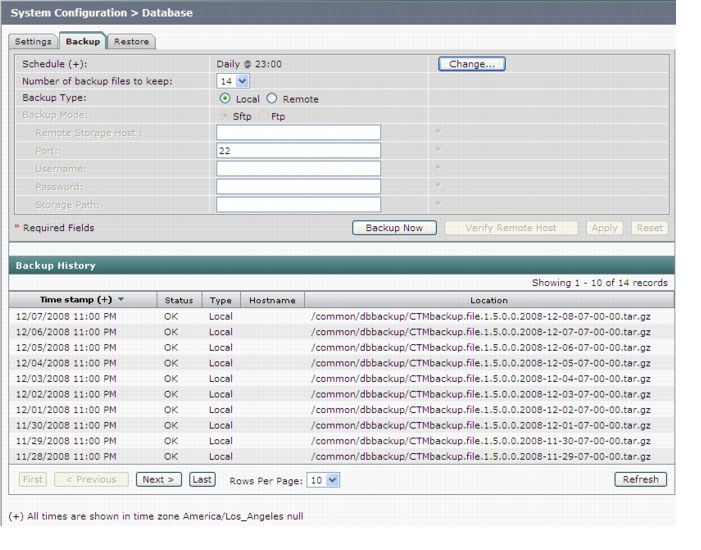
Choose the Backup tab to display fields and settings that will assist you in scheduling backups of the database. It is important to keep the backup current in case you need to activate the backup CTS-MAN system.
Figure 3-4 System Configuration - Database Window Backup Tab
Changing the Backup Schedule
The backup schedule currently set is displayed in the Backup window.
To change the backup schedule:
Step 1
Step 2
Step 3
Note
Step 4
To register new or modified settings, click Apply. To restore the original settings, click Reset.
Note
Backing Up Database Files
Data backups are performed on the Active partition. If you switch partitions after performing a backup you'll need to perform another backup for the new Active partition. See Switch Version for more information.
To back up files in the database:
Step 1
Note
Step 2
Step 3
Step 4
Remote Storage Host Fields
A remote backup uses Secure FTP (SFTP) or FTP to store files remotely. If you choose to backup or restore using FTP, you do not need to supply a port number.
Note
Secure FTP (SFTP) is the recommended mode of transferring files over the network.
You must fill in the following fields to gain access permissions to a remote host:
Viewing Backup History
The Database window Backup tab provides a history of database backups.
Table 3-3 describes the Backup History and Restore History fields.
Restore
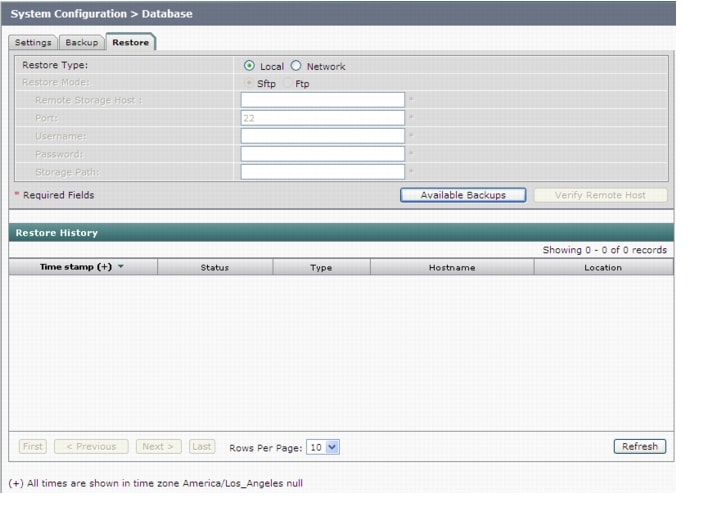
The Restore tab displays the history of the database restore operations. See Table 3-3 for a description of the fields.
Figure 3-5 Database Window Restore Tab
Restoring Backup Data
When you restore data from a backup file, all changes made to the database since the backup will be lost. These changes must be added by the Exchange Sync Up and Discovery functions of the Cisco TelePresence Manager server. The database Restore function should be run only as a last resort; for example, when the database is corrupted or the disk fails and has to be replaced.
The restore operation will stop the Informix database server, so some CTS-Manager operations might be impacted during the operation. While the restore operation is in progress, all other processes are stopped. The user interface will only display progress of the restore operation. When the restore operation is complete, the Cisco Telepresence Manager is automatically restarted and the login page is displayed. You will have to login to resume use of the Cisco Telepresence Manager application.
Note
To restore data from a backup:
Clicking Restore Now displays a window listing all the backups stored locally and remotely. If you want to restore from a backup stored remotely you must first click the Network Restore Type radio button. Then choose either the SFTP or FTP Restore Mode and enter required information to access the remote host. See Table 3-2 for a description of the Remote Storage Host fields.
Step 1
Step 2
Step 3
Calendar Server
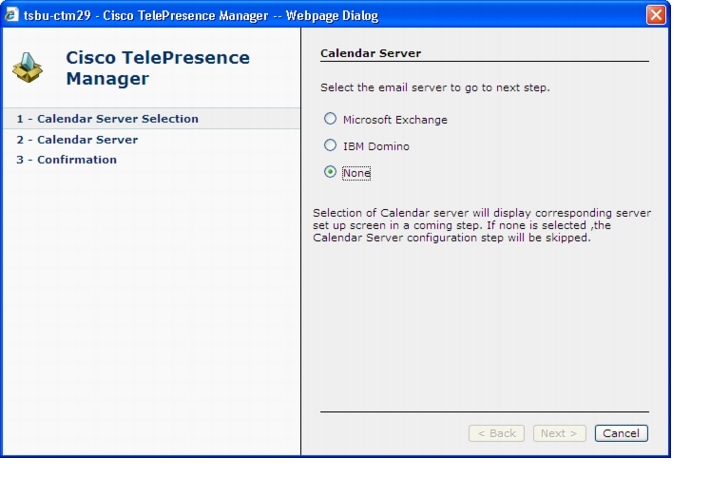
If you did not specify a Calendar server (either Microsoft Exchange or IBM Domino) during the initial installation, the Calendar Server window displays the Calendar Server wizard.
The Calendar Server wizard leads you through a four-step process to register a Calendar server with CTS-Manager.
Note
The No Calendar Server window displays the Configure Now button to initiate the Calendar Server wizard.
Figure 3-6 Configure Calendar Server

Step 1
Figure 3-7 Cisco TelePresence Manager - Calendar Server Selection Screen
Step 2
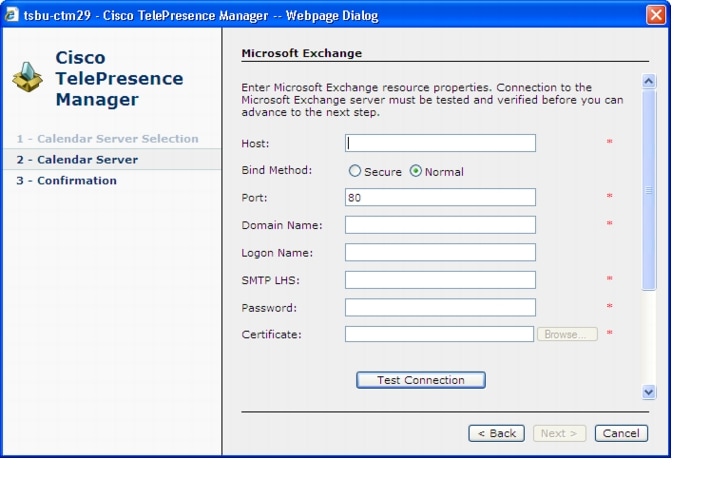
Figure 3-8 Cisco TelePresence Manager - Calendar Server MicroSoft Exchange Screen
Step 3
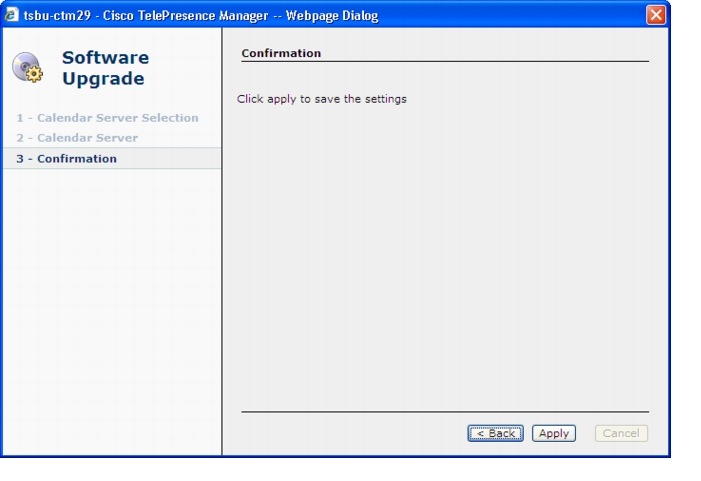
Figure 3-9 Cisco TelePresence Manager - Calendar Confirmation Screen
Step 4
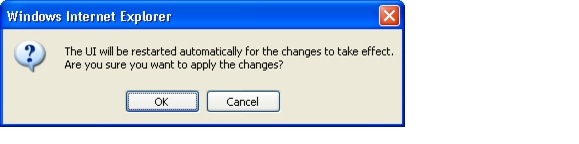
Figure 3-10 Apply Changes Screen
Step 5
Figure 3-11 System Restart Notification Screen

Caution
IBM Domino
The IBM Domino window helps you manage the database that stores TelePresence meeting information.
To test the connection between this system and the Domino server, as shown in IBM Domino Calendar Service Window:
Step 1
Step 2
Step 3
Figure 3-12 IBM Domino Calendar Service Window
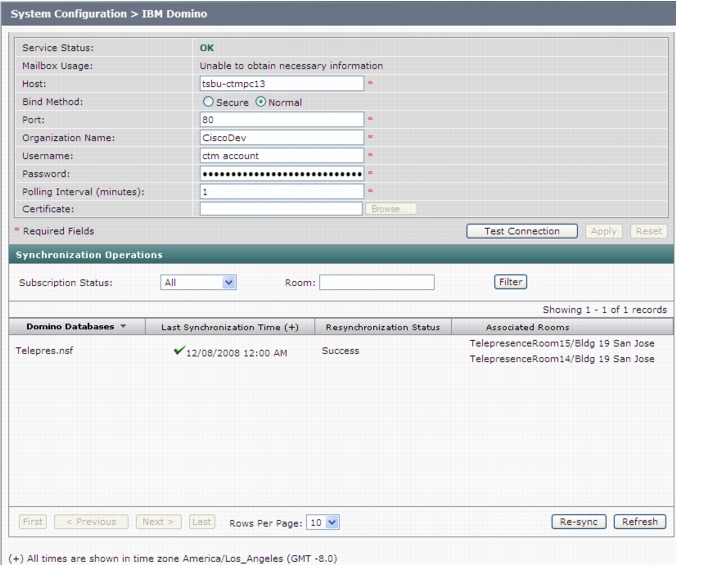
Table 3-4 describes the information and operations accessible from this window.
Re-sync Operations
The Re-sync Operations area tells you when information in the Domino server database was last updated with meetings scheduled for a particular room.
When mismatched information in the databases causes meeting conflicts or there are other problems that prevent a meeting from being launched successfully, this area of the IBM Domino window allows you to synchronize information between Domino and the CTS-Manager database. Synchronization takes time and system resources to accomplish and should be done only when necessary.
To synchronize information between Domino and the CTS-Manager database:
Step 1
Once you've begun the Re-sync operation the Service Status field displays a Sync progress indicator showing the progress of the Re-sync operation by percentage.
Step 2
Table 3-5 describes the information displayed in this area of the IBM Domino window.
Microsoft Exchange
The Microsoft Exchange window helps you manage the database that stores meeting information.
To test the connection between this system and the Microsoft Exchange server as shown inMicrosoft Exchange Calendar Service Window:
Step 1
Step 2
Step 3
Note
Figure 3-13 Microsoft Exchange Calendar Service Window
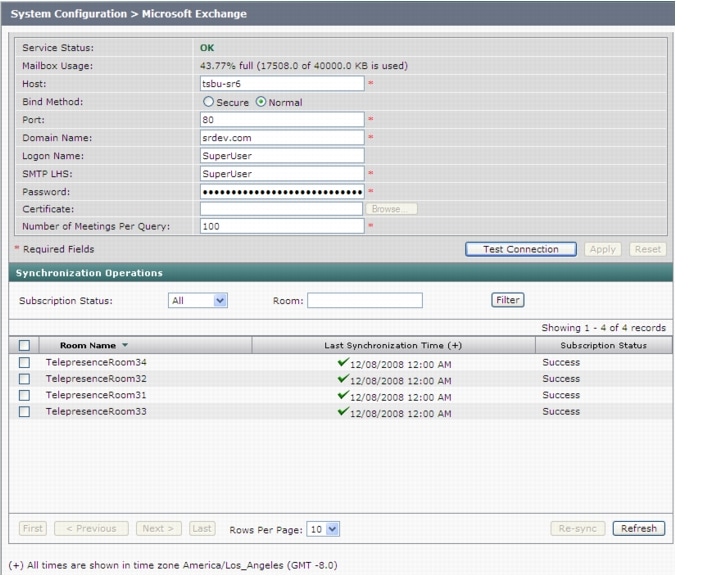
Table 3-6 describes the information and operations accessible from this window.
Re-sync Operations
The Re-sync Operations area tells you when information in the Microsoft Exchange server database was last updated with meetings scheduled for a particular room.
When mismatched information in the databases causes meeting conflicts or there are other problems that prevent a meeting from being launched successfully, this area of the Microsoft Exchange window allows you to synchronize information between Microsoft Exchange and the CTS-Manager database. Synchronization takes time and system resources to accomplish and should be done only when necessary.
To synchronize information between Microsoft Exchange and the CTS-Manager database:
Step 1
Step 2
Once you've begun the Re-sync operation the Service Status field displays a Sync progress indicator showing the progress of the Re-sync operation by percentage.
Step 3
Step 4
Table 3-7 describes the information displayed in this area of the Microsoft Exchange window.
Note
LDAP Server
CTS-Manager uses Lightweight Directory Access Protocol (LDAP) to retrieve information related to users and conference rooms from Directory Server deployments. Enterprises typically use specialized databases called directories to store information related to users, meeting rooms, and so on. LDAP is a protocol for accessing directories.
Note
This window specifies LDAP Directory Server server settings that are used by CTS-Manager to access the directory information. Open the LDAP Server window to see the following choices:
Settings
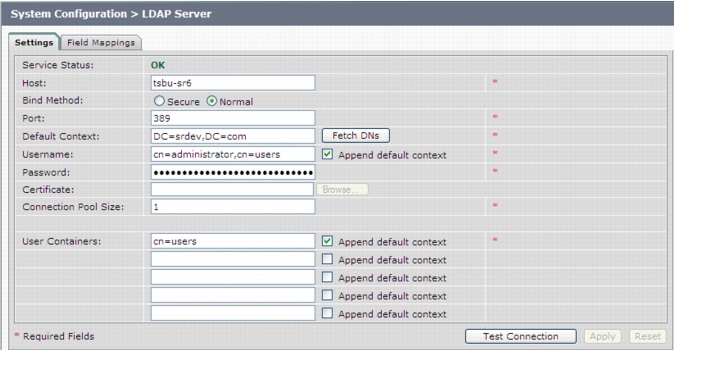
The Settings window is where you make changes to the LDAP server after first-time installation.
Figure 3-14 LDAP Window Settings Tab
Multiple LDAP Peer Domains
If you have a LDAP peer domain configured you'll need to specify the additional user containers and context. You can do this with one of the User Container fields.
For example, cn=users,dc=domain2,dc=com
When specifying the container and context information for your peer domain, DO NOT check the Append default context box.
Note
Table 3-8 describes the settings for this window.
To test the connection between this system and the LDAP server, click Test Connection.
To register new or modified settings, click Apply.
To restore the original settings, click Reset
Field Mappings
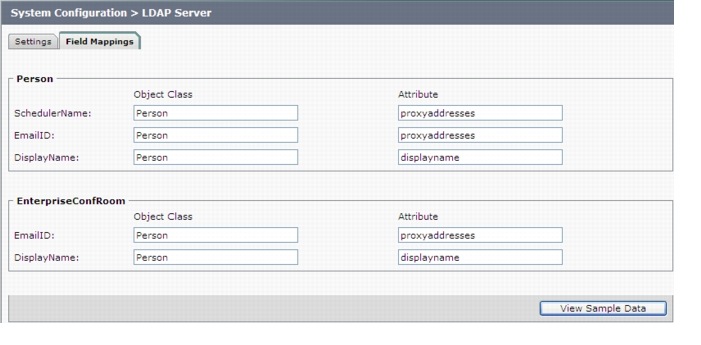
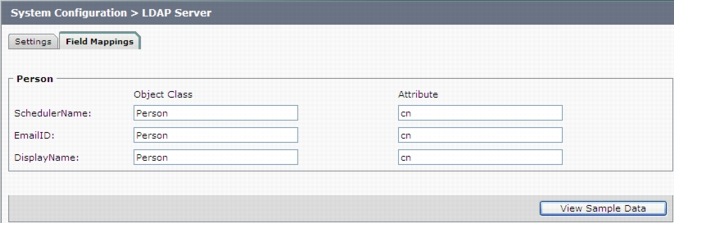
The CTS-Manager server uses application objects and attributes that are internally mapped to the objects and attributes in the LDAP Directory Server. Most of these mappings are predefined and fixed. However, some of the information required for the Cisco TelePresence system may be stored in different attributes of the LDAP Directory Server, based on the enterprise deployment. The Field Mapping window provides a mechanism to map such objects and attributes used by the CTS-Manager server to the object and attributes defined in the LDAP Directory Server schema.
Microsoft Exchange Deployments
The attributes are used by the Exchange server to store the user's e-mail and display name information. For most of the Exchange deployments, this information should not be changed.
CTS-Manager supports connection to multiple LDAP domains/servers that belong to a single Active Directory forest. Some of the setups with which CTS-Manager can work are peer-peer LDAP domain setup, and Parent-Child LDAP domain setup.
Caution
Figure 3-15 LDAP Window Field Mappings Tab
Verifying Field Mapping Data
Verify that the data retrieved is as you expected. If data is incorrect, the application will not operate correctly.
Click View Sample Data to retrieve objects based on the mappings specified.
Caution
The majority of deployments do not require any changes to these attributes. Incorrectly changing these fields will result in Cisco TelePresence Manager not being able to function.
Consult the Cisco TelePresence Manager support team and the LDAP and Exchange server administrator for your deployment before changing the default mappings in these screens.
IBM Domino Deployments
These attributes are used by the Domino LDAP server to retrieve the user's e-mail and display name information. For most of the Domino deployments, this information should not be changed.
CTS-Manager supports a Domino deployment with a single domain. CTS Manager can be configured against one Domino server only. In a cluster environment, all resource reservation databases that contain a Cisco TelePresence room's reservations must be replicated to the Domino server that CTS-Manager is configured against. Users in Directory Assistance database configured with external LDAP servers are not supported.
Caution
Figure 3-16 LDAP Window Field Mappings Tab
Verifying Field Mapping Data
Verify that the data retrieved is as you expected. If data is incorrect, the application will not operate correctly.
Click View Sample Data to retrieve objects based on the mappings specified.
Caution
Caution
The majority of deployments do not require any changes to these attributes. Incorrectly changing these fields will result in Cisco TelePresence Manager not being able to function.
Consult the Cisco TelePresence Manager support team and the LDAP and Domino server administrator for your deployment before changing the default mappings in these screens.
Discovery Service
To display and modify settings that associate CTS-Manager with Unified CM, choose Discovery Service in System Configuration.
To test the connection between Cisco TelePresence Manager and Cisco Unified Communications Manager, click Test Connection.
To manually start the process that is periodically performed to discover new rooms added to Unified CM, click Discover Rooms.
Note
To register new or modified settings, click Apply. To restore the original settings, click Reset.
Figure 3-17 Discovery Service Window
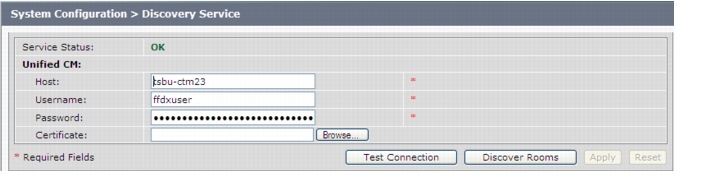
Table 3-11 describes fields, buttons, and settings.
MCU Devices
The MCU Devices window provides the ability to add and delete MCU devices. There are two MCU devices supported by CTS-Manager—Cisco TelePresence Multipoint Switch (CTMS) and Cisco Unified Video Conference device (CUVC).
The MCU Devices support screen displays several attributes for each MCU device registered with Cisco TelePresence Manager.
Caution
Figure 3-18 MCU Devices Window
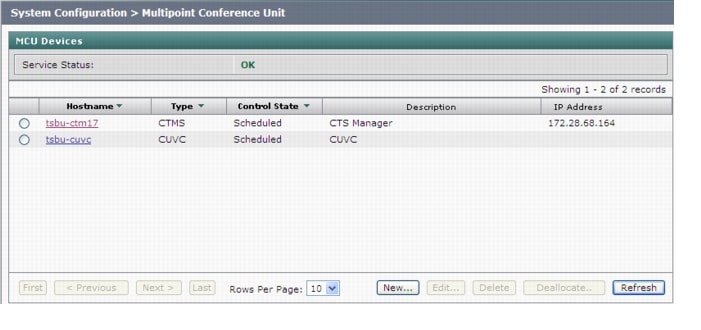
Table 3-12 describes the MCU Device fields.
Deleting a MCU
A Multipoint Conference Unit cannot be deleted if there are any associated scheduled meetings. If the MCU is a CUVC, with associated scheduled meetings, you must first Deallocate the CUVC resources before you can delete the device.
To delete a MCU Device, click the radio button next to the device and click Delete.
Refreshing the list of MCUs
Click the Refresh button to refresh the list of MCU devices.
Note
Cisco TelePresence Multipoint Switch (CTMS)
A CTMS communicates with the Cisco TelePresence Manager. CTMSs provide the functionality for three or more Cisco TelePresence rooms to attend a conference call. Cisco TelePresence Manager provides the scheduling information to the different CTMSs and each CTMS provides the multipoint switching capabilities for the conference.
Adding a CTMS
To register additional CTMS devices with Cisco TelePresence Manager, click New to display the Registration dialog box, and choose CTMS from the Type drop-down field.
Figure 3-19 Adding New CTMS - MCU Devices Window
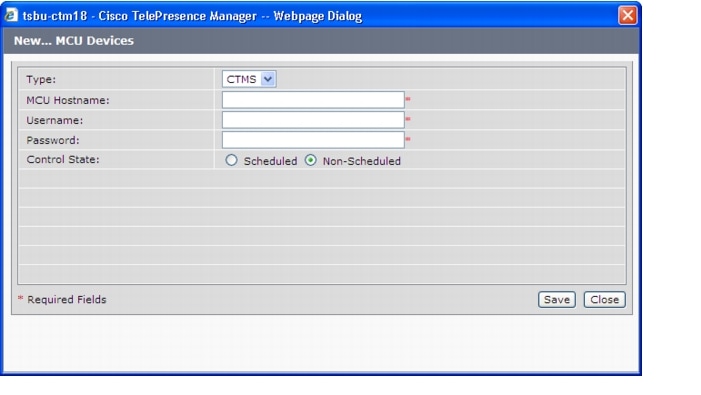
Table 3-13 Registering a CTMS with Cisco TelePresence Manager
Type
CTMS or CUVC are the only MCU types. If only CTMS appears in the drop-down list, Interop has not been enabled. Use the Application Settings window to enable Interop.
MCU Host Name
The hostname or IP address of the CTMS. This is the LHS of the complete Host name.
Username
This is the account name used to log into the CTMS.
Password
This is the account password used to log into the CTMS.
Control State
Specify whether the CTMS is available (scheduled) for meetings. The resources of a scheduled CTMS can be used when meetings are scheduled. Specifying a CTMS as Non-Scheduled means the CTMS will not be used when a meeting is scheduled.
Note
Editing CTMS Settings
To edit CTMS registration information, click the radio button next to the device and click Edit. The following table describes the CTMS settings that may be changed.
Cisco Unified Video Conferencing (CUVC)
CTS-Manager support of CUVC enables video conferencing devices to join a scheduled Cisco TelePresence meeting. A CUVC is notified by and joins a Cisco TelePresence meeting through a CTMS. A CTMS device must be used to enable video conferencing devices to join, even if it is a point-to-point call.
Note
Adding a CUVC
To a CUVC device with Cisco TelePresence Manager, click New to display the Registration dialog box, and choose CUVC from the Type drop-down field.
Table 3-15 Registering a CUVC with Cisco TelePresence Manager
Type
CTMS or CUVC are the only MCU types. If only CTMS appears in the drop-down list, Interop has not been enabled. Use the Application Settings window to enable Interop.
Note
MCU Host Name
This is the LHS of the complete Host name.
Control State
Specify whether the CUVC is available (scheduled) for meetings. The resources of a scheduled CUVC can be used when meetings are scheduled. Specifying a CUVC as Non-Scheduled means the CUVC will not be used when a meeting is scheduled.
Access Number Prefix for CTMS
The access number prefix for your CTMS is based on your enterprise dialing plan.
Access Number Prefix for Video Conferencing Participants
This access number prefix is based on your enterprise dialing plan.
Conference ID Length
The Conference ID can be 1-8 digits in length. The system-generated Conference ID is used to create an Interop Access Number used by the CTMS to establish the conference call. It is also used to create the Interop Access Number sent in an email to meeting participants, as the dial-in phone number. The Conference ID length is based on your enterprise dialing plan.
Multiple EMP Cards Support
Enabling EMP card support provides additional resources to support a greater number of video calls using the CUVC. CTS-Manager with EMP card support enabled allows up to 48 video calls per EMP card.
Note
Number of EMP Cards
Specify the number of EMP cards installed in the CUVC device.
Maximum Participants per Conference
Enter a numeric value for the maximum number of meeting participants that may dial into the conference call.
Minimum Participants per Conference
The minimum value for this field is 2. This value cannot exceed the Maximum Participants per Conference value.
Total Resources
This value should be greater than the Maximum Participants per Conference.
Note
Editing CUVC Settings
To edit CUVC registration information, click the radio button next to the device and click Edit. The following table describes the CUVC settings that may be changed.
Concierges
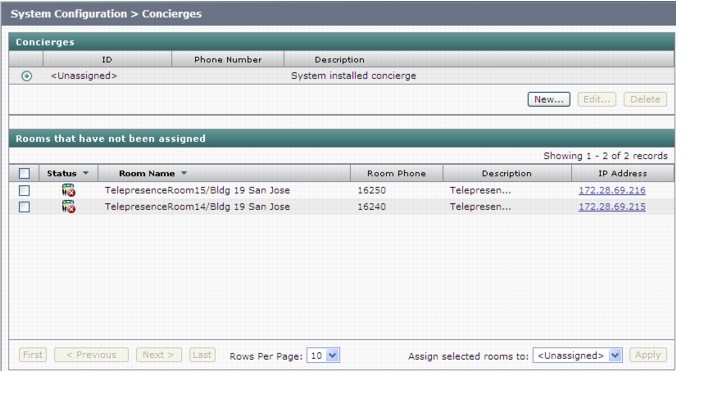
The Concierges window has two areas, a list of concierges and a list of rooms that need a concierge assigned to them. Use the areas in this window to assign a concierge to a meeting room.
A phone number is associated with the concierge, which is displayed on the Cisco TelePresence meeting room phone user interface when the Concierge soft key is pressed. Meeting participants can dial the concierge and ask for help when problems occur with the Cisco TelePresence system.
Figure 3-20 System Configuration - Concierge Window
Creating Concierges
•
You must enter an identifier for the concierge in the ID field and a phone number in the Phone Number field.
Figure 3-21 Adding a Concierge Window
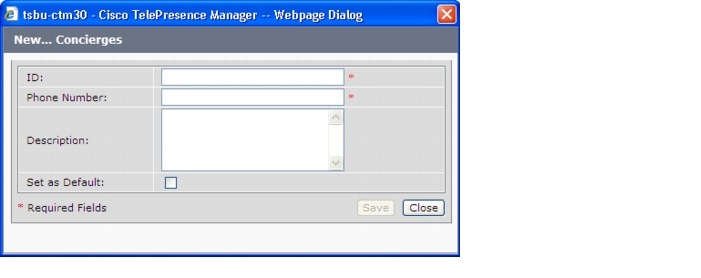
You can choose to supply other information identifying the concierge in the Description field.
When putting information in the Concierge Description Field do not use a Carriage Return or line feed, sometimes referred to as <CR> between words (do not hit return key).
All Cisco TelePresence rooms must be assigned to a Concierge. If you haven't specified a Concierge for a room, the System installed <Unassigned> Concierge is the default Concierge for all rooms discovered in CTS-Manager. You can change the default Concierge to a specific Concierge by checking the Set as Default checkbox in the Concierge details window. Any Cisco TelePresence room discovered by CTS-Manager will be assigned to the new default Concierge. Each time you specify a different Concierge as the default, all future rooms discovered by CTS-Manager will be assigned to the new default.
Assigning a Room to a Specific Concierge
Once concierges have been registered, assign them meeting rooms as follows:
Step 1
Step 2
Step 3
To edit the concierge assignment:
Step 4
Step 5
Step 6
Note
Access Management
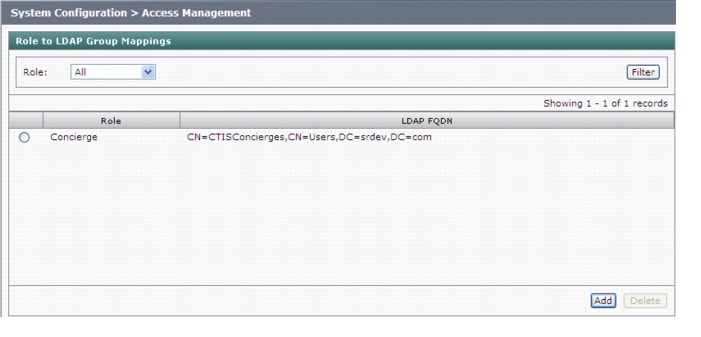
From the Directory Server, it is possible to create groups, such as a Concierge group and an Admin group. Use this window to view and create roles for these groups. CTS-Manager supports two roles—a concierge and an administrator.
The two roles have different levels of privilege and access when using CTS-Manager. Members in the group mapped to the Concierge role have limited privileges that allow them to view the meetings, rooms, and system error and log files. Members in the group mapped to the Administrator role have the privileges of the Concierge role plus additional privileges that allow them to make configuration changes.
Figure 3-22 Access Management Window
Assigning Roles to Groups Using Domino Directory Assistance
If your Cisco TelePresence Manager deployment is working with an IBM Domino Server and Domino Directory Assistance, it is possible for the group to contain a user from an external directory. That type of external user cannot be granted the CTS-Manager Administrator role. Only members of groups local to the IBM Domino Directory may be granted the Administrator role.
You can generate a report about specific LDAP Group mappings, as follows:
•
•
Caution
Policy Management
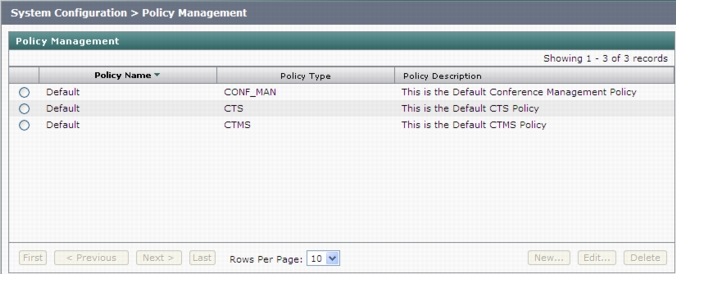
The Policy Management window lists the three default policies to support scheduling and conference termination:
Figure 3-23 System Configuration - Policy Management Window
•
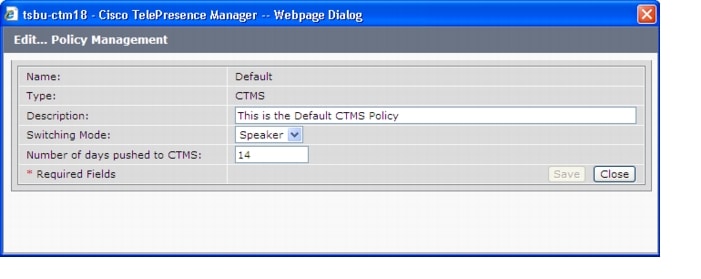
Figure 3-24 CTMS Policy Window
•
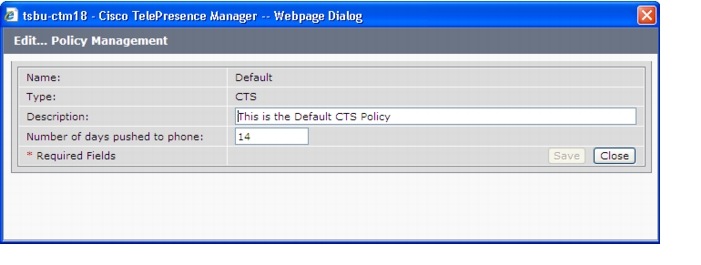
Figure 3-25 CTS Endpoint Policy Window
•
–
–
–
Note
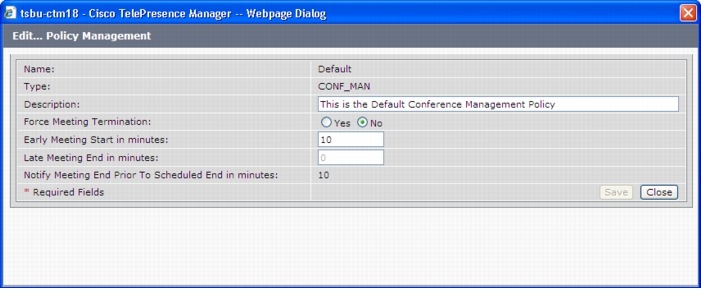
Figure 3-26 Conference Manager Policy Window
System Settings
If you are the system administrator and know the superuser password, you can open the System Settings window to see the following choices:
Use the tabs in this window to modify IP settings, configure a Network Time Protocol (NTP) server, enable or disable Simple Network Management Protocol (SNMP), set up a temporary account for access, change the system password, and restart the system.
IP Setting
The IP Setting window lists information that is provided to CTS-Manager during first-time installation and configuration. Although it is typically not necessary to change IP settings, this window offers a place to modify some of them. Figure 3-27 describes the fields and buttons.
Figure 3-27 System Settings Window IP Settings Tab
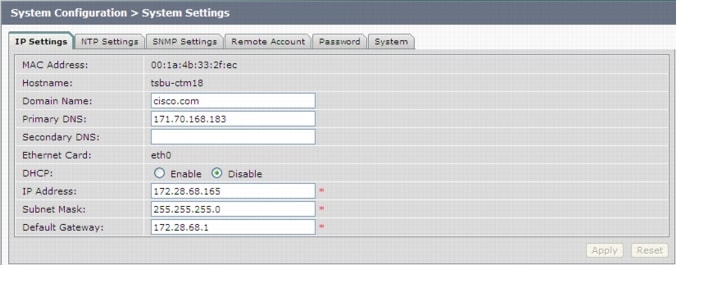
To add new information, type it in the fields provided.
To change information, highlight and delete existing information and type in the new information.
To register new or modified settings, click Apply.
To restore the original settings, click Reset.
NTP Setting
Click the NTP Setting tab in the System Settings window to list the configured IP address of the Network Time Protocol (NTP) servers.
NTP is used to synchronize the clocks on Cisco IP telephony servers with an external network time server that uses NTP.
Figure 3-28 System Settings Window NTP Settings Tab
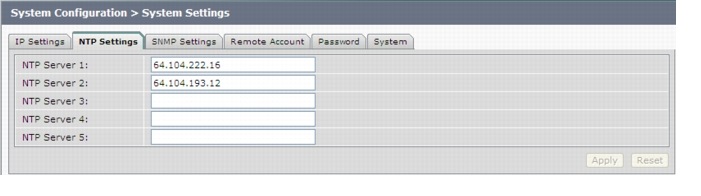
To add an NTP server to the configuration, type the IP address in an NTP Server field.
To change an NTP server in the configuration, highlight and delete the IP address in the NTP Server field and type in the new address.
To register new or modified settings, click Apply.
To restore the original settings, click Reset.
SNMP Setting
SNMP is an industry-standard interface used by network management systems to capture system status and error information, including information provided by Unified CM. Use this window to enable and disable SNMP service and change the default configuration.
By default, SNMP service is disabled. Once SNMP is enabled, the following default SNMP settings are also enabled:
Caution
•
•
•
Figure 3-29 System Settings Window SNMP Settings Tab
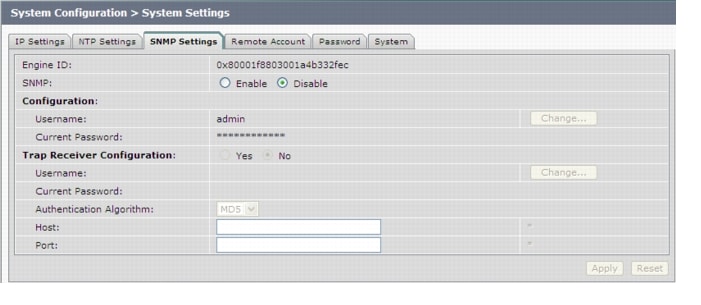
To configure SNMP, click the SNMP Setting tab in the System Settings window. Table 3-18 describes the fields and buttons.
To register new or modified settings, click Apply.
To restore the original settings, click Reset.
Technical Notes
CTS-Manager supports SNMP v3 and v2c. Together it supports ten SNMP users and five trap destination/receivers. A string of trap receiver settings is added to the /etc/snmp/snmpd.conf file to configure the trap receiver on the Cisco TelePresence Manager server. The string must include the following information, which is collected in the fields described in Table 3-18 or is set by default:
•
•
•
•
•
•
•
•
The following is an example trap receiver entry:
trapsess -e 0x80001f880474657374 -v 3 -m ALL -l authNoPriv -u traper -a MD5 -A changeme
171.71.232.113:162
These fields can be viewed and configured using get and set commands on the /usr/sbin/snmpconfig script. To test your configuration, run snmptrapd come with net-snmp on the trap receiver system. You can create the user in /etc/snmp/snmptrapd.conf on the trap receiver system before starting snmptrapd.
Remote Account
Use this window to set up limited access for remote users of this CTS-Manager. The remote account is intended for use by Cisco technical support personnel so they can access the system remotely to troubleshoot problems. Secure Shell (SSH) is used to access the system. The remote account is typically enabled for a brief period. Disabling the account will cause whoever is logged onto the system to be logged off. Only one remote account can be set up at a time, but more than one remote account can be active at the same time.
Login to the remote account is done using the account name and a pass phrase generated by software in this CTS-Manager. The remote user uses the account name, the pass phrase, and a utility available at an internal Cisco web site to generate a login name and password that allow access to this Cisco TelePresence Manager.
Figure 3-30 System Settings Window Remote Account Tab
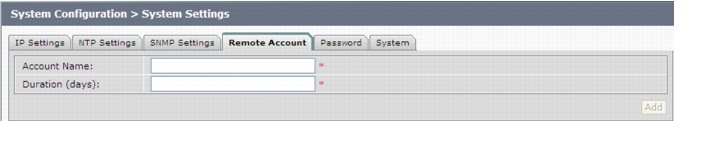
To start the remote login account process:
Step 1
This name can be anything you choose, using English characters.
Step 2
Step 3
This step generates a pass phrase.
To complete this process, the account name and pass phrase are entered into a utility at the following Cisco Internal web site:
https://remotesupporttool.cisco.com/logon.phpFor security reasons, if remote users fail to log off, they will be logged off automatically at the time listed in the Expires field.
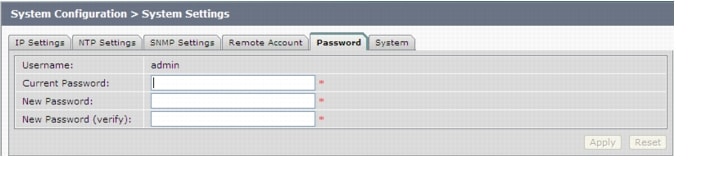
Password
Use the System Settings window to change the password for the Cisco TelePresence Manager. You must know the current password. Input the new password the second time for verification.Do not use anything other than English, as International words or characters are not supported in this release.
Figure 3-31 System Configuration - System Settings Window Password Tab
Step 1
Step 2
Step 3
Step 4
Step 5
Step 6
Note
It is not possible to change the username for this CTS-Manager.
System
Use the System Configuration, System Settings window to restart CTS-Manager.
Figure 3-32 System Settings Window System Tab

Step 1
•
Step 2
Step 3
This will restart the CTS-Manager system.
Application Settings
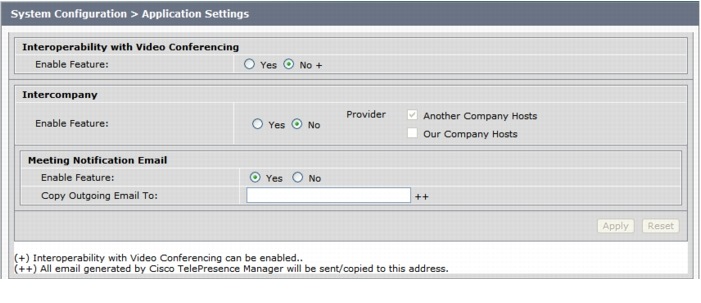
The System Configuration Applications Settings window is used to set three different options: Interoperability with Video Conferencing, Intercompany, and Meeting Notification Email.
Figure 3-33 Application Settings Window
Interoperability with Video Conferencing Settings
The default setting for inter operability with video conferencing is "Disable." If the setting is grayed out and cannot be changed to "Enable," there is at least one CTS endpoint or MCU device that is not interop-ready. All endpoints and CTMS MCUs must support interop before you can enable Interop settings. Make sure all devices discovered by CTS-Manager are running interop-enabled software releases.
If Interoperability with Video Conferencing has been set to "Enable" and is grayed out so that you can't disable it, the CUVC, added through the MCU devices window, is included in at least one scheduled meeting. In order to disable interop services, you must first Deallocate the CUVC, and then Delete it from the MCU Devices window.
Intercompany Setting
Enabling Intercompany allows you to schedule multipoint meetings between two different organizations. Once you enable the Intercompany feature it cannot be disabled.
Meeting Notification Email Settings
The default setting for Meeting Notification Email is 'Yes'. If you change this setting to 'No' you disable email notifications, and Confirmation emails and Action Required emails are not sent to meeting organizers.
You can also specify an additional email address. All emails generated by Cisco TelePresence Manager will also be sent to this address.
A secondary email address specified for IBM Domino installations is included in the BCC field when emails are generated.
A secondary email address specified for Microsoft Exchange installations is included in the CC field when emails are generated.
Software Upgrade
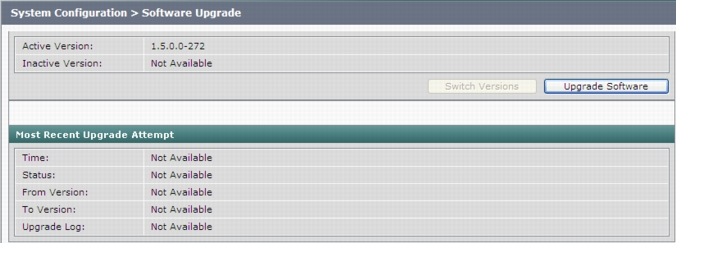
If you are the system administrator and know the superuser password, you can access the Software Upgrade window to monitor and maintain system software. This window reports the version number of the system software. There are also two buttons to assist you in version maintenance between primary and backup and upgrading the system software, as follows:
Figure 3-34 System Configuration - Software Upgrade Window
•
•
In addition to SFTP, FTP is also supported on a best-effort basis due to variations of behavior between different FTP servers. Only username/password-based login is supported. Anonymous login is not supported.
Secure FTP (SFTP) is the recommended mode for downloading the upgrade software over the network.Upgrading to Cisco TelePresence Manager 1.5
Switching calendar application type, e.g. changing from Exchange to Domino, during Cisco TelePresence Manager upgrade is not supported. A fresh install is required to install Cisco TelePresence Manager for Domino deployment.
•
•
–
–
–
•
•
Switch Version
The hard drive on the CTS-MAN server is divided into two partitions. CTS-MAN is always using the Active partition and contains the Active software version. The software image versions are identified in the System Configuration> Software Upgrade window.
You may find it necessary to switch the version of the CTS-Manager software.
•
The system will swap the software versions and reboot. Screens will describe activity.
Upgrade Software
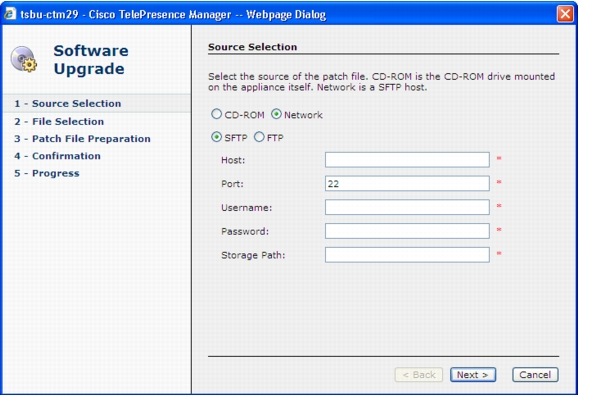
This task upgrades the CTS-Manager software by loading and applying a patch file from either a CD-ROM or an SFTP/FTP host network. Before starting this task, determine the source of the patch file.
•
The Source Selection dialog box appears.
Note
•
If you chose CD-ROM, click Next to go to the File Selection window.
If you chose Network, provide the following information, and then click Next to go to the File Selection window.
•
•
Note
•
•
Caution
Secure FTP (SFTP) is the recommended mode of transferring files over the network.
Figure 3-35 Software Upgrade - Source Selection Window
•
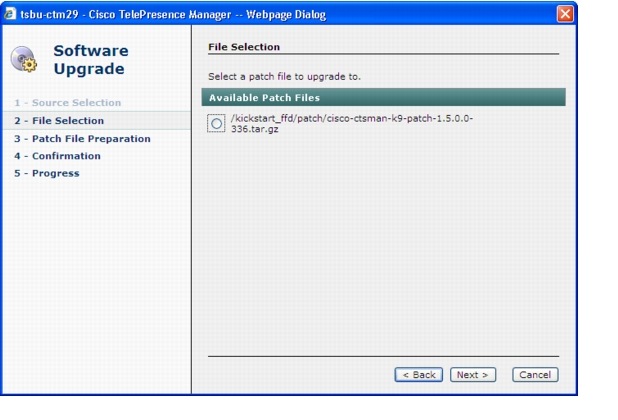
Figure 3-36 Software Upgrade - File Selection window
•
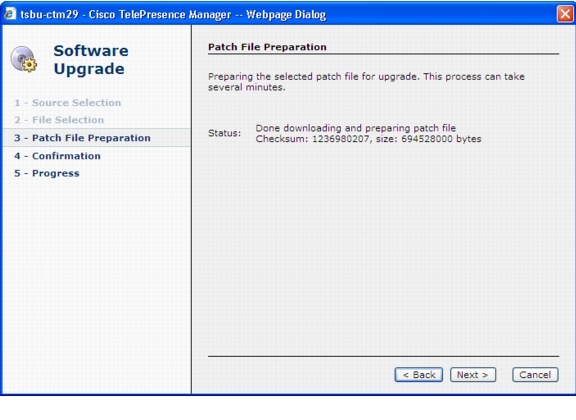
Figure 3-37 Software Upgrade - Patch File Preparation Window
•
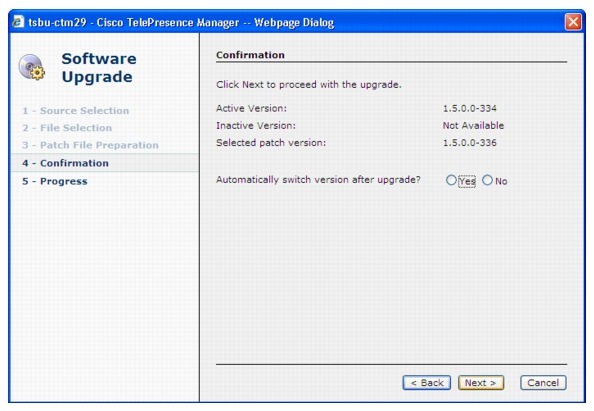
The software wizard displays the software versions that are installed and provides active Yes and No radio buttons so you can choose to switch the newly loaded software to the active partition.
•
Caution
Figure 3-38 Software Upgrade - Confirmation Window
•
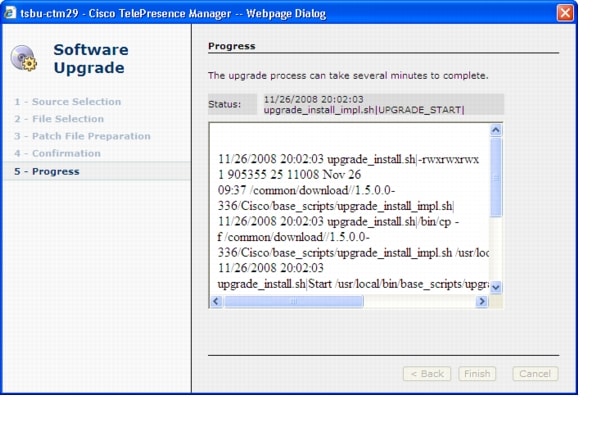
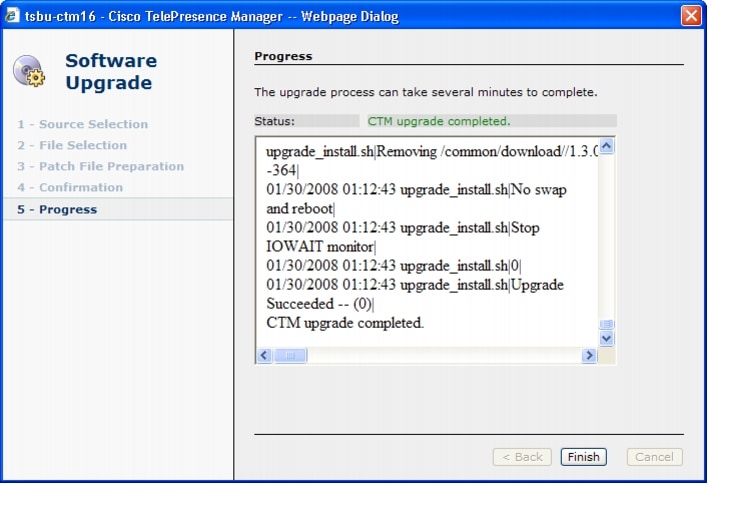
Figure 3-39 Software Upgrade - Progress Window
•
Note
Figure 3-40 Software Upgrade - CTM Upgrade Completed Window
CTS-Manager Redundancy Failover Procedure
The Cisco TelePresence Manager configuration for a redundant system is to have a primary and a backup CTR-MAN system with a mirror configuration.
Note
Cold Standby
In a redundant system, the primary CTS-MAN is active and the backup is powered off.
When a CTS-MAN primary system stops working, meetings scheduled during this down-time will not be pushed to the phone. Meetings can still be scheduled in the Exchange of Notes during a the downtime and all meetings "one button to push" on the phone will not be affected. Once the backup CTS-MAN is online, meetings scheduled during the primary down-time will be processed and pushed to the phones.
Note
CTS-MAN Failover Procedure
When the primary CTS-MAN fails, perform the following procedure:
•
•
•
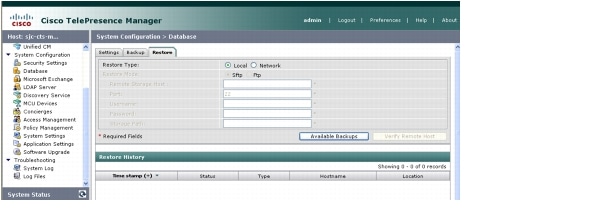
Figure 3-41 System Configuration Database Restore Backup Window
•
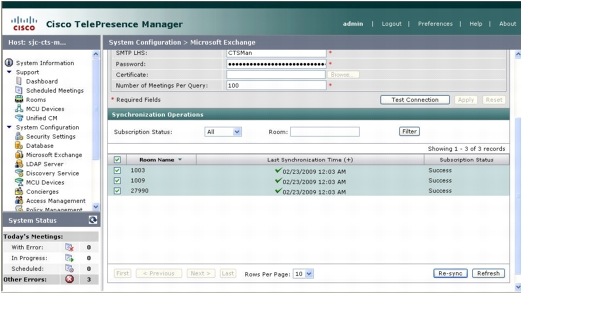
Figure 3-42 System Configuration - Microsoft Exchange Re-sync Window
•
Note
Warm Standby
CTMS Warm Standby for Scheduled Meetings
Both the primary and backup CTMS systems are configured independently with different access numbers, etc.
Each CTMS is configured in the CTS-MAN. Both primary and backup CTMS are powered on and connected to the network at all times. The meetings will only be scheduled on and serviced by the primary CTMS.
CTS-MAN Redundancy Failover Procedure
With a redundant CTS-MAN system, make sure to configure two CTS-MAN and register the primary with CTS-MAN in "Scheduled" mode and the backup in "Non-Scheduled" mode.
Note
When the primary CTR-MAN fails, perform the following procedure:
•
•
•
Note
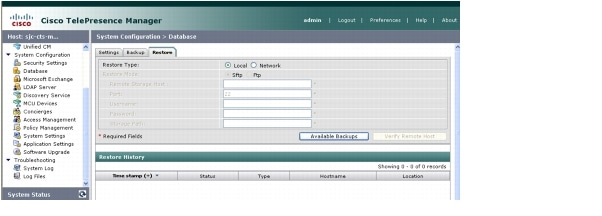
Figure 3-43 System Configuration Database Restore Backup Window
CTMS Redundancy Failover Procedure
•
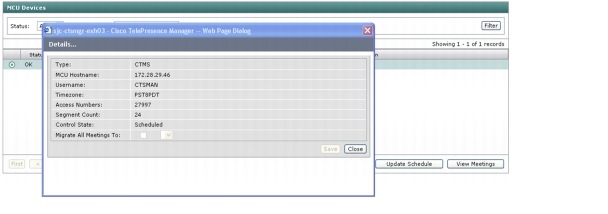
Figure 3-44 System Configuration MCU Devices - Details Window
•
•
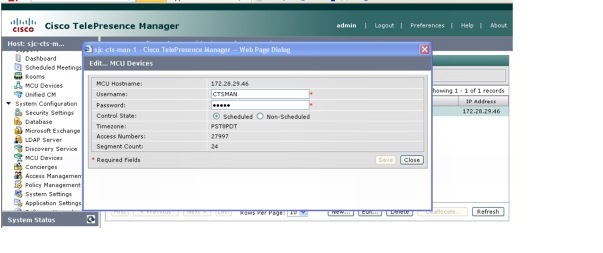
Figure 3-45 System Configuration MCU Devices - Edit Window
All scheduled multipoint meetings are moved to the backup CTS-MAN and "One Button to Push" entries are updated with the new CTMS access number and conference ID. The time it takes to update all meeting entries and update all phones will vary depending on the number of meetings and CTS endpoints.
.
 Feedback
Contact Cisco
- Open a Support Case

- (Requires a Cisco Service Contract)
This Document Applies to These Products
- Collaboration Endpoints - Retired Products
- Conferencing - Retired Products
- Contact Center - Retired Products
- Optical Networking - Retired Products
- Routers - Retired Products
- Security - Retired Products
- Servers - Unified Computing (UCS) Retired Products
- Storage Networking Retired Products
- Switches - Retired Products
- Video - Retired Products
- Wireless - Retired Products