Troubleshooting Cisco TelePresence Passwords
Available Languages
Table Of Contents
Troubleshooting Cisco TelePresence System Passwords
Resetting Your CTS Codec Password
Restoring Connectivity to the Codec
Troubleshooting Cisco Unified CM Passwords
Resetting Administrator and Security Passwords
Troubleshooting CTS-Manager Passwords
Resetting Your CTS-Manager Password
Troubleshooting CTMS Passwords
Additional Password Management Information
Resetting Your MXE Root Password
Troubleshooting Cisco TelePresence System Passwords
Revised: March, 2011, OL-21351-01Contents
This chapter contains information about troubleshooting the Cisco TelePresence System (CTS) and includes the following sections:
•
Troubleshooting CTS Passwords
•
•
•
•
Troubleshooting CTS Passwords
This section contains the following information about managing and troubleshooting password issues with the Cisco TelePresence System (CTS):
•
•
Resetting Your CTS Codec Password

Note
At each point where the pwrecovery account requires input, the program will wait up to 60 seconds. If nothing is entered, the system will inform you that the entry took too long and will exit.
If you encounter any difficulty, open a case with Technical Assistance Center (TAC) via the Internet at http://tools.cisco.com/ServiceRequestTool/create/, or contact your Cisco technical support representative and provide the representative with the information you have gathered about the problem.
Before You Begin
Make sure that the CTS is not in a call, and that there is only one instance of someone trying to reset the password, otherwise the session will abort.
Procedure
To reset your CTS codec password, follow these steps:
Step 1
Step 2
•
•
The following message appears in the SSH client window:
Example 12-1 Welcome to Password Reset
dhcp-249:~ $ ssh pwrecovery@10.00.00.100pwrecovery@10.00.00.100's password:*********************************************** ************************************************* **** Welcome to password reset **** ************************************************* *********************************************** Do you want to continue ? (y/n):y Preparing the system... Please enter the passcode:Step 3
Note
This system will now prepare for password reset and prompt you for a passcode. The new passcode is displayed on the CTS main display, as shown in the following example:
Password reset is now being run
Passcode: 919175
Note
Example 12-2 Invalid Password Reset Request
Do you want to continue ? (y/n):yPreparing the system...Please enter the passcode:12345Sorry that was an invalid passcode...Logging offConnection to 10.00.00.100 closed.dhcp-249:~ $When you enter the correct passcode, the CTS will then reset the administration account name and password to the system defaults. The following example shows successful password reset information:
Example 12-3 Successful Password Reset Request
Please enter the passcode:507530resetting admin name and passwordstopping any existing admin sessionadmin account and password reset to defaultsuccess in applying security rulesLogging offConnection to 10.00.00.100 closed.dhcp-249:~ $
Note
Restoring Connectivity to the Codec
If you lose connectivity to the codec, refer to the Cisco TelePresence System Assembly, Use & Care, and Field-Replaceable Unit Guide for your system on Cisco.com:
Support > Products > TelePresence > Cisco TelePresence System
Troubleshooting Cisco Unified CM Passwords
This section contains the following information about managing and troubleshooting password issues with Cisco Unified Communications Manager:
•
Password Aging
To ensure that your system is protected when using Cisco TelePresence Command Line Interface (CLI), you must periodically update your password. The system alerts you to the number of days remaining on your current password in the login banner when you log onto the system. The system issues a warning when 14 days remain on your current password, and so on until the password expires. You may get a message similar to the following at login:
"Password change required in 10 days"
The password life (the maximum age, in days) can be configured using new fields on the Cisco Unified Communications Manager (Cisco Unified CM) Device > Phone > Product Specific Configuration Layout > Secure Shell Information page:
•
•
•
•
Figure 12-1 shows the Secure Shell (SSH) Information window.
Figure 12-1 SSH Information Window
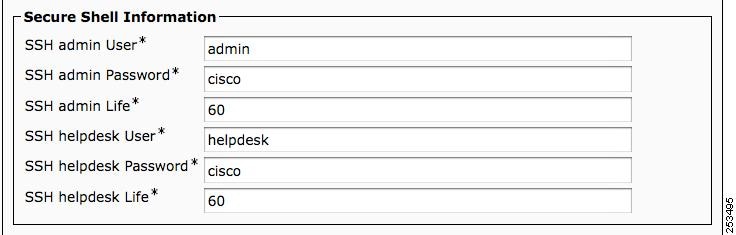
The password expiration can be set to have a value between 0 and 365. A setting of 0 disables password aging, and the default is 60 days. Unless the configured life has been disabled (by being set to 0), password age is set to have 2 days remaining in the following situations:
•
•
•
Password Notices
When the password age has expired, a warning message is shown briefly on-screen before logging out. Notice information is printed at login when there are 14 days or less remaining on the current password.
When you log in, you will receive one of three banners:
Example 12-4 7 to 14-Day Warning
If your password is about to expire within 7 to 14 days, you will see a message similar to the following:
customer@mypc #1000:ssh admin@108.100.000.25admin@108.100.000.25's password:Command Line Interface is starting up, please wait ...Welcome to the TelePresence Command Line Interface (version 1.1)Last login: Wed Dec 9 22:22:58 PST 2009 from philly.cisco.comPassword change required in 10 daysadmin:Example 12-5 0 to 7-Day Warning
If your password is about to expire within 0 to 7 days, you will see a message similar to the following:
customer@mypc #1000:ssh admin@108.100.000.25admin@108.100.000.25's password:Command Line Interface is starting up, please wait ...****** Warning ******You must change your admin password in the next 2 days****** Warning ******Welcome to the TelePresence Command Line Interface (version 1.1)Last login: Fri Nov 13 13:12:42 PST 2009 from mypc.cisco.comPassword change required in 2 daysadmin:Example 12-6 0 Days Remaining
If your password is expiring with 0 days remaining on the current password, the following banner is shown. The session waits for 10 seconds then disconnects.
customer@mypc #1000:ssh admin@108.100.000.25admin@108.100.000.25's password:Command Line Interface is starting up, please wait ...****** Warning ******You have not changed your admin password in more than 60 daysThe admin account login has been disabled******************************************************** ** Please go to the CUCM and change the password ** ************************************************************** Warning ******Connection to 108.100.000.25 closed.For more information see the Cisco Unified Communications Manager Configuration Guide for Cisco TelePresence System. See also the Cisco TelePresence System Command-Line Interface Reference Guide.
Resetting Administrator and Security Passwords
If you lose the administrator password or security password, use the following procedure to reset these passwords in Cisco Unified CM.
To perform the password reset process, you must be connected to the system through the system console, that is, you must have a keyboard and monitor connected to the server. You cannot reset a password when connected to the system through a secure shell session.

Caution
Caution
Note
Procedure
Step 1
•
•
The Welcome to platform password reset window displays.
Step 2
Step 3
Step 4
The system tests to ensure that you have removed the CD or DVD from the disk drive.
Step 5
Note
The system tests to ensure that you have inserted the disk.
Step 6
•
•
•
Step 7
Step 8
The password must contain at least 6 characters. The system checks the new password for strength. If the password does not pass the strength check, you get prompted to enter a new password.
Step 9
Troubleshooting CTS-Manager Passwords
This section contains the following information about managing and troubleshooting password issues with CTS-Manager:
•
Resetting Your CTS-Manager Password
Use the information in this section to change the password for Cisco TelePresence Manager.
Before You Begin
Follow these guidelines to reset your CTS-Manager password:
•
•
•
Procedure
Step 1
Step 2
Step 3
Step 4
Step 5
Note
Step 6
Step 7
Step 8
Troubleshooting CTMS Passwords
This section contains the following information about managing and troubleshooting password issues with the Cisco TelePresence MultiPoint Switch:
Managing CTMS Passwords
CTMS administration access management software recognizes three administrative roles:
•
•
•
Access to certain tasks and information is dependent the administrative role.
To configure or edit Access Management settings:
Step 1
Step 2
Step 3
•
•
•
Step 4
Step 5
Step 6
Step 7
Step 8
Step 9
Additional Password Management Information
Use the information in this section to manage associated system passwords:
•
Resetting Your MXE Root Password
Use the information in this section to change your MXE root password.
Before You Begin
You must have physical and console access to the MXE system.
Procedure
To change your MXE root password, follow these steps:
Step 1
Step 2
Step 3
Calistoga=>set env othbootargs `init=/bin/bash' bootStep 4
rm -rf /PSS/*Step 5
For more information about the MXE, see the Cisco MXE 5000 Series (Media Experience Engines) home page on Cisco.com.
Related Information
For more information about setting up, testing, and troubleshooting the CTS, see the following documentation on Cisco.com:
•
•
•
•
 Feedback
Contact Cisco
- Open a Support Case

- (Requires a Cisco Service Contract)
This Document Applies to These Products
- Collaboration Endpoints - Retired Products
- Conferencing - Retired Products
- Contact Center - Retired Products
- Optical Networking - Retired Products
- Routers - Retired Products
- Security - Retired Products
- Servers - Unified Computing (UCS) Retired Products
- Storage Networking Retired Products
- Switches - Retired Products
- Video - Retired Products
- Wireless - Retired Products