Introduction
Available Languages
Table Of Contents
Element Manager Primary Display
System Requirements (All Platforms)
About Element Manager
These topics describe the Element Manager Java-based user-interface (GUI) that runs on your server switch:
Introduction
With Element Manager, you can manage individual server switches from an easy-to-use GUI. To run Element Manager, you must complete the following tasks:
•
Install the Element Manager software on a host or workstation.
•
•
The following topics describe basic features of the Element Manager user interface:
•
Element Manager Primary Display
The primary display of Element Manager provides drop-down menus, feature buttons, and various clickable display elements. Figure 1-1 shows the Element Manager display.
Figure 1-1 Element Manager Primary Display
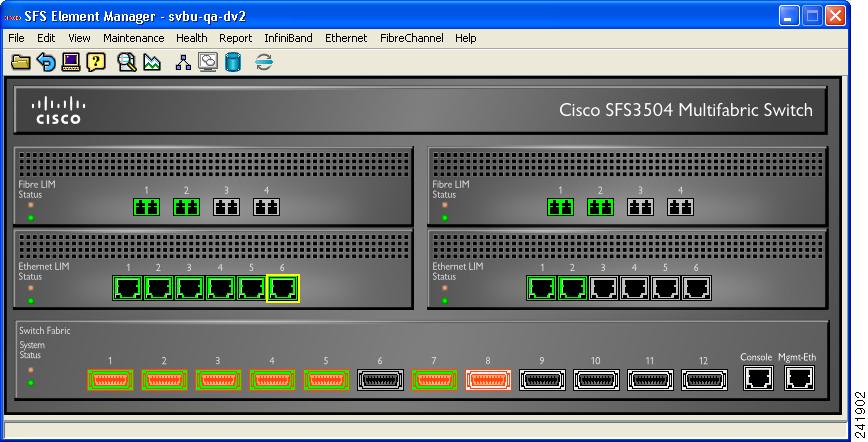
The number of menus, icons, and display elements vary by server switch platform. Table 1-1 and Table 1-2 list and describe all possible menus and buttons. Clickable display elements vary by hardware platform.
When you click a display element (such as server switch ports), a yellow border appears around the element. You can double-click any clickable element to open a related configuration window. You can right-click these elements to view element-specific menus. You can use these menus and windows to view element details or change the configuration.
You can press the Ctrl key and click multiple elements of the same type (for instance, multiple InfiniBand ports) to select multiple elements at once to configure them as a group. After you select multiple elements, right-click one of the elements to display a right-click menu for options that you can apply.
Element Manager Menus
Table 1-1 describes the drop-down menus in the Element Manager display.
Element Manager Icons
Table 1-2 describes the feature icons in the Element Manager display.
Common GUI Buttons
Many windows that you can open in Element Manager display a combination of frequently appearing buttons. Table 1-3 describes these common buttons.
Status Indicators
The Element Manager display uses specific colors to communicate the status of server switch elements. Table 1-4 describes status-indicator colors.
Color is also used on the primary display to indicate not only the up/down status of ports, but also the configured lane width of InfiniBand ports, as shown in Figure 1-2.
Figure 1-2 Primary View Showing Port Status
Ports 1 through 12 are InfiniBand ports.
•
•
•
Installing Element Manager
Element Manager runs on Linux, Solaris, and Windows platforms. Follow installation instructions for the appropriate platform:
•
System Requirements (All Platforms)
To install Element Manager, your system must meet the following requirements:
•
•
•
•
Linux Installation
To install Element Manager on Linux, follow these steps:
Step 1
Step 2
http://www.cisco.com/public/sw-center/
Step 3
The download software screen appears.
Step 4
Step 5
Step 6
Step 7
Step 8
Solaris Installation
To install Element Manager on Solaris, follow these steps:
Step 1
Step 2
http://www.cisco.com/public/sw-center/
Step 3
The download software screen appears.
Step 4
Step 5
Step 6
Step 7
Step 8
Windows Installation
To install Element Manager on Windows, follow these steps:
Step 1
Step 2
http://www.cisco.com/public/sw-center/
Step 3
The download software screen appears.
Step 4
Step 5
Step 6
Step 7
Step 8
The Introduction screen appears.
Step 9
The License Agreement screen appears.
Step 10
The Choose Install Folder screen appears.
Step 11
The Choose Shortcut Folder screen appears.
Step 12
The Pre-Installation Summary screen appears.
Step 13
The installation executes.
Step 14
Launching Element Manager
When you launch Element Manager, the interface requests the IP address (or DNS name) of the server switch that you want to manage. To successfully connect to the server switch that you want to manage, you must first configure that server switch to permit Element Manager access. If Element Manager fails to connect to a given server switch, verify that the server switch meets the prerequisites for Element Manager. See the "Preparing Your Server Switch" section.
Preparing Your Server Switch
Factory defaults permit your server switch to connect to Element Manager. The following settings must apply to your server switch to open in Element Manager:
•
•
•
To view your server switch settings, follow these steps:
Step 1
Step 2
Step 3
Step 4
Step 5
Step 6
•
•
For more information, see the Cisco SFS Product Family Command Reference.


 Feedback
Contact Cisco
- Open a Support Case

- (Requires a Cisco Service Contract)
This Document Applies to These Products
- Collaboration Endpoints - Retired Products
- Conferencing - Retired Products
- Contact Center - Retired Products
- Optical Networking - Retired Products
- Routers - Retired Products
- Security - Retired Products
- Servers - Unified Computing (UCS) Retired Products
- Storage Networking Retired Products
- Switches - Retired Products
- Video - Retired Products
- Wireless - Retired Products