Upgrade Agents from UI
Agents can be upgraded using Agent Config Intent workflow as described here - Software Agent Config. While configuring an agent config profile, there is an Auto Upgrade option which can be enabled or disabled. If the option is enabled, the agents matching inventory filter criteria are automatically upgraded to the latest available version.
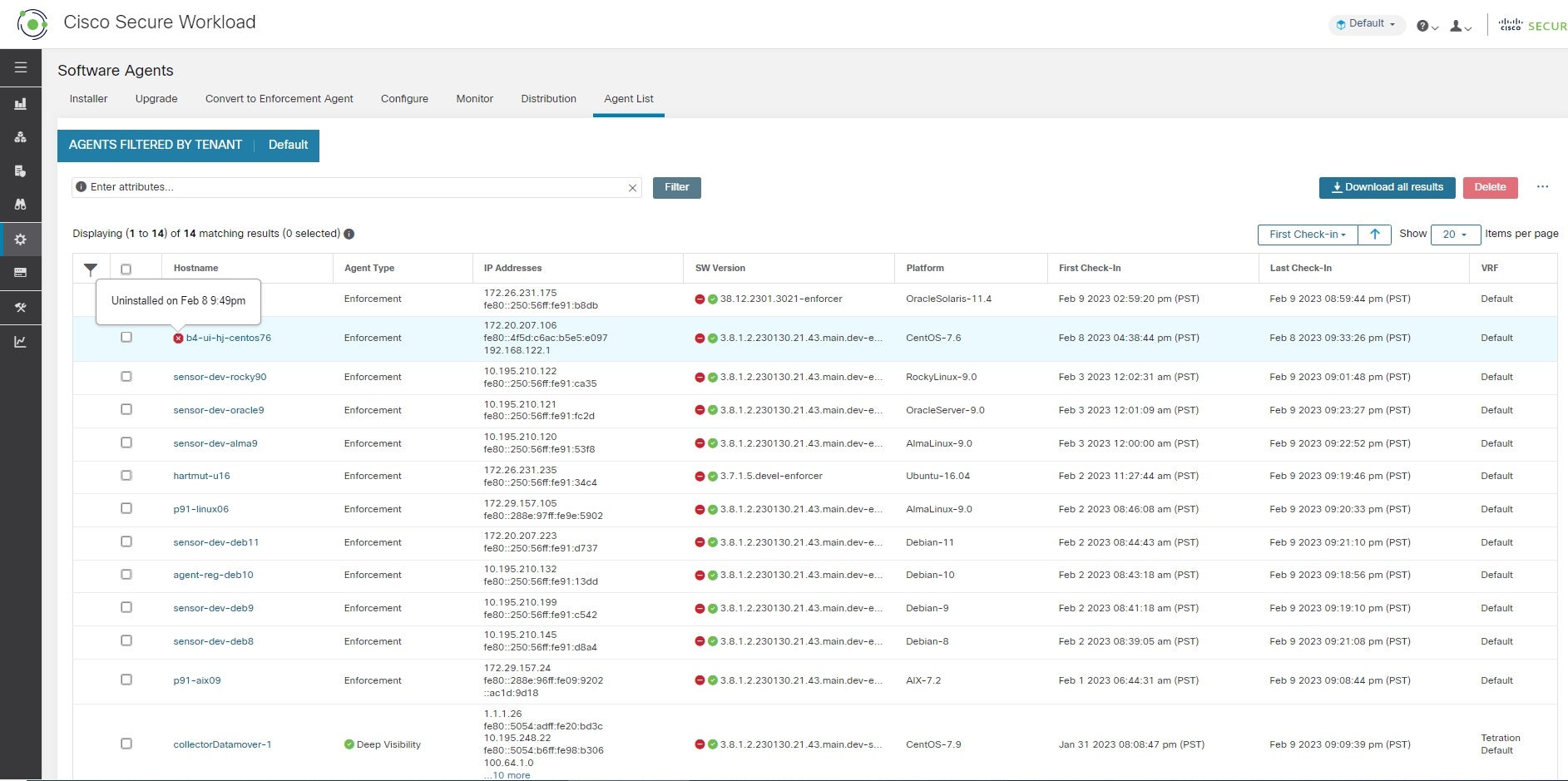
On the page, software agents with outdated versions are highlighted with a warning sign under the SW Version column. It is important to upgrade these agents to the latest available version on the cluster.
To use software agent config intent workflow to configure software agent upgrade:
Procedure
|
Step 1 |
Create an inventory filter on the Inventory Filters page. For more information, see Filters. 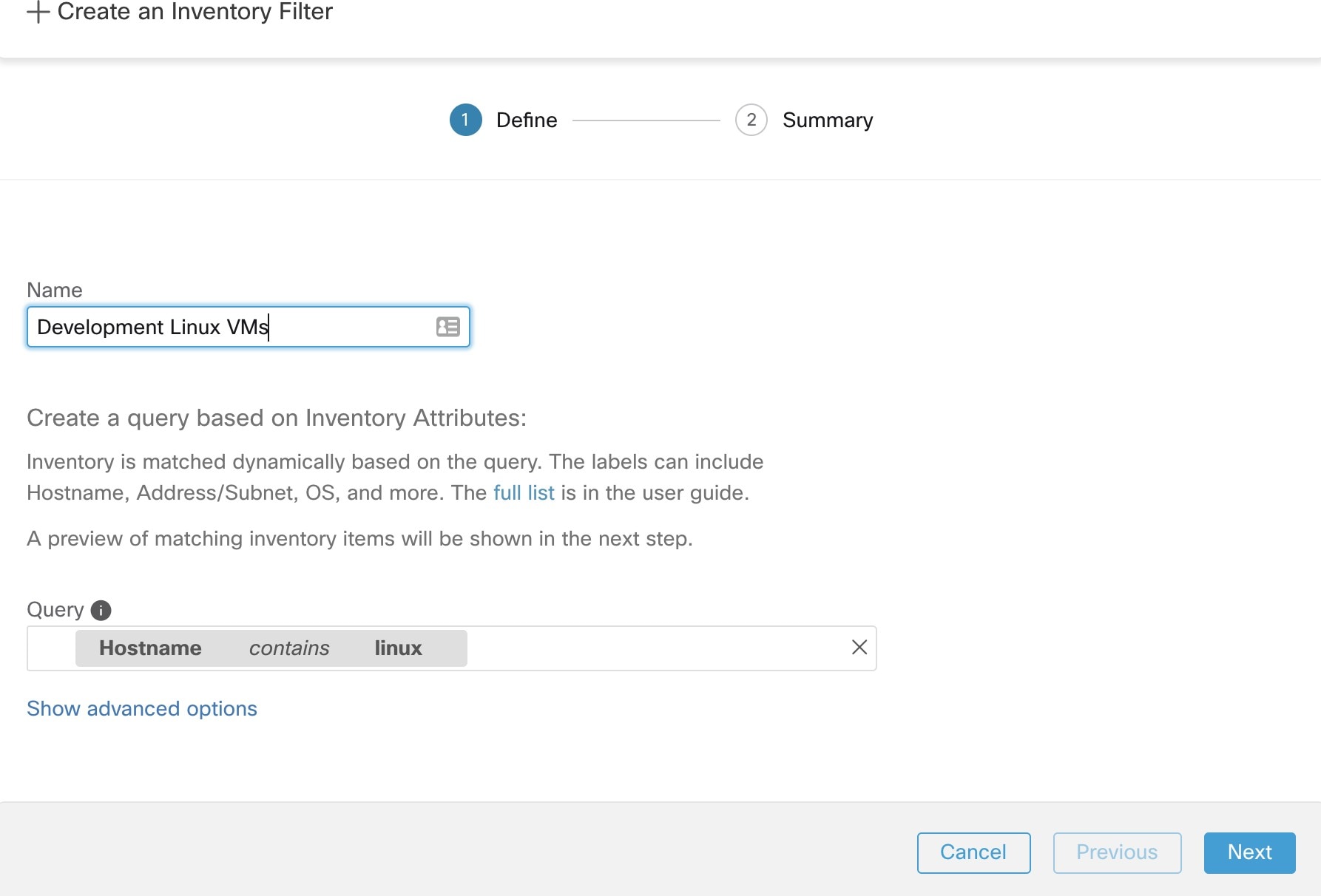
|
||
|
Step 2 |
Create an Agent Config profile for the agents selected by the inventory filter. Optionally, you can enable the Auto Upgrade option to automatically upgrade the selected agents. 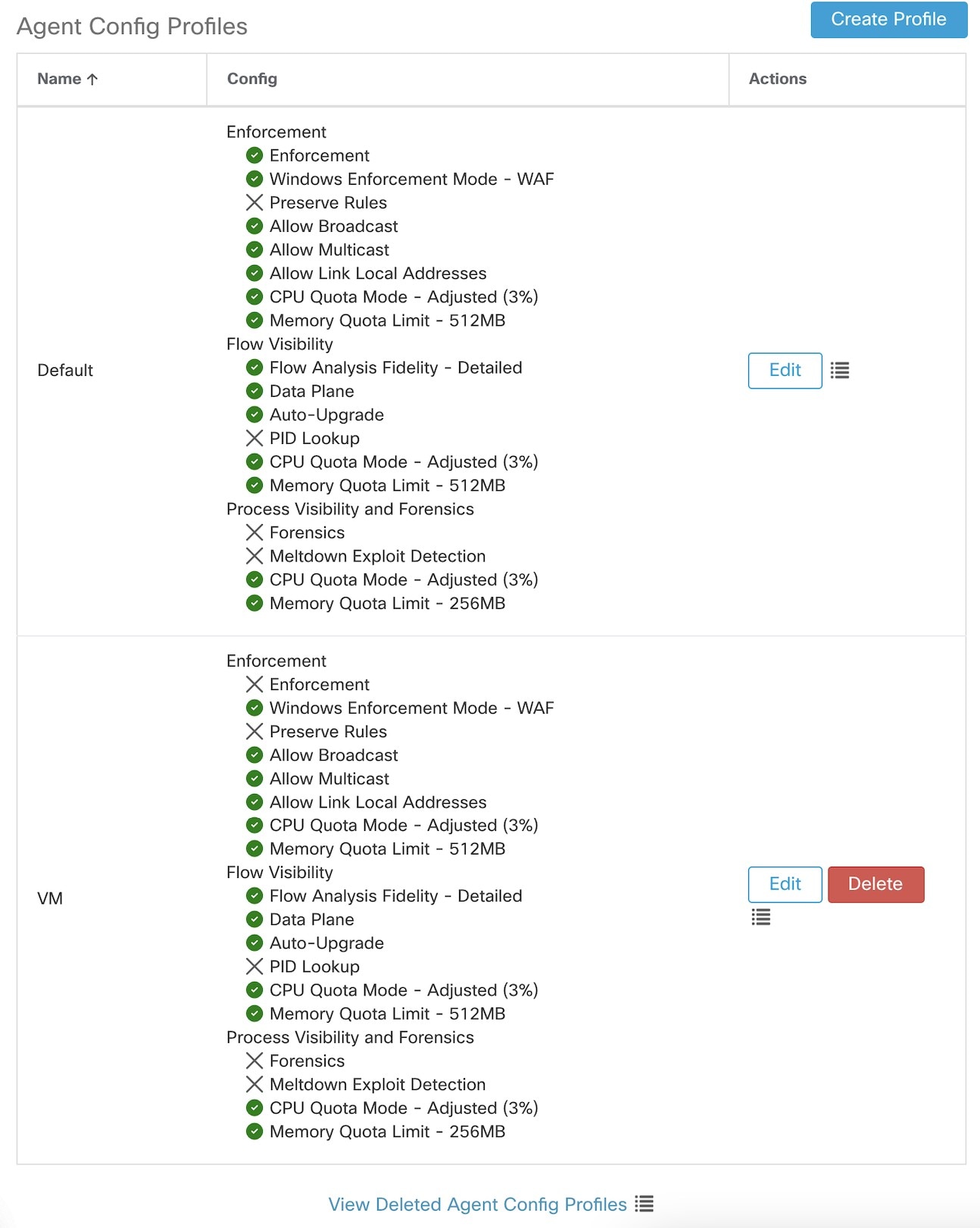
|
||
|
Step 3 |
Create an agent config intent to apply the config profile to the agents selected using inventory filter. If the auto upgrade option is enabled, the selected agents are automatically upgraded. It normally takes up to 30 minutes to upgrade an agent after an agent profile is applied to them. 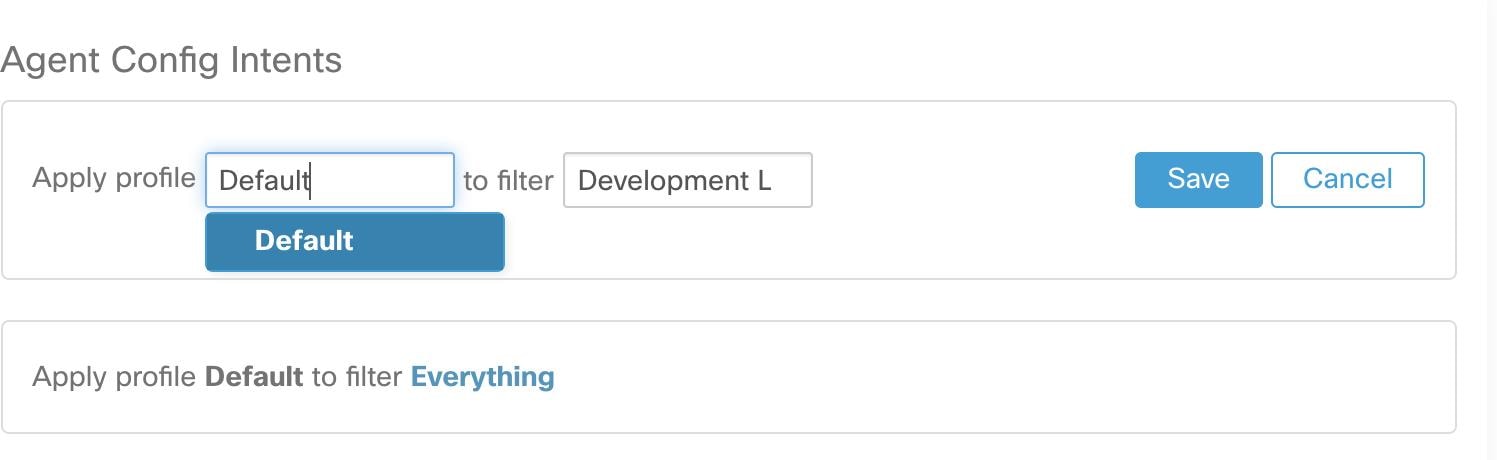
|
Manual Agent Upgrade
The following section explains how to manually upgrade agents without using the Sensor Config intent workflow.
Procedure
|
Step 1 |
In the left navigation pane, click . |
||
|
Step 2 |
Click the Upgrade tab. |
||
|
Step 3 |
To filter specific agents, enter your search query in the filter box. For example, enter Platform = CentOS-7.6. |
||
|
Step 4 |
Select the agents to be upgraded to the selected version and click Upgrade.
|


 Feedback