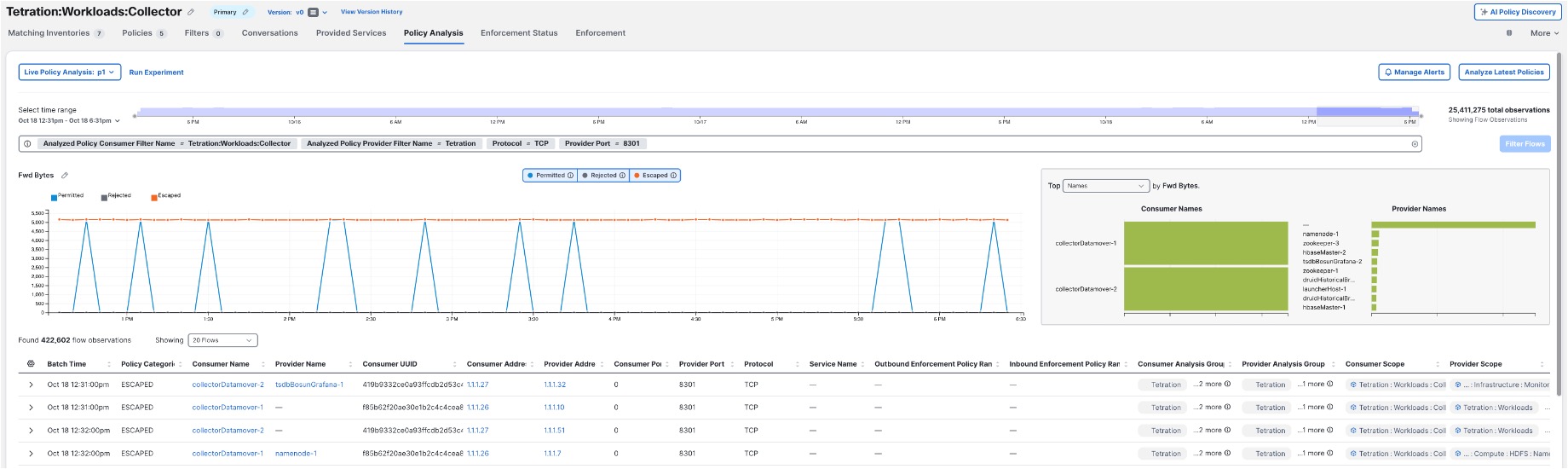
AI Policy Statistics in Secure Workload

AI Policy Statistics in Cisco Secure Workload uses the AI engine to track and analyze policy performance trends over time. This feature offers users insights into policy effectiveness and facilitates efficient audits. With detailed statistics and AI-generated conditions, users can identify, configure, and address policies that require attention–No Traffic (Set the condition for when the policy that does not affect any flow for more than 30 Days, Overshadowed (Set the condition for when a given policy is overshadowed by another policy) and Broad (Set the condition for when a policy source filter or destination filter are under utilized.

For a quick summary on how AI Policy Statistics works with the AI engine, see this video: Policy Statistics with Secure Workload AI Engine


Attention


Due to recent GUI updates, some of the images or screenshots used in the user guide may not fully reflect the current design of the product. We recommend using this guide in conjunction with the latest version of the software for the most accurate visual reference.


AI Policy Statistics in Secure Workload

The AI Policy Statistics feature in Secure Workload offers the following key functionalities:

  • Policy trend analysis: Users can view the performance trends of policies over a specific time period while comparing the expected number of flows to the actual performance of the policies.

  • Policy conditions: The AI engine identifies and flags policies that meet specific conditions and require user attention.

    Note that a policy condition rule cannot be in more than one condition at a time. For example, a rule can either be in Broad or Overshadowed condition at a time, but not in both the conditions at the same time.

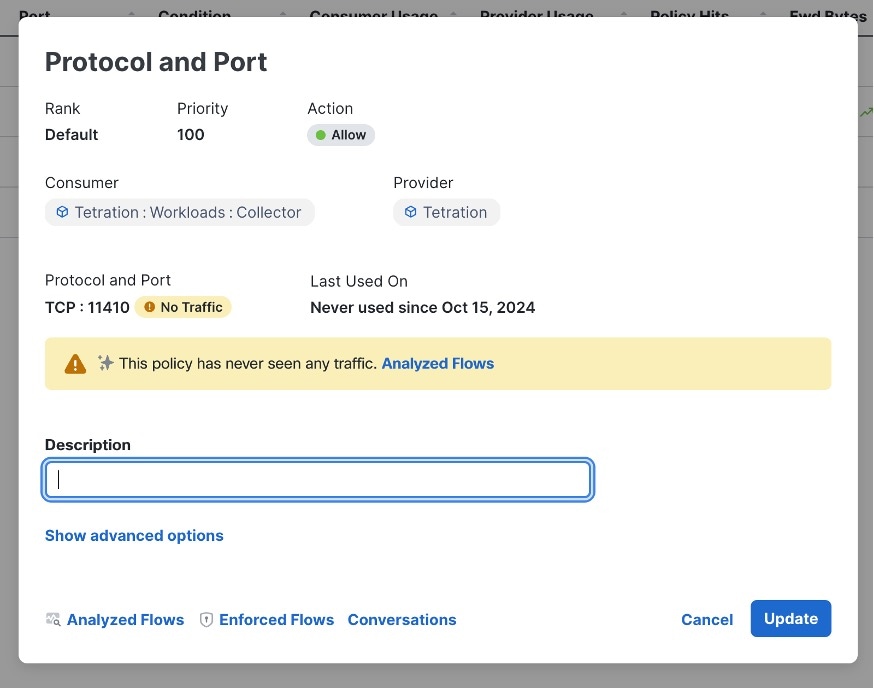
    • No Traffic–policy that does not affect any flow for a configured period.

      Figure 1. Policy condition–No Traffic
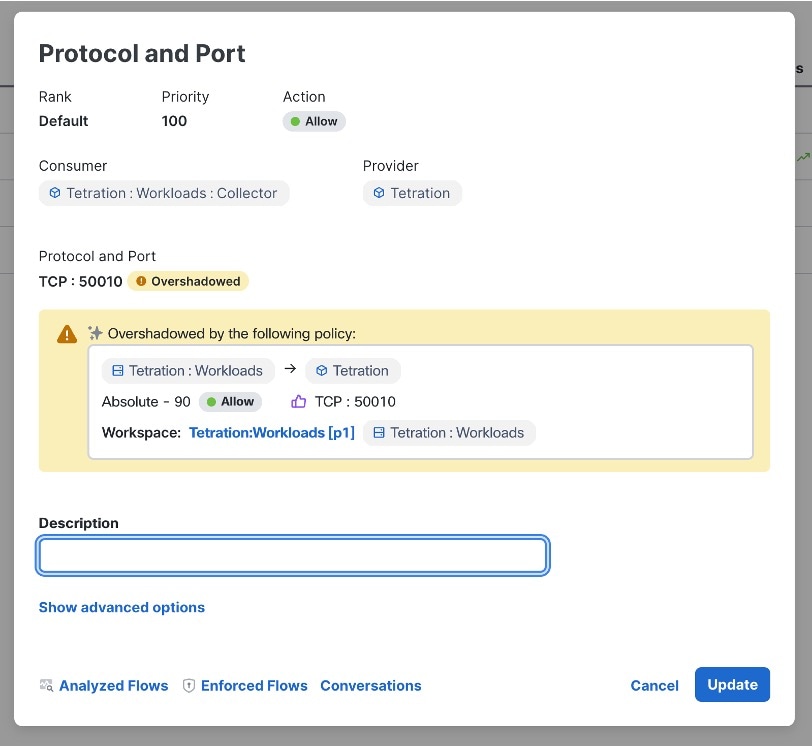
    • Overshadowed–a policy that overshadows another policy.

      Figure 2. Policy Condition–Overshadowed
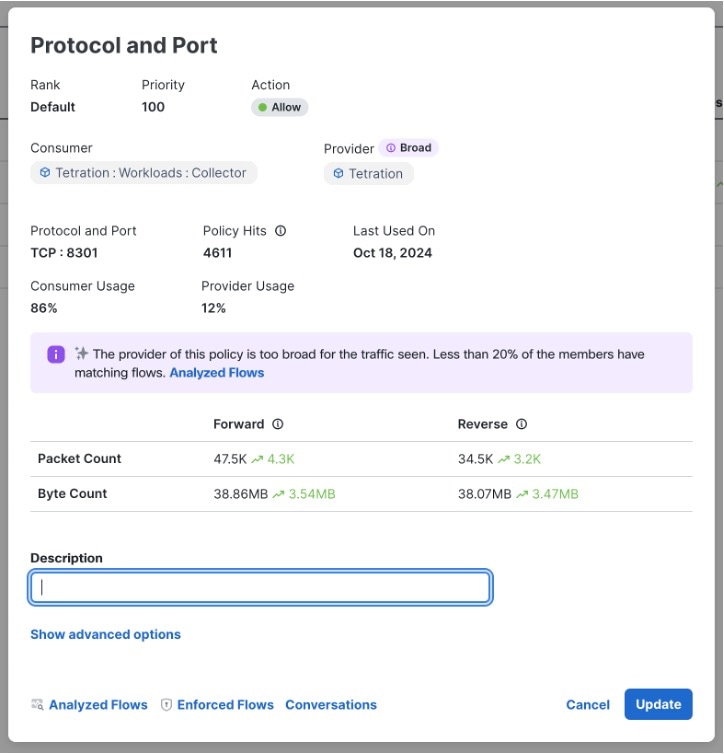
    • Broad–a policy source filter or destination filter that has underutilized policy filters. For example, if a filter consists of 10 inventories and only 2 out of the 10 inventories participate in the flows that are affected by the policy, the filter will be at only 20% utilization.

      Figure 3. Policy Condition–Broad
AI Policy Statistics on Traffic Flows

Policy statistics or hits on traffic flows are based on the number of flows that are affected by each policy. The hit count is for the deployed policy and not for policy versions that are in draft form or have not been published yet.


Note


The First Scanned On and Last Used On columns represent the timestamps when the AI engine first scanned a particular policy and the last time it scanned the same policy.


Figure 4. AI Policy Statistics

Calculate Policy Statistics

Policy statistics or hit counts are calculated based on the number of flows that match a policy's criteria. Policy statistics are updated every six hours over a window of one week. The AI aspect involves using machine learning algorithms to identify patterns and trends in the hit counts, offering a more nuanced understanding of policy performance compared to simple hit counts on a firewall.

Prerequisites for AI Policy Statistics

Before leveraging the AI Policy Statistics feature, ensure that the following prerequisites are met:

  • Publish policies: Policies must be actively published in Cisco Secure Workload for the AI engine to scan and calculate statistics. Unpublished policies are not included in the analysis.

  • AI engine activation: The AI engine must be running and configured in the Secure Workload environment. Ensure that AI settings are configured optimally. Review the AI settings and revert to defaults if results are not as expected.

  • User access privileges: Ensure that users have the necessary Role-Based Access Control (RBAC) permissions to view policy statistics and data trends.

Set up AI Policy Settings

With the AI engine, you can view policy statistics and the applied policy rules in the workspaces. You can leverage the advanced capabilities of the AI engine to understand the following:

  • Continuous policy discovery using the AI Policy Discovery functionality.

  • Trend analysis of policy condition for policy effectiveness.

  • Real-time policy updates based on escaped flows.

  • In-depth policy performance statistics over time.

  • AI-assisted recommendations for policy improvements.


Note


Policy statistics are visible only after the policies are published.


Procedure


Step 1

Log in to the Cisco Secure Workload application and from the navigation pane, choose Defend > Segmentation.

  1. To see how policies are analyzed, choose a workspace.

  2. To see which policies are attached to this workspace, and which policies are being considered for analysis by the AI engine, click Manage Policies.

    For instructions on how to create policies, see Manually Create Policies.

  3. To check the policies that have already been analyzed, click the Policy Analysis tab, and then click Analyze Latest Policies.

    Note that you must publish the policies only after a thorough analysis is done.

Step 2

To verify the policies that are analyzed on the workload, from the navigation pane, choose Defend > Segmentation and click Policy AI Settings.

After analyzing the policies, the AI engine calculates the policy statistics every six hours. By default, the policy statistics reflect the data collected and analyzed over a period of one week. However, to update the required interval, you can also change the time frame in the Policy AI Settings page.

Figure 6. Policy AI Settings
Advanced Automatic Policy Discovery Configurations

What to do next

Create an alert for policies so that when traffic hits the policy, a notification is triggered. Based on the notification, you can analyze and remediate the problem and restore traffic to the vulnerable workload. For more information, see Configure Alerts.

Frequently Asked Questions

This section lists some potential scenarios that you could possibly face while using the AI engine:

  • Ques: Why am I unable to see the policies for the workspace?

    Ans: Check if the policies are published. For the AI engine to scan the policies, the policies must to be published.

  • Ques: How often are policy statistics updated?

    Ans: Policy statistics are updated every six hours. Note that this is not configurable by users.

  • Ques: Can I enforce the policy suggestions immediately after I get the suggestions?

    Ans: Policy conditions are suggestions and you must verify the suggestions before taking any action on them.

  • Ques: What should I do if the results are not as expected?

    Ans: Check AI Policy Settings if any of the results are not as expected, revert to the defaults for optimal usage.

  • Ques: Will there be any customer facing documentation about the models being used here? Are there any details available where the AI related services are being used?

    Ans: We are not using any Large Language Models (LLMs). All the results are from the decision tree and data processing. AI-related services are server processes running inside a Secure Workload cluster on a VM, which is not a yarn job.