Configuring Your Inbound Email Servers
Available Languages
Table Of Contents
Configuring of Your Inbound Email Servers
Configuring of Your Inbound Email Servers
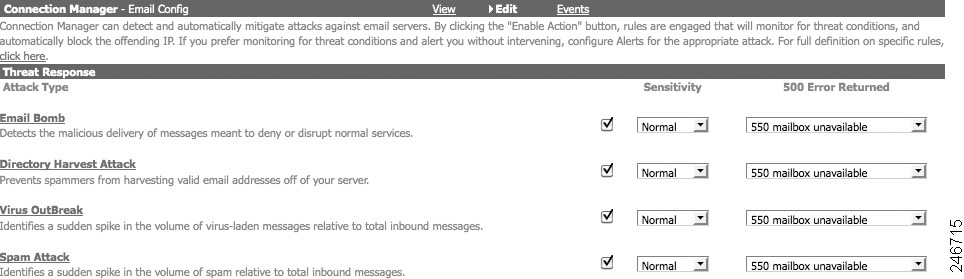
Connection Manager
Step 1
In ScanCenter, click the Email tab to display the Email menus.
Step 2
Step 3
Step 4
Step 5
Step 6
Step 7
Delivery Manager
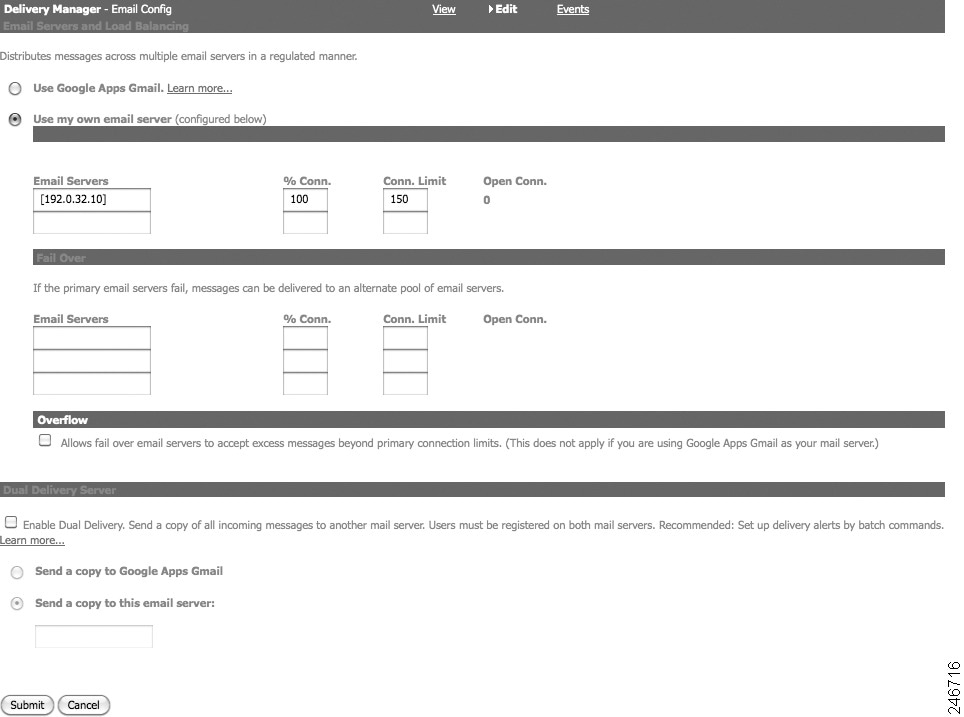
The next step is to configure your primary and fail-over mail servers.
Step 1
Step 2
Step 3
Step 4
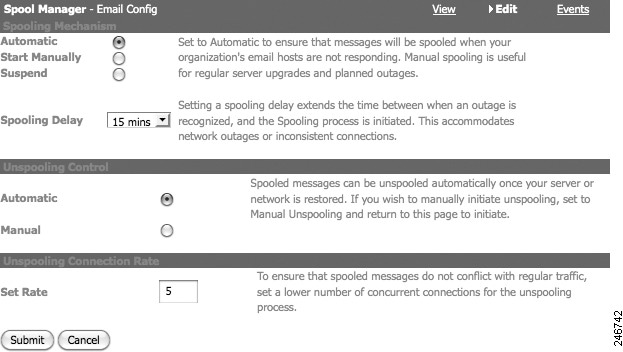
Spooling Manager
Step 1
Step 2
Step 3
Step 4
Alerts
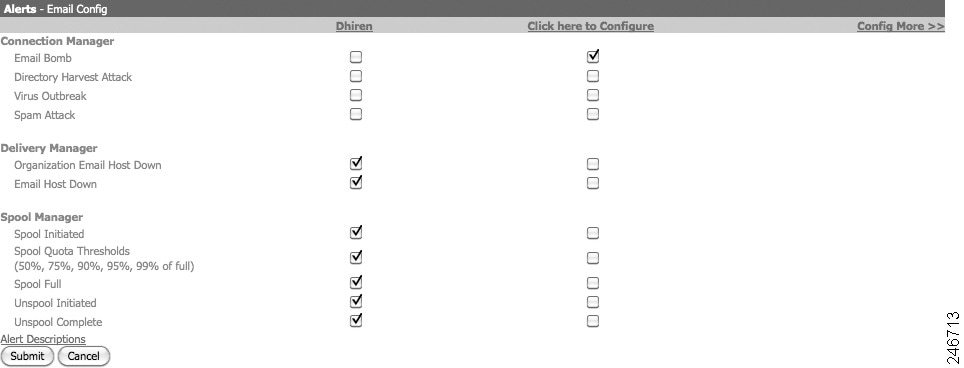
The administrator can have alerts sent to them which are configured from this screen.
Step 1
Step 2
Step 3
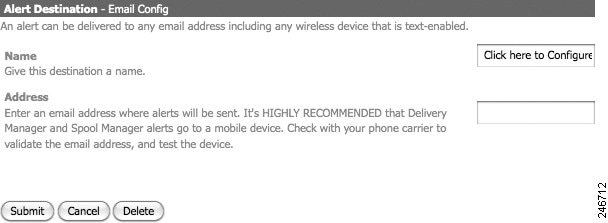
Step 4
Step 5
 Feedback
Contact Cisco
- Open a Support Case

- (Requires a Cisco Service Contract)
This Document Applies to These Products
- Collaboration Endpoints - Retired Products
- Conferencing - Retired Products
- Contact Center - Retired Products
- Optical Networking - Retired Products
- Routers - Retired Products
- Security - Retired Products
- Servers - Unified Computing (UCS) Retired Products
- Storage Networking Retired Products
- Switches - Retired Products
- Video - Retired Products
- Wireless - Retired Products