Getting Started With Connector
Available Languages
Table Of Contents
Getting Started with Connector
Choosing a Connector Mode and Authentication Key Type
Company Authentication Key and Active Directory
Getting Started with Connector
Revised: July 18, 2011Overview
This chapter will help you decided when to deploy Connector and the most appropriate deployment method for your network infrastructure. Connector is used to deliver web traffic from a client computer to Cisco Cloud Web Security. You may not need to use Connector. It is required in the following configurations only:
•
When user-level granularity is required for policy and reporting.
•
•
Basic Operations
Connector identifies users by merging their details from Active Directory using LDAP, or Windows Domain integration and an authentication key. With Connector, users with a dynamic IP address can connect to Cloud Web Security with a company, group, or user authentication key. Users with a static IP address do not require a key.
Connector encrypts user information which Cloud Web Security uses to apply specific user or group policy information. Connector passes user web traffic requests through Cloud Web Security for filtering, scanning, and policy enforcement, before providing the cleansed web content to the user.
Company, Group, and User authentication keys are created in ScanCenter. For further information see the ScanCenter Administrator Guide. These enable Cloud Web Security to identify and authenticate a user. Group authentication keys provide more detailed user behavior reporting and policy management, but may require additional key management by the administrator.
Choosing a Connector Mode and Authentication Key Type
Before installing Connector, use the following flow chart to decide the Connector mode (standalone or enterprise) and Authentication Key (Company, Group, or User) are most appropriate for your organization.
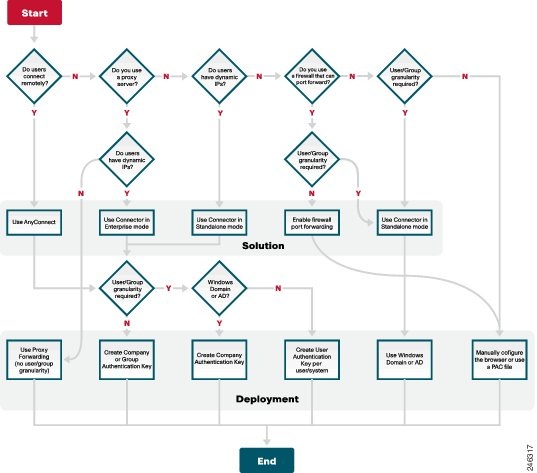
Deployment Scenarios
When you have chosen your appropriate solution and deployment method, based on your network infrastructure, you are ready to proceed. The flow chart provides for a variety of deployment scenarios, but in practise the three most common are:
•
•
•
Company Authentication Key and Active Directory
The most common scenario uses a single company authentication key for all users in the organization and Active Directory to provide User and Group granularity for policy and reporting. An example is shown below.

To create this configuration:
Step 1
•
•
Step 2
Step 3
In this scenario, Policy A is applied to Mohan and Joe, while Policy B is applied to Louise.
If a policy causes a block event for Mohan or Joe, it will be registered against WinNT://.../Marketing with User information for Mohan or Joe. Block events for Louise, it will be registered against WinNT://.../Engineering with her user information.
Group Authentication Key
The next most common scenario uses a group authentication key without Active Directory. In the following example, Connector is installed in standalone mode with a location-based key (LK), a unique group authentication key, in each of three branch offices.
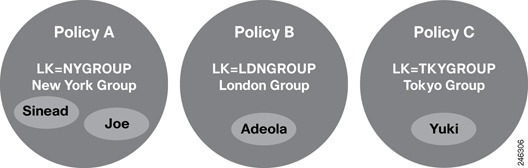
To create this configuration:
Step 1
Step 2
Step 3
In this scenario, Policy A is applied to Sinead and Joe, Policy B is applied to Adeola, and Policy C is applied to Yuki.
If a policy causes a block event for Sinead or Joe, it will be registered against NYGROUP group. Block events for Adeola, it will be registered against the LDNGROUP group. Block events for Yuki will be registered against TKYGROUP.

Note
User Authentication Key
This scenario provides an alternative off-site solution when it is not possible to deploy Cisco AnyConnect Secure Mobile Security or Passive Identity Management. For example, it could be used for non-Windows users. In the following example, Connector and a user authentication key are installed on each user's computer.
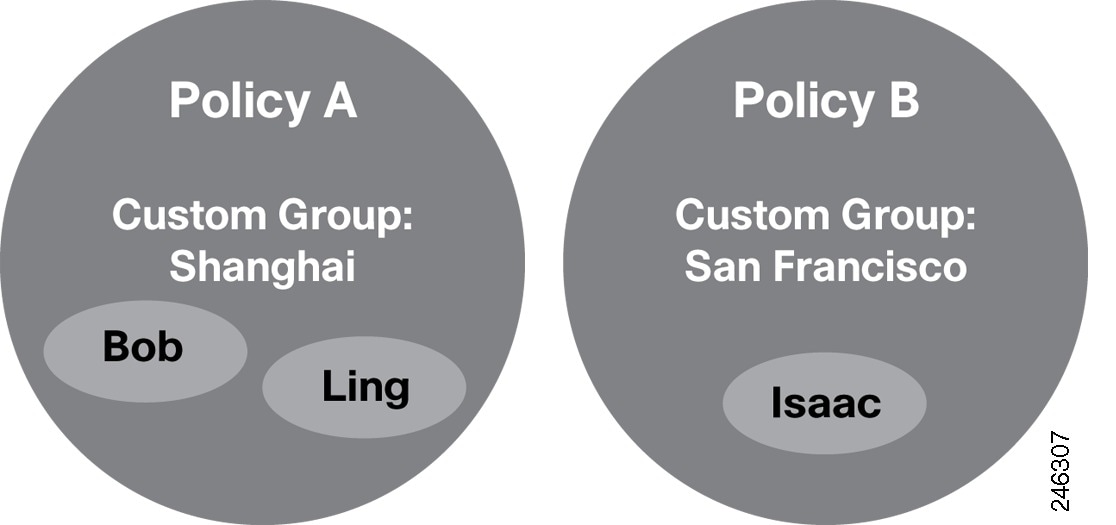
To create this configuration:
Step 1
Step 2
Step 3
In this scenario, Policy A is applied to Bob and Ling and Policy B is applied to Isaac. If a policy causes a block event for Bob, Ling, or Isaac it will be registered against their User and Custom Group.

Caution
Summary
When Active Directory is in use, a company key installed with Connector in standalone or enterprise mode on the Domain Controller will provide user and group granularity for policy and reporting.
If you have satellite offices where you want to apply group policy you should use a group authentication key.
For portable computers or remote connections where Cisco AnyConnect Secure Mobile Security or Passive Identity Management are not viable, a user authentication key and a local installation of Connector in standalone mode should be used.
Authentication Process
Connector uses one of several possible authentication resources to annotate web requests with end-user data. The supported data sources are:
•
•
•
When a Company Authentication Key is used in conjunction with either Active Directory or Windows Domain lookup, data needs to be `merged.' See Company Authentication Key and Active Directory.
There are several ways to use the authentication key:
•
–
–
–
–
•
–
–
–
•
–
–
As you can see, the authentication key has a dual purpose:
•
•
Data embedded in requests can be classified as follows:
•
–
•
–
–
–
•
–
–
Note
Groups and Policy Application
The following sections describe how user data is derived, how groups work, and how policies are applied in ScanCenter.
Deriving User Data
ScanCenter derives user data from the maximum granularity available for a given request; the user name will be chosen from the first available data item:
•
•
•
•
•
Applying Policy to Groups
Within ScanCenter there are two basic group types:
•
•
A group authentication key can be assigned to either an Active Directory group or to a Custom Group.
 Feedback
Contact Cisco
- Open a Support Case

- (Requires a Cisco Service Contract)
This Document Applies to These Products
- Collaboration Endpoints - Retired Products
- Conferencing - Retired Products
- Contact Center - Retired Products
- Optical Networking - Retired Products
- Routers - Retired Products
- Security - Retired Products
- Servers - Unified Computing (UCS) Retired Products
- Storage Networking Retired Products
- Switches - Retired Products
- Video - Retired Products
- Wireless - Retired Products