Cisco Secure Firewall Management Center Virtual Getting Started Guide

PDF

Deploy the Firewall Management Center Virtual

Want to summarize with AI?

Log in

Overview

Learn how to deploy Management Center Virtual in Azure using Marketplace solution templates or ARM templates. Understand the available offer types, required selections, and deployment methods so you can provision the virtual appliance and its associated resources correctly in your Azure environment.

You can deploy the Firewall Management Center Virtual in Azure using templates. Cisco provides two kinds of templates:

  • Solution Template in the Azure Marketplace—Use the solution template available in the Azure Marketplace to deploy the Firewall Management Center Virtual using the Azure portal. You can use an existing resource group and storage account (or create them new) to deploy the virtual appliance. To use the solution template, see Deploy from Azure Marketplace Using the Solution Template.

  • ARM Templates in the GitHub Repository—In addition to the Marketplace-based deployment, Cisco provides Azure Resource Manager (ARM) templates in the GitHub Repository to simplify the process of deploying the Firewall Management Center Virtual on Azure. Using a Managed Image and two JSON files (a Template file and a Parameter file), you can deploy and provision all the resources for the Firewall Management Center Virtual in a single, coordinated operation.

Note

While searching for Cisco offers in Marketplace, you may find two different offers with similar names, but different offer types, Application Offer and Virtual Machine Offer.

For marketplace deployments, use ONLY the Application Offers.

Virtual Machine offer (may be visible) with VMSR (Virtual Machine Software Reservations) plan in marketplace. These are specific Multiparty Private Offer plans specifically for channel/resale and should be ignored for regular deployments.

Application Offers available in Marketplace:


Deploy from Azure Marketplace Using the Solution Template

Deploy the Firewall Management Center Virtual from the Azure portal using the solution template available in the Azure Marketplace. The following procedure is a top-level list of steps to set up the Firewall Management Center Virtual in the Microsoft Azure environment. For detailed steps for Azure setup, see Getting Started with Azure.

When you deploy the Firewall Management Center Virtual in Azure it automatically generates various configurations, such as resources, public IP addresses, and route tables. You can further manage these configurations after deployment. For example, you may want to change the Idle Timeout value from the default, which is a low timeout.

Procedure

1.

Log in to the Azure portal (https://portal.azure.com) using your Microsoft account credentials.

The Azure portal shows virtual elements associated with the current account and subscription regardless of data center location.

2.

Click Create a Resource.

3.

Search the Marketplace for “Firewall Management Center ”, choose the offering, and click Create.

4.

Configure the settings under Basics:

  1. Enter a name for the virtual machine in the FMC VM name in Azure field. This name should be unique within your Azure subscription.

    Make sure you do not use an existing name or the deployment will fail.

  2. (Optional) Choose the FMC Software Version from the dropdown list.

    This should default to the latest available version.

  3. Enter a username for the Azure account administrator in the Username for primary account field.

    The name “admin” is reserved in Azure and cannot be used.

    The username entered here is for the Azure account, not for the Firewall Management Center Virtual administrator access. Do not use this username to log in to the Firewall Management Center Virtual.

  4. Choose an authentication type, either Password or SSH public key.

    If you choose Password, enter a password and confirm. The password must be between 12 and 72 characters, and must have 3 of the following: 1 lower case character, 1 upper case character, 1 number, and 1 special character that is not ‘\’ or ‘-’.

    If you choose SSH public key, specify the RSA public key of the remote peer.

  5. Enter an FMC Hostname for the Firewall Management Center Virtual.

  6. Enter an Admin Password.

    This is the password you'll use when you log in to the Firewall Management Center Virtual's Web interface as the administrator to configure the Firewall Management Center Virtual.

  7. Choose your Subscription type.

    Normally there is only one option listed.

  8. Create a new Resource group.

    The Firewall Management Center Virtual should be deployed into a new Resource Group. The option to deploy into an existing Resource Group only works if that existing Resource Group is empty.

    However, you can attach the Firewall Management Center Virtual to an existing Virtual Network in another Resource Group when configuring the network options in later steps.

  9. Select your geographical Location.

    You should use the same location for all resources used in this deployment. The Firewall Management Center Virtual, the network, storage accounts, etc. should all use the same location.

  10. Click OK.

5.

Next, complete the initial configuration under Cisco FMCv Settings:

  1. Confirm the selected Virtual machine size, or click the Change size link to view the VM size options. Click Select to confirm..

    Only the supported virtual machine sizes are shown.

  2. Configure a Storage account. You can use an existing storage account or create a new one.

    • Enter a Name for the storage account, then click OK. The storage account name can only contain lowercase letters and numbers. It cannot contain special characters.

    • As of this release the Firewall Management Center Virtual only supports general purpose, standard performance storage.

  3. Configure a Public IP address. You can use an existing IP or create a new one.

    • Click Create new to create a new public IP address. Enter a label for the IP address in the Name field, select Standard for the SKU option, then click OK.

      Note

      Azure creates a dynamic public IP address, regardless of the dynamic/static choice made in this step. The public IP may change when the VM is stopped and restarted. If you prefer a fixed IP address, you can edit the public-ip and change it from a dynamic to a static address after the deployment has completed.

    • You can choose NONE if you don't want to assign a public IP address to the Firewall Management Center Virtual. Without a public IP address, any communication to the Firewall Management Center Virtual must originate within the Azure virtual network.

  4. Add a DNS label that matches the label of the public IP.

    The fully qualified domain name will be your DNS label plus the Azure URL: <dnslabel>.<location>.cloudapp.azure.com

  5. Choose an existing Virtual network or create a new one, the click OK.

  6. Configure the management subnet for the Firewall Management Center Virtual.

    Define a Management subnet name and review the Management subnet prefix. The recommended subnet name is “management”.

  7. Provide Public inbound ports (mgmt.interface) input to indicate whether any ports are to be opened for public or not. By default, None is selected.

    • Click None to create and attach a network security group with Azure's default security rule to the management interface. Selecting this option allows traffic from sources in the same virtual network and from the Azure load balancer.

    • Click Allow selected ports to view and choose the inbound ports to be opened for acess by the internet. Choose any of the following ports from the Select Inbound Ports drop-down list. By default, HTTPS is selected.

      • SSH (22)

      • SFTunnel (8305)

      • HTTPs (443)

    Note

    The Public IP is not considered for the values of Allow selected ports or Public inbound ports.

  8. Click OK.

6.

View the configuration summary, and then click OK.

7.

View the terms of use and then click Create.

8.

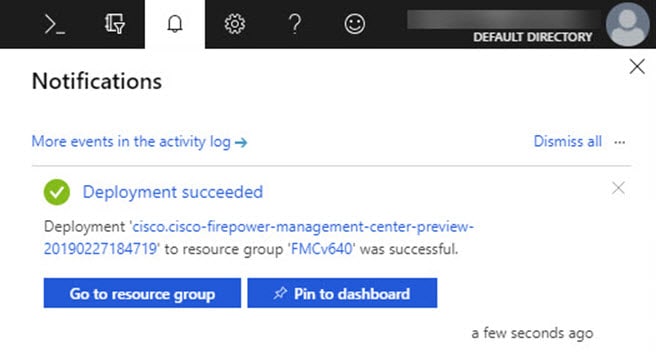
Select Notifications (bell icon) at the top of the portal to view the status of the deployment.

Figure 1. Azure Notifications

From here, you can click on the deployment to see further details or go to the resource group once the deployment is successful. The total time until the Firewall Management Center Virtual is usable is approximately 30 minutes. Deployment times vary in Azure. Wait until Azure reports that the Firewall Management Center Virtual VM is running.

9.

(Optional) Azure provides a number of tools to help you monitor the state of your VM, including Boot diagnostics and Serial console. These tools allow you to see the state of your virtual machine as it boots up.

  1. On the left menu, select Virtual machines.

  2. Select your Firewall Management Center Virtual VM in the list. The overview page for the VM will open.

  3. Scroll down to the Support + troubleshooting section and select Boot diagnostics or Serial console. A new pane with either the boot diagnostic Screenshot and Serial log or the text-based Serial console opens and starts the connection.

    The readiness of the Firewall Management Center Virtual's Web interface is confirmed if you see the login prompt on either boot diagnostics or serial console.

    Example:

    Cisco Secure Firewall Management Center for Azure v7.6.0 (build 44)
    FMCv76East login: 
    

What to do next

  • Verify that your Firewall Management Center Virtual deployment was successful. The Azure Dashboard lists the new Firewall Management Center Virtual VM under Resource Groups, along with all of the related resources (storage, network, route table, etc.).


Deploy from Azure Using a VHD and Resource Template

You can create your own custom Firewall Management Center Virtual images using a compressed VHD image available from Cisco. To deploy using a VHD image, you must upload the VHD image to your Azure storage account. Then, you can create a managed image using the uploaded disk image and an Azure Resource Manager template. Azure templates are JSON files that contain resource descriptions and parameter definitions.

Before you begin

  • You need the JSON template and corresponding JSON parameter file for your Firewall Management Center Virtual template deployment. You can download these files from the GitHub repository.

  • This procedure requires an existing Linux VM in Azure. We recommend that you use a temporary Linux VM (such as Ubuntu 16.04) to upload the compressed VHD image to Azure. This image will require about 50GB of storage when unzipped. Also, your upload time to Azure storage is faster from a Linux VM in Azure.

    If you need to create a VM, use one of the following methods:

  • In your Azure subscription, you should have a storage account available in the location in which you want to deploy the Firewall Management Center Virtual.

Procedure

1.

Download the Firewall Management Center Virtual compressed VHD image from the Cisco Download Software page:

  1. Navigate to Products > Security > Firewalls > Firewall Management > Secure Firewall Management Center Virtual.

  2. Click Firepower Management Center Software.

    Follow the instructions for downloading the image.

    For example, Cisco_Secure_FW_Mgmt_Center_Virtual_Azure-7.3.0-69.vhd.bz2

2.

Copy the compressed VHD image to your Linux VM in Azure.

There are many options that you can use to move files up to Azure and down from Azure. This example shows SCP or secure copy:

# scp /username@remotehost.com/dir/Cisco_Secure_FW_Mgmt_Center_Virtual_Azure-7.3.0-69.vhd.bz2 <linux-ip>
3.

Log in to the Linux VM in Azure and navigate to the directory where you copied the compressed VHD image.

4.

Unzip the Firewall Management Center Virtual VHD image.

There are many options that you can use to unzip or decompress files. This example shows the Bzip2 utility, but there are also Windows-based utilities that would work.

# bunzip2 Cisco_Secure_FW_Mgmt_Center_Virtual_Azure-7.3.0-69.vhd.bz2
5.

Upload the VHD to a container in your Azure storage account. You can use an existing storage account or create a new one. The storage account name can only contain lowercase letters and numbers.

There are many options that you can use to upload a VHD to your storage account, including AzCopy, Azure Storage Copy Blob API, Azure Storage Explorer, Azure CLI, or the Azure Portal. We do not recommend using the Azure Portal for a file as large as the Firewall Management Center Virtual VHD.

The following example shows the syntax using Azure CLI:

azure storage blob upload \
       --file <unzipped vhd> \
       --account-name <azure storage account> \
       --account-key yX7txxxxxxxx1dnQ== \
       --container <container> \
       --blob <desired vhd name in azure> \
       --blobtype page
6.

Create a Managed Image from the VHD:

  1. In the Azure Portal, select Images.

  2. Click Add to create a new image.

  3. Provide the following information:

    • Subscription—Choose a subscription from the drop-down list.

    • Resource group—Choose an existing resource group or create a new one.

    • Name—Enter a user-defined name for the managed image.

    • Region—Choose the region in which the VM Is deployed.

    • OS type—Choose Linux as the OS type.

    • VM generation

      Choose Generation 1 for BIOS boot mode.

      Choose Generation 2 for UEFI boot mode.

    • Storage blob—Browse to the storage account to select the uploaded VHD.

    • Account type—As per your requirement, choose Standard HDD, Standard SSD, or Premium SSD, from the drop-down list.

      When you select the VM size planned for deployment of this image, ensure that the VM size supports the selected account type.

    • Host caching—Choose Read/write from the drop-down list.

    • Data disks—Leave at default; don't add a data disk.

  4. Click Create.

    Wait for the Successfully created image message under the Notifications tab.

Note

Once the Managed Image has been created, the uploaded VHD and upload Storage Account can be removed.

7.

Acquire the Resource ID of the newly created Managed Image.

Internally, Azure associates every resource with a Resource ID. You’ll need the Resource ID when you deploy new Firewall Management Center Virtual instances from this managed image.

  1. In the Azure Portal, select Images.

  2. Select the managed image created in the previous step.

  3. Click Overview to view the image properties.

  4. Copy the Resource ID to the clipboard.

    The Resource ID takes the form of:

    /subscriptions/<subscription-id>/resourceGroups/<resourceGroup>/providers/Microsoft.Compute/<container>/ <vhdname>

8.

Build a Firewall Management Center Virtual instances using the managed image and a resource template:

  1. On the Azure GUI, search for Custom deployment.

  2. Under Select a template, click Build your own template in the editor.

    You have a blank template that is available for customizing. See GitHub for the template files.

  3. Paste your customized JSON template code into the window, and then click Save.

  4. Choose a Subscription from the drop-down list.

  5. Choose an existing Resource group or create a new one.

  6. Choose a Region from the drop-down list.

  7. Paste the Managed Image Resource ID from the previous step into the Vm Image Id field.

  8. To deploy the Threat Defense Virtual without the diagnostic interface, enter a day-0 configuration script that includes the key-value pair Diagnostic: OFF in the Custom Data field. A sample day-0 configuration script is given below.

    {
    "AdminPassword": "E28@2OiUrhx!",
    "Hostname": "ciscothreatdefensevirtual",
    "FirewallMode": "routed",
    "ManageLocally": "No",
    "Diagnostic": "OFF"
    }
    Note
    The key value pair, "Diagnostic": "ON/OFF", is case-sensitive.

    You can also modify the script in the Custom Data field in the ARM template that is used for fresh deployment.

9.

Click Edit parameters at the top of the Custom deployment page. You have a parameters template that is available for customizing.

  1. Click Load file and browse to the customized Firewall Management Center Virtual parameter file. See GitHub for the template parameters.

  2. Paste your customized JSON parameters code into the window, and then click Save.

10.

Review the Custom deployment details. Make sure that the information in Basics and Settings matches your expected deployment configuration, including the Resource ID.

11.

Review the Terms and Conditions, and check the I agree to the terms and conditions stated above check box.

12.

Click Purchase to deploy a Firewall Management Center Virtual instance using the managed image and a custom template.

If there are no conflicts in your template and parameter files, you should have a successful deployment.

The Managed Image is available for multiple deployments within the same subscription and region.

What to do next

  • Update the Firewall Management Center Virtual’s IP configuration in Azure.