Cisco Security Cloud Control: Secure Firewall Device Management

PDF

Cisco Security Cloud Control: Secure Firewall Device Management

Upgrade to Snort 3.0

Want to summarize with AI?

Log in

Learn how to upgrade FDM-managed devices to Snort 3 in Security Cloud Control Firewall Management, including simultaneous device and intrusion prevention engine upgrades, engine-only upgrades, and upgrade progress monitoring.


Snort 3 is the latest snort engine, or a powerful preprocessor that uses Open Source Intrusion Prevention System (IPS), available for Firepower Version 6.7 and later. The snort engine uses a series of rules that help define malicious network activity and uses those rules to find packets that match against them and generates alerts for users and is ideally used as a packet sniffer, a packet logger, or, more traditionally, as a a standalone network IPS.

With Snort 3, you can now create custom intrusion policies; every FDM-managed device running Snort 3 has a set of intrusion policies that are pre-defined from Cisco's Talos Intelligence Group (Talos). Snort 3 makes it possible to change these default policies, although we strongly recommend building on top of the base for a more robust policy.

You cannot create custom policies with Snort 2.

Switching from Snort 2 to Snort 3

You can switch Snort versions freely, though some intrusion rules in Snort 2.0 might not exist in Snort 3.0, and vice versa. If you changed the rule action for an existing rule, that change is not preserved if you switch to Snort 3 and then back to Snort 2, or back again to Snort 3. Your changes to rule actions for rules that exist in both versions are preserved. Note that the mapping between rules in Snort 3 and Snort 2 can be one-to-one or one-to-many, so preservation of changes is done on a best-effort basis.

If you choose to upgrade from Snort 2 to Snort 3, please note that upgrading the snort engines is comparable to a system upgrade. We strongly recommend upgrading during a maintenance window to minimize the interruption in traffic monitoring for your network. See Managing Intrusion Policies (Snort3) in the Firepower Device Manager Configuration Guide as to how switching snort versions will affect how rules process traffic.

Tip

You can filter by Snort version on the Security Devices page, and the Details window of a selected device displays the current version running on the device.

Snort 3 Limitations

License Requirements

To allow the snort engine to process traffic for intrusion and malware analysis, you must have the license enabled for the FDM-managed device. To enable this license through Firewall Device Manager, log into the Firewall Device Manager UI and navigate to Device > View Configuration > Enable/Disable and enable the license.

Hardware Support

The following devices support Snort 3:

  • FTD 1000 series

  • FTD 2100 series

  • FTD 4100 series

  • FTD virutal with AWS

  • FTD virtual with Azure

  • ASA 5500-X Series with FTD

Software Support

Devices must be running at least Firewall Device Manager Version 6.7. Security Cloud Control supports Snort 3 functionality for devices running Version 6.7 and later.

For FTD 1000 and 2000 series, see FXOS bundled support for more information on FXOS patch support.

Configuration Limitations

Security Cloud Control does not support upgrading to Snort 3 if your device has the following configurations:

  • Device is not running at least Version 6.7.

  • If a device has pending changes. Deploy any changes prior to upgrading.

  • If a device is currently upgrading. Do not attempt to upgrade or deploy to the device until the device is synced.

  • If a device is configured with a virtual router.

Note

If you upgrade or revert the Snort version, the system automatically deploys to implement the changes between Snort 2 intrusion policies and Snort 3 intrusion policies.

Rulesets and Snort 3

Note that Snort 3 does not have full feature support at this time. Security Cloud Control rulesets are not supported on Snort 3 devices. If you simultaneously upgrade a device to Firewall Device Manager 6.7 or higher, and from Snort 2 to Snort 3, any rulesets configured prior to the upgrade are broken up and the rules in them are saved as individual rules.


Upgrade the Device and the Intrusion Prevention Engine Simultaneously

Security Cloud Control allows you to upgrade the device to Version 6.7 and the Snort 3. Use the following procedure to upgrade the FDM-managed device:

Procedure

1.

In the left pane, click Security Devices.

2.

Click the Devices tab.

3.

Click the FTD tab and select the device or devices you want to upgrade.

4.

In the Devices Actions pane located to the right, click Upgrade.

5.

Set the upgrade toggle to FTD System Upgrade.

6.

(Optional) If you want Security Cloud Control to perform the upgrade later, check the Schedule Upgrade check box. Click in the field to select a date and time in the future.

7.

In step 1, select your upgrade method. Either use the Security Cloud Control Image Repository and an image from your own repository:

  • Use Security Cloud Control Image Repository - Click this option to select the software image you want to upgrade to, and click Continue. You are only presented with choices that are compatible with the device you can upgrade.

  • Specify Image URL - Click this option to select the software image that is currently stored in your own repository, and click Continue. You are only presented with choices that are compatible with the device you can upgrade.

8.

In step 2, confirm your choices and decide whether you only want to download the images to your device or copy the images, install them, and reboot the device.

9.

Check Upgrade to Snort 3 Engine.

10.

Click Perform Upgrade when you are ready. From the Security Devices page, devices that are upgrading have a "Upgrade in Progress" configuration status.

Warning

If you decide to cancel the upgrade while it is in progress, click Abort Upgrade from the Upgrade page. If you cancel the upgrade after it has started, Security Cloud Control does not deploy or check for changes from the device and the device does not roll back to the previous configuration. This may cause the device to enter an unhealthy state. If you experience any issues during the upgrade process, contact Cisco TAC.


Upgrade the Intrusion Prevention Engine

For devices that are already running Version 6.7 with Snort 2, use the following procedure to update just the Snort engine to version 3:

Procedure

1.

In the navigation bar, click Security Devices.

2.

Click the Devices tab.

3.

Click the FTD tab and select the device or devices you want to upgrade.

4.

In the Device Actions pane located to the right, click Upgrade.

5.

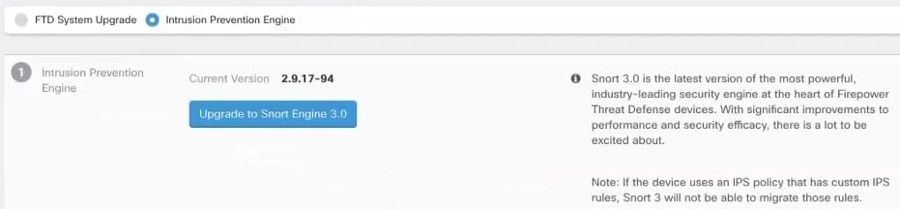
Set the upgrade toggle to Intrusion Prevention Engine.

6.

Click Upgrade to Snort Engine 3.0.

7.

From the Security Devices page, devices that are upgrading have a "Upgrade in Progress" configuration status.


Monitor the Upgrade Process

Warning

If you decide to cancel the upgrade while it is in progress, click Abort Upgrade from the Upgrade page. If you cancel the upgrade after it has started, Security Cloud Control does not deploy or check for changes from the device and the device does not roll back to the previous configuration. This may cause the device to enter an unhealthy state. If you experience any issues during the upgrade process, contact Cisco TAC.

You can view the progress of your single device by selecting that device on the Security Devices page and clicking the upgrade button. Security Cloud Control takes you to the Device Upgrade page for that device.

If the upgrade fails at any point, Security Cloud Control displays a message. Security Cloud Control does not automatically restart the upgrade process.

Warning

Upgrading devices that have self-signed certificates may experience issues; see New Certificate Detected for more information