Cisco Security Cloud Control: Secure Firewall Device Management

PDF

Cisco Security Cloud Control: Secure Firewall Device Management

Templates

Want to summarize with AI?

Log in

Learn how to create, configure, and apply FDM-managed device templates in Security Cloud Control to reuse device configurations, customize parameter values, and promote policy consistency across devices.


Templates provide the means to develop a preferred and general use version of device configuration files:

  • Templates are created from an existing base configuration file.

  • They support value parameters for easy customization of expected values, including IP addresses and port numbers.

  • They are exportable, with parameter substitution, for use across multiple devices.


FDM-Managed Device Templates

About FDM-Managed Device Templates

Security Cloud Control allows you to create a FDM-managed device template of an onboarded FDM-managed device's configuration. When you are creating the template, select the parts (objects, policies, settings, interfaces, and NAT) that you want to include in your FDM-managed device template. You can then modify that template and use it to configure other FDM-managed devices you manage. FDM-managed device templates are a way to promote policy consistency between your FDM-managed devices.

When creating the FDM-managed device template, you can opt to either create a complete or custom template:

  • A complete template includes all parts of the FDM-managed device configuration and applies everything on other FDM-managed devices.

  • A custom template includes only one or more parts of the FDM-managed device configuration that you select and applies only that part and its associated entities on other FDM-managed devices.

The FDM-managed device template will not include certificate, Radius, AD, and RA VPN Objects.

How You Could Use FDM-Managed Device Templates

Here are some ways that you could use FDM-managed device templates:

  • Configure one FDM-managed device by applying another FDM-managed device's configuration template to it. The template you apply may represent a "best practice" configuration that you want to use on all your FDM-managed devices.

  • Use the template as a method to make the device configuration changes and simulate them in a lab environment to test its functionality before applying those changes to a live FDM-managed device.

  • Parameterize the attributes of the interfaces and sub-interfaces when creating a template. You can change the parameterized values of interfaces and subinterfaces at the time of applying the template.

What You Will See in the Change Log

When you apply a template to a device, you overwrite the entire configuration of that device. The Security Cloud Control change log records every change that gets made as a result. So, change log entries will be very long after applying a template to a device.


Configure an FDM Template

Prerequisites

Before you create a FDM-managed device template, onboard to Security Cloud Control the FDM-managed device from which you will create the template. You can only create an FDM-managed device template from an onboarded FDM-managed device.

We strongly recommend using templates to configure brand new FDM-managed devices being added to your environment.

Note

When you create a template from an FDM-managed device, the RA VPN objects are not included in the template.


Create an FDM Template

When creating a template, if you select all parts, the template will include every aspect of that device's configuration; it's management IP address, interface configurations, policy information, and so on.

If you select some of the parts, the custom template includes the following entities.

Template Parts

Parts included in Custom Template

Access Rules

Includes access control rules and any related entities for those rules. For example, objects and interfaces (with sub-interfaces).

NAT Rules

Includes NAT rules and any related entities required for those NAT rules. For example, objects and interfaces (with sub-interfaces).

Settings

Includes system settings and any related entities required for those settings. For example, objects and interfaces (with sub-interfaces).

Interfaces

Includes interfaces and sub-interfaces.

Objects

Includes objects and any related entities required for those objects. For example, interfaces and sub-interfaces.

Use this procedure to create an FDM-managed device template:

Procedure

1.

In the left pane, click Security Devices.

2.

Click the Devices tab.

3.

Click the FTD tab and select the device that you want from the list.

4.

Use the filter or search field to find the FDM-managed device from which you want to create the template.

5.

In the Device Actions pane on the right, click Create Template. The Name Template provides the count of each part on the device. It also shows the count of sub-interfaces, if any.

6.

Select the parts that you want to include in the template.

7.

Enter a name for your template.

8.

Click Create Template.

9.

In the Parameterize Template area, you can perform the following:

  • To parameterize an interface, hover (until you see curly braces) and click a cell corresponding to that interface.

  • To parameterize a sub-interface, expand the interface that has a sub-interface, and hover (until you see curly braces) and click a cell corresponding to that sub-interface.

You can parameterize the following attributes to enable per-device customization.

  • Logical Name

  • State

  • IP Address/Netmask

Note

These attributes only support one value per parameter.

10.

Click Continue.

11.

Review the template and any parameterizations. Click Done to create the template.

The Security Devices page now displays the FDM-managed device template you just created.

Note

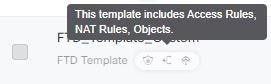
After creating a template, in the Security Devices page, Security Cloud Control displays the corresponding template part icons to show the parts included in that template. This information also appears in the Device Details pane when you click the device or when you hover over the mouse pointer on the icon.

The following picture shows an example of a part icon to show that the template includes "access rules", "NAT rules", and "objects".


Edit an FDM-Managed Device Template

Edit the template parameters with the following procedure:

Procedure

1.

In the left pane, click Security Devices.

2.

Click the Templates tab.

3.

Click the FTD tab.

4.

Use the Model/Template filter to find the template you want to modify.

5.

In the Device Actions pane on the right, click Edit Parameters.

6.

(Optional) make any changes to the parameters by directly editing the text box.

7.

Click Save.

You can edit the rest of the FDM-managed device template just as you would the configuration of a live FDM-managed device. You can edit your FDM-managed device template with the following configurations:


Delete an FDM Template

You delete an FDM-managed device template just as you would remove an FDM-managed device from Security Cloud Control:

Procedure

1.

In the left pane, click Security Devices.

2.

Click the Templates tab.

3.

Click the FTD tab.

4.

Use the filter and search fields to find the FDM-managed device template you want to delete.

5.

In the Device Actions pane, click Remove .

6.

Read the warning message and click OK to delete the template.


Apply an FDM Template

Before applying a template, you can identify its contents by navigating to the Security Devices page and filter for Model/Template. Security Cloud Control displays the corresponding template part icons to show the parts included in that template. This information also appears in the Device Details pane when you click the device or when you hover over the mouse pointer on the icon.

You can parameterize the following attributes to enable per-device customization, which means you can apply device-specific values at the time of applying the template:

When applying the FDM-managed device template, you can change the parameterized values of interfaces and subinterfaces configured when creating the template.

Apply a Complete Template

Applying a complete FDM-managed device template to create a new FDM-managed device overwrites entirely any existing configuration on the FDM-managed device, including any staged changes that have not yet been deployed from Security Cloud Control to the device. Anything on the device that was not included in the template will be lost.

Apply a Custom Template

Applying a custom FDM-managed device template to other FDM-managed devices will retain or remove the existing configuration based on the template part. The following table provides the changes that occur after applying the custom template on other FDM-managed devices.

Template Parts

After Applying Custom Template

Access Rules

  • New access control rules present in the custom template overwrites any existing access control rules on the device.

  • New objects and interfaces (with sub-interfaces), if any, in the custom template are applied to the device without deleting any existing objects and interfaces.

NAT Rules

  • New NAT rules present in the custom template overwrites any existing NAT rules on the device.

  • New objects and interfaces (with sub-interfaces), if any, in the custom template are applied to the device without deleting any existing objects and interfaces.

Settings

  • New system settings from the custom template are applied to the device without deleting any existing system settings.

  • New objects and interfaces (with sub-interfaces), if any, in the custom template are applied to the device without deleting any existing objects and interfaces.

Interfaces

  • New interfaces and sub-interfaces from the custom template are applied to the device without deleting any existing interfaces and sub-interfaces.

  • Security Cloud Control does not allow applying a template to a device where more interfaces are defined in the template than there are interfaces on the device.

Objects

  • New objects from the custom template are applied to the device without deleting any existing objects.

  • New interfaces and sub-interfaces, if any, in the custom template are applied to the device without deleting any existing interfaces and sub-interfaces.

Prerequisites

The following conditions must be met prior to applying a template:

  • When using a template, be sure that any changes you have made to the template have been committed and that the template is in the "Synced" state on the Security Devices page.

  • When using an FDM-managed device as a template, be sure that any changes on Security Cloud Control you intended to deploy to the device have been deployed and that there are no changes from the Firewall Device Manager console that have not been deployed. The device must show a Synced state on the Security Devices page.
Applying the template to a device is a three-step process.

  1. Apply the template to the device

  2. Review device and network settings

  3. Deploy the changes to the device


Apply Template to an FDM-Managed Device

Before you deploy the changes to the device, continue to the next procedure:

Review Device and Networking Settings.

You can use change request tracking to apply a tracking label to your changes before you apply the template. Use the following procedure to apply an FDM-managed device template:

Procedure

1.

(Optional) Before you begin, make a template of your FDM-managed device before you apply another template to it. This gives you a configuration backup you can reference when you need to reapply device and networking settings.

2.

In the left pane, click Security Devices.

3.

Click the Templates tab.

4.

Click the FTD tab.

5.

Use the filter and search field to find the FDM-managed device or template to which you are going to apply the template.

Note

If you change the name of the template at this point, you are applying a full device configuration or template to DeviceName. Deploying this change to DeviceName will overwrite the entire configuration running on that device.

6.

In the device Actions pane on the right, click Apply Template.

7.

Click Select Template and select the desired template and click Continue.

8.

You can configure the following and click Continue appearing on each screen.

  1. Map Interfaces: Confirm or change the mapping of interfaces between the template and the device. Note that you cannot have more than one template interface mapped to a single device interface; if the interface configuration is not supported, you cannot continue and apply the template.

    Note

    Security Cloud Control does not allow applying a template to a device where more interfaces are defined in the template than there are interfaces on the device.

  2. Fill Parameters: Customize the interface or sub-interface parameter values for the device that you are applying the template to.

  3. Review: Review the template configuration and click Apply Template when you are ready to overwrite the existing device configuration with the configuration in the template.

9.

Click Review and deploy now the changes you made, or wait and deploy multiple changes at once.


Review Device and Networking Settings

When creating an FDM-managed device template, Security Cloud Control copies the entire device configuration into the template. So, things like the management IP address of the original device are contained in the template. Review these device and network settings before you apply the template to a device:

Procedure

1.

Review these FDM-managed device settings to ensure that they reflect the correct information for the new FDM-managed device:

2.

Review inside_zone and outside_zone security objects to ensure they reference the correct IP address for the new FDM-managed device.

3.

Review NAT policies to ensure they reference the correct IP addresses for the new FDM-managed device.

4.

Review Interface configurations to ensure that they reflect the correct configuration for the new FDM-managed device.


Deploy Changes to the Device

Review and deploy now the changes you made, or wait and deploy multiple changes at once.