Cisco Security Cloud Control: Secure Firewall Device Management

PDF

Cisco Security Cloud Control: Secure Firewall Device Management

FDM-Managed High Availability

Want to summarize with AI?

Log in

Learn how to create and manage FDM-managed high availability pairs in Security Cloud Control, including requirements, failover criteria, HA status, failover history, forced failover, and HA removal.


About High Availability

A high availability (HA), or failover configuration, joins two devices into a primary/secondary setup so that if the primary device fails, the secondary automatically takes over. Configuring high availability, also called failover, requires two identical FDM-managed devices connected to each other through a dedicated failover link and, optionally, a state link. The health of the active unit (hardware, interfaces, software, and environmental status) is monitored to determine if specific failover conditions are met. If those conditions are met, failover occurs. This helps keep your network operation in case of a device failure or during a maintenance period when the devices are upgrading. See the related articles below for more information.
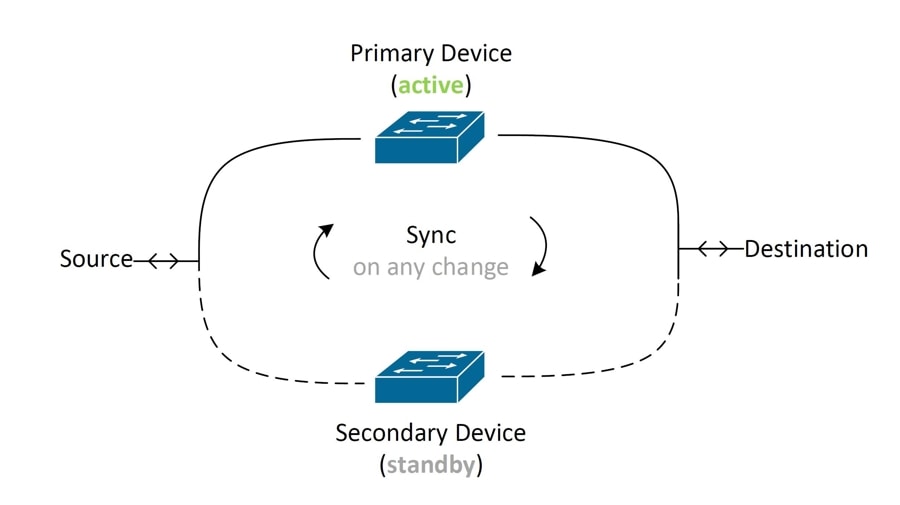
The units form an active/standby pair, where the primary unit is the active unit and passes traffic. The secondary (standby) unit does not actively pass traffic, but synchronizes configuration and other state information from the active unit. The two units communicate over the failover link to determine the operating status of each unit.

Note

When you opt to accept changes from or deploy to an FDM-managed HA pair, you are communicating with the active device of the HA pair. This means that configurations and backups are pulled from the active device only.

Certificate and High Availability Pairs

When you apply a certificate to an FDM-managed HA pair, Security Cloud Control only applies the certificate to the active device; only upon deploying the active device is the configuration, and the certificate, synchronized with the standby device. If you apply a new certificate to the active device through FDM-managed, the active device and standby device may have two different certificates. This may cause issues in failover or failover history, among other possible issues. The two devices must have the same certificate to function successfully. If you must change the certificate through FDM-managed, then you must deploy changes and synchronize the certificate within the HA pair.


FDM-Managed High Availability Pair Requirements

High Availability Requirements

There are several requirements you must establish before you create a high availability (HA) pair.

Physical and Virtual Device Requirements for HA

The following hardware requirements must be met:

  • The devices must be the same hardware model.

  • The devices must have the same modules installed. For example, if one has an optional network module, then you must install the same network module in the other device.

  • The devices must have the same type and number of interfaces.

  • To create an HA pair in Security Cloud Control, both devices must have management interfaces configured. If the devices have data interfaces configured, you must create the HA pair through the FDM-managed UI, and then onboard the pair to Security Cloud Control.

    Note

    You cannot use an FDM-managed template in an HA pair.

Software Requirements for HA

The following software requirements must be met for both physical and virtual FDM-managed devices:

  • You have two standalone FDM-managed devices onboarded in the Security Cloud Control.

  • The devices must run the exact same software version, which means the same major (first), minor (second), and maintenance (third) numbers. You can find the version inside the Device Details window on the Security Devices page, or you can use the show version command in the CLI.

    Note

    Devices with different versions are allowed to join, but the configuration is not imported into the standby unit and failover is not functional until you upgrade the units to the same software version.

  • Both devices must be in local manager mode, that is, configured using FDM. If you can log into FDM on both devices, they are in local manager mode. You can also use the show managers command in the CLI to verify.

  • You must complete the initial setup wizard for each device before onboarding to Security Cloud Control.

  • Each device must have its own management IP address. The configuration for the management interface is not synchronized between the devices.

  • The devices must have the same NTP configuration.

  • You cannot configure any interface to obtain its address using DHCP. That is, all interfaces must have static IP addresses.

    Note: If you change any interface configurations, you must deploy the changes to the device before establishing HA.
  • Both devices must be synced. If you have pending changes or conflicts detected, see Resolve Configuration Conflicts and Resolve Configuration Conflicts for more information.

    Note

    When you opt to accept changes from or deploy to an FDM-managed HA pair, you are communicating with the active device of the HA pair. This means that configurations and backups are pulled from the active device only.

Smart License Requirements for HA

The following license requirements must be met for both physical and virtual FDM-managed devices:

  • Both devices in an HA pair must have either a registered license, or an evaluation license. If the devices are registered, they can be registered to different Cisco Smart Software Manager accounts, but the accounts must have the same state for the export-controlled functionality setting, either both enabled or both disabled. However, it does not matter if you have enabled different optional licenses on the devices.

  • Both devices within the HA pair must have the same licenses during operation. It is possible to be in compliance on one device, but out of compliance on the other if there are insufficient licenses. If your Smart Licenses account does not include enough purchased entitlements, your account becomes Out-of-Compliance (even though one of the devices may be compliant) until you purchase the correct number of licenses.

Note that if the device is in evaluation mode, you must ensure that the registration status for Security Cloud Control is the same on the devices. You must also ensure that your selection for participation in the Cisco Success Network is the same. For registered devices, the settings can be different on the units, but whatever is configured on the primary (active) device will either register or unregister the secondary. An agreement to participate in the Cisco Success Network on the primary implies an agreement for the secondary.

If you register the devices to accounts that have different settings for export controlled features, or try to create an HA pair with one unit registered and the other in evaluation mode, the HA join might fail. If you configure an IPsec encryption key with inconsistent settings for export controlled features, both devices will become active after you activate HA. This will impact routing on the supported network segments, and you will have to manually break HA on the secondary unit to recover.

Cloud Services Configuration for HA

Both of the devices within an HA pair must have Send Events to the Cisco Cloud enabled. This feature is available in the FDM UI. Navigate to System Settings and click Cloud Services to enable this feature. Without this option enabled, the HA pair cannot form in Security Cloud Control and an event description error occurs. See the Configuring Cloud Services chapter of the Firepower Device Manager Configuration Guide of the version you are running for more information.


Create an FDM-Managed High Availability Pair

Note

To create an HA pair in Security Cloud Control, both devices must have management interfaces configured. If the devices have data interfaces configure, you must create the HA pair through the FDM console, and then onboard the pair to Security Cloud Control.

Once you create an FDM-managed HA pair, the primary device is active and the secondary device is standby by default. All configuration changes or deployments are made through the primary device and the secondary device remains in standby mode until the primary unit becomes unavailable.

Note that when you opt to accept configuration changes from or deploy to an FDM-managed HA pair, you are communicating with the active device of the HA pair. Any changes made to the primary device are transferred over the link between the primary and the secondary device. Security Cloud Control deploys to and accepts changes only from the primary device; thusly, the Security Devices page displays a single entry for the pair. Once the deploy occurs, the primary device synchronized any configuration changes to the secondary device.

Simi liar to how Security Cloud Control communicates with only the active device, when you schedule or opt to back up an FDM-managed HA pair, only the active device is eligible to back up.

Note

If the HA devices experience an issue during the creation process or the HA pair does not result with a healthy status, you must manually break the HA configuration before you attempt to create the pair again.


Procedure

Create an HA pair from two standalone FDM-managed devices with the following procedure:

Procedure

1.

In the left pane, click Security Devices.

2.

Click the Devices tab to locate your device.

3.

Click the FTDtab and select the device you want to establish as the primary device.

Note

Security Cloud Control does not support creating an HA pair with devices configured with DHCP.

4.

In the Management pane, click High Availability.

5.

Locate the area for the secondary device and click Select Device, then choose a device from the list of eligible devices.

6.

Configure the Failover link.

  1. Click Physical Interfaceand select an interface from the drop-down menu.

  2. Select the appropriate IP Type.

  3. Enter the Primary IP address.

  4. Enter the Secondary IP address.

  5. Enter the Netmask. By default, this value is 24.

  6. If applicable, enter a valid IPSec Encryption Key.

7.

Configure the Stateful link. If you want to use the same configuration as the failover link, check the The same as Failover Link checkbox. If you want to use a different configuration, use the following procedure:

  1. Click Physical Interface and select an interface from the drop-down menu. Note that both the primary and secondary device must have the same number of physical interfaces.

  2. Select the appropriate IP Type.

  3. Enter the Primary IP address.

  4. Enter the Secondary IP address.

  5. Enter the Netmask. By default, this value is 24.

8.

Click Create in the upper right corner of the screen to finish the wizard. Security Cloud Control immediately redirects you to the High Availability Status page. From this page you can monitor the status of the HA creation. Note that once the HA pair is created, the Security Devices page displays the pair as a single row.

9.

Review and deploy the changes you made now, or wait and deploy multiple changes at once.


FDM-Managed Devices in High Availability Page

The FDM-managed in High Availability (HA) management page is a multi-purpose page for FDM-managed devices. This page is only available for devices that are already configured as an HA pair. You can onboard an FDM-managed HA pair or you can create an FDM-managed HA pair from two standalone FDM-managed devices.

If you select a standalone FDM-managed device from the Security Devices page, this page acts as a wizard for creating an HA pair. At this time, you must have two FDM-managed devices onboarded to Security Cloud Control to create a pair. To create an FDM-managed HA pair in Security Cloud Control, see Create an FDM-Managed High Availability Pair.

If you select an FDM-managed HA pair from the Security Devices page, this page acts as an overview page. From here you can view the HA configuration and the failover history, as well as actionable items such as force a failover, edit the failover criteria, and remove the HA link.


High Availability Management Page

To see the High Availability page, use the following procedure:

Procedure

1.

In the left pane, click Security Devices.

2.

Click the Devices tab to locate your device.

3.

Click the FTD tab and select a standlalone FDM-managed device or the active FDM-managed device of the FDM-managed HA pair.

4.

In the Management pane, click High Availability.


Edit High Availability Failover Criteria

You can edit the failover criteria after the FDM-managed HA pair is created.

Procedure

1.

In the left pane, click Security Devices.

2.

Click the Devices tab to locate your device.

3.

Click the FTD tab and select the active device of the FDM-managed HA pair.

4.

In the Management pane, click High Availability.

5.

In the Failover Criteria window click Edit.

6.

Make any necessary changes and click Save.

7.

Review and deploy the changes now you made to the active device, or wait and deploy multiple changes at once.


Break an FDM-Managed High Availability Pairing

When you break HA, the configured interfaces on the standby device are automatically disabled. The devices may experience a disruption in traffic during this process. After the HA pair is successfully removed you will be redirected from the status page to the High Availability page where you will have the option to create another HA pair with the same primary device.

Note

You cannot deploy to either of the devices until the HA pair is successfully removed.

Break HA with Management Interfaces

When you break HA for a pair that is configure with management interfaces, the break may take 10 minutes or longer to complete and both devices go offline during this process. When the HA configuration is successfully removed, Security Cloud Control displays both units as standalone devices in the Services & Devices page.

Break HA with Data Interfaces

When you break HA for a pair that is configured with data interfaces, the break may take 20 minutes or more to complete and both of the devices go offline. you must manually reconnect the active device after the HA configuration is removed.

The standby device retains the HA configuration, though, and will become unreachable since it has the same configuration as the active device. You must manually reconfigure the IP interfaces outside of Security Cloud Control, and then re-onboard the device as a standalone.


Break High Availability

Use the following procedure to remove the HA pairing of two FDM-managed devices:

Procedure

1.

In the navigation bar, click Security Devices and select the active device of the FDM-managed HA pair.

2.

Click the Devices tab to locate your device.

3.

Click the FTD tab.

4.

In the Management pane, click High Availability.

5.

Click Break High Availability.

6.

Security Cloud Control removes the HA configuration and both devices are displayed as standalone devices in the Security Devices page.

7.

Deploy Configuration Changes from Security Cloud Control to FDM-Managed Device to deploy the new configuration to both devices.

8.

Review and deploy the changes you made to the active device now, or wait and deploy multiple changes at once.


Break Out-of-Band High Availability

If you break an FDM-managed HA pair using the FDM interface, the configuration status of the HA pair in Security Cloud Control changes to Conflict Detected. After you break HA, you must deploy the changes to the primary device through FDM-managed and then resolve the Conflict Detected state in Security Cloud Control.

After the device is back in the Synced state, you can deploy configuration changes made in Security Cloud Control to the device.

We do not recommend reverting changes from Security Cloud Control after breaking HA using the FDM-managed interface.


Force a Failover on an FDM-Managed High Availability Pair

Switch the active and standby devices within an FDM-managed HA pair by forcing a failover. Note that if you recently applied a new certificate to the active device and have not deployed changes, the standby device retains the original certificate and failover will fail. The active and standby devices must have the same certificate applied. Use the following procedure to manually force a failover:

Procedure

1.

In the left pane, click Security Devices.

2.

Click the Devices tab to locate your device.

3.

Click the FTD tab.

4.

Select the active device of the FDM-managed HA pair.

5.

In the Management pane, click High Availability.

6.

Click the options icon .

7.

Click Switch Mode. The active device is now on standby, and the standby device is now active.


FDM-Managed High Availability Failover History

Procedure

1.

In the left pane, click Security Devices.

2.

Click the Devices tab to locate your device.

3.

Click the FTD tab.

4.

Select the active device of the FDM-managed HA pair.

5.

In the Management pane, click High Availability.

6.

Click Failover History. Security Cloud Control generates a window that details the failover history for both the primary and secondary device since the HA pair was formed.

Note

Failover history is also displayed in the pair's change log, available from the Security Devices page.


Refresh the FDM-Managed High Availability Status

Procedure

1.

In the left pane, click Security Devices.

2.

Click the Devices tab to locate your device.

3.

Click the FTD tab and select the FDM-managed device or the FDM-managed HA pair.

4.

In the Management pane, click High Availability.

5.

Click the options icon .

6.

Click Get Latest Status. Security Cloud Control requests a health status from the primary device.