Dynamic Attributes Connector

The following topics discuss how to configure and use the Dynamic Attributes Connector.

About the Dynamic Attributes Connector

The dynamic attributes connector enables your access control and DNS policy to adapt in real time to the changes in public and private cloud workloads and business-critical software-as-a-service (SaaS) applications. It simplifies policy management by keeping rules up to date without tedious manual updates and policy deployment. Customers require policy rules to be defined based on non-network constructs such as VM name or security group, so that firewall policy is persistent even when the IP address or VLAN changes.

Supported connectors

We currently support:

Table 1. List of supported connectors by dynamic attributes connector version and platform

CSDAC version

AWS

AWS security groups

AWS service tags

Azure

Azure Service Tags

Cisco Cyber Vision

Cisco Multicl. Defense

Generic text

GitHub

Google Cloud

Microsoft Office 365

vCenter

Tenable

Webex

Zoom

Version 1.1 (on-premises)

Yes

No

No

Yes

Yes

No

No

No

No

No

Yes

Yes

No

No

No

Version 2.0 (on-premises)

Yes

No

No

Yes

Yes

No

No

No

No

Yes

Yes

Yes

No

No

No

Version 2.2 (on-premises)

Yes

No

No

Yes

Yes

No

No

No

Yes

Yes

Yes

Yes

No

No

No

Version 2.3 (on-premises)

Yes

No

No

Yes

Yes

No

No

No

Yes

Yes

Yes

Yes

No

Yes

Yes

Version 3.0 (on-premises)

Yes

Yes

Yes

Yes

Yes

Yes

No

Yes

Yes

Yes

Yes

Yes

No

Yes

Yes

Cloud-delivered (Security Cloud Control)

Yes

Yes

Yes

Yes

Yes

Yes

Yes

Yes

Yes

Yes

Yes

No

Yes

Yes

Yes

More information about connectors:

How It Works

This topic discusses the architecture of the Dynamic Attributes Connector.

The following figure shows how the system functions at a high level.
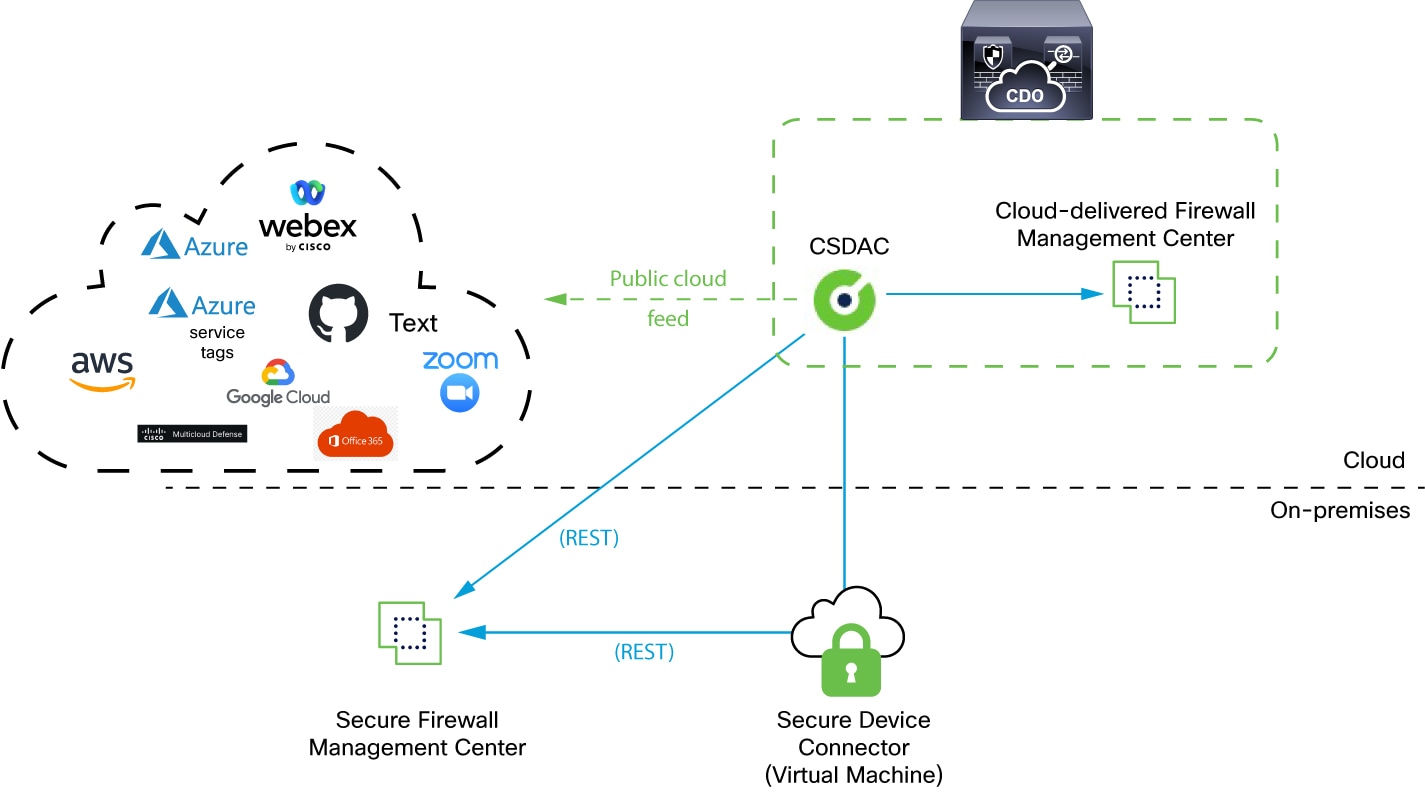
"The Cisco Secure Dynamic Attributes Connector queries cloud services such as Microsoft Outlook 365 and provides information such as VLANs, networks, and tags to the secure management center to use as selection criteria in access control rules. This way, you don't have to constantly update network objects when IP address information (for example) in your cloud systems change"

  • The system supports certain public cloud providers.

    This topic discusses supported connectors (which are the connections to those providers).

  • The dynamic attributes connector is provided with Security Cloud Control; it includes a Cloud-Delivered Firewall Management Center adapter and you can connect to an On-Prem Firewall Management Center using the Secure Device Connector.

    For more information about the Secure Device Connector, see Secure Device Connector (SDC).

  • The adapter defined by the dynamic attributes connector receives those dynamic attributes filters as dynamic objects and enables you to use them in access control rules.

    You can create the following types of adapters:

    • On-Prem Firewall Management Center for an on-premises device.

      This type of device might be managed by Security Cloud Control or it might be a standalone.

    • Cloud-Delivered Firewall Management Center for devices managed by Security Cloud Control.

About the dashboard

To access the Dynamic Attributes Connector dashboard, log in to Security Cloud Control and click Administration > Dynamic Attributes Connector at the top of the page.

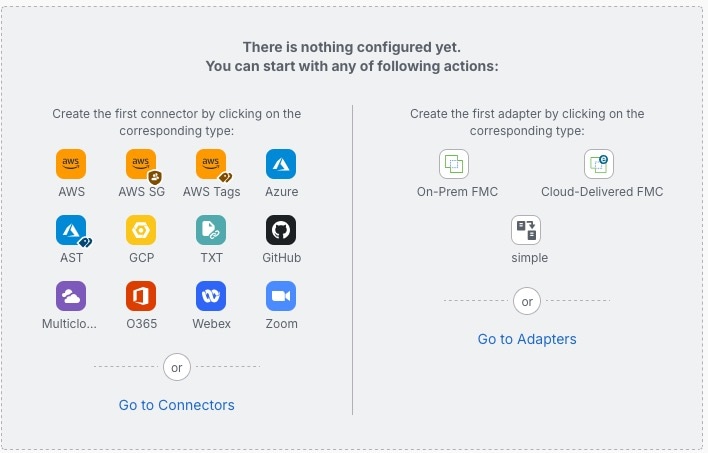
The Dynamic Attributes Connector Dashboard page displays the status of your connectors, adapters, and filters at a glance. Following is an example of the Dashboard of an unconfigured system:

The Cisco Secure Dynamic Attributes Connector dashboard displays at-a-glance information about configured connectors, filters, and adapters

Among the things you can do with the Dashboard are:

  • Add, edit, and delete connectors and dynamic attributes filters.

  • See how connectors and dynamic attributes filters are related to each other.

  • View warnings and errors.

Related Topics

Dashboard of an unconfigured system

Sample Dynamic Attributes Connector Dashboard page of an unconfigured system:

The Cisco Secure Dynamic Attributes Connector dashboard displays at-a-glance information about configured connectors, filters, and adapters

The Dashboard initially displays all the types of connectors you can configure for your system. You can do any of the following:

  • Hover the mouse pointer over a connector and click to create a new one.

  • Click Go to Connectors to add, edit, or delete connectors (good for creating, editing, or deleting multiple connectors at the same time).

    For more information, see Create a connector.

Related Topics:

Dashboard of a configured system

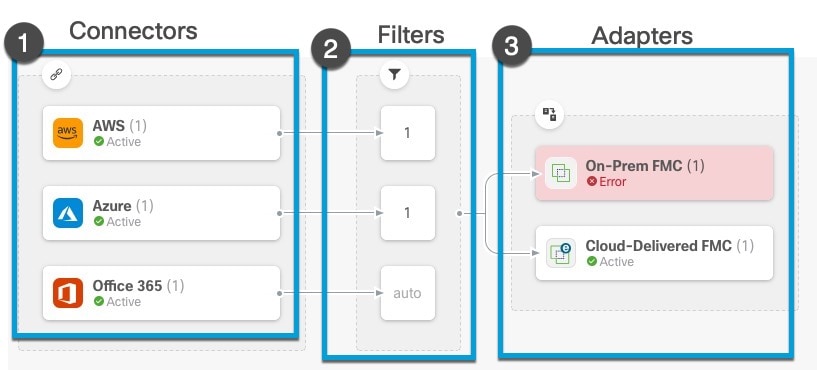
Sample Dynamic Attributes Connector Dashboard page of a configured system:

Click an area in the figure to learn more about it or click one of the links following the figure.

The Cisco Dynamic Attributes Connector dashboard displays at-a-glance information about configured connectors, filters, and adapters Create a connector Create dynamic attributes filters Create an adapter
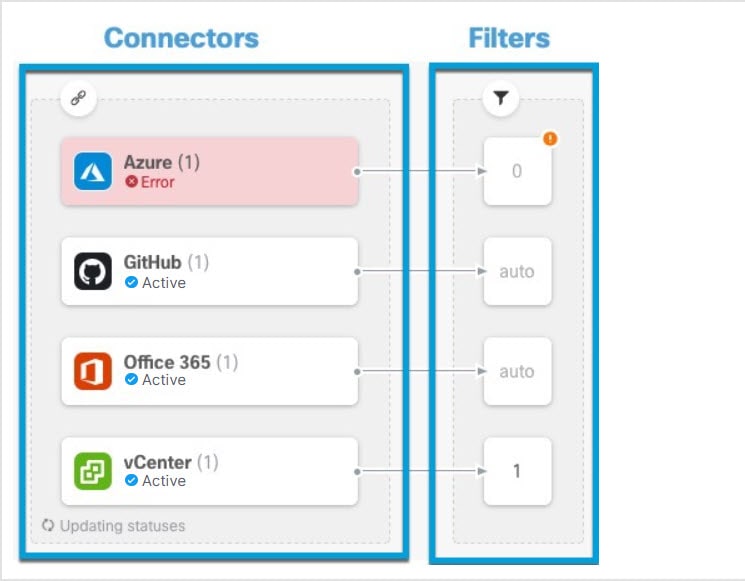
The Cisco Dynamic Attributes Connector dashboard displays at-a-glance information about configured connectors and filters Create a connector Create dynamic attributes filters

The Dashboard shows the following (from left to right):

Connectors column

Filters column

Adapters column

List of connectors with a number indicating how many of each type are configured. Connectors collect dynamic attributes that could be sent to the configured adapter. Dynamic attributes filters specify what data is sent.

Click to view more information about all configured connectors. You can also click the name of a connector to add, edit, or delete connectors; or to view detailed information about them. For more information, see Add, edit, or delete connectors.

List of dynamic attributes filters associated with each connector with a number indicating how many of each filter are associated with a connector.

Click to view more information about all configured filters. You can also click the name of a filter to add, edit, or delete filters; or to view detailed information about them. For more information, see Add, edit, or delete dynamic attributes filters.

List of adapters. Adapters receive dynamic objects from configured connectors using configured dynamic attributes filters; these dynamic objects can be used in access control policies without the need to deploy them.

Click to view more information about all configured adapters. You can also click the name of an adapter to add, edit, or delete adapters; or to view detailed information about them. For more information, see Create an adapter.


Note


Some connectors, such as Outlook 365 and Azure Service tags, automatically pull available dynamic objects without the need for a dynamic attributes filters. Those connectors display Auto in the column.


The Dashboard indicates whether or not an object is available. The Dashboard page is refreshed every 15 seconds but you can click Refresh (refresh icon) at the top of the page at any time to refresh immediately. If issues persist, check your network connection.

Related Topics:

Add, edit, or delete connectors

The Dashboard enables you to view or edit connectors. You can click the name of a connector to view all instances of that connector or you can click for the following additional options:

  • Go to Connectors to view all connectors at the same time; you can add, edit, and delete connectors from there.

  • Add Connector > type to add a connector of the indicated type.

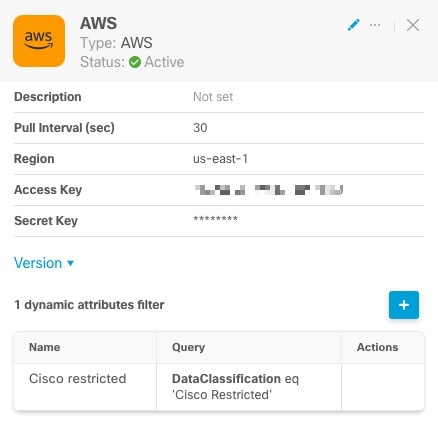
Click any connector in the connectors column () to display more information about it; an example follows:

Displaying more information about connectors from the dashboard

You have the following options:

  • Click the Edit icon (edit icon) to edit this connector.

  • Click the More icon (more icon) for additional options.

  • Click to close the panel.

  • Click Version to display the version of the . You can optionally copy the version to the clipboard if necessary for Cisco TAC.

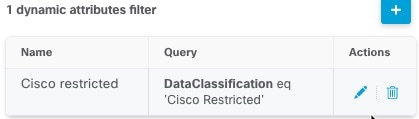
The table at the bottom of the panel enables you to add dynamic attributes filters; or to edit or dynamic attributes connector delete connectors. A sample follows:

At the bottom of the page you can add, edit, or delete dynamic attributes filters

Click the Add icon (add icon) to add a dynamic attributes filter for this connector. For more information, see Create dynamic attributes filters.

Hover the mouse pointer over the Actions column to either edit or delete the indicated connector.

View error information

To view error information for a connector:

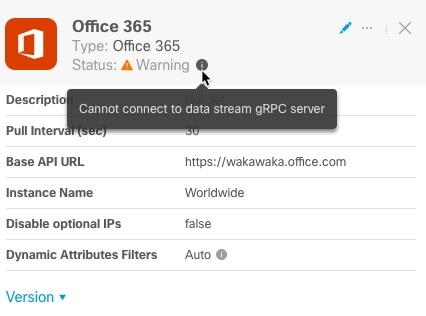
  1. On the Dashboard, click the name of the connector that is displaying the error.

  2. In the right pane, click Information (information icon).

    An example follows.

    Click the "I" button to view warnings about a connector

  3. To resolve this issue, edit the connector settings as discussed in Create an Office 365 connector.

  4. If you cannot resolve the issue, click Version and copy the version to a text file.

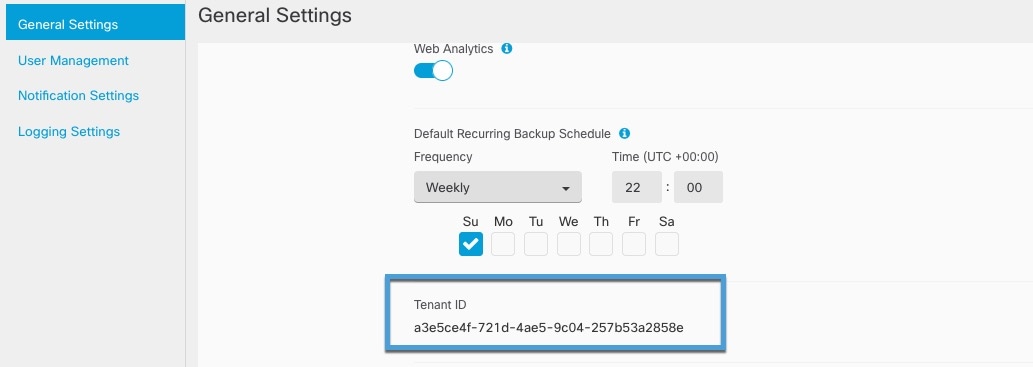
  5. Get your Security Cloud Control tenant ID as discussed in Get Your Tenant ID

  6. Provide all of this information to Cisco TAC.

Add, edit, or delete dynamic attributes filters

The dashboard enables you to add, edit, or delete dynamic attributes filters. You can click the name of a filter to view all instances of that filter or you can click for the following additional options:

  • Go to Dynamic Attributes Filters to view all configured dynamic attributes filters. You can add, edit, or delete dynamic attributes filters from there.

  • Add Dynamic Attributes Filters to add a filter.

For more information about adding dynamic attributes filters, see Create dynamic attributes filters.

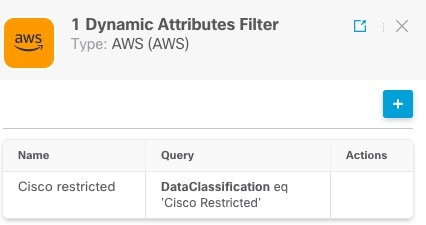
An example follows:

Displaying information about a dynamic attributes filter from the dashboard


Note


Some connectors, such as Outlook 365 and Azure Service tags, automatically pull available dynamic objects without the need for a dynamic attributes filters. Those connectors display Auto in the column.


You have the following options:

  • Click a filter instance to view summary information about dynamic attributes filters associated with a connector.

  • Click the Add icon (add icon) to add a new dynamic attributes filter.

    For more information, see Create dynamic attributes filters.

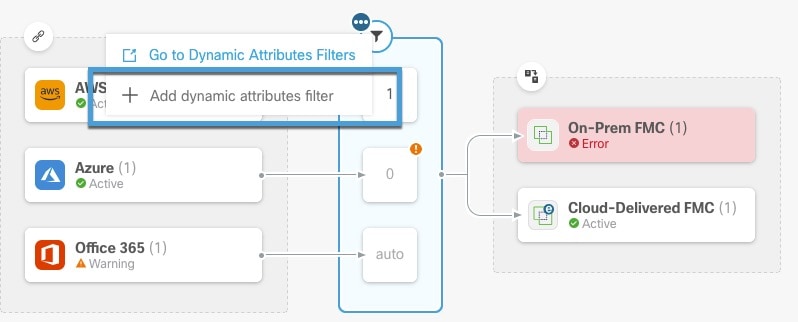
  • Click in the filters column () indicates the indicated connector has no associated dynamic attributes filters. Without associated filters, the connector can send nothing to Firewall Management Center.

    One way to resolve the issue is to click in the filters column and click Add Dynamic Attributes Filter. A sample follows.

    Add a dynamic attributes filter so the management center can start receiving dynamic objects

  • Click to add, edit, or delete filters.

  • Click to close the panel.

Create a connector

A connector is an interface with a cloud service. The connector retrieves network information from the cloud service so the network information can be used in policies on the Security Cloud Control.

We support the following:

Table 2. List of supported connectors by dynamic attributes connector version and platform

CSDAC version

AWS

AWS security groups

AWS service tags

Azure

Azure Service Tags

Cisco Cyber Vision

Cisco Multicl. Defense

Generic text

GitHub

Google Cloud

Microsoft Office 365

vCenter

Tenable

Webex

Zoom

Version 1.1 (on-premises)

Yes

No

No

Yes

Yes

No

No

No

No

No

Yes

Yes

No

No

No

Version 2.0 (on-premises)

Yes

No

No

Yes

Yes

No

No

No

No

Yes

Yes

Yes

No

No

No

Version 2.2 (on-premises)

Yes

No

No

Yes

Yes

No

No

No

Yes

Yes

Yes

Yes

No

No

No

Version 2.3 (on-premises)

Yes

No

No

Yes

Yes

No

No

No

Yes

Yes

Yes

Yes

No

Yes

Yes

Version 3.0 (on-premises)

Yes

Yes

Yes

Yes

Yes

Yes

No

Yes

Yes

Yes

Yes

Yes

No

Yes

Yes

Cloud-delivered (Security Cloud Control)

Yes

Yes

Yes

Yes

Yes

Yes

Yes

Yes

Yes

Yes

Yes

No

Yes

Yes

Yes

Amazon Web Services connector—About user permissions and imported data

The Dynamic Attributes Connector imports dynamic attributes from AWS to Security Cloud Control for use in policies.

Dynamic attributes imported

We import the following dynamic attributes from AWS:

  • Tags, user-defined key-value pairs you can use to organize your AWS EC2 resources.

    For more information, see Tag your EC2 Resources in the AWS documentation

  • IP addresses of virtual machines in AWS.

Minimum permissions required

The Dynamic Attributes Connector requires a user at minimum with a policy that permits ec2:DescribeTags, ec2:DescribeVpcs, and ec2:DescribeInstances to be able to import dynamic attributes.

Create an AWS user with minimal permissions for the Dynamic Attributes Connector

This task discusses how to set up a service account with minimum permissions to send dynamic attributes to Security Cloud Control. For a list of these attributes, see Amazon Web Services connector—About user permissions and imported data.

Before you begin

You must already have set up your Amazon Web Services (AWS) account. For more information about doing that, see this article in the AWS documentation.

Procedure

Step 1

Log in to the AWS console as a user with the admin role.

Step 2

From the Dashboard, click Security, Identity & Compliance > IAM.

Step 3

Click Access Management > Users.

Step 4

Click Add Users.

Step 5

In the User Name field, enter a name to identify the user.

Step 6

Click Access Key - Programmatic Access.

Step 7

At the Set permissions page, click Next without granting the user access to anything. You can grant user access later.

Step 8

Add tags to the user if desired.

Step 9

Click Create User.

Step 10

Click Download .csv to download the user's key to your computer.

Note


This is the only opportunity you have to retrieve the user's key.

Step 11

Click Close.

Step 12

At the Identity and Access Management (IAM) page in the left column, click Access Management > Policies.

Step 13

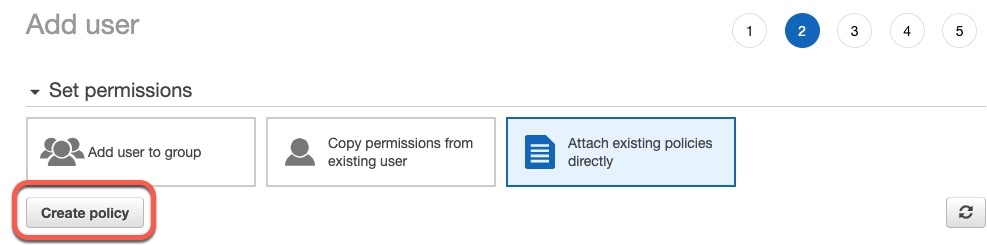
Click Create Policy.

Step 14

On the Create Policy page, click JSON.

Create a JSON policy

Step 15

Enter the following policy in the field:

{
	"Version": "2012-10-17",
	"Statement": [
		{
			"Effect": "Allow",
			"Action": [
				"ec2:DescribeTags",
				"ec2:DescribeInstances",
				"ec2:DescribeVpcs"
			],
			"Resource": "*"
		}
	]
}

Step 16

Click Next.

Step 17

Click Review.

Step 18

On the Review Policy page, enter the requested information and click Create Policy.

Step 19

On the Policies page, enter all or part of the policy name in the search field and press Enter.

Step 20

Click the policy you just created.

Step 21

Click Actions > Attach.

Step 22

If necessary, enter all or part of the user name in the search field and press Enter.

Step 23

Click Attach Policy.


What to do next

Create an AWS connector.

Create an AWS connector

This task discusses how to configure a connector that sends data from AWS to the Security Cloud Control for use in policies.

Before you begin

Create a user with at least the privileges discussed in Create an AWS user with minimal permissions for the Dynamic Attributes Connector.

Procedure

Step 1

Log in to Security Cloud Control.

Step 2

Click Firewall.

Step 3

Click Administration > Dynamic Attributes Connector > Connectors.

Step 4

Do any of the following:

  • Add a new connector: click Add icon (add icon), then click the name of the connector.

  • Edit a connector: click Edit icon (edit icon).

  • Delete a connector: click Delete icon (delete icon).

Step 5

Enter the following information.

Value

Description

Name

(Required.) Enter a name to uniquely identify this connector.

Description

Optional description.

Pull Interval

(Default 30 seconds.) Interval at which IP mappings are retrieved from AWS.

Region

(Required.) Enter your AWS region code.

Access Key

(Required.) Enter your access key.

Secret Key

(Required.) Enter your secret key.

Step 6

Click Test and make sure the test succeeds before you save the connector.

Step 7

Click Save.

Step 8

Make sure Ok is displayed in the Status column.


Amazon Web Services Security Groups connector—About user permissions and imported data

The Dynamic Attributes Connector imports dynamic attributes from AWS to Security Cloud Control for use in policies.

Minimum permissions required

The Dynamic Attributes Connector requires a user at minimum with a policy that permits ec2:DescribeTags, ec2:DescribeVpcs, and ec2:DescribeInstances to be able to import dynamic attributes.

Create an AWS Security Groups connector

This task discusses how to configure a connector that sends AWS security groups data to the Security Cloud Control for use in policies.

Before you begin
Do all of the following:
Procedure

Step 1

Log in to Security Cloud Control.

Step 2

Click Firewall.

Step 3

Click Administration > Dynamic Attributes Connector > Connectors.

Step 4

Do any of the following:

  • Add a new connector: click Add icon (add icon), then click the name of the connector.

  • Edit a connector: click Edit icon (edit icon).

  • Delete a connector: click Delete icon (delete icon).

Step 5

Enter the following information.

Value

Description

Name

(Required.) Enter a name to uniquely identify this connector.

Description

Optional description.

Pull Interval

(Default 30 seconds.) Interval at which IP mappings are retrieved from AWS.

The minimum value for Pull Interval is 1 second. You can set the maximum to any value you want. We recommend against setting the minimum to a low value because it can generate a lot of traffic, and, when applicable, can result in your being billed for the traffic.

Region

(Required.) Enter your AWS region code.

AWS Access Key

(Required.) Enter your access key.

AWS Secret Key

(Required.) Enter your secret key.

Step 6

Click Test and make sure the test succeeds before you save the connector.

Step 7

Click Save.

Step 8

Make sure Ok is displayed in the Status column.


Create an AWS service tags connector

This topic discusses how to create a connector for Amazon Web Services (AWS) service tags to the Security Cloud Control for use in policies.

For more information, see resources like the following on the AWS documentation site:

Procedure


Step 1

Log in to Security Cloud Control.

Step 2

Click Firewall.

Step 3

Click Administration > Dynamic Attributes Connector > Connectors.

Step 4

Do any of the following:

  • Add a new connector: click Add icon (add icon), then click the name of the connector.

  • Edit a connector: click Edit icon (edit icon).

  • Delete a connector: click Delete icon (delete icon).

Step 5

Enter the following information.

Value

Description

Name

(Required.) Enter a name to uniquely identify this connector.

Description

Optional description.

URL

(Required.) Do not change the URL unless advised to do so.

Step 6

Click Test and make sure Test connection succeeded is displayed before you save the connector.

Step 7

Click Save.

Step 8

Make sure Ok is displayed in the Status column.


Azure Connector—About user permissions and imported data

The Dynamic Attributes Connector imports dynamic attributes from Azure to Security Cloud Control for use in policies.

Dynamic attributes imported

We import the following dynamic attributes from Azure:

  • Tags, key-value pairs associated with resources, resource groups, and subscriptions.

    For more information, see this page in the Microsoft documentation.

  • IP addresses of virtual machines in Azure.

Minimum permissions required

The Dynamic Attributes Connector requires a user at minimum with the Reader permission to be able to import dynamic attributes.

Create an Azure user with minimal permissions for the Dynamic Attributes Connector

This task discusses how to set up a service account with minimum permissions to send dynamic attributes to Security Cloud Control. For a list of these attributes, see Azure Connector—About user permissions and imported data.

Before you begin

You must already have a Microsoft Azure account. To set one up, see this page on the Azure documentation site.

Procedure

Step 1

Log in to the Azure Portal as the owner of the subscription.

Step 2

Click Azure Active Directory.

Step 3

Find the instance of Azure Active Directory for the application you want to set up.

Step 4

Click Add > App registration.

Step 5

In the Name field, enter a name to identify this application.

Step 6

Enter other information on this page as required by your organization.

Step 7

Click Register.

Step 8

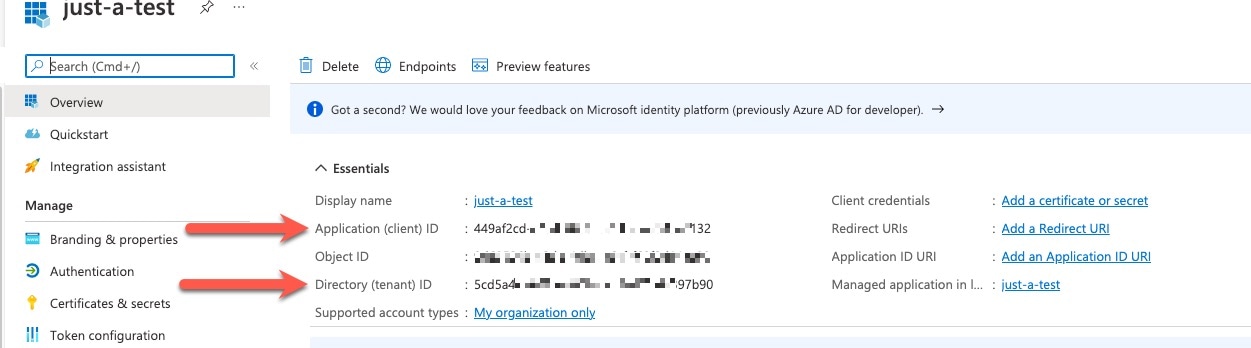
On the next page, write down or copy the Client ID (also referred to as application ID) and the tenant ID (also referred to as the directory ID).

A sample follows.

Make note of the application and tenant ID

Step 9

Next to Client Credentials, click Add a certificate or secret.

Step 10

Click New Client Secret.

Step 11

Enter the requested information and click Add.

Step 12

Copy the value of the Value field to the clipboard. This value, and not the Secret ID, is the client secret.

Copy the client secret to the clipboard now because you will not see it again

Step 13

Go back to the main Azure Portal page and click Subscriptions.

Step 14

Click the name of your subscription.

Step 15

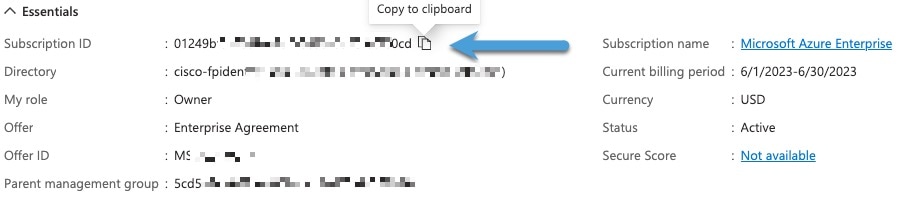
Copy the subscription ID to the clipboard.

Copy the subscription ID to the keyboard

Step 16

Click Access Control (IAM).

Step 17

Click Add > Add role assignment.

Step 18

Click Reader and click Next.

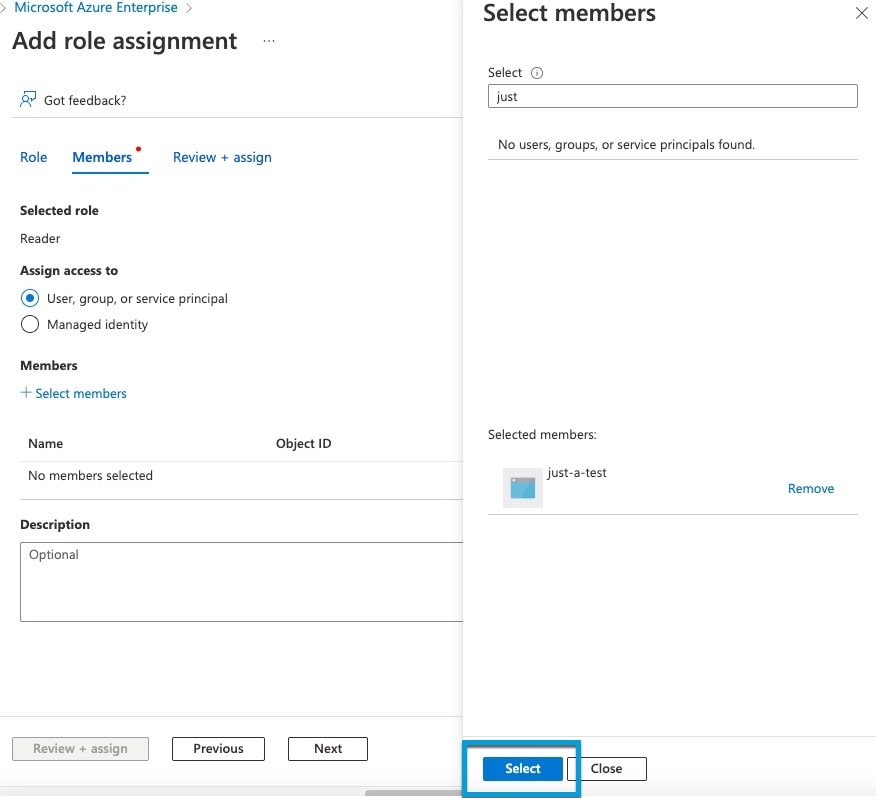
Step 19

Click Select Members.

Step 20

On the right side of the page, click the name of the app you registered and click Select.

Associate the role with your app

Step 21

Click Review + Assign and follow the prompts to complete the action.


What to do next

See Create an Azure connector.

Create an Azure connector

This task discusses how to create a connector to send data from Azure to Security Cloud Control for use in policies.

Before you begin
Create an Azure user with at least the privileges discussed in Create an Azure user with minimal permissions for the Dynamic Attributes Connector.
Procedure

Step 1

Log in to Security Cloud Control.

Step 2

Click Firewall.

Step 3

Click Administration > Dynamic Attributes Connector > Connectors.

Step 4

Do any of the following:

  • Add a new connector: click Add icon (add icon), then click the name of the connector.

  • Edit a connector: click Edit icon (edit icon).

  • Delete a connector: click Delete icon (delete icon).

Step 5

Enter the following information.

Value

Description

Name

(Required.) Enter a name to uniquely identify this connector.

Description

Optional description.

Pull Interval

(Default 30 seconds.) Interval at which IP mappings are retrieved from Azure.

The minimum value for Pull Interval is 1 second. You can set the maximum to any value you want. We recommend against setting the minimum to a low value because it can generate a lot of traffic, and, when applicable, can result in your being billed for the traffic.

Subscription Id

(Required.) Enter your Azure subscription ID.

Tenant Id

(Required.) Enter your tenant ID.

Client Id

(Required.) Enter your client ID.

Client Secret

(Required.) Enter your client secret.

Step 6

Click Test and make sure Test connection succeeded is displayed before you save the connector.

Step 7

Click Save.

Step 8

Make sure Ok is displayed in the Status column.


Create an Azure Service Tags connector

This topic discusses how to create a connector for Azure service tags to the Security Cloud Control for use in policies. The IP addresses associated with these tags are updated every week by Microsoft.

For more information, see Virtual network service tags on Microsoft TechNet.

Procedure


Step 1

Log in to Security Cloud Control.

Step 2

Click Firewall.

Step 3

Click Administration > Dynamic Attributes Connector > Connectors.

Step 4

Do any of the following:

  • Add a new connector: click Add icon (add icon), then click the name of the connector.

  • Edit a connector: click Edit icon (edit icon).

  • Delete a connector: click Delete icon (delete icon).

Step 5

Enter the following information.

Value

Description

Name

(Required.) Enter a name to uniquely identify this connector.

Description

Optional description.

Pull Interval

(Default 30 seconds.) Interval at which IP mappings are retrieved from Azure.

The minimum value for Pull Interval is 1 second. You can set the maximum to any value you want. We recommend against setting the minimum to a low value because it can generate a lot of traffic, and, when applicable, can result in your being billed for the traffic.

Subscription Id

(Required.) Enter your Azure subscription ID.

Tenant Id

(Required.) Enter your tenant ID.

Client Id

(Required.) Enter your client ID.

Client Secret

(Required.) Enter your client secret.

Step 6

Click Test and make sure Test connection succeeded is displayed before you save the connector.

Step 7

Click Save.

Step 8

Make sure Ok is displayed in the Status column.


Create a Multicloud Defense connector

This topic discusses how to create a connector for Cisco Multicloud Defense. The connector sends dynamic application address objects to the configured Cloud-Delivered Firewall Management Center.

For more information, see the Address Objects chapter in the Cisco Multicloud Defense User Guide and address object API documentation.

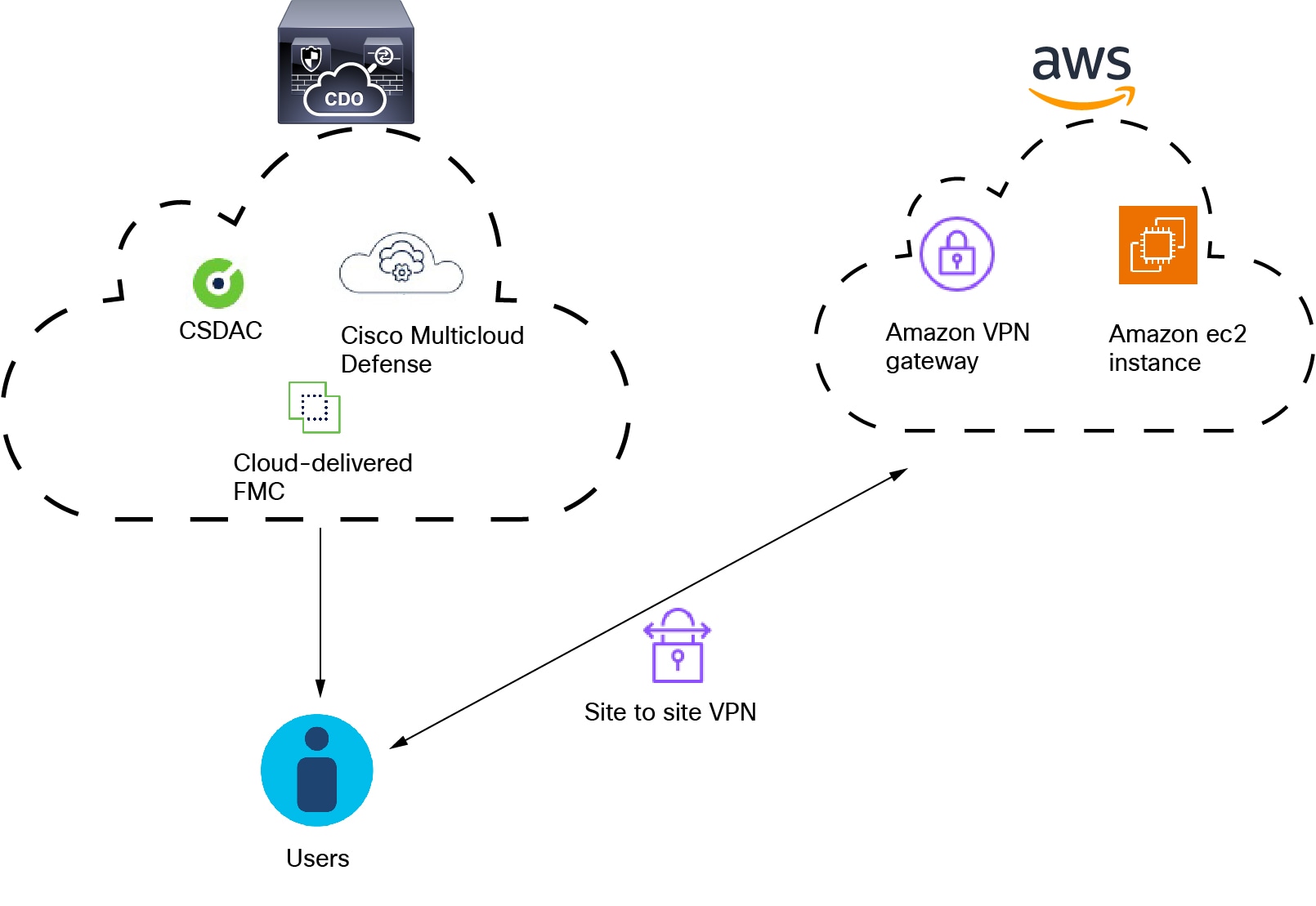
The following figure shows how the Cisco Multicloud Defense connector works.

The Cisco Multicloud Defense connector sends IP addresses from AWS to the Cloud-Delivered Firewall Management Center

As the figure shows:

  • Users logging in and out of AWS create activity monitored by Multicloud Defense.

  • The dynamic attributes connector and Multicloud Defense, both included in Security Cloud Control, send IP addresses from that activity to the Cloud-Delivered Firewall Management Center.

  • These IP addresses can then be used in access control rules by the Cloud-Delivered Firewall Management Center.

Procedure


Step 1

Log in to Security Cloud Control.

Step 2

Click Firewall.

Step 3

Click Administration > Dynamic Attributes Connector > Connectors.

Step 4

Do any of the following:

  • Add a new connector: click Add icon (add icon), then click the name of the connector.

  • Edit a connector: click Edit icon (edit icon).

  • Delete a connector: click Delete icon (delete icon).

Step 5

Enter a Name and optional Description to identify the connector.

Step 6

Enter a Pull Interval. (Default 30 seconds.) Interval at which objects are retrieved from the Multicloud Defense Connector.

Step 7

Click Test and make sure the test succeeds before you save the connector.

Step 8

Click Save.

Step 9

Make sure Ok is displayed in the Status column.


What to do next

You must create a Cloud-Delivered Firewall Management Center adapter as discussed in Create an adapter.

Create a Cisco Cyber Vision connector

This task discusses how to send data from Cisco Cyber Vision to the Security Cloud Control.

Before you begin

Cisco Cyber Vision must be reachable from the machine on which the dynamic attributes connector is running. You must know its IP address, port, and API key.

To find the API key in the Cyber Vision management console, click Admin > API > Token, then click Show to display the token and to copy the token to the clipboard.

Procedure


Step 1

Log in to Security Cloud Control.

Step 2

Click Firewall.

Step 3

Click Administration > Dynamic Attributes Connector > Connectors.

Step 4

Do any of the following:

  • Add a new connector: click Add icon (add icon), then click the name of the connector.

  • Edit a connector: click Edit icon (edit icon).

  • Delete a connector: click Delete icon (delete icon).

Step 5

Enter the following information.

Value

Description

Name

(Required.) Enter a name to uniquely identify this connector.

Description

Optional description.

Cyber Vision Prefix

Enter an alphanumeric string to identify dynamic objects from this Cyber Vision's IP address when objects are sent to Security Cloud Control.

If you have one Cyber Vision IP address, you can enter any value such as 1 .

Pull Interval

(Default 60 seconds.) Interval at which data mappings are retrieved from Cyber Vision.

The minimum value for Pull Interval is 1 second. You can set the maximum to any value you want. We recommend against setting the minimum to a low value because it can generate a lot of traffic, and, when applicable, can result in your being billed for the traffic.

Host

(Required.) Enter the Cyber Vision fully qualified host name or IP address.

Port

(Required.) Enter the Cyber Vision listen port.

Token

(Required.) Enter the API token.

Step 6

Click Test and make sure the test succeeds before you save the connector.

Step 7

Click Save.

Step 8

Make sure Ok is displayed in the Status column.


Create a generic text connector

This task discusses how to create an ad hoc list of IP addresses you maintain manually and retrieve at an interval you select (30 seconds by default). You can update the list of addresses anytime you want.

Before you begin

Create text files with IP addresses and put it on a web server that is accessible from the Security Cloud Control. IP addresses can include CIDR notation. The text file must have only one IP address per line.

For example, you might have a list of IP addresses for an "allow list" in access control rules and another list of IP addresses for a "block list" in access control rules.

You can specify up to 10,000 IP addresses per text file.

Procedure


Step 1

Log in to Security Cloud Control.

Step 2

Click Firewall.

Step 3

Click Administration > Dynamic Attributes Connector > Connectors.

Step 4

Do any of the following:

  • Add a new connector: click Add icon (add icon), then click the name of the connector.

  • Edit a connector: click Edit icon (edit icon).

  • Delete a connector: click Delete icon (delete icon).

Step 5

Enter the following information:

Item

Description

Name

Enter a name to identify the connector.

Description

(Optional.) Enter a description

Pull Interval

Change the frequency, in seconds, at which the dynamic attributes connector retrieves IP addresses from the text file. The default is 30 seconds.

The minimum value for Pull Interval is 1 second. You can set the maximum to any value you want. We recommend against setting the minimum to a low value because it can generate a lot of traffic, and, when applicable, can result in your being billed for the traffic.

URLs

Enter a URL from which to retrieve IP addresses.

Add another URL

(Optional.) Click the link to add more URLs to an existing list.

Certificate

(Optional.) If a certificate chain is required for a secure connection to the web server, you have the following options:

  • Click Get Certificate > Fetch to automatically fetch the certificate or, if that is not possible, get the certificate manually as discussed in Manually get a certificate authority (CA) chain.

  • Click Get Certificate > Browse from file to upload a certificate chain you downloaded previously.

Step 6

Click Test and make sure the test succeeds before you save the connector.

Step 7

Click Save.

Step 8

Make sure Ok is displayed in the Status column.


Manually get a certificate authority (CA) chain

In the event you cannot automatically fetch the certificate authority chain, use one of the following browser-specific procedures to get a certificate chain used to connect securely to vCenter or Firewall Management Center.

The certificate chain is the root certificate and all subordinate certificates.

You can optionally use one of these procedures to connect to the following:

  • vCenter or NSX

  • Firewall Management Center

Get a Certificate Chain—Mac (Chrome and Firefox)

Use this procedure to get a certificate chain using the Chrome and Firefox browsers on Mac OS.

  1. Open a Terminal window.

  2. Enter the following command.

    security verify-cert -P url[:port]

    where url is the URL (including scheme) to vCenter or Firewall Management Center. For example:

    security verify-cert -P https://myvcenter.example.com

    If you access vCenter or Firewall Management Center using NAT or PAT, you can add a port as follows:

    security verify-cert -P https://myvcenter.example.com:12345
  3. Save the entire certificate chain to a plaintext file.

    • Include all -----BEGIN CERTIFICATE----- and -----END CERTIFICATE----- delimiters.

    • Exclude any extraneous text (for example, the name of the certificate and any text contained in angle brackets (< and >) as well as the angle brackets themselves.

  4. Repeat these tasks for vCenter Firewall Management Center.

Get a Certificate Chain—Windows Chrome

Use this procedure to get a certificate chain using the Chrome browser on Windows.

  1. Log in to vCenter or Firewall Management Center using Chrome.

  2. In the browser address bar, click the lock to the left of the host name.

  3. Click Certificate.

  4. Click the Certification Path tab.

  5. Click the top (that is, first) certificate in the chain.

  6. Click View Certificate.

  7. Click the Details tab.

  8. Click Copy to File.

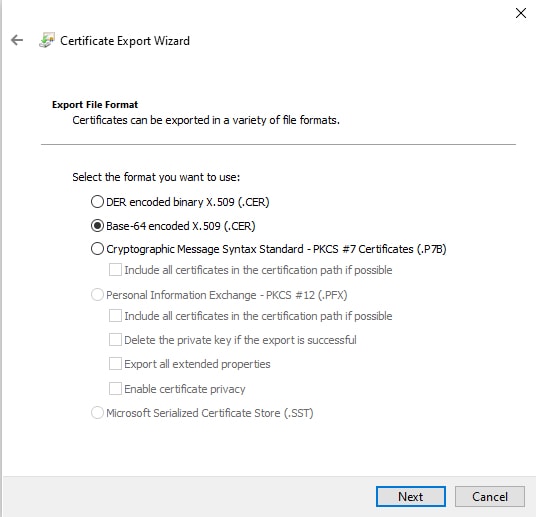
  9. Follow the prompts to create a CER-formatted certificate file that includes the entire certificate chain.

    When you're prompted to choose an export file format, click Base 64-Encoded X.509 (.CER) as the following figure shows.

    In the Certificate Export Wizard, select Base 64 encoded X.509 and export the certificate

  10. Follow the prompts to complete the export.

  11. Open the certificate in a text editor.

  12. Repeat the process for all certificates in the chain.

    You must paste each certificate in the text editor in order, first to last.

  13. Repeat these tasks for vCenter or Firewall Management Center.

Get a Certificate Chain—Windows Firefox

Use the following procedure to get a certificate chain for the Firefox browser on either Windows or Mac OS.

  1. Log in to vCenter or Firewall Management Center. using Firefox.

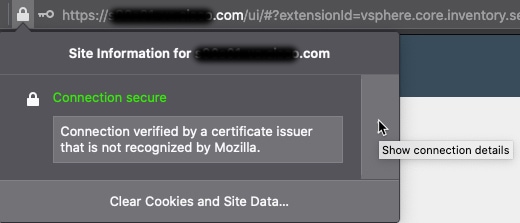
  2. Click the lock to the left of the host name.

  3. Click the right arrow (Show connection details). The following figure shows an example.

    In Firefox, show the connection details to see the certificate being used to connect to the FMC

  4. Click More Information.

  5. Click View Certificate.

  6. If the resulting dialog box has tab pages, click the tab page corresponding to the top-level CA.

  7. Scroll to the Miscellaneous section.

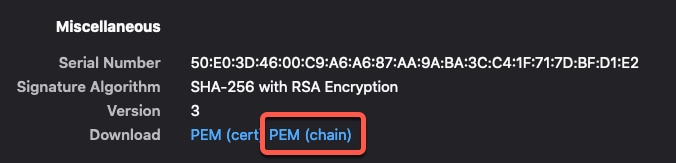
  8. Click PEM (chain) in the Download row. The following figure shows an example.

    Get the PEM chain to configure the FMC adapter

  9. Save the file.

  10. Repeat these tasks for vCenter or Firewall Management Center.

Create a GitHub connector

This section discusses how to create a GitHub connector that sends data to the Security Cloud Control for use in policies. The IP addresses associated with these tags are maintained by GitHub. You do not have to create a dynamic attributes filters.

For more information, see About GitHub's IP addresses.


Note


Do not change the URL because doing so will fail to retrieve any IP addresses.


Procedure


Step 1

Log in to Security Cloud Control.

Step 2

Click Firewall.

Step 3

Click Administration > Dynamic Attributes Connector > Connectors.

Step 4

Do any of the following:

  • Add a new connector: click Add icon (add icon), then click the name of the connector.

  • Edit a connector: click Edit icon (edit icon).

  • Delete a connector: click Delete icon (delete icon).

Step 5

Enter a Name and an optional description.

Step 6

(Optional.) In the Pull Interval field, change the frequency, in seconds, at which the dynamic attributes connector retrieves IP addresses from GitHub. The default is 21,600 seconds (6 hours).

Step 7

Click Test and make sure the test succeeds before you save the connector.

Step 8

Click Save.

Step 9

Make sure Ok is displayed in the Status column.


Google Cloud connector—About user permissions and imported data

The Dynamic Attributes Connector imports dynamic attributes from Google Cloud to Security Cloud Control for use in policies.

Dynamic attributes imported

We import the following dynamic attributes from Google Cloud:

  • Labels, key-value pairs you can use to organize your Google Cloud resources.

    For more information, see Creating and Managing Labels in the Google Cloud documentation.

  • Network tags, key-value pairs associated with an organization, folder, or project.

    For more information, see Creating and Managing Tags in the Google Cloud documentation.

  • IP addresses of virtual machines in Google Cloud.

Minimum permissions required

The Dynamic Attributes Connector requires a user at minimum with the Basic > Viewer permission to be able to import dynamic attributes.

Create a Google Cloud user with minimal permissions for the Dynamic Attributes Connector

This task discusses how to set up a service account with minimum permissions to send dynamic attributes to Security Cloud Control. For a list of these attributes, see Google Cloud connector—About user permissions and imported data.

Before you begin

You must already have set up your Google Cloud account. For more information about doing that, see Setting Up Your Environment in the Google Cloud documentation.

Procedure

Step 1

Log in to your Google Cloud account as a user with the owner role.

Step 2

Click IAM & Admin > Service Accounts > Create Service Account.

Step 3

Enter the following information:

  • Service account name: A name to identify this account; for example, CSDAC.

  • Service account ID: Should be populated with a unique value after you enter the service account name.

  • Service account description: Enter an optional description.

For more information about service accounts, see Understanding Service Accounts in the Google Cloud documentation.

Step 4

Click Create and Continue.

Step 5

Follow the prompts on your screen until the Grant users access to this service account section is displayed.

Step 6

Grant the user the Basic > Viewer role.

Step 7

Click Done.

A list of service accounts is displayed.

Step 8

Click More (more icon) at the end of the row of the service account you created.

Step 9

Click Manage Keys.

Step 10

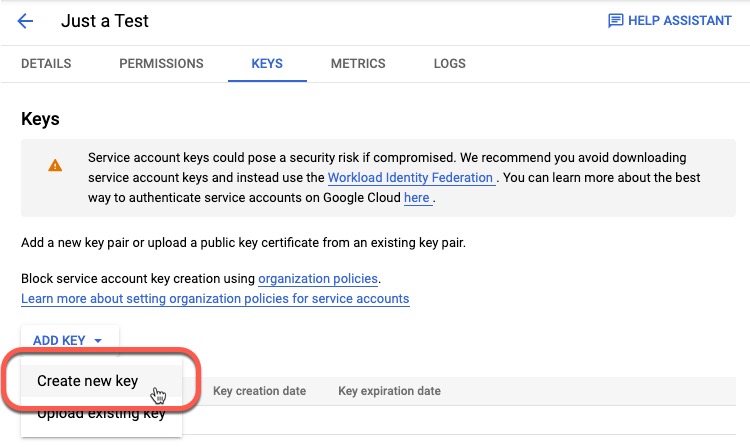
Click Add Key > Create New Key.

Create a new key for your user

Step 11

Click JSON.

Step 12

Click Create.

The JSON key is downloaded to your computer.

Step 13

Keep the key handy when you configure the GCP connector.


What to do next

See Create a Google Cloud connector.

Create a Google Cloud connector

Before you begin

Have your Google Cloud JSON-formatted service account data ready; it's required to set up the connector.

Procedure

Step 1

Log in to Security Cloud Control.

Step 2

Click Firewall.

Step 3

Click Administration > Dynamic Attributes Connector > Connectors.

Step 4

Do any of the following:

  • Add a new connector: click Add icon (add icon), then click the name of the connector.

  • Edit a connector: click Edit icon (edit icon).

  • Delete a connector: click Delete icon (delete icon).

Step 5

Enter the following information.

Value

Description

Name

(Required.) Enter a name to uniquely identify this connector.

Description

Optional description.

Pull Interval

(Default 30 seconds.) Interval at which IP mappings are retrieved from AWS.

The minimum value for Pull Interval is 1 second. You can set the maximum to any value you want. We recommend against setting the minimum to a low value because it can generate a lot of traffic, and, when applicable, can result in your being billed for the traffic.

GCP region

(Required.) Enter the GCP region in which your Google Cloud is located. For more information, see Regions and Zones in the Google Cloud documentation.

Service account

Paste the JSON code for your Google Cloud service account.

Step 6

Click Test and make sure the test succeeds before you save the connector.

Step 7

Click Save.

Step 8

Make sure Ok is displayed in the Status column.


Create an Office 365 connector

This task discusses how to create a connector for Office 365 tags to send data to the Security Cloud Control for use in policies. The IP addresses associated with these tags are updated every week by Microsoft. You do not have to create a dynamic attributes filter to use the data.

For more information, see Office 365 URLs and IP address ranges on docs.microsoft.com.

Procedure


Step 1

Log in to Security Cloud Control.

Step 2

Click Firewall.

Step 3

Click Administration > Dynamic Attributes Connector > Connectors.

Step 4

Do any of the following:

  • Add a new connector: click Add icon (add icon), then click the name of the connector.

  • Edit a connector: click Edit icon (edit icon).

  • Delete a connector: click Delete icon (delete icon).

Step 5

Enter the following information.

Value

Description

Name

(Required.) Enter a name to uniquely identify this connector.

Description

Optional description.

Pull Interval

(Default 30 seconds.) Interval at which IP mappings are retrieved from Azure.

The minimum value for Pull Interval is 1 second. You can set the maximum to any value you want. We recommend against setting the minimum to a low value because it can generate a lot of traffic, and, when applicable, can result in your being billed for the traffic.

Base API URL

(Required.) Enter the URL from which to retrieve Office 365 information, if it's different from the default. For more information, see Office 365 IP Address and URL web service on the Microsoft documentation site.

Instance name

(Required.) From the list, click an instance name. For more information, see Office 365 IP Address and URL web service on the Microsoft documentation site.

Disable optional IPs

(Required.) Enter true or false .

Step 6

Click Test and make sure the test succeeds before you save the connector.

Step 7

Click Save.

Step 8

Make sure Ok is displayed in the Status column.


Tenable connector

These topics provide information about creating and using the Tenable connector for vulnerability management.

About the Tenable connector

Tenable Vulnerability Management is a platform that helps organizations understand, report, and manage known vulnerabilities. When used with the Cloud-Delivered Firewall Management Center, the Tenable connector:

  • Creates a dynamic object with a list of IP addresses known to have Common Vulnerability Exposures (CVEs).

  • Populates those IP addresses and associated vulnerabilities to the Cloud-Delivered Firewall Management Center network map as host entries.

    Network map entries provide the basis for intrusion policy recommendations.

The dynamic object created by this connector can be used in access control rules, or anywhere dynamic objects are supported. For example, you can use the dynamic object to block vulnerable devices from accessing highly sensitive resources.

Supported products

We support Tenable Vulnerability Management only. We do not support Tenable Security Center.

Support for the Tenable connector with the On-Prem Firewall Management Center is currently limited to creating the dynamic object. The On-Prem Firewall Management Center does not receive network map entries from the Tenable connector, and therefore cannot be used with intrusion policy recommendations.

Get the Tenable API key and secret

To configure the Tenable connector, you must create an API key and secret as described in this topic.


Note


API keys inherit the permissions of the user account that generates them. Create the API key and secret using an account with full visibility to all hosts and vulnerabilities. For more information, see Permissions.


Procedure

Step 1

Log in to Tenable as an administrator.

Step 2

Click your profile image in the top right of the page.

Step 3

Click My Profile > API Keys.

Step 4

Click Generate.

You are required to confirm the action.

Step 5

Under Custom API keys, click (Copy to clipboard) to copy both the access key and secret key to the clipboard.

Step 6

Save these values for later use.


What to do next

See Create a Tenable connector.

Create a Tenable connector

This task explains how to configure the Tenable connector in Cisco Security Cloud. After you configure the connector, you must also configure an adapter to receive the dynamic object.

Before you begin

We support Tenable Vulnerability Management only. We do not support Tenable Security Center.

Required User Role:

  • Super Admin

Procedure

Step 1

Log in to Cisco Security Cloud.

Step 2

Click Firewall.

Step 3

Click Administration > Dynamic Attributes Connector > Connectors.

Step 4

Do any of the following:

  • Add a new connector: click Add icon (add icon), then click the name of the connector.

  • Edit a connector: click Edit icon (edit icon).

  • Delete a connector: click Delete icon (delete icon).

Step 5

Enter the following information.

Value

Description

Name

(Required.) Enter a name to uniquely identify this connector.

Description

Optional description.

Pull Interval

(Default 21600 seconds or six hours.) Interval at which IP mappings are retrieved from Tenable.

We recommend a minimum value of 3600 seconds (one hour) to avoid issues with Tenable rate limiting.

Integration Key

Enter the API key you got in Get the Tenable API key and secret.

Secret Key

Enter the secret key obtained in Get the Tenable API key and secret.

Dynamic Object Name

Enter a name to identify the dynamic object created by this connector.

Severity Score

Click the minimum vulnerability severity level for the dynamic attributes connector to send IP addresses to the Cloud-Delivered Firewall Management Center. (For example, if you click high, IP addresses of hosts with either high or severe vulnerabilities are sent.)

Choices:

  • severe

  • high

  • medium

  • low

Severity System

Choices:

  • VPR: (Vulnerability priority rating.) Proprietary Tenable vulnerability rating that dynamically scores threats.

    VPR values range from 0.1-10.0, with a higher value representing a higher likelihood of exploit:

    • VPR severe is 9.0 and greater

    • VPR high is 7.0 and greater

    • VPR severe is 4.0 and greater

    • VPR low is 0.1 and greater

  • CVSSv3: (Common vulnerability scoring system version 3.) Industry-standard system that retrieves values from the national vulnerability database to describe risk associated with vulnerabilities. CVSS scores power a vulnerability's severity and risk value.

For more information, see CVSS vs. VPR.

Step 6

Click Test. Save the connector only after the test succeeds.

Step 7

Click Save.

Step 8

Make sure Ok is displayed in the Status column.


What to do next

See Create an adapter.

About Tenable dynamic objects in IDS, IPS, and access control policies

You can use IPS, IDS, and access control policies and rules to monitor or block traffic to and from servers with vulnerabilities identified by the Tenable connector:

  1. To monitor traffic and inform you about vulnerabilities without blocking the traffic, create an intrusion detection system (IDS) policy with recommendations.

  2. To monitor traffic, inform you about vulnerabilities, and block matching traffic, create an intrusion prevention system (IPS) policy with recommendations.

  3. Create a new access control policy or add rules to an existing policy. Associate your IDS or IPS policy with an access control rule.

More information about intrusion policies:

More information about access control policies:

Create a Webex connector

This section discusses how to create a Webex connector that sends data to the Security Cloud Control for use in policies. The IP addresses associated with these tags are maintained by Webex. You do not have to create a dynamic attributes filters.

For more information, see Port Reference for Webex Calling.

Procedure


Step 1

Log in to Security Cloud Control.

Step 2

Click Firewall.

Step 3

Click Administration > Dynamic Attributes Connector > Connectors.

Step 4

Do any of the following:

  • Add a new connector: click Add icon (add icon), then click the name of the connector.

  • Edit a connector: click Edit icon (edit icon).

  • Delete a connector: click Delete icon (delete icon).

Step 5

Enter the following information.

Value

Description

Name

(Required.) Enter a name to uniquely identify this connector.

Description

Optional description.

Pull Interval

(Default 30 seconds.) Interval at which IP mappings are retrieved from Webex.

The minimum value for Pull Interval is 1 second. You can set the maximum to any value you want. We recommend against setting the minimum to a low value because it can generate a lot of traffic, and, when applicable, can result in your being billed for the traffic.

Provider Reserved IPs

(Required.) (Required.) Slide to enabled to retrieve any reserved IP addresses.

Step 6

Click Test and make sure the test succeeds before you save the connector.

Step 7

Click Save.

Step 8

Make sure Ok is displayed in the Status column.


Create a Zoom Connector

This section discusses how to create a Zoom connector that sends data to the Security Cloud Control for use in policies. The IP addresses associated with these tags are maintained by Zoom. You do not have to create a dynamic attributes filters.

For more information, see Zoom network firewall or proxy server settings.

Procedure


Step 1

Log in to Security Cloud Control.

Step 2

Click Firewall.

Step 3

Click Administration > Dynamic Attributes Connector > Connectors.

Step 4

Do any of the following:

  • Add a new connector: click Add icon (add icon), then click the name of the connector.

  • Edit a connector: click Edit icon (edit icon).

  • Delete a connector: click Delete icon (delete icon).

Step 5

Enter the following information.

Value

Description

Name

(Required.) Enter a name to uniquely identify this connector.

Description

Optional description.

Pull Interval

(Default 30 seconds.) Interval at which IP mappings are retrieved from Zoom.

The minimum value for Pull Interval is 1 second. You can set the maximum to any value you want. We recommend against setting the minimum to a low value because it can generate a lot of traffic, and, when applicable, can result in your being billed for the traffic.

Provider Reserved IPs

(Required.) Slide to enabled to retrieve any reserved IP addresses.

Step 6

Click Test and make sure the test succeeds before you save the connector.

Step 7

Click Save.

Step 8

Make sure Ok is displayed in the Status column.


Create an adapter

An adapter is a secure connection to Cloud-Delivered Firewall Management Center or an On-Prem Firewall Management Center to which you push network information from cloud objects for use in access control policies.

You can create the following adapters:

  • On-Prem Firewall Management Center for an on-premises Secure Firewall Management Center.

  • Cloud-Delivered Firewall Management Center for devices managed by Cisco Security Cloud.


Note


You must have a Super Admin user role to create the first adapter. To view or modify existing adapters, you must have an Admin or Super Admin user role.


How to create an On-Prem Firewall Management Center adapter

This topic discusses how to create an adapter to push dynamic objects from the dynamic attributes connector to Cisco Security Cloud.

Before you begin

Onboard the firewall manager to Cisco Security Cloud as discussed in Onboard a Management Center in the Managing Security and Network Devices with online help.

Note


Support for the Tenable connector with the On-Prem Firewall Management Center is currently limited to creating the dynamic object. The On-Prem Firewall Management Center does not receive network map entries from the Tenable connector, and therefore cannot be used with intrusion policy recommendations.


Required User Role:

  • Super Admin

Procedure


Step 1

Log in to Cisco Security Cloud as a user with the Super Admin role.

Step 2

Click Firewall.

Step 3

Click Administration > Dynamic Attributes Connector > Adapters.

Step 4

To add an adapter, click Add icon (add icon) > On-Prem Firewall Management Center.

Step 5

To edit or delete an adapter, click Edit icon (edit icon), or Delete icon (delete icon).

Step 6

Add or edit the following information.

Value

Description

Name

(Required.) Enter a unique name to identify this adapter.

Description

Optional description of the adapter.

Primary Device

From the list, click the IP address of a management center associated with your tenant.

Secondary Device

(Optional.) If you have a secondary On-Prem Firewall Management Center, click its name from the list.

Step 7

Click OK.


How to create a Cloud-Delivered Firewall Management Center adapter

This topic discusses how to create an adapter to push dynamic objects from the dynamic attributes connector to Cisco Security Cloud.

Before you begin

Required User Role:

  • Super Admin

Procedure


Step 1

Log in to Cisco Security Cloud as a user with the Super Admin role.

Step 2

Click Firewall.

Step 3

Click Administration > Dynamic Attributes Connector > Adapters.

Step 4

To add an adapter, click Add icon (add icon) > Cloud-Delivered Firewall Management Center.

Step 5

To edit or delete an adapter, click Edit icon (edit icon), or Delete icon (delete icon).

Step 6

Edit the following information.

Value

Description

Name

(Required.) Enter a unique name to identify this adapter.

Description

Optional description of the adapter.

Cloud FMC URL

From the list, click the URL for your Cloud-Delivered Firewall Management Center.

Step 7

Click Test and make sure the test succeeds before you save the adapter.

Step 8

Click Save.


Create dynamic attributes filters

Dynamic attributes filters that you define using the Dynamic Attributes Connector are exposed in the Security Cloud Control as dynamic objects that can be used in access control policies. For example, restrict access to an AWS server for the Finance Department to only members of the Finance group defined in Microsoft Active Directory.


Note


You cannot create dynamic attributes filters for AWS, Azure, Azure Service Tags, Cisco Multicloud Defense, Generic Text, GitHub, Google Cloud, and Outlook 365, pxGrid Cloud identity source, Tenable, vCenter, Webex, and Zoom). These types of cloud objects provide their own IP addresses.


For more information about access control rules, see Create access control rules or DNS rules using dynamic attributes filters.

Before you begin

Create a connector

Procedure


Step 1

Log in to Security Cloud Control.

Step 2

Click Firewall.

Step 3

Click Administration > Dynamic Attributes Connector > Dynamic Attributes Filters.

Step 4

Do any of the following:

  • Add a new filter: click Add (add icon).

  • Edit or delete a filter: Click More (more icon), then click Edit or Delete at the end of the row.

Step 5

Enter the following information.

Item

Description

Name

Unique name to identify the dynamic filter (as a dynamic object) in a policy and in the Security Cloud Control Object Manager (External Attributes > Dynamic Object).

Connector

From the list, click the name of a connector to use.

Query

Click Add add icon.

Step 6

To add or edit a query, enter the following information.

Item Description

Key

Click a key from the list. Keys are fetched from the connector.

Operation

Click one of the following:
  • Equals to exactly match the key to the value.

  • Contains to match the key to the value if any part of the value matches.

Values

Click either Any or All and click one or more values from the list. Click Add another value to add values to your query.

Step 7

Click Show Preview to display a list of networks or IP addresses returned by your query.

Step 8

When you're finished, click Save.

Step 9

(Optional.) Verify the dynamic object in the Security Cloud Control.

  1. Log in to the Security Cloud Control.

  2. Click Manage > Policies > Firewall Threat Defense.

  3. Click Objects > External Attributes > Dynamic Object.

    The dynamic attribute query you created should be displayed as a dynamic object.


Dynamic attribute filter examples

This topic provides some examples of setting up dynamic attribute filters.

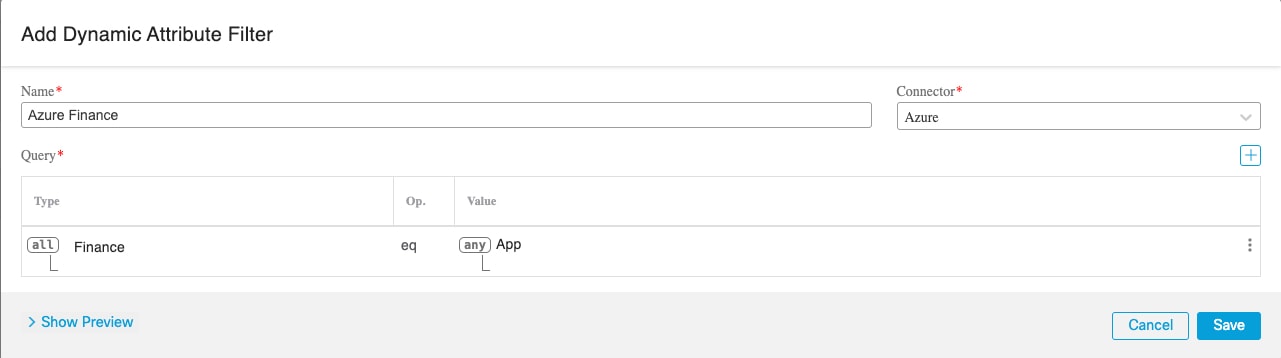
Example: Azure

The following example shows one criterion: a server tagged as a Finance app.

Sample Azure dynamic attributes filter that finds the Finance app tag

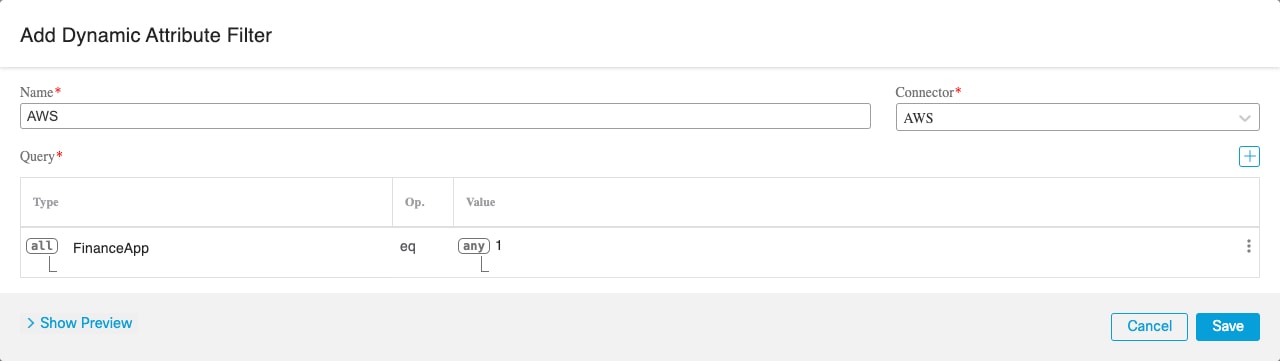
Example: AWS

The following example shows one criterion: a FinanceApp with a value of 1.

Sample Amazon Web Services dynamic attributes filter that finds a tag FinanceApp with a value of 1

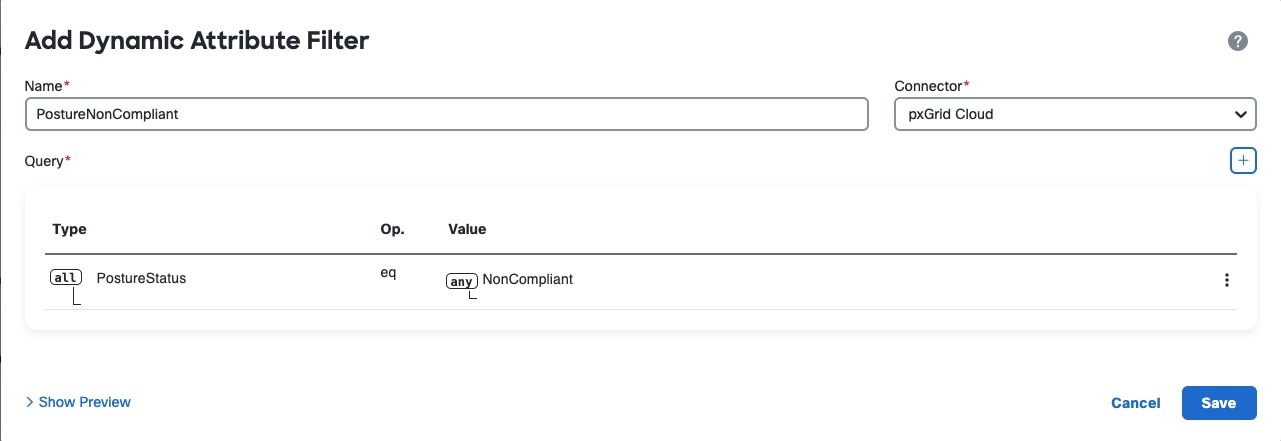
Example: pxGrid Cloud

The following example shows one criterion: PostureStatus is NonCompliant.

Dynamic firewall

These topics describe how to integrate user identity data (including Microsoft AD and ISE) with user trust data provided by Identity Intelligence to enhance your ability to detect identity-based exploits in your network.

About the dynamic firewall

Previously, the Cisco Security Cloud Control collected information about users exclusively from the configured identity source, such as Microsoft Active Directory, the passive identity agent, Cisco Identity Services Engine (Cisco ISE), and so on. This information generally included user name, group, and IP address.

The dynamic firewall enables you to add user risk scores from Cisco Identity Intelligence to identity source-provided information so you can set policies based on always-current user posture and risk. We enable you to pair user identity with intelligence and use that information in reporting and access control policies.

To use the dynamic firewall, you must:

  • Have an Identity Intelligence tenant

    See Duo Identity Security with Cisco Identity Intelligence.

  • Set up an identity source:

    • Cisco Identity Services Engine (Cisco ISE)

    • pxGrid Cloud

      pxGrid Cloud combines identity and posture in the same feed

      More information: What is pxGrid?

    In addition to providing authentication information, Cisco ISE and pxGrid Cloud can provide the following:

  • Set up an identity realm:

The identity source provides authentication information (login, logout) as well as posture. The identity source can also provide SXP binding and session directory information if desired.

The identity realm provides user, group, and IP address information.

How to configure the dynamic firewall

This topic helps you understand the concepts and options to configure the dynamic firewall discussed in About the dynamic firewall.

Summary

The dynamic firewall integrates an identity source (such as Cisco ISE) with Cisco Identity Intelligence, which provides user trust information to the Secure Firewall Management Center.

  1. Configure Cisco Identity Intelligence to collect user trust information.

  2. Configure a supported Secure Firewall Management Center identity source.

  3. Configure a supported identity realm.

  4. Enable the dynamic attributes connector.

  5. Configure the dynamic firewall.

Workflow

The following procedure provides a high-level overview of how to configure the dynamic firewall.

  1. As a Duo user with the Owner role, provision a Cisco Identity Intelligence tenant. You can provision a tenant from Duo Advantage as discussed in Provision Your Cisco Identity Intelligence Tenant.
  2. In Cisco Identity Intelligence, create an API integration and use the information to set up the dynamic firewall. We use Cisco Identity Intelligence to find user and device risk information in your network. For more information about Cisco Identity Intelligence, see How-to Guides. For more information about this task, see Get required information for Identity Intelligence.
  3. (Microsoft Azure AD realm only.) In Identity Intelligence, create a Microsoft Entra ID integration. For more information, see Microsoft Entra ID (Azure AD) Data Integration.
  4. Create an identity source. (If you already have an identity source, continue with the next step.) You can do this in any of the following ways:
    • The Configure Dynamic Firewall dialog box displays Configure links to start setting up your identity source.
    • Click Integrations > Identity > Identity Sources.
    For more information about creating identity sources, see:
  5. Create an identity realm. We support the following realms:
  6. Create the dynamic firewall instance. (If you already have a dynamic firewall instance, continue with the next step.) Click Administration > Dynamic Attributes Connector and click Configure Dynamic Firewall. See Create a dynamic firewall instance.
  7. Associate your identity source with Cisco Identity Intelligence. See Associate an identity source with Identity Intelligence.
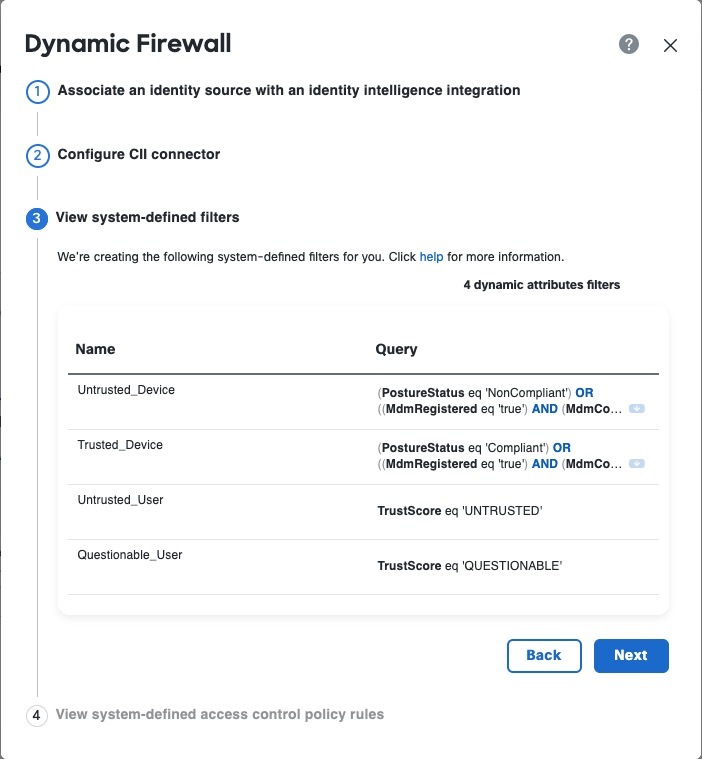
  8. View system-defined filters. We create dynamic attributes filters for the following:
    • Untrusted device
    • Trusted device
    • Untrusted user
    • Questionable user
    You can edit or replace these dynamic attributes filters as discussed in Create dynamic attributes filters.
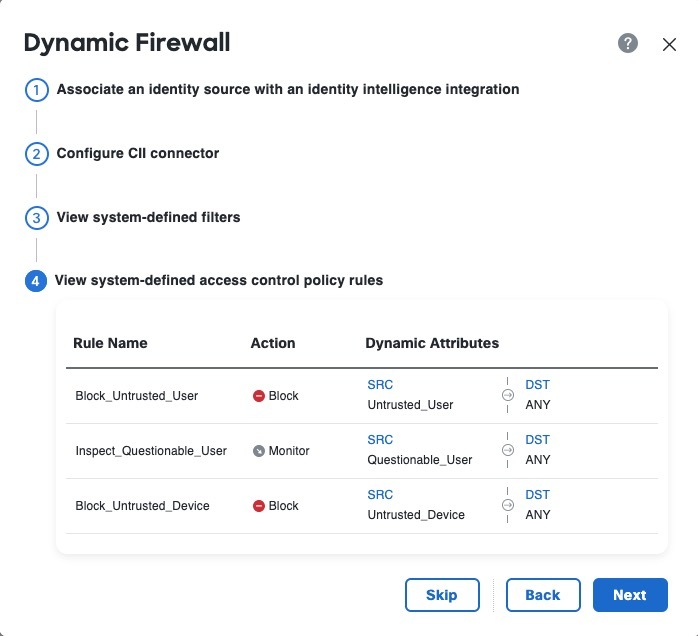
  9. View system-defined access control rules. We create an access control policy named Dynamic Firewall Policy (or similar) with the following rules:
    • Block an untrusted user from any source network to any destination network.
    • Monitor a questionable user from any source network to any destination network.
    • Block an untrusted device from any source network to any destination network.
    You can edit or delete the access control policy and rules as discussed in View and edit the system-created access control policy.

Get required information for Identity Intelligence

This task discusses how to create an API client, which provides all the get required information to set up Identity Intelligence in the dynamic firewall.

If you already have an API client and you know the values of all the following, you can skip this procedure and continue with Create a dynamic firewall instance:

  • Client ID

  • API URL

  • Token URL

  • Client Secret

Before you begin

Integrating with the dynamic firewall requires you to create an API client integration in Identity Intelligence.

Among the values you must know about your API client integration is the client secret, which is displayed when you create the API client only. For that reason you might need to create the API integration first.

For more information about creating an API cilent integration, see Public API.

Procedure

Step 1

Log in to your Identity Intelligence tenant.

Step 2

Click (Integrations).

Step 3

Click Add Integration.

Step 4

On the next page, under API Clients, click Add API Client.

Step 5

Enter a Name and an optional Description.

Step 6

Click Save and Generate Credentials.

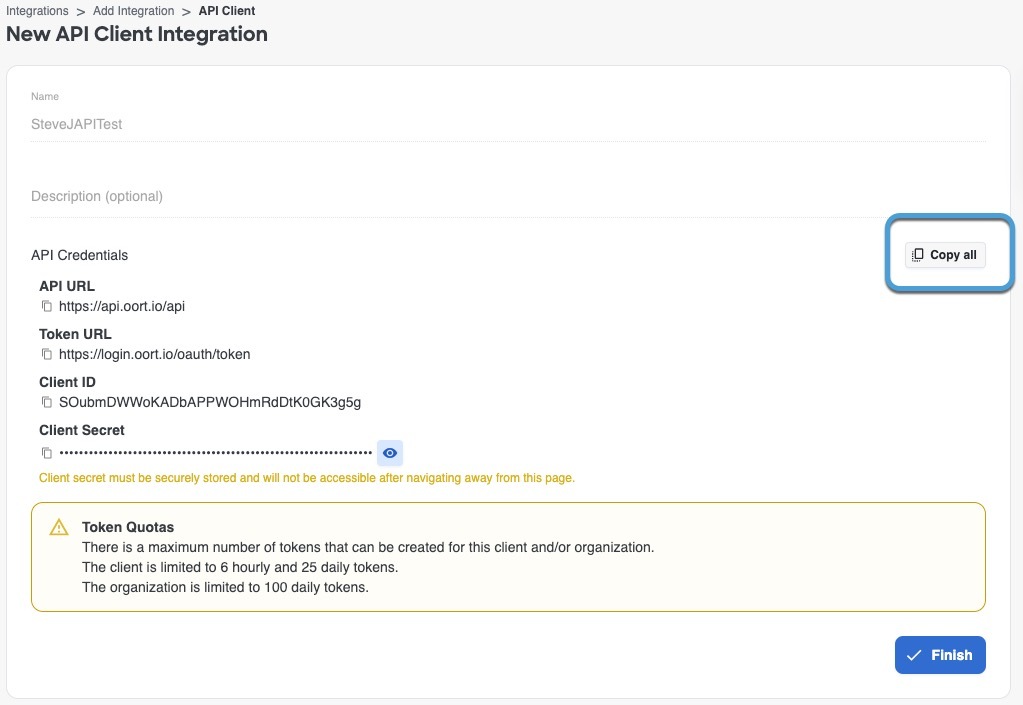
The following figure shows an example.

Create an API client integration in Identity Intelligence

Step 7

On the next page, click Copy all as the following figure shows.

Save the Identity Intelligence URLs, client ID, and client secret for later use

Step 8

Save the credentials for later use.

Step 9

Click Finish.


What to do next

See Create a dynamic firewall instance.

Create an identity source and realm for the dynamic firewall

Before you configure the dynamic firewall, you must configure a supported identity realm and identity source.

Configure an identity realm

These identity realms are supported:

Configure an identity source

These identity sources are supported:

Create a dynamic firewall instance

This task discusses how to create a new instance of the dynamic firewall, which is an association between an identity source and Identity Intelligence.

Before you begin

Do all of the following:

Procedure

Step 1

If you haven't already done so, log in to Security Cloud Control.

Step 2

Click Firewall.

Step 3

Click Administration > Dynamic Attributes Connector.

Step 4

Click next to the name of the identity source with which to add the dynamic firewall.

The following figure shows an example.

Note


If you do not see an identity source, create one before continuing:

Step 5

Click Create Dynamic Firewall.

Step 6

Continue with Associate an identity source with Identity Intelligence.


Associate an identity source with Identity Intelligence

This task discusses how you associate an identity source with Identity Intelligence, which provides user and device trust ratings to the Cisco Security Cloud Control.

For more information, see User Trust Level.

Before you begin

Before you begin, make sure you:

Procedure

Step 1

Start with Create a dynamic firewall instance.

Step 2

On the next page, from the left column, click your identity source. Then, in the right column, select the Cisco Identity Intelligence check box to add user intelligence, including user and device risk.

The following figure shows an example.

Step 3

Click Next.

Step 4

Continue with Configure Identity Intelligence.


Configure Identity Intelligence

This task discusses how you associate an identity source with Identity Intelligence, which provides user and device risk ratings to the Cisco Security Cloud Control.

Before you begin

Complete the tasks discussed in Associate an identity source with Identity Intelligence.

Procedure

Step 1

Complete the tasks discussed in Associate an identity source with Identity Intelligence.

Step 2

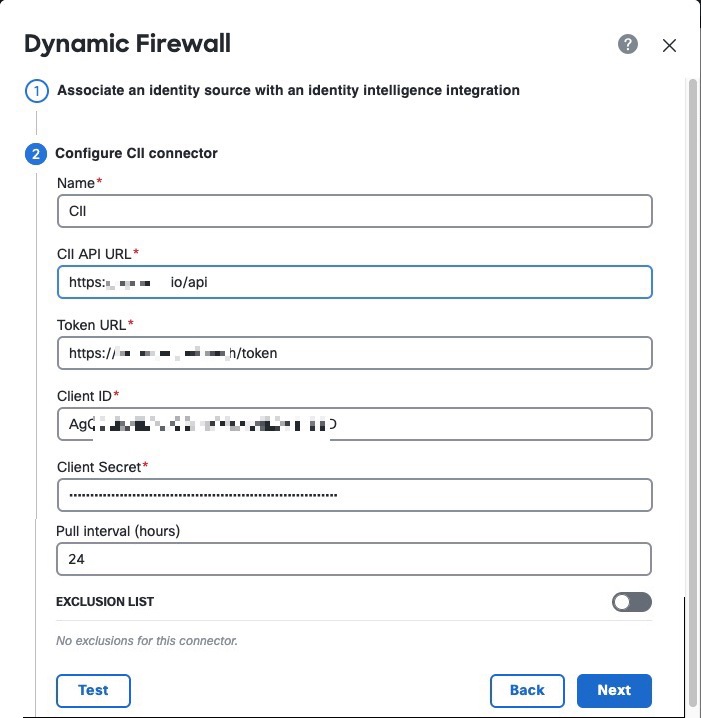
If you selected the Cisco Identity Intelligence check box, enter the information you found for Identity Intelligence as described in Get required information for Identity Intelligence.

The following figure shows an example.

Step 3

(Optional.) For Identity Intelligence to consider a specific set of users as trusted, slide Exclusion List to Slider enabled (slider enabled).

Enter one user name per line in username@domain.com format. Users in this list are considered trusted by Identity Intelligence.

Step 4

Click Test.

Only if the test succeeds, continue with the next step.

If any errors are displayed, check all of your Identity Intelligence values and try again.

Step 5

Click Next.

Step 6

Continue with View system-defined filters.


View system-defined filters

This task discusses how you associate an identity source with Cisco Identity Intelligence, which provides user and device risk ratings to the Cisco Security Cloud Control.

Before you begin

See Configure Identity Intelligence.

Procedure

Step 1

The system displays a set of system-defined dynamic attributes filters, as the following figure shows.

Step 2

View the system-created filters. Click on any row to expand the filter so you can view the filter and see its details.
Step 3

Click Next.

Step 4

Continue with View system-defined access control rules.


View system-defined access control rules

This task discusses access control rules created by the dynamic firewall.

Before you begin

See View system-defined filters.

Procedure

Step 1

View the system-created access control rules.

The following figure shows an example.

Step 2

Choose one of these options:

  • Click Skip to skip creating these access control rules. You can create your own anytime.

  • Click Next to create an access control policy named Dynamic Firewall Policy with the rules shown in the preceding figure.

  • Click Back to return to system-created filters.

Step 3

After you click Next, if you created access control rules successfully, the following page is displayed:


Edit the user exclusion list

(Optional.) You can instruct Identity Intelligence to treat specific users as trusted.

Before you begin

Configure the dynamic firewall as discussed in Create a dynamic firewall instance.

Procedure

Step 1

Click Administration > Dynamic Attributes Connector.

Step 2

Click next to the name of the identity source.

Step 3

Click Edit CII Exclusion List.

The following dialog box is displayed.

Step 4

In the provided field, enter one user name in username@domain.com format on a line, press Enter, and enter another user name.

Each user name is considered as trusted by Identity Intelligence.


View and edit the system-created access control policy

This topic discusses how you can edit the system-created access control rules and policy. Initially, the policy isn't associated with any devices but if you want to use it you can add devices, change rules, reorder rules, or delete rules.

Before you begin

Complete the tasks described in View system-defined access control rules.

Procedure

Step 1

If you haven't already done so, log in to Security Cloud Control.

Step 2

Click Firewall.

Step 3

Click Manage > Policies > Firewall Threat Defense > Access Control heading > Access Control.

Step 4

Click Edit (edit icon) next to the policy named Dynamic Firewall Policy (or similar).

The following figure shows a sample access control policy.

Note that in this access control policy, only the rule set to monitor questionable users logs anything. To adjust the logging settings, seeLogging settings for access control policies.

Step 5

Do any of the following:


Create dynamic attributes filters

Dynamic attributes filters that you define using the Dynamic Attributes Connector are exposed in the Security Cloud Control as dynamic objects that can be used in access control policies. For example, you could restrict access to an AWS server for the Finance Department to only members of the Finance group defined in Microsoft Active Directory.


Note


You cannot create dynamic attributes filters for AWS, Azure, Azure Service Tags, Cisco Multicloud Defense, Generic Text, GitHub, Google Cloud, and Outlook 365, pxGrid Cloud identity source, Tenable, vCenter, Webex, and Zoom). These types of cloud objects provide their own IP addresses.


For more information about access control rules, see Create access control rules or DNS rules using dynamic attributes filters.

Procedure


Step 1

Log in to Security Cloud Control.

Step 2

Click Firewall.

Step 3

Click Administration > Dynamic Attributes Connector > Connectors.

Step 4

Do any of the following:

  • Add a new filter: click Add (add icon).

  • Edit or delete a filter: Click More (more icon), then click Edit or Delete at the end of the row.

Step 5

Enter the following information.

Item

Description

Name

Unique name to identify the dynamic filter (as a dynamic object) in access control policy and in the Security Cloud Control Object Manager (External Attributes > Dynamic Object).

Connector

From the list, click the name of a connector to use.

Step 6

To add a query, enter the following information.

Item Description

Key

Click a key from the list. Keys are fetched from the connector.

Operation

Click one of the following:
  • Equals to exactly match the key to the value.

  • Contains to match the key to the value if any part of the value matches.

Values

Click either Any or All and click one or more values from the list. Click Add another value to add values to your query.

Step 7

Click Show Preview to display a list of networks or IP addresses returned by your query.

Step 8

When you're finished, click Save.

Step 9

(Optional.) Verify the dynamic object in the Security Cloud Control.

  1. Log in to the Security Cloud Control.

  2. Click Manage > Policies > Firewall Threat Defense.

  3. Click Objects > External Attributes > Dynamic Object.

    The dynamic attribute query you created should be displayed as a dynamic object.

Use dynamic objects in access control policies

The dynamic attributes connector enables you to configure dynamic filters, seen in the Security Cloud Controlas dynamic objects, in access control rules.

About dynamic objects in access control rules

A dynamic object is automatically pushed from the dynamic attributes connector to the Secure Firewall Manager after you create connectors and save a dynamic attributes filter on the connector.

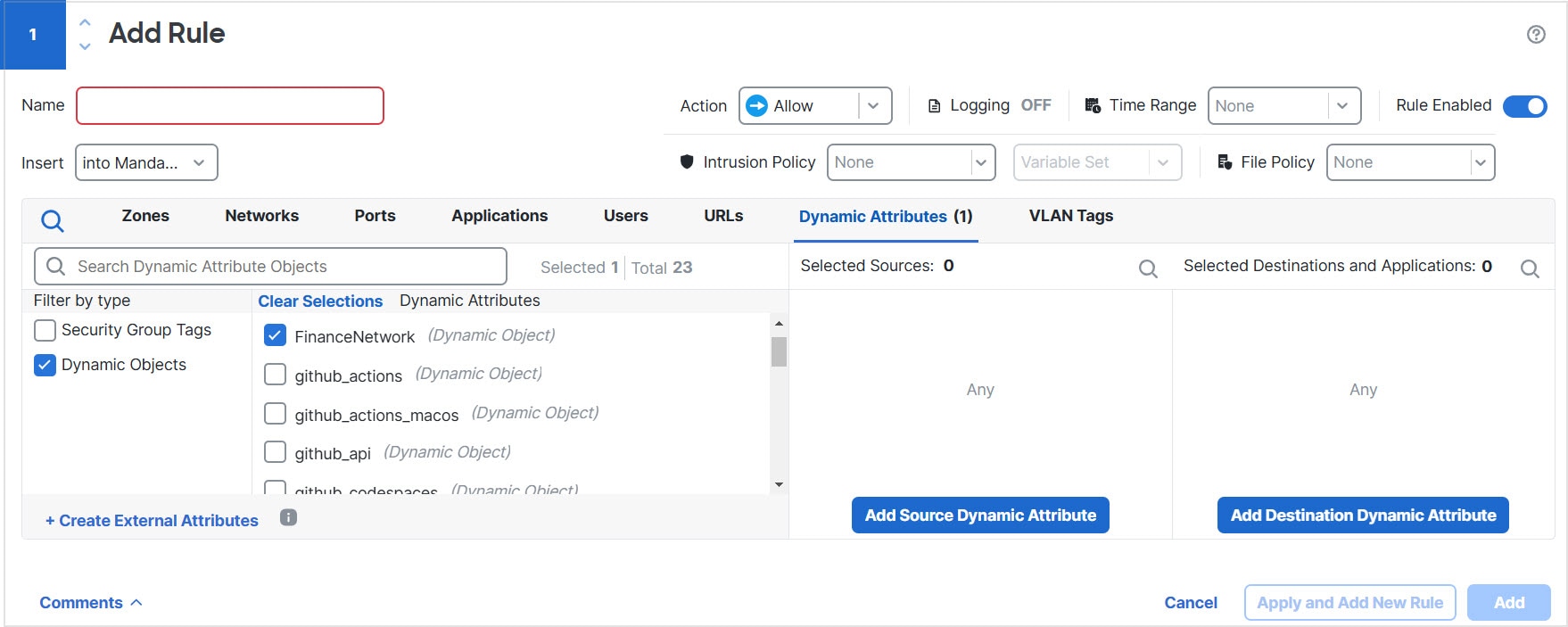
You can use these dynamic objects on the access control rule's Dynamic Attributes tab page. You can add dynamic objects as source or destination attributes; for example, in an access control block rule, you can add a Finance dynamic object as a destination attribute to block access to Finance servers by whatever objects match the other criteria in the rule.


Note


You cannot create dynamic attributes filters for AWS, Azure, Azure Service Tags, Cisco Multicloud Defense, Generic Text, GitHub, Google Cloud, and Outlook 365, pxGrid Cloud identity source, Tenable, vCenter, Webex, and Zoom). These types of cloud objects provide their own IP addresses.


Create dynamic attributes filters

Dynamic attributes filters that you define using the Dynamic Attributes Connector are exposed in the Security Cloud Control as dynamic objects that can be used in access control policies. For example, restrict access to an AWS server for the Finance Department to only members of the Finance group defined in Microsoft Active Directory.


Note


You cannot create dynamic attributes filters for AWS, Azure, Azure Service Tags, Cisco Multicloud Defense, Generic Text, GitHub, Google Cloud, and Outlook 365, pxGrid Cloud identity source, Tenable, vCenter, Webex, and Zoom). These types of cloud objects provide their own IP addresses.


For more information about access control rules, see Create access control rules or DNS rules using dynamic attributes filters.

Before you begin

Create a connector

Procedure


Step 1

Log in to Security Cloud Control.

Step 2

Click Firewall.

Step 3

Click Administration > Dynamic Attributes Connector > Dynamic Attributes Filters.

Step 4

Do any of the following:

  • Add a new filter: click Add (add icon).

  • Edit or delete a filter: Click More (more icon), then click Edit or Delete at the end of the row.

Step 5

Enter the following information.

Item

Description

Name

Unique name to identify the dynamic filter (as a dynamic object) in a policy and in the Security Cloud Control Object Manager (External Attributes > Dynamic Object).

Connector

From the list, click the name of a connector to use.

Query

Click Add add icon.

Step 6

To add or edit a query, enter the following information.

Item Description

Key

Click a key from the list. Keys are fetched from the connector.

Operation

Click one of the following:
  • Equals to exactly match the key to the value.

  • Contains to match the key to the value if any part of the value matches.

Values

Click either Any or All and click one or more values from the list. Click Add another value to add values to your query.

Step 7

Click Show Preview to display a list of networks or IP addresses returned by your query.

Step 8

When you're finished, click Save.

Step 9

(Optional.) Verify the dynamic object in the Security Cloud Control.

  1. Log in to the Security Cloud Control.

  2. Click Manage > Policies > Firewall Threat Defense.

  3. Click Objects > External Attributes > Dynamic Object.

    The dynamic attribute query you created should be displayed as a dynamic object.


Dynamic attributes rule conditions

Dynamic attributes include the following:

  • (Source or destination.) Dynamic objects (such as from the Dynamic Attributes Connector)

    The dynamic attributes connector enables you to collect data (such as networks and IP addresses) from cloud providers and send it to the Secure Firewall Management Center so it can be used in access control rules.

    For more information about the dynamic attributes connector, see About the Dynamic Attributes Connector.

  • (Source only.) SGT objects contain tags either manually defined or defined in ISE. For more information, see and Security Group Tag.

  • (Source only.) Location IP objects, defined by Cisco ISE

  • (Source only.) Device type objects, defined by Cisco ISE (also referred to as endpoint profile objects)

Dynamic attributes can be used as source criteria and destination criteria in access control rules. Use the following guidelines:

  • Objects of different types are ANDd together

  • Objects of a similar type are ORd together

For example, if you choose source destination criteria SGT 1, SGT 2, and device type 1; the rule is matched if device type 1 is detected on either SGT 1 or SGT 2. As another example, if you select both a security group tag, and a dynamic object that lists IP addresses, the rule matches if traffic with the tag originates from (or is destined to) one of those IP addresses.

Create access control rules or DNS rules using dynamic attributes filters

This topic discusses how to create access control rules using dynamic objects (these dynamic objects are named after the dynamic attributes filters you created previously).

Before you begin

Create dynamic attributes filters as discussed in Create dynamic attributes filters.


Note


You cannot create dynamic attributes filters for AWS, Azure, Azure Service Tags, Cisco Multicloud Defense, Generic Text, GitHub, Google Cloud, and Outlook 365, pxGrid Cloud identity source, Tenable, vCenter, Webex, and Zoom). These types of cloud objects provide their own IP addresses.


Procedure


Step 1

Log in to Cisco Security Cloud Control as a user with the Super Admin role.

Step 2

Click Firewall.

Step 3

Click Manage > Policies > Firewall Threat Defense > Access Control heading > Access Control.

Step 4

Click Edit (edit icon) next to an access control policy.

Step 5

Click Add Rule.

Step 6

Click the Dynamic Attributes tab.

Step 7

In the Available Attributes section, from the list, click Dynamic Objects.

The following figure shows an example.

Configure Dynamic Attributes created using the dynamic attributes connector as dynamic objects in access control rules. Use those exactly as you would network objects.

This example shows a dynamic object named APIC Dynamic Attribute that corresponds to the dynamic attribute filter created in the dynamic attributes connector.

Step 8

Add the desired object to source or destination attributes.

Step 9

Add other conditions to the rule if desired.


What to do next

See Dynamic attributes rule conditions.

Use dynamic objects in DNS policies

The dynamic attributes connector enables you to configure dynamic filters, seen in the Secure Firewall Management Center as dynamic objects, in DNS rules. For information about DNS policies, see DNS Policies.

A dynamic object is automatically pushed from the dynamic attributes connector to the Secure Firewall Management Center after you create connectors and save a dynamic attributes filter on the connector.

You can use these dynamic objects on the DNS rule's Dynamic Attributes tab page, similarly to the way you use Security Group Tags (SGTs). You can add dynamic objects as source or destination attributes, except for endpoint device type objects, which are source only.

Procedure


Step 1

Click Policies > Security policies > DNS and create or edit a DNS policy.

Step 2

Add or edit a rule.

Step 3

Click the Dynamic Attributes tab.

Step 4

In the Dynamic Attributes list, select the objects you want to use, then add them to the source or destination lists as appropriate. Initially, all security group and dynamic objects are listed, by you can uncheck the Security Group option to see dynamic objects only.

Step 5

On the DNS tab, select the appropriate list or feed to match the DNS requests you are targeting.

Step 6

Add other conditions to the rule if desired and set the action.

Step 7

Click Save.


Use dynamic objects in DNS policies

The dynamic attributes connector enables you to configure dynamic filters, seen in the Secure Firewall Management Center as dynamic objects, in DNS rules. For information about DNS policies, see DNS Policies.

A dynamic object is automatically pushed from the dynamic attributes connector to the Secure Firewall Management Center after you create connectors and save a dynamic attributes filter on the connector.

You can use these dynamic objects on the DNS rule's Dynamic Attributes tab page, similarly to the way you use Security Group Tags (SGTs). You can add dynamic objects as source or destination attributes, except for endpoint device type objects, which are source only.

Procedure


Step 1

Click Policies > Security policies > DNS and create or edit a DNS policy.

Step 2

Add or edit a rule.

Step 3

Click the Dynamic Attributes tab.

Step 4

In the Dynamic Attributes list, select the objects you want to use, then add them to the source or destination lists as appropriate. Initially, all security group and dynamic objects are listed, by you can uncheck the Security Group option to see dynamic objects only.

Step 5

On the DNS tab, select the appropriate list or feed to match the DNS requests you are targeting.

Step 6

Add other conditions to the rule if desired and set the action.

Step 7

Click Save.


Troubleshoot the Dynamic Attributes Connector

How to troubleshoot issues with the dynamic attributes connector, including using provided tools.

Troubleshoot error messages

Problem: Name or service not known error

This error is displayed as a tooltip when you hover the mouse over an error condition on a connector. An example follows; yours might look different.

The name or service unknown error can indicate a configuration issue with a dynamic attributes connector adapter or connector

Solution: Edit the connector and check for:

  • A trailing slash on a host name

  • Verify the password is correct

Problem: Incorrect username or password

This error is displayed as a tooltip when you hover the mouse over an error condition on a connector.

An incorrect username or password error indicates you entered the wrong password for a connector

Solution: Edit the connector and change the user name or password.

Get Your Tenant ID

If you require assistance with the Dynamic Attributes Connector, you must provide your tenant ID to Cisco TAC so we can look at your logs.

Procedure


Step 1

Log in to Security Cloud Control.

Step 2

Click Administration > General Settings.

Step 3

Copy your tenant ID to the clipboard to provide to Cisco TAC.

A sample follows.