Policy Analyzer and Optimizer

Security Cloud Control provides the Policy Analyzer and Optimizer, which is an intelligent cloud service that can analyze security policies, detect anomalies, and provide recommendations on remediations that can be performed to optimize the policies.

About Policy Analyzer and Optimizer

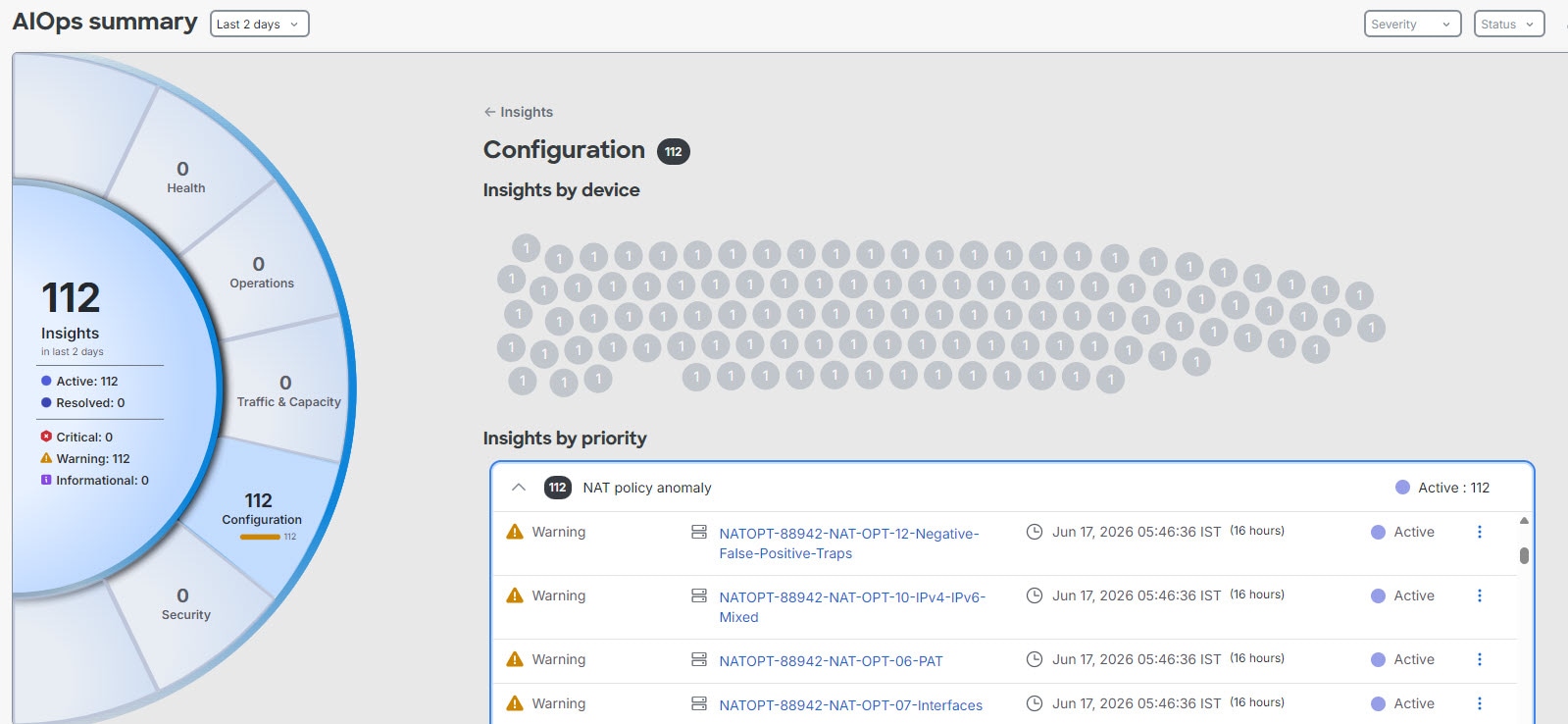
AIOps for firewalls uses artificial intelligence (AI) and machine learning (ML) to streamline and enhance the management and security of network firewalls. By using dynamic baselines and advanced forecasting models, AIOps can detect policy anomalies and predict potential issues before they escalate, ensuring proactive maintenance and stability. One key capability of AIOps is the Policy Analyzer and Optimizer. For more information, refer to AIOps Insights to know more about the various other functionalities that AIOps provides.

Secure Firewall Threat Defense devices with extensive policies may have numerous duplicate or shadowed rules. Such large policies with unoptimized rulesets can lead to excessive consumption of device memory, delayed loading of rules, and long search duration, resulting in inefficient security policy enforcement, reduced network speeds, and extended deployment durations.

Policy Analyzer and Optimizer is an intelligent Security Cloud Control Firewall Management service that analyzes firewall policies, detects rule anomalies, and helps you understand where a policy can be optimized. Policy Analyzer and Optimizer supports access control policies policies for Cloud-Delivered Firewall Management Center and supported Security Cloud Control-managed On-Premises Firewall Management Center data sources.

In addition, Policy Analyzer and Optimizer can do the following:

  • View policy health and optimization opportunities for the selected management center data source.

  • Analyze policies on demand or rely on scheduled analysis that runs every 24 hours.

  • Download analysis reports as PDFs after analysis completes.

  • Use Access Control Policy Analyzer and Optimizer remediation workflows where supported.

  • Stage and apply remediation for an entire anomaly category, selected observations, or individual rules within supported observations.

Prerequisites to use Policy Analyzer and Optimizer

Before you use Policy Analyzer and Optimizer, verify the prerequisites that apply to your policy type and data source.

  • The On-Premises Firewall Management Center must be integrated with Security Cloud Control.


    Note


    In the On-Premises Firewall Management Center, navigate to Integration > Cisco Security Cloud and check the Enable Policy Analysis & Optimization checkbox after integrating with the Cisco Security Cloud.


  • The Cloud-Delivered Firewall Management Center must be provisioned in Security Cloud Control Firewall Management.

Prerequisites to use Policy Analyzer and Optimizer for access control policy

  • Access control policy analysis is supported on the On-Premises Firewall Management Center operating on Version 7.2 or later. The Cisco-recommended Version is 7.6 or later, because these versions support cross-launch to Policy Analyzer and Optimizer directly from On-Premises Firewall Management Center.

  • Access control policy to be analyzed must be associated with a Firewall Threat Defense device that is managed by an On-Premises Firewall Management Center integrated with Security Cloud Control.

Enable Policy Analyzer and Optimizer for Security Cloud Control-managed On-Premises Firewall Management Center

Onboard your On-Premises Firewall Management Center to Security Cloud Control, navigate to Administration > Integrations > Firewall Management Center, select the On-Premises Firewall Management Center, and choose Policy Analyzer and Optimizer under System in the right pane. See Onboard an On-Premises Firewall Management Center for more information.

If you have an On-Premises Firewall Management Center Version 7.6 and want to use Policy Analyzer and Optimizer, follow the steps below:

Procedure


Step 1

In your On-Premises Firewall Management Center, navigate Integration > Security Cloud Control.

Step 2

If you have not integrated your On-Premises Firewall Management Center with Cisco Security Cloud, click Enable Security Cloud Control and follow the steps. To authorize the cloud integration, you must choose an existing Security Cloud Control tenant or provision a new one, to which your on-premises Firewall Management Center will get onboarded, after the cloud integration is successful.

Step 3

After integrating your On-Premises Firewall Management Center with Security Cloud Control, check the Enable Policy Analyzer and Optimizer checkbox and click Save.


Policy Analyzer and Optimizer licensing requirements

Policy Analyzer and Optimizer requires no additional licensing. It comes as part of the Security Cloud Control Firewall Management base subscription.

Open Policy Analyzer and Optimizer and select a data source

You can open Policy Analyzer and Optimizer from Security Cloud Control Firewall Management or cross-launch from supported On-Premises Firewall Management Center policy pages.

Follow these steps to open Policy Analyzer and Optimizer and select a data source:

Procedure


Step 1

In the Security Cloud Control Firewall Management left pane, choose Administration > Integrations > Firewall Management Center.

Step 2

Select Cloud-Delivered FMC or an On-Premises Firewall Management Center.

Step 3

Click Policy Analyzer and Optimizer under System.

Note


Alternatively, choose Insights & Reports > AIOps Insights > Policy Analyzer and Optimizer.

Step 4

Use the data source selector at the top of the Policy Analyzer and Optimizer page to choose the Cloud-Delivered Firewall Management Center or On-Premises Firewall Management Center whose policies you want to review.

Step 5

Choose the Access Control tab depending on the policy type that you want to analyze.


Sync and analysis behavior

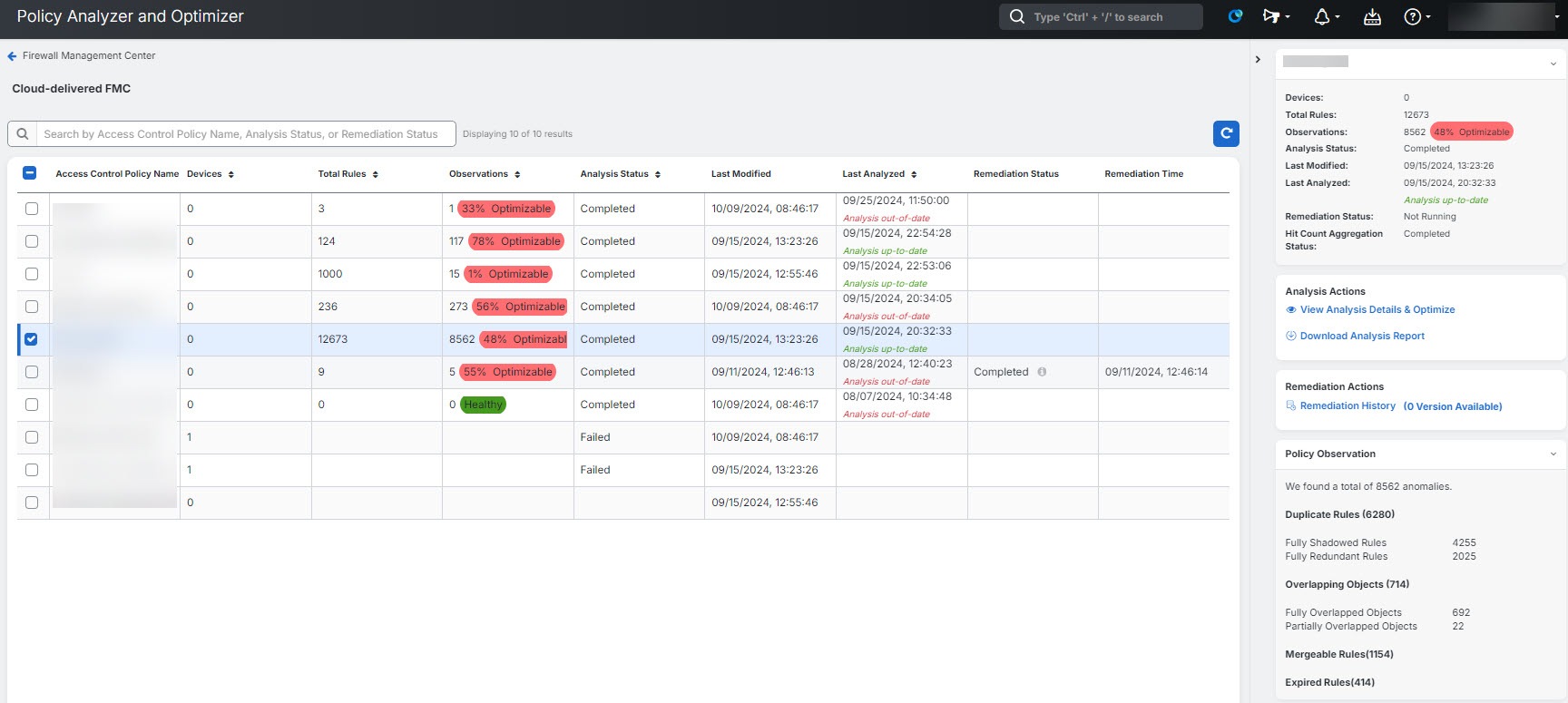
Policy Analyzer and Optimizer displays policy metadata such as analysis status, last modified time, and last analyzed time. The last modified time reflects changes made to the policy in the management center that manages it. The last analyzed time reflects the analysis run that produced the current Policy Analyzer and Optimizer summary.

Use Sync with FMC to fetch the latest policy inventory and modified timestamps from the management center. If a policy was modified after the last analysis, the displayed analysis can be out of date until you run analysis again or scheduled analysis runs.

Access control policy analysis and optimization

Use the Access Control tab when you want to analyze access control policies, review access control policy findings, and apply the remediations that Policy Analyzer and Optimizer supports for access control rules and objects.

After provisioning a Cloud-Delivered Firewall Management Center or onboarding an On-Premises Firewall Management Center to your Security Cloud Control Firewall Management tenant and creating policies, you can start analyzing them using the Policy Analyzer and Optimizer.

For more information, refer to Onboard an On-Premises Firewall Management Center and Enable Cloud-Delivered Firewall Management Center on Your Security Cloud Control.

Analyze access control policies

Use this procedure to assess an access control policy before making changes, review policy health, or re-run analysis after policy updates. If a policy has not been analyzed, you can start a new analysis. If the analysis is out of date, you can re-analyze the policy to refresh the results.


Note


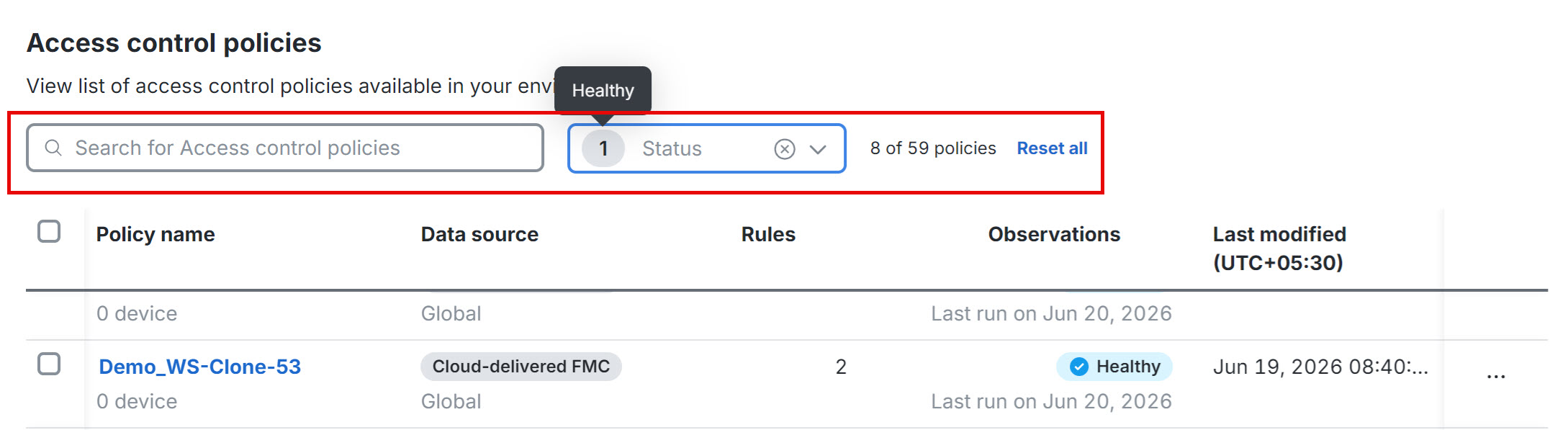
When you create a new policy, it might take a while for the Policy Analyzer and Optimizer to fetch the policy details and show up on the Policy Analyzer and Optimizer. Click the refresh () button on the top-right corner to manually refresh the page to see new policies.

Procedure


Step 1

Choose Insights & Reports > AIOps Insights > Policy Analyzer and Optimizer.

Step 2

In the right pane, select Cloud-delivered FMC or an On-Premises Firewall Management Center from the drop-down list as the data source whose policies you wish to analyze.

Step 3

In the Access Control area, select the policy you want to analyze or review.

Note

 
  • For an unanalyzed policy, click on Analyze Policies.

  • If the policy status indicates Analysis out of date, click on Re-analyze Policy under Analysis Actions on the right.

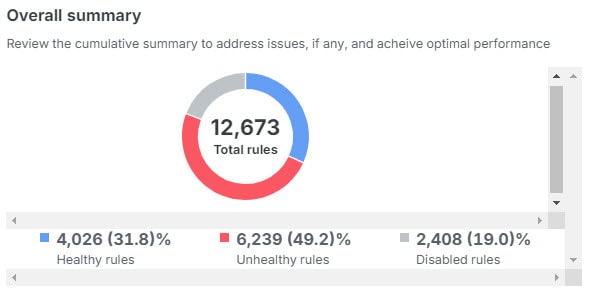
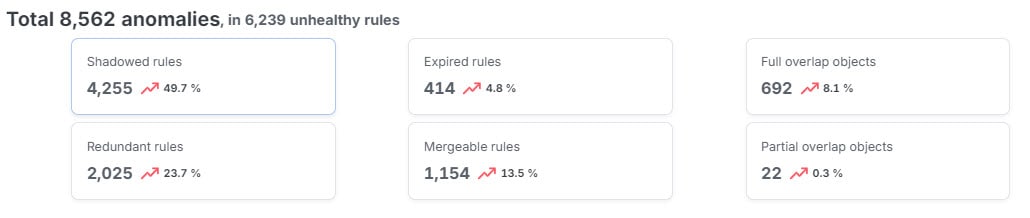
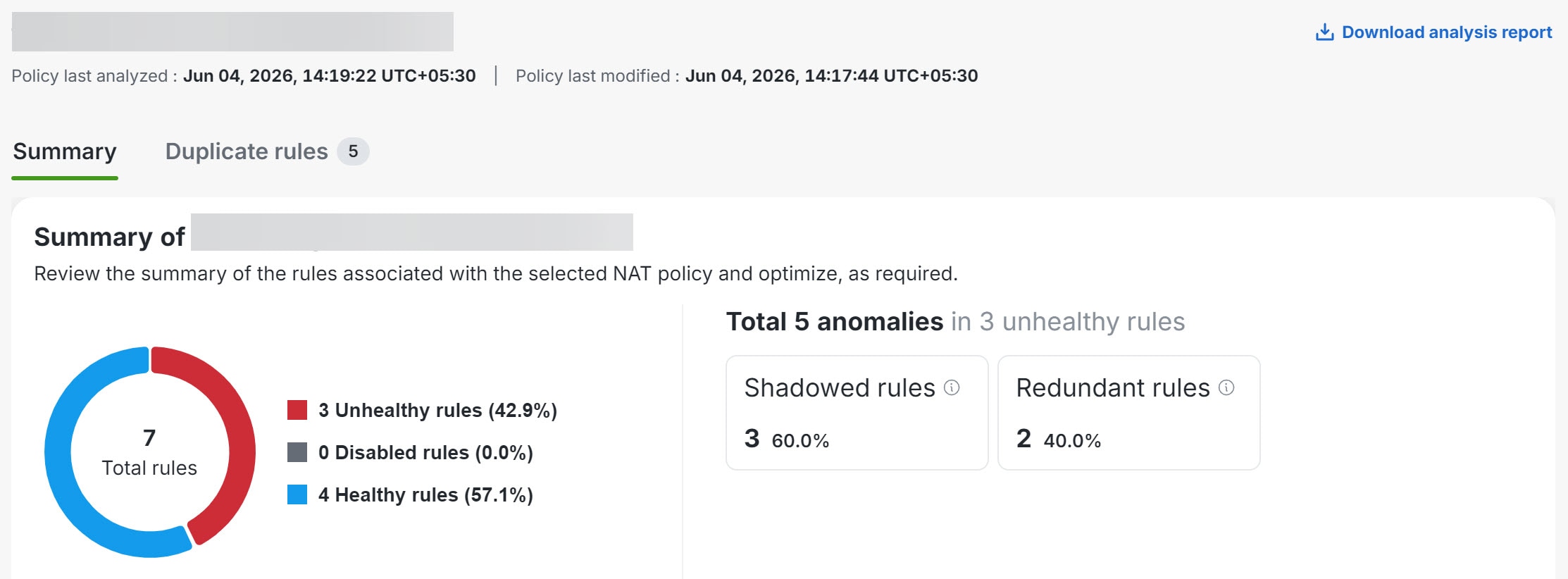
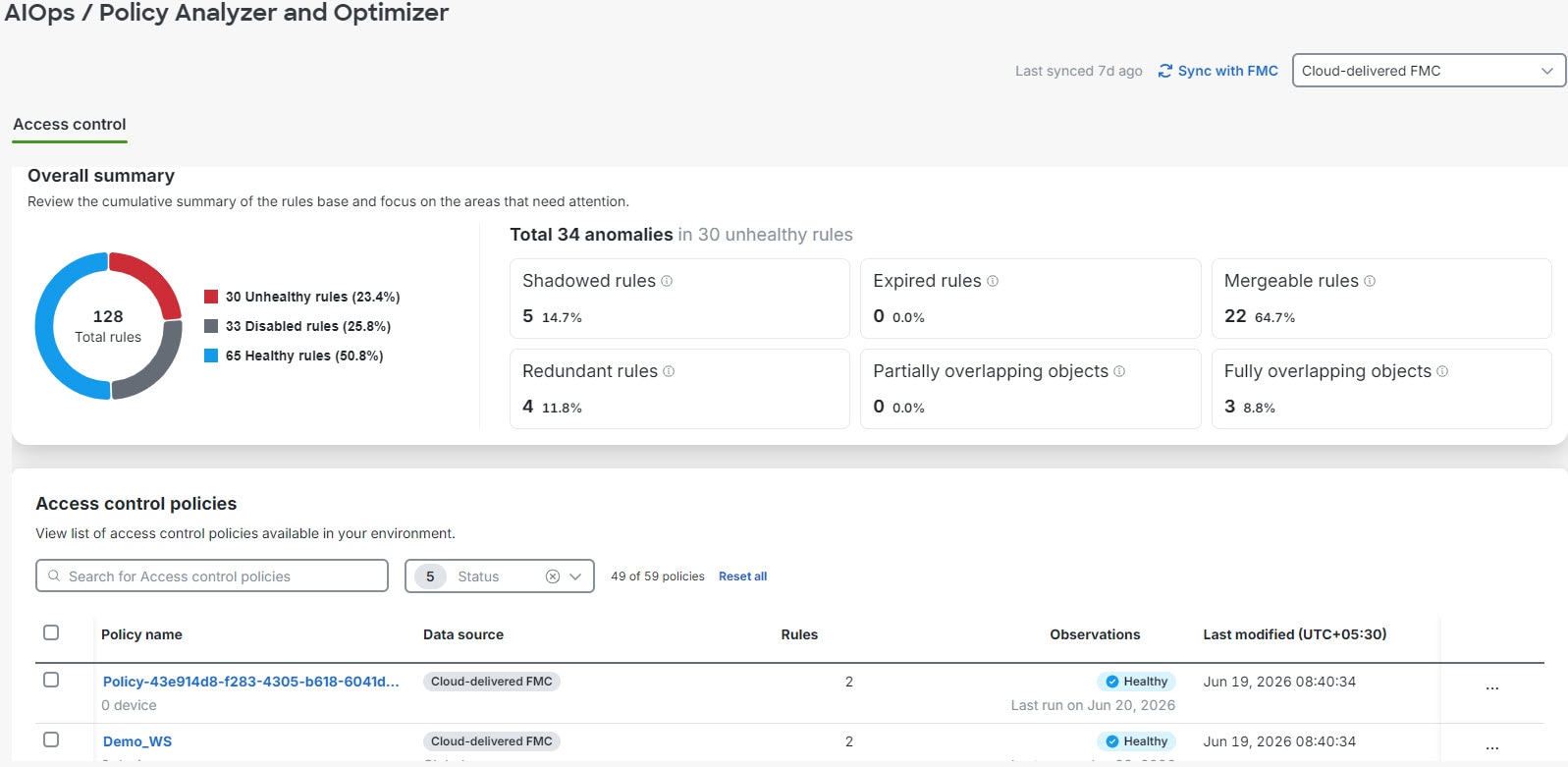
The Overall summary section displays the total number of rules categorized by their health status: healthy, disabled, or unhealthy, for the selected management center (Cloud-Delivered Firewall Management Center or On-Premises Firewall Management Center).

The dashboard also highlights specific anomalies within your unhealthy rules. You can review the count and percentage for the categories: Shadowed rules, Expired rules, Mergeable rules, Redundant rules, Partially overlapping rules, Fully overlapping objects.


What to do next

Review an access control policy and optimize.

Access control policy analysis summary

When analysis completes, select an access control policy to review the right-pane summary and click View analysis details and optimize.

Overall summary—provides insights on how many rules are healthy, disabled, expired, and contain anomalies, using a pie chart for the selected access control policy. You can also hover over the part of the pie to view the percentage of rules.

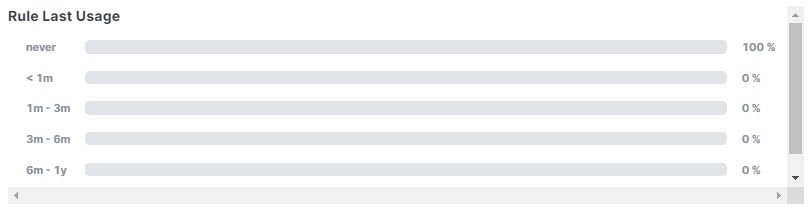
Rule usage history—shows how recently rules were used, with time periods.

Rules with Anomalies—provides insights on how many rules have anomalies.

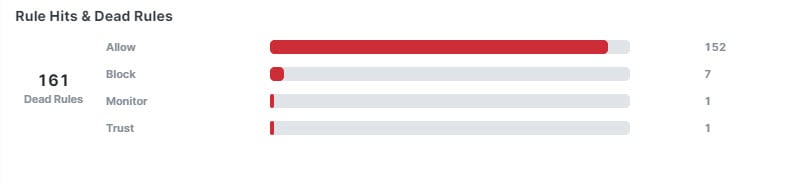
Hits rules & dead rules—provides insights on hitcount of expired rules, for rule types including allow, block, monitor, and trust.

In remediation tabs such as Duplicate rules, Expired rules, Mergeable rules, Overlapping objects, and Policy insights you can select the check box next to a category to stage all observations in that category, or expand the category and select specific observations or rules. Available actions depend on the anomaly type.

Analyze duplicate rules in access control policy

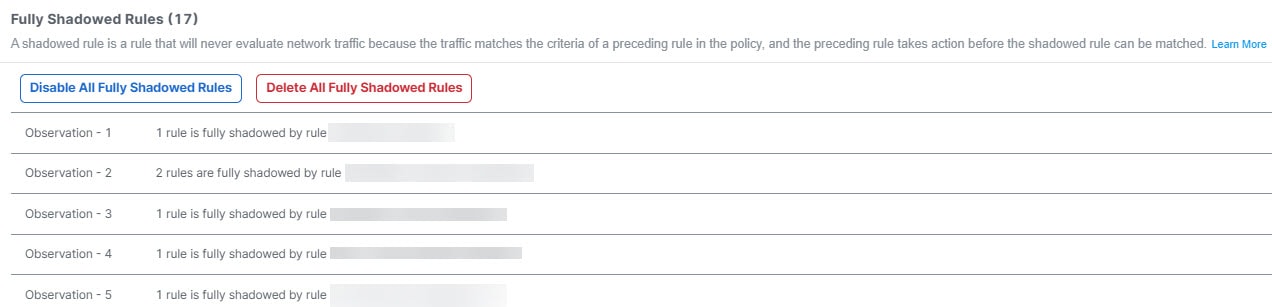
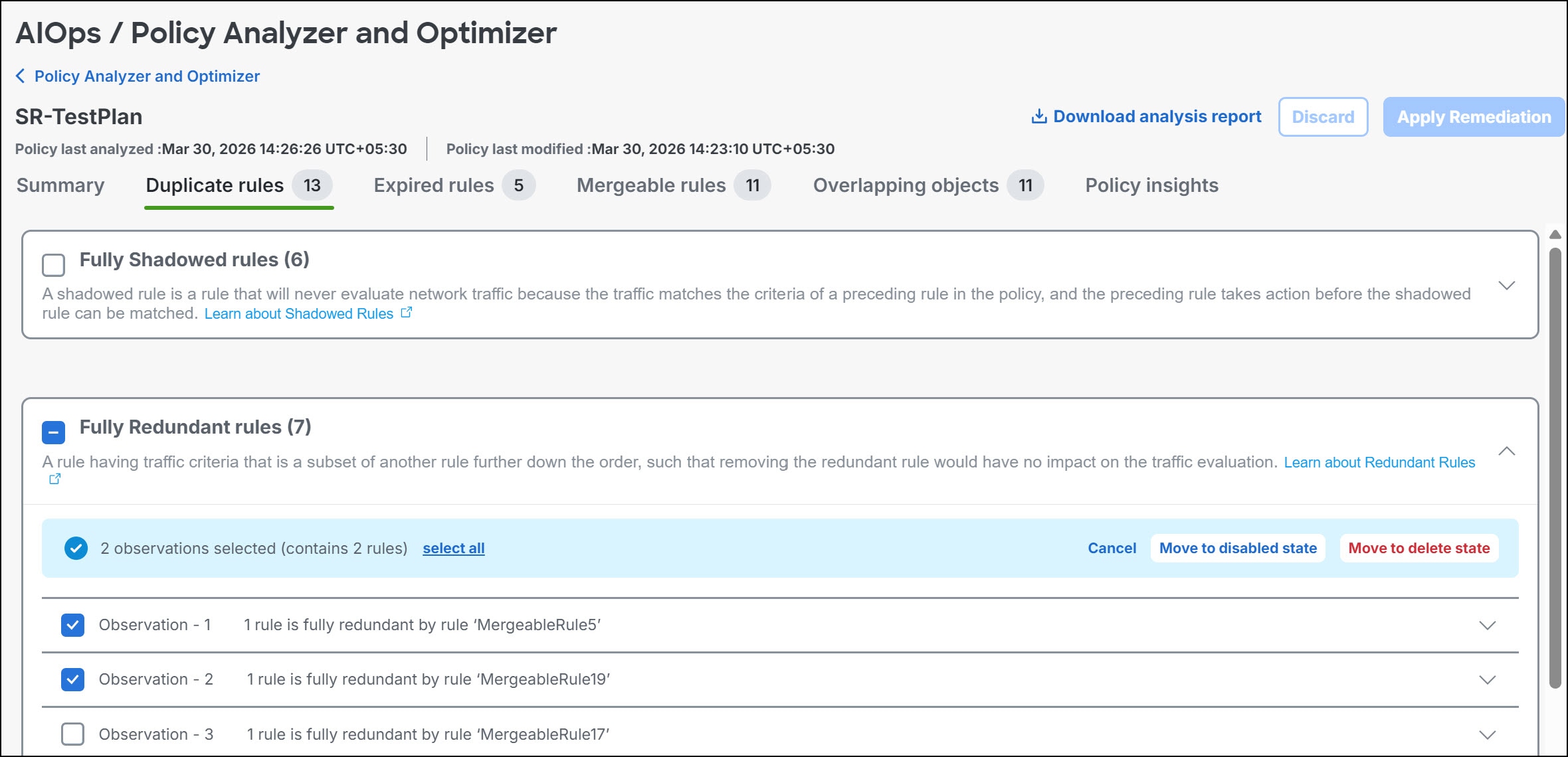
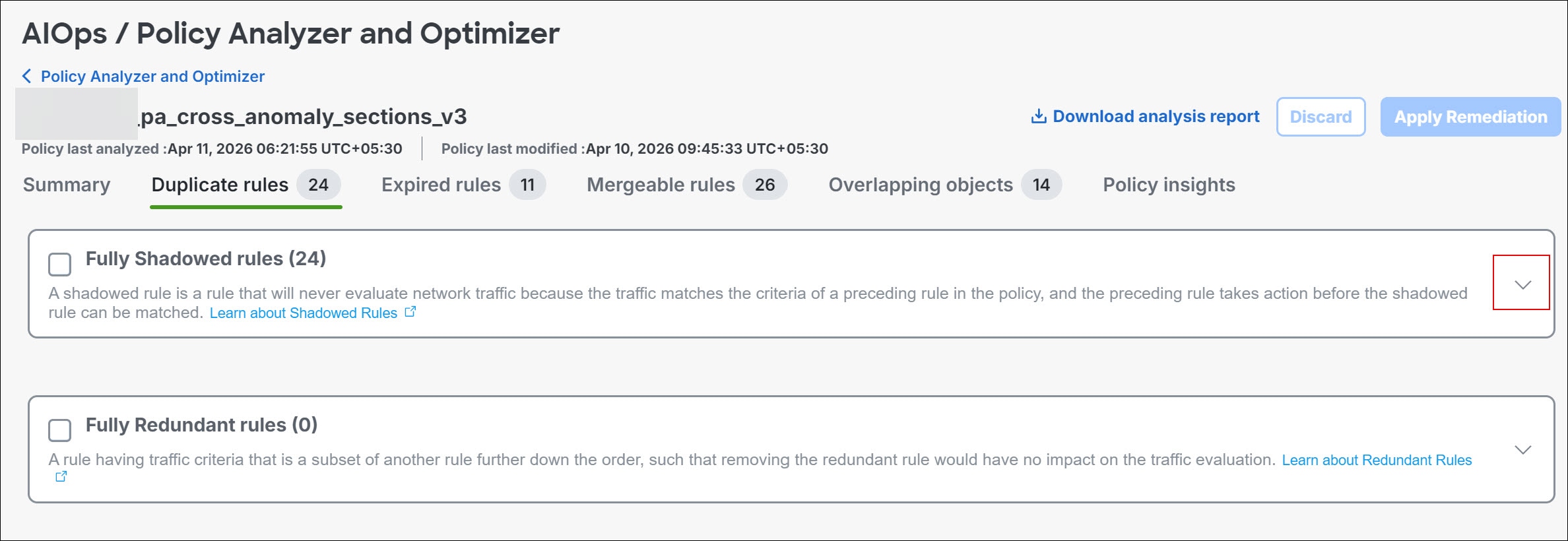
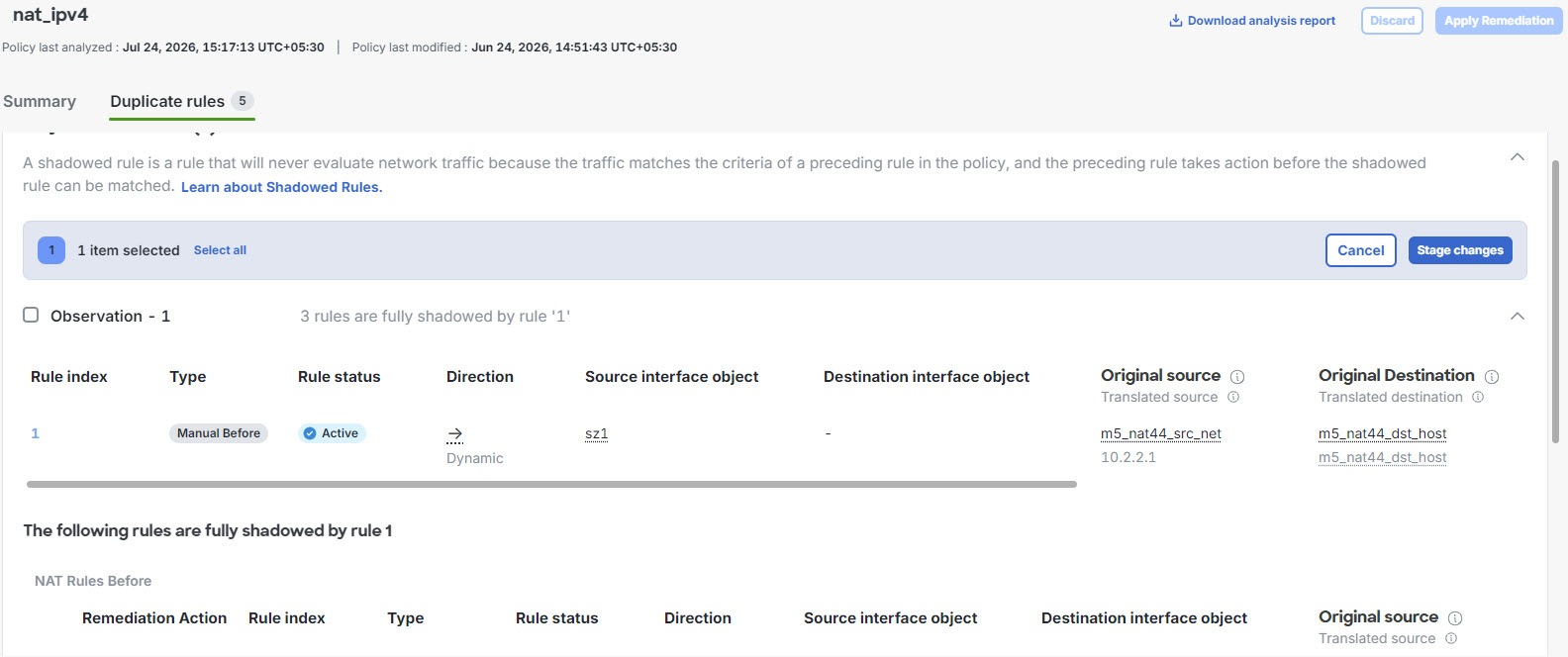
The Duplicate Rules tab lists shadowed and redundant rules with anomalies:

  • A Fully Shadowed rules is one that will never evaluate network traffic because another rule that precedes it over shadows this rule.

  • A Fully Redundant rules is one that is just a part of another larger rule, such that removing this redundant rule does not have an impact on the network traffic, because the traffic evaluation that this rule must perform is already performed by another rule.

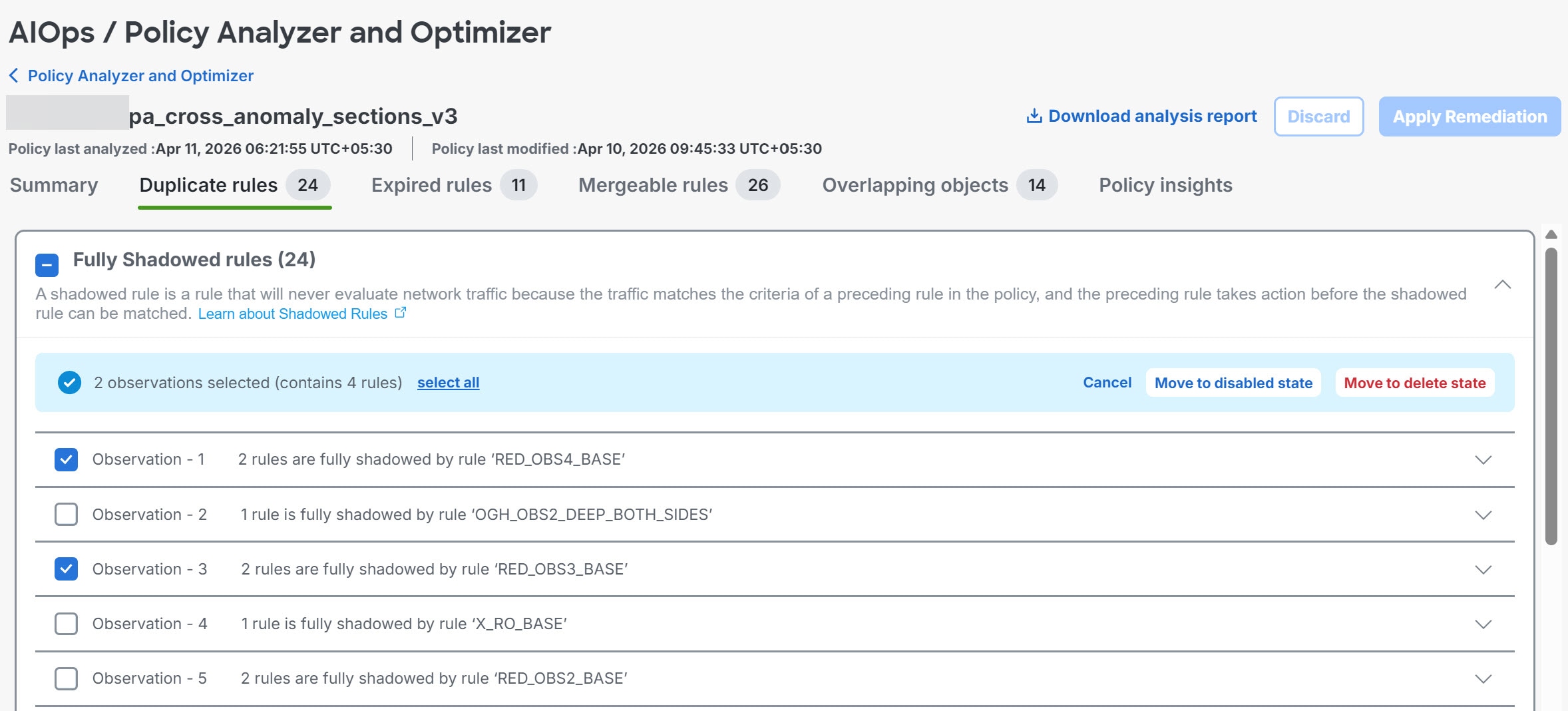
You can remediate all duplicate-rule observations in a category, selected fully shadowed or fully redundant observations, or individual rules within an expanded observation. For selected duplicate rules, choose Move to disabled state or Move to delete state. Disable rules first when you want to measure the impact before deleting them.


Note


Expand each observation to review the affected rules before you stage a remediation. Each rule in the list is displayed with a set of attributes; click the settings button on the top right to select which rule attributes you want to display along with the rule.


When duplicate-rule remediation removes shadowed or redundant rules and retains a base rule, Policy Analyzer and Optimizer adds a standardized comment to the retained rule. The comment identifies the retained rule and the removed rules, which helps you audit the cleanup.

After you stage the selected duplicate-rule remediations, you can still Undo them before clicking Apply Remediation. It is recommended that you disable rules first to measure the impact and delete them later, because deleting them permanently removes them.

You can enable the disabled rules any time by navigating to the Cloud-Delivered Firewall Management Center or the On-Premises Firewall Management Center on which the rules are present.

Analyze expired rules in access control policy

The Expired Rules tab lists rules that were configured with a time range and the time range has expired. You can also see rule information such as the date on which the rule expired, hit count, last hit time, and the time range.

You can remediate all expired-rule observations in the category, selected expired-rule observations, or selected expired rules. For selected expired rules, choose Move to disabled state or Move to delete state. Only selected rules are changed when you apply remediation.

Analyze mergeable rules in access control policy

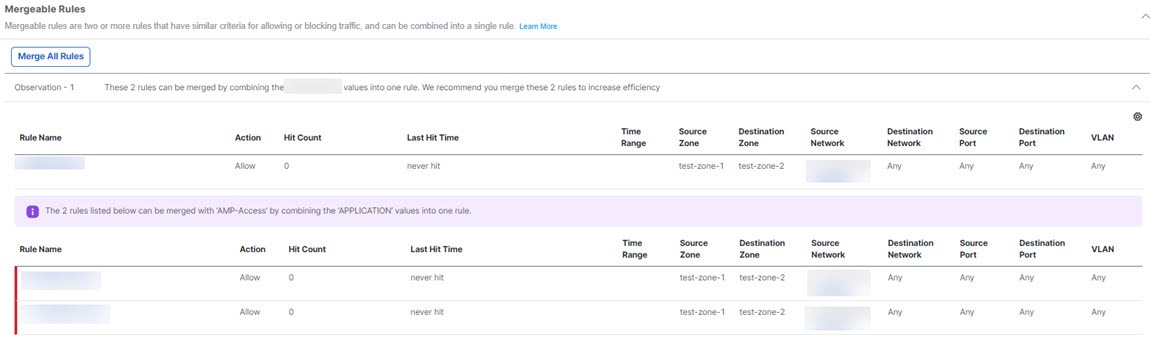
The Mergeable Rules tab lists the rules that have similar allow and block settings and can be merged into a single rule.

Review the mergeable-rule observations and stage remediation for the entire category, selected observations, or individual rules within an expanded observation. Click Merge Selected to merge only the staged items. Unselected mergeable-rule observations remain unchanged until you stage and apply remediation for them.


Note


When you select individual rules to merge, select only consecutive rules. The first selected rule in the sequence is updated with the merged rule criteria, and the remaining selected rules are removed. You can start the merge from any rule in a consecutive set. The first rule in the observation does not need to be selected.


Analyze overlapping objects in access control policy

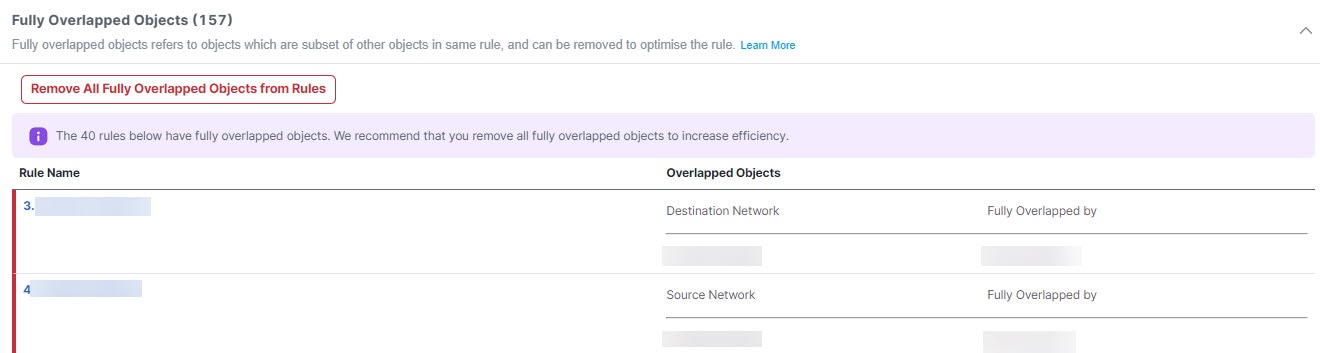
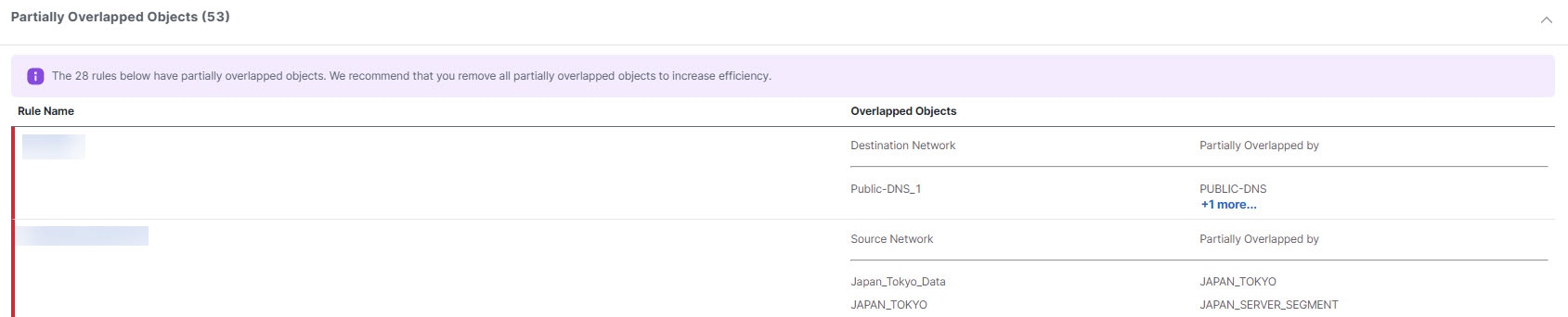
The Overlapping Objects tab lists objects that are either fully overlapping (the IP addresses or port numbers are either the same or a complete subset) or partially overlapping (some subset of IP addresses are repeated, but not all).

For example, if a rule contains an object for 192.168.1.1 and another for 192.168.1.0/24, the 192.168.1.1 object is fully overlapped by the other object and is not needed in the rule. For fully overlapped objects, you can remediate all fully overlapped observations in the category, selected observations, or selected rules. Click Remove All Fully Overlapped Objects from Rules to remove fully overlapped objects only from the staged items. For partial overlaps, evaluate each occurrence and edit the objects directly.

For partial overlaps, you need to evaluate each occurrence, determine if any changes can be made, and implement those changes directly by editing the objects.

Analyze policy insights in access control policy

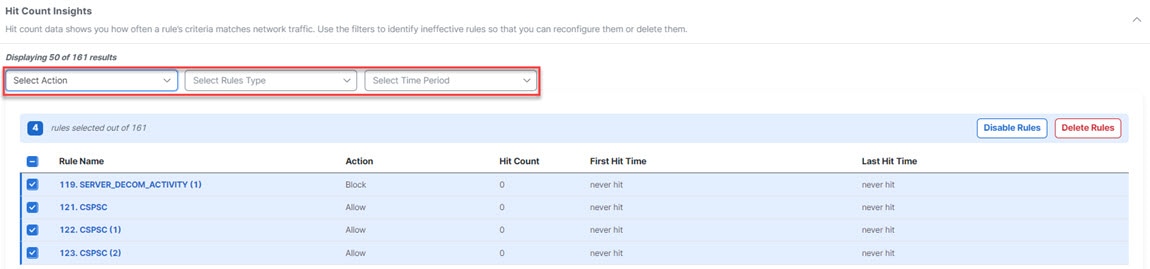
The Policy Insights tab has a Hit Count section that initially lists any rules that have never been triggered (Never Hit Rules). The hit count information is from all devices that are assigned to the policy. You can change criteria and see other hit count information, for example, Not Hit Rules for the past six months, or Hit Rules over a selected time period. You can filter the rules using the actions set in the rules, hit information, and time period:

  • Never Hit Rules—Rules that have never been hit from the time they were created.

  • Hit Rules—Rules that have been hit in the selected time period.

  • Not Hit Rules—Rules that have not been hit in the selected time period.

Select the rules that you want to disable or delete, and select Disable Rules or Delete Rules. These changes are staged until you select Apply Remediation. First, disable the rules when you want to measure their impact before deleting them.

Access control policy remediation

Policy Analyzer and Optimizer stages remediation changes before it updates the policy. You can stage remediation for an entire anomaly category, selected observations, or individual rules within an expanded observation. Before you apply remediation, unselected observations and rules remain unchanged and available for later selection in the same analysis report.

Review staged changes before you select Apply Remediation. After you apply remediation, you cannot apply more changes from the same analysis report. To remediate remaining anomalies, run policy analysis again on the updated policy and use the new report.

Before you begin

  • Back up all policies before you apply remediation.

  • Ensure that at least one remediation is staged. If no remediation is staged, Apply Remediation is disabled.

  • Verify the Policy Last Modified and Policy Last Analyzed timestamps, and review the number of rules that are staged for remediation.

Procedure


Step 1

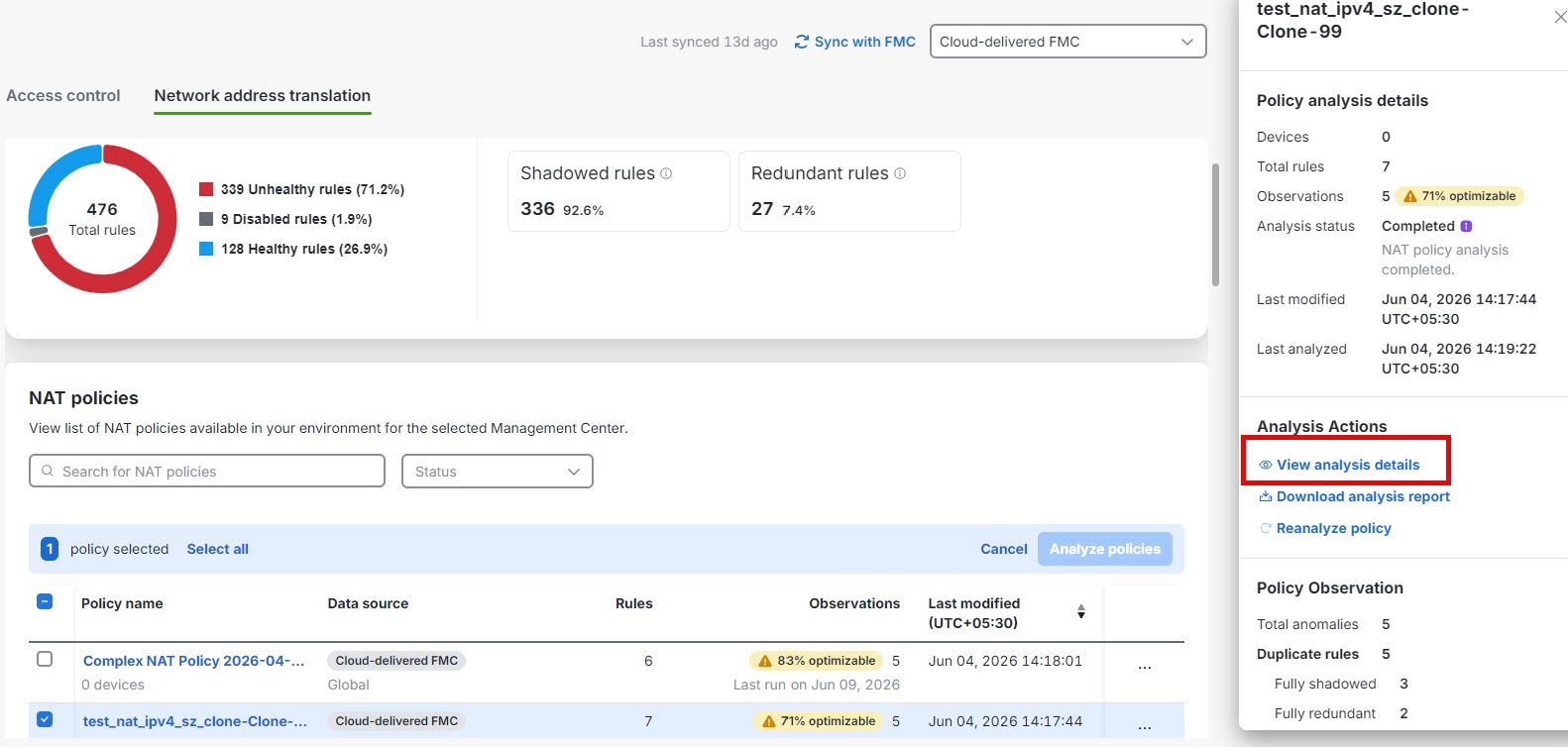
In the Policy Analyzer and Optimizer page, select the policy to see details about the analysis on the right pane and click View analysis details & optimize.

Step 2

Click the remediation tab that contains the anomalies that you want to fix.

Step 3

Expand a remediation category. Select the check box for the category to stage all observations, or select the check boxes for specific observations or rules to stage only those items. Repeat this step in other remediation tabs, as needed.

Step 4

Select the remediation action that applies to the staged items, such as Move to disabled state, Move to delete state, Merge Selected, Remove All Fully Overlapped Objects from Rules, Disable Rules, or Delete Rules.

Step 5

Review the staged remediation. If you need to change the staged remediation before applying it, use the available undo or discard action.

Step 6

Click Apply Remediation.

Step 7

Read the confirmation message, which summarizes the remediations that will be applied. Confirm that the selected policy and staged remediation are correct.

Step 8

Click Apply.

Note


For an On-Premises Firewall Management Center in which the Change Management Workflow is enabled, when policy remediations are applied, an internal workflow ticket is created and the changes are staged. The changes take effect only when the ticket is submitted or approved. See Change Management in Cisco Secure Firewall Management Center Administration Guide for more information.


After remediation is complete, the selected rules are updated. Policy Analyzer and Optimizer automatically analyzes the updated policy and generates a refreshed summary that shows any remaining issues. Verify the intended changes in the corresponding access control policy.

Download access control analysis report

The access control analysis report is a PDF summary of completed remediations for a selected policy. It includes only the remediation categories that apply to the changes you selected and applied. Each section lists the rule name, remediation action, and related comments. For example, if no duplicate rules were remediated, the report excludes the duplicate-rule remediation section.

The report includes only the remediation sections and rule details for remediations that you selected and applied. Unselected anomalies are not included in the report.

  1. In the Policy Analyzer and Optimizer page, click Access control.

  2. Select an access control policy, and in the right pane, click Download analysis report.

The report can include these sections:

  • Remediation Summary

  • Hit Count Remediation

  • Expired Rules Remediation

  • Duplicate Rules Remediation

  • Mergeable Rules Remediation


Note


To determine whether a policy is remediated by the Policy Analyzer and Optimizer, navigate to Policies > Access Policies and edit a policy to view the rules in the Policy Editor. When a policy is remediated, a comment is added to the rules that are optimized.

You can also filter all the optimized rules using "updated by Policy Analyzer and Optimizer" to view all the remediated rules.

During duplicate rule remediation, the retained rule is updated with a comment specifying which rule was preserved and which were removed.


Troubleshooting Policy Analyzer and Optimizer

Read the following sections to troubleshoot any issues with the Policy Analyzer and Optimizer:

Policy Analyzer and Optimizer Does Not Analyze Policies

If you notice that Policy Analyzer and Optimizer is not analyzing policies despite clicking Analyze Policy, try the following:

Procedure


Step 1

Navigate Administration > Integrations > Firewall Management Center.

Step 2

Select the On-Premises Firewall Management Center or Cloud-Delivered FMC for which the policy analysis is not happening and choose Workflows under Actions on the right pane.

Step 3

If you see that the latest workflow's Current State shows up as Error, expand the workflow and scroll to the last action whose END STATE is ERROR.

Step 4

Click Error Message under the RESULT column to see a detailed error message or click Stack Trace to see the series of exceptions that occurred, which caused the error.

Step 5

Resolve the error or contact Cisco TAC for assistance.


Policy Analyzer and Optimizer Does Not Fetch Policies

If policies on your On-Premises Firewall Management Center are not displayed on the Policy Analyzer and Optimizer page on Security Cloud Control, do the following:

Procedure


Step 1

On the On-Premises Firewall Management Center, navigate Integration > Cisco Security Cloud.

Step 2

Ensure that the Enable Policy Analyzer and Optimizer checkbox is checked.

Step 3

(Optional) In the left navigation pane of your Security Cloud Control tenant, navigate Administration > Integrations > Firewall Management Center, and ensure that the On-Premises Firewall Management Center is active and reachable.


Frequently Asked Questions About Policy Analyzer and Optimizer

Can Cisco AI Assistant analyze and remediate policies instead of manually doing it using Policy Analyzer and Optimizer?

The Cisco AI Assistant collaborates with Policy Analyzer and Optimizer to scrutinize policies with anomalies and notify users. However, the AI Assistant cannot automatically analyze and remediate policies.

Can Policy Analyzer and Optimizer detect new changes to an already-analyzed policy and run analysis again on the same policy?

No, the Policy Analyzer and Optimizer can analyze policies only when manually triggered or at a 24-hour scheduled policy analysis run.

For a shared policy, does the Policy Analyzer and Optimizer provide individual device-based reports?

No. The Policy Analyzer and Optimizer provides reports only based on the access policy analysis data.

I am an On-Premises Firewall Management Center user. Should I purchase the Security Cloud Control base license to use the Policy Analyzer and Optimizer?

No. The Policy Analyzer and Optimizer comes as part of an existing or a newly created Security Cloud Control tenant during the Cisco Security Cloud integration.

I provisioned a Security Cloud Control tenant when I integrated my On-Premises Firewall Management Center with the Cisco Security Cloud. What other features, except Policy Analyzer and Optimizer, can I leverage in Security Cloud Control?

You can only leverage Policy Analyzer and Optimizer capabilities of this Security Cloud Control tenant. To use other features of Security Cloud Control, you need to purchase the Security Cloud Control base license and other device-specific licenses.

For an On-Premises Firewall Management Center on which the change management workflow is enabled and there are policies with pending changes to be approved, can the Policy Analyzer and Optimizer still apply remediations those policies?

No. The remediation will be hindered with an error saying the policies are locked for use.

Is there a maximum number of rules that Policy Analyzer and Optimizer can analyze in a policy?

There are no such limits. The Policy Analyzer and Optimizer can analyze any number of policies and rules. However, when the policies have more number of rules, the analysis takes a long time too.

What is the difference between disable rules and delete rules? Which is the better option?

Deleting a rule removes the rule completely from the device memory. However, disabling a rule keeps it in the device memory as a backup and does not get deployed to the device.

If a policy remediation fails when it is partially done, are the changes automatically revoked by Policy Analyzer and Optimizer?

No. In such a case, you get a failure notification and a remediation report. You can read the report to know which rules were impacted by the half-done remediation, manually revoke the changes, and start the remediation all over again.