Intrusion Prevention Performance Tuning

This chapter explains how to refine intrusion prevention performance.

Intrusion prevention performance tuning

Intrusion prevention performance tuning is a system optimization mechanism that

  • improves performance while analyzing traffic for attempted intrusions,

  • applies settings on a per-access control policy basis to all intrusion policies invoked by that parent access control policy, and

  • balances security with the need to maintain device latency at an acceptable level.

Performance tuning features

Cisco provides several features for improving the performance of your system as it analyzes traffic for attempted intrusions. You can:

  • specify the number of packets to allow in the event queue. You can also, before and after stream reassembly, enable or disable inspection of packets that will be rebuilt into larger streams.

  • override default match and recursion limits on PCRE that are used in intrusion rules to examine packet payload content.

  • elect to have the rules engine log more than one event per packet or packet stream when multiple events are generated, allowing you to collect information beyond the reported event.

  • balance security with the need to maintain device latency at an acceptable level with packet and rule latency thresholding.

  • configure the basic parameters of how devices monitor and report their own performance. This allows you to specify the intervals at which the system updates performance statistics on your devices.

License requirements for intrusion prevention performance tuning

This reference provides licensing information required for implementing intrusion prevention performance tuning on Cisco Secure Firewall devices, covering both Threat Defense and Classic licensing models.

Threat Defense License

IPS

Classic License

Protection

Requirements and prerequisites for intrusion prevention performance tuning

This reference provides the system requirements and prerequisite configurations needed before implementing intrusion prevention performance tuning on Cisco Secure Firewall devices.

Model support

Any

Supported domains

Any

User roles

  • Admin

  • Access Admin

  • Network Admin

Limiting pattern matching for intrusions

Limit pattern matching for intrusions to optimize system performance by controlling how many pattern states are analyzed per packet and managing content inspection before and after stream reassembly.

Pattern matching limits help balance security effectiveness with system performance. When processing high volumes of traffic, limiting the number of pattern states analyzed per packet can prevent performance degradation while maintaining essential intrusion detection capabilities.

Before you begin

Follow these steps to limit pattern matching for intrusions:

Procedure


Step 1

In the access control policy editor, click Advanced (Policies > Access Control heading > Access Control, click Edit and then click Advanced Settings).

In the new UI, select Advanced Settings from the drop-down arrow at the end of the packet flow line.

Step 2

Click Edit (edit icon) next to Performance Settings.

If View (View button) appears instead, settings are inherited from an ancestor policy, or you do not have permission to modify the settings. If the configuration is unlocked, uncheck Inherit from base policy to enable editing.

Step 3

Click Pattern Matching Limits in the Performance Settings pop-up window.

Step 4

Enter a value for the maximum number of events to queue in the Maximum Pattern States to Analyze Per Packet field.

Step 5

To disable the inspection of packets that will be rebuilt into larger streams of data before and after stream reassembly in Snort 2, check the Disable Content Checks on Traffic Subject to Future Reassembly check box. Inspection before and after reassembly requires more processing overhead and may decrease performance.

Important

 
In Snort 3, the Disable Content Checks on Traffic Subject to Future Reassembly check box settings are:
  • Checked—Indicates detecting TCP payload before reassembly. It includes inspection of packets before and after stream reassembly. This process requires more processing overhead and may decrease performance.

  • Unchecked—Indicates detecting TCP payload after reassembly.

Step 6

Click OK.

Step 7

Click Save to save the policy.


What to do next

  • Deploy configuration changes.

Regular expression limits overrides for intrusion rules

The default regular expression limits ensure a minimum level of performance. Overriding these limits could increase security, but could also significantly impact performance by permitting packet evaluation against inefficient regular expressions.


Caution


Do not override default PCRE limits unless you are an experienced intrusion rule writer with knowledge of the impact of degenerative patterns.


Table 1. Regular expression constraint options

Option

Description

Match Limit State

Specifies whether to override Match Limit. You have these options:

  • select Default to use the value configured for Match Limit

  • select Unlimited to permit an unlimited number of attempts

  • select Custom to specify either a limit of 1 or greater for Match Limit, or to specify 0 to completely disable PCRE match evaluations

Match Limit

Specifies the number of times to attempt to match a pattern defined in a PCRE regular expression.

Match Recursion Limit State

Specifies whether to override Match Recursion Limit. You have these options:

  • select Default to use the value configured for Match Recursion Limit

  • select Unlimited to permit an unlimited number of recursions

  • select Custom to specify either a limit of 1 or greater for Match Recursion Limit, or to specify 0 to completely disable PCRE recursions

Note that for Match Recursion Limit to be meaningful, it must be smaller than Match Limit.

Match Recursion Limit

Specifies the number of recursions when evaluating a PCRE regular expression against the packet payload.

Override regular expression limits for intrusion rules

Override the default regular expression limits to customize performance settings for intrusion rules according to your network requirements.

Regular expression limits control the processing of pattern matching in intrusion rules. Modifying these limits can help optimize performance based on your specific environment and traffic patterns.

Procedure


Step 1

In the access control policy editor, click Advanced.

In the new UI, select Advanced Settings from the drop-down arrow at the end of the packet flow line.

Step 2

Click Edit (edit icon) next to Performance Settings.

If View (View button) appears instead, settings are inherited from an ancestor policy, or you do not have permission to modify the settings. If the configuration is unlocked, uncheck Inherit from base policy to enable editing.

Step 3

Click Regular Expression Limits in the Performance Settings pop-up window.

Step 4

You can modify any of the options as described in Regular expression limits overrides for intrusion rules.

Step 5

Click OK.

Step 6

Click Save to save the policy.


What to do next

  • Deploy configuration changes.

Per packet intrusion event generation limits

When the intrusion rules engine evaluates traffic against rules, it places the events generated for a given packet or packet stream in an event queue, then reports the top events in the queue to the user interface. When configuring the intrusion event logging limits, you can specify how many events can be placed in the queue and how many are logged, and select the criteria for determining event order within the queue.

Table 2. Intrusion event logging limits options

Option

Description

Maximum events stored per packet

The maximum number of events that can be stored for a given packet or packet stream.

Maximum events logged per packet

The number of events logged for a given packet or packet stream. This cannot exceed the Maximum Events Stored Per Packet value.

Prioritize event logging by

The value used to determine event ordering within the event queue. The highest ordered event is reported through the user interface. You can select from:

  • priority, which orders events in the queue by the event priority.

  • content_length, which orders events by the longest identified content match. When events are ordered by content length, rule events always take precedence over decoder and preprocessor events.

Limiting intrusion events generated per packet

This task allows you to control the number of intrusion events generated per packet by configuring intrusion event logging limits in the access control policy performance settings.

Use this task when you need to manage intrusion detection system performance by limiting the number of events generated for each packet processed by the firewall.

Procedure


Step 1

In the access control policy editor, click Advanced.

In the new UI, select Advanced Settings from the drop-down arrow at the end of the packet flow line.

Step 2

Click Edit (edit icon) next to Performance Settings.

If View (View button) appears instead, settings are inherited from an ancestor policy, or you do not have permission to modify the settings. If the configuration is unlocked, uncheck Inherit from base policy to enable editing.

Step 3

Click Intrusion Event Logging Limits in the Performance Settings pop-up window.

Step 4

You can modify any of the options in Per packet intrusion event generation limits.

Step 5

Click OK.

Step 6

Click Save to save the policy.


What to do next

  • Deploy configuration changes.

Packet and intrusion rule latency threshold configuration

Packet and intrusion rule latency threshold configuration is a performance management mechanism that

  • uses thresholding to manage packet and rule processing performance in access control policies,

  • measures elapsed time for packet and rule processing operations, and

  • implements protective actions when configurable time thresholds are exceeded.

Processing mechanisms

This configuration includes two distinct processing mechanisms:

  • Packet latency thresholding: Measures the total elapsed time taken to process a packet by applicable decoders, preprocessors, and rules, and ceases inspection of the packet if the processing time exceeds a configurable threshold.

  • Rule latency thresholding: Measures the elapsed time each rule takes to process an individual packet, suspends the violating rule along with a group of related rules for a specified time if the processing time exceeds the rule latency threshold a configurable consecutive number of times, and restores the rules when the suspension expires.

Latency-based performance settings

Latency-based performance settings are a system configuration mechanism that

  • takes performance settings from the latest intrusion rule update deployed on the system,

  • applies settings based on the security level of the network analysis policy (NAP) associated with the access control policy, and

  • evaluates the most secure network analysis policy among custom rules when multiple policies are configured.

Policy evaluation logic

The latency settings that are actually applied depend on the security level of the network analysis policy (NAP) associated with the access control policy. Generally, this is the default NAP policy. However, if custom network analysis rules are configured, and if any of these specify a NAP policy that is more secure than the default NAP policy, then latency settings are based on the most secure NAP policy among the custom rules. If the default NAP policy or any custom rules invoke a custom NAP policy, then the security level used in the evaluation is the system-provided base policy on which each custom NAP policy is based.

This policy evaluation logic applies regardless of whether the effective threshold and network analysis configurations are inherited or configured directly in the policy.

Packet latency thresholding

Packet latency thresholding is a software-based latency implementation that

  • measures elapsed time, not just processing time, to more accurately reflect the actual time required for the rule to process a packet,

  • does not enforce strict timing, and

  • can improve system performance by stopping inspection of packets that require excessive processing time.

Packet latency thresholding operation

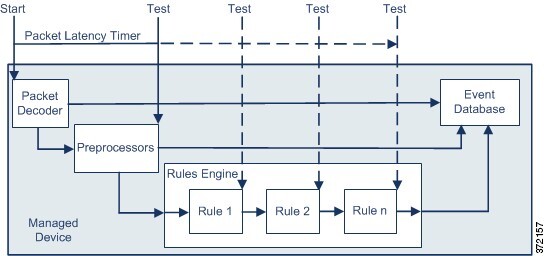
A timer starts for each packet when decoder processing begins. Timing continues either until all processing ends for the packet or until the processing time exceeds the threshold at a timing test point.

The trade-off for the performance and latency benefits derived from latency thresholding is that uninspected packets could contain attacks.

Packet Latency diagram

Packet latency timing is tested at these test points:

  • after the completion of all decoder and preprocessor processing and before rule processing begins

  • after processing by each rule

If the processing time exceeds the threshold at any test point, packet inspection ceases.


Tip


Total packet processing time does not include routine TCP stream or IP fragment reassembly times.


Packet latency thresholding has no effect on events triggered by a decoder, preprocessor, or rule processing the packet. Any applicable decoder, preprocessor, or rule triggers normally until a packet is fully processed, or until packet processing ends because the latency threshold is exceeded, whichever comes first. If a drop rule detects an intrusion in an inline deployment, the drop rule triggers an event and the packet is dropped.


Note


No packets are evaluated against rules after processing for that packet ceases because of a packet latency threshold violation. A rule that would have triggered an event cannot trigger that event, and for drop rules, cannot drop the packet.


Packet latency thresholding can improve system performance in both passive and inline deployments, and can reduce latency in inline deployments, by stopping inspection of packets that require excessive processing time. These performance benefits might occur when, for example:

  • for both passive and inline deployments, sequential inspection of a packet by multiple rules requires an excessive amount of time

  • for inline deployments, a period of poor network performance, such as when someone downloads an extremely large file, slows packet processing

In a passive deployment, stopping the processing of packets might not contribute to restoring network performance because processing simply moves to the next packet.

Packet latency thresholding notes

By default, the latency-based performance settings for packet handling are disabled. You may choose to enable it. However, Cisco recommends that you do not change the default value for the threshold setting. The information in this section applies only if you choose to specify custom values.

Enable packet latency thresholding

Enable packet latency thresholding to monitor and manage packet processing delays, which helps optimize network performance and identify potential bottlenecks.

Packet latency thresholding allows you to set performance parameters for packet processing. This feature is useful for monitoring network performance and ensuring optimal packet flow through the system.

Procedure

Step 1

In the access control policy editor, click Advanced.

In the new UI, select Advanced Settings from the drop-down arrow at the end of the packet flow line.

Step 2

Click Edit (edit icon) next to Latency-Based Performance Settings.

If View (View button) appears instead, settings are inherited from an ancestor policy, or you do not have permission to modify the settings.

Step 3

Click Packet Handling in the Latency-Based Performance Settings pop-up window.

Step 4

Check the Enabled check box.

Step 5

Click OK.

Step 6

Click Save to save the policy.


What to do next

  • Deploy configuration changes.

Configure packet latency thresholding

This task enables you to configure packet latency thresholding for latency-based performance settings.

By default, the latency-based performance settings for packet handling is disabled. You may choose to enable it. However, Cisco recommends that you do not change the default value for the threshold setting.

Procedure

Step 1

In the access control policy editor, click Advanced.

In the new UI, select Advanced Settings from the drop-down arrow at the end of the packet flow line.

Step 2

Click Edit (edit icon) next to Latency-Based Performance Settings.

System (system gear icon) > Monitoring > Statistics

Step 3

If the configuration is unlocked, uncheck Inherit from base policy to enable editing.

Step 4

Click Packet Handling in the Latency-Based Performance Settings pop-up window.

By default, Installed Rule Update is selected. We recommend using this default.

The values displayed do not reflect the automated settings.

Step 5

If you choose to specify custom values:

  • Check the Enabled check box, and see Packet latency thresholding notes for recommended minimum Threshold settings.

  • You must specify custom values in both the packet handling tab and the rule handling tab.

Step 6

Click OK.

Step 7

Click Save to save the policy.


What to do next

  • Deploy configuration changes.

Rule latency thresholding

Rule latency thresholding is a software-based latency implementation that

  • measures elapsed time, not just processing time, to more accurately reflect the actual time required for the rule to process a packet,

  • does not enforce strict timing, and

  • temporarily suspends rules that exceed specified processing time thresholds to improve system performance.

Rule latency thresholding operations

A timer measures the processing time each time a packet is processed against a group of rules. Any time the rule processing time exceeds a specified rule latency threshold, the system increments a counter. If the number of consecutive threshold violations reaches a specified number, the system takes these actions:

  • suspends the rules for the specified period

  • triggers an event indicating the rules have been suspended

  • re-enables the rules when the suspension expires

  • triggers an event indicating the rules have been re-enabled

The system zeroes the counter when the group of rules has been suspended, or when rule violations are not consecutive. Permitting some consecutive violations before suspending rules lets you ignore occasional rule violations that might have negligible impact on performance and focus instead on the more significant impact of rules that repeatedly exceed the rule latency threshold.

The trade-off for the performance and latency benefits derived from latency thresholding is that uninspected packets could contain attacks.

Rule latency thresholding has no effect on intrusion events triggered by the rules processing the packet. A rule triggers an event for any intrusion detected in the packet, regardless of whether the rule processing time exceeds the threshold. If the rule detecting the intrusion is a drop rule in an inline deployment, the packet is dropped. When a drop rule detects an intrusion in a packet that results in the rule being suspended, the drop rule triggers an intrusion event, the packet is dropped, and that rule and all related rules are suspended.


Note


Packets are not evaluated against suspended rules. A suspended rule that would have triggered an event cannot trigger that event and, for drop rules, cannot drop the packet.


Rule latency thresholding can improve system performance in both passive and inline deployments, and can reduce latency in inline deployments, by suspending rules that take the most time to process packets. Packets are not evaluated again against suspended rules until a configurable time expires, giving the overloaded device time to recover. These performance benefits might occur when:

  • hastily written, largely untested rules require an excessive amount of processing time

  • a period of poor network performance, such as when someone downloads an extremely large file, causes slow packet inspection

Rule latency thresholding examples

This example shows five consecutive rule processing times that do not result in rule suspension.
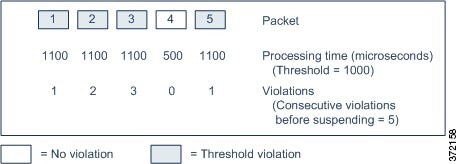
Example diagram

In this example, the time required to process each of the first three packets violates the rule latency threshold of 1000 microseconds, and the violations counter increments with each violation. Processing of the fourth packet does not violate the threshold, and the violations counter resets to zero. The fifth packet violates the threshold and the violations counter restarts at one.

This example shows five consecutive rule processing times that do result in rule suspension.
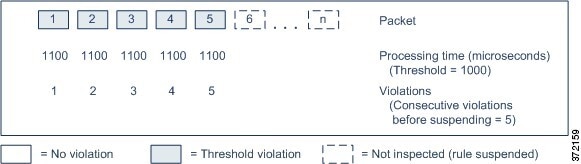
Example diagram

In the second example, the time required to process each of the five packets violates the rule latency threshold of 1000 microseconds. The group of rules is suspended because the rule processing time of 1100 microseconds for each packet violates the threshold of 1000 microseconds for the specified five consecutive violations. Any subsequent packets, represented in the figure as packets 6 through n, are not examined against suspended rules until the suspension expires. If more packets occur after the rules are re-enabled, the violations counter begins again at zero.

Rule latency thresholding notes

Rule latency thresholding suspends rules for the time specified by Suspension Time when the time rules take to process a packet exceeds Threshold for the consecutive number of times specified by Consecutive Threshold Violations Before Suspending Rule.

By default, latency-based performance settings for both packet and rule handling are automatically populated by the latest deployed intrusion rule update, and we recommend that you do not change the default.

The information in this topic applies only if you choose to specify custom values.

You can enable rule 134:1 to generate an event when rules are suspended, and rule 134:2 to generate an event when suspended rules are enabled.

Table 3. Rule latency thresholding options

Option

Description

Threshold

Specifies the time in microseconds that rules should not exceed when examining a packet.

Consecutive Threshold Violations Before Suspending Rule

Specifies the consecutive number of times rules can take longer than the time set for Threshold to inspect packets before rules are suspended.

Suspension Time

Specifies the number of seconds to suspend a group of rules.

Configure rule latency thresholding

Configure rule latency thresholding to customize how the system handles rules when latency conditions are detected, improving overall performance and system responsiveness.

By default, latency-based performance settings for both packet and rule handling are automatically populated by the latest deployed intrusion rule update, and we recommend that you do not change the default.

Procedure

Step 1

In the access control policy editor, click Advanced.

In the new UI, select Advanced Settings from the drop-down arrow at the end of the packet flow line.

Step 2

Click Edit (edit icon) next to Latency-Based Performance Settings.

If View (View button) appears instead, settings are inherited from an ancestor policy, or you do not have permission to modify the settings. If the configuration is unlocked, uncheck Inherit from base policy to enable editing.

Step 3

Click Rule Handling in the Latency-Based Performance Settings pop-up window.

By default, Installed Rule Update is selected. We recommend using this default.

The values displayed do not reflect the automated settings.

Step 4

If you choose to specify custom values:

  • You can configure any of the options in Rule latency thresholding notes.

  • You must specify custom values in both the packet handling tab and the rule handling tab.

Step 5

Click OK.

Step 6

Click Save to save the policy.


What to do next

  • If you want to generate events, enable latency rules 134:1 and 134:2.

  • Deploy configuration changes.

Intrusion performance statistic logging configuration

This reference provides information about intrusion performance statistic logging configuration options, including sample time settings, minimum packet requirements, and troubleshooting options for logging session and protocol distribution data.

Sample time (seconds) and minimum number of packets

When the number of seconds specified elapses between performance statistics updates, the system verifies it has analyzed the specified number of packets. If it has, the system updates performance statistics. Otherwise, the system waits until it analyzes the specified number of packets.


Caution


Configuring a very low value, such as one second, for the sample time can greatly impact the device. The device may experience disk space issues, and its operation may be affected by the volume of performance statistics logged. To avoid these issues, do not set a very low value.


Troubleshooting options: log session/protocol distribution

Support might ask you during a troubleshooting call to log protocol distribution, packet length, and port statistics.


Caution


Do not enable Log Session/Protocol Distribution unless instructed to by Support.


Troubleshooting options: summary

Support might ask you during a troubleshooting call to configure the system to calculate the performance statistics only when the Snort process is shut down or restarted. To enable this option, you must also enable the Log Session/Protocol Distribution troubleshooting option.


Caution


Do not enable Summary unless instructed to do so by Support.


Configure intrusion performance statistic logging

Configure intrusion performance statistic logging to customize how the system samples and logs performance statistics for monitoring and troubleshooting purposes.

Performance statistics logging allows you to monitor device performance by sampling statistics at defined intervals. Proper configuration ensures optimal device performance while providing necessary monitoring data.

Procedure


Step 1

In the access control policy editor, click Advanced, then click Edit (edit icon) next to Performance Settings.

In the new UI, select Advanced Settings from the drop-down arrow at the end of the packet flow line.

If View (View button) appears instead, settings are inherited from an ancestor policy, or you do not have permission to modify the settings. If the configuration is unlocked, uncheck Inherit from base policy to enable editing.

Step 2

Click Performance Statistics in the pop-up window that appears.

Step 3

Modify the Sample time or Minimum number of packets as described in Intrusion performance statistic logging configuration.

Caution


Configuring a very low value, such as one second, for the Sample time can greatly impact the device. The device may experience disk space issues, and its operation may be affected by the volume of performance statistics logged. To avoid these issues, do not set a very low value.

Step 4

Optionally, expand the Troubleshoot Options section and modify those options only if asked to do so by Support.

Step 5

Click OK.


What to do next

  • Deploy configuration changes.