- Preface
- Scheduler Concepts
- Understanding Offset Concepts
- Creating your first job
- Using Scheduler Calendars
- Setting Up a Job Dependency
- Scheduling Jobs in Groups
- Creating a File Dependency
- Detecting Job Event Conditions
- Creating Variable Dependencies
- Managing Jobs in the Production Schedule
- Managing Command Parameters
- Setting Up Queues
- Using Scheduler Agents
Overview
Job dependencies mean that jobs depend on the status (such as Completed Normally ) of other jobs to run. Using file dependencies, you can have jobs depend on the availability and status of files as a condition of execution. File dependencies are set up using the File Dependency dialog which is accessible when you create or edit a job definition.
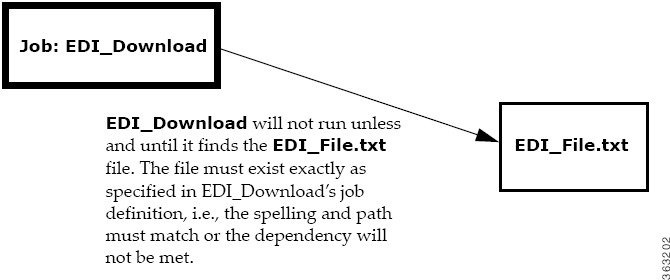
In this chapter, we will create a job ( EDI_Download ) that is dependent on the existence of the EDI_File.txt file.
Figure 7-1 EDI_Download Job Depends on the Existence of the EDI_File File
To properly complete this exercise, you need to have a solid understanding of the following concepts:
- How to add and create a new job definition
- How to navigate to and between the Jobs pane and the Job Activity pane
This chapter describes how to:

Note To complete the exercises in this tutorial, you need to:
- Install Enteprise Scheduler in the default directory Scheduler (or the examples in this tutorial will not work properly)
- Select the Super User option in your User definition
- Configure a default agent
- Create and have available the work day calendar
Creating a Job with a File Dependency
To create a job with a File dependency:
1. From the
Navigator
pane, select
Definitions>Jobs
to display the
Jobs
pane.
From the
Navigator
pane, select
Definitions>Jobs
to display the
Jobs
pane.
2. Right-click in the
Jobs
pane of the console and select
Add Job
from the context menu, or click the
Add Job
button on the toolbar.
The Job Definition dialog displays.
3. In the
Job Name
field, type
EDI_Download
.
4. On the
Program
tab, enter the full path to
Edi.bat
in the
Command
field.
5. Click the
Schedule
tab and from the
Calendar Name
list select the
work day
calendar.
6. Click the
Dependencies
tab.
7. Display the
File Dependency
dialog by clicking the
Add
button and selecting
Add File Dependency
field.
a. Enter
C:\Program Files\<Installation Directory>\Agent\Tutorial\Edi_File.txt
in the
File Name
field
.
The full path to this file must be typed in because the file does not yet exist. We will create
Edi_File.txt
later, in the section Creating a File to Satisfy the Dependency.
b. The
Agent Name
field should already have a Windows agent listed–the agent you selected as your default agent at the beginning of this tutorial. If there is no agent listed or an agent other than the Windows agent is selected, then select your local Windows agent from the
Agent Name
list.
8. Click
OK
to accept the default settings. Enteprise Scheduler’s default is that the dependency is met after the file is created.
9. Click the
Dependencies
tab.
The full path to EDI_File.txt appears in the Dependency Name column. The Type of dependency is listed as FILE to indicate that it is a file dependency.
10. Click
OK
to save the job definition for
EDI_Download
.
11. Click
OK
in the
Effective Date
dialog to add the job to the schedule.
Viewing the Job in Production
To view the job in production:
1. Open the
Job Activity
pane.
2. The
EDI_Download
job first appears with a
Waiting on Dependencies
status. It goes through different stages and ends in a Scheduled status.
Figure 7-2 EDI_Download Job Scheduled to Run

3. Select the
EDI_Download
job occurrence.
4. Right-click the
EDI_Download
job and select
Details
from the context menu to see its
Job Detail
dialog.
5. Click the
Dependencies
tab to view the file dependency status.
The Job Detail dialog displays the file dependency for this job.
Creating a File to Satisfy the Dependency
In this example, the dependency only requires that the file exists and does not require any specific data. For this exercise, we just create an empty file since the job does not require any data from the file. Normally, however, this kind of dependency is set up because the job uses the data from the file’s input.
To create a file to satisfy the dependency:
1. Open a new document in a text editor or word processing program, such as Notepad or Microsoft Word.
2. Save the file as
EDI_File.txt
in the location that you specified when defining the file dependency (
C:\Program Files\<Installation Directory>\Agent\Tutorial EDI_File.txt
), substituting the name of the directory where Scheduler is installed for
<Installation Directory>
.
Some software will supply a file extension for you, such as
.txt
or
.doc
. For your file to satisfy the dependency, the name must match exactly. Saving as a plain text file helps ensure the correct file name.
3. Double-check that the file exists, is correctly named and in the correct directory.
Monitoring the Job in Production
You can see that the file dependency for the EDI_Download job is met and the job goes from a Waiting on Dependencies state into an Active state.
Congratulations! In this chapter, you have created a job with a file dependency, and fulfilled that dependency requirement by creating the file. By this time, you should also feel comfortable with moving between the Job Activity pane and Jobs pane, and with the basic procedure for adding a job.
 Feedback