- Preface
- Scheduler Concepts
- Understanding Offset Concepts
- Creating your first job
- Using Scheduler Calendars
- Setting Up a Job Dependency
- Scheduling Jobs in Groups
- Creating a File Dependency
- Detecting Job Event Conditions
- Creating Variable Dependencies
- Managing Jobs in the Production Schedule
- Managing Command Parameters
- Setting Up Queues
- Using Scheduler Agents
- Overview
- Creating a Variable
- Creating the Variable Update Action
- Creating a Job Event for the Gather Report Job
- Creating the Gather Orders Job Group
- Creating a Repeating Job and Associating a Job Event
- Creating a Job Dependent on the Gather Orders Variable
- Scheduling and Monitoring the Gather Orders Jobs
Overview
In the previous chapter, we created an alert message that used system variables. In this chapter, we will create a job that depends on the value of a user-defined variable. A user-defined variable is a variable you create manually. A job can change the value of a variable you have assigned to it by using a variable update action. A job can be dependent upon the value of a variable. Using user-defined variables, you are given unlimited control over the conditional structuring of jobs.
For example, a job can run, and set a variable to a specific date. Another job can be triggered to run based on that variable’s date. When the specific date arises, the second job runs.
In this chapter, you will increment a variable with the action of “Job A” and make “Job B” dependent on that variable reaching a specific value. The variable will start with a value of 0 and increment by 1 each time Job A runs. Job B will depend on the variable equalling 3. After Job A repeats 3 times, Job B will start. You could set up a job to start after any defined number of previous dependency jobs complete.

Note To complete the exercises in this tutorial, you need to:
- Install Enteprise Scheduler in the default directory Scheduler (or the examples in this tutorial will not work properly)
- Select the Super User option in your User definition
- Configure a default agent
- Create and have available the work day calendar
Creating a Variable
1. In the
Navigator
pane, select
Definitions>Variables
to display the
Variables
pane
.
In the
Navigator
pane, select
Definitions>Variables
to display the
Variables
pane
.
2. Display the
Variable Definition
dialog by either clicking the
Add Variable
button or by right-clicking in the
Variable
pane and selecting
Add Variable
from the context menu.
3. In the
Name
field, enter
Gather Orders Var
.
4. From the
Type
list, select
Number
.
5. In the
Value
field, enter the number
0
.
6. In the
Description
field, enter
The value will be incremented by 1 for each successful run of the Gather Job
.
7. Select the
Public
field, if it is not already selected.
The newly-created variable now appears in the Variables pane.
Creating the Variable Update Action
To create the variable update action:
1. From the
Navigator
pane select
Definitions>Actions>Variable
to display the
Variable Actions
pane
.
2. Select the
Add Action
button or right-click the
Variable Actions
pane and select
Add Action
from the context menu to display the
Action Definition: Variable
dialog.
3. In the
Action Name
field, enter
Set Gather Var
.
4. From the
Variable Name
list, select
Gather Orders Var: Number
.
5. In the
Type of Update
list, select
Increment variable value by
.
6. In the
Value
field, enter
1
if it is not already set at
1
by default.
The Set Gather Var action now displays in the Variable Actions pane.
Creating a Job Event for the Gather Report Job
To create a job event for the Gather Report job:
1. From the
Navigator
pane select
Definitions>Events>Job Events
to display the
Job Events
pane
.
2. Select the
Add Event
button or right-click the
Job Events
pane and select
Add Event
from the context menu to display the
Job Event Definition
dialog.
3. In the
Job Event Name
field, type
Event Action Gather
.
4. In the
Event Trigger
list, select
Job completed normally
.
5. Highlight
Set Gather Var
and click the left arrow button or drag-and-drop the
Set Gather Var
variable to the
Selected Action(s)
field.
Creating the Gather Orders Job Group
To create the Gather Orders job group:
1. From the
Navigator
pane select
Definitions>Jobs
to display the
Jobs
pane
.
2. Right-click the
Jobs
pane and select
Add Job Group
from the context menu to display the
Job Group Definition
dialog.
3. In the
Job Group Name
field, enter
Gather Orders
.
4. In the
Calendar Name
list, select the
work day
calendar.
6. Click
OK
at the
Effective Date
dialog.
Note When you click OK at this dialog, the job group enters the production schedule, but nothing will run because there are no jobs associated with the job group yet. Since you can manually add the job group to the schedule later, clicking Cancel at this dialog is also acceptable.
Creating a Repeating Job and Associating a Job Event
To create a repeating job and associate a job event:
1. In the
Jobs
pane, select the job group
Gather Orders
and click the
Add Job
button or right-click in the
Jobs
pane and choose
Add Job
from the context menu to display the
Job Definition
dialog.
2. In the
Job Name
field, enter
Gather_ Report
.
3. In the
Command
field, enter the full path to the
Gather
batch file.
5. In the
Repeats
section, select the
Run new occurrence every
option. Click in the
minutes
field and enter
2
(or
use the up and down arrows) and click in the
up to ___ times
field and enter
5
.
7. Click
OK
in the
Effective Date
dialog.
8. If the
Gather Report
job is not visible in the
Jobs
pane, expand the
Gather Orders
job group by clicking the expand icon to its left.
The Gather Report job will run every two minutes for a total of five times, activating the Event Action Gather job event each time. Set Gather Var is tied to Event Action Gather and will increment by 1 each time Gather Report runs. When Set Gather Var reaches 3 , it will have fulfilled the conditions necessary to set off the next job, which we will define as Order Reports in Creating a Job Dependent on the Gather Orders Variable.
The Overview explains in general terms the interdependence of Gather Report (Job A), Set Gather Var (a user-defined variable), and Order Reports (Job B).
9. Right-click
Gather Report
and from the context menu select
Edit Job/Group
.
11. Click
Insert
to display the
Select Job Event
dialog.
12. Select the
Event Action Gather
event.
13. Click
OK
. The job event displays in the
Events
field.
14. Click
OK
to close the
Job Definition
dialog.
15. Click
OK
to confirm the
Effective Date
dialog.
Every time the Gather Report job completes normally, the variable Gather Orders will be incremented by 1 .
Creating a Job Dependent on the Gather Orders Variable
To create a job dependent on the Gather Orders variable:
1. Select the job group
Gather Orders
and click the
Add Job
button or right-click and select
Add Job
from the context menu to display the
Job Definition
dialog.
2. In the
Job Name
field, enter
Order Reports
.
3. In the
Command
field, enter the full path to the
Ordr_rpt
batch file.
4. Click the
Dependencies
tab.
5. Click the
Add
button and select
Add Variable Dependency
.
6. Select
Gather Orders Var: Number
from the
Variable Name
list.
7. In the
Operator
list, if
Equals (=)
is not already displayed, select it.
8. In the
Variable Value
field, type the number
3
.
9. Click
OK
to accept the variable dependency.
Scheduling and Monitoring the Gather Orders Jobs
Now that all the components are defined and configured, we will run the jobs and monitor them in the Job Activity pane.
To schedule and monitor the Gather Orders jobs:
1. In the
Jobs
pane, double-click the
Gather_Report
job to display the
Job Definition
dialog.
2. Click
OK
to display the
Effective Date
dialog.
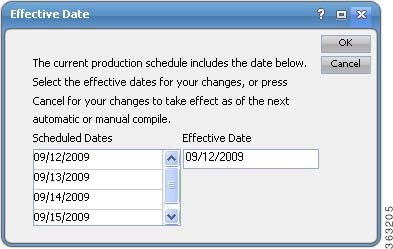
3. Select the
Start today’s repeating job(s) now
option at the bottom of the
Effective Date
dialog; otherwise, Enteprise Scheduler will start repeating the job at the beginning of its time window, which is 12:00 AM for this job.
Figure 9-1 Setting Jobs to Repeat Immediately in the Effective Date Dialog
4. Click
OK
. The job enters the production schedule.
5. Right-click the
Order Reports
job and select
Insert Job into Schedule
from the context menu and click
OK
.
6. Click
OK
in the
Information
dialog.
7. From the
Navigator
pane, select
Operations>Job Activity
to display the
Job Activity
pane.
8. Double-click the
Order Reports
job occurrence.
9. Click the
Dependencies
tab.
The variable dependency appears showing the present value of the variable and the value it needs for the dependency to be met.
10. Click
Cancel
and look at the jobs in the
Job Activity
pane.
The three occurrences of the Gather Report job run before the Order Reports job runs.
 Feedback