Cisco Catalyst Center Global Manager Deployment Guide, Release 1.3.1

PDF

System

Want to summarize with AI?

Log in

Overview

Introduces the System page for viewing basic details of Catalyst Center Global Manager, including System 360, Software Management, and Backup & Restore information.

The System page allows you to view these basic details of Catalyst Center Global Manager.


Use System 360

The System 360 tab provides at-a-glance information about Catalyst Center Global Manager.

Procedure

1.

From the main menu, choose System > System 360.

2.

On the System 360 dashboard, review these displayed data metrics:

The System 360 GUI offers a view of cluster-level services under hosts and allows monitoring of services through cluster tools. It also provides system management operations such as software management and information about backups.

Cluster

  • Hosts: Displays information about the Catalyst Center Global Manager hosts. The displayed information includes the hosts IP addresses and detailed data about the services running on the host. Click the View Services link to view detailed data about the services running on the hosts.

    Note

    The host IP address has a color badge next to it. A green badge indicates that the host is healthy. A red badge indicates that the host is unhealthy.

    The side panel displays these information:

    • Node Status: Displays the health status of the node.

      If the node health is unhealthy, hover over the status to view additional information for troubleshooting.

    • Services Status: Displays the health status of the services. Even if one service is down, the status is Unhealthy.

    • Name: Service name.

    • Appstack: App stack name.

      An app stack is a loosely coupled collection of services. In this environment, a service is a horizontally scalable application that adds instances when demand increases and removes instances when demand decreases.

    • Health: Status of the service.

    • Version: Version of the service.

    • Tools: Displays metrics and logs for the service. Click the Metrics link to view service monitoring data in Grafana. Grafana is an open-source metric analytics and visualization suite. You can troubleshoot issues by reviewing the service monitoring data. For information about Grafana, see https://grafana.com/. Click the Logs link to view service logs in Kibana. Kibana is an open-source analytics and visualization platform. You can troubleshoot issues by reviewing the service logs. For information about Kibana, see https://www.elastic.co/products/kibana.

  • Cluster Tools: Lets you access only the monitoring tool.

    • Monitoring: Access multiple dashboards of Catalyst Center Global Manager components using Grafana, which is an open-source metric analytics and visualization suite. Use the Monitoring tool to review and analyze key Catalyst Center Global Manager metrics, such as memory and CPU usage. For information about Grafana, see https://grafana.com/.

      Note

      In a multihost Catalyst Center Global Manager environment, expect duplication in the Grafana data due to the multiple hosts.

System Management

  • Software Management: Displays the status of application or system updates.

    Click View Installed Applications or View Release Activities to view the update details.

    Note

    An update has a color badge next to it. A green badge indicates that the update or actions related to the update succeeded. A yellow badge indicates that there is an available update.

  • Backup & Restore: Displays the status of the most recent backup. Catalyst Center Global Manager allows both Network File System (NFS) and physical disk backup to be configured in the backup configuration. It schedules a backup with 2 options: Now or Daily.

    Note

    A backup has a color badge next to it. A green badge indicates a successful backup with a timestamp. A yellow badge indicates that the next backup is not yet scheduled.

    Click Configure Settings to configure backup settings, including adding or updating NFS configurations for storing backups. Additionally, you can restore the system using these backups through the interface.

3.

Click System Health to view detailed information about the health and topology of Catalyst Center Global Manager and lets you run the validation tool for Catalyst Center Global Manager.

On the System Health topology view, click one of the nodes of the Catalyst Centers to view details which will list the Controller Details similar to the Controller Details on the Controllers page:

  • Controller name

  • View details

  • IP address of controller

  • Connectivity

  • Health status

  • Description

  • Type of controller

  • Enterprise VIP

  • Cluster configuration

  • Node hostname

  • Node health

  • Node serial number

  • System Version

  • Cloud Member ID

  • Last collected on

On the System Health page, choose Validation Tool from the Tools drop-down to view the validation runs and status. The validation tool provides these information:

  • Name

  • Description

  • Selected set(s)

  • Status

  • Start time

  • Duration

  • Actions

A validation tool is provided to you to assess the system health of Catalyst Center Global Manager, which can be run on demand. The tool is divided into two sections: 'infra' and 'upgrade,' each containing its own specific set of validations. These validations are provided to you as part of the Catalyst Center Global Manager release.

Additionally, the same validations are uploaded to the validation catalog. To update your validation set, navigate to System > Settings > System Health to download and import the latest set of validations.

Click Refresh to view the displayed health status of your network devices and components. This ensures that you are viewing the most current information regarding the health and performance of your system.


Software Management

The Catalyst Center Global Manager provides many of its functions as individual applications, packaged separately from the core infrastructure. This enables you to view installed applications or system updates and uninstall those you are not using, depending on your preferences.

The number and type of application packages shown in the Software Management window vary depending on your Catalyst Center Global Manager release and your Catalyst Center Global Manager licensing level. All the application packages that are available to you are shown, whether or not they are currently installed.

Some applications are basic that they are required on nearly every Catalyst Center Global Manager deployment.

Each Catalyst Center Global Manager application package consists of service bundles, metadata files, and scripts.

The Software Management page provides you a view of these details.

  • Installed applications

    To view the description of a package, click the View Installed Applications and place your cursor over its name.

  • Upgrade summary report

    Click the View Upgrade Summary to view the results of the latest upgrade of Catalyst Center Global Manager and its applications. This report allows you to:

    • Identify the current and previous Catalyst Center Global Manager version that was installed on your appliance.

    • Determine when the upgrade took place.

    • In the Activity tab, view the application packages that were upgraded and their current version number.

    • In the Timeline tab, see whether the post-upgrade checks performed by Catalyst Center Global Manager were completed successfully.

  • Release activities

    Click the View Release Activities to view all installed applications that are in progress, success, or failed state.
About backup and restore

The backup and restore functions enable you to create backup files and restore them on a different appliance if necessary for your network configuration.

Backup

  • You can back up Catalyst Center Global Manager data only.

  • Catalyst Center Global Manager backup consists of database backups which includes:

    • All the enrolled controllers

    • Users and roles

    • Situational dashboards created by the users

    • All the system settings saved by the users

  • Do not modify or delete the backup files. If you do, you might not be able to restore the backup files to Catalyst Center Global Manager.

  • Catalyst Center Global Manager creates the backup files and posts them to a remote server. Each backup is uniquely stored using the UUID as the directory name. For information about the remote server requirements, see Backup server requirements.

  • Only a single backup can be performed at a time. Performing multiple backups at once is not supported.

  • When a backup is being performed, you cannot delete the files that have been uploaded to the file service, and changes that you make to these files might not be captured by the backup process.

  • Options available are:

    • Perform a daily backup to maintain a current version of your database and files.

    • Perform a backup after making changes to your configuration. For example, when changing or creating a new policy on a device.

    • Perform a backup only during a low-impact or maintenance period.

  • You can schedule weekly backups on a specific day of the week and time.

Restore

  • You can restore the backup files from the remote server using Catalyst Center Global Manager.

  • When you restore the backup files, Catalyst Center Global Manager removes and replaces the existing database and files with the backup database and files. While a restore is being performed, Catalyst Center Global Manager is unavailable.

  • You can restore a backup to a Catalyst Center Global Manager with a different IP address. This situation could happen if the IP address is changed on Catalyst Center Global Manager and you need to restore from an older system.


Backup server requirements

The backup server must run one of the supported operating systems:

  • Red Hat Enterprise 8 or later

  • Ubuntu 16.04 (or Mint, etc) or later

Server requirements for data backup

To support data backups, the server must meet these requirements:

  • Must use SSH (port22)/remote sync (rsync). Catalyst Center Global Manager does not support using FTP (port 21) when performing a backup.

  • The Linux rsync utility must be installed.

  • The C.UTF-8 locale must be installed. To confirm whether C.UTF-8 is installed, enter:

    # localectl  list-locales | grep -i c.utf
    C.utf8
    en_SC.utf8
    
  • The backup user must own the destination folder for the backup or have read-write permissions for the user's group. For example, assuming the backup user is backup and the user's group is staff, this sample outputs show the required permissions for the backup directory:

    • Example 1: Backup directory is owned by backup user:

      $ ls -l  /srv/ 
      drwxr-xr-x  4 backup     root  4096 Apr 10 15:57 acme
      
    • Example 2: backup user's group has required permissions:

      $ ls -l  /srv/ 
      drwxrwxr-x. 7 root   staff  4096 Jul 24  2017 acme
      
  • SFTP subsystem must be enabled. The SFTP subsystem path depends on which Ubuntu or Red Hat release is installed. For the latest release, these lines below must be uncommented and present in the SSHD configuration:

    • Ubuntu-based Linux: Subsystem sftp /usr/lib/openssh/sftp-server

    • Red Hat-based Linux: Subsystem sftp /usr/libexec/openssh/sftp-server

    The file where you need to uncomment the preceding line is usually located in /etc/ssh/sshd_config.

Note

You cannot use an NFS-mounted directory as the Catalyst Center Global Manager backup server directory. A cascaded NFS mount adds a layer of latency and is therefore not supported.

Requirements for multiple Catalyst Center Global Manager deployments

If your network includes multiple Catalyst Center Global Manager clusters, you cannot use the same backup location. For multiple Catalyst Center Global Manager deployments, the best practice is to separate the backup directory structure for each Catalyst Center Global Manager cluster. This example configuration shows how to separate your backup directory structure.

Resource Example configuration

Catalyst Center Global Manager clusters

  1. cluster1

  2. cluster2

Backup server hosting backups

The example directory is /data/, which has ample space to host the Catalyst Center Global Manager backups.

Directory ownership and permissions

Earlier in this section, see "Server Requirements for Data Backup."

NFS export configuration

The content of the /etc/exports file:

/data/cluster1 *(rw,sync,no_subtree_check,all_squash)

Backup storage requirements

Catalyst Center Global Manager stores backup copies of data on an external NFS device on an external target location. You must allocate enough external storage for your backups to cover the required retention. We recommend that the daily NFS storage backup size be limited to a maximum of 1 GB, with a maximum retention capacity of 60 GB for disk backups..


Add a physical disk for backup and restore

Use this procedure to add a physical disk that can be used for only Catalyst Center Global Manager on ESXi backup and restore operations.

Procedure

1.

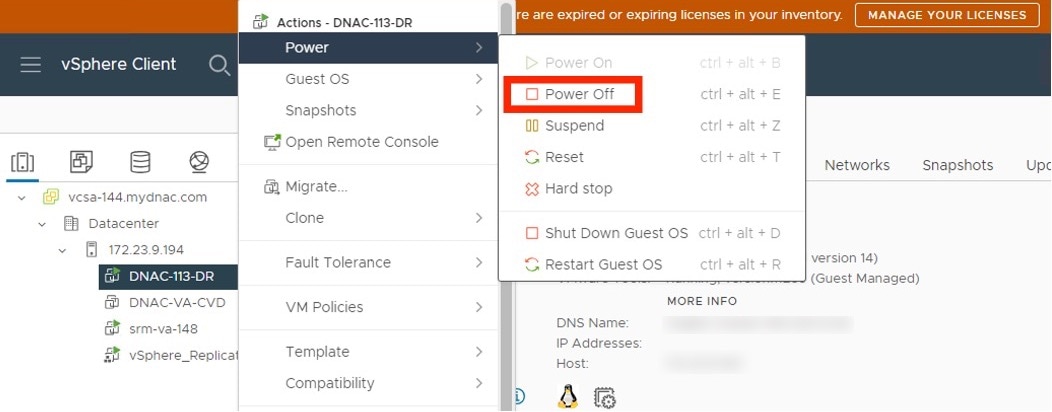
If your appliance is running on the machine that's hosting Catalyst Center Global Manager on ESXi, power off the appliance's virtual machine.

The Power menu shows the available power options for the virtual machine, with power off emphasized.
2.

Log in to VMware vSphere.

3.

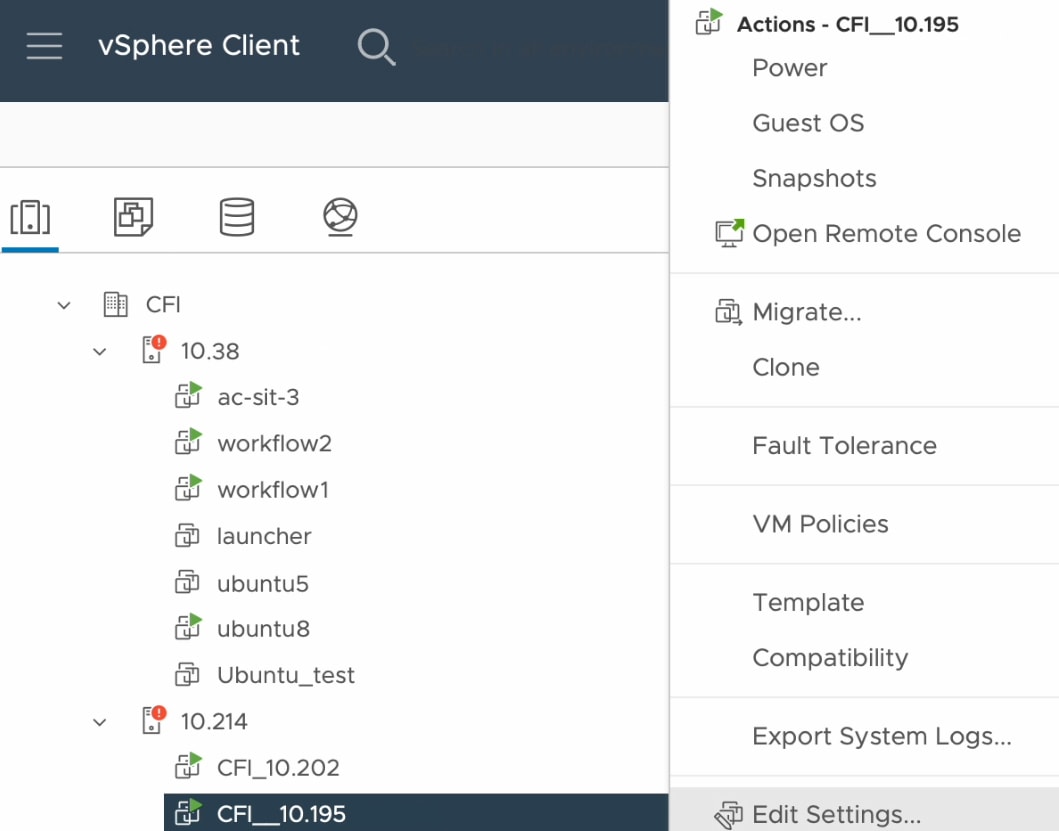
From the vSphere client left pane, right-click the ESXi host and then choose Edit Settings.

The Edit Settings option in the list of available actions.
4.

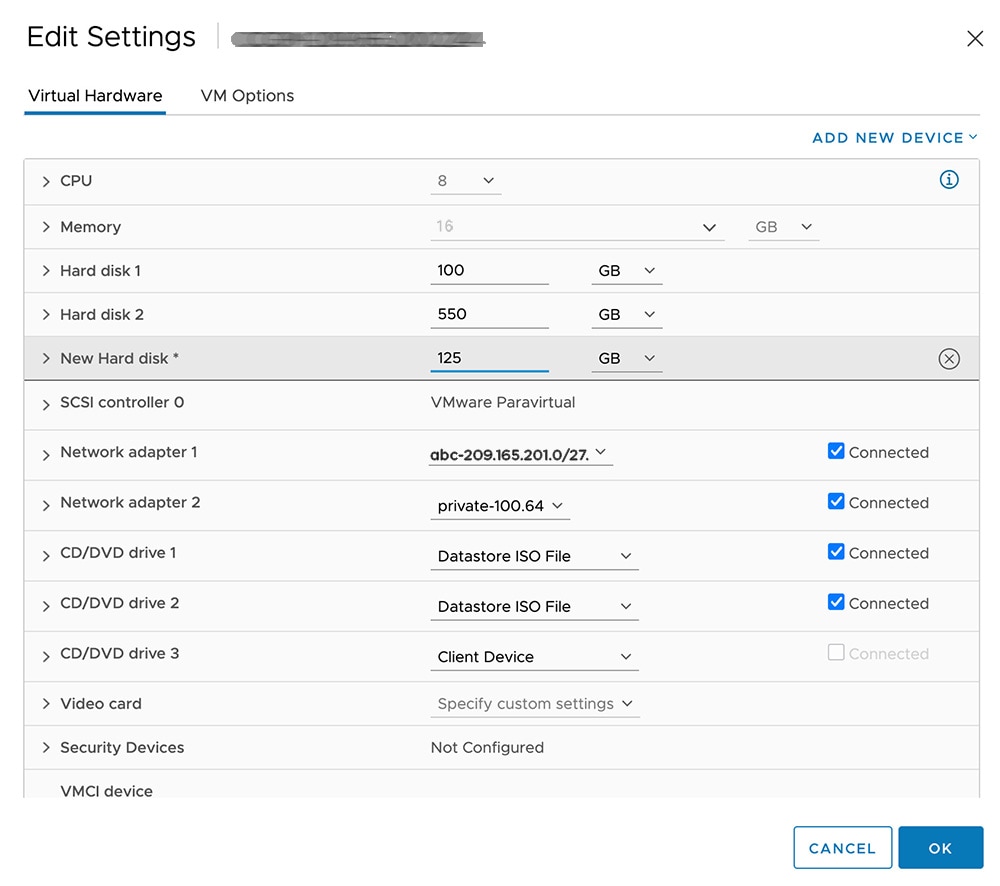
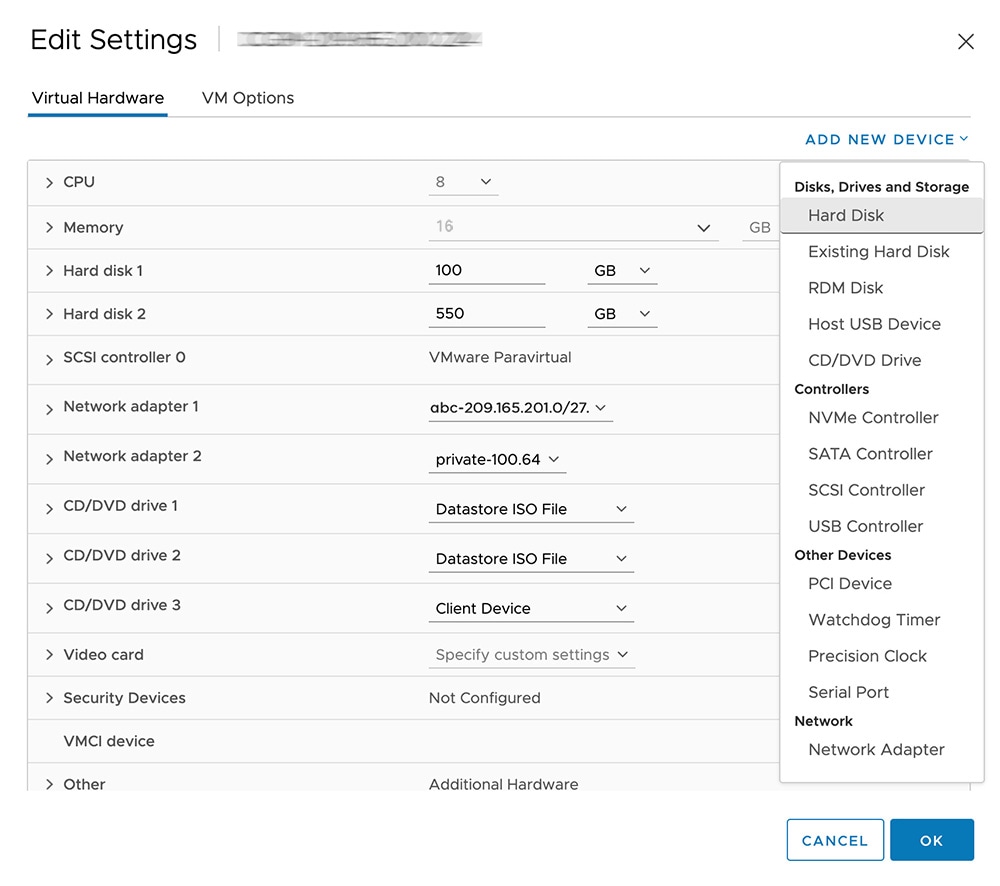
In the Edit Settings dialog box, click Add New Device and then choose Hard Disk.

5.

In the New Hard disk field, enter the desired storage size.

Note

For information on the recommended storage space for backup, see Backup storage requirements.

6.

Click OK.

7.

Power on the appliance's virtual machine.

The Power On option is shown in the list of available actions.

What to do next

You can now configure the added physical disk for backup. For information on how to configure the physical disk, see Configure the location to store backup files.


Add the NFS server

Catalyst Center Global Manager allows you to add multiple Network File System (NFS) servers for backup purposes. Use this procedure to add an NFS server that can be used for the backup operation.

Procedure

1.

From the main menu, choose System > Settings > Backup Configuration.

2.

Click Add NFS.

3.

In the Add NFS slide-in pane, complete these steps:

  1. Enter the Server Host and Source Path in the respective fields.

  2. Choose NFS Version from the drop-down list.

  3. The Port is added by default. You can leave the field empty.

  4. (Optional) Enter the Port Mapper number.

  5. Click Save.

4.

Click View NFS List to view the available NFS servers.

The NFS slide-in pane displays the list of NFS servers, along with details.

5.

In the NFS slide-in pane, click the ellipsis under Actions to Delete the NFS server.

Note

You can delete the NFS server only when there is no backup job in progress.

What to do next

Configure the added NFS server for backup. For more information, see Configure the location to store backup files.


Configure the location to store backup files

Use this procedure to configure the storage location for backup files.

Before you begin

Make sure that these requirements are met:

  • Only a user with SUPER-ADMIN-ROLE permissions can perform this procedure.

  • The data backup server must meet the requirements described in Backup server requirements.

Procedure

1.

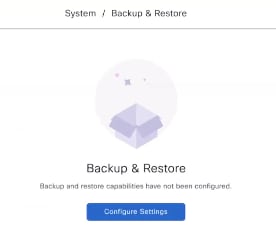
From the main menu, choose System > Backup and Restore.

You can view this window:

2.

Click Configure Settings.

Alternatively, choose System > Settings > System Configuration > Backup Configuration.

3.

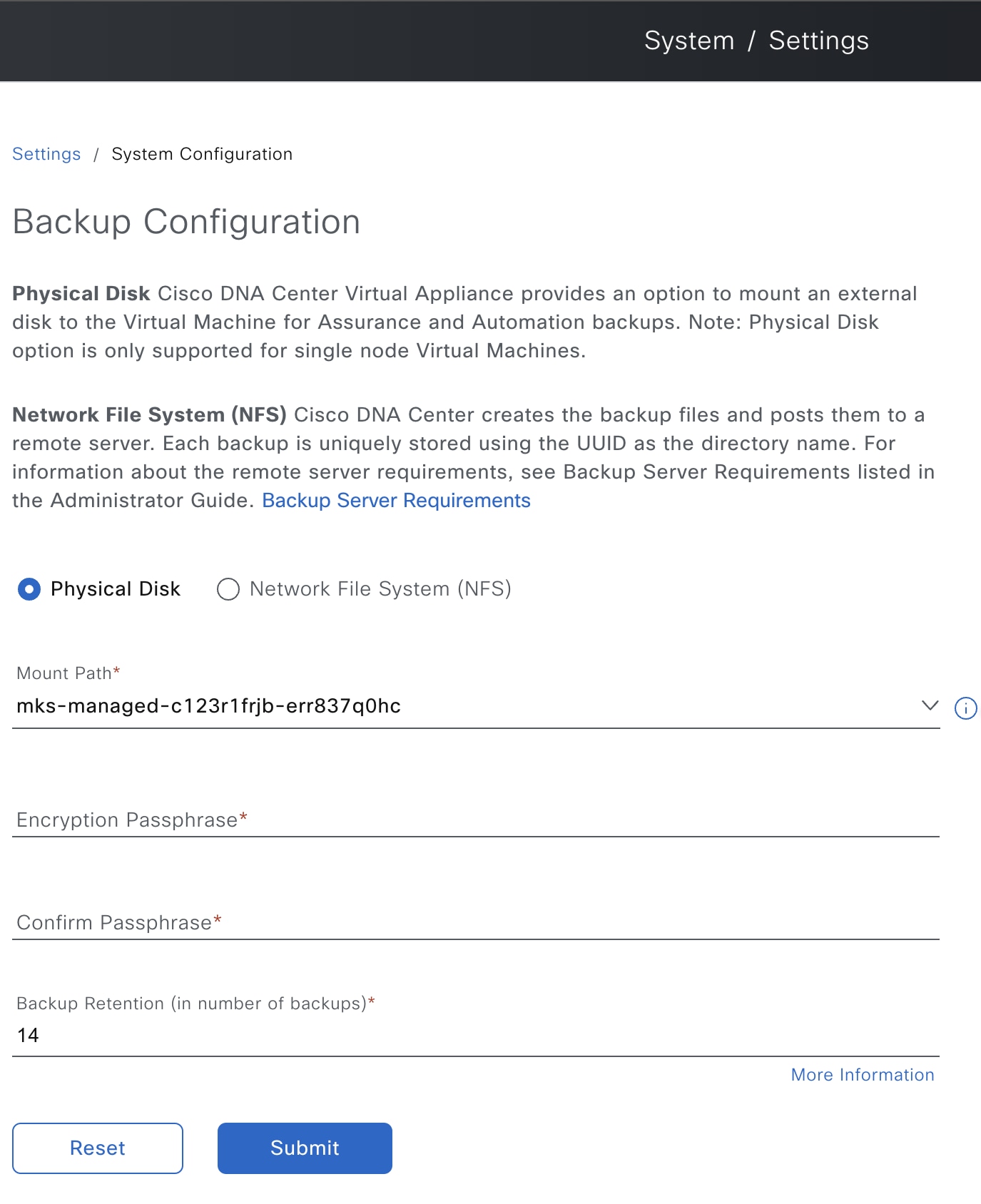
Choose the Physical Disk or NFS server option.

The Backup Configuration page shows the physical disk option, mount path, encryption passphrase, and backup retention.
4.

Physical Disk: Catalyst Center Global Manager provides an option to mount an external disk to the virtual machine, to store a backup copy of data. To configure a physical disk, click the Physical Disk radio button and define these settings:

Note

The physical disk option is only supported for single-node virtual machines.

Field Description

Mount Path

Location of the external disk.

Encryption Passphrase

Passphrase used to encrypt the security-sensitive components of the backup. These security-sensitive components include certificates and credentials.

This passphrase is required, and you will be prompted to enter this passphrase when restoring the backup files. Without this passphrase, backup files are not restored.

After the passphrase is configured, if you want to change the passphrase, click Update Passphrase.

Backup Retention

Number of backups for which the data is retained.

Data older than the specified number of backups is deleted.

5.

NFS: Catalyst Center Global Manager creates the backup files and posts them to a remote NFS server. For information about the remote server requirements, see Backup server requirements. To configure an NFS backup server, click the NFS radio button and define these settings:

Field Description

Mount Path

Location of the remote server.

Encryption Passphrase

Passphrase used to encrypt the security-sensitive components of the backup. These security-sensitive components include certificates and credentials.

This passphrase is required, and you will be prompted to enter this passphrase when restoring the backup files. Without this passphrase, backup files are not restored.

After the passphrase is configured, if you want to change the passphrase, click Update Passphrase.

Backup Retention

Number of backups for which the data is retained.

Data older than the specified number of backups is deleted.

6.

Click Submit.

After the request is submitted, you can view the configured physical disk or NFS server under System > Backup & Restore.


Create a backup

Use this procedure to create a backup of your Catalyst Center Global Manager.

Before you begin

You must configure the backup location. For more information, see Configure the location to store backup files.

Procedure

1.

From the main menu, choose System > Backup & Restore.

2.

Click Schedule Backup.

The Schedule Backup slide-in pane opens.

Complete these steps in the Schedule Backup slide-in pane:

  1. Enter a unique name for the backup.

  2. In the Schedule Type area, choose one of these options:

    • Backup now: To immediately create a backup.

    • Schedule backup daily: To schedule the backup on a daily basis.

    • Schedule backup weekly: To schedule the backup on a weekly basis.

  3. Click Save.

3.

Catalyst Center Global Manager begins the backup process. An entry for the backup is added to the Backup & Restore window.

When the backup is complete, its status changes from Creating to Success.


Schedule data backup

You can schedule recurring backups and define the day of the week and the time of day when they will occur.

Before you begin

Make sure that these requirements are met:

Procedure

1.

From the main menu, choose System > Backup & Restore.

The Backup & Restore window is displayed.
2.

Click Schedule Backup.

Note

You can schedule a new backup only when there is no backup job in progress.

3.

In the Schedule Backup slide-in pane, complete these steps:

  1. In the Backup Name field, enter a unique name for the backup.

  2. Choose a schedule option:

    • Schedule backup daily: To schedule a daily backup job, choose the time of day when you want the backup to occur.

    • Schedule backup weekly: To schedule a weekly backup job, choose the days of the week and time of day when you want the backup to occur.

  3. Click Save.

The Backup & Restore window displays a banner message that shows the day and time for which the backup is scheduled.
4.

(Optional) Click View Upcoming Backups to make any changes to the upcoming schedules. If you don't want the backup to occur on a scheduled date and time, in the Upcoming Schedules slide-in pane, click the toggle button to disable a particular schedule.

5.

(Optional) Click Edit Schedule to edit the schedule.

6.

(Optional) Click Delete Schedule to delete the schedule.

7.

After the backup starts, it appears in the Backup & Restore window. Click the backup name to view the lists of steps executed.

Alternatively, you can click View Activities at the top left of the Backup & Restore window and click the Execution ID. The Create Backup Details slide-in pane opens and shows the list of steps executed.

8.

In the Backup & Restore window, click the In Progress, Success, or Failure tab to filter the list of backups to show only those tasks with a status of In Progress, Success, or Failure.

During the backup process, Catalyst Center Global Manager creates the backup database and files. The backup files are saved to the specified location. You are not limited to a single set of backup files, but can create multiple backup files that are identified with their unique names. The status of the backup job changes from In Progress to Success when the process is finished.

Note

If the backup process fails, there is no impact on the Catalyst Center Global Manager operation or its database. The most common reason for a failed backup is insufficient disk space. If your backup process fails, make sure that there is sufficient disk space on the remote server and attempt another backup.


Restore data from backups

Use this procedure to restore backup data from your Catalyst Center Global Manager.
Caution

The Catalyst Center Global Manager restore process restores only the database and files. The restore process does not reflect any changes made since the last backup. This mean that any changes made after the last backup, including adding or deleting controllers, may be lost.

Before you begin

Make sure that these requirements are met:

  • Only a user with SUPER-ADMIN-ROLE permissions can perform this procedure.

  • You have backups from which to restore data.

When you restore data, Catalyst Center Global Manager enters maintenance mode and is unavailable until the restore process completes. Make sure that you restore data at a time when Catalyst Center Global Manager can be unavailable.

Procedure

1.

From the main menu, choose System > Backup & Restore.

If you have created a backup, it appears in the Backup & Restore window.

2.

In the Backup Name column, locate the backup that you want to restore.

3.

In the Actions column, click the ellipsis and choose Restore.

4.

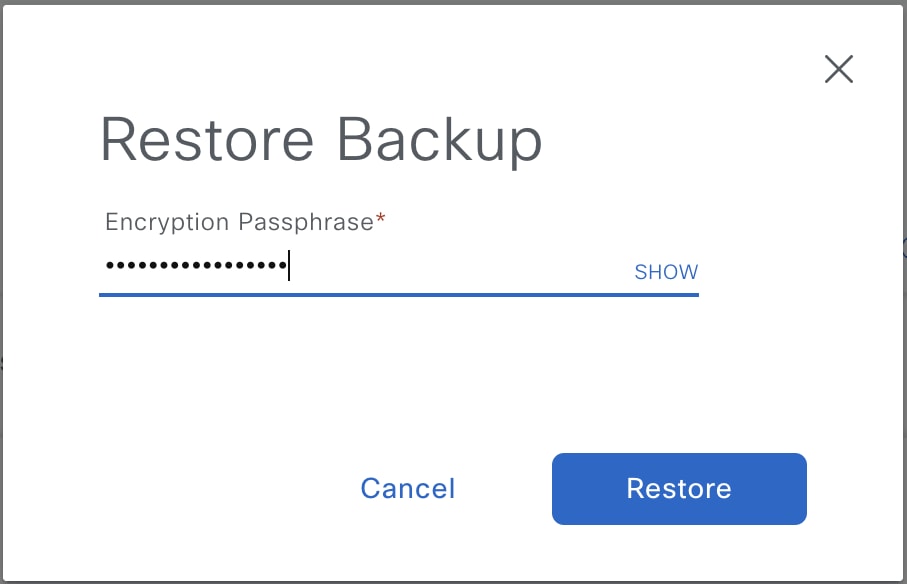
In the Restore Backup dialog box, enter the Encryption Passphrase that you used while configuring the backup location and click Restore.

Enter the passphrase used while configuring backup settings.

The appliance goes into maintenance mode and starts the restore process.

When the restore operation is complete, its status in the Backup & Restore window table changes to Success.

5.

After the restore operation completes, click Log In to log back in to Catalyst Center Global Manager.

6.

Enter the admin user's username and password, then click Login.


System settings

To start using Catalyst Center Global Manager, you must first configure the system settings. This allows the server to communicate outside the network, ensures secure communications, authenticates users, and supports other key tasks. Use the procedures in this chapter to configure the system settings.

Note

Any changes that you make to the Catalyst Center Global Manager configuration—including changes to the proxy server settings—must be done from the Catalyst Center Global Manager GUI.

The Catalyst Center Global Manager Settings page provides you with these details:

  • Certificates

    • System Certificates: Helps you to view information about the server's currently active SSL certificate or information about how to replace it.

      For more information on security best practices and managing certificates in Catalyst Center Global Manager, see Cisco Catalyst Center Security Best Practices Guide.

  • External Services

    • Destinations: allows you to configure these types of destinations to deliver event notifications from Catalyst Center Global Manager: webhook, email, syslog, and SNMP.

      To configure REST Endpoint, email settings, syslog server, or SNMP trap server, go to the main menu, choose System > Settings > External Services > Destinations.

    • Cisco Catalyst Cloud: allows you to register Catalyst Center Global Manager with Cisco Catalyst Cloud to access and download Catalyst Center Global Manager configurations.

      Note

      The settings page will show the Catalyst Center Global Manager configuration claimed through First Time Setup workflow.

      De-registering will unclaim the Catalyst Center Global Manager profile and unenroll all controllers registered on the server. After this, the Catalyst Center Global Manager will display the absence menus for controllers.

  • System Configuration

    • System Health: allows you to update Catalyst Center Global Manager with most recent validation catalog. The validation catalog serves as a repository of validation sets, which define the specific checks or tests to be performed.

      The purpose of updating the Validation Catalog in Catalyst Center Global Manager is to keep the set of validation checks or tests current, accurate, and relevant. This update refreshes the repository of validation criteria that the validation tool uses to perform system checks and enabling the detection of new issues.

    • Proxy: allows you to configure the system proxy to access the internet.

    • Debugging Logs: use this form to configure the logging of internal processes and errors.

    • Backup Configurations: allows you to configure backup mount path, encryption passphrase and data retention.

    • Authentication API Encryption: allows you to configure AES Encryption settings.

    • Integration Settings: allows you to configure platform details

    • Login Message: shows a message for users when they log in.

  • Terms and Conditions

    • Product Offer: provides the general terms and conditions for Catalyst Center Global Manager. Catalyst Center Global Manager is governed solely by the Cisco General Terms (formerly "End User License Agreement").

  • Trust and Privacy

    • Account Lockout: manages user login attempts, account lockout period, and login retries.

    • Password Expiry: sets the user password expiry check.

    • IP Access Control: configures IP addresses list for access restriction.

    • Product Telemetry: provides product telemetry terms for Catalyst Center Global Manager. Catalyst Center controller collects Systems Information (formerly "Product Usage Telemetry") to improve your product experience. Catalyst Center Global Manager does not collect or process Systems Information.


Users and roles

The Catalyst Center Global Manager uses both users and roles to manage access. Each user is assigned roles to access controller functionality.

  • User Management: The Catalyst Center Global Manager uses users, roles and access groups to manage access. A user is mapped to an access group to determine the scope and permission(s).

  • Role Based Access Control: Role-Based Access Control (RBAC) in Catalyst Center Global Manager currently supports only the default roles: super-admin-role, observer-role, and network-admin-role. Custom role creation is not supported. Additionally, the user experience in Catalyst Center Global Manager may be impacted if there is a mismatch in permissions for the same user between Catalyst Center Global Manager and Catalyst Center. For example, if a user in Catalyst Center Global Manager does not have identical privileges in Catalyst Center due to site-based restrictions or custom roles, the Catalyst Center Global Manager may display limited data based on the user's access privileges.

    Also, accessing Catalyst Center Global Manager with a custom role or a site-based user from Catalyst Center is currently not supported, which may result in a suboptimal user experience.

    • The SUPER-ADMIN-ROLE has full control over the Catalyst Center Global Manager deployment, with all access permissions enabled.

    • The OBSERVER-ROLE has read-only access and cannot view certain sensitive data within the system settings.

    • The NETWORK-ADMIN-ROLE is a general-purpose role that does not have the capability to alter system configurations.

    On installation of Catalyst Center Global Manager, a user with super-admin privilege is created. The user in super-admin role will have the ability to create local users on Catalyst Center Global Manager.

  • External Authentication: Catalyst Center Global Manager supports external Authentication, Authorization and Accounting (AAA) servers for access control. If you are using an external server for authentication and authorization of external users, you should enable external authentication in Catalyst Center Global Manager. The default AAA attribute setting matches the default user profile attribute.

    Catalyst Center Global Manager enables external authentication with either AAA–RADIUS/TACACS or Cisco ISE server type. The external authentication process disables local user authentication.

    Note

    If external authentication is enabled on a specific Catalyst Center and it is integrated with Catalyst Center Global Manager, data specific to this controller is not fetched if the user has not logged in at least once using their external authentication credentials. Consequently, any cross-launch to that Catalyst Center fails. Users must log in to Catalyst Center at least once before they can view any controller-specific data in Catalyst Center Global Manager or perform a cross-launch to that Catalyst Center.