Cisco Catalyst Center Global Manager Deployment Guide, Release 1.3.1

PDF

Situational dashboard

Want to summarize with AI?

Log in

Overview

Describes the beta feature for creating customized dashboards using pre-built dashlets to display aggregated views of client and device health, connectivity, and performance metrics.

A situational dashboard enables you to design custom pages using pre-built dashlets available in Catalyst Center Global Manager, based on your requirements. The dashboard provides aggregated views of client and device health, connectivity, and performance metrics.
Note

This feature is in beta.

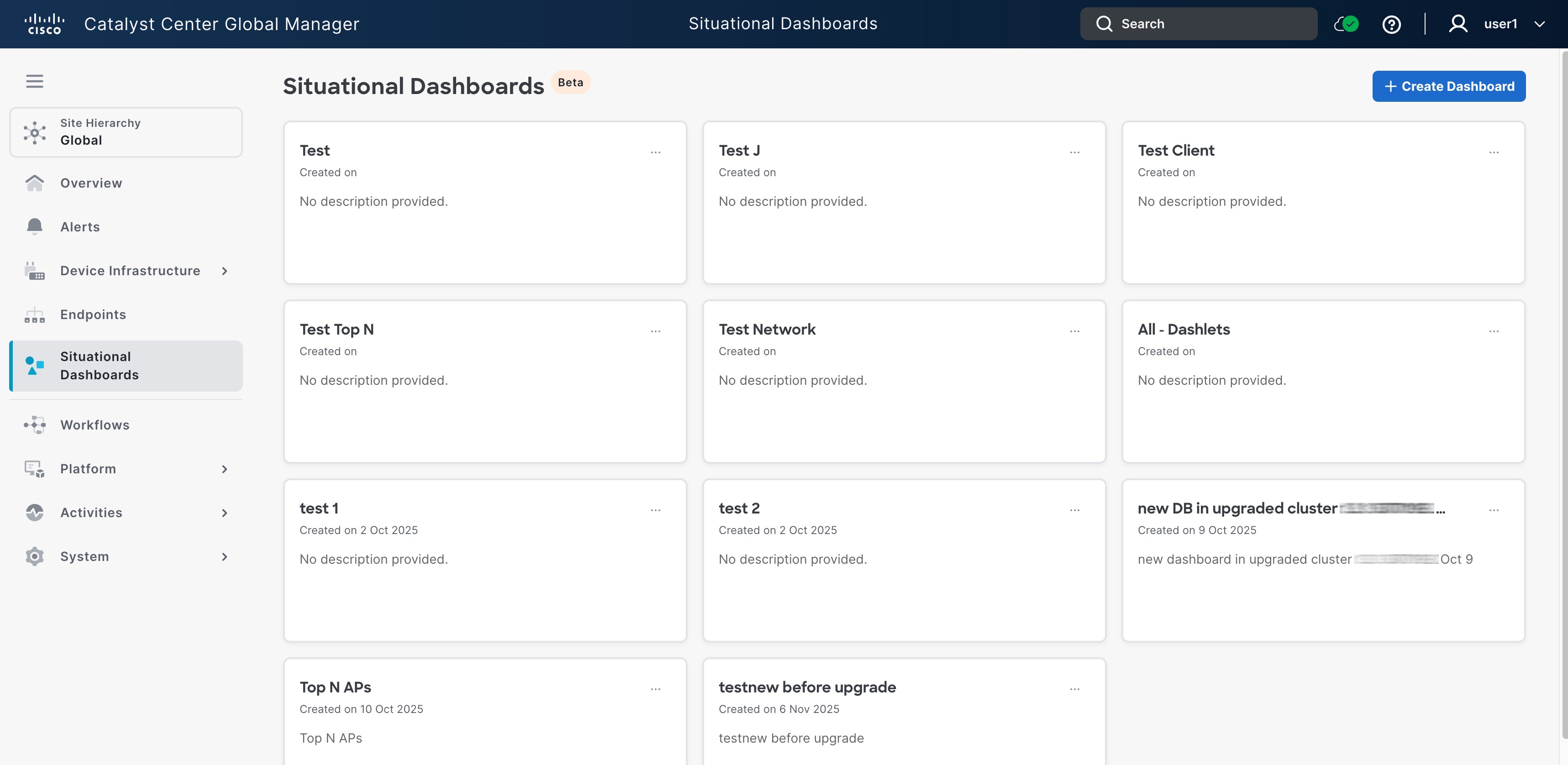
To view the situational dashboard, navigate to the Catalyst Center Global Manager dashboard and click Situational Dashboard. Then the page loads data progressively as it receives information from the enrolled controllers

The image here shows the situational dashboard page with different daslets.

Create a dashboard

Procedure

1.

From the Catalyst Center Global Manager dashboard, navigate to Situational Dashboard > Create Dashboard to create a customised page using the 32 available pre-defined dashlets.

The Create New Dashboard window appears.

2.

Enter the Dashboard Title, and the Description. Then, choose the views you want to enable in your dashboard from the available dashlets. These dashlets display various widgets categorized into separate sections.

Endpoint Performance

  • Endpoint onboarding times

  • Endpoint roaming times

  • Endpoint connectivity Received Signal Strength Indicator (RSSI)

  • Endpoint connectivity Signal-to-Noise Ratio (SNR)

  • Endpoint count per Service Set Identifier (SSID)

  • Endpoint physical link connectivity

  • Endpoint count per band

Access Point Metrics

  • Top N Access Points (APs) by client count

    Here, N refers to the number of APs displayed.

  • Top N APs by high interference (2.4 Ghz)

  • Top N APs by CPU utilization

  • Total APs up/down

Network Health

  • Device health count

  • Total network reachability

Integrations

  • Identity Services Engine (ISE)

Network Services

  • Authentication, Authorization and Accounting (AAA)

    1. AAA transactions

    2. AAA summary

    3. AAA servers top transactions by device

    4. Top AAA latency sites

    5. Top AAA failure sites

  • Dynamic Host Configuration Protocol (DHCP)

    1. DHCP transactions

    2. DHCP summary

    3. DHCP servers top transactions by WLC

    4. Top DHCP latency sites

    5. Top DHCP failure sites

  • Domain Name System (DNS)

    1. DNS transactions

    2. DNS summary

    3. DNS servers top transactions by WLC

    4. Top DNS server latency

    5. Top DNS failure sites

Power over Ethernet (PoE)

  1. Power usage

  2. PoE powered device distribution

  3. PoE operational state distribution

3.

Click Save.

Your customised page appears as one of the dashboards you have created under Situational Dashboards.

Note

This dashboard is specific to your user account and is not visible to other users.

4.

Click the page you have created to view aggregated data from multiple controllers.

Note

Click Refresh to update the information displayed, ensuring you have the most current status.

Select the dashlet, then choose Edit or Delete to modify or remove the dashboard.

You can switch between the created dashboard using the drop-down menu in the dashboard title’s arrow icon.

If you select the site under Site Hierarchy, the dashlets will reflect the specific site data.