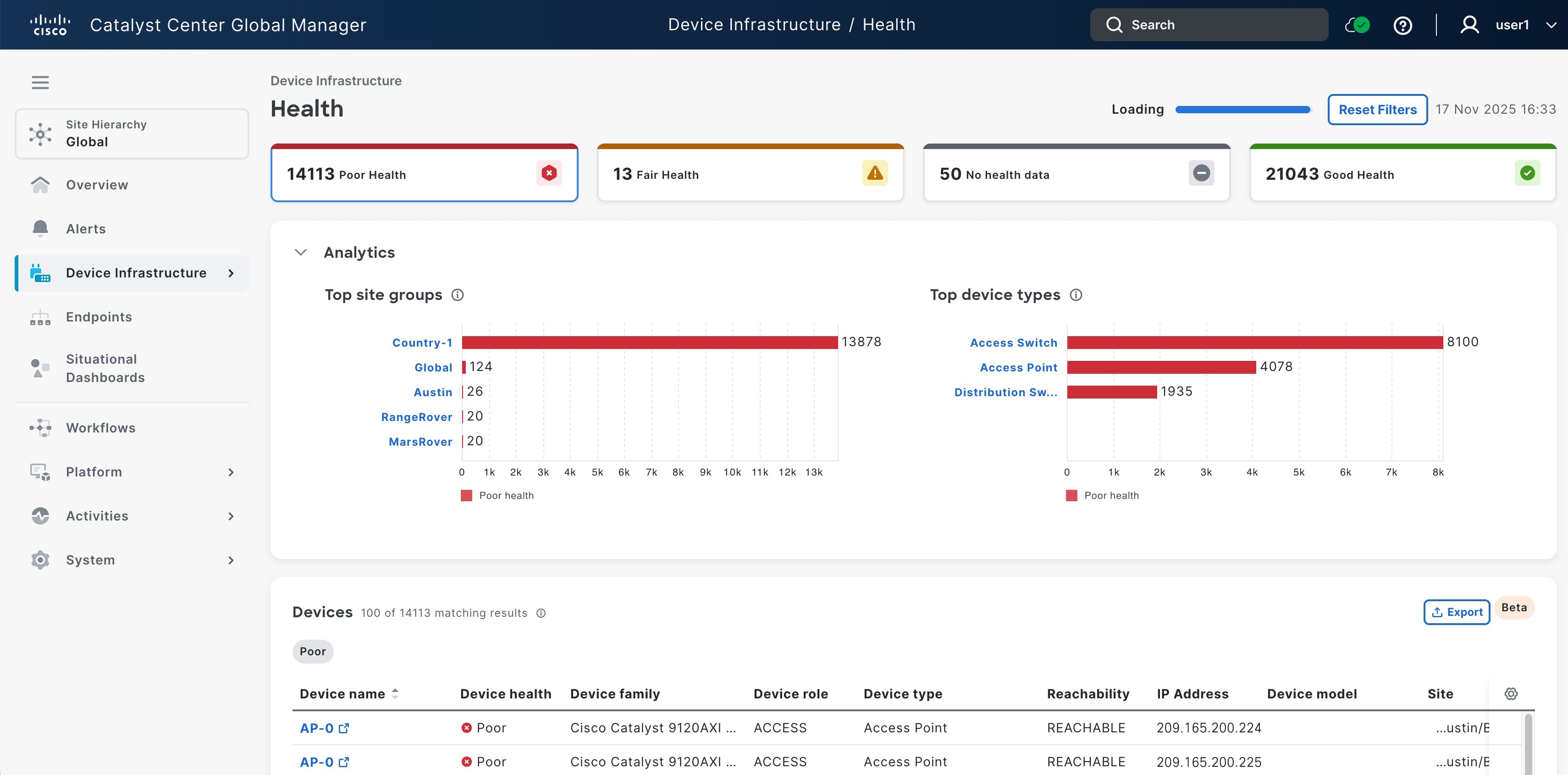
To view the End-of-Life (EoL) of each device, navigate to the Catalyst Center Global Manager dashboard and click Device Infrastructure > End-of-life Devices. Then the page loads data progressively as it receives information from the enrolled controllers.
Note
The End-of-Life devices feature delivers information on Cisco devices that have reached or are nearing their End-of-Life (EoL) status, including key hardware and software expiration dates. This feature is similar to the EoX (End-of-life) feature in Catalyst Center, offering detailed reports on device lifecycle milestones to help with product upgrade and substitution planning.
Support for this feature is available on Catalyst Center platforms running software versions later than 2.3.7.10 and build 3.1.5.
The EoL devices display counts for these categories:
To see more information about a specific device, click the device name on Devices to cross-launch or navigate to their respective controller Inventory details page.
The End-of-life Devices page also gives information on:
-
Summary: Summary of EOL devices based on each device category.
-
Analytics: Analytics shows the top five site groups and top device series, along with their individual counts.
You can interact with site groups and device series by selecting and unselecting the filter and based on the devices that are listed in a table.
For example: When a site group is selected from the Top site groups chart, the Top device series chart will highlight the device types associated with that selected site group. Conversely, selecting a device type from the Top device series chart will highlight the site groups in the Top site groups chart that include those device types.
You can select filters from both the Top site groups and Top device series analytics sections simultaneously. The Devices table below will then show devices filtered by the the selected criteria, with active filters visually highlighted. The filters correspond to your selections for routers, switches, wireless devices, and accessories at the top. Unselecting a site group or device type selection from the analytics charts will clear the corresponding filter and update the Devices table accordingly.
-
Devices: Displays a table of all devices, including device name, IP address, site, device type, device model, chassis + modules, accessories, last date of support, and next milestone, based on your selection.
Click on Chassis+ modules counts to view the EOL details for each hardware component, including accessories and software EOL data.
Click the Accessories counts to view the EOL details for accessories components, such as fans and power supplies.
Click Advanced filter to do further filters based on the columns selected in the Devices table.