Overview
Explains how to use the Overview page to progressively load and display data from enrolled controllers, showing controller health, network status changes, and providing options to refresh and customize dashlets.
The Catalyst Center Global Manager Overview page includes controller health and additional details about individual controllers.
After you log in to Catalyst Center Global Manager and add controllers, the Catalyst Center Global Manager starts rendering data on the Overview page progressively. You can see a progress bar on the Overview page when the data loads incrementally as Catalyst Center Global Manager receives data from the enrolled controllers. This process is known as progressive loading.
The total loading time of a page depends on the response time of each controller.
When all enrolled controllers respond with data, the progress bar turns green. The progress bar disappears within 5 seconds after the data load is complete.
All the second-level pages, including Alerts, Device infrastructure, Endpoints, and Situational Dashboards display a Loading complete progress indicator.
If the progess bar is:
Green- If the loading is success and it will vanish in five seconds.
Blue- While the loading is in progress.
Red- If the loading fails, and it will give you the loading error.
If an error occurs while fetching data from enrolled controllers, the page displays a progress bar with error alerts. Hover over the bar to see how many controllers have responded. Click the loading status icon near the date and time to view detailed information about each failure for every dashlet in the Overview page.
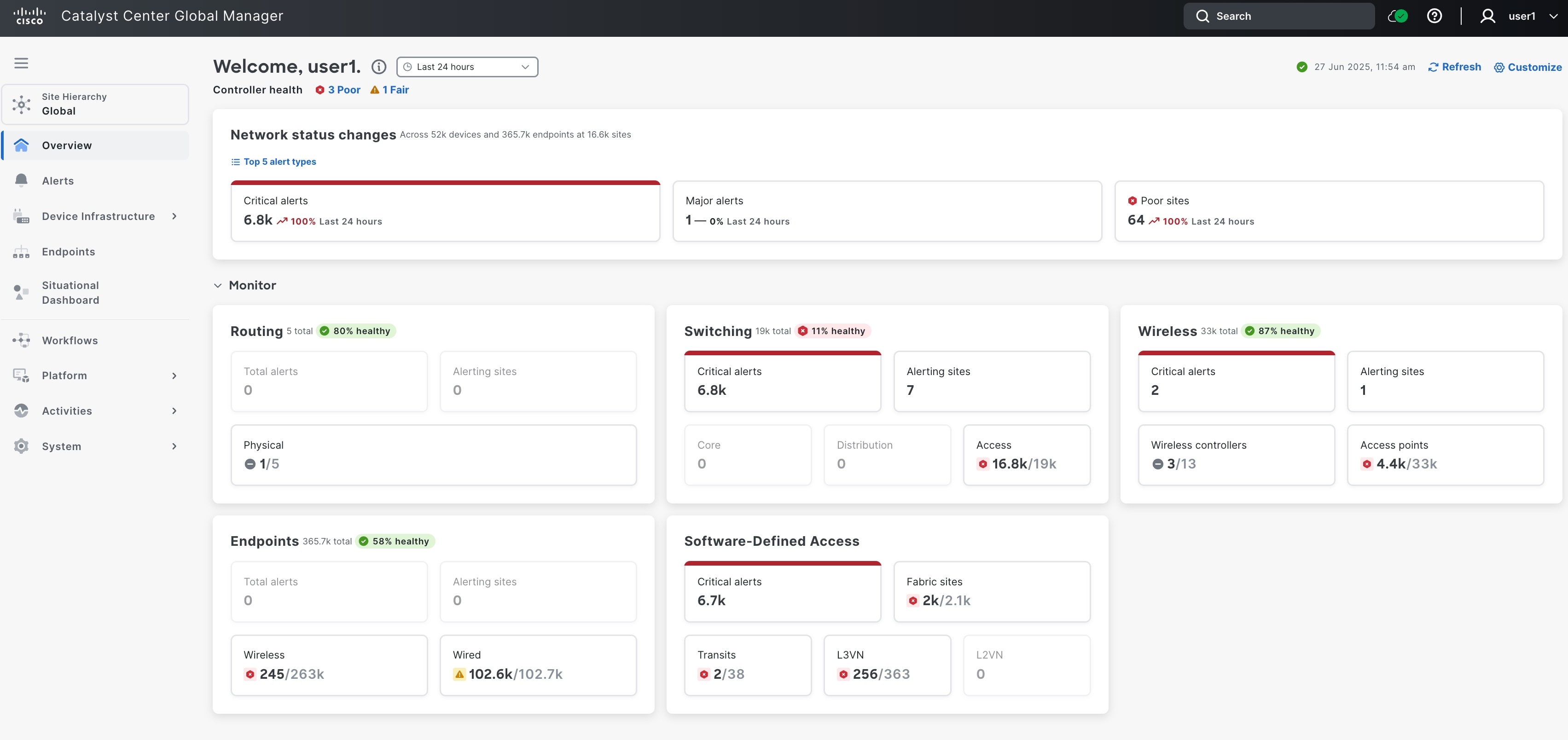
Click Refresh to update the information displayed, ensuring you have the most current status of your network devices and components. This will provide you with the latest data on device health, performance, and any ongoing issues.
Click Customize to rearrange the dashlets within the different sections of the Overview page.