Explains how to register Cisco Crosswork Planning with CSSM using offline reservation.
When you use Smart Licensing, Cisco Crosswork Planning shares usage information with CSSM at regular intervals. If you do not want to connect with CSSM regularly, Cisco Smart Licensing provides an option of offline reservation.
Before you begin
Confirm that you have a Smart Account. If not, go to Smart Account Request and follow the instructions to create one.
Procedure
From the main menu, choose Licensing.
In the Smart Software Licensing information box at the top, click Register.
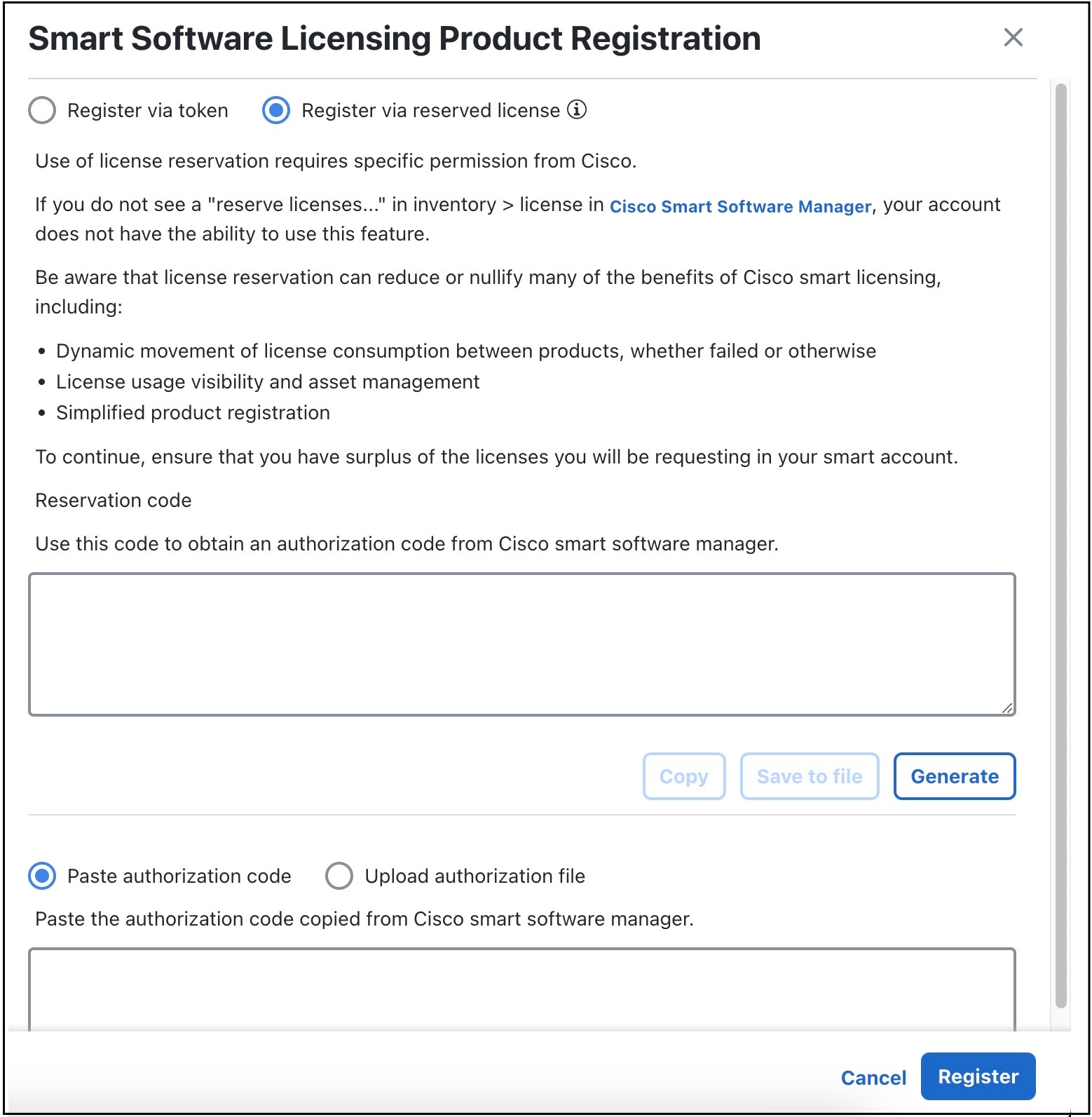
The Smart Software Licensing Product Registration page opens.
Click Generate in the Reservation code section. The Reservation Request Code appears in the text field.
Click the Copy button to copy the generated code.
Generate the Authorization Code in CSSM.
Log in to CSSM and select the appropriate Virtual Account.
Click the Licenses tab and then click License Reservation.
Paste the Reservation Request Code you generated in Step 4 and click Next.
On the Select Licenses page, select the type of reservation you need and click Next.
On the Review and Confirm page, click Generate Authorization Code.
Copy the generated code using the Copy to Clipboard button.
Navigate back to the Smart Software Licensing Product Registration page in Cisco Crosswork Planning.
Select the Paste authorization code option and paste the authorization code in the text field.
Click Register.
It may take a few minutes to process the registration.
Cisco Crosswork Planning is now registered with CSSM using the offline reservation method. The registration and license authorization statuses change to Registered and Authorized, respectively.
Update offline reservation
This topic describes how to update the license counts associated with a product instance that uses offline reservation.
Procedure
From the main menu, choose Licensing. Note the Product Instance Name under the Smart Software Licensing Status section.
Generate the Authorization Code in CSSM.
Log in to CSSM and select the appropriate Virtual Account.
Click the name of the product instance that matches your Product Instance Name.
For this product instance, click Actions > Update Reservation.
On the Select Licenses page, select the type of reservation you need, update the count of the necessary licenses from the list, and then click Next.
On the Review and Confirm page, click Generate Authorization Code.
Copy the generated Authorization Code using Copy to Clipboard.
Navigate back to the Smart License page on the Cisco Crosswork Planning UI.
Click Actions > Update Reservation.
Paste the Authorization Code generated in Step 2 and click Update.
A Confirmation Code is generated. You can find it under the Smart Software Licensing Status section. Copy this code.
Enter the Confirmation Code in CSSM.
Navigate back to CSSM and click the required product instance name.
Click Actions > Enter Confirmation Code.
Enter or paste the Reservation Confirmation Code generated in Step 5.
Click OK.
The license count is updated on the Smart License page of the Cisco Crosswork Planning UI.
Disable offline reservation
This topic describes how to release reserved licenses in Cisco Crosswork Planning.
Releasing the reserved licenses returns them to the pool and stops the application from consuming reserved licenses. After you release the licenses, the application enters the Evaluation mode if an evaluation period is available. Otherwise, it enters the Evaluation Expired mode.
Procedure
From the main menu, choose Licensing. Note the Product Instance Name under the Smart Software Licensing Status section.
Click Actions > Return Reservation.
On the Confirm Return Reservation page, click Confirm.
The system generates a Release Code (Reservation Return Code). Use the Copy button to copy this code .
Enter the Reservation Request Code in CSSM.
Log in to CSSM and select the appropriate virtual account.
Click the name of the product instance that matches your Product Instance Name.
For this product instance, click Actions > Remove.
In the Remove Reservation page, paste the Reservation Return Code that you generated in Step 3 and click Remove Reservation.
Navigate back to the Smart License page in the Cisco Crosswork Planning UI. Notice that the Registration status has changed to Unregistered.
Click Actions > Disable License Reservation.
The reserved licenses are released. The application enters Evaluation mode if available, or enters Evaluation Expired mode.