Using CTS-Manager
Available Languages
Table Of Contents
Using Cisco TelePresence Manager
Overview of the CTS-Manager Administration Guide
Introduction to the Cisco TelePresence System
Taking Point-to-Point Cisco TelePresence calls
Scheduling, Automating, and Maintaining Cisco TelePresence Meetings
Enabling Multipoint Cisco TelePresence Calls
Enabling Interoperability Between CTS Endpoints and Legacy Endpoints
Enabling Intercompany Cisco TelePresence Calls
Introduction to the CTS-Manager Administration Software
Cisco TelePresence Manager Window
Using Cisco TelePresence Manager
Revised: February 25, 2009, OL-13673-04Contents
•
Overview of the CTS-Manager Administration Guide
•
•
Overview of the CTS-Manager Administration Guide
Table 1-1 give a brief description of the contents of each chapter in the Administration Guide.
Terminology
The following terms are used in this guide:
•
•
•
•

Note
•
Introduction to the Cisco TelePresence System
The Cisco TelePresence System is composed of several hardware and software components. The Cisco TelePresence System also shares information and services with peripheral components such as Cisco Unified Communications Manager (Unified CM), and calendar services such as Microsoft Exchange or IBM Domino. Together all the peripheral and CTS components offer the features and services needed to schedule, place, and manage Cisco TelePresence calls and maintain all the Cisco TelePresence System components.
The following sections provide a general overview of the components that make up the Cisco TelePresence System.
Taking Point-to-Point Cisco TelePresence calls
Placing a call between two CTS endpoints is similar to making a simple audio call. If you know the phone number of the endpoint you can dial it directly using the CTS IP phone.
Figure 1-1 A simple point-to-point Cisco TelePresence call
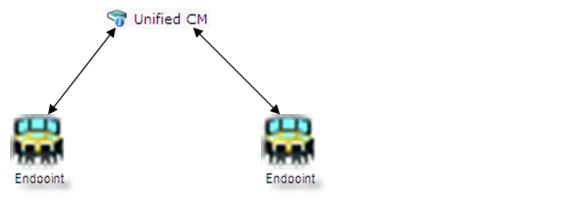
CTS endpoints must be configured and registered with Cisco Unified CM. Once the configuration is complete the two endpoints can direct dial each other. The call is routed through Cisco Unified CM. Cisco Unified CM is configured for each endpoint and connects the call.
For more information about configuring Cisco Unified CM for Cisco TelePresence refer to the Cisco Unified Communications Manager for Cisco TelePresence Systems.
CTS Endpoints
There are four CTS endpoint models supported by Cisco Unified CM.
•
•
•
•
Each endpoint is configured and maintained through Unified CM and the CTS Administration software. The CTS Administration software is installed on each endpoint and is accessible by browser. All Cisco TelePresence Administration software supports Internet Explorer 6.0. For information about installing, configuring, and maintaining CTS endpoints refer to the CTS Administrator's Guide.
Scheduling, Automating, and Maintaining Cisco TelePresence Meetings
In order to schedule meetings in advance you need to include CTS-Manager in your Cisco TelePresence system. CTS-Manager communicates with the following components:
•
•
•
•
•
Figure 1-2 Scheduling, Automating, and Maintaining Cisco TelePresence Meetings
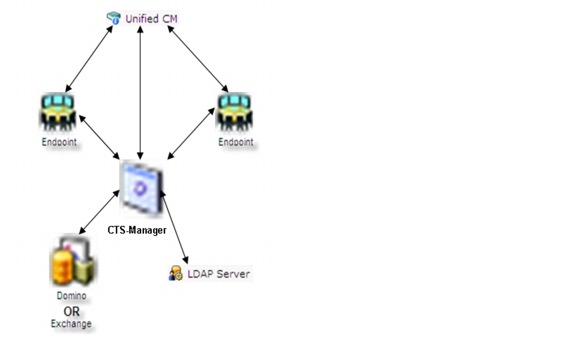
The Cisco TelePresence meeting solution combines audio, video, and interactive elements to create the feeling of being "in person" with participants in remote locations. Key to this experience is Cisco TelePresence Manager, which makes it easy to set up and launch calls. The Cisco TelePresence Manager software application enables this simplicity by intelligently automating many scheduling and conferencing tasks, so users can focus on the meeting, not the technology, and communicate as naturally and effectively as they would face to face.
Administrators can use Cisco TelePresence Manager to monitor meetings and get reports on meetings and system usage. The application also helps IT managers by offering data to justify the investment and reduce total cost of ownership (TCO) by integrating with existing infrastructure.
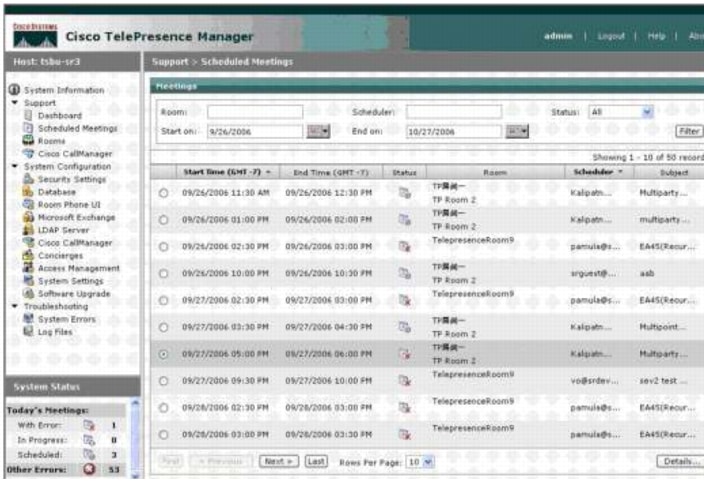
Cisco TelePresence Manager is essential for delivering the full value of a Cisco TelePresence meeting solution. It collects information about Cisco TelePresence systems from Cisco Unified Communications Manager and associates those systems to their physical location as defined in Microsoft Active Directory and enterprise groupware. It also automatically collects information about multipoint capabilities, and allocates those resources when needed, allowing you to schedule both point-to-point and multipoint Cisco TelePresence meetings from your Microsoft Outlook or IBM Notes calendar. That schedule is automatically sent to the Cisco TelePresence systems involved in the call. You can launch your Cisco TelePresence meeting with the push of a button, by simply selecting your meeting from the list of meetings shown on the Cisco Unified IP Phone in the meeting room.
Applications
The Cisco TelePresence meeting solution is useful for large group meetings as well as small groups or one-on-one conversations. By integrating with both enterprise groupware and Cisco Unified Communications Manager, Cisco TelePresence Manager delivers ease of use, both in scheduling and in launching calls with just the push of a button on the phone.
Figure 1-3 Cisco TelePresence Manager Scheduled Meetings Screen
Features and Benefits
Cisco TelePresence Manager offers the following key features and benefits:
•
•
•
•
•
•
•
•
•
•
•
•
•
Product Architecture
Cisco TelePresence Manager uses the same platform infrastructure as Cisco Unified Communications Manager, following its appliance model principles. Its administrative user interface is a single software entity that provides access to a web-based GUI for initial setup and installation. Information retrieval takes place through standard interfaces such as XML, Simple Object Access Protocol (SOAP), computer telephony integration (CTI), and Web-based Distributed Authoring and Versioning (WebDAV).
Cisco TelePresence Manager 1.5 is a software application loaded on a Cisco MCS 7845 Media Convergence Server and runs as a standalone application. It cannot be deployed as a co-resident with any other Cisco application on that hardware.
Product Specifications
Table 1 gives specifications and Table 2 gives system requirements of the Cisco TelePresence Manager.
Enabling Multipoint Cisco TelePresence Calls
The Cisco TelePresence Multipoint Switch provides the resources needed to include three or more CTS endpoints in a scheduled meeting. A bridge phone number and a conference id are two of the resources provided by a CTMS. CTS-Manager, using One-Button-to-Push enables all the endpoints in a scheduled meeting to meet using the CTMS resources. For data sheets and other product literature refer to the product page. For hardware installation and CTMS maintenance refer to the Cisco TelePresence Multipoint Switch administration guide.
Figure 1-4 Adding a CTMS to Enable Multipoint Calling

Enabling Interoperability Between CTS Endpoints and Legacy Endpoints
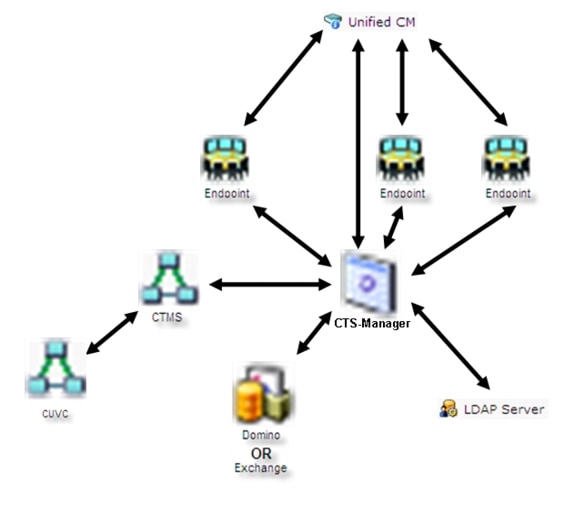
Cisco TelePresence supports the ability to conference existing standards-based video conference sessions into a Cisco TelePresence meeting by integrating the Cisco TelePresence Multipoint Switch (CTMS) with Cisco Unified Video conferencing Systems (CUVC). This provides interoperability with virtually all standards-based video conferencing systems installed today.
Cisco TelePresence Manager (CTS-Manager) works with Microsoft Exchange or IBM Domino servers to schedule Cisco TelePresence meeting rooms and enable One -Button -To -Push meeting access.
CTS-Manager is a web-based application and requires login using one of two password types, one for a concierge, and one for an administrator.
CTS-Manager provides the following functionality:
•
–
–
–
•
•
Figure 1-5 Enabling Interoperability Between CTS Endpoints and Legacy Endpoints
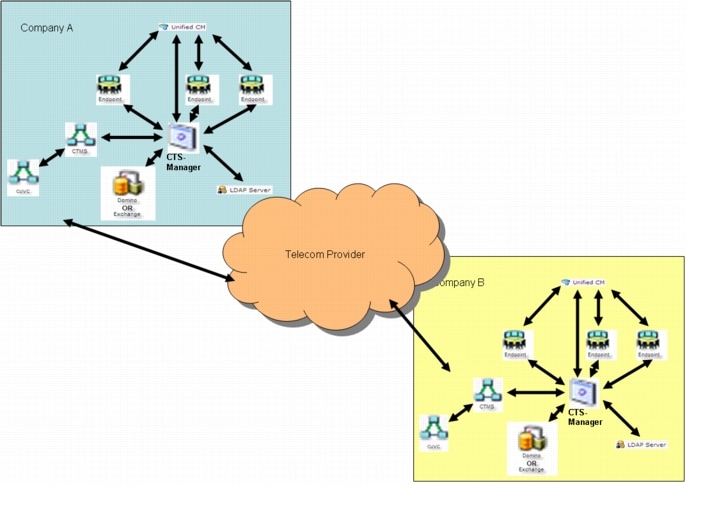
Enabling Intercompany Cisco TelePresence Calls
With intercompany capabilities for Cisco TelePresence, you can now use your existing network to easily have a virtual meeting with anyone you want, any time you want. Intercompany Cisco TelePresence provides the following benefits:
•
•
•
Uses services in the network to guarantee quality of service (QoS) and bandwidth for a quality Cisco TelePresence experience, one that can securely and reliably span different enterprise and service provider networks using standards, encryption, and your existing firewalls.
Figure 1-6 Enabling Intercompany Cisco TelePresence Calls
Introduction to the CTS-Manager Administration Software
CTS-Manager Administration software is accessed through your browser. All Cisco TelePresence administration software supports Internet Explorer 6.0. CTS-Manager Administration software is accessed through the server's host name or ip address.
Logging Into CTS-Manager
You use your Windows logon account to access the CTS-Manager functions. The features available to you are determined by the CTS-Manager role assigned to your Windows account. There are three levels of functionality when logging into CTS-Manager.
Concierge Role
When a concierge logs into CTS-Manager, the following selections and information are available:
•
•
•
•
The concierge is the first person contacted when there are questions or problems pertaining to connecting meeting participants. The concierge understands how to perform the following tasks:
•
•
•
•
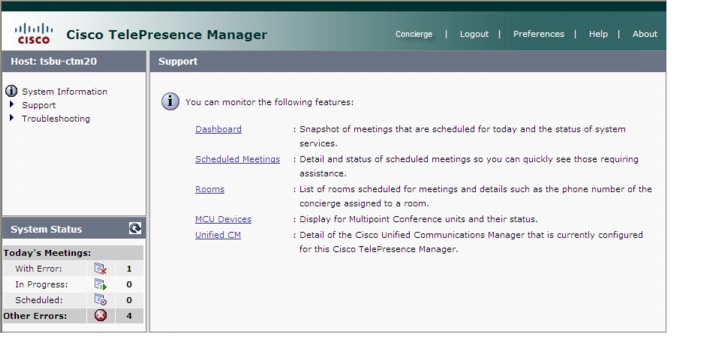
Concierges can be assigned rooms to monitor in the CTS-Manager application. Assigned concierges are easily reached by dialing the Help soft key on the Cisco IP phone in a Cisco TelePresence-enabled meeting room.
Figure 1-7 shows the window when the concierge logs in.
Figure 1-7 Cisco TelePresence Manager Concierge Window
Administrator Role
When an administrator logs into the CTS-Manager, the following selections and information are available:
•
•
•
•
•
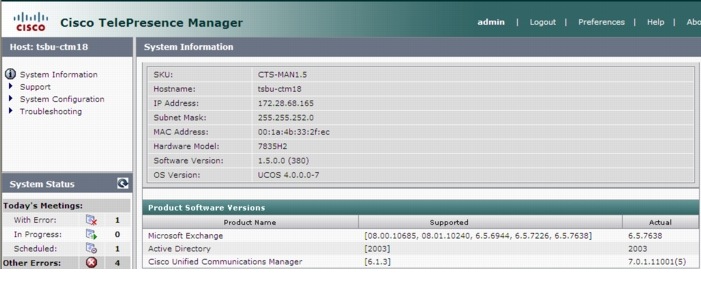
The administrator performs the same tasks performed by a concierge, but has an additional system configuration task available. The administrator has a different login name and password from that of the concierge. The administrator's access privileges allow access to the internal workings of the system where the administrator can modify system settings such as passwords, IP addresses, and security settings. The administrator is also responsible for defining schedules to back up the database and for assigning a concierge to a meeting room.
In day-to-day operations, the administrator assists the concierge with monitoring system status and, when problems occur, takes action to correct them by analyzing system error messages and debugging log files.
Figure 1-8 shows the windows when the administrator logs in.
Figure 1-8 Cisco TelePresence Manager Administrator's Window
Superuser Role
The system superuser has a special login account that allows access to two additional administrative tasks. These tasks are only visible by logging in using the superuser password.
•
•
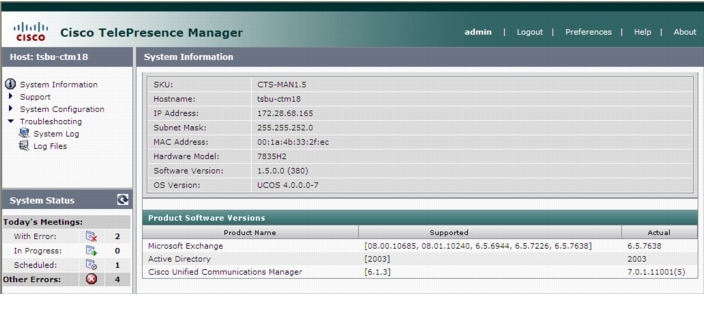
Figure 1-9 shows the configuration tasks available to an administrator with the superuser password.
Figure 1-9 System Configuration Tasks with the Superuser Password
Cisco TelePresence Manager Window
The Cisco TelePresence Manager window is divided into several panes with different functionality.
Header Pane
Figure 1-10 Cisco TelePresence Manager Header Pane

A header at the top of all CTS-Manager windows shows either "admin" or the login name of the concierge currently logged in and provides four links:
•
•
•
•
System Status Pane
Figure 1-11 System Status Pane
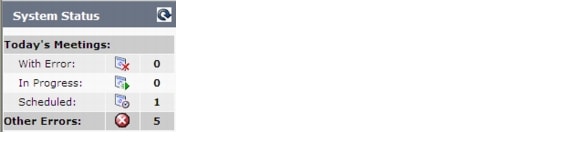
System Status is always in view in the lower left corner of the CTS-Manager window. Both the concierge and the administrator must closely monitor this area for notification of system errors and changes in the status of today's meetings.
The icons and numbers are links. They will take you to a window in the CTS-Manager that helps you identify problems for the With Error state or see more information about meetings in the In Progress and Scheduled states.
The following meeting states are displayed for Today's Meetings:
•
•
•
The Other Errors area displays a cumulative number of errors listed in the Dashboard.
Navigation Pane
Figure 1-12 Navigation Pane
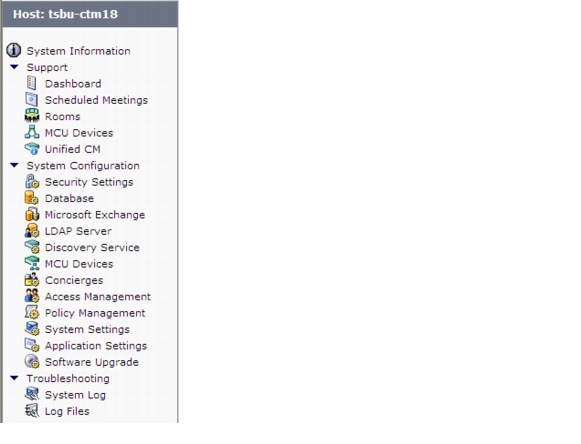
The navigation pane contains the list of commands you can run within Cisco TelePresence Manager. The commands are divided into three drop-down lists:
•
•
•
Work Pane
Figure 1-13 Work Pane
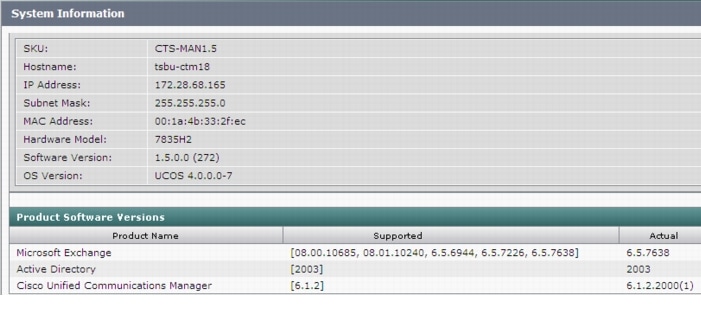
The frame to the right of the Navigation pane is the content area. The gray bar above the content area shows the navigational path so you can see where you are at any time.
The following sections describe objects, functions, and information displayed in the Work pane associated with a specific command.
Tabs
Some windows have tabs that you click to display additional functionality related to a command.
Filtering Information
Some windows provide fields where you can enter criteria to filter the information contained is a report. Click the Filter button to display the reports using the criteria you specify. The settings are temporary; when you exit the page, the criteria are removed.
Obtaining Additional Information and Help
To access additional information or relevant windows, click a highlighted link.
Navigating Long Lists
When there is a long list of data in a window, you can navigate through it using Next, Last, First, and Previous buttons at the bottom of the window. The Rows Per Page drop-down list also found at the bottom of the window can be used to change the number of rows displayed. Choose 10, 20, 50, 100, or 500 rows per page. The setting is temporary, and when you exit the page the default setting is restored.
Copying and Pasting Information
You can place information displayed by the CTS-Manager in a file using standard copy-and-paste functions.
Typing Information in Fields
For information provided in fields, use the mouse to highlight and delete existing information. Type in new information.
New or modified information is applied using the Apply button.
To back out of changes and return to original settings, use the Reset button.
Typing Telephone Numbers
Telephone numbers must be entered into CTS-Manager fields exactly as they will be dialed by the IP phone. For example, if you need to dial 9 to get an outside telephone line and you are calling a different area code or international dialing code, you must provide all the required numbers to the CTS-Manager in the exact sequence in which they should be dialed. The following is an example: 915105550100.
Typing Meeting Room Names
The names of meeting rooms must be typed into CTS-Manager fields exactly as they are stored in your Microsoft Exchange, or IBM Domino database. If a room is listed as M-Room 1/3 at Main in the Microsoft Outlook or Lotus Notes list of resources, that name must be typed exactly the same way in the CTS-Manager. Otherwise, the system will not be able to match records and an error occurs.
Viewing All Information
Sometimes only a portion of text is visible and is completed by ellipses. You can see the full text in a tooltip by slowly passing the mouse pointer over the partial text. You can do this in any field in the user interface where text is cut off.
System Information
Use the System Information window to see a quick summary of information about your Cisco TelePresence System. The window is divided into two areas:
•
•
Preferences
Clicking Preferences in the header pane displays the Preferences window.
Figure 1-14 Preferences Link in the Header Pane

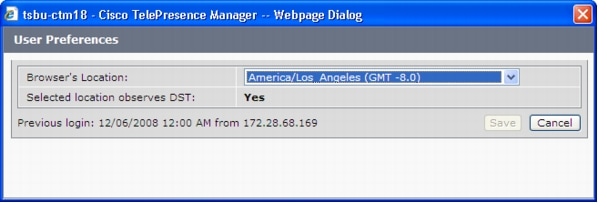
The first time you login you need to specify the timezone you are in. This localizes Cisco TelePresence Manager's meeting times to your location. You can use the Preferences window to change the timezone.
Figure 1-15 Preferences window
 Feedback
Contact Cisco
- Open a Support Case

- (Requires a Cisco Service Contract)
This Document Applies to These Products
- Collaboration Endpoints - Retired Products
- Conferencing - Retired Products
- Contact Center - Retired Products
- Optical Networking - Retired Products
- Routers - Retired Products
- Security - Retired Products
- Servers - Unified Computing (UCS) Retired Products
- Storage Networking Retired Products
- Switches - Retired Products
- Video - Retired Products
- Wireless - Retired Products