Learn how to remove an on-premises Firewall Management Center and its managed devices from Security Cloud Control by disabling auto-onboarding and following the device removal steps in the Administration settings.
Before you begin
-
Choose .
In the Tenant Settings section, disable Auto onboard On-Prem FMCs integrated to Cisco Security Cloud.
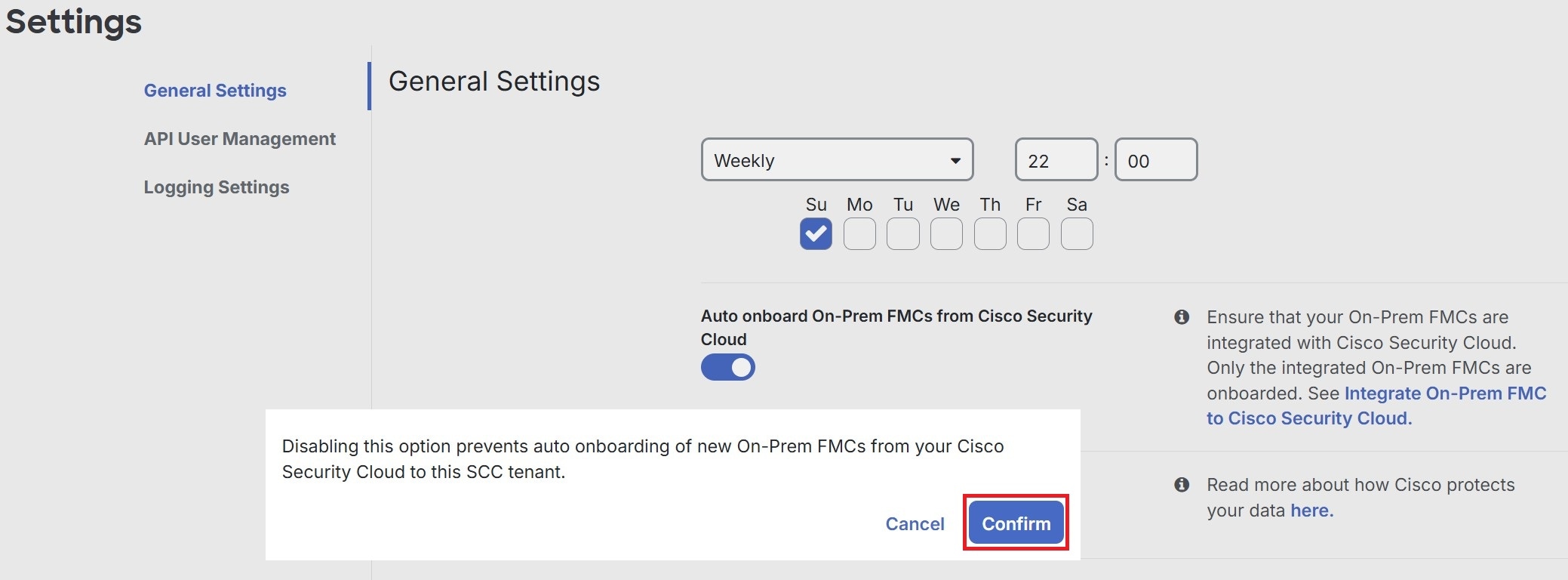
Procedure
| 1. | Choose . |
|
| 2. | Click the FMC tab. |
|
| 3. | Choose the on-premises Firewall Management Center you want to remove. |
|
| 4. | In the Device Actions pane, click Remove On-Prem FMC and its managed devices. 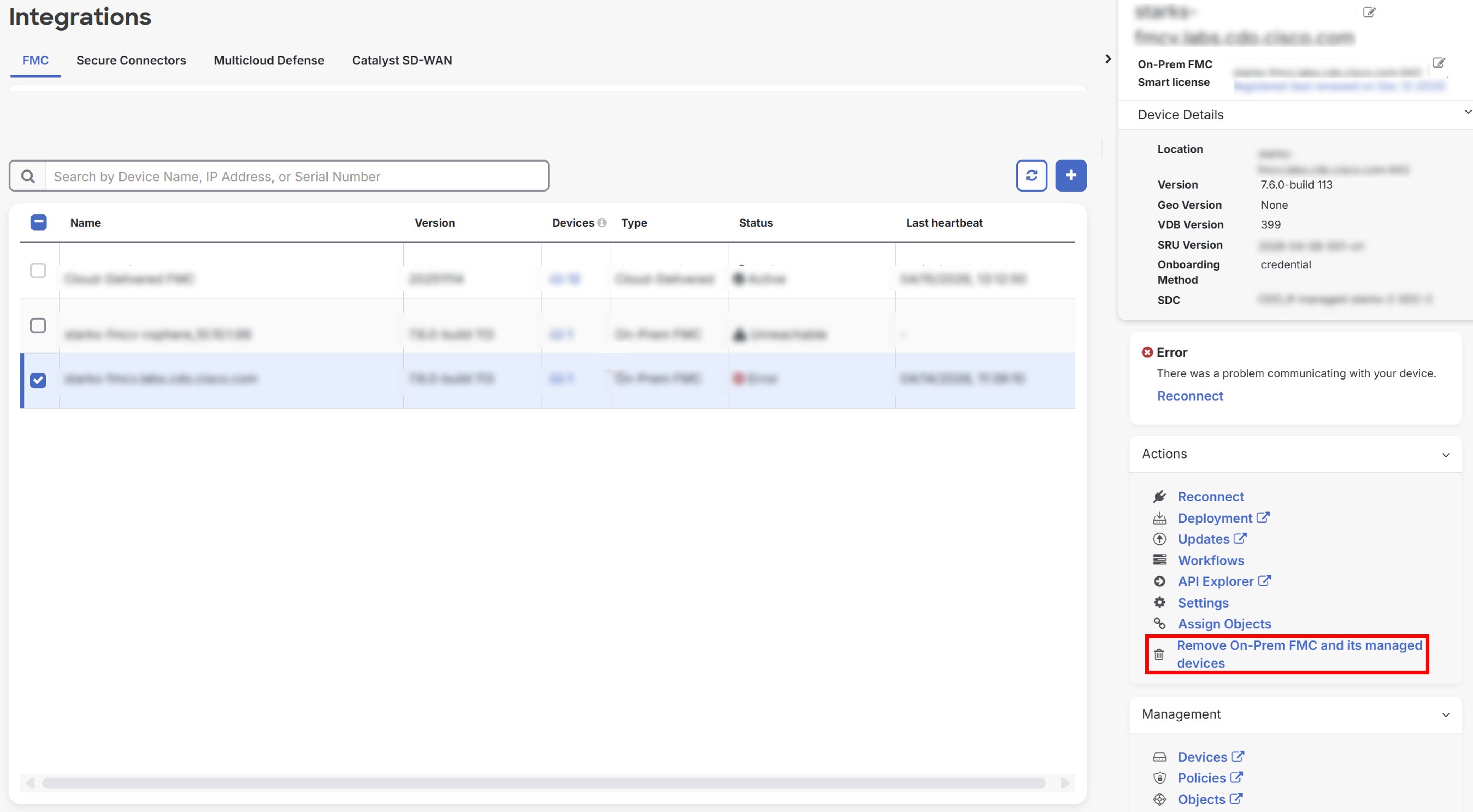
|
|
| 5. | Click OK to confirm that you want to remove on-premises Firewall Management Center and its managed devices from your tenant. |
|
| 6. | Refresh your browser to see an updated list of devices. |