Cisco Security Cloud Control: On-Premises Firewall Management Center Integration

PDF

Cisco Security Cloud Control: On-Premises Firewall Management Center Integration

Access control policy analysis and optimization

Want to summarize with AI?

Log in

Learn how to analyze access control policies in Policy Analyzer and Optimizer, review findings, and apply supported remediations for access control rules and objects.


Use the Access Control tab when you want to analyze access control policies, review access control policy findings, and apply the remediations that Policy Analyzer and Optimizer supports for access control rules and objects.

After provisioning a Cloud-Delivered Firewall Management Center or onboarding an On-Premises Firewall Management Center to your Security Cloud Control Firewall Management tenant and creating policies, you can start analyzing them using the Policy Analyzer and Optimizer.

For more information, refer to Onboard an On-Premises Firewall Management Center and Enable Cloud-Delivered Firewall Management Center on Your Security Cloud Control.


Analyze access control policies

Use this procedure to assess an access control policy before making changes, review policy health, or re-run analysis after policy updates. If a policy has not been analyzed, you can start a new analysis. If the analysis is out of date, you can re-analyze the policy to refresh the results.

Note

When you create a new policy, it might take a while for the Policy Analyzer and Optimizer to fetch the policy details and show up on the Policy Analyzer and Optimizer. Click the refresh () button on the top-right corner to manually refresh the page to see new policies.
Procedure

1.

Choose Insights & Reports > AIOps Insights > Policy Analyzer and Optimizer.

2.

In the right pane, select Cloud-delivered FMC or an On-Premises Firewall Management Center from the drop-down list as the data source whose policies you wish to analyze.

3.

In the Access Control area, select the policy you want to analyze or review.

Note
  • For an unanalyzed policy, click on Analyze Policies.

  • If the policy status indicates Analysis out of date, click on Re-analyze Policy under Analysis Actions on the right.

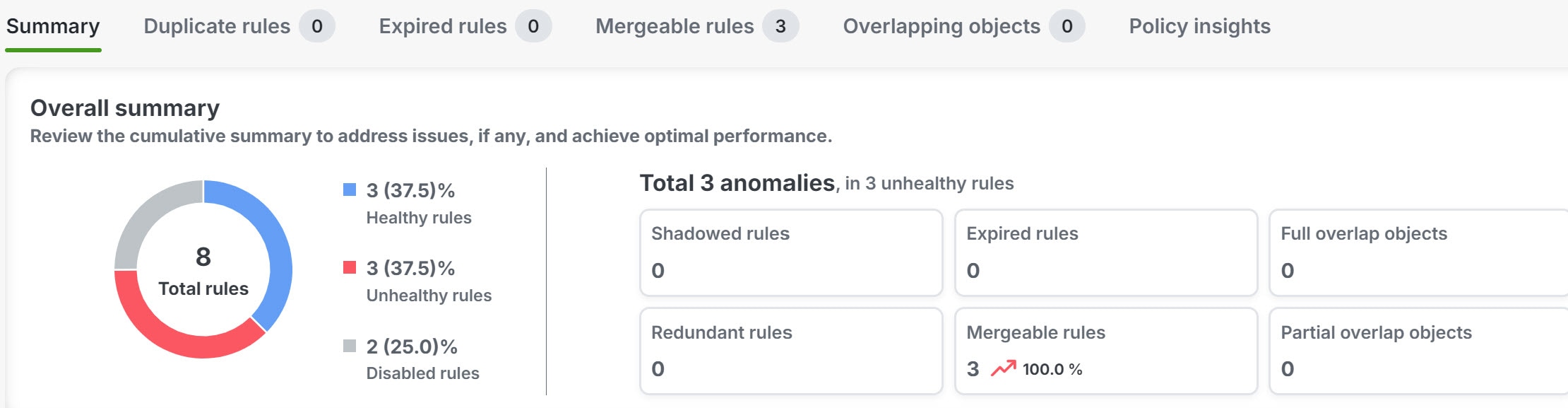
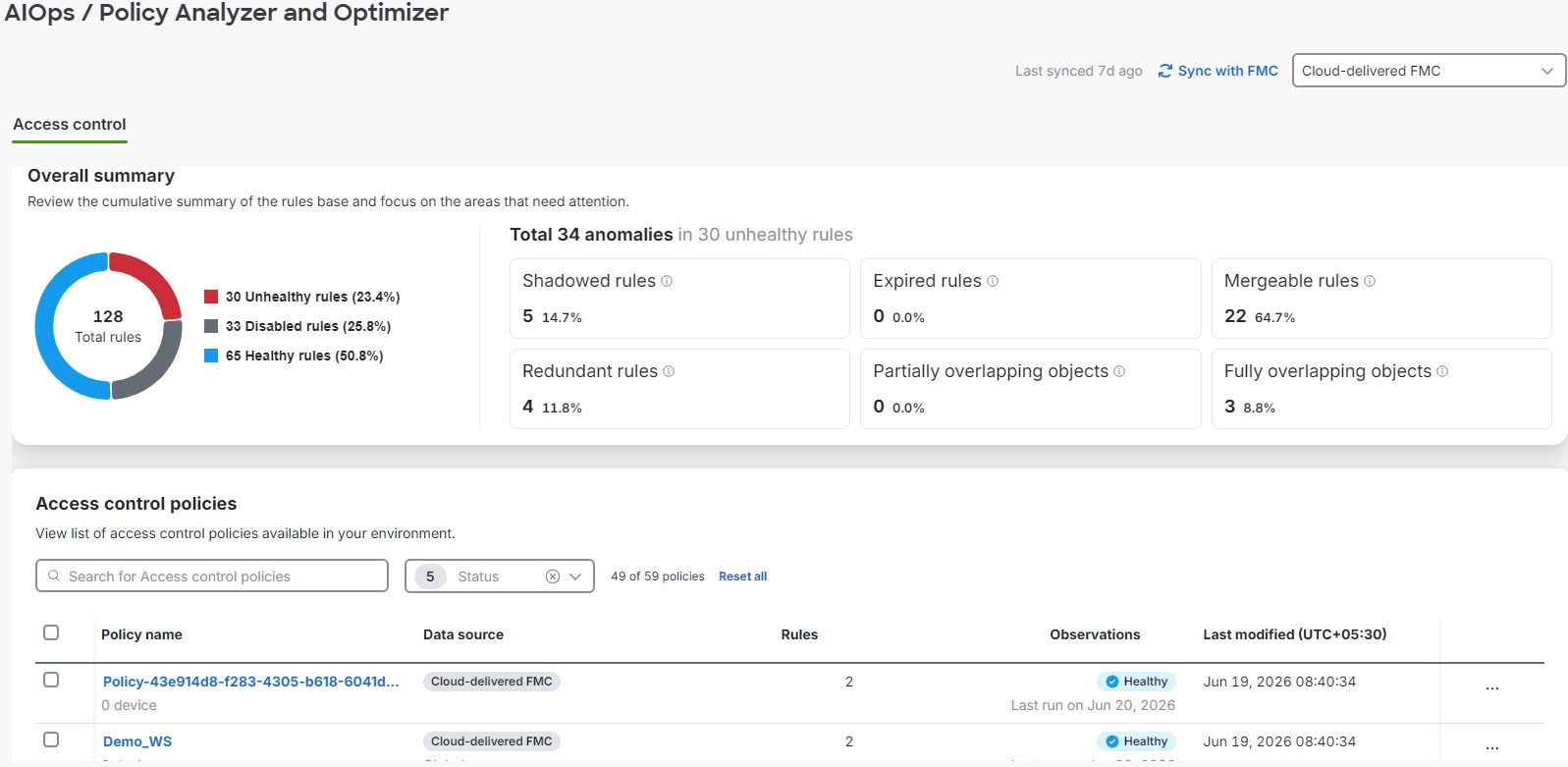
The Overall summary section displays the total number of rules categorized by their health status: healthy, disabled, or unhealthy, for the selected management center (Cloud-Delivered Firewall Management Center or On-Premises Firewall Management Center).

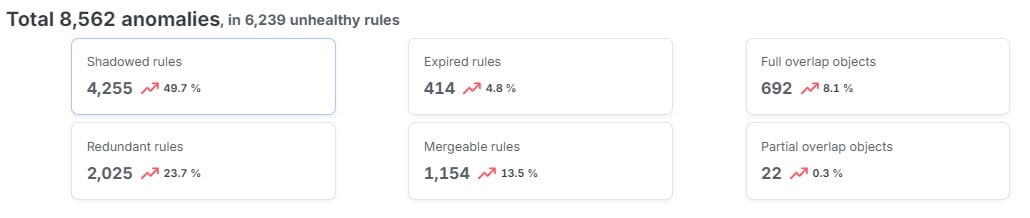
The dashboard also highlights specific anomalies within your unhealthy rules. You can review the count and percentage for the categories: Shadowed rules, Expired rules, Mergeable rules, Redundant rules, Partially overlapping rules, Fully overlapping objects.

What to do next

Review an access control policy and optimize.

Access control policy analysis summary

When analysis completes, select an access control policy to review the right-pane summary and click View analysis details and optimize.

Alternatively, you can click the ellipse button associated with a policy and select View details to see the right-pane summary.

Overall summary—provides insights on how many rules are healthy, disabled, expired, and contain anomalies, using a pie chart for the selected access control policy. You can also hover over the part of the pie to view the percentage of rules.

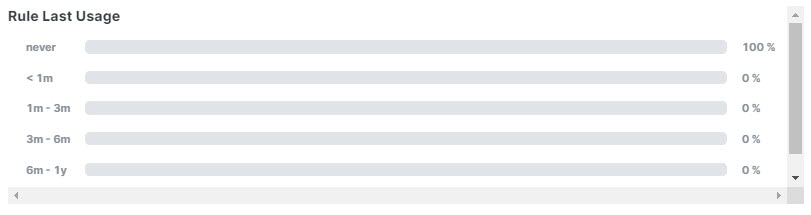
Rule usage history—shows how recently rules were used, with time periods.

Rules with Anomalies—provides insights on how many rules have anomalies.

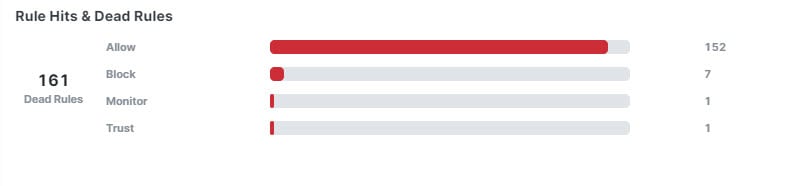
Hits rules & dead rules—provides insights on hitcount of expired rules, for rule types including allow, block, monitor, and trust.

In remediation tabs such as Duplicate rules, Expired rules, Mergeable rules, Overlapping objects, and Policy insights you can select the check box next to a category to stage all observations in that category, or expand the category and select specific observations or rules. Available actions depend on the anomaly type.


Analyze duplicate rules in access control policy

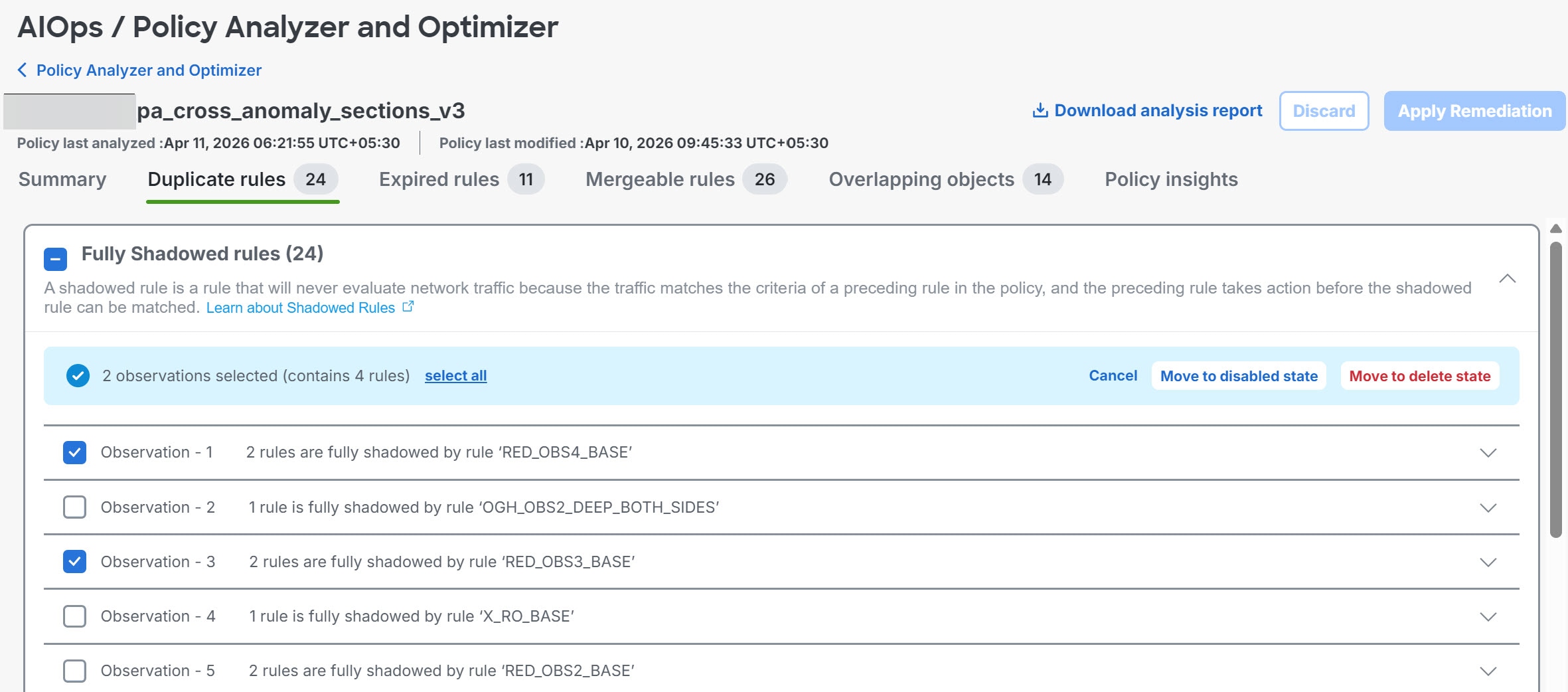
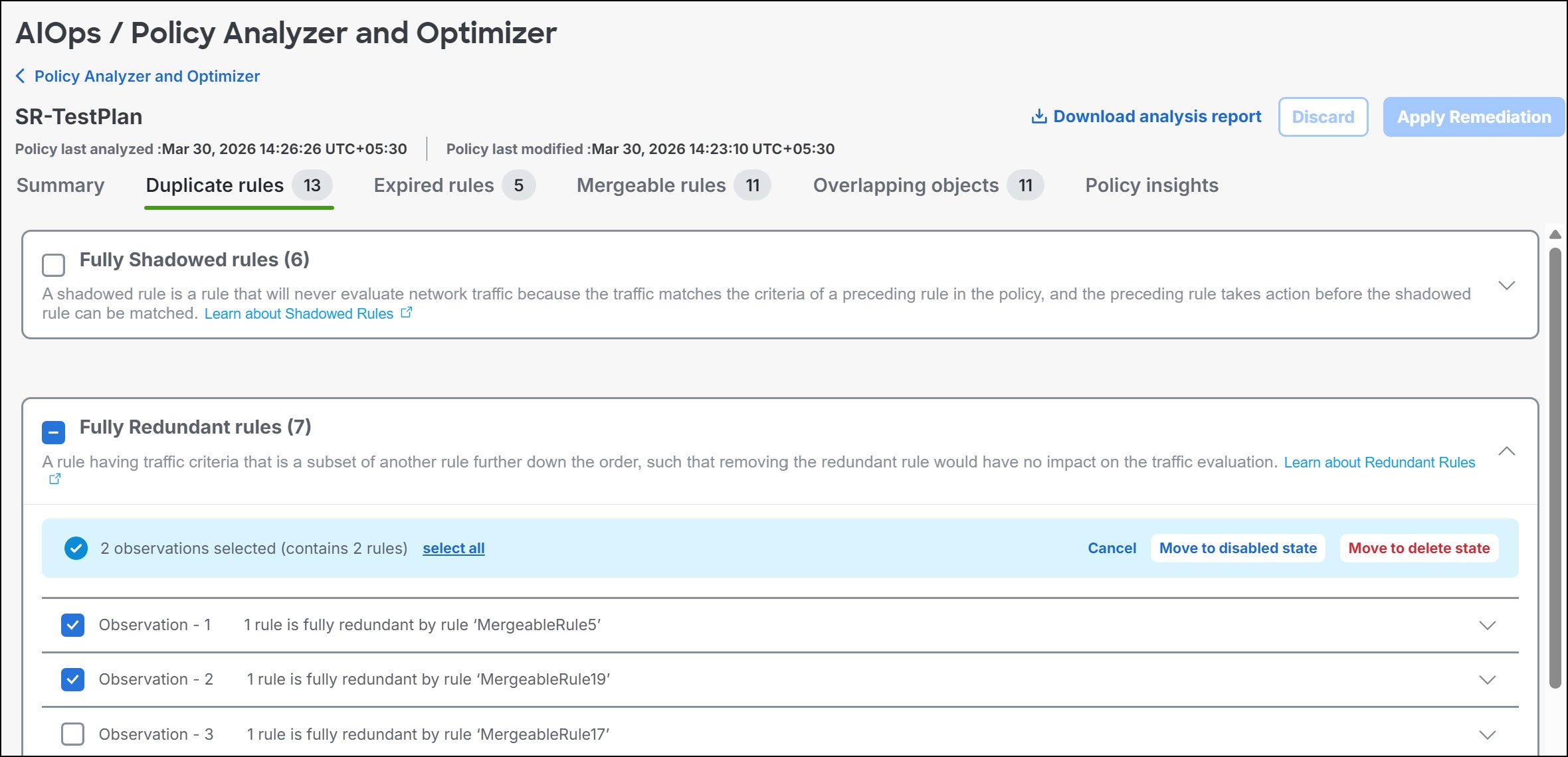
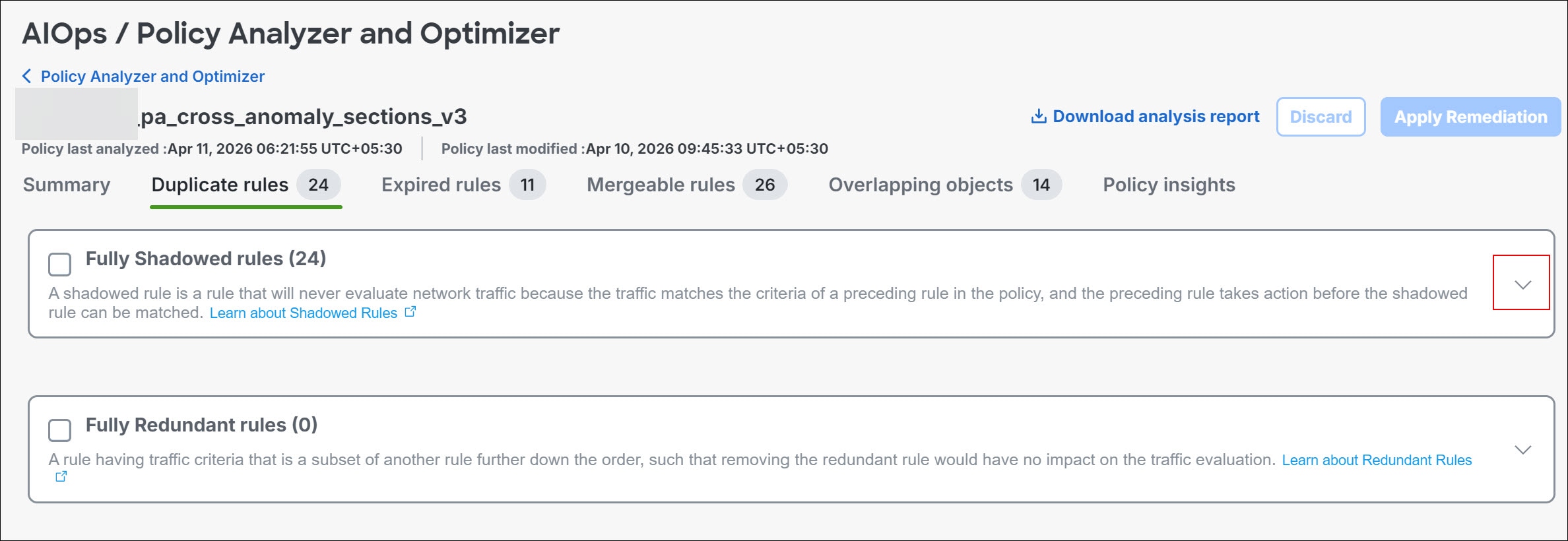
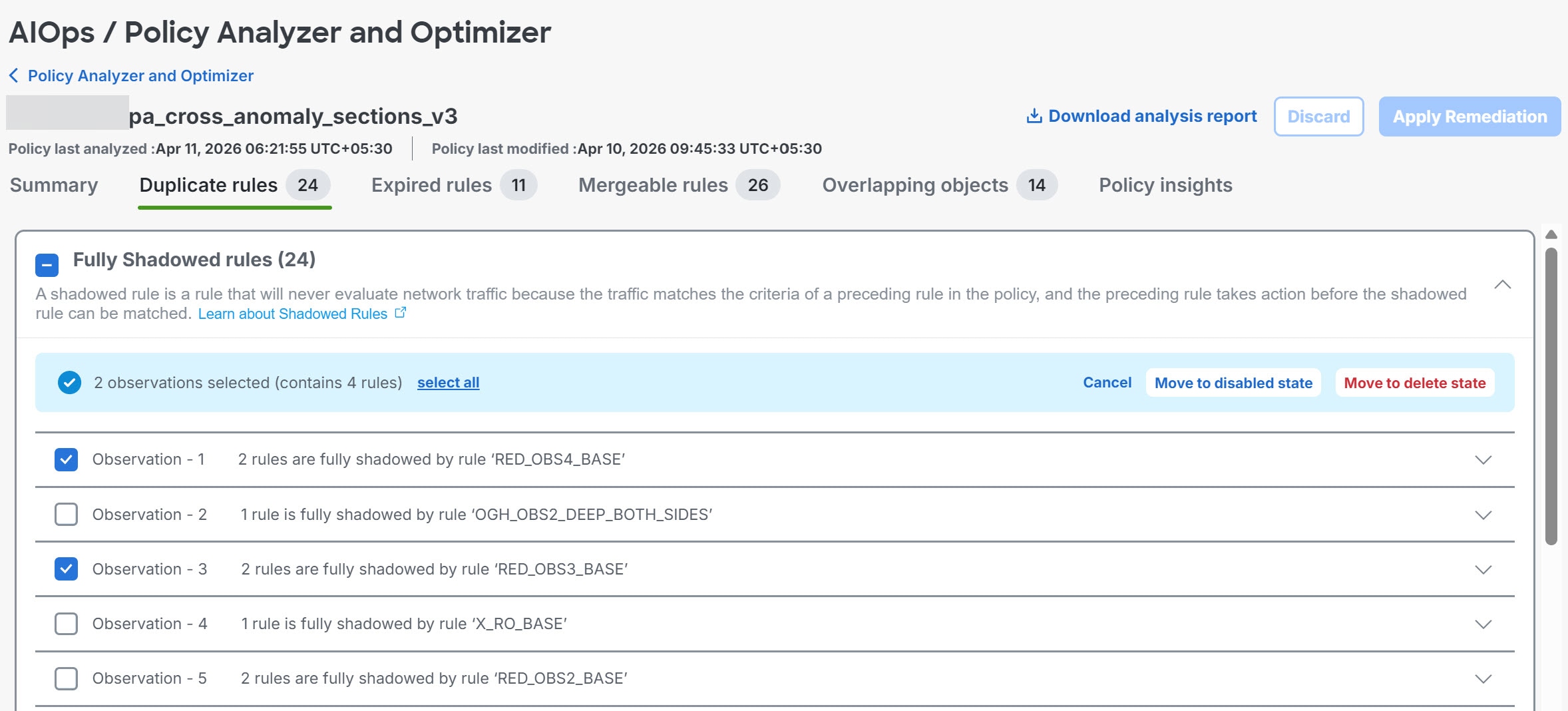
The Duplicate Rules tab lists shadowed and redundant rules with anomalies:

  • A Fully Shadowed rules is one that will never evaluate network traffic because another rule that precedes it over shadows this rule.

  • A Fully Redundant rules is one that is just a part of another larger rule, such that removing this redundant rule does not have an impact on the network traffic, because the traffic evaluation that this rule must perform is already performed by another rule.

You can remediate all duplicate-rule observations in a category, selected fully shadowed or fully redundant observations, or individual rules within an expanded observation. For selected duplicate rules, choose Move to disabled state or Move to delete state. Disable rules first when you want to measure the impact before deleting them.

Note

Expand each observation to review the affected rules before you stage a remediation. Each rule in the list is displayed with a set of attributes; click the settings button on the top right to select which rule attributes you want to display along with the rule.

When duplicate-rule remediation removes shadowed or redundant rules and retains a base rule, Policy Analyzer and Optimizer adds a standardized comment to the retained rule. The comment identifies the retained rule and the removed rules, which helps you audit the cleanup.

After you stage the selected duplicate-rule remediations, you can still Undo them before clicking Apply Remediation. It is recommended that you disable rules first to measure the impact and delete them later, because deleting them permanently removes them.

You can enable the disabled rules any time by navigating to the Cloud-Delivered Firewall Management Center or the On-Premises Firewall Management Center on which the rules are present.


Analyze expired rules in access control policy

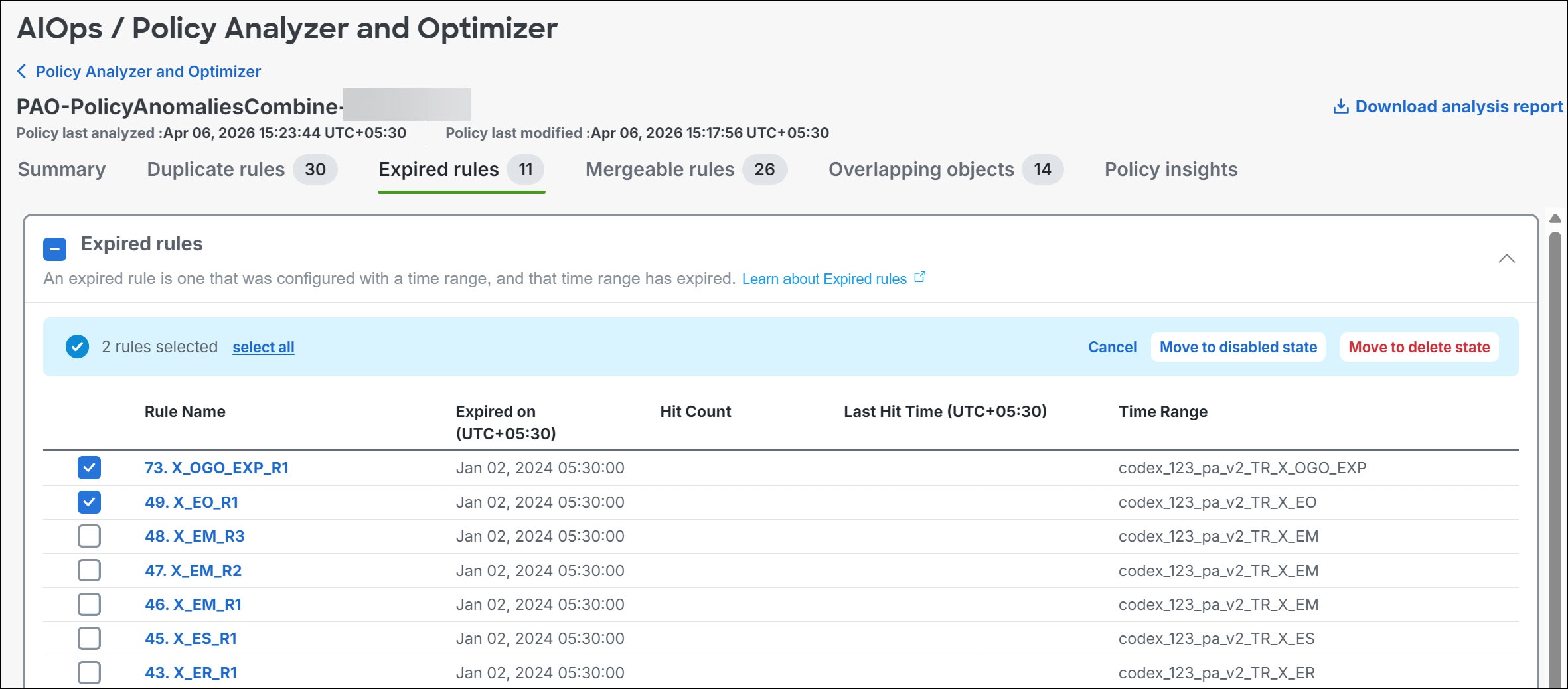
The Expired Rules tab lists rules that were configured with a time range and the time range has expired. You can also see rule information such as the date on which the rule expired, hit count, last hit time, and the time range.

You can remediate all expired-rule observations in the category, selected expired-rule observations, or selected expired rules. For selected expired rules, choose Move to disabled state or Move to delete state. Only selected rules are changed when you apply remediation.


Analyze mergeable rules in access control policy

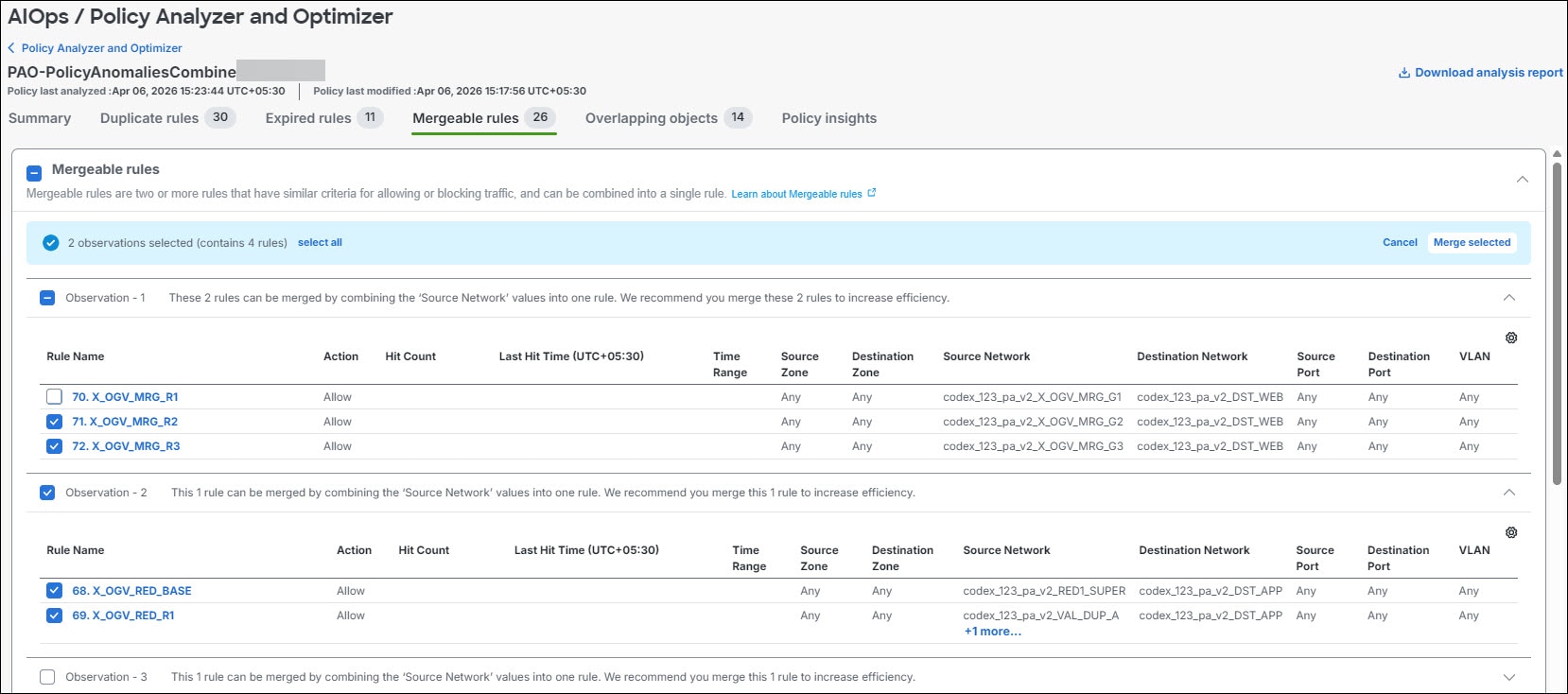
The Mergeable Rules tab lists the rules that have similar allow and block settings and can be merged into a single rule.

Review the mergeable-rule observations and stage remediation for the entire category, selected observations, or individual rules within an expanded observation. Click Merge Selected to merge only the staged items. Unselected mergeable-rule observations remain unchanged until you stage and apply remediation for them.

Note

When you select individual rules to merge, select only consecutive rules. The first selected rule in the sequence is updated with the merged rule criteria, and the remaining selected rules are removed. You can start the merge from any rule in a consecutive set. The first rule in the observation does not need to be selected.


Analyze overlapping objects in access control policy

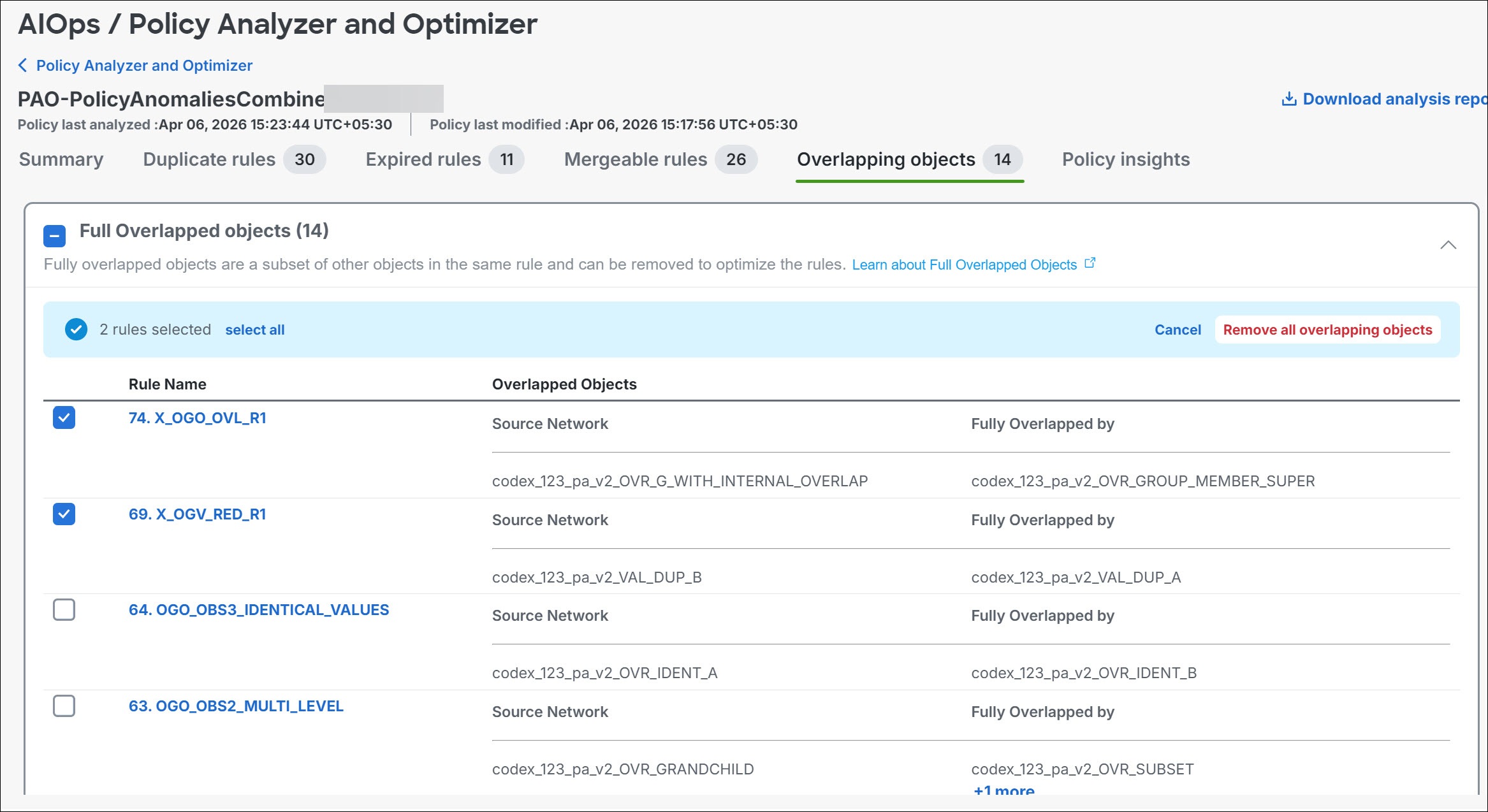
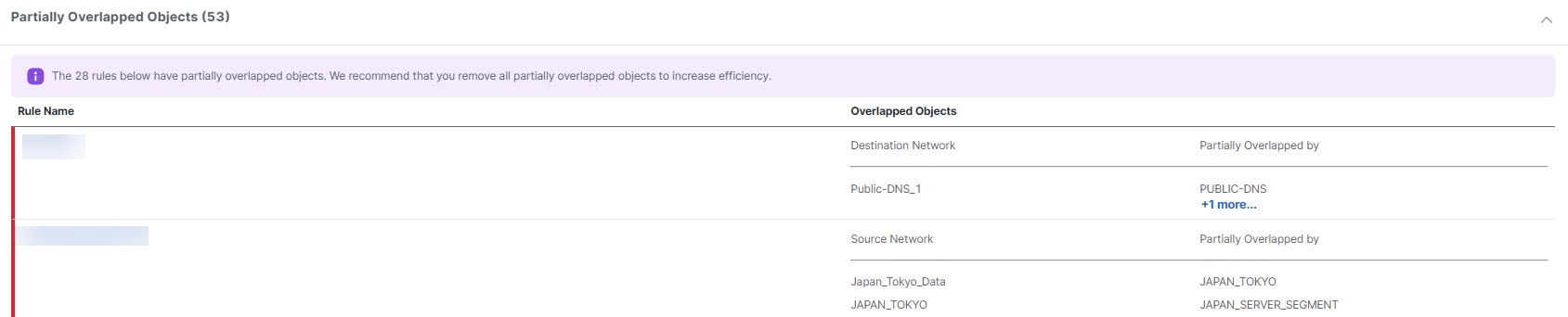
The Overlapping Objects tab lists objects that are either fully overlapping (the IP addresses or port numbers are either the same or a complete subset) or partially overlapping (some subset of IP addresses are repeated, but not all).

For example, if a rule contains an object for 192.168.1.1 and another for 192.168.1.0/24, the 192.168.1.1 object is fully overlapped by the other object and is not needed in the rule. For fully overlapped objects, you can remediate all fully overlapped observations in the category, selected observations, or selected rules. Click Remove All Fully Overlapped Objects from Rules to remove fully overlapped objects only from the staged items. For partial overlaps, evaluate each occurrence and edit the objects directly.

For partial overlaps, you need to evaluate each occurrence, determine if any changes can be made, and implement those changes directly by editing the objects.


Analyze policy insights in access control policy

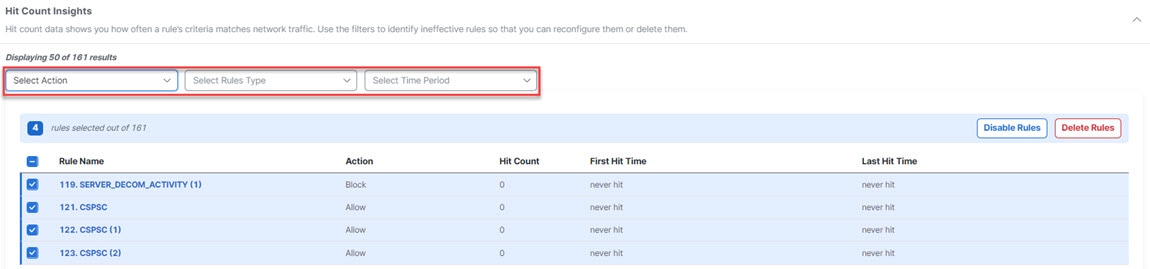
The Policy Insights tab has a Hit Count section that initially lists any rules that have never been triggered (Never Hit Rules). The hit count information is from all devices that are assigned to the policy. You can change criteria and see other hit count information, for example, Not Hit Rules for the past six months, or Hit Rules over a selected time period. You can filter the rules using the actions set in the rules, hit information, and time period:

  • Never Hit Rules—Rules that have never been hit from the time they were created.

  • Hit Rules—Rules that have been hit in the selected time period.

  • Not Hit Rules—Rules that have not been hit in the selected time period.

Select the rules that you want to disable or delete, and select Disable Rules or Delete Rules. These changes are staged until you select Apply Remediation. First, disable the rules when you want to measure their impact before deleting them.


Access control policy remediation

Policy Analyzer and Optimizer stages remediation changes before it updates the policy. You can stage remediation for an entire anomaly category, selected observations, or individual rules within an expanded observation. Before you apply remediation, unselected observations and rules remain unchanged and available for later selection in the same analysis report.

Review staged changes before you select Apply Remediation. After you apply remediation, you cannot apply more changes from the same analysis report. To remediate remaining anomalies, run policy analysis again on the updated policy and use the new report.

Before you begin

  • Back up all policies before you apply remediation.

  • Ensure that at least one remediation is staged. If no remediation is staged, Apply Remediation is disabled.

  • Verify the Policy Last Modified and Policy Last Analyzed timestamps, and review the number of rules that are staged for remediation.

Procedure

1.

In the Policy Analyzer and Optimizer page, select the policy to see details about the analysis on the right pane and click View analysis details & optimize.

2.

Click the remediation tab that contains the anomalies that you want to fix.

3.

Expand a remediation category. Select the check box for the category to stage all observations, or select the check boxes for specific observations or rules to stage only those items. Repeat this step in other remediation tabs, as needed.

4.

Select the remediation action that applies to the staged items, such as Move to disabled state, Move to delete state, Merge Selected, Remove All Fully Overlapped Objects from Rules, Disable Rules, or Delete Rules.

5.

Review the staged remediation. If you need to change the staged remediation before applying it, use the available undo or discard action.

6.

Click Apply Remediation.

7.

Read the confirmation message, which summarizes the remediations that will be applied. Confirm that the selected policy and staged remediation are correct.

8.

Click Apply.

Note

For an On-Premises Firewall Management Center in which the Change Management Workflow is enabled, when policy remediations are applied, an internal workflow ticket is created and the changes are staged. The changes take effect only when the ticket is submitted or approved. See Change Management in Cisco Secure Firewall Management Center Administration Guide for more information.

After remediation is complete, the selected rules are updated. Policy Analyzer and Optimizer automatically analyzes the updated policy and generates a refreshed summary that shows any remaining issues. Verify the intended changes in the corresponding access control policy.


Download access control analysis report

The access control analysis report is a PDF summary of completed remediations for a selected policy. It includes only the remediation categories that apply to the changes you selected and applied. Each section lists the rule name, remediation action, and related comments. For example, if no duplicate rules were remediated, the report excludes the duplicate-rule remediation section.

The report includes only the remediation sections and rule details for remediations that you selected and applied. Unselected anomalies are not included in the report.

  1. In the Policy Analyzer and Optimizer page, click Access control.

  2. Select an access control policy, and in the right pane, click Download analysis report.

The report can include these sections:

  • Remediation Summary

  • Hit Count Remediation

  • Expired Rules Remediation

  • Duplicate Rules Remediation

  • Mergeable Rules Remediation

Note

To determine whether a policy is remediated by the Policy Analyzer and Optimizer, navigate to Policies > Access Policies and edit a policy to view the rules in the Policy Editor. When a policy is remediated, a comment is added to the rules that are optimized.

You can also filter all the optimized rules using "updated by Policy Analyzer and Optimizer" to view all the remediated rules.

During duplicate rule remediation, the retained rule is updated with a comment specifying which rule was preserved and which were removed.