System Setup and Software Installation Guide for Cisco Optical Site Manager, IOS XR

PDF

System Setup and Software Installation Guide for Cisco Optical Site Manager, IOS XR

Cisco Optical Site Manager installation workflow on NCS 2000 SVO-LC

Want to summarize with AI?

Log in

Learn how to install Cisco Optical Site Manager on an NCS 2000 SVO-LC by preparing the required network configuration and completing the software installation steps to enable node management through the application.


This workflow helps you install Cisco Optical Site Manager on NCS 2000 SVO-LC.

Before you begin

Follow these steps to install Cisco Optical Site Manager on NCS 2000 SVO-LC.

Procedure

1.

Prepare the network configuration. For more details, see Network YAML configuration file for Geo HA.

2.

Install Cisco Optical Site Manager. For more details, see Install Cisco Optical Site Manager on NCS 2000 SVO-LC.


SVO-LC network requirements

Review the network requirements before you install Cisco Optical Site Manager on NCS 2000 SVO-LC or onboard NCS 1000 devices.

Network scopes

Cisco Optical Site Manager uses separate network scopes for user access and device communication.

Use this table to identify each network scope, its purpose, and its requirement.

Table 1. SVO-LC network scopes

Network scope

Purpose

Requirement

Management network

Provides access to the Cisco Optical Site Manager application.

The SVO-LC management interface must be reachable from the customer Data Communication Network (DCN).

Devices network

Provides communication between Cisco Optical Site Manager and managed devices.

The devices network must allow traffic between Cisco Optical Site Manager and each managed NCS 2000 or NCS 1000 device.

Management network ports

The management network must allow these ports for access to Cisco Optical Site Manager on SVO-LC.

Use this table to identify the TCP ports, protocols, and uses required for Cisco Optical Site Manager access on SVO-LC.

Table 2. Management network port requirements

TCP port

Protocol

Use

22

SSH

Provides SSH access.

443

HTTPS

Provides access to the Cisco Optical Site Manager web UI.

830

NETCONF

Provides NETCONF access.

2611

SNMP

Provides SNMP access.

Devices network ports

The devices network must allow these ports between Cisco Optical Site Manager and the managed devices.

Use this table to identify the source, destination, port, protocol, and use for traffic between Cisco Optical Site Manager and managed devices.

Table 3. Devices network port requirements

Source

Destination

Port

Protocol

Use

Cisco Optical Site Manager

NCS 2000

TCP 80

HTTP

Provides HTTP access to the NCS 2000 device.

Cisco Optical Site Manager

NCS 2000

TCP 443

HTTPS

Provides secure HTTP access to the NCS 2000 device.

Cisco Optical Site Manager

NCS 2000

TCP 57790

CORBA

Provides CORBA access to the NCS 2000 device.

Cisco Optical Site Manager

NCS 2000

TCP 57991

CORBA SSL

Provides secure CORBA access to the NCS 2000 device.

Cisco Optical Site Manager

NCS 1000

TCP 2022

NETCONF

Provides NETCONF over SSH access to the NCS 1000 device.

NCS 1000

Cisco Optical Site Manager

UDP 7514

Syslog

Provides syslog access from the NCS 1000 device to Cisco Optical Site Manager.

NCS 1000

Cisco Optical Site Manager

UDP 7514

Telemetry

Provides telemetry access from the NCS 1000 device to Cisco Optical Site Manager.

NCS 1000 onboarding requirements

These requirements apply when you onboard NCS 1000 devices to Cisco Optical Site Manager on SVO-LC.

  • The NCS 1000 device must be reachable from the SVO-LC. Configure all intermediate network devices to allow reachability between the SVO-LC and the NCS 1000 device.

  • In Cisco Optical Site Manager, add a route in the Devices Gateway table from Devices > Networking. Specify the NCS 1000 subnet or host address and use 192.168.254.65 as the gateway.
Install the SVO line card

Use this task to install the SVO card.

Before you begin

Ensure recommended resources are met:

Procedure

1.

Plug in the SVO line card into the NCS 2000 chassis.

2.

Connect the SVO line card to other cards in the NCS 2000 chassis. For common real cabling scenarios, see HA deployment modes for NCS 2000.

Warning

Any different cabling must be reported to Cisco engineering for an official validation.

3.

Power up the SVO line card.

The SVO line card is successfully installed.

What to do next

Run the Cisco Optical Site Manager installation tool. See Install Cisco Optical Site Manager on NCS 2000 SVO-LC.


Network YAML configuration file for Geo HA

Prepare the network YAML configuration file that includes essential network details needed to set up the SVO-LC interfaces and the Cisco Optical Site Manager application network infrastructure.

Use one network YAML file for each SVO-LC during installation.

  • Set redundancy-mode to GEO_HA to enable Geo high availability.

  • For high-availability deployment with two SVO-LCs, keep both files identical except for server-name.

This example shows an IPv4 network YAML configuration file for Geo HA:

server-name: "Server-A"
mgmt-address-family: "IPv4"
ospf-area-id: "0.0.0.0"
redundancy-mode: "GEO_HA"
servers:
- name: "Server-A"
  mgmt:
    ipv4:
      ip: "10.0.123.0"
      prefix: 22
      gateway: "10.0.123.1"
      host-nic: "10.0.123.2"
  devices:
    ipv4:
      ip: "10.0.1.123"
      prefix: 24
      gateway: "10.0.123.1"
      host-nic: "10.0.123.2"
- name: "Server-B"
  mgmt:
    ipv4:
      ip: "10.1.123.123"
      prefix: 22
      gateway: "10.1.123.1"
      host-nic: "10.1.123.2"
  devices:
    ipv4:
      ip: "10.1.123.123"
      prefix: 24
      gateway: "10.1.123.1"
      host-nic: "10.1.123.2"

Network YAML parameter description

This table lists and explains the parameters included in the network YAML file.
Table 4. Network YAML fields

Field

Description

server-name

Name of the SVO-LC being installed. The value must match one of the servers.name entries.

mgmt-address-family

Address family for the management network. Use IPv4 and include the mgmt:ipv4 section.

ospf-area-id

OSPF area ID associated with the NCS 2000 device.

redundancy-mode

Optional field required only in Geo HA mode. Valid value: GEO_HA.

servers

List of SVO-LCs and associated network details.

servers.name

Name of the SVO-LC.

mgmt

Management network details.

  • ip: Management subnet.

  • prefix: Subnet mask length.

  • gateway: Gateway for the subnet.

  • host-nic: IP address assigned to the SVO-LC br-management interface and used by the Cisco Optical Site Manager Admin Plane web UI over HTTPS on port 443.

devices

NCS 2000 devices network details.

  • ip: Device subnet.

  • prefix: Subnet mask length.

  • gateway: Gateway for the subnet.

  • host-nic: IP address assigned to the SVO-LC br-management interface and used by the Cisco Optical Site Manager Admin Plane web UI over HTTPS on port 443.


Install Cisco Optical Site Manager on NCS 2000 SVO-LC

Use this task to install Cisco Optical Site Manager on NCS 2000 SVO-LC by using the COSM Installation Tool.

Before you begin

Verify that the network configuration file is ready. For details, see Network YAML configuration file for Geo HA.

Follow these steps to install Cisco Optical Site Manager by using the COSM Installation Tool.

Procedure

1.

Open http://192.168.0.66 in a browser.

2.

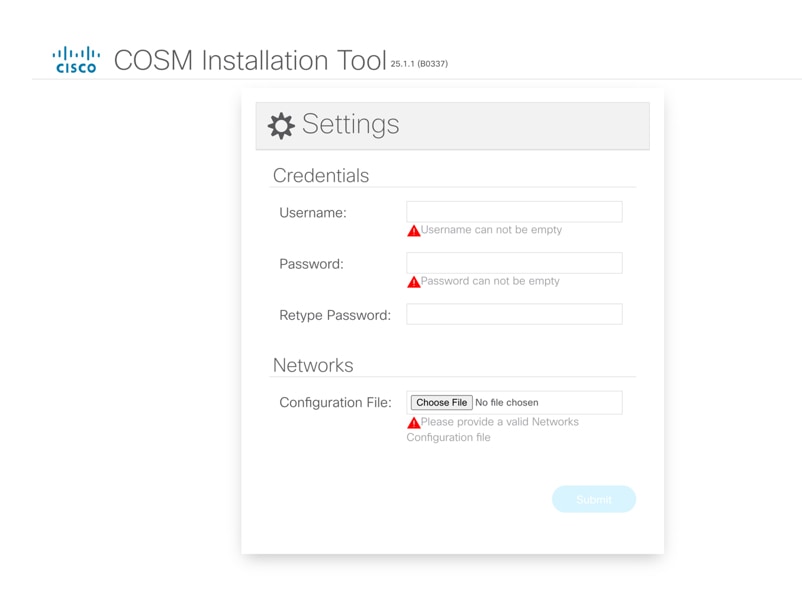
In the Credentials section, enter the username and password.

  • Enter a username in Username.

  • Enter a password in Password. The password must be 8 to 127 characters and include at least one uppercase letter, one lowercase letter, one number, and one special character.

  • Retype the password in Retype Password.

Figure 1. COSM Installation Tool settings page
3.

Select Choose File, and choose network.yml from Configuration File.

For details about the configuration file, see Network YAML configuration file for Geo HA.

4.

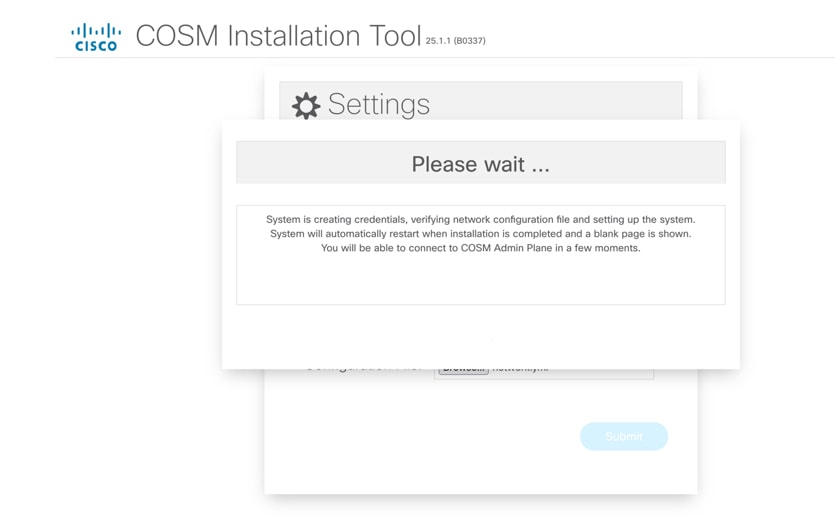
Select Submit to start the installation.

A confirmation message indicates that credentials are created, the network configuration file is verified, and the system is brought up.

After the installation completes, a blank web page appears to indicate that the Cisco Optical Site Manager Admin Plane started successfully.