Configuring PKI

This chapter describes the Public Key Infrastructure (PKI) support on the Cisco NX-OS device. PKI allows the device to obtain and use digital certificates for secure communication in the network and provides manageability and scalability for Secure Shell (SSH).

This chapter includes the following sections:

Information About PKI

Public Key Infrastructure (PKI) is a framework that manages digital certificates and public-key encryption to secure communications and authenticate identities.

  • PKI provides mechanisms for issuing, managing, and revoking digital certificates.

  • It involves Certificate Authorities (CAs) that validate and sign certificates.

  • PKI supports secure data exchange and identity verification in network environments.

CAs and Digital Certificates

Certificate Authorities (CAs) are trusted entities that manage certificate requests and issue digital certificates to participating entities, providing centralized key management and authentication in public key cryptography.

  • CAs issue digital certificates to hosts, network devices, or users.

  • Digital certificates contain identifying information and the entity’s public key.

  • CAs are trusted third parties that validate identities and sign certificates.

How CAs and Digital Certificates Work

Certificate Authorities (CAs) manage certificate requests and issue certificates to participating entities such as hosts, network devices, or users. The CAs provide centralized key management for the participating entities.

  • Digital signatures, based on public key cryptography, digitally authenticate devices and individual users.

  • Each device or user has a key pair: a private key (kept secret) and a public key (shared).

  • Anything encrypted with one key can be decrypted with the other.

  • A signature is formed when data is encrypted with a sender’s private key; the receiver verifies it using the sender’s public key.

  • This process relies on the receiver having a copy of the sender’s public key and being certain of its authenticity.

  • Digital certificates link the digital signature to the sender and contain identifying information and the public key.

  • The CA that signs the certificate is a trusted third party for validating identities and creating certificates.

  • To validate the CA’s signature, the receiver must know the CA’s public key, which is typically pre-installed in web browsers or handled out of band.

Trust Model, Trust Points, and Identity CAs

The trust model in PKI is hierarchical, involving multiple configurable trusted Certificate Authorities (CAs). Trust points and identity CAs are key components in this model.

  • A trust point is the information about a trusted CA configured on a device, including the CA certificate or certificate chain and revocation checking information.

  • The process of securely obtaining and storing a trusted CA’s root certificate or certificate chain is called CA authentication .

  • An identity CA is a trust point that issues identity certificates to devices for associating with key pairs.

Supporting reference information for Trust Model, Trust Points, and Identity CAs

The PKI trust model allows each device to be configured with a list of trusted CAs. During security protocol exchanges, a peer certificate can be authenticated if it was issued by one of these trusted CAs. The device locally stores the self-signed root certificate of the trusted CA or the certificate chain for a subordinate CA.

Example of Trust Point and Identity CA Usage

For example, when a device enrolls with a trust point, it obtains an identity certificate from the identity CA. This certificate is then associated with a key pair, enabling secure authentication and communication within the network.

CA Certificate Hierarchy

The CA Certificate Hierarchy is a structure that organizes multiple trusted Certificate Authorities (CAs) into a chain or bundle, enabling secure services by validating certificates through a sequence of intermediate and root CAs.

  • Multiple trusted CAs are typically installed as a bundle on all hosts.

  • NX-OS PKI infrastructure supports importing certificate chains, but only one chain can be installed at a time.

  • Managing several CA chains requires a facility to download CA bundles containing multiple intermediate and root CAs.

CA Certificate Hierarchy Reference Information

CA Certificate Hierarchy involves the installation and management of multiple trusted CAs to ensure secure communication between hosts.

Example of CA Certificate Hierarchy

For instance, when deploying secure services, an administrator may need to install a CA bundle that includes several intermediate and root CAs to ensure all certificates are trusted across the network.

Importing CA Bundle

The import CA bundle process in Cisco NX-OS enables the installation of multiple CA certificates under trustpoint labels using the pkcs7 file format.

  • The crypto CA trustpoint command binds CA certificates, CRLs, identity certificates, and key pairs to a named label.

  • All related files are stored in the NX-OS certstore directory and tagged with the trustpoint label.

  • The import command supports the pkcs7 option to provide a CA bundle file in pkcs7 format.

Reference Information for Importing CA Bundle

The crypto CA trustpoint command is used to associate CA certificates, CRLs, identity certificates, and key pairs with a specific label. These files are stored in the NX-OS certstore directory and are identified by the trustpoint label.

  • SSL applications can access CA certificates by specifying the NX-OS certstore as the CA path during SSL initialization, without needing to know the trustpoint label.

  • To bind to an identity certificate, clients must use the trustpoint label as the binding point.

  1. The import pkcs command is enhanced to install CA certificates under a trustpoint label.

  2. The pkcs7 option allows the import of a CA bundle file in pkcs7 format.

  3. Each CA chain in the bundle is installed under its own label, formed by appending an index to the main trustpoint label.

Once installed, there is no logical binding of all CA chains to a bundle.

Table 1. Comparison Table Title

Attributes

Trustpoint Label

CA Bundle (pkcs7)

File Storage

Stored in certstore under label

Stored in certstore, each chain under indexed label

Binding

Label used for binding

No logical binding of all chains to bundle


Note


TIP: Use the pkcs7 option to efficiently import multiple CA certificates as a bundle.


Example: Importing a CA Bundle Using pkcs7

For example, to import a CA bundle in pkcs7 format, use the import command with the pkcs7 option. Each CA chain will be installed under a unique label derived from the main trustpoint label.

Import the CA Certificate Bundle in PKCS7 Format

To support the import of the CA certificate bundle which consists of multiple independent certificate chains, the option of ‘pkcs7’ is introduced in the crypto import command.

Procedure

Step 1

configure terminal

Example:
switch# configure terminal
 switch(config)#

Enters global configuration mode.

Step 2

crypto ca import <baselabel> pksc7 <uri0> force

There are two input arguments in the command. The source file which is the ca bundle file is given in the <uri0> , the input file has to be in pkcs7 format indicating that it is a cabundle file.

Multiple certificate chains will be extracted out of the cabundle. The command will generate multiple trustpoints with ca certificate chain attached to each one. Import command generates two configurations which are global CA bundle configuration and CA bundle sub-configuration with each trustpoint generated.

The force option removes the CA bundle and related trustpoint configurations, imports a new CA bundle with the same bundle name, and generates fresh trustpoint configurations related to the cabundle.

Step 3

crypto ca cabundle <bundle-name>

The bundle-name is same as baselabel for import case. You can use the no form of this command to delete the, CA bundle, trustpoints, and related certificate chains.

After importing CA bundle under a particular baselabel name and generating all the trustpoints, if a user try to execute the import command again under the same baselabel name, it will throw error saying CA bundle already exists. The user can use force option to modify the existing CA bundle.

Maximum number of Cabundles supported is 20.

Step 4

exit

Example:
switch(config)# exit
switch#

Exits configuration mode.

Step 5

(Optional) show crypto ca certificates

Example:
switch# show crypto ca certificates

Displays the CA certificates.

Step 6

(Optional) copy running-config startup-config

Example:
switch# copy running-config startup-config

Copies the running configuration to the startup configuration.


RSA Key Pairs and Identity Certificates

RSA key pairs and identity certificates are fundamental components for device authentication and secure communication with certificate authorities (CAs).

  • Each device can generate one or more RSA key pairs, each associated with a trust point CA for enrollment.

  • Only one identity certificate and one key pair are allowed per trust point CA.

  • The subject name in the identity certificate is the device's fully qualified domain name (FQDN).

Relationship between Trust Points, RSA Key Pairs, and Identity Certificates

Trust points, RSA key pairs, and identity certificates are interrelated to enable secure device authentication and application trust.

  • A trust point corresponds to a specific CA that the device trusts for peer certificate verification for any application (such as SSH).

  • A device can have many trust points, and all applications on the device can trust a peer certificate issued by any of the trust point CAs.

  • A trust point is not restricted to a specific application.

  • A device enrolls with the CA that corresponds to the trust point to obtain an identity certificate. Devices can enroll with multiple trust points, obtaining separate identity certificates from each. The certificates are used by applications depending on the purposes specified in the certificate by the issuing CA, stored as certificate extensions.

  • When enrolling with a trust point, an RSA key pair must be generated and associated to the trust point before generating the enrollment request. The association between the trust point, key pair, and identity certificate remains valid until explicitly removed by deleting the certificate, key pair, or trust point.

  • You can generate one or more RSA key pairs on a device, and each can be associated to one or more trust points. However, only one key pair can be associated to a trust point, allowing only one identity certificate from a CA.

  • If a device obtains multiple identity certificates (each from a distinct CA), the certificate that an application selects for a security protocol exchange is application specific.

  • It is not necessary to designate one or more trust points for an application. Any application can use any certificate issued by any trust point as long as the certificate purpose satisfies the application requirements.

  • Only one identity certificate from a trust point and one key pair associated to a trust point are needed. A CA certifies a given identity (or name) only once and does not issue multiple certificates with the same name. If multiple identity certificates are needed for a CA and the CA allows it, another trust point must be defined for the same CA, with another key pair associated and certified.

The software allows you to generate RSA key pairs with a configurable key size (modulus). The default key size is 512. You can also configure an RSA key-pair label, with the default label being the device's fully qualified domain name (FQDN).

Example: RSA Key Pair and Identity Certificate Enrollment

For example, a device generates an RSA key pair labeled with its FQDN, associates it with a trust point for a specific CA, and enrolls to obtain an identity certificate. This certificate is then used by applications such as SSH for secure communication.

Multiple Trusted CA Support

Multiple Trusted CA Support allows a device to trust multiple Certificate Authorities (CAs) by configuring multiple trust points, each associated with a distinct CA.

  • Enables configuration of multiple trust points on a device.

  • Allows association of each trust point with a different CA.

  • Facilitates certificate verification from peers using any of the trusted CAs.

Reference Information for Multiple Trusted CA Support

The device can be configured with multiple trusted CAs, eliminating the need to enroll with the specific CA that issued a peer's certificate.

Example of Multiple Trusted CA Support

For example, if a device is configured with three trusted CAs, it can verify certificates from peers issued by any of those CAs, improving interoperability in environments with multiple certificate authorities.

PKI Enrollment Support

PKI enrollment is the process by which a device obtains an identity certificate from a certificate authority (CA) for secure communications.

  • Enrollment involves generating an RSA key pair on the device.

  • The device creates a certificate request and forwards it to the CA.

  • The issued certificate is received from the CA and stored in nonvolatile memory on the device.

Supporting reference information for PKI Enrollment Support

PKI enrollment is essential for enabling secure device authentication and encrypted communications in network environments.

  • Enrollment is required for applications like SSH that depend on device identity certificates.

  1. Generate RSA key pair on the device.

  2. Generate and forward certificate request to the CA.

  3. Receive signed certificate from the CA.

  4. Store the certificate in nonvolatile storage (bootflash).


Note


The CA administrator may be required to manually approve the enrollment request at the CA server when the request is received by the CA.


Example of PKI Enrollment Support

For example, when a device is configured for SSH, it initiates PKI enrollment by generating a key pair, sending a certificate request to the CA, and storing the signed certificate for secure SSH sessions.

Manual Enrollment Using Cut-and-Paste

Manual enrollment using cut-and-paste is a process where certificate requests and issued certificates are transferred between a device and a CA by copying and pasting base64-encoded text.

  • Supported by the Cisco NX-OS software.

  • Involves manual transfer of certificate requests and certificates.

  • Uses base64-encoded text for communication with the CA.

Steps for Manual Cut-and-Paste Enrollment

To manually enroll a certificate using cut-and-paste, perform the following steps:

  1. Create an enrollment certificate request, which the Cisco NX-OS device displays in base64-encoded text form.

  2. Cut and paste the encoded certificate request text in an e-mail or in a web form and send it to the CA.

  3. Receive the issued certificate (in base64-encoded text form) from the CA in an e-mail or in a web browser download.

  4. Cut and paste the issued certificate to the device using the certificate import facility.

Multiple RSA Key Pair and Identity CA Support

  • Multiple identity CAs allow a device to enroll with more than one trust point, resulting in multiple identity certificates from distinct CAs.

  • The device can participate in SSH and other applications with many peers using certificates issued by CAs acceptable to those peers.

  • The multiple RSA key-pair feature enables the device to maintain a distinct key pair for each CA, matching policy requirements such as key length without conflicts.

Reference Information for Multiple RSA Key Pair and Identity CA Support

With this feature, the device can generate multiple RSA key pairs and associate each key pair with a distinct trust point. When enrolling with a trust point, the associated key pair is used to construct the certificate request.

Peer Certificate Verification

Peer certificate verification is the process by which a device checks the authenticity and validity of certificates received from peers during secure communications.

  • Ensures the peer certificate is issued by a locally trusted Certificate Authority (CA).

  • Checks that the peer certificate is valid and not expired at the time of verification.

  • Verifies that the peer certificate has not been revoked by the issuing CA.

Peer Certificate Verification Process and Methods

The PKI support on a device can verify peer certificates. The software verifies certificates received from peers during security exchanges for applications, such as SSH. The applications verify the validity of the peer certificates. The software performs several steps when verifying peer certificates, including checking the issuing CA, certificate validity, and revocation status.

  • Verifies the certificate is issued by a trusted CA.

  • Checks the certificate validity period.

  • Confirms the certificate is not revoked.

For revocation checking, the software supports the certificate revocation list (CRL). A trust point CA can use this method to verify that the peer certificate has not been revoked.

Certificate Revocation Checking

Certificate revocation checking is a process that determines whether a CA certificate is still valid or has been revoked.

  • The software can check the revocation status of CA certificates.

  • Applications can use different revocation checking mechanisms in a specified order.

  • The available methods are CRL, NDcPP: OCSP for Syslog , none, or a combination of these methods.

CRL Support

Certificate revocation lists (CRLs) are maintained by certificate authorities (CAs) to provide information about certificates that have been revoked before their expiration dates.

  • CRLs are published by CAs in a repository and referenced in issued certificates.

  • Clients can download and cache CRLs locally to verify the revocation status of peer certificates.

  • The software allows manual configuration and caching of CRLs for trust points in the device bootflash (cert-store).

How CRLs are used for certificate revocation checking

CRLs enable clients to determine if a certificate has been revoked by consulting the latest list published by the issuing CA.

  • Clients obtain the latest CRL from the issuing CA to check certificate status.

  • Locally cached CRLs can be used until they expire.

  • The software checks the CRL from the issuing CA only if it has already been cached and revocation checking is configured to use the CRL.

Example of CRL usage in certificate verification

For example, when a client verifies a peer’s certificate, it can use a cached CRL from the issuing CA to determine if the certificate has been revoked. If the CRL is not cached or revocation checking is not configured to use the CRL, the certificate is considered not revoked unless other revocation methods are configured.

NDcPP: OCSP for Syslog

OCSP for Syslog is a method that enables clients to validate the revocation status of server certificates by querying an external OCSP responder, rather than maintaining a local list of revoked certificates.

  • Allows real-time certificate revocation status checks via an OCSP responder.

  • Reduces the need for clients to store and manage local certificate revocation lists.

  • Depends on the availability of the OCSP responder and the inclusion of an OCSP responder URL in the server certificate.

How OCSP for Syslog Works

OCSP for Syslog enables a client to send the server certificate to an external OCSP responder (CA) server, which validates the certificate and confirms its revocation status.

Example: OCSP Validation in Syslog

For example, when a remote syslog server presents a certificate containing an OCSP responder URL, the client forwards this certificate to the OCSP responder. The CA server then validates the certificate and returns its status, allowing the client to determine if the certificate is valid or revoked without maintaining a local revocation list.

Import and Export Support for Certificates and Associated Key Pairs

Import and export support for certificates and associated key pairs enables secure management of digital certificates and RSA key pairs using standard formats.

  • Certificates and key pairs can be imported in standard PEM (base64) format as part of the CA authentication and enrollment process.

  • Identity information in a trust point can be exported to a password-protected PKCS#12 file, which includes the RSA key pair, identity certificate, and CA certificate (or chain).

  • Exported PKCS#12 files can be imported to the same or replacement device for recovery or migration purposes.

Reference Information for Import and Export of Certificates and Key Pairs

Import and export operations for certificates and key pairs are essential for secure device authentication, backup, and recovery.

Example: Importing and Exporting Certificates

For example, after a system crash, a previously exported PKCS#12 file containing the RSA key pair, identity certificate, and CA certificate can be imported to restore the device's identity and trust relationships.

Guidelines and Limitations for PKI

  • The maximum number of key pairs you can configure on a Cisco NX-OS device is 16.

  • The maximum number of trust points you can declare on a Cisco NX-OS device is 16.

  • The maximum number of identify certificates that you can configure on a Cisco NX-OS device are 16.

  • The maximum number of certificates in a CA certificate chain is 10.

  • The maximum number of trust points you can authenticate to a specific CA is 10.

  • Configuration rollbacks do not support the PKI configuration.

  • Beginning with Cisco NX-OS Release 9.3(5), Cisco NX-OS software supports NDcPP: OCSP for Syslog.

  • Beginning with Cisco NX-OS Release 10.3(3)F, Elliptic Curve Cyptography (ECC) key pair support is provided to generate and import the certificate on Cisco Nexus switches.

Differences in PKI Configuration Commands

If you are familiar with the Cisco IOS CLI, be aware that the Cisco NX-OS commands for this feature might differ from the Cisco IOS commands that you would use.

Default Settings for PKI

The default settings for PKI define the initial values assigned to key PKI parameters on the system.

  • Trust point and RSA key pair are set to None by default.

  • The RSA key-pair label defaults to the device FQDN, and the modulus is set to 512.

  • Revocation check method is set to CRL , and certificate authentication uses the local cert-store.

Default PKI Parameters Reference

This section provides a table listing the default values for each PKI parameter.

Table 2. Default PKI Parameters

Parameters

Default

Trust point

None

RSA key pair

None

RSA key-pair label

Device FQDN

RSA key-pair modulus

512

RSA key-pair exportable

Enabled

Revocation check method

CRL

Configuring CAs and Digital Certificates

Configuring CAs and digital certificates involves performing specific tasks to allow CAs and digital certificates to interoperate on your device.

  • Certificate Authorities (CAs) are trusted entities that issue digital certificates.

  • Digital certificates are used to authenticate devices and secure communications.

  • Proper configuration ensures secure interoperability between your device and other systems.

Tasks for Configuring CAs and Digital Certificates

This section describes the tasks that you must perform to allow CAs and digital certificates on your Cisco NX-OS device to interoperate.

Configure the Hostname and IP Domain Name

You must configure the hostname and IP domain name of the device if you have not yet configured them because the Cisco NX-OS software uses the fully qualified domain name (FQDN) of the device as the subject in the identity certificate. Also, the Cisco NX-OS software uses the device FQDN as a default key label when you do not specify a label during key-pair generation. For example, a certificate named DeviceA.example.com is based on a device hostname of DeviceA and a device IP domain name of example.com.


Caution


Changing the hostname or IP domain name after generating the certificate can invalidate the certificate.


Procedure


Step 1

configure terminal

Example:

switch# configure terminal
                  switch(config)#

Enters global configuration mode.

Step 2

hostname hostname

Example:

switch(config)# hostname DeviceA

Configures the hostname of the device.

Step 3

ip domain-name name [ use-vrf vrf-name ]

Example:

DeviceA(config)# ip domain-name example.com

Configures the IP domain name of the device. If you do not specify a VRF name, the command uses the default VRF.

Step 4

exit

Example:

switch(config)# exit
                  switch#

Exits configuration mode.

Step 5

(Optional) show hosts

Example:

switch# show hosts

Displays the IP domain name.

Step 6

(Optional) copy running-config startup-config

Example:

switch# copy running-config startup-config

Copies the running configuration to the startup configuration.


Generate an RSA Key Pair

You can generate an RSA key pair to sign and/or encrypt and decrypt the security payload during security protocol exchanges for applications. You must generate the RSA key pair before you can obtain a certificate for your device.

Beginning Cisco NX-OS Release 9.3(3), you must explicitly generate RSA key pairs before you associate the Cisco NX-OS device with a trust point CA. Prior to Cisco NX-OS Releases 9.3(3), if unavailable, the RSA key pairs would be auto generated.

Procedure


Step 1

configure terminal

Example:

switch# configure terminal
 switch(config)#

Enters global configuration mode.

Step 2

crypto key generate rsa [ label label-string ] [ exportable ] [ modulus size ]

Example:

switch(config)# crypto key generate rsa exportable

Generates an RSA key pair. The maximum number of key pairs on a device is 16.

The label string is alphanumeric, case sensitive, and has a maximum length of 64 characters. The default label string is the hostname and the FQDN separated by a period character (.).

Valid modulus values are 512, 768, 1024, 1536, 2048, 3072 and 4096 . The default modulus size is 512.

Note


The security policy on the Cisco NX-OS device and on the CA (where enrollment is planned) should be considered when deciding the appropriate key modulus.

By default, the key pair is not exportable. Only exportable key pairs can be exported in the PKCS#12 format.

Caution


You cannot change the exportability of a key pair.

Step 3

exit

Example:

switch(config)# exit
switch#

Exits configuration mode.

Step 4

(Optional) show crypto key mypubkey rsa

Example:

switch# show crypto key mypubkey rsa

Displays the generated key.

Step 5

(Optional) copy running-config startup-config

Example:

switch# copy running-config startup-config

Copies the running configuration to the startup configuration.


Generate an ECC Key Pair

You can generate an ECC key pair to sign and/or encrypt and decrypt the security payload during security protocol exchanges for applications. You must generate the ECC key pair before you can obtain a certificate for your device. The ECC keys are stronger compared to RSA keys for a given length.

Beginning Cisco NX-OS Release 10.3(3)F, you can generate an ECC key pair to associate the Cisco NX-OS device with a trust point CA.

Procedure


Step 1

configure terminal

Example:

switch# configure terminal
 switch(config)#

Enters global configuration mode.

Step 2

crypto key generate ecc [ label ecc-key-label ] [ exportable ] [ modulus size ]

Example:

switch(config)# crypto key generate ecc exportable modulus 224

Generates an ECC key pair. The maximum number of key pairs on a device is 16.

The label string is alphanumeric, case sensitive, and has maximum length of 64 characters. The default label string is the hostname and the FQDN separated by a period character (.).

Valid modulus values are 224, 384, and 521. The default modulus size is 224.

Note


The security policy on the Cisco NX-OS device and on the CA (where enrollment is planned) should be considered when deciding the appropriate key modulus.

By default, the key pair is not exportable. Only exportable key pairs can be exported in the PKCS#12 format.

Caution


You cannot change the exportability of a key pair.

Step 3

no crypto key generate ecc [ label ecc-key-label ]

Example:

switch(config)# no crypto key generate ecc label label-name

Deletes the ECC key.

Step 4

exit

Example:

switch(config)# exit
 switch#

Exits configuration mode.

Step 5

(Optional) show crypto key mypubkey ecc

Example:

switch# show crypto key mypubkey ecc

Displays the generated ECC key.

Step 6

(Optional) copy running-config startup-config

Example:

switch# copy running-config startup-config

Copies the running configuration to the startup configuration.


Create a Trust Point CA Association

You must associate the Cisco NX-OS device with a trust point CA.

Before you begin

Generate the RSA key pair.

Procedure


Step 1

configure terminal

Example:

switch# configure terminal
                  switch(config)#

Enters global configuration mode.

Step 2

crypto ca trustpoint name

Example:

switch(config)# crypto ca trustpoint admin-ca
                  switch(config-trustpoint)#

Declares a trust point CA that the device should trust and enters trust point configuration mode.

Note


The maximum number of trustpoints that can be configured is 50.

Step 3

cabundle baselabel

Example:

switch(config-trustpoint)# cabundle test

Groups the trustpoints under a specific CA bundle. The No form of this command detaches the trustpoints from the CA bundle. This command associates the trustpoints to an existing CA bundle and it does not configure any new CA bundle.

Step 4

enrollment terminal

Example:

switch(config-trustpoint)# enrollment terminal

Enables manual cut-and-paste certificate enrollment. The default is enabled.

Note


The Cisco NX-OS software supports only the manual cut-and-paste method for certificate enrollment.

Step 5

rsakeypair label

Example:

switch(config-trustpoint)# rsakeypair SwitchA

Specifies the label of the RSA key pair to associate to this trust point for enrollment.

Note


You can specify only one RSA key pair per CA.

Step 6

exit

Example:

switch(config-trustpoint)# exit
                  switch(config)#

Exits trust point configuration mode.

Step 7

(Optional) show crypto ca trustpoints

Example:

switch(config)# show crypto ca trustpoints

Displays trust point information.

Step 8

(Optional) copy running-config startup-config

Example:

switch(config)# copy running-config startup-config

Copies the running configuration to the startup configuration.


Configure Certificate Mapping Filters

You can configure mapping filters to validate the CA certificates that are used for authentication. The mapping filters are used to match the CA certificate against a username.

Cisco NX-OS supports the following certificate mapping filters:

  • %username%—Substitutes the user’s login name.

  • %hostname%—Substitutes the peer hostname.

Before you begin

Configure a cert-store for certificate authentication.

Procedure


Step 1

configure terminal

Example:

switch# configure terminal
                        switch(config)#

Enters global configuration mode.

Step 2

crypto certificatemap mapname map-name

Example:

switch(config)# crypto certificatemap mapname filtermap1

Creates a new filter map.

Step 3

filter [ subject-name subject-name | altname-email e-mail-ID | altname-upn user-principal-name ]

Example:

switch(config-certmap-filter)# filter altname-upn %username%@cisco.com

Configures one or more certificate mapping filters within the filter map. These certificate field attributes are supported in the filters:

  • subject-name—The required subject name in the LDAP distinguished name (DN) string format. For example:
    filter subject-name CN=%username%
    or
    filter subject-name /C=IN/ST=KA/L=BLR/O=CISCO/OU=ABC/CN=%username%
  • altname-email—The e-mail address that must be present in the certificate as a subject alternative name. For example:
    filter altname-email %username%@cisco.com
  • altname-upn—The principal name that must be present in the certificate as a subject alternative name. For example:
    filter altname-upn %username%@%hostname%

The validation passes if the certificate passes all of the filters configured in the map.

Step 4

exit

Example:

switch(config-certmap-filter)# exit
                        switch(config)#

Exits certificate mapping filter configuration mode.

Step 5

(Optional) crypto cert ssh-authorize [ default | issuer-CAname ] [ map map-name1 [ map-name2 ]]

Example:

switch(config)# crypto cert ssh-authorize default map filtermap1

Configures a certificate mapping filter for the Secure Shell (SSH) protocol. You can use the default filter map for SSH authorization or specify the issuer of the CA certificate. If you do not use the default map, you can specify one or two filter maps for authorization.

If you specify the issuer of the CA certificate, the certificate bound to the user account is validated as successful if it passes one of the configured maps.

Step 6

(Optional) show crypto certificatemap

Example:

switch(config)# show crypto certificatemap

Displays the certificate mapping filters.

Step 7

(Optional) show crypto ssh-auth-map

Example:

switch(config)# show crypto ssh-auth-map

Displays the mapping filters configured for SSH authentication.

Step 8

(Optional) copy running-config startup-config

Example:

switch(config)# copy running-config startup-config

Copies the running configuration to the startup configuration.


Authenticate the CA

Create an association with the CA. Obtain the CA certificate or CA certificate chain.

The configuration process of trusting a CA is complete only when the CA is authenticated to the Cisco NX-OS device. You must authenticate your Cisco NX-OS device to the CA by obtaining the self-signed certificate of the CA in PEM format, which contains the public key of the CA. Because the certificate of the CA is self-signed (the CA signs its own certificate) the public key of the CA should be manually authenticated by contacting the CA administrator to compare the fingerprint of the CA certificate.


Note


The CA that you are authenticating is not a self-signed CA when it is a subordinate CA to another CA, which itself may be a subordinate to yet another CA, and so on, finally ending in a self-signed CA. This type of CA certificate is called the CA certificate chain of the CA being authenticated. In this case, you must input the full list of the CA certificates of all the CAs in the certification chain during the CA authentication. The maximum number of certificates in a CA certificate chain is 10.


Before you begin

Create an association with the CA.

Obtain the CA certificate or CA certificate chain.

Procedure


Step 1

configure terminal

Example:

switch# configure terminal
                  switch(config)#

Enters global configuration mode.

Step 2

crypto ca authenticate name pemfile uri0

Example:

switch(config)# crypto ca authenticate admin-ca
                  input (cut & paste) CA certificate (chain) in PEM format;
                  end the input with a line containing only END OF INPUT :
                  -----BEGIN CERTIFICATE-----
                  MIIC4jCCAoygAwIBAgIQBWDSiay0GZRPSRIljK0ZejANBgkqhkiG9w0BAQUFADCB
                  kDEgMB4GCSqGSIb3DQEJARYRYW1hbmRrZUBjaXNjby5jb20xCzAJBgNVBAYTAklO
                  MRIwEAYDVQQIEwlLYXJuYXRha2ExEjAQBgNVBAcTCUJhbmdhbG9yZTEOMAwGA1UE
                  ChMFQ2lzY28xEzARBgNVBAsTCm5ldHN0b3JhZ2UxEjAQBgNVBAMTCUFwYXJuYSBD
                  QTAeFw0wNTA1MDMyMjQ2MzdaFw0wNzA1MDMyMjU1MTdaMIGQMSAwHgYJKoZIhvcN
                  AQkBFhFhbWFuZGtlQGNpc2NvLmNvbTELMAkGA1UEBhMCSU4xEjAQBgNVBAgTCUth
                  cm5hdGFrYTESMBAGA1UEBxMJQmFuZ2Fsb3JlMQ4wDAYDVQQKEwVDaXNjbzETMBEG
                  A1UECxMKbmV0c3RvcmFnZTESMBAGA1UEAxMJQXBhcm5hIENBMFwwDQYJKoZIhvcN
                  AQEBBQADSwAwSAJBAMW/7b3+DXJPANBsIHHzluNccNM87ypyzwuoSNZXOMpeRXXI
                  OzyBAgiXT2ASFuUOwQ1iDM8rO/41jf8RxvYKvysCAwEAAaOBvzCBvDALBgNVHQ8E
                  BAMCAcYwDwYDVR0TAQH/BAUwAwEB/zAdBgNVHQ4EFgQUJyjyRoMbrCNMRU2OyRhQ
                  GgsWbHEwawYDVR0fBGQwYjAuoCygKoYoaHR0cDovL3NzZS0wOC9DZXJ0RW5yb2xs
                  L0FwYXJuYSUyMENBLmNybDAwoC6gLIYqZmlsZTovL1xcc3NlLTA4XENlcnRFbnJv
                  bGxcQXBhcm5hJTIwQ0EuY3JsMBAGCSsGAQQBgjcVAQQDAgEAMA0GCSqGSIb3DQEB
                  BQUAA0EAHv6UQ+8nE399Tww+KaGr0g0NIJaqNgLh0AFcT0rEyuyt/WYGPzksF9Ea
                  NBG7E0oN66zex0EOEfG1Vs6mXp1//w==
                  -----END CERTIFICATE-----
                  END OF INPUT
                  Fingerprint(s): MD5 Fingerprint=65:84:9A:27:D5:71:03:33:9C:12:23:92:38:6F:78:12
                  Do you accept this certificate? [yes/no]: yes

Prompts you to cut and paste the certificate of the CA. Use the same name that you used when declaring the CA.

Also validates and attaches the CA chain directly to the specified trust point.

The maximum number of trust points that you can authenticate to a specific CA is 10.

Note


For subordinate CA authentication, the Cisco NX-OS software requires the full chain of CA certificates ending in a self-signed CA because the CA chain is needed for certificate verification as well as for PKCS#12 format export.

Step 3

exit

Example:

switch(config)# exit
                  switch#

Exits configuration mode.

Step 4

(Optional) show crypto ca trustpoints

Example:

switch# show crypto ca trustpoints

Displays the trust point CA information.

Step 5

(Optional) copy running-config startup-config

Example:

switch# copy running-config startup-config

Copies the running configuration to the startup configuration.


Configure Certificate Revocation Checking Methods

During security exchanges with a client (for example, an SSH user), the Cisco NX-OS device performs the certificate verification of the peer certificate sent by the client. The verification process may involve certificate revocation status checking.

You can configure the device to check the CRL downloaded from the CA. Downloading the CRL and checking locally does not generate traffic in your network. However, certificates can be revoked between downloads and your device would not be aware of the revocation.

Before you begin

Authenticate the CA.

Ensure that you have configured the CRL if you want to use CRL checking.

Procedure


Step 1

configure terminal

Example:

switch# configure terminal
                  switch(config)#

Enters global configuration mode.

Step 2

crypto ca trustpoint name

Example:

switch(config)# crypto ca trustpoint admin-ca
                  switch(config-trustpoint)#

Specifies a trust point CA and enters trust point configuration mode.

Step 3

revocation-check { crl [ none ] | none }

Example:

switch(config-trustpoint)# revocation-check none

Configures the certificate revocation checking methods. The default method is crl .

The Cisco NX-OS software uses the certificate revocation methods in the order that you specify.

Step 4

exit

Example:

switch(config-trustpoint)# exit
                  switch(config)#

Exits trust point configuration mode.

Step 5

(Optional) show crypto ca trustpoints

Example:

switch(config)# show crypto ca trustpoints

Displays the trust point CA information.

Step 6

(Optional) copy running-config startup-config

Example:

switch(config)# copy running-config startup-config

Copies the running configuration to the startup configuration.


Generate a Certificate Request

Use this procedure to generate a certificate request for identity certificates in NX-OS.

  • This task is required to obtain identity certificates from a Certificate Authority (CA).

You must generate a request to obtain identity certificates from the associated trust point CA for each of your device’s RSA key pairs. You must then cut and paste the displayed request into an e-mail or in a website form for the CA.

Before you begin

Create an association with the CA.

Obtain the CA certificate or CA certificate chain.

Procedure


Step 1

configure terminal

Example:

switch# configure terminal
                  switch(config)#

Enters global configuration mode.

Step 2

crypto ca enroll name

Example:

switch(config)# crypto ca enroll admin-ca
                  Create the certificate request ..
                  Create a challenge password. You will need to verbally provide this
                  password to the CA Administrator in order to revoke your certificate.
                  For security reasons your password will not be saved in the configuration.
                  Please make a note of it.
                  Password:nbv123
                  The subject name in the certificate will be: DeviceA.cisco.com
                  Include the switch serial number in the subject name? [yes/no]: no
                  Include an IP address in the subject name [yes/no]: yes
                  ip address:172.22.31.162
                  The certificate request will be displayed...
                  -----BEGIN CERTIFICATE REQUEST-----
                  MIIBqzCCARQCAQAwHDEaMBgGA1UEAxMRVmVnYXMtMS5jaXNjby5jb20wgZ8wDQYJ
                  KoZIhvcNAQEBBQADgY0AMIGJAoGBAL8Y1UAJ2NC7jUJ1DVaSMqNIgJ2kt8rl4lKY
                  0JC6ManNy4qxk8VeMXZSiLJ4JgTzKWdxbLDkTTysnjuCXGvjb+wj0hEhv/y51T9y
                  P2NJJ8ornqShrvFZgC7ysN/PyMwKcgzhbVpj+rargZvHtGJ91XTq4WoVkSCzXv8S
                  VqyH0vEvAgMBAAGgTzAVBgkqhkiG9w0BCQcxCBMGbmJ2MTIzMDYGCSqGSIb3DQEJ
                  DjEpMCcwJQYDVR0RAQH/BBswGYIRVmVnYXMtMS5jaXNjby5jb22HBKwWH6IwDQYJ
                  KoZIhvcNAQEEBQADgYEAkT60KER6Qo8nj0sDXZVHSfJZh6K6JtDz3Gkd99GlFWgt
                  PftrNcWUE/pw6HayfQl2T3ecgNwel2d15133YBF2bktExiI6Ul88nTOjglXMjja8
                  8a23bNDpNsM8rklwA6hWkrVL8NUZEFJxqbjfngPNTZacJCUS6ZqKCMetbKytUx0=
                  -----END CERTIFICATE REQUEST-----

Generates a certificate request for an authenticated CA.

Note


You must remember the challenge password. It is not saved with the configuration. You must enter this password if your certificate needs to be revoked.

Step 3

exit

Example:

switch(config-trustpoint)# exit
                  switch(config)#

Exits trust point configuration mode.

Step 4

(Optional) show crypto ca certificates

Example:

switch(config)# show crypto ca certificates

Displays the CA certificates.

Step 5

(Optional) copy running-config startup-config

Example:

switch(config)# copy running-config startup-config

Copies the running configuration to the startup configuration.


Install an Identity Certificate

Install an identity certificate to enable secure communication and authentication using PKI in NX-OS.

You can receive the identity certificate from the CA by e-mail or through a web browser in base64 encoded text form. You must install the identity certificate from the CA by cutting and pasting the encoded text.

Before you begin

Create an association with the CA.

Obtain the CA certificate or CA certificate chain.

Procedure


Step 1

configure terminal

Example:

switch# configure terminal
                  switch(config)#

Enters global configuration mode.

Step 2

crypto ca import name certificate

Example:

switch(config)# crypto ca import admin-ca certificate
                  input (cut & paste) certificate in PEM format:
                  -----BEGIN CERTIFICATE-----
                  MIIEADCCA6qgAwIBAgIKCjOOoQAAAAAAdDANBgkqhkiG9w0BAQUFADCBkDEgMB4G
                  CSqGSIb3DQEJARYRYW1hbmRrZUBjaXNjby5jb20xCzAJBgNVBAYTAklOMRIwEAYD
                  VQQIEwlLYXJuYXRha2ExEjAQBgNVBAcTCUJhbmdhbG9yZTEOMAwGA1UEChMFQ2lz
                  Y28xEzARBgNVBAsTCm5ldHN0b3JhZ2UxEjAQBgNVBAMTCUFwYXJuYSBDQTAeFw0w
                  NTExMTIwMzAyNDBaFw0wNjExMTIwMzEyNDBaMBwxGjAYBgNVBAMTEVZlZ2FzLTEu
                  Y2lzY28uY29tMIGfMA0GCSqGSIb3DQEBAQUAA4GNADCBiQKBgQC/GNVACdjQu41C
                  dQ1WkjKjSICdpLfK5eJSmNCQujGpzcuKsZPFXjF2UoiyeCYE8ylncWyw5E08rJ47
                  glxr42/sI9IRIb/8udU/cj9jSSfKK56koa7xWYAu8rDfz8jMCnIM4W1aY/q2q4Gb
                  x7RifdV06uFqFZEgs17/Elash9LxLwIDAQABo4ICEzCCAg8wJQYDVR0RAQH/BBsw
                  GYIRVmVnYXMtMS5jaXNjby5jb22HBKwWH6IwHQYDVR0OBBYEFKCLi+2sspWEfgrR
                  bhWmlVyo9jngMIHMBgNVHSMEgcQwgcGAFCco8kaDG6wjTEVNjskYUBoLFmxxoYGW
                  pIGTMIGQMSAwHgYJKoZIhvcNAQkBFhFhbWFuZGtlQGNpc2NvLmNvbTELMAkGA1UE
                  BhMCSU4xEjAQBgNVBAgTCUthcm5hdGFrYTESMBAGA1UEBxMJQmFuZ2Fsb3JlMQ4w
                  DAYDVQQKEwVDaXNjbzETMBEGA1UECxMKbmV0c3RvcmFnZTESMBAGA1UEAxMJQXBh
                  cm5hIENBghAFYNKJrLQZlE9JEiWMrRl6MGsGA1UdHwRkMGIwLqAsoCqGKGh0dHA6
                  Ly9zc2UtMDgvQ2VydEVucm9sbC9BcGFybmElMjBDQS5jcmwwMKAuoCyGKmZpbGU6
                  Ly9cXHNzZS0wOFxDZXJ0RW5yb2xsXEFwYXJuYSUyMENBLmNybDCBigYIKwYBBQUH
                  AQEEfjB8MDsGCCsGAQUFBzAChi9odHRwOi8vc3NlLTA4L0NlcnRFbnJvbGwvc3Nl
                  LTA4X0FwYXJuYSUyMENBLmNydDA9BggrBgEFBQcwAoYxZmlsZTovL1xcc3NlLTA4
                  XENlcnRFbnJvbGxcc3NlLTA4X0FwYXJuYSUyMENBLmNydDANBgkqhkiG9w0BAQUF
                  AANBADbGBGsbe7GNLh9xeOTWBNbm24U69ZSuDDcOcUZUUTgrpnTqVpPyejtsyflw
                  E36cIZu4WsExREqxbTk8ycx7V5o=
                  -----END CERTIFICATE-----

Prompts you to cut and paste the identity certificate for the CA named admin-ca.

The maximum number of identify certificates that you can configure on a device is 16.

Step 3

exit

Example:

switch(config)# exit
                  switch#

Exits configuration mode.

Step 4

(Optional) show crypto ca certificates

Example:

switch# show crypto ca certificates

Displays the CA certificates.

Step 5

(Optional) copy running-config startup-config

Example:

switch# copy running-config startup-config

Copies the running configuration to the startup configuration.


Ensuring Trust Point Configurations Persist Across Reboots

Trust point configuration persistence ensures that trust points and their associated certificates, key pairs, and CRLs remain available after device reboots.

  • Trust point configuration must be explicitly copied to the startup configuration to persist across reboots.

  • Certificates, key pairs, and CRLs are automatically persistent if the trust point configuration is saved in the startup configuration.

  • Deleting certificates or key pairs requires saving the running configuration to make deletions permanent.

Reference Information for Trust Point Configuration Persistence

Trust point configuration is a normal device configuration that persists across system reboots only if you copy it explicitly to the startup configuration. The certificates, key pairs, and CRL associated with a trust point are automatically persistent if you have already copied the trust point configuration in the startup configuration. Conversely, if the trust point configuration is not copied to the startup configuration, the certificates, key pairs, and CRL associated with it are not persistent since they require the corresponding trust point configuration after a reboot. Always copy the running configuration to the startup configuration to ensure that the configured certificates, key pairs, and CRLs are persistent. Also, save the running configuration after deleting a certificate or key pair to ensure that the deletions are permanent.

The certificates and CRL associated with a trust point automatically become persistent when imported (that is, without explicitly copying to the startup configuration) if the specific trust point is already saved in startup configuration.

  • Copy the running configuration to the startup configuration to ensure persistence.

  • Save the running configuration after deleting certificates or key pairs.

  • Importing certificates and CRLs is persistent if the trust point is already in the startup configuration.


Note


Copying the configuration to an external server does include the certificates and key pairs.


It is recommended to create a password-protected backup of the identity certificates and save it to an external server.

Example: Ensuring Trust Point Configuration Persistence

For example, after configuring a trust point and importing certificates, copy the running configuration to the startup configuration to ensure all trust point data persists after a device reboot. If you delete a certificate or key pair, save the running configuration to make the deletion permanent.

Export Identity Information in PKCS 12 Format

Export the identity certificate and associated key pair and CA certificates for a trust point CA in PKCS#12 format for backup or recovery.

You can export the identity certificate along with the RSA key pair and CA certificate (or the entire chain in the case of a subordinate CA) of a trust point to a PKCS#12 file for backup purposes. You can import the certificate and RSA key pair to recover from a system crash on your device or when you replace the supervisor modules.


Note


You can use only the bootflash: filename format when specifying the export URL.


Before you begin

Authenticate the CA.

Install an identity certificate.

Procedure


Step 1

configure terminal

Example:

switch# configure terminal
                  switch(config)#

Enters global configuration mode.

Step 2

crypto ca export name pkcs12 bootflash: filename password

Example:

switch(config)# crypto ca export admin-ca pkcs12 bootflash:adminid.p12 nbv123

Exports the identity certificate and associated key pair and CA certificates for a trust point CA. The password is alphanumeric, case sensitive, and has a maximum length of 128 characters.

Step 3

exit

Example:

switch(config)# exit
                  switch#

Exits configuration mode.

Step 4

copy booflash: filename scheme :// server / [ url / ] filename

Example:

switch# copy bootflash:adminid.p12 tftp:adminid.p12

Copies the PKCS#12 format file to a remote server.

For the scheme argument, you can enter tftp: , ftp: , scp: , or sftp: . The server argument is the address or name of the remote server, and the url argument is the path to the source file on the remote server.

The server , url , and filename arguments are case sensitive.


Import Identity Information in PKCS 12 or PKCS 7 Format

You can import the certificate and RSA key pair to recover from a system crash on your device or when you replace the supervisor modules.


Note


You can use only the bootflash: filename format when specifying the import URL.


Before you begin

Ensure that the trust point is empty by checking that no RSA key pair is associated with it and no CA is associated with the trust point using CA authentication.

Procedure


Step 1

copy scheme :// server / [ url / ] filename bootflash: filename

Example:

switch# copy tftp:adminid.p12 bootflash:adminid.p12

Copies the PKCS#12 format file from the remote server.

For the scheme argument, you can enter tftp: , ftp: , scp: , or sftp: . The server argument is the address or name of the remote server, and the url argument is the path to the source file on the remote server.

The server , url , and filename arguments are case sensitive.

Step 2

configure terminal

Example:

switch# configure terminal
                  switch(config)#

Enters global configuration mode.

Step 3

crypto ca import name [pksc12 | pkcs7 ] bootflash: filename

Example:

switch(config)# crypto ca import admin-ca pkcs12 bootflash:adminid.p12 nbv123

Imports the identity certificate and associated key pair and CA certificates for trust point CA.

Step 4

exit

Example:

switch(config)# exit
                  switch#

Exits configuration mode.

Step 5

(Optional) show crypto ca certificates

Example:

switch# show crypto ca certificates

Displays the CA certificates.

Step 6

(Optional) copy running-config startup-config

Example:

switch# copy running-config startup-config

Copies the running configuration to the startup configuration.


Configure a CRL

You can manually configure CRLs that you have downloaded from the trust points. The Cisco NX-OS software caches the CRLs in the device bootflash (cert-store). During the verification of a peer certificate, the Cisco NX-OS software checks the CRL from the issuing CA only if you have downloaded the CRL to the device and you have configured certificate revocation checking to use the CRL.

Before you begin

Ensure that you have enabled certificate revocation checking.

Procedure


Step 1

copy scheme : [ // server / [ url / ]] filename bootflash: filename

Example:

switch# copy tftp:adminca.crl bootflash:adminca.crl

Downloads the CRL from a remote server.

For the scheme argument, you can enter tftp: , ftp: , scp: , or sftp: . The server argument is the address or name of the remote server, and the url argument is the path to the source file on the remote server.

The server , url , and filename arguments are case sensitive.

Step 2

configure terminal

Example:

switch# configure terminal
                  switch(config)#

Enters global configuration mode.

Step 3

crypto ca crl request name bootflash: filename

Example:

switch(config)# crypto ca crl request admin-ca bootflash:adminca.crl

Configures or replaces the current CRL with the one specified in the file.

Step 4

exit

Example:

switch(config)# exit
                  switch#

Exits configuration mode.

Step 5

(Optional) show crypto ca crl name

Example:

switch# show crypto ca crl admin-ca

Displays the CA CRL information.

Step 6

(Optional) copy running-config startup-config

Example:

switch# copy running-config startup-config

Copies the running configuration to the startup configuration.


Delete Certificates from the CA Configuration

You can delete the identity certificates and CA certificates that are configured in a trust point. You must first delete the identity certificate, followed by the CA certificates. After deleting the identity certificate, you can disassociate the RSA key pair from a trust point. You must delete certificates to remove expired or revoked certificates, certificates that have compromised (or suspected to be compromised) key pairs, or CAs that are no longer trusted.

Procedure


Step 1

configure terminal

Example:

switch# configure terminal
                  switch(config)#

Enters global configuration mode.

Step 2

crypto ca trustpoint name

Example:

switch(config)# crypto ca trustpoint admin-ca
                  switch(config-trustpoint)#

Specifies a trust point CA and enters trust point configuration mode.

Step 3

delete ca-certificate

Example:

switch(config-trustpoint)# delete ca-certificate

Deletes the CA certificate or certificate chain.

Step 4

delete certificate [ force ]

Example:

switch(config-trustpoint)# delete certificate

Deletes the identity certificate.

You must use the force option if the identity certificate you want to delete is the last certificate in a certificate chain or only identity certificate in the device. This requirement ensures that you do not mistakenly delete the last certificate in a certificate chain or only the identity certificate and leave the applications (such as SSH) without a certificate to use.

Step 5

exit

Example:

switch(config-trustpoint)# exit
                  switch(config)#

Exits trust point configuration mode.

Step 6

(Optional) show crypto ca certificates [ name ]

Example:

switch(config)# show crypto ca certificates admin-ca

Displays the CA certificate information.

Step 7

(Optional) copy running-config startup-config

Example:

switch(config)# copy running-config startup-config

Copies the running configuration to the startup configuration.


Delete RSA Key Pairs from a Cisco NX-OS Device

You can delete the RSA key pairs from a Cisco NX-OS device if you believe the RSA key pairs were compromised in some way and should no longer be used.


Note


After you delete RSA key pairs from a device, ask the CA administrator to revoke your device’s certificates at the CA. You must supply the challenge password that you created when you originally requested the certificates.


Procedure


Step 1

configure terminal

Example:

switch# configure terminal
                  switch(config)#

Enters global configuration mode.

Step 2

crypto key zeroize rsa label

Example:

switch(config)# crypto key zeroize rsa MyKey

Deletes the RSA key pair.

Step 3

exit

Example:

switch(config)# exit
                  switch#

Exits configuration mode.

Step 4

(Optional) show crypto key mypubkey rsa

Example:

switch# show crypto key mypubkey rsa

Displays the RSA key pair configuration.

Step 5

(Optional) copy running-config startup-config

Example:

switch# copy running-config startup-config

Copies the running configuration to the startup configuration.


Verifying the PKI Configuration

  • Verification of PKI configuration involves displaying information about RSA key-pairs, CA certificates, CRLs, and trust points.

  • Several show commands are available to display specific PKI-related configuration details.

  • These commands help administrators confirm the status and configuration of PKI components on the device.

Display PKI Configuration Information

To display PKI configuration information, perform one of the following tasks:

Table 3. PKI Configuration Display Commands

Command

Purpose

Product

show crypto key mypubkey rsa

Displays information about the RSA public keys generated on the device.

show crypto ca certificates

Displays information about CA and identity certificates.

show crypto ca crl

Displays information about CA CRLs.

show crypto ca certstore

Displays the cert-store configuration.

nxos_5_0_1

show crypto ca remote-certstore

Displays the remote cert-store configuration.

nxos_5_0_1

show crypto certificatemap

Displays the certificate mapping filters.

nxos_5_0_1

show crypto ssh-auth-map

Displays the mapping filters configured for SSH authorization.

nxos_5_0_1

show crypto ca trustpoints

Displays information about CA trust points.

Configuration Examples for PKI

Configuration examples for PKI demonstrate the steps required to set up certificates and CRLs on network devices using a certificate server.

  • Shows how to configure certificates and CRLs on devices.

  • Uses a Microsoft Windows Certificate server as an example.

  • Applicable to any type of certificate server, not limited to Microsoft Windows Certificate server.

Reference Information for PKI Configuration Examples

This section provides supporting information for configuring certificates and CRLs on devices using a certificate server.


Note


You can use any type of certificate server to generate digital certificates. You are not limited to using the Microsoft Windows Certificate server.


Configure Certificates on a Cisco NX-OS Device

To configure certificates on a Cisco NX-OS device, follow these steps:

Procedure


Step 1

Configure the device FQDN.

switch# configure terminal
Enter configuration commands, one per line.  End with CNTL/Z.
switch(config)# hostname Device-1
Device-1(config)#
               

Step 2

Configure the DNS domain name for the device.


Device-1(config)# ip domain-name cisco.com

Step 3

Create a trust point.

Device-1(config)# crypto ca trustpoint myCA
Device-1(config-trustpoint)# exit
Device-1(config)# show crypto ca trustpoints
trustpoint: myCA; key:
revokation methods:  crl
               

Step 4

Create an RSA key pair for the device.

Device-1(config)# crypto key generate rsa label myKey exportable modulus 1024
 Device-1(config)# show crypto key mypubkey rsa
 key label: myKey
 key size: 1024
exportable: yes

Step 5

Associate the RSA key pair to the trust point.

Device-1(config)# crypto ca trustpoint myCA
Device-1(config-trustpoint)#  rsakeypair myKey
Device-1(config-trustpoint)# exit
Device-1(config)# show crypto ca trustpoints
trustpoint: myCA; key: myKey
revokation methods:  crl
               

Step 6

Download the CA certificate from the Microsoft Certificate Service web interface and Authenticate the CA that you want to enroll to the trust point.

Device-1(config)# crypto ca authenticate myCA
input (cut & paste) CA certificate (chain) in PEM format;
end the input with a line containing only END OF INPUT :
 -----BEGIN CERTIFICATE-----
                  MIIC4jCCAoygAwIBAgIQBWDSiay0GZRPSRIljK0ZejANBgkqhkiG9w0BAQUFADCB
                  kDEgMB4GCSqGSIb3DQEJARYRYW1hbmRrZUBjaXNjby5jb20xCzAJBgNVBAYTAklO
                  MRIwEAYDVQQIEwlLYXJuYXRha2ExEjAQBgNVBAcTCUJhbmdhbG9yZTEOMAwGA1UE
                  ChMFQ2lzY28xEzARBgNVBAsTCm5ldHN0b3JhZ2UxEjAQBgNVBAMTCUFwYXJuYSBD
                  QTAeFw0wNTA1MDMyMjQ2MzdaFw0wNzA1MDMyMjU1MTdaMIGQMSAwHgYJKoZIhvcN
                  AQkBFhFhbWFuZGtlQGNpc2NvLmNvbTELMAkGA1UEBhMCSU4xEjAQBgNVBAgTCUth
                  cm5hdGFrYTESMBAGA1UEBxMJQmFuZ2Fsb3JlMQ4wDAYDVQQKEwVDaXNjbzETMBEG
                  A1UECxMKbmV0c3RvcmFnZTESMBAGA1UEAxMJQXBhcm5hIENBMFwwDQYJKoZIhvcN
                  AQEBBQADSwAwSAJBAMW/7b3+DXJPANBsIHHzluNccNM87ypyzwuoSNZXOMpeRXXI
                  OzyBAgiXT2ASFuUOwQ1iDM8rO/41jf8RxvYKvysCAwEAAaOBvzCBvDALBgNVHQ8E
                  BAMCAcYwDwYDVR0TAQH/BAUwAwEB/zAdBgNVHQ4EFgQUJyjyRoMbrCNMRU2OyRhQ
                  GgsWbHEwawYDVR0fBGQwYjAuoCygKoYoaHR0cDovL3NzZS0wOC9DZXJ0RW5yb2xs
                  L0FwYXJuYSUyMENBLmNybDAwoC6gLIYqZmlsZTovL1xcc3NlLTA4XENlcnRFbnJv
                  bGxcQXBhcm5hJTIwQ0EuY3JsMBAGCSsGAQQBgjcVAQQDAgEAMA0GCSqGSIb3DQEB
                  BQUAA0EAHv6UQ+8nE399Tww+KaGr0g0NIJaqNgLh0AFcT0rEyuyt/WYGPzksF9Ea
                  NBG7E0oN66zex0EOEfG1Vs6mXp1//w==
                  -----END CERTIFICATE-----
                  END OF INPUT
                  Fingerprint(s): MD5 Fingerprint=65:84:9A:27:D5:71:03:33:9C:12:23:92:38:6F:78:12
                  Do you accept this certificate? [yes/no]:
                  y
                  Device-1(config)# 
                  show crypto ca certificates
                  Trustpoint: myCA
                  CA certificate 0:
                  subject= /emailAddress=admin@yourcompany.com/C=IN/ST=Karnataka/
                  L=Bangalore/O=Yourcompany/OU=netstorage/CN=Aparna CA
                  issuer= /emailAddress=admin@yourcompany.com/C=IN/ST=Karnataka/
                  L=Bangalore/O=Yourcompany/OU=netstorage/CN=Aparna CA
                  serial=0560D289ACB419944F4912258CAD197A
                  notBefore=May  3 22:46:37 2005 GMT
                  notAfter=May  3 22:55:17 2007 GMT
                  MD5 Fingerprint=65:84:9A:27:D5:71:03:33:9C:12:23:92:38:6F:78:12
                  purposes: sslserver sslclient ike
               

Step 7

Generate a request certificate to use to enroll with a trust point.

Device-1(config)# 
crypto ca enroll myCA
  Create the certificate request ..
 Create a challenge password. You will need to verbally provide this
password to the CA Administrator in order to revoke your certificate.
For security reasons your password will not be saved in the configuration.
Please make a note of it.
Password: nbv123
The subject name in the certificate will be: 
Device-1.cisco.com
Include the switch serial number in the subject name? [yes/no]: 
no
Include an IP address in the subject name [yes/no]: 
yes
ip address: 
10.10.1.1
The certificate request will be displayed...
 -----BEGIN CERTIFICATE REQUEST-----
MIIBqzCCARQCAQAwHDEaMBgGA1UEAxMRVmVnYXMtMS5jaXNjby5jb20wgZ8wDQYJ
KoZIhvcNAQEBBQADgY0AMIGJAoGBAL8Y1UAJ2NC7jUJ1DVaSMqNIgJ2kt8rl4lKY
0JC6ManNy4qxk8VeMXZSiLJ4JgTzKWdxbLDkTTysnjuCXGvjb+wj0hEhv/y51T9y
P2NJJ8ornqShrvFZgC7ysN/PyMwKcgzhbVpj+rargZvHtGJ91XTq4WoVkSCzXv8S
VqyH0vEvAgMBAAGgTzAVBgkqhkiG9w0BCQcxCBMGbmJ2MTIzMDYGCSqGSIb3DQEJ
DjEpMCcwJQYDVR0RAQH/BBswGYIRVmVnYXMtMS5jaXNjby5jb22HBKwWH6IwDQYJ
KoZIhvcNAQEEBQADgYEAkT60KER6Qo8nj0sDXZVHSfJZh6K6JtDz3Gkd99GlFWgt
PftrNcWUE/pw6HayfQl2T3ecgNwel2d15133YBF2bktExiI6Ul88nTOjglXMjja8
8a23bNDpNsM8rklwA6hWkrVL8NUZEFJxqbjfngPNTZacJCUS6ZqKCMetbKytUx0=
-----END CERTIFICATE REQUEST-----

Step 8

Request an identity certificate from the Microsoft Certificate Service web interface. and import the identity certificate.


                  Device-1(config)# 
                  crypto ca import myCA certificate
                  input (cut & paste) certificate in PEM format:
                  -----BEGIN CERTIFICATE-----
                  MIIEADCCA6qgAwIBAgIKCjOOoQAAAAAAdDANBgkqhkiG9w0BAQUFADCBkDEgMB4G
                  CSqGSIb3DQEJARYRYW1hbmRrZUBjaXNjby5jb20xCzAJBgNVBAYTAklOMRIwEAYD
                  VQQIEwlLYXJuYXRha2ExEjAQBgNVBAcTCUJhbmdhbG9yZTEOMAwGA1UEChMFQ2lz
                  Y28xEzARBgNVBAsTCm5ldHN0b3JhZ2UxEjAQBgNVBAMTCUFwYXJuYSBDQTAeFw0w
                  NTExMTIwMzAyNDBaFw0wNjExMTIwMzEyNDBaMBwxGjAYBgNVBAMTEVZlZ2FzLTEu
                  Y2lzY28uY29tMIGfMA0GCSqGSIb3DQEBAQUAA4GNADCBiQKBgQC/GNVACdjQu41C
                  dQ1WkjKjSICdpLfK5eJSmNCQujGpzcuKsZPFXjF2UoiyeCYE8ylncWyw5E08rJ47
                  glxr42/sI9IRIb/8udU/cj9jSSfKK56koa7xWYAu8rDfz8jMCnIM4W1aY/q2q4Gb
                  x7RifdV06uFqFZEgs17/Elash9LxLwIDAQABo4ICEzCCAg8wJQYDVR0RAQH/BBsw
                  GYIRVmVnYXMtMS5jaXNjby5jb22HBKwWH6IwHQYDVR0OBBYEFKCLi+2sspWEfgrR
                  bhWmlVyo9jngMIHMBgNVHSMEgcQwgcGAFCco8kaDG6wjTEVNjskYUBoLFmxxoYGW
                  pIGTMIGQMSAwHgYJKoZIhvcNAQkBFhFhbWFuZGtlQGNpc2NvLmNvbTELMAkGA1UE
                  BhMCSU4xEjAQBgNVBAgTCUthcm5hdGFrYTESMBAGA1UEBxMJQmFuZ2Fsb3JlMQ4w
                  DAYDVQQKEwVDaXNjbzETMBEGA1UECxMKbmV0c3RvcmFnZTESMBAGA1UEAxMJQXBh
                  cm5hIENBghAFYNKJrLQZlE9JEiWMrRl6MGsGA1UdHwRkMGIwLqAsoCqGKGh0dHA6
                  Ly9zc2UtMDgvQ2VydEVucm9sbC9BcGFybmElMjBDQS5jcmwwMKAuoCyGKmZpbGU6
                  Ly9cXHNzZS0wOFxDZXJ0RW5yb2xsXEFwYXJuYSUyMENBLmNybDCBigYIKwYBBQUH
                  AQEEfjB8MDsGCCsGAQUFBzAChi9odHRwOi8vc3NlLTA4L0NlcnRFbnJvbGwvc3Nl
                  LTA4X0FwYXJuYSUyMENBLmNydDA9BggrBgEFBQcwAoYxZmlsZTovL1xcc3NlLTA4
                  XENlcnRFbnJvbGxcc3NlLTA4X0FwYXJuYSUyMENBLmNydDANBgkqhkiG9w0BAQUF
                  AANBADbGBGsbe7GNLh9xeOTWBNbm24U69ZSuDDcOcUZUUTgrpnTqVpPyejtsyflw
                  E36cIZu4WsExREqxbTk8ycx7V5o=
                  -----END CERTIFICATE-----
                  Device-1(config)# 
                  exit
                  Device-1#
               

Step 9

Verify the certificate configuration and Save the certificate configuration to the startup configuration.


Download a CA Certificate

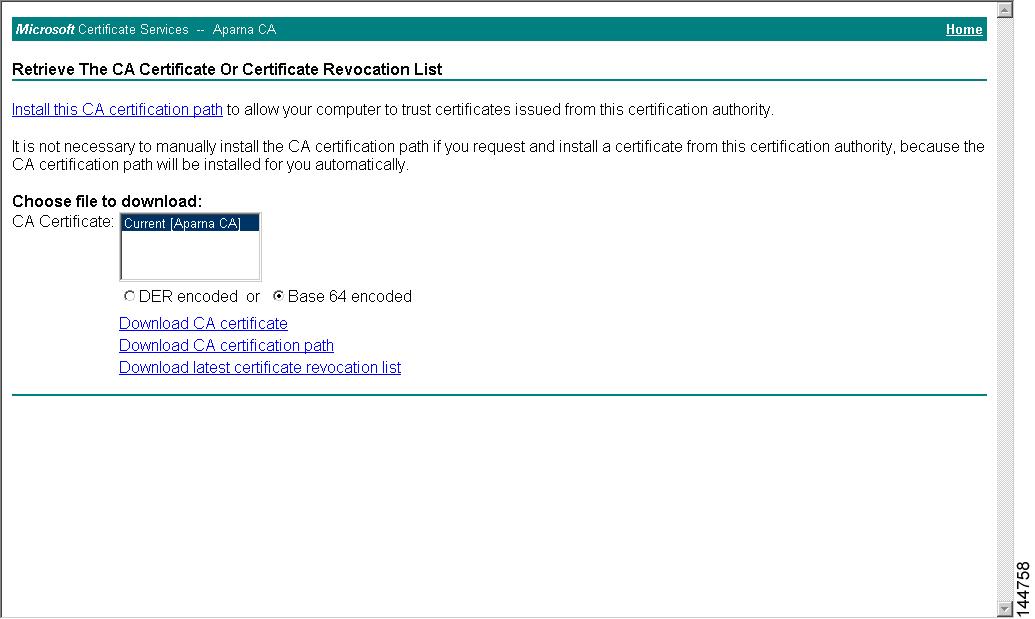
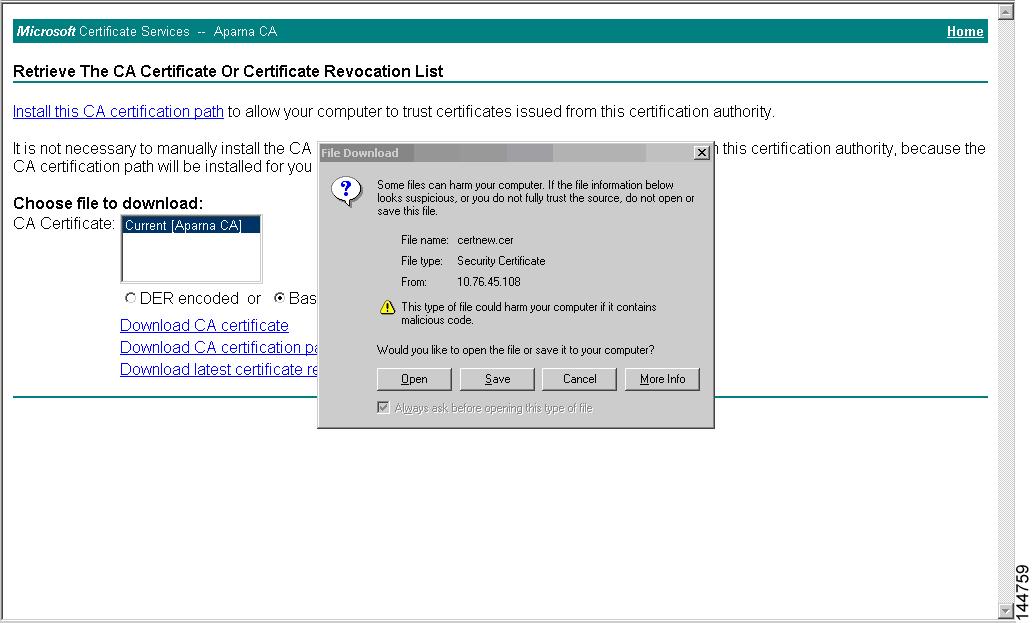
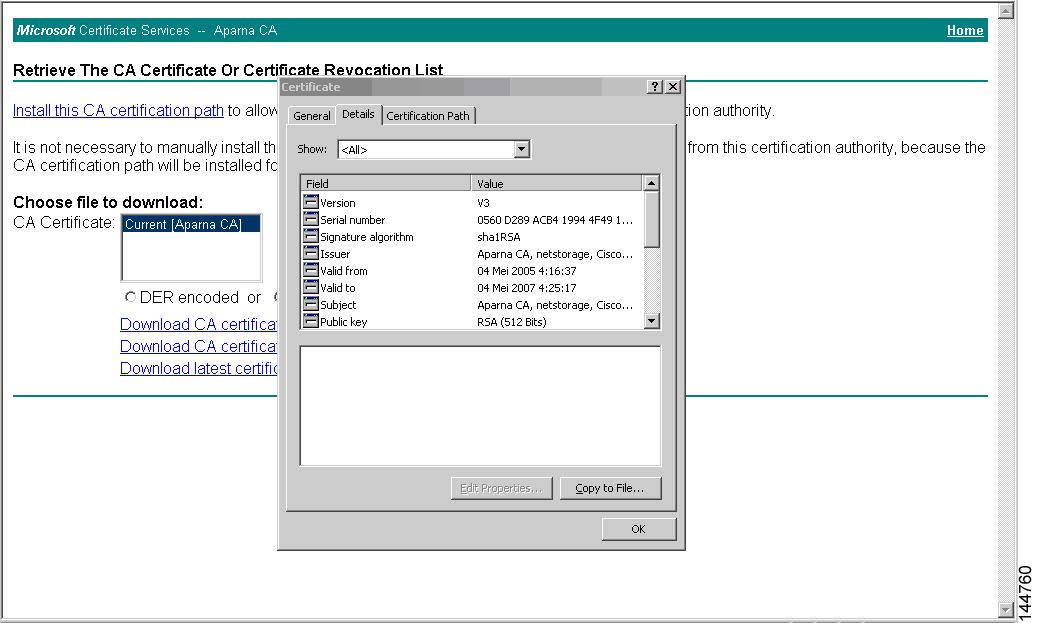
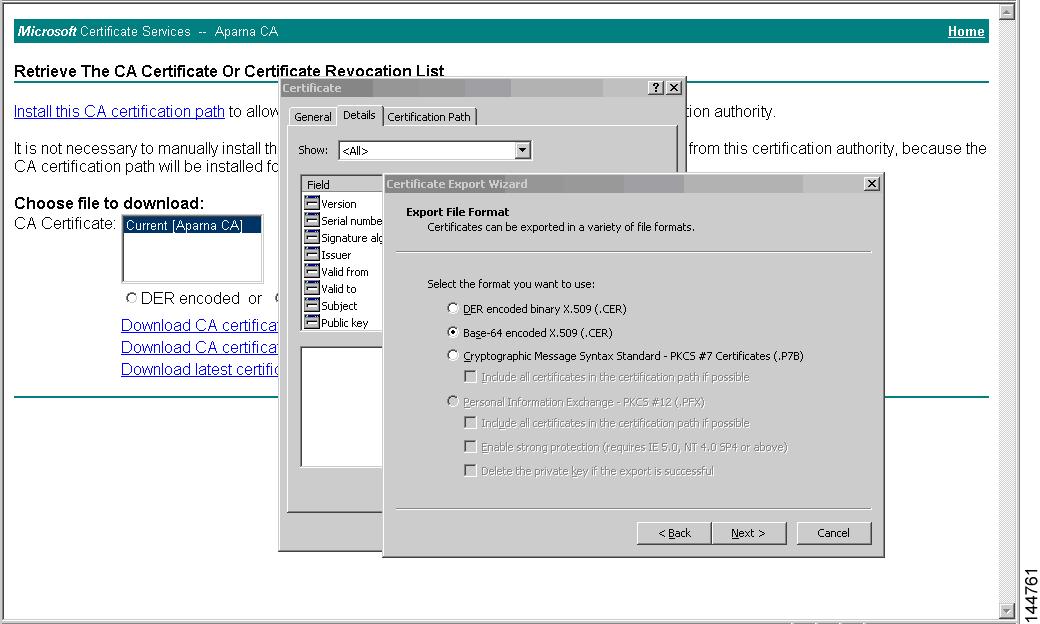
To download a CA certificate from the Microsoft Certificate Services web interface, follow these steps:

Procedure


Step 1

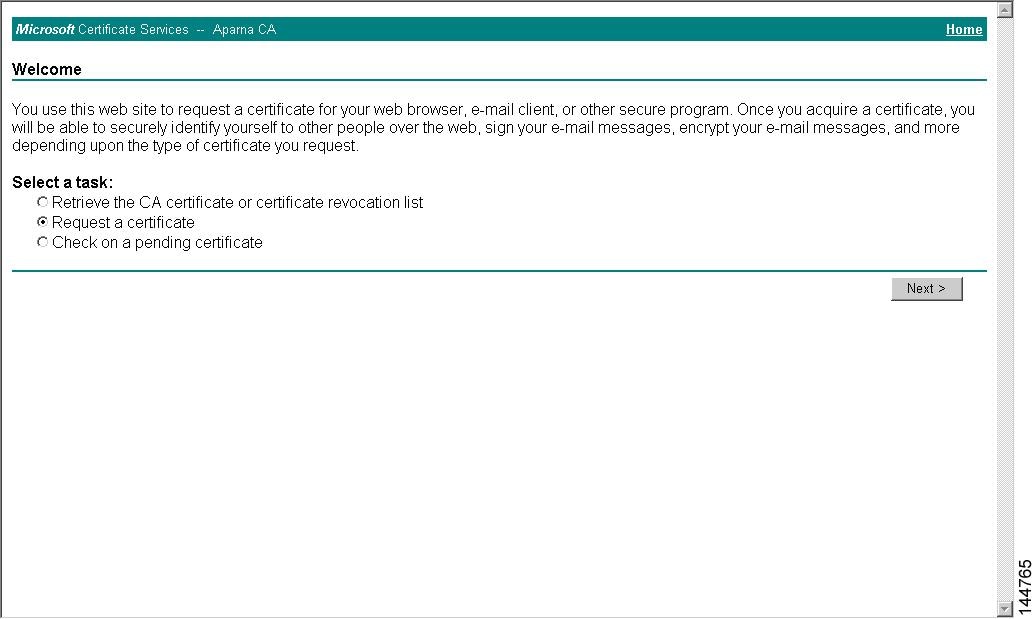
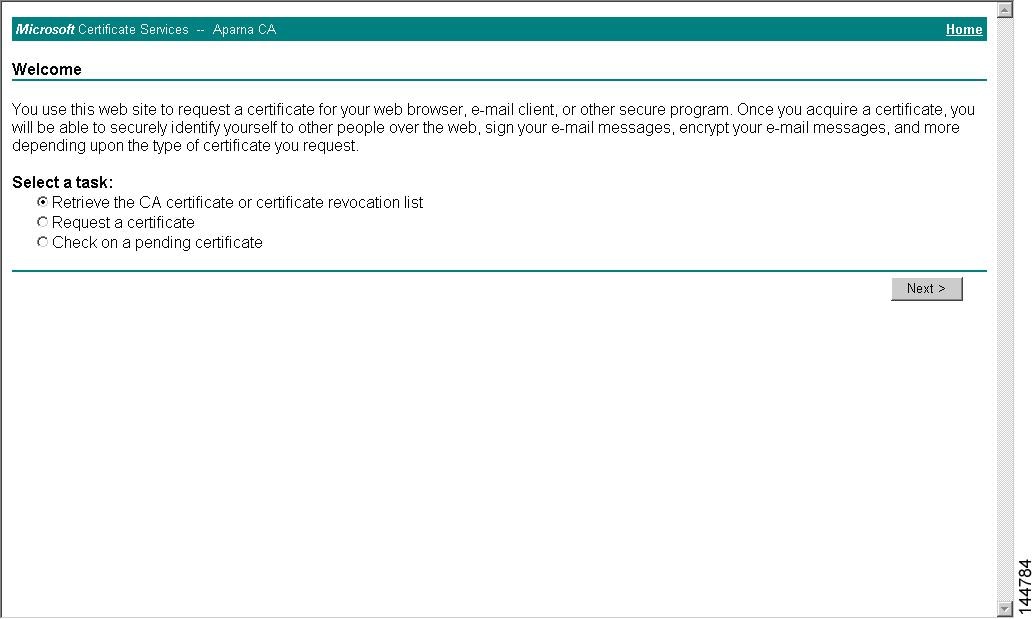
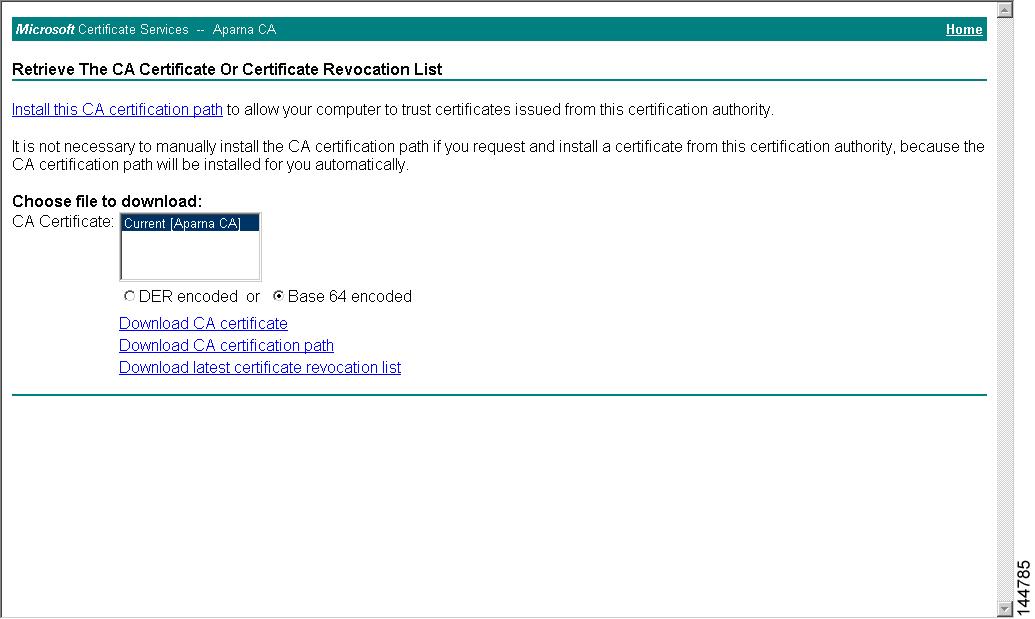
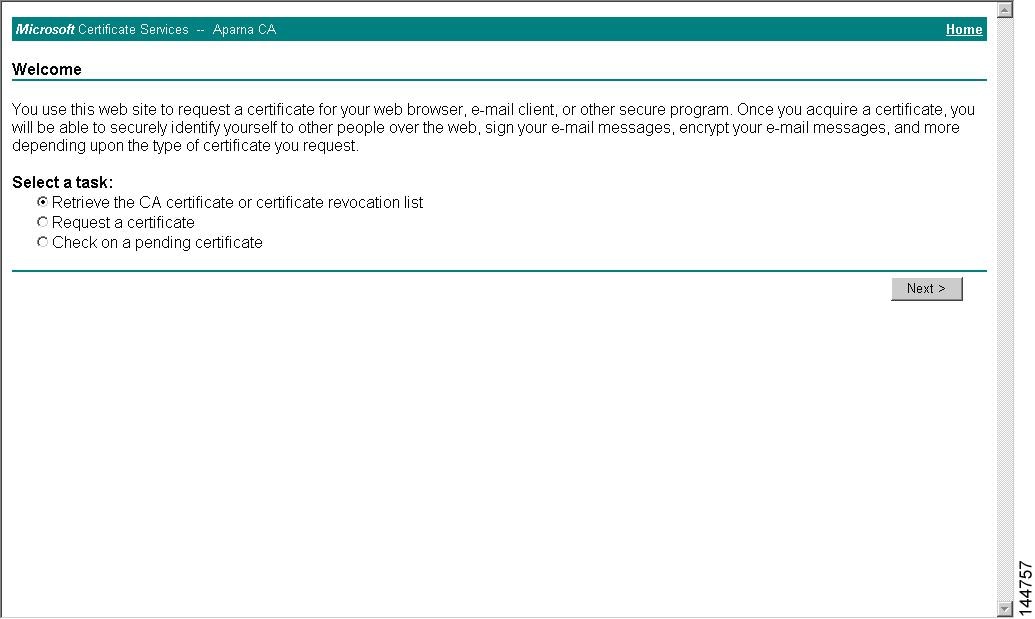
From the Microsoft Certificate Services web interface, click Retrieve the CA certificate or certificate revocation task and click Next .

Step 2

From the display list, choose the CA certificate file to download from the displayed list. Then click Base 64 encoded and click Download CA certificate .

Step 3

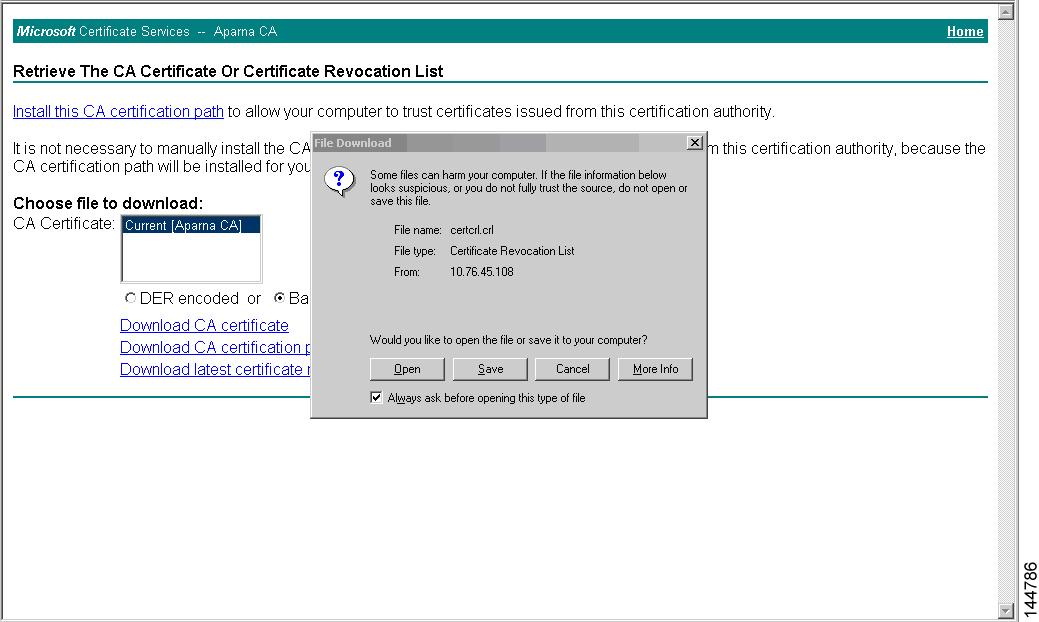
Click Open in the File Download dialog box.

Step 4

In the Certificate dialog box, click Copy to File and click OK .

Step 5

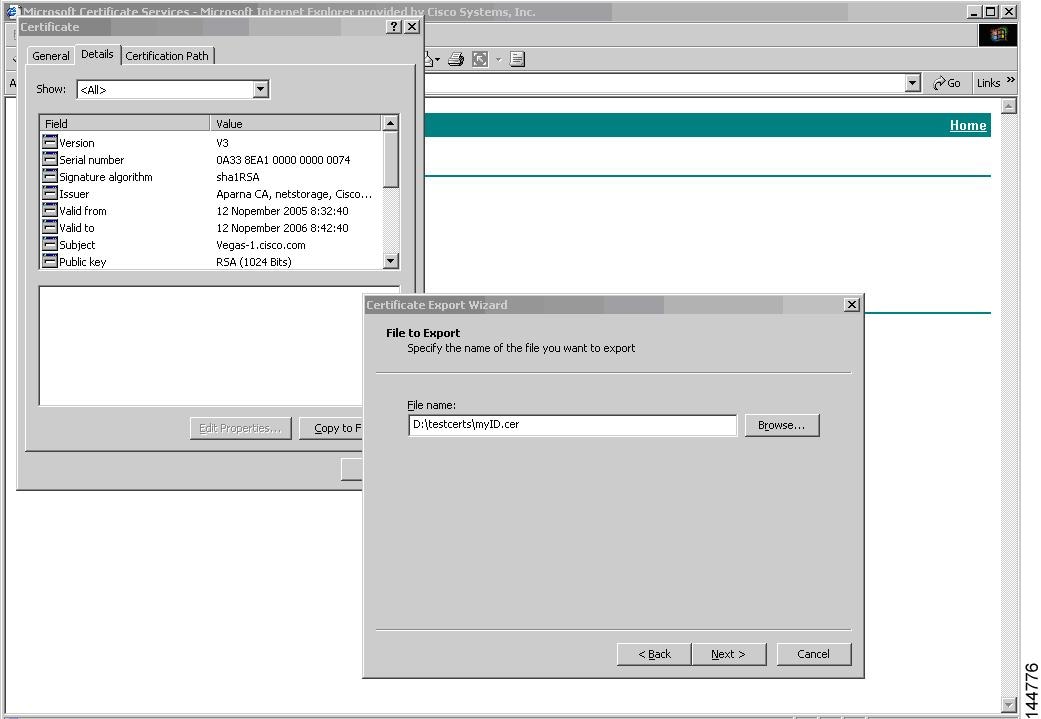
From the Certificate Export Wizard dialog box, choose the Base-64 encoded X.509 (CER) and click Next .

Step 6

In the File name: text box on the Certificate Export Wizard dialog box, enter the destination file name and click Next .

Step 7

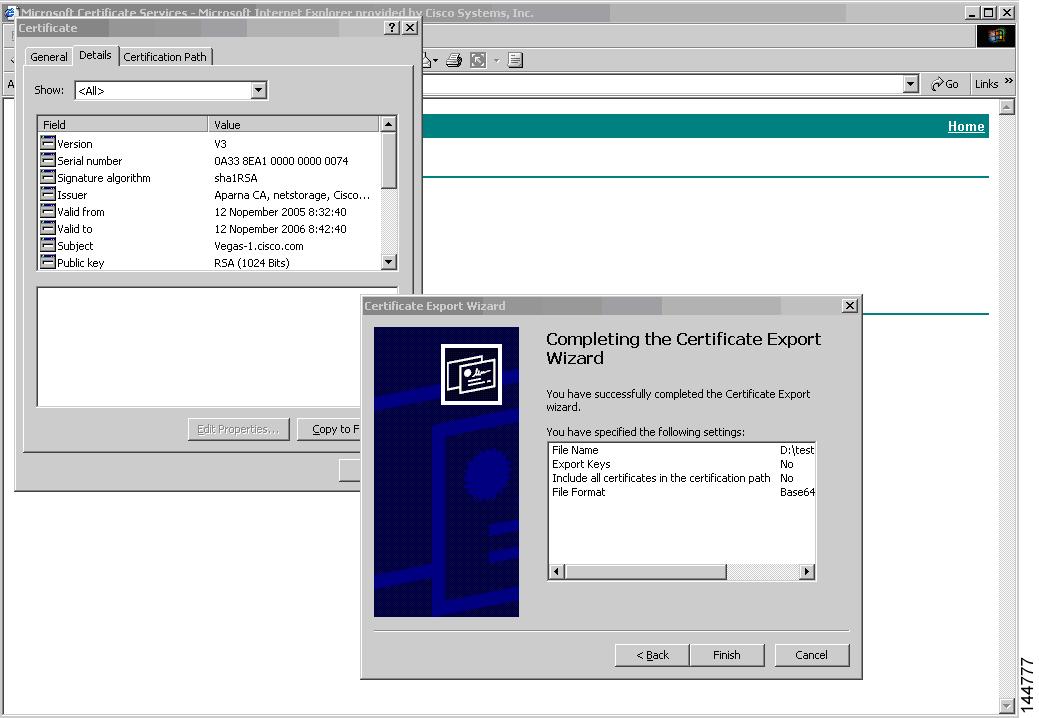
In the Certificate Export Wizard dialog box, click Finish .

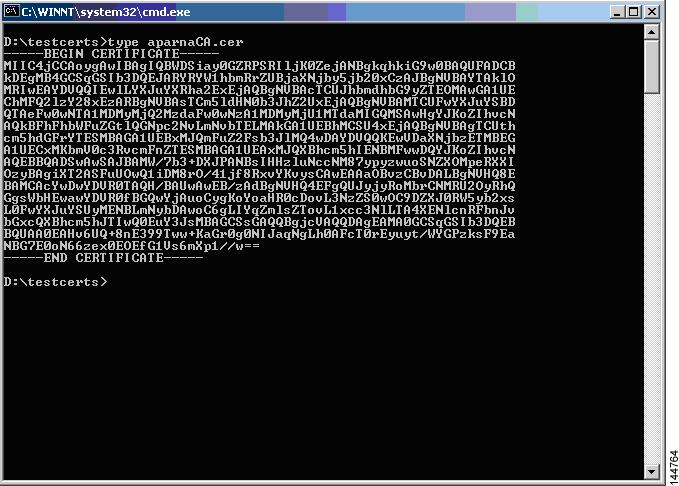
Step 8

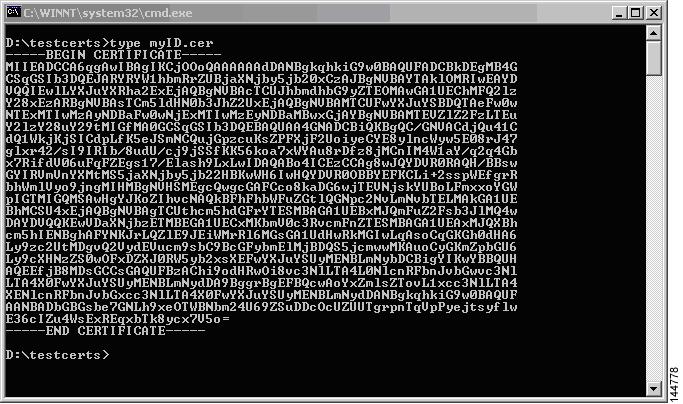
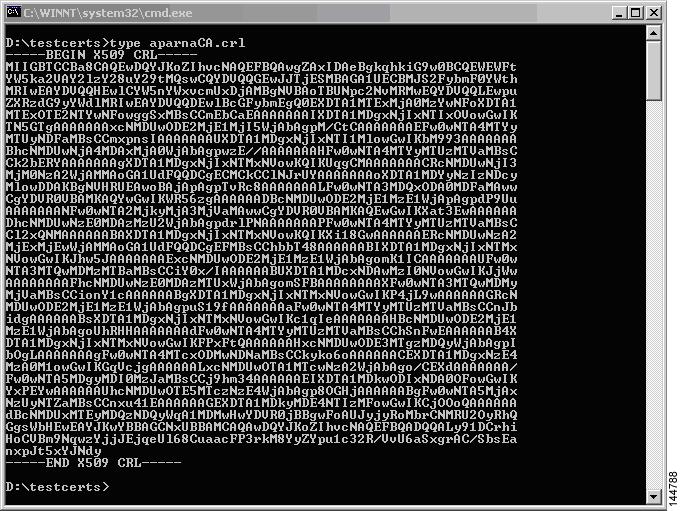
Enter the Microsoft Windows type command to display the CA certificate stored in Base-64 (PEM) format.


Request an Identity Certificate

To request an identity certificate from a Microsoft Certificate server using a PKCS#12 certificate signing request (CSR), follow these steps:

Procedure


Step 1

From the Microsoft Certificate Services web interface, click Request a certificate and click Next .

Step 2

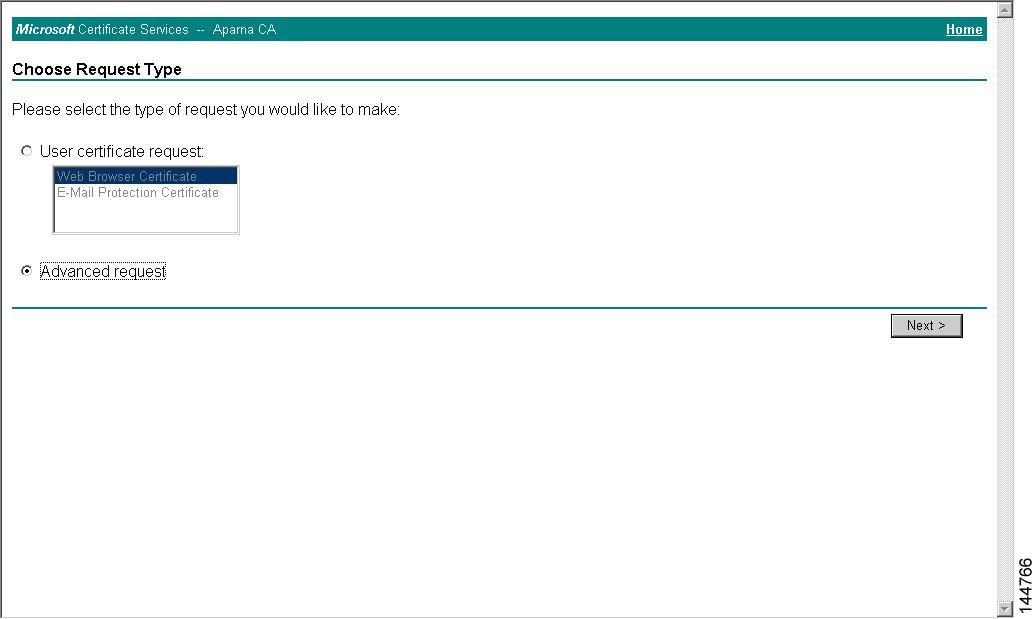
Click Advanced request and click Next .

Step 3

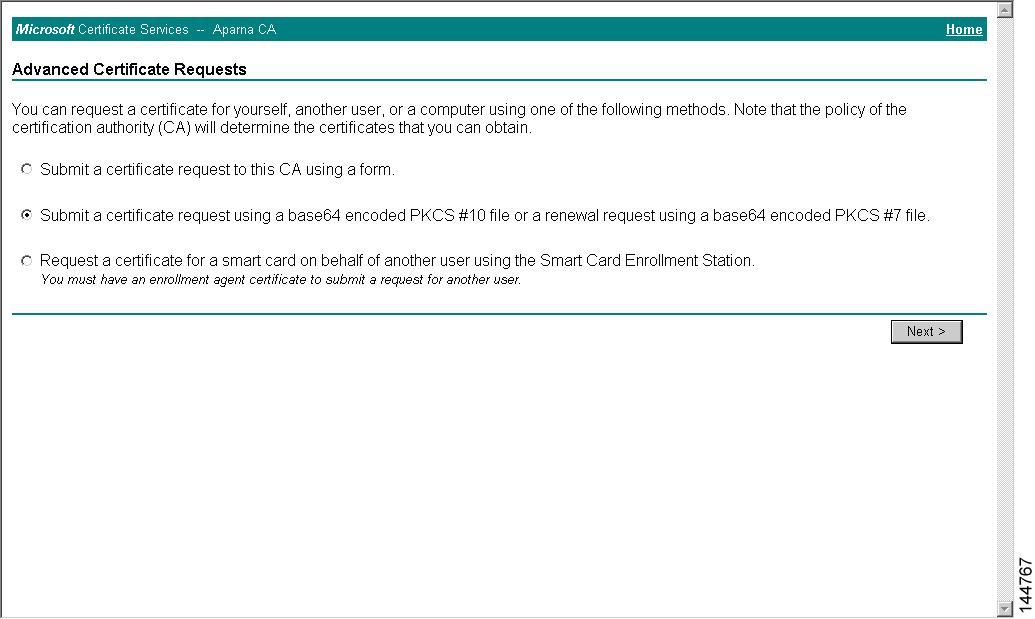
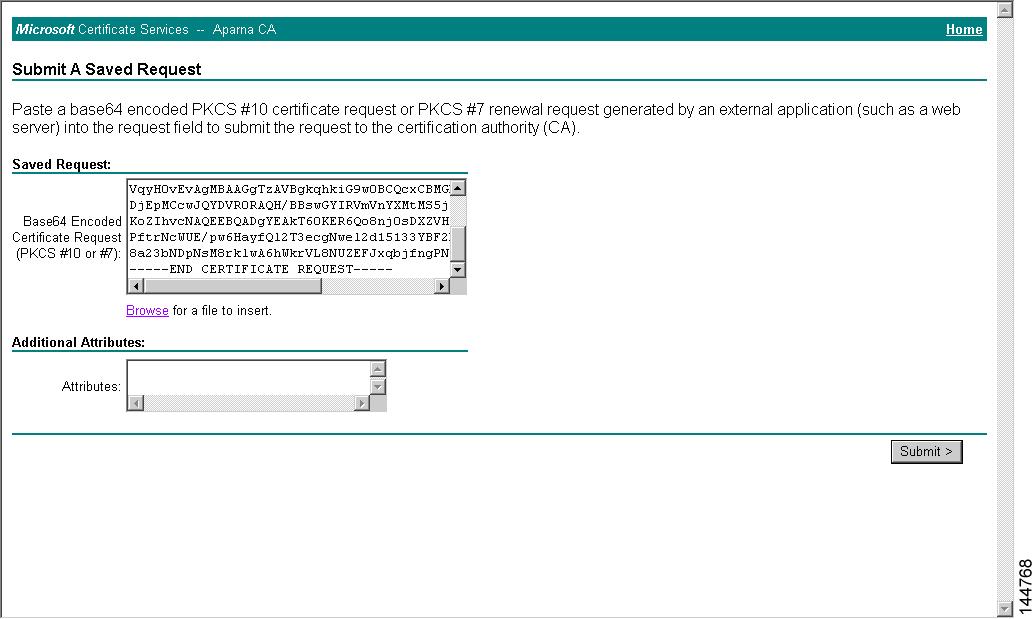
Click Submit a certificate request using a base64 encoded PKCS#10 file or a renewal request using a base64 encoded PKCS#7 file and click Next .

Step 4

In the Saved Request text box, paste the base64 PKCS#10 certificate request and click Next . The certificate request is copied from the Cisco NX-OS device console.

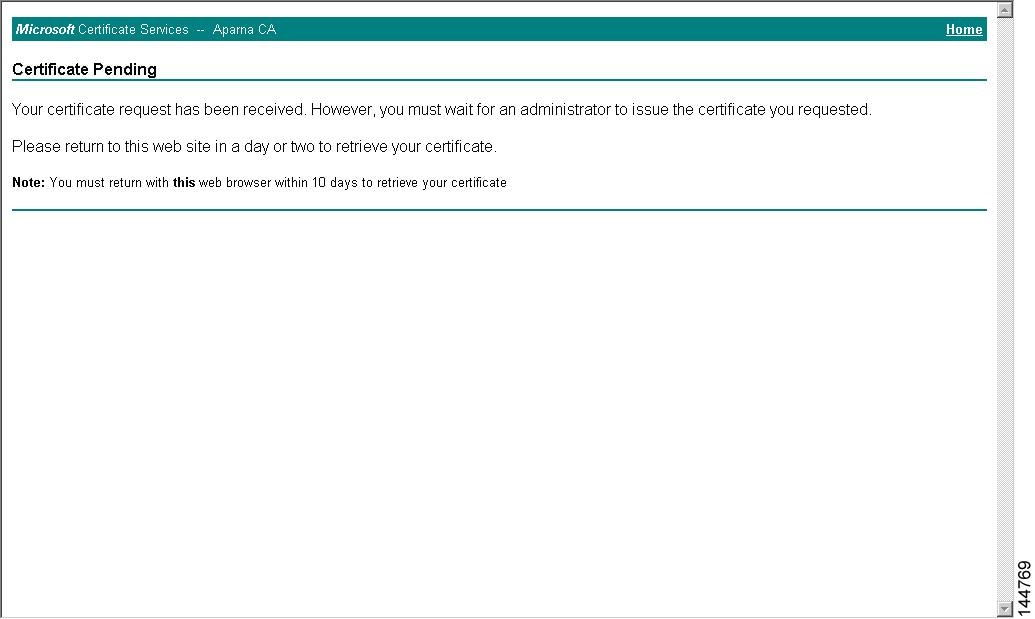
Step 5

Wait one or two days until the certificate is issued by the CA administrator.

Step 6

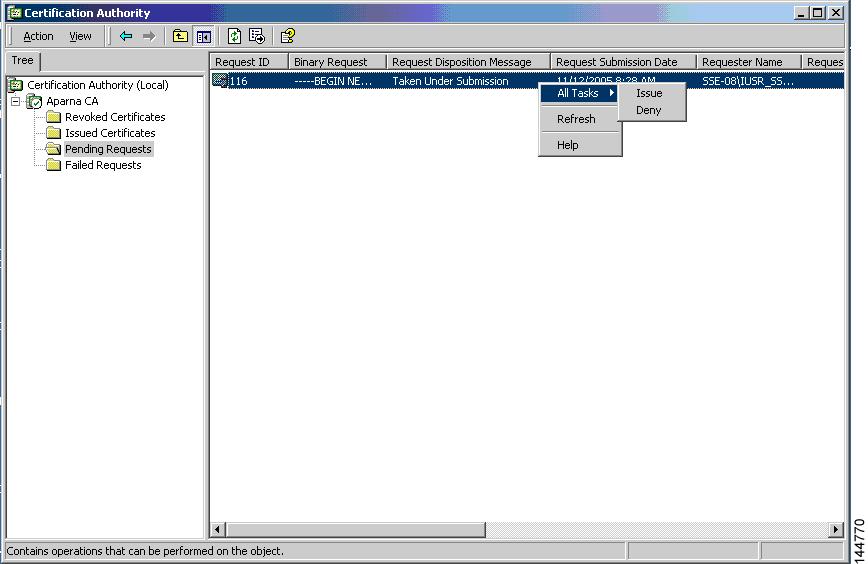
Note that the CA administrator approves the certificate request.

Step 7

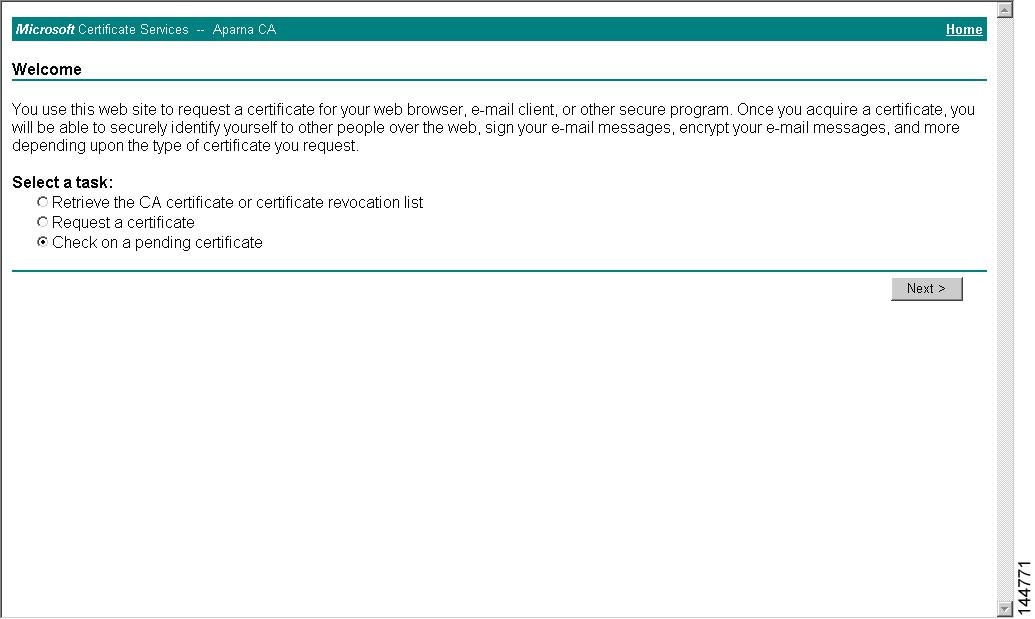
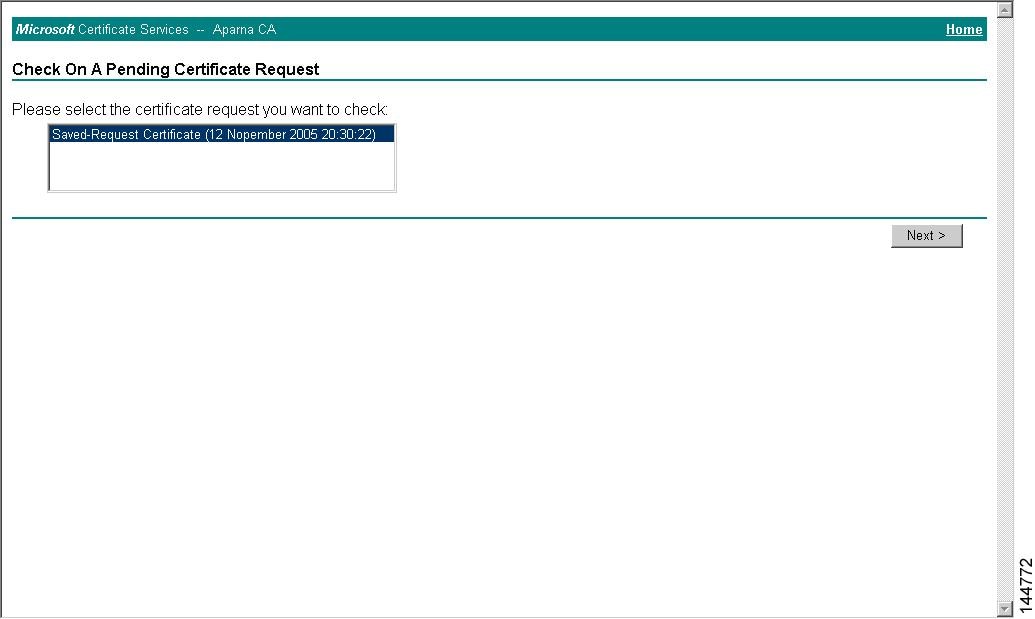
From the Microsoft Certificate Services web interface, click Check on a pending certificate and click Next .

Step 8

Choose the certificate request that you want to check and click Next .

Step 9

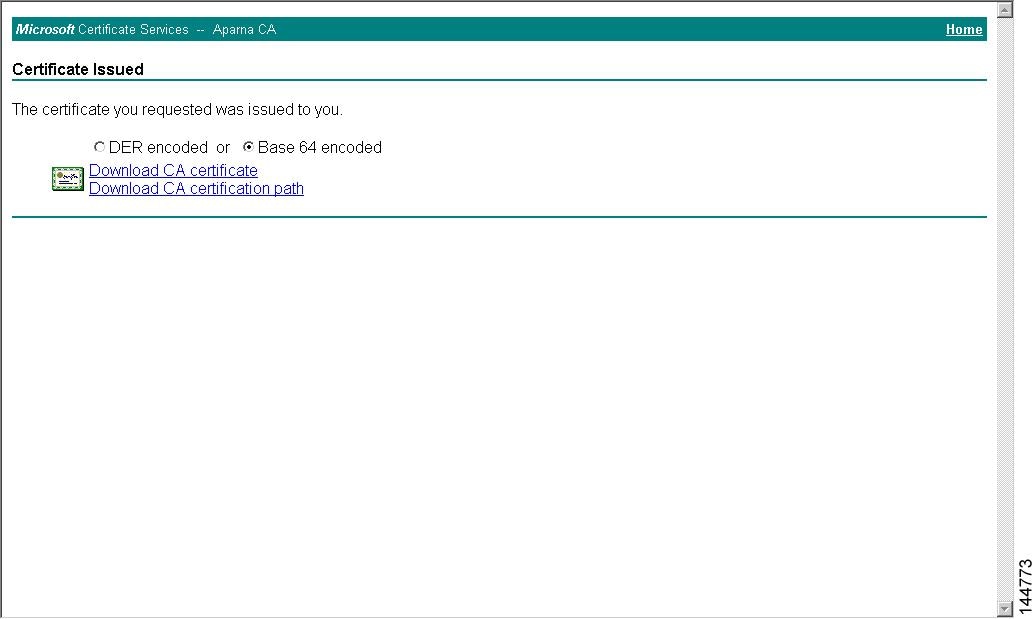
Click Base 64 encoded and click Download CA certificate .

Step 10

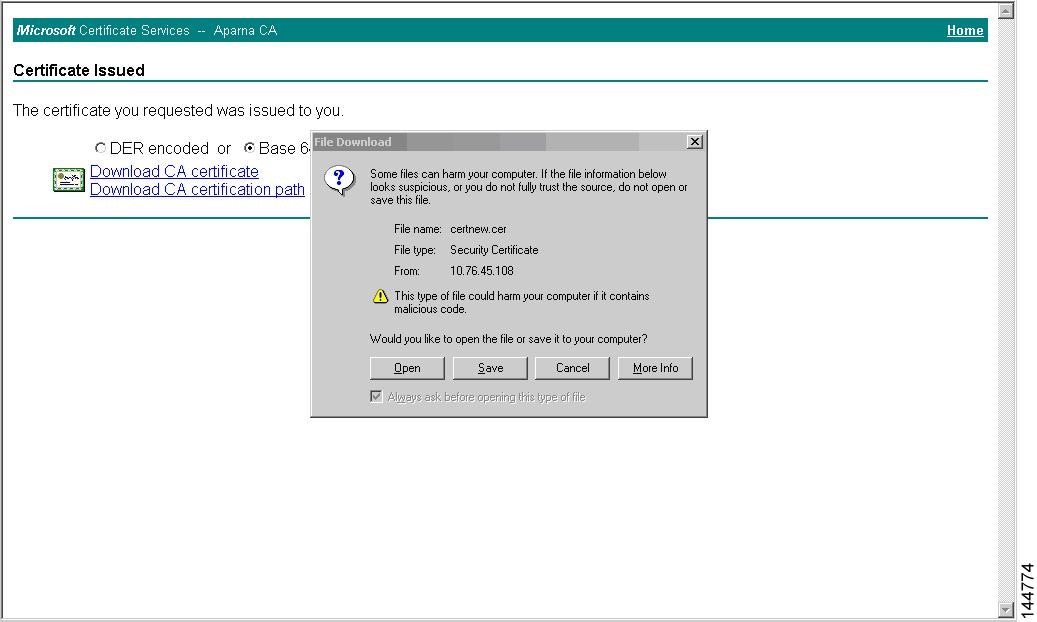
In the File Download dialog box, click Open .

Step 11

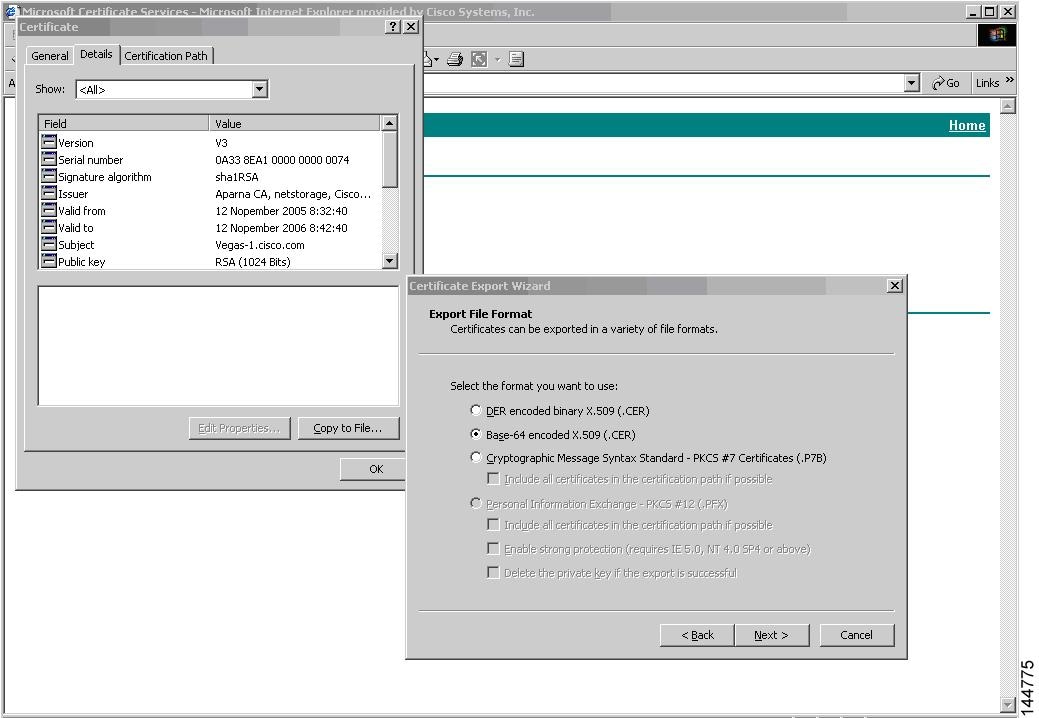
In the Certificate box, click Details tab and click Copy to File... . In the Certificate Export Dialog box, click Base-64 encoded X.509 (.CER) , and click Next .

Step 12

In the File name: text box on the Certificate Export Wizard dialog box, enter the destination file name and click Next .

Step 13

Click Finish .

Step 14

Enter the Microsoft Windows type command to display the identity certificate in base64-encoded format.


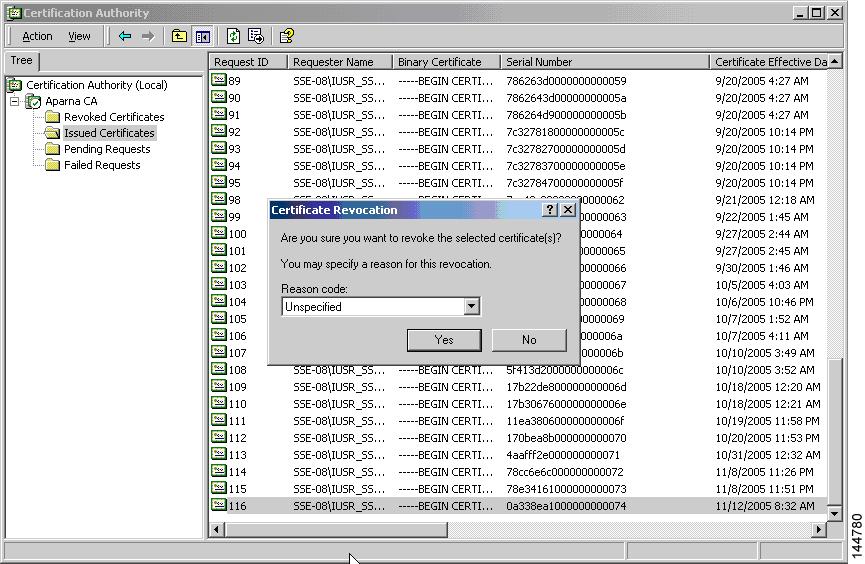
Revoke a Certificate

To revoke a certificate using the Microsoft CA administrator program, follow these steps:

Procedure


Step 1

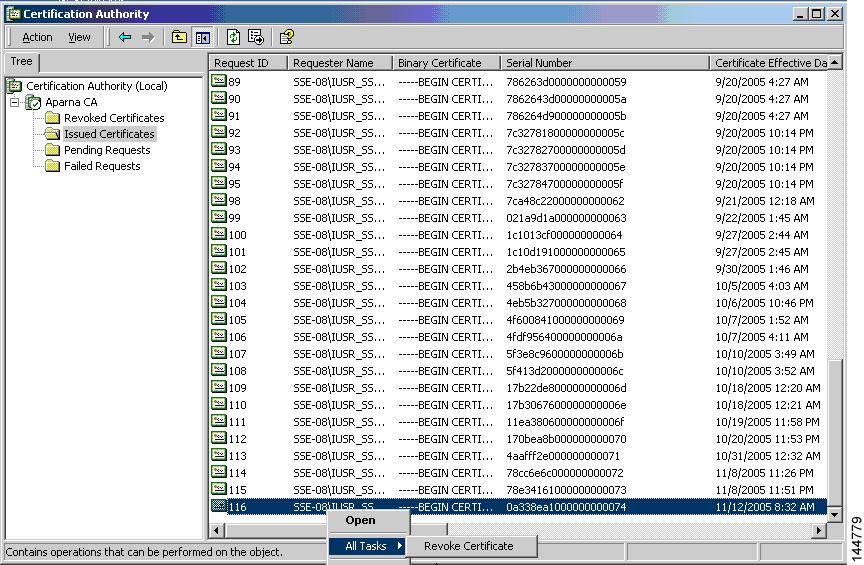
From the Certification Authority tree, click Issued Certificates folder. From the list, right-click the certificate that you want to revoke.

Step 2

Choose All Tasks > Revoke Certificate .

Step 3

From the Reason code drop-down list, choose a reason for the revocation and click Yes .

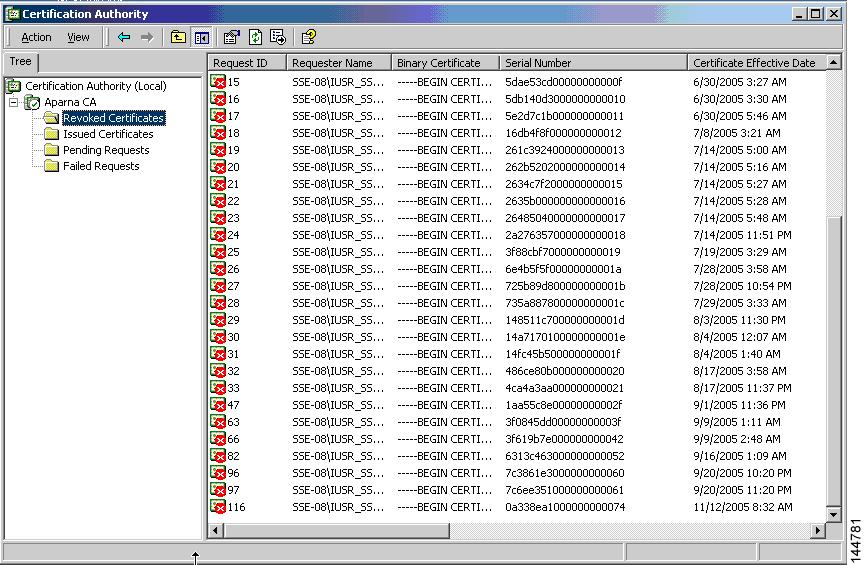
Step 4

Click the Revoked Certificates folder to list and verify the certificate revocation.


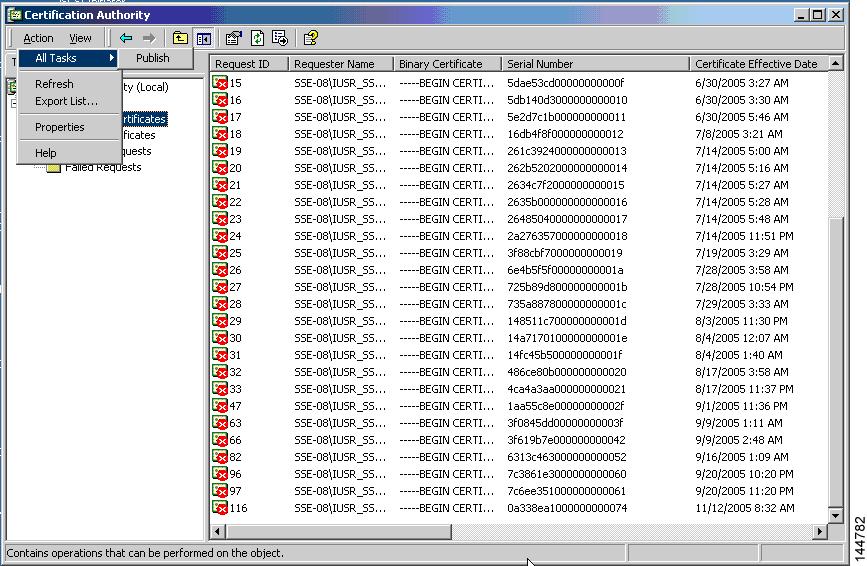
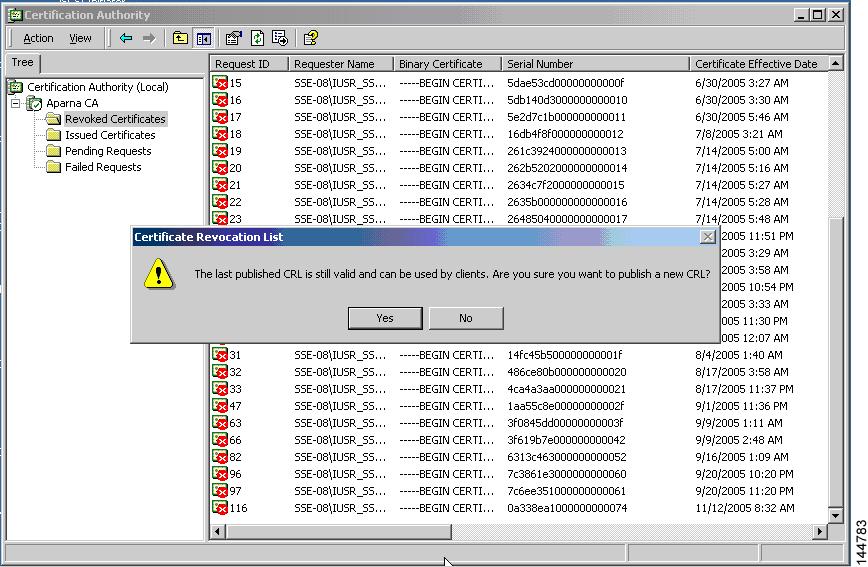
Generate and Publish the CRL

To generate and publish the CRL using the Microsoft CA administrator program, follow these steps:

Procedure


Step 1

From the Certification Authority screen, choose Action > All Tasks > Publish .

Step 2

In the Certificate Revocation List dialog box, click Yes to publish the latest CRL.


Download the CRL

To download the CRL from the Microsoft CA website, follow these steps:

Procedure


Step 1

From the Microsoft Certificate Services web interface, click Retrieve the CA certificate or certificate revocation list and click Next .

Step 2

Click Download latest certificate revocation list .

Step 3

In the File Download dialog box, click Save .

Step 4

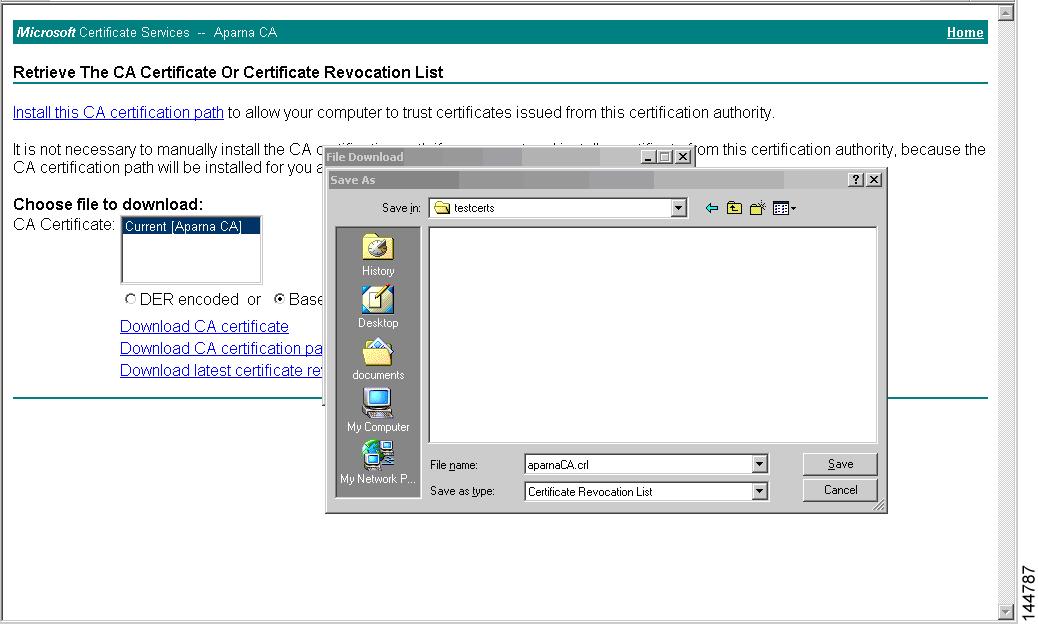
In the Save As dialog box, enter the destination file name and click Save .

Step 5

Enter the Microsoft Windows type command to display the CRL.


Import the CRL

To import the CRL to the trust point corresponding to the CA, follow these steps:

Procedure


Step 1

Copy the CRL file to the Cisco NX-OS device bootflash.

Example:


                        Device-1# 
                        copy tftp:apranaCA.crl bootflash:aparnaCA.crl
                    

Step 2

Configure the CRL.

Example:


                        Device-1# 
                        configure terminal
                        Device-1(config)# 
                        crypto ca crl request myCA bootflash:aparnaCA.crl
                        Device-1(config)#
                    

Step 3

Display the contents of the CRL.

Example:


                        Device-1(config)# 
                        show crypto ca crl myCA
                        Trustpoint: myCA
                        CRL:
                        Certificate Revocation List (CRL):
                        Version 2 (0x1)
                        Signature Algorithm: sha1WithRSAEncryption
                        Issuer: /emailAddress=admin@yourcompany.com/C=IN/ST=Karnatak
                        Yourcompany/OU=netstorage/CN=Aparna CA
                        Last Update: Nov 12 04:36:04 2005 GMT
                        Next Update: Nov 19 16:56:04 2005 GMT
                        CRL extensions:
                        X509v3 Authority Key Identifier:
                        keyid:27:28:F2:46:83:1B:AC:23:4C:45:4D:8E:C9:18:50:1
                        1.3.6.1.4.1.311.21.1:
                        ...
                        Revoked Certificates:
                        Serial Number: 611B09A1000000000002
                        Revocation Date: Aug 16 21:52:19 2005 GMT
                        Serial Number: 4CDE464E000000000003
                        Revocation Date: Aug 16 21:52:29 2005 GMT
                        Serial Number: 4CFC2B42000000000004
                        Revocation Date: Aug 16 21:52:41 2005 GMT
                        Serial Number: 6C699EC2000000000005
                        Revocation Date: Aug 16 21:52:52 2005 GMT
                        Serial Number: 6CCF7DDC000000000006
                        Revocation Date: Jun  8 00:12:04 2005 GMT
                        Serial Number: 70CC4FFF000000000007
                        Revocation Date: Aug 16 21:53:15 2005 GMT
                        Serial Number: 4D9B1116000000000008
                        Revocation Date: Aug 16 21:53:15 2005 GMT
                        Serial Number: 52A80230000000000009
                        Revocation Date: Jun 27 23:47:06 2005 GMT
                        CRL entry extensions:
                        X509v3 CRL Reason Code:
                        CA Compromise
                        Serial Number: 5349AD4600000000000A
                        Revocation Date: Jun 27 23:47:22 2005 GMT
                        CRL entry extensions:
                        X509v3 CRL Reason Code:
                        CA Compromise
                        Serial Number: 53BD173C00000000000B
                        Revocation Date: Jul  4 18:04:01 2005 GMT
                        CRL entry extensions:
                        X509v3 CRL Reason Code:
                        Certificate Hold
                        Serial Number: 591E7ACE00000000000C
                        Revocation Date: Aug 16 21:53:15 2005 GMT
                        Serial Number: 5D3FD52E00000000000D
                        Revocation Date: Jun 29 22:07:25 2005 GMT
                        CRL entry extensions:
                        X509v3 CRL Reason Code:
                        Key Compromise
                        Serial Number: 5DAB771300000000000E
                        Revocation Date: Jul 14 00:33:56 2005 GMT
                        Serial Number: 5DAE53CD00000000000F
                        Revocation Date: Aug 16 21:53:15 2005 GMT
                        Serial Number: 5DB140D3000000000010
                        Revocation Date: Aug 16 21:53:15 2005 GMT
                        Serial Number: 5E2D7C1B000000000011
                        Revocation Date: Jul  6 21:12:10 2005 GMT
                        CRL entry extensions:
                        X509v3 CRL Reason Code:
                        Cessation Of Operation
                        Serial Number: 16DB4F8F000000000012
                        Revocation Date: Aug 16 21:53:15 2005 GMT
                        Serial Number: 261C3924000000000013
                        Revocation Date: Aug 16 21:53:15 2005 GMT
                        Serial Number: 262B5202000000000014
                        Revocation Date: Jul 14 00:33:10 2005 GMT
                        Serial Number: 2634C7F2000000000015
                        Revocation Date: Jul 14 00:32:45 2005 GMT
                        Serial Number: 2635B000000000000016
                        Revocation Date: Jul 14 00:31:51 2005 GMT
                        Serial Number: 26485040000000000017
                        Revocation Date: Jul 14 00:32:25 2005 GMT
                        Serial Number: 2A276357000000000018
                        Revocation Date: Aug 16 21:53:15 2005 GMT
                        Serial Number: 3F88CBF7000000000019
                        Revocation Date: Aug 16 21:53:15 2005 GMT
                        Serial Number: 6E4B5F5F00000000001A
                        Revocation Date: Aug 16 21:53:15 2005 GMT
                        Serial Number: 725B89D800000000001B
                        Revocation Date: Aug 16 21:53:15 2005 GMT
                        Serial Number: 735A887800000000001C
                        Revocation Date: Aug 16 21:53:15 2005 GMT
                        Serial Number: 148511C700000000001D
                        Revocation Date: Aug 16 21:53:15 2005 GMT
                        Serial Number: 14A7170100000000001E
                        Revocation Date: Aug 16 21:53:15 2005 GMT
                        Serial Number: 14FC45B500000000001F
                        Revocation Date: Aug 17 18:30:42 2005 GMT
                        Serial Number: 486CE80B000000000020
                        Revocation Date: Aug 17 18:30:43 2005 GMT
                        Serial Number: 4CA4A3AA000000000021
                        Revocation Date: Aug 17 18:30:43 2005 GMT
                        Serial Number: 1AA55C8E00000000002F
                        Revocation Date: Sep  5 17:07:06 2005 GMT
                        Serial Number: 3F0845DD00000000003F
                        Revocation Date: Sep  8 20:24:32 2005 GMT
                        Serial Number: 3F619B7E000000000042
                        Revocation Date: Sep  8 21:40:48 2005 GMT
                        Serial Number: 6313C463000000000052
                        Revocation Date: Sep 19 17:37:18 2005 GMT
                        Serial Number: 7C3861E3000000000060
                        Revocation Date: Sep 20 17:52:56 2005 GMT
                        Serial Number: 7C6EE351000000000061
                        Revocation Date: Sep 20 18:52:30 2005 GMT
                        Serial Number: 0A338EA1000000000074   <-- Revoked identity certificate
                        Revocation Date: Nov 12 04:34:42 2005 GMT
                        Signature Algorithm: sha1WithRSAEncryption
                        0b:cb:dd:43:0a:b8:62:1e:80:95:06:6f:4d:ab:0c:d8:8e:32:
                        44:8e:a7:94:97:af:02:b9:a6:9c:14:fd:eb:90:cf:18:c9:96:
                        29:bb:57:37:d9:1f:d5:bd:4e:9a:4b:18:2b:00:2f:d2:6e:c1:
                        1a:9f:1a:49:b7:9c:58:24:d7:72
                    

Note


The identity certificate for the device that was revoked (serial number 0A338EA1000000000074) is listed at the end.


Additional References for PKI

This section includes additional information related to implementing PKI.

Related Documents for PKI

  • This topic lists documents that provide additional information related to PKI.

  • Each entry includes a related topic and its corresponding document title.

Reference: Related Documents for PKI

Table 4. Related Documents Lookup Table

Related Topic

Document Title

Cisco NX-OS Licensing

Cisco NX-OS Licensing Guide

VRF configuration

Cisco Nexus 9000 Series NX-OS Unicast Routing Configuration Guide

Standards for PKI

  • No new or modified standards are supported by this feature.

  • Support for existing standards has not been modified by this feature.

Reference Information: Standards for PKI

Table 5. Standards Supported by This Feature

Standards

Title

No new or modified standards are supported by this feature, and support for existing standards has not been modified by this feature.

Displaying Cisco SUDI Certificate Chain

Beginning with Cisco NX-OS Release 10.6(2), Cisco Nexus 9000 switches support displaying and signing the Cisco Secure Unique Device Identifier (SUDI) certificate chain. This capability allows the switch to display the SUDI certificate chain and generate a signature based on a user-provided nonce, supporting integration with external systems.

This feature leverages Secure Unique Device Identifier (SUDI) and Trust Anchor Module (TAm), and is part of Cisco Trustworthy Technologies. For more information, see the Cisco Trustworthy Technologies in Nexus 9000 Switches.

Benefits of Displaying Cisco SUDI Certificate Chain

This capability provides several benefits:

  • Switch certificate verification: Allows administrators and automated systems to view and retrieve the SUDI certificate chain and a signature.

  • Integration with backend systems: The switch can display the SUDI certificate chain and a signature using CLI commands, with output available in JSON format for automation and use by backend servers.

  • Support for automation and compliance workflows: CLI output in JSON enables automated retrieval and processing of the certificate chain and signature, facilitating integration with existing customer systems.

  • Support for secure onboarding and zero trust workflows: Enables proof of device identity for environments requiring device trust before allowing access to critical infrastructure.

How SUDI Certificate Chain Display and Signing Works

With Cisco NX-OS Release 10.6(2), Cisco Nexus 9000 switches can display the Secure Unique Device Identifier (SUDI) certificate chain and generate a signature for the certificate chain. This process allows users to view and retrieve the certificate chain and signature through standard CLI commands.

Summary

This process enables users to retrieve the SUDI certificate chain and generate a signature using the switch CLI.

Workflow

The process for displaying and signing the SUDI certificate chain involves the following steps:

  1. The user accesses the switch through the CLI and initiates a request to obtain the SUDI certificate chain or to generate a signed response using a provided value (nonce).
  2. The switch retrieves the SUDI certificate chain from secure storage.
  3. If a nonce is provided, the switch generates a signature using the certificate chain and the nonce.
  4. The switch displays the certificate chain and, if applicable, the signature in the selected output format.
  5. The user can use the displayed information for integration with external systems or record-keeping.

Guidelines and Limitations

  • Beginning with Cisco NX-OS Release 10.6(2)F, displaying Cisco SUDI Certificate Chain is supported on the following Cisco Nexus platform switches:

    • N9K-C9364D-GX2A

    • N9K-C9332D-GX2B

    • N9K-C9332D-H2R

    • N9K-C9364C-H1

    • N9K-C93400LD-H1

    • N9K-C9336C-FX2-E

    • N9K-C9348GC-FX3

    • N9K-C9348D-GX2A

    • N9K-C93108TC-FX3

  • This feature is supported only on platforms that provide the required secure storage and associated services. If the necessary hardware or services are not present, the feature will not be available.

  • The SUDI certificate chain and signing capabilities are accessible only through the switch command-line interface.

  • A user-supplied nonce is required to generate a signature; if no nonce is provided, only the certificate chain is displayed.

  • Output can be displayed in standard or JSON format, enabling both manual review and automated processing.

  • The feature is intended for environments where device authentication, certificate validation, or automated verification workflows are required.

Verifying SUDI Certificate

Use these commands to verify the SUDI certificate chain signing on your device.

You can view the SUDI certificate chain, generate a signature using a nonce, and view output in JSON format for automation.

This task shows how to access and verify the SUDI certificate chain and signing information provided by your device.

Procedure


Step 1

Use this command to generate a signature for the SUDI certificate chain, using a user-supplied nonce value (replace <hex_nonce> with your hexadecimal nonce string).

Example:

sh platform security certificate sudi nonce <hex_nonce>
switch# sh platform security certificate sudi nonce abc123
------------------------------------
Node location: SUP
------------------------------------
Nonce: abc123
Certificate name: Cisco SUDI Root
-----BEGIN CERTIFICATE-----
MIIDITCCAgmgAwIBAgIJAZozWHjOFsHBMA0GCSqGSIb3DQEBCwUAMC0xDjAMBgNV
BAoTBUNpc2NvMRswGQYDVQQDExJDaXNjbyBSb290IENBIDIwOTkwIBcNMTYwODA5
...
-----END CERTIFICATE-----

Certificate name: Cisco SUDI CA
-----BEGIN CERTIFICATE-----
MIIEZzCCA0+gAwIBAgIJCmR1UkzYYXxiMA0GCSqGSIb3DQEBCwUAMC0xDjAMBgNV
...
-----END CERTIFICATE-----

Certificate name: Cisco SUDI
-----BEGIN CERTIFICATE-----
MIID2DCCAsCgAwIBAgIKCINIgmUgRgUJpTANBgkqhkiG9w0BAQsFADAxMR8wHQYD
...
-----END CERTIFICATE-----

signature: 2jG07uSrxr37u6S1j9kCgg+6kFKAs5SmZ7ydNVpTiW4+E4e8CXvIYlar83JloSehXPQF6L2Y7L843K7doR2lhuns8X2GJIKB9Pf3uSRAKWccU/11TY5E7Or1e787sBA7VB32jo4avj5crweWbmYI6YdUW+kfWlFCsGyM0SlUKktsvc/Z5CMM+d/rf4LLCH20mjZtIhBrJdq1XYEImN262OSiphBa2ONdlAv5Vj9OYppjruqPApIY+dgJA0RHaSLlSTsoBGTAK4+7vTG/Pnouo779aOMOBR/VW9XRC/UXBg7q6Fw6DjSGkY+pvnGLW1BnAWZhDB48+3ThKFe82bw==
signature_version: 2

Views the SUDI certificate chain and a signature generated with the specified nonce value. The output includes the node location, nonce, certificates, signature, and signature version.

Note


The hex nonce value does not need to be prepended with 0x .

The hex nonce must have an even number of characters. The hex nonce can have a maximum length of 128 characters.

The node location, nonce, certificate chain, and signature appear in the output.

Step 2

View Output in JSON Format. For automation and integration with scripts or external systems, you can add the “| json-pretty” option to the command.

Example:

sh platform security certificate sudi <hex_nonce> | json-pretty
switch# sh platform security certificate sudi nonce abc123 | json-pretty
{
"system-certificates": {
"TABLE_system-certificates": {
"ROW_system-certificates": {
"node-location": "SUP",
"nonce": "YWJjMTIz",
"certificates": {
"TABLE_certificate": {
"ROW_certificate": [
{
"name": "Cisco SUDI Root",
"value":"MIIDITCCAgmgAwIBAgIJAZozWHjOFsHBMA0GCSqGSIb3DQEBCwUAMC0xDjAMBgNVBAoTBUNpc2NvMRswGQYDVQQDExJDaXNjbyBSb290...ENDCERTIFICATE-----"
},
{
"name": "Cisco SUDI CA",
"value": "MIIEZzCCA0+gAwIBAgIJCmR1UkzYYXxiMA0GCSqGSIb3DQEBCwUAMC0xDjAMBgNVBAoTBUNpc2Nv...END CERTIFICATE-----"
},
{
"name": "Cisco SUDI",
"value": "MIID2DCCAsCgAwIBAgIKCINIgmUgRgUJpTANBgkqhkiG9w0BAQsFADAxMR8wHQYD...END CERTIFICATE-----"
}
]
}
},
"signature": "2jG07uSrxr37u6S1j9kCgg+6kFKAs5SmZ7ydNVpTiW4+E4e8CXvIYlar83JloSehXPQF6L2Y7L843K7doR2lhuns8X2GJIKB9Pf3uSRAKWccU/11TY5E7Or1e787sBA7VB32jo4avj5crweWbmYI6YdUW+kfWlFCsGyM0SlUKktsvc/Z5CMM+d/rf4LLCH20mjZtIhBrJdq1XYEImN262OSiphBa2ONdlAv5Vj9OYppjruqPApIY+dgJA0RHaSLlSTsoBGTAK4+7vTG/Pnouo779aOMOBR/VW9XRC/UXBg7q6Fw6DjSGkY+pvnGLW1BnAWZhDB48+3ThKFe82bw==",
"signature_version": "2"
}
}
}
}

Provides the SUDI certificate chain and signature in a JSON format for automation and integration. The output includes the node location, nonce (Base64-encoded), certificates, signature, and signature version.

The JSON output includes node location, nonce, certificate chain, and signature.