Configuring IPv6 First Hop Security

This chapter describes how to configure First Hop Security (FHS) features on Cisco NX-OS devices.

This chapter includes the following sections:

About First-Hop Security

First-Hop Security (FHS) is a set of features that optimize IPv6 link operation and provide protection from rogue or misconfigured users in large Layer 2 domains.

  • FHS operates on Layer 2 and Layer 3 switches facing end nodes, often referred to as "first hops".

  • FHS features help secure networks by preventing attacks from unauthorized or misconfigured devices.

  • Extended FHS features can be used for different deployment scenarios or attack vectors.

Supported First-Hop Security Features

The following FHS features are supported:

  • IPv6 RA Guard

  • DHCPv6 Guard

  • IPv6 Snooping


Note


See Guidelines and Limitations of First-Hop Security for information about enabling this feature.


Note


Use the feature dhcp command to enable the FHS features on a switch.


Example: Enabling First-Hop Security Features

For example, to enable FHS features on a switch, use the feature dhcp command. This ensures that the supported features such as IPv6 RA Guard, DHCPv6 Guard, and IPv6 Snooping are active for end node protection.

IPv6 Global Policies

IPv6 global policies are mechanisms that provide storage and access policy database services for IPv6 features, including IPv6 Snooping, DHCPv6 Guard, and IPv6 RA Guard.

  • Policy attributes are stored in the software policy database each time an IPv6 global policy is configured.

  • When a policy is applied to an interface, the database entry is updated to include the interface.

  • IPv6 global policies support features such as IPv6 Snooping, DHCPv6 Guard, and RA Guard.

Reference Information for IPv6 Global Policies

IPv6 global policies are implemented and managed through specific commands and hardware configurations, and their behavior may vary depending on the platform.

  • All port level FHS policies are programmed in the ifacl region, while VLAN level policies are programmed in the FHS region.

  • Use the hardware profile tcam regionfhs tcam_size command to configure the FHS. The range for the TCAM size is 0-4096.

  • Use the hardware access-list tcam region ing-redirect tcam_size command to configure FHS. You can resize the ing-racl region to allocate space to the ing-redirect region.

  • Cisco Nexus 9300-FX/FX2 platform switches: FHS packets take the copp-s-dhcpreq queue for software processing.

  • Cisco Nexus 9300, 9500 platform switches use the class default.


Note


When you upgrade the Cisco Nexus Series switch to Cisco NX-OS Release 7.0(3)I7(1) using the In-Service Software Upgrades (ISSU), you must reload the Cisco NX-OS box before configuring the port level FHS policies.


IPv6 First-Hop Security Binding Table

A database table of IPv6 neighbors connected to the device is created from information sources such as IPv6 snooping. This database, or binding table is used by various IPv6 guard features to validate the link-layer address (LLA), the IPv6 address, and prefix binding of the neighbors to prevent spoofing and redirect attacks.
Guidelines and Limitations of First-Hop Security

  • First-Hop Security (FHS) requires ing-redirect TCAM carving before enabling FHS on an interface or VLAN.

  • Use the hardware access-list tcam region ing-redirect tcam_size command to perform TCAM carving.

  • You can resize the ing-racl region to allocate space to the ing-redirect region.

Supported Platform and Release for First-Hop Security

The following table lists the supported software releases and corresponding Cisco Nexus switch platforms for First-Hop Security.

Table 1. Supported Releases and Platforms for First-Hop Security

Supported Release

Supported Platform

Feature ID

7.0(3)I7(1) and later

Cisco Nexus 9300- FX/FX2 Series switches

9.3(5) and later

Cisco Nexus 9300-GX Series switches and N9K-C93180YC-FX3S switches

935-irvine-plus-b

10.1(1) and later

CiscoNexus 9300-FX3 Series switches

101x-only

10.2(3)Fand later

CiscoNexus 9300-GX2 Series switches

1023-kr3f

10.4(1)Fand later

CiscoNexus 9332D-H2R Series switches

1041-or1f

10.4(2)Fand later

CiscoNexus 93400LD-H1 Series switches

1042-or2f

10.4(3)Fand later

CiscoNexus 9364C-H1 Series switches

1043f-or3f

About vPC First-Hop Security Configuration

vPC First-Hop Security Configuration refers to the recommended methods for deploying IPv6 First-Hop Security in a vPC environment.

  • Supports deployment of DHCP relay on-stack.

  • Allows DHCP relay on vPC leg.

  • Enables DHCP client and relay on orphan ports.

Best Practice Deployment Scenarios for vPC First-Hop Security

You can deploy IPv6 First-Hop Security vPC in several ways, with the following scenarios recommended as best practices.

  • DHCP relay on-stack

  • DHCP relay on vPC leg

  • DHCP client and relay on orphan ports

Example: vPC First-Hop Security Deployment

For example, in a typical deployment, you might configure DHCP relay on the vPC stack to ensure redundancy, or use orphan ports for DHCP client and relay roles when devices are not part of the vPC domain.

DHCP Relay On-stack

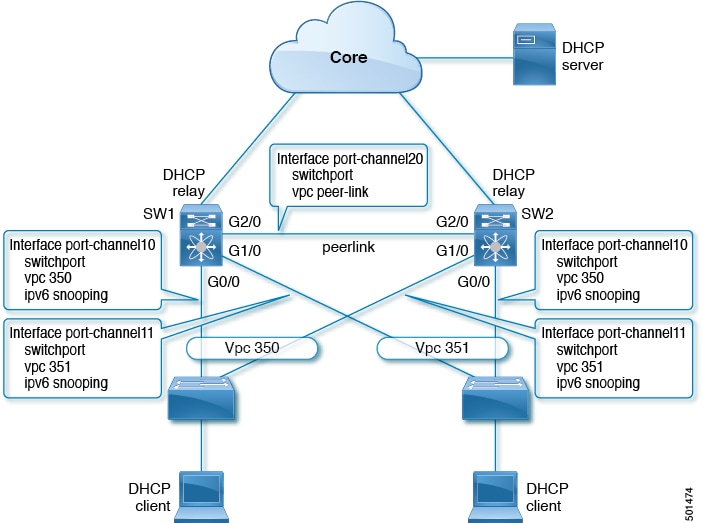
DHCP Relay On-stack is a deployment scenario in which DHCP relay is configured on a Nexus switch, allowing clients to connect either directly behind the vPC link or through an intermediary switch. This setup enables efficient configuration of IPv6 Snooping at the interface level and optimizes control traffic processing.

  • Clients can be connected directly behind the vPC link or through an intermediary switch with DHCP relay on the Nexus switch.

  • IPv6 Snooping can be configured on vPC interface links directly, rather than at the VLAN level.

  • Control traffic (DHCP/ND) is not redirected to the CPU for processing on both vPC peers if it traverses the peer link, and packets are not processed a second time.

Efficient DHCP Relay Deployment with vPC and IPv6 Snooping

In this scenario, connecting clients behind an intermediary switch with DHCP relay running on the Nexus switch is ideal for efficient configuration and traffic processing.

  • Direct client connection behind vPC link

  • Client connection through intermediary switch with DHCP relay on Nexus switch

Configuration at the interface level is efficient for the following reasons:

  1. Control traffic (DHCP/ND) is not redirected to CPU for processing on both vPC peers if it goes over the peer link.

  2. Packets switched over the peer link are not processed a second time.

In this scenario, the two vPC peers learn all the host IP/MAC bindings behind the vPC links and synchronize these bindings between themselves using both IPv6 ND and IPv6 DHCP control protocols.


Note


TIP: Configuring snooping policy at the interface level improves efficiency and reduces unnecessary CPU processing on vPC peers.


The following figure illustrates FHS configuration with DHCP relay on-stack:

Figure 1. FHS Configuration with DHCP relay on-stack

Example: DHCP Relay On-stack Deployment

For example, when clients are connected through an intermediary switch with DHCP relay enabled on the Nexus switch, IPv6 Snooping can be applied directly to the vPC interfaces, allowing both vPC peers to learn and synchronize host IP/MAC bindings efficiently.

DHCP Relay on VPC Leg

DHCP relay on a vPC leg refers to a deployment where the DHCP relay agent or server is positioned behind a vPC link, rather than running directly on the vPC peers.

  • The relay agent does not run on the vPC peers; it operates behind the vPC link.

  • IPv6 Snooping does not implicitly trust DHCP server messages in this scenario and drops them by default.

  • Custom IPv6 policies are required to allow DHCP server messages and ensure correct client binding creation.

Reference Information for DHCP Relay on VPC Leg

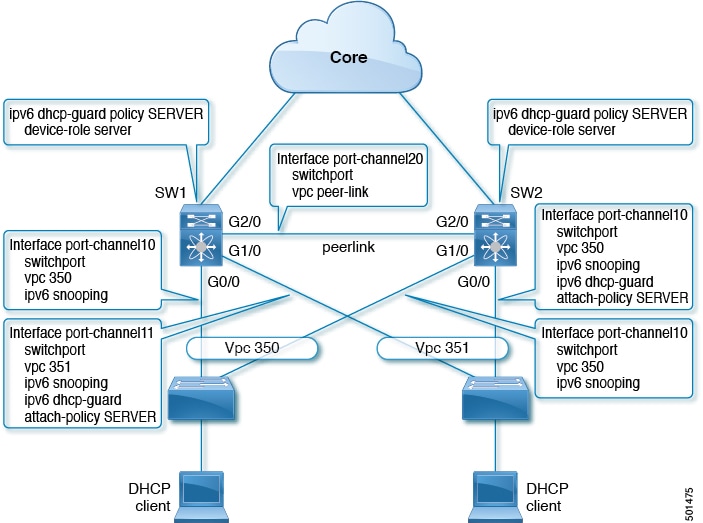
In this configuration, the relay agent does not run on the vPC peers. Instead, the DHCP relay agent (or a DHCP server) runs behind a vPC link, which can be towards the access or even somewhere in the core. In such a deployment scenario, the IPv6 Snooping feature does not implicitly trust DHCP Server messages and drops DHCP Server messages by default.

  • Security-level glean

  • IPv6 DHCP Guard policy with device-role server. In this configuration, IPv6 Snooping trusts DHCP server messages attached to the vPC link.

Both server or relay facing and client facing IPv6 snooping policies are needed to create client binding entries via DHCP control traffic. IPv6 Snooping must see both client and server packets to create the binding. The IPv6 DHCP Guard policy must be configured to allow DHCP server traffic by the IPv6 Snooping policy. Both vPC peers require the same configuration because they synchronize all newly learned client entries on the vPC port.

Figure 2. FHS Configuration with external DHCP relay

Example: DHCP Relay on VPC Leg

For example, clients are located behind the vPC links with the default IPv6 Snooping policy. By attaching both IPv6 Snooping and ipv6 dhcp-guard attach-policy SERVER policies to the links where DHCP server traffic arrives, you ensure that both client and server packets are visible to IPv6 Snooping, allowing for proper client binding creation.

DHCP Client Relay on Orphan Ports

DHCP client relay on orphan ports refers to the process of handling DHCP client traffic when the client is connected via an orphan port, which is not directly connected to both vPC peers.

  • IPv6 Snooping only syncs client bindings on vPC ports, not on orphan ports.

  • On orphan ports, IPv6 Snooping runs independently on each switch.

  • Special configuration is required to ensure DHCP server packets are properly handled on orphan ports.

Configuration and Behavior of DHCP Client Relay on Orphan Ports

When a client is connected via an orphan port, IPv6 Snooping does not synchronize client bindings between vPC peers. Each switch manages its own bindings independently, and specific configuration steps are required to ensure correct DHCP traffic handling.

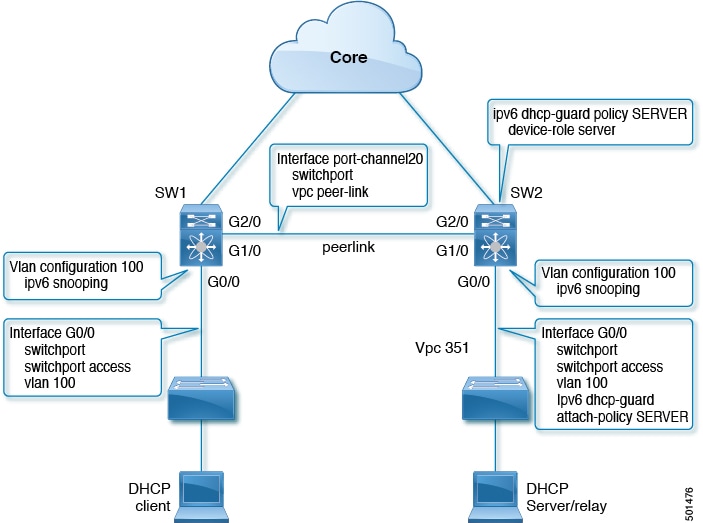
  • Attach the IPv6 Snooping policy on the client-facing interface of the first switch.

  • To accommodate DHCP server packets from an orphan port behind the vPC peer, apply the policy at the VLAN level. This allows inspection of both client and server traffic.

  • DHCP traffic arriving via the vPC peer is implicitly trusted; if policing is required, the vPC peer automatically drops such traffic.

  • On the second switch, configure IPv6 at the VLAN level and apply the IPv6 DHCP Guard policy with a “device-role server” on the server-facing orphan port to prevent dropping DHCP server packets.

  • Both switches learn client binding entries individually and do not synchronize them, as the client is not on a vPC link.

Figure 3. FHS configuration with client and DHCP relay on orphan port

Example: DHCP Client Relay on Orphan Ports

For example, if a client is connected to an orphan port, apply the IPv6 Snooping policy at the VLAN level on both switches and configure the DHCP Guard policy with the appropriate device role to ensure correct DHCP packet handling.

RA Guard

Overview of IPv6 RA Guard

The IPv6 RA Guard feature is a security mechanism that allows network administrators to control and filter Router Advertisement (RA) messages on network devices.

  • Blocks or rejects unwanted or rogue RA messages arriving at the device.

  • Analyzes and filters RAs sent by unauthorized devices.

  • Validates RA and router redirect messages against device configuration before forwarding or dropping them.

Supporting reference information for IPv6 RA Guard

The IPv6 RA Guard feature operates by comparing configuration information on the Layer 2 (L2) device with the information found in received RA frames. In host mode, all RA and router redirect messages are disallowed on the port. If the L2 device validates the content of the RA frame and router redirect frame against the configuration, it forwards the RA to its unicast or multicast destination. If not validated, the RA is dropped.

Example of IPv6 RA Guard in operation

For example, when an unauthorized device attempts to send a rogue RA message, the IPv6 RA Guard feature detects and blocks the message, preventing it from reaching other devices on the network.

IPv6 RA Router Advertisement and the Flags

IPv6 Router Advertisement (RA) is a mechanism that informs devices on a network how to configure their IPv6 addresses and obtain other network information using specific flags.

  • The A (Address Autoconfiguration) flag enables hosts to use the specified prefix for IPv6 autoconfiguration.

  • The O (Other Configuration) flag instructs hosts to obtain additional information, such as DNS server addresses, from a stateless DHCPv6 server.

  • The M (Managed Address Configuration) flag directs hosts to use a stateful DHCPv6 server for their global unicast address and other configuration details.

  • The L (On-Link) flag identifies that a specific prefix is on the local link or subnet, affecting how packets are routed.

IPv6 RA Flags and Their Functions

IPv6 Router Advertisement messages use four primary flags to guide hosts in address configuration and network communication.

  • A flag (Address Autoconfiguration) : Enabled by default; allows hosts to use the advertised prefix for IPv6 autoconfiguration.

  • O flag (Other Configuration) : Disabled by default; instructs hosts to obtain additional configuration (such as DNS) from a stateless DHCPv6 server.

  • M flag (Managed Address Configuration) : Disabled by default; tells hosts to use a stateful DHCPv6 server for address assignment and other information.

  • L flag (On-Link) : Enabled by default; indicates that the prefix is on the local link or subnet.

  1. Address Autoconfiguration (A flag) is enabled by default and allows hosts to use the prefix for autoconfiguration.

  2. Other Configuration (O flag) is disabled by default and is used for obtaining additional information from a stateless DHCPv6 server.

  3. Managed Address Configuration (M flag) is disabled by default and is used for stateful DHCPv6 address assignment.

  4. On-Link (L flag) is enabled by default and identifies the prefix as being on the local link.


Note


When the M flag is enabled, the A flag should usually be disabled. Manually enabling the M flag does not automatically disable the A flag. To disable the A flag, use the ipv6 nd prefix ipv6-prefix/prefix-length no-autoconfig command.


Example: Using IPv6 RA Flags

For example, enabling the ipv6 managed-config-flag command activates the M flag, instructing hosts to use a stateful DHCPv6 server for address assignment. By default, the A and L flags are advertised via ICMPv6 Router Advertisement (RA).

Guidelines and Limitations of IPv6 RA Guard

  • The IPv6 RA Guard feature does not offer protection in environments where IPv6 traffic is tunneled.

  • Beginning with Cisco NX-OS Release 10.1(1), IPv6 RA Guard is supported on Cisco Nexus 9300-GX platform switches.

  • This feature is supported only in hardware when the ternary content addressable memory (TCAM) is programmed.

  • This feature can be configured on a switch port interface in the ingress direction.

  • This feature supports host mode and router mode.

  • This feature is supported only in the ingress direction; it is not supported in the egress direction.

  • This feature is supported on auxiliary VLANs and private VLANs (PVLANs). In the case of PVLANs, primary VLAN features are inherited and merged with port features.

  • Packets dropped by the IPv6 RA Guard feature can be spanned.

DHCPv6 Guard

Overview of DHCP—DHCPv6 Guard

The DHCPv6 Guard feature is a security mechanism that blocks DHCP reply and advertisement messages from unauthorized DHCP servers and relay agents.

  • Blocks DHCP reply and advertisement messages from unauthorized sources.

  • Allows client messages and relay agent messages from clients to servers without blocking.

  • Filtering decisions are based on the device role assigned to the receiving switch port, trunk, or VLAN.

How DHCPv6 Guard Works

The DHCPv6 Guard feature determines whether to block or allow DHCP messages based on the type of message and the device role configuration.

  • Packets are classified into three DHCP message types: client messages, server messages, and relay agent messages.

  • All client messages are always switched, regardless of device role.

  • DHCP server messages are only processed further if the device role is set to server.

  • Further processing of DHCP server advertisements occurs for server preference checking.

  • If the device is configured as a DHCP server, all messages are switched, regardless of device role configuration.

Example of DHCPv6 Guard in Action

For example, if a switch port is configured with the DHCPv6 Guard feature and receives a DHCP advertisement from an unauthorized server, the message is blocked, preventing potential DoS attacks or traffic redirection.

Limitation of DHCPv6 Guard

  • If a packet arriving from a DHCP server is a Relay Forward or a Relay Reply, only the device role is checked.

  • IPv6 DHCP Guard does not apply the policy for a packet sent out by the local relay agent running on the switch.

IPv6 Snooping

Overview of IPv6 Snooping

IPv6 snooping is a Layer 2 security feature that learns and secures IPv6 address bindings, analyzes snooping messages, and builds a trusted binding table to mitigate vulnerabilities in neighbor discovery mechanisms.

  • Operates at Layer 2 or between Layer 2 and Layer 3 to provide IPv6 security and scalability.

  • Mitigates vulnerabilities such as attacks on duplicate address detection (DAD), address resolution, device discovery, and the neighbor cache.

  • Builds and maintains a trusted binding table by analyzing snooping and DHCPv6 messages and enforcing address ownership.

Supporting reference information for IPv6 Snooping

IPv6 snooping provides several mechanisms to secure IPv6 address assignments and neighbor discovery at Layer 2, supporting accurate binding tables and integration with other security features.

  • Secures stateless autoconfiguration addresses in Layer 2 neighbor tables.

  • Analyzes snooping messages to build a trusted binding table and drops messages without valid bindings.

  • Redirects snooping protocol and DHCPv6 traffic to the switch integrated security features (SISF) infrastructure for processing.

  • Registers capture rules to the classifier, which aggregates and installs rules as ACLs in platform-dependent modules.

  • Provides host liveness tracking to update neighbor tables when IPv6 hosts disappear.

  • Enforces address ownership and limits the number of addresses a node can claim.

Example of IPv6 Snooping in Operation

For example, when IPv6 snooping is enabled on a switch port, the device inspects Neighbor Discovery Protocol (NDP) and DHCPv6 messages, verifies IPv6-to-MAC mappings, and updates the binding table. If a message does not have a valid binding, it is dropped, preventing unauthorized address usage.

Guidelines and Limitations for IPv6 Snooping

The guidelines and limitations of IPv6 Snooping are as follows:

  • You must perform the same configurations on both the vPC peers. Automatic consistency checker for IPv6 snooping is not supported.

  • The IPv6 Snooping feature is supported only in hardware when the ternary content addressable memory (TCAM) is programed.

  • This feature can be configured on a switch port interface or VLAN only on the ingress port.

  • For IPv6 Snooping to learn DHCP bindings, it must see both server and client replies. A IPv6 snooping policy must be attached to both the client facing the interface (or VLAN) as well as the DHCP server facing interface (or VLAN). In the case of DHCP Relay, an IPv6 Snooping policy must be attached at the VLAN level to see the server replies.

How to Configure IPv6 FHS

Configure the IPv6 RA Guard Policy on the Device


Note


When the ipv6 nd raguard command is configured on ports, router solicitation messages are not replicated to these ports. To replicate router solicitation messages, all ports that face routers must be set to the router role.


Procedure


Step 1

Use the ipv6 nd raguard policy policy-name command to define the RA guard policy name and enters RA guard policy configuration mode.

Example:


switch# configure terminal 
switch(config)# ipv6 nd raguard policy policy1

Step 2

Use the device-role { host | router | monitor | switch } command to specify the role of the device attached to the port.

Example:


switch(config-raguard-policy)# device-role router
  • device-role host —Interface or VLAN where you connect a regular node or host. This where you apply the IPV6 RA Guard policy. The device-role host allows incoming RS packets, and blocks incoming RA or RR packets. RS packets that are received on another interface, are not redirected to the device-role host. Only RA and RR packets (that are allowed) are redirected to the device-role host.

  • device-role switch —The device-role switch behaves similar to the device-role host. For example, you can use it as a label for a trunk port.

  • device-role monitor —This device monitors network traffic. It behaves similar to the device-role host, except that RS packets are also sent to this interface. This helps capture traffic.

  • device-role router —Interface that connects to the router. This interface allows incoming RS, RA, or RR packets.

Step 3

(Optional) Use the hop-limit { maximum | minimum limit } command to enable verification of the advertised hop count limit.

Example:

switch(config-raguard-policy)# hop-limit minimum 3 
  • If not configured, this check will be bypassed.

Step 4

(Optional) Use the managed-config-flag { on | off } command to enable verification that the advertised managed address configuration flag is on.

Example:

switch(config-raguard-policy)# managed-config-flag on

Note


When enabling the M flag, it is recommended to disable the A flag.

  • If not configured, this check will be bypassed.

Step 5

(Optional) Use the other-config-flag { on | off } command to enable verification of the advertised other configuration parameter.

Example:

switch(config-raguard-policy)# other-config-flag on

Step 6

(Optional) Use the router-preference maximum { high | low | medium } command to enable verification that the advertised default router preference parameter value is lower than or equal to a specified limit.

Example:

switch(config-raguard-policy)# router-preference maximum high

Step 7

(Optional) Use the trusted-port command to specify that this policy is being applied to trusted ports.

Example:

switch(config-raguard-policy)# trusted-port
switch(config-raguard-policy)# exit
  • All RA guard policing will be disabled.


Configure IPv6 RA Guard on an Interface

Procedure


Step 1

interface type number

Example:

switch# configure terminal
switch(config)# interface ethernet 1/1

Example:


switch(config)# vlan configuration 10

Specifies an interface type and number, and places the device in interface or VLAN configuration mode.

Step 2

ipv6 nd raguard attach-policy [ policy-name ]

Example:


switch(config-if)# ipv6 nd raguard attach-policy
switch(config-if)# exit

Applies the IPv6 RA Guard feature to a specified interface.

Step 3

show ipv6 nd raguard policy [ policy-name ]

Example:

switch# show ipv6 nd raguard policy host
Policy host configuration: 
  device-role host
Policy applied on the following interfaces:
  Et0/0        vlan all 
  Et1/0        vlan all

Displays the RA guard policy on all interfaces configured with the RA guard.

Step 4

debug ipv6 snooping raguard [ filter | interface | vlanid ]

Example:


switch# debug ipv6 snooping raguard

Enables debugging for IPv6 RA guard snooping information.


Configure DHCPv6 Guard

Procedure


Step 1

ipv6 dhcp guard policy policy-name

Example:

 Device# configure terminal
Device(config)# ipv6 dhcp guard policy pol1
Device(config-dhcpg-policy)#device-role server

Defines the DHCPv6 guard policy name and enters DHCP guard configuration mode and Specifies the device role of the device attached to the target (interface or VLAN).

  • device-role client —Interface where a normal DHCPv6 client is connected. It blocks any incoming server packets.

  • device-role server —Interface where a normal DHCPv6 server is connected. It allows all DHCPv6 packets originating on this interface.

Step 2

preference min limit

Example:


Device(config-dhcpg-policy)# preference min 0
Device(config-dhcpg-policy)# preference max 255

(Optional) Enables verification that the advertised preference (in preference option) is greater than the specified limit. If not specified, this check will be bypassed.

(Optional) Enables verification that the advertised preference (in preference option) is less than the specified limit. If not specified, this check will be bypassed.

Step 3

trusted-port

Example:


Device(config-dhcpg-policy)#trusted-port
Device(config-dhcpg-policy)#exit

(Optional) Specifies that this policy is being applied to trusted ports. All DHCP guard policing will be disabled.

Step 4

interface type number

Example:


Device(config)# interface Ethernet 1/1

Specifies an interface and enters interface configuration mode.

Step 5

switchport

Example:


Device(config-if)# switchport

Puts an interface that is in Layer 3 mode into Layer 2 mode for Layer 2 configuration.

Step 6

ipv6 dhcp guard [ attach-policy policy-name ]

Example:


Device(config-if)# ipv6 dhcp guard attach-policy pol1

Device(config-if)# exit

Attaches a DHCPv6 guard policy to an interface.

Step 7

vlan configuration vlan-id

Example:


Device(config)# vlan configuration 1
                    

Specifies a VLAN and enters VLAN configuration mode.

Step 8

ipv6 dhcp guard [ attach-policy policy-name ]

Example:


Device(config-vlan-config)# ipv6 dhcp guard attach-policy pol1
Device(config-vlan-config)# exit

Attaches a DHCPv6 guard policy to a VLAN.

Step 9

show ipv6 dhcp guard policy [ policy-name ]

Example:


Device# show ipv6 dhcp policy guard pol1
                    

(Optional) Displays the policy configuration as well as all the interfaces where the policy is applied.


Configure an IPv6 Snooping Policy

Procedure


Step 1

ipv6 snooping policy policy-name

Example:

Device# configure terminal
Device(config)# ipv6 snooping policy policy1

Configures an IPv6 snooping policy and enters IPv6 snooping configuration mode.

Step 2

device-role { node | switch }

Example:

Device(config-snoop-policy)# device-node switch

Specifies the role of the device attached to the target (interface or VLAN):

  • node—is the default. Bindings are created and entries are probed.

  • switch—Entries are not probed and when a trusted port is enabled, bindings are not created.

Step 3

[no] limit address-count

Example:

Device(config-snoop-policy)# limit address-count 500

Limits the number of binding entries, a no limit address-count means no limit.

Step 4

[no] protocol dhcp | ndp

Example:

Device(config-snoop-policy)# protocol dhcp
Device(config-snoop-policy)# protocol ndp

Turns on or switches off either DHCP or NDP gleaning.

Step 5

trusted-port

Example:

Device(config-snoop-policy)# trusted-port

Specifies that the policy be applied to a trusted port. If an entry is a trusted-port, none of it's traffic will be blocked or dropped.

Step 6

security-level glean | guard | inspect

Example:

Device(config-snoop-policy)# security-level guard

Specifies the type of security applied to the policy: glean, guard, or inspect. Here is what each security level means:

  • glean—learns bindings but does not drop packets.

  • inspect—learns bindings and drops packets in case it detects an issue, such as address theft.

  • guard—works like inspect, but in addition drops IPv6, ND, RA, and IPv6 DHCP Server packets in case of a threat.

Step 7

tracking

Example:

Device(config-snoop-policy)# tracking enable
Device(config-snoop-policy)# exit

Enables tracking.

Step 8

interface type-number

Example:

Device(config-if)# interface ethernet 1/25

Specifies an interface and enters interface configuration mode.

Step 9

[no] switchport

Example:

Device(config-if)# switchport

Switches between Layer 2 and Layer 3 mode.

Step 10

ipv6 snooping attach-policy policy-name

Example:

Device(config-if)# ipv6 snooping attach-policy policy1
Device(config-if)# exit

Attaches the IPv6 snooping policy to an interface.

Step 11

vlan configuration vlan-id

Example:

Device(config)# vlan configuration 333

Specifies a VLAN and enters VLAN configuration mode.

Step 12

ipv6 snooping attach-policy policy-name

Example:

Device(config-vlan-config)# ipv6 snooping attach-policy policy1
Device(config-vlan-config)# exit
Device(config)# exit

Attaches the IPv6 snooping policy to a VLAN.

Step 13

show ipv6 snooping policy policy-name

Example:

Device(config)# show ipv6 snooping policy policy1

Displays the policy configuration and the interfaces where the policy is applied.


Verify and Troubleshoot IPv6 Snooping

Procedure


Step 1

show ipv6 snooping capture-policy [ interface type number ]

Example:


Device# show ipv6 snooping capture-policy interface ethernet 0/0 

Displays snooping message capture policies.

Step 2

show ipv6 snooping counter [ interface type number ]

Example:


Device# show ipv6 snooping counter interface Ethernet 1/1 

Displays information about the packets counted by the interface counter.

Step 3

show ipv6 snooping features

Example:


Device# show ipv6 snooping features 

Displays information about snooping features configured on the device.

Step 4

show ipv6 snooping policies [ interface type number ]

Example:


Device# show ipv6 snooping policies

Displays information about the configured policies and the interfaces to which they are attached.

Step 5

debug ipv6 snooping

Example:


Device# debug ipv6 snooping

Enables debugging for snooping information in IPv6.


Configuration Examples

Example: IPv6 RA Guard Configuration

This example demonstrates the configuration of IPv6 RA Guard on an interface and how to display the running configuration.


Device(config)# 
                interface ethernet 1/1
            

Device(config-if)# 
                ipv6 nd raguard attach-policy
            

Device# 
                show running-config interface ethernet 1/1
Building configuration... 
Current configuration : 129 bytes 
! 
interface ethernet1/1 
 switchport 
 switchport access vlan 222 
 switchport mode access 
 access-group mode prefer port 
 ipv6 nd raguard 
end 
            

Example: Configuring DHCP—DHCPv6 Guard

The following example displays a sample configuration for DHCPv6 Guard.

The following example displays a sample configuration for DHCPv6 Guard:


    configure terminal
    ipv6 dhcp guard policy pol1
    device-role server
    preference min 0
    preference max 255
    trusted-port
    interface Ethernet 1/1
    switchport
    ipv6 dhcp guard attach-policy pol1 
    vlan configuration 1
    ipv6 dhcp guard attach-policy pol1
    show ipv6 dhcp guard policy pol1

Example: Configuring IPv6 First-Hop Security Binding Table

This example demonstrates the configuration of the IPv6 First-Hop Security Binding Table.


config terminal  
 ipv6 neighbor binding vlan 100 2001:db8::1 interface ethernet3/0
 ipv6 neighbor binding max-entries 100 
 ipv6 neighbor binding logging
 ipv6 neighbor binding retry-interval 8
 exit
show ipv6 neighbor binding

Example: Configuring IPv6 Snooping

This example demonstrates the configuration steps for IPv6 snooping and how to verify the applied policy.

switch (config)# <userinput>ipv6 snooping policy policy1</userinput>
switch(config-ipv6-snooping)# <userinput>ipv6 snooping attach-policy policy1</userinput>
switch(config-ipv6-snooping)# <userinput>exit</userinput>
. 
.
.
Device# <userinput>show ipv6 snooping policies policy1</userinput>
Policy policy1 configuration: 
  trusted-port
  device-role node
Policy applied on the following interfaces: 
   Et0/0    			vlan all
   Et1/0       vlan all 
Policy applied on the following vlans: 
   vlan 1-100,200,300-400

Additional References for IPv6 First-Hop Security

This section includes additional information related to configuring IPv6 First-Hop Security.

Related Documents

Related Topic

Document Title

Cisco NX-OS Licensing

Cisco NX-OS Licensing Guide

Command reference

Cisco Nexus 7000 Series NX-OS Security Command Reference