
Explore Cisco Cloud Control
Cisco Cloud Control brings your Cisco products and platform services together in one place.
After onboarding, this article introduces the Cisco Cloud Control home page, navigation, platform services, capabilities and support options. If you have not onboarded yet, start with Cisco Cloud Control Getting Started.
Cisco Cloud Control home page
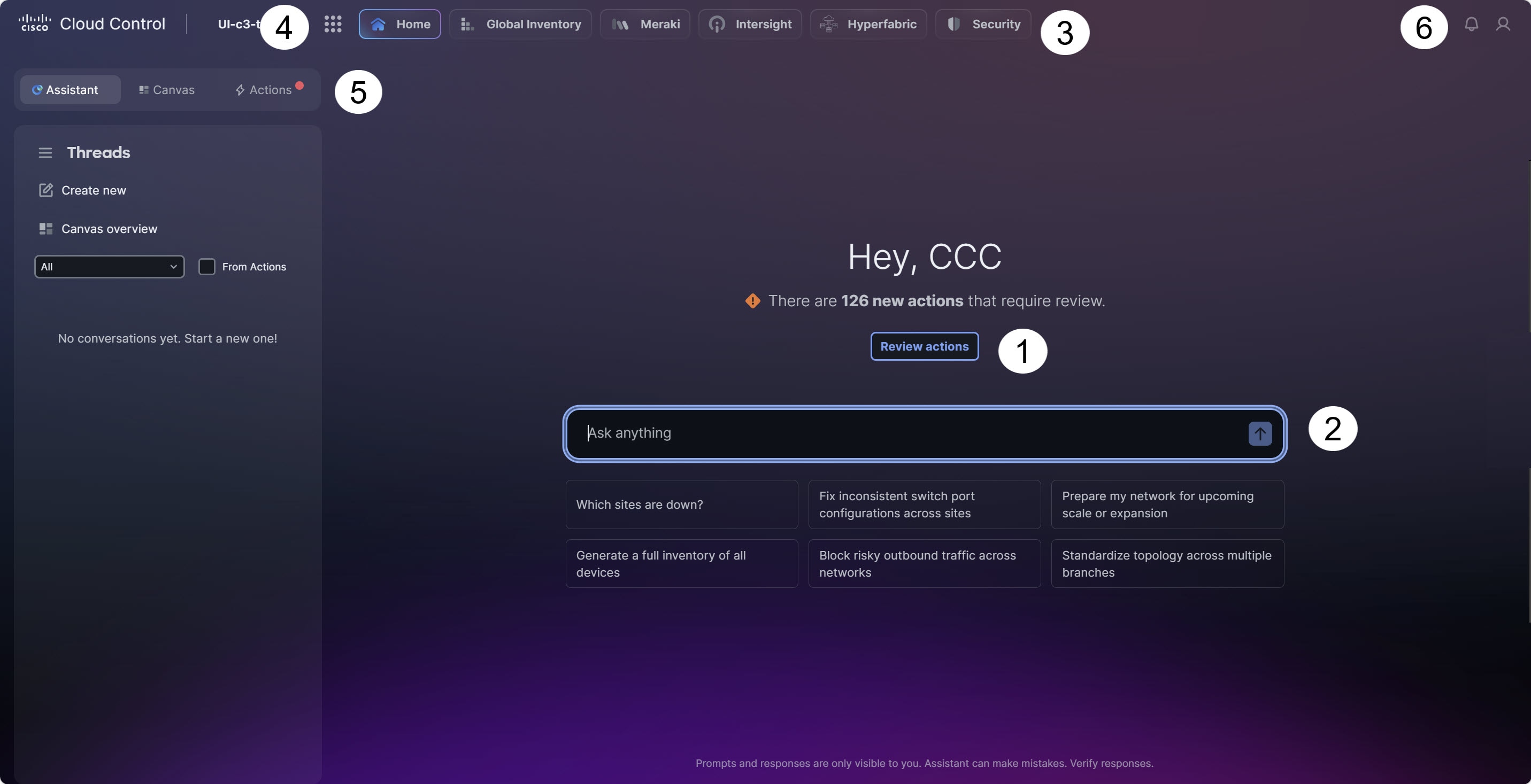
The Cisco Cloud Control Home page is the main entry point for working across your Cisco environment. From here, you can review actions that need attention, use AI Assistant or AI Canvas to investigate, and open platform apps and integrated products.
-
Home page tabs (1): Switch between Assistant, Canvas, and Actions to ask questions, investigate issues in a shared workspace, and review issues that need attention. By default, Assistant is selected.
-
Tenant switcher (2): Navigate between different product tenants.
-
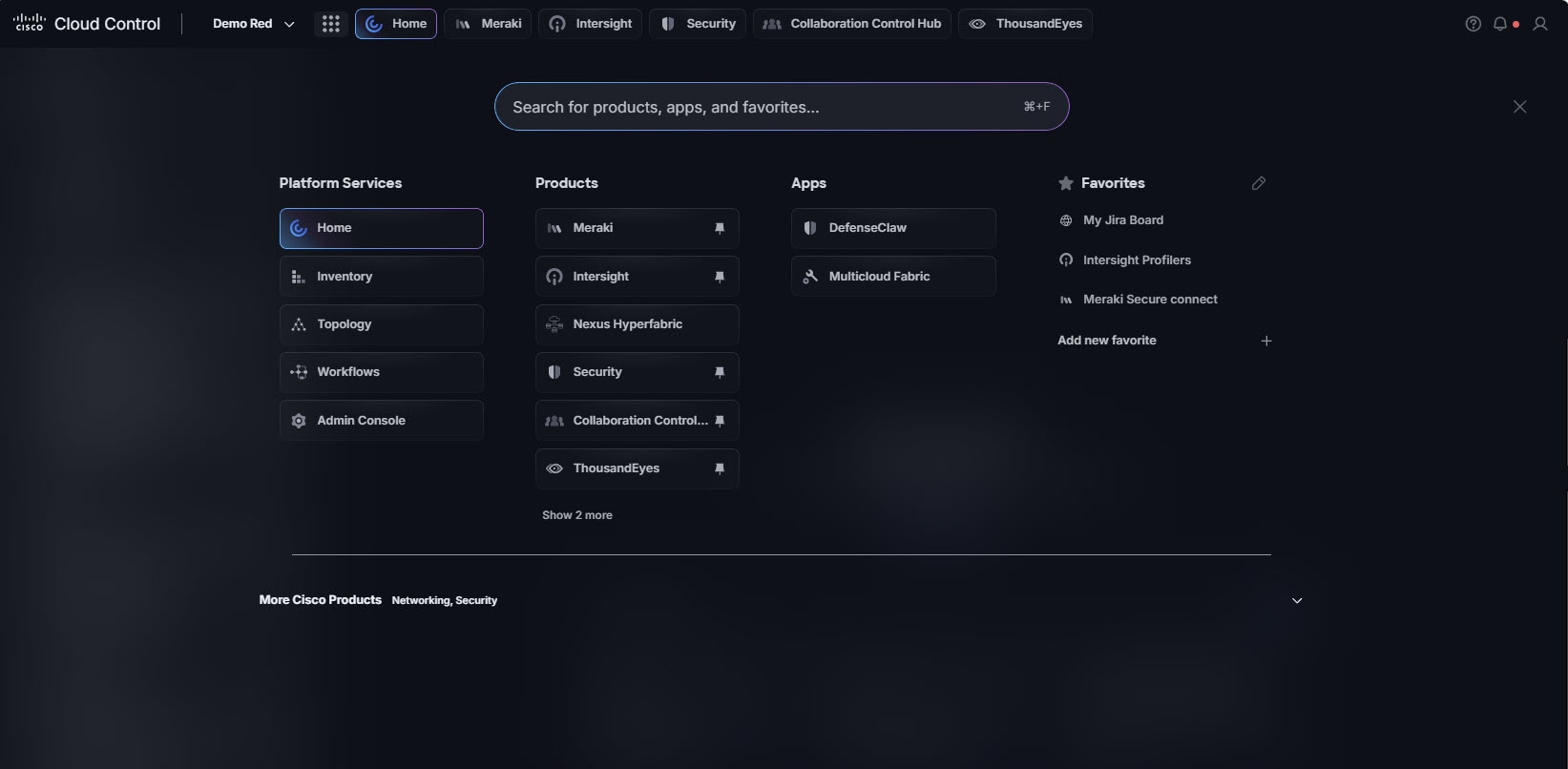
Main menu (3): Open products, platform apps, administration settings, and favorites that are not pinned to the top navigation bar.
From the Main menu, you can:
-
search for products and favorites.
-
access administration settings.
-
access platform apps such as Inventory, Topology, and Workflows.
-
access onboarded products that are not pinned to the top navigation bar.
-
switch to one of the multiple tenants configured for a product.
-
access your favorites.
-
-
Top navigation bar (4): Move between tenants, return to the Cisco Cloud Control Home page, open onboarded products and platform apps, and access common controls from one place.
-
The top navigation bar remains available as you move between Cisco Cloud Control and onboarded products, so you can move across products without losing context.
-
When a product is pinned to the top navigation bar and multiple tenants are available for that product, select the product and then choose a tenant from the drop-down list.
-
-
Notifications, help, and user settings (5): Review notifications, open support and documentation resources, and manage your account and display preferences.
Outside the Home page, the top navigation bar also provides quick access to Canvas.
-
Review actions (6): Quickly see what needs your attention and select Review actions to investigate issues.
-
AI Assistant (7): Ask questions in natural language and get quick answers about your Cisco Cloud Control environment.
Access platform services and products
Cisco Cloud Control’s top navigation bar and Main menu  let you access onboarded products, platform services, apps, and favorites. Search for an item or browse the available sections, then select the item you want to open.
Platform services
Platform Services gives you access to the following Cisco Cloud Control services:
-
Inventory — Provides a unified, AI-powered asset inventory. Inventory automatically syncs data from your Cisco products and shows device health and active issues in real time.
-
Topology — Displays your network sites and devices visually so you can see how assets relate to one another. Navigate between Topology, Inventory, and individual product views to investigate issues.
-
Workflows — Automates responses and task management for each tenant. Workflows integrate with AI Canvas, so you can discover, configure, and run them from within an investigation.
-
Identity — Cisco Identity centralizes identity data from sources such as Okta, Cisco ISE, and Microsoft Active Directory so you can assess identity posture and risk across your environment.

Before using Cisco Identity in Cisco Cloud Control, refer to Cisco Identity in Cisco Cloud Control to complete the required prerequisites and learn how to configure, integrate, and use Identity.
-
Licensing — Consolidates license usage and details for your Cisco products, including subscription status, consumption, and expiration.
-
Admin Console — Manages user access, authentication, and tenant administration. Use role-based access control (RBAC) to govern permissions across integrated Cisco products.
Product data availability in Cisco Cloud Control
Cisco Cloud Control displays data from connected products in Inventory, Topology, and Notifications. To view a product’s data, you must have access to the relevant product tenant or organization and the required permissions in both Cisco Cloud Control and the product. Cisco Cloud Control displays only the data you are authorized to access.
Use the table to see which connected products provide data to each of these capabilities.
| Product | Inventory | Topology | Notifications |
|---|---|---|---|
|
Catalyst Center |
Available |
Available |
Available |
|
Catalyst SD-WAN Manager |
Available |
Available |
Available |
|
Collaboration Control Hub |
Available |
- |
- |
|
Identity |
Available—Cisco Identity Services Engine (ISE) only |
- |
- |
|
Intersight |
Available |
Available |
Available |
|
Meraki |
Available |
Available |
Available |
|
Nexus Dashboard |
Available |
Available |
Available |
|
Nexus Hyperfabric |
Available |
Available |
Available |
|
Secure Access |
Available |
- |
- |
|
Secure Firewall |
Available |
Available |
Available |
|
ThousandEyes |
Available |
- |
Available |
Discover AI and operational capabilities
AI Assistant
AI Assistant is the natural language entry point in Cisco Cloud Control. Use AI Assistant to ask questions, get context, and start investigations from the Home page.
The Assistant tab lets you create a new conversation thread and view or manage your conversation history.
Access AI Assistant
To access AI Assistant, use one of these options:
-
On the Cisco Cloud Control Home page, select the Assistant tab.
-
Outside the Cisco Cloud Control Home page, select Assistant.
To start working in AI Assistant:
-
Enter your question in the prompt field, or select a prompt from the available options.
-
To collaborate with others in a shared workspace at any time during the conversation, click Create canvas.
When a conversation is associated with a canvas, the
 icon appears next to it.
For more information about AI Assistant prompts, display modes, and supported workflows, refer to Cisco Cloud Control AI Canvas.
AI Canvas
AI Canvas lets you investigate issues in more depth and collaborate with others in a shared workspace. It is designed for longer investigations that require more context, a visual workspace, and a way for teams and AI agents to continue working over time.
AI Canvas is built for collaboration. You can share a canvas, invite collaborators, and continue working in the same shared space. If you open AI Canvas from an existing conversation or from an action, the related context is preserved so you can continue the investigation without starting over.
Access AI Canvas
You can access AI Canvas in several ways:
-
On the Cisco Cloud Control Home page, click the Canvas tab.
-
In the Assistant tab, create a canvas for an existing conversation.
-
In the Actions tab, click Collaborate in Canvas to continue working on an issue in a shared workspace.
-
Outside the Cisco Cloud Control Home page, click Canvas to open the Canvas home page.
To start working in AI Canvas:
-
From the AI Canvas home page, select a prompt category, create a workspace from a board library, or click Create canvas.
-
Select the conversation mode.
-
Default answers right away.
-
Reasoning is intended for more complex queries.
-
-
Enter your question in the prompt field, or type
/in the chat input to open the prompt library. You can also upload files to a knowledge base. Knowledge base content is shared with users who have access to the same environment and is not limited to a single user. -
Attach an image to provide additional context with your prompt.
If a canvas is already associated with the conversation or action, Cisco Cloud Control continues using that canvas instead of creating a new one.
For more information about AI Canvas and writing effective prompts, refer to Cisco Cloud Control AI Canvas.
Review actions and notifications
Actions
Actions help you review issues that need attention across your Cisco Cloud Control environment. This helps you focus on prioritized operational tasks from one place instead of reviewing individual alerts from separate products.
You can review the action summary to understand what happened, see the related alerts that led to the incident, identify what is affected, and determine the recommended next steps. You can also review the related alerts and when they occurred, along with the activity timeline that shows how the action was handled, such as assignment and resolution.
Review actions
-
On the Cisco Cloud Control Home page, click the Actions tab.
This displays a list of actions that require attention. -
Use the available filters to narrow the list by severity or assignee.
-
Use Sort by to sort actions by severity or time.
-
Click an action to open its details.
-
Review the summary, related alerts, timeline, and recommended next steps.
-
Assign the action to yourself or another user in the tenant, as needed.
-
To investigate further, continue the conversation in Assistant.
-
To collaborate with others in your team for a shared investigation, click Collaborate in Canvas to create a shared Canvas workspace. When you open Canvas from an action, the related context is preserved so you can continue without starting over.
-
When the action is resolved, click Resolve. To dismiss an action, dismiss it and provide your reason or feedback.
Open, resolved, and dismissed actions appear in their respective tabs.
Cisco Cloud Control removes notifications after 90 days. It also removes resolved or dismissed actions older than 90 days. This data is not removed from the source product. To view historical data beyond this time period, go to the product directly.
Notifications
Notifications help you stay informed about important activity across Cisco Cloud Control. Similar notifications (alerts, recommendations, and activities) are grouped together to make them easier to review. You can open a notification for more details, snooze it, or clear it. Some notifications can lead directly to an item in the Actions tab for further review.
Notifications can include the following types of information:
-
Alert requires attention and has an assigned severity.
-
Recommendation provides guidance based on configuration or behavior.
-
Approval requires you to review and approve a request or task.
-
Activity keeps you informed about a task, process, or change.
-
Announcement communicates important updates, such as new features, maintenance windows, policy updates, or deprecations.
Notifications are not available to users with the Integration Admin role.
Notifications are grouped into a single action when they:
-
Are related in timeframe
-
Occur on devices within the same network topology, and are high or critical in severity
-
Are repeatedly generated by the same device
Review notifications
-
Click
 to open the Notifications panel.
 -
Review the list of notifications. Similar alerts are grouped together when they share the same severity and product and occur close together in time.
-
Click a notification to view more details.
Only notifications that are associated with an action open the related item in the Actions tab. Some notifications are informational only and do not open an action detail view.
-
To temporarily remove a notification from view, snooze it for the required time period.
-
To remove a notification from your active feed, clear it.
-
All notification actions are recorded in the audit log with the user, tenant, timestamp, and action details. Clearing a notification only removes it from the active feed. If the notification requires action, you must resolve the item in the Actions tab.
-
Cisco Cloud Control removes notifications after 90 days. It also removes resolved or dismissed actions older than 90 days. This data is not removed from the source product. To view historical data beyond this time period, go to the product directly.
Organize products and favorites
Pin or unpin products and apps
Pin frequently used products and apps so they appear in the top navigation bar.
-
Open the Main menu
. -
Select the pin next to the product or app to add it to or remove it from the navigation bar.
Manage favorites
Favorites let you save frequently used pages or resources so you can open them quickly from the Main menu. Favorites are shared across Cisco Cloud Control and supported onboarded products.
Open the Main menu to add, edit, remove, or reorder favorites.
You can add a favorite for a custom URL or a Cisco Cloud Control menu item. For example, you can add a URL that opens a specific page in an onboarded product or a Cisco Cloud Control menu item, such as Integrations from Admin Console.
To add a custom link:
-
In the Favorites pane, select Add new favorite.
-
Enter a Name and URL and then select Save.
To add a Cisco Cloud Control menu item:
-
Hover over the item that you want to add.
-
Select the Add to favorites icon.
To edit, remove, or reorder a favorite:
Select  to enter edit mode.
-
To edit a favorite, select
for the favorite you want to update, then update the name or URL. -
To remove a favorite, select
 for the favorite that you want to remove.
 -
To reorder favorites, drag and drop the favorite to a new position.
Cloud Control support and documentation
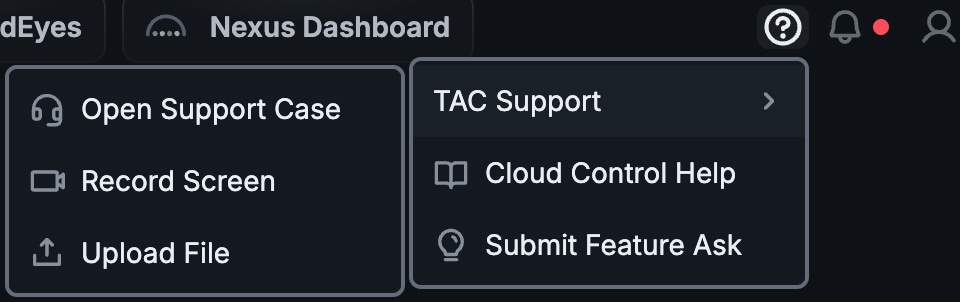
The Cisco Cloud Control  provides access to product support and documentation and lets you submit product enhancement suggestions.
TAC support
TAC Support lets you open a support case and provide supporting information.
Open support case
Select this option to open a support case with the Cisco Technical Assistance Center (TAC) directly from Cisco Cloud Control.
Before you begin, disable your browser’s pop-up blocker.
-
Select
> TAC Support > Open Support Case. -
Enter the case title and description.
-
Specify whether you want to automatically include the product pages you have visited in the case description.
-
Select Submit.
Record screen
Select this option to record your screen when you need to capture details for troubleshooting or support.
Before you begin, confirm that audio and video recording is enabled for your browser.
-
Select
> TAC Support > Record Screen. -
Cisco In-Product Support opens, indicating that you can:
-
Narrate the issue while recording video. If prompted, enable access to your microphone.
-
Take a screenshot of the page you are viewing by double-clicking.
-
-
Select Ok to continue.
-
Specify whether you want to record a specific browser tab, a window, or your entire screen, and then select Share.
-
Complete the steps required to recreate your issue.
-
When you are done, select Stop sharing.
Upload to Case opens, indicating that your screen recording was created. -
Select Upload to add the recording to a case.
Upload file
Select this option to upload files that can help with troubleshooting or support.
-
Select
> TAC Support > Upload File. -
Select Choose File and pick the file you want to upload.
-
Specify whether to associate this file with an existing or new case:
-
If you select Existing Case, enter case number.
-
If you select Open New Case, ensure that your browser’s pop-up blocker is disabled.
-
-
Select Upload.
Cloud Control documentation
The Cisco Cloud Control documentation page brings together all documentation for Cisco Cloud Control in one place.
Select > Cloud Control Help to access documentation.
Submit feature ask
Select this option to suggest product enhancements for Cisco Cloud Control.
Select > Submit Feature Ask to submit your ideas.
Learn more
Now that you have explored Cisco Cloud Control and discovered the services and capabilities available to you, use the following documents to learn more.
| Document | Description |
|---|---|
|
Provides information about managing user access, authentication, and tenant-based administration in Cisco Cloud Control. |
|
|
Provides information about AI Canvas and AI Assistant, their key differences, use cases, and examples of effective prompts across supported integrations. |
|
|
Provides information about the global asset inventory, including its capabilities, supported integrations, and AI-powered search for finding and managing assets across your environment. |
|
|
Provides information about reviewing license usage, balance, details, and reports across supported Cisco products. |
|
|
Provides information about how Cisco Cloud Control implements role-based access control (RBAC). |
|
|
Provides information about viewing network sites, devices, health indicators, and cross-domain relationships in Cisco Cloud Control Topology. |
|
|
Provides information about creating and managing workflows that automate responses, reduce repetitive tasks, and communicate with external systems and resources. |
|
|
Reference for Cisco Cloud Control terms, definitions, and usage guidance. |