
Actions
In Actions, you can manage important issues, make decisions about them, and understand how Cisco Cloud Control agents handle them. Actions bring related alerts into one place. This helps you focus on prioritized issues across your Cisco Cloud Control environment instead of reviewing individual alerts from separate products. You can review what happened and the supporting evidence, approve actions requiring your decision, and then verify the results.
Understand how Actions work
An action correlates one or more alerts to identify an overall issue.
Cisco Cloud Control groups alerts based on certain details, such as:
-
The device, user, or app involved.
-
The product that sent the alert.
-
When the alerts occurred.
-
How the related devices or systems are connected.
By grouping related alerts into an action, Cisco Cloud Control helps you focus on what needs attention without reviewing each alert separately. Each action includes a summary of the issue, the related alerts, a possible cause, and a recommendation. When you open an action for the first time, AI Assistant triggers the relevant agents to analyze the issue, identify a possible cause, and recommend next steps. You can ask follow-up questions or use Canvas to investigate further and collaborate with your team.
If an issue has consequences, is unclear, or must follow a policy, Cisco Cloud Control asks you to review the relevant information and decide the next step.
Manage actions
Use Actions to investigate and resolve correlated issues. This process helps you understand the impact, choose a remediation path, and verify the result.
Find and review an action
Follow these steps to find an action, narrow and sort the list, and understand its impact.
-
On the Cisco Cloud Control home page, select Review actions or Actions.
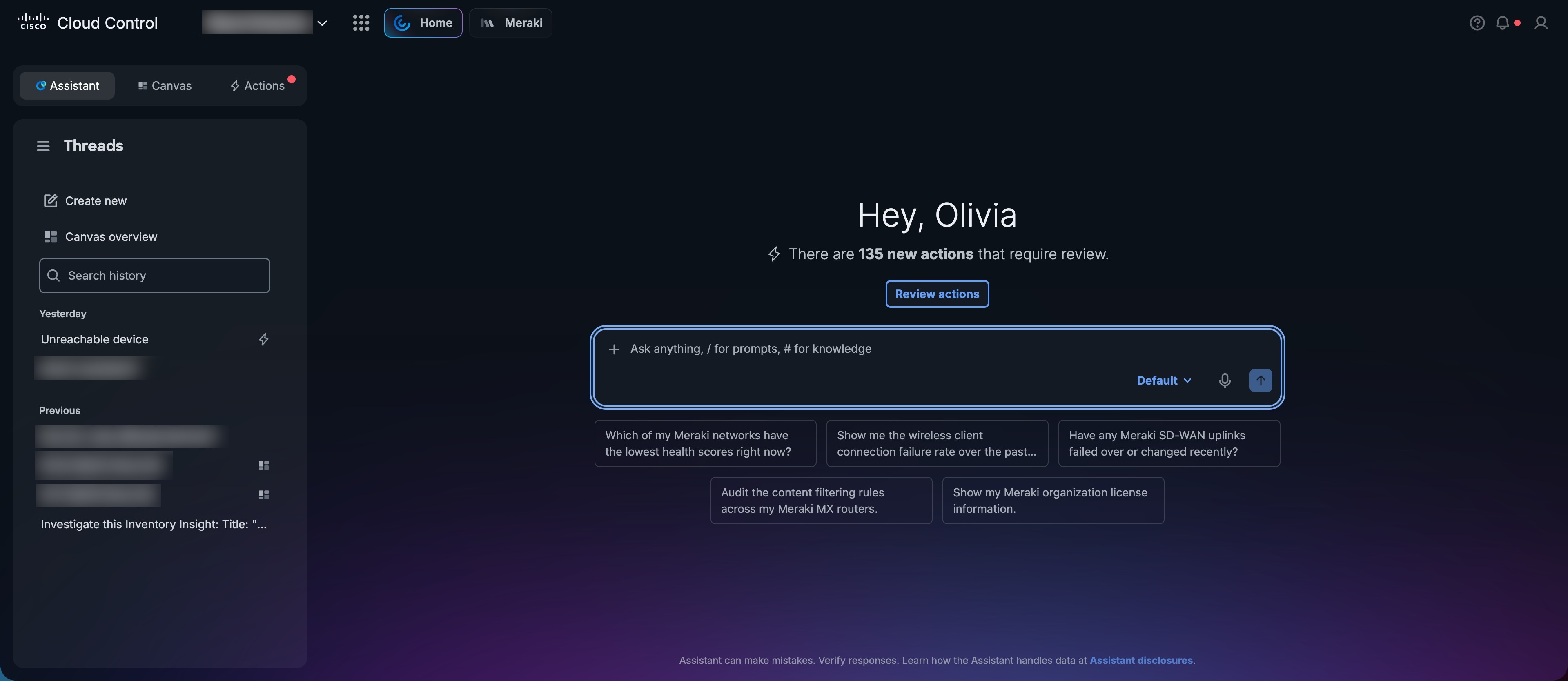
By default, Open actions are displayed. To view historical actions, select Resolved or Dismissed.
-
Find an action:
-
Search for an action using keywords from its name, description, or other details.
-
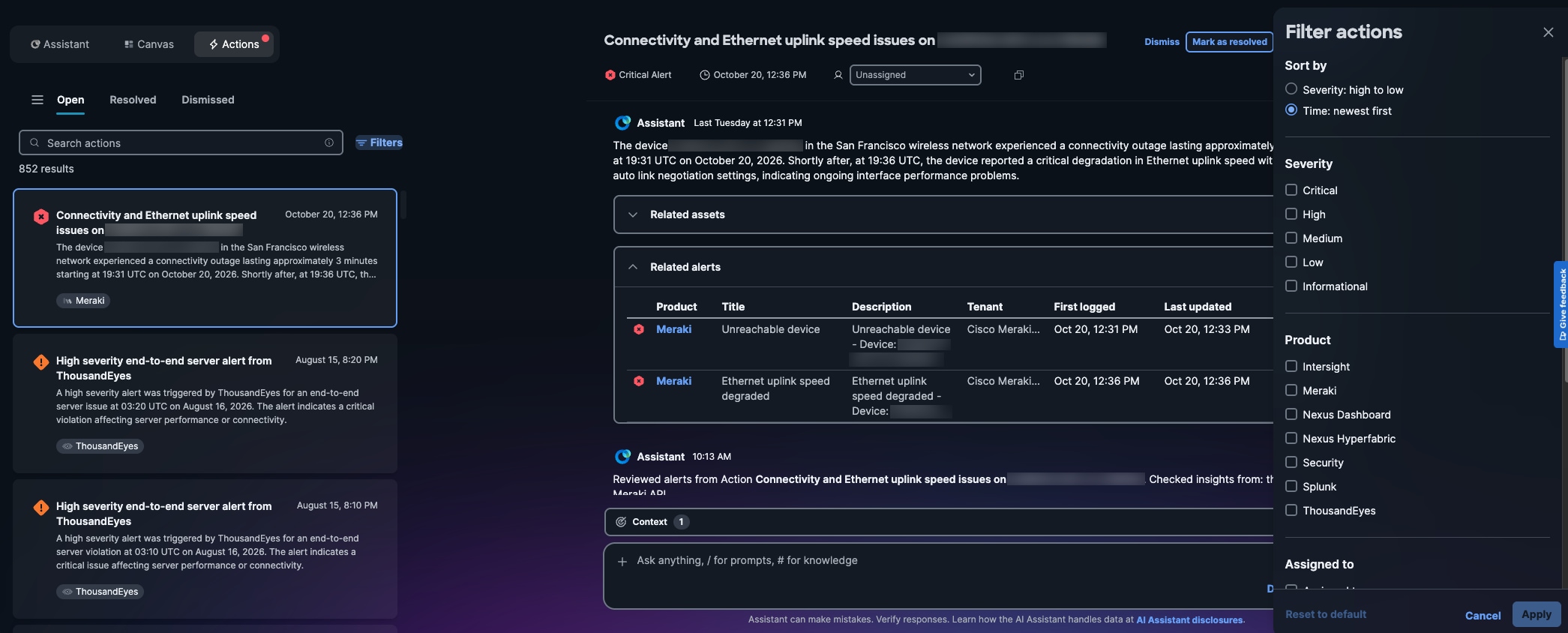
Select Filters to narrow and sort the list.
Select options for Sort by, Severity, Product, or Assigned to. You can select multiple values for Severity, Product, and Assigned to. Then select Apply.
-
-
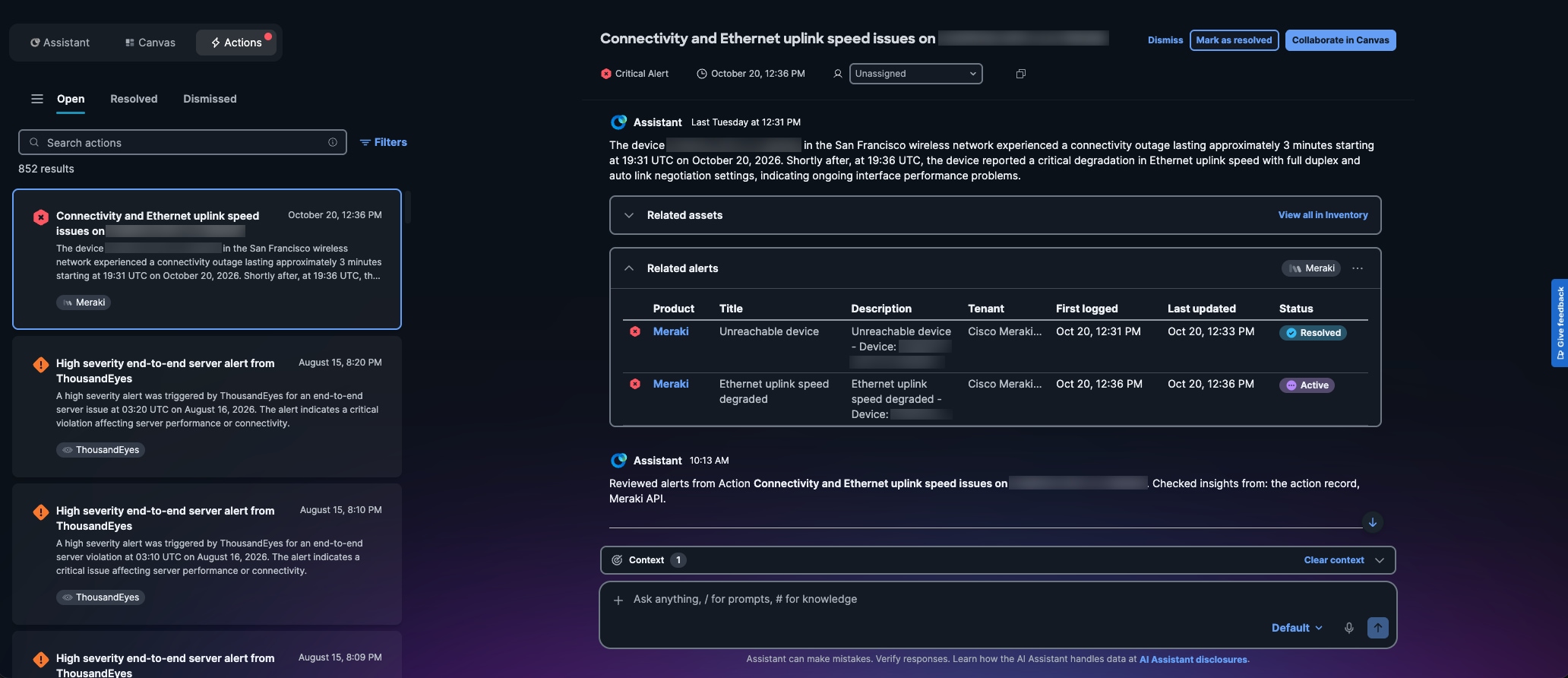
Select an action from the list (for example, Connectivity and Ethernet uplink speed issues) to view its details.
Assistant displays the main issue, severity level, all related alerts, and any available related assets. The first time you open an action, Assistant generates the analysis and recommendation. When you open the action again, Assistant displays the saved analysis and recommendation.
-
If available, open and review Related assets to view details about each related asset:
-
Select the asset name to view the asset in Inventory.
-
Select View all in Inventory (or View in Inventory for a single asset) to view all related assets in Inventory.
-
-
Review Related alerts to view details about each related alert.
For example:
-
Product: Meraki
-
Title: Ethernet uplink speed degraded
-
Description: Ethernet uplink speed degraded - Device: CAMPUS…
-
Tenant: Cisco Meraki
-
First logged: Oct 20, 12:36 PM
-
Last updated: Oct 20, 12:36 PM
-
Status: Active
-
You now understand the operational impact of the action, have identified the affected tenant, and have determined which devices or services are impacted.
Investigate an action
Follow these steps to investigate an action and understand its analysis, recommendation, and supporting evidence.
-
On the Cisco Cloud Control home page, select Actions.
-
From Open, select an action from the list (for example, Connectivity and Ethernet uplink speed issues) to view its details.
-
Review Related alerts to understand how the alerts are related.
Alerts are correlated dynamically based on matching factors such as the product, when the alerts occur, and how devices are connected in the network.
To use the related alert details outside Cisco Cloud Control, select the ellipsis (…) and choose one option:
-
Copy as CSV to copy the details.
-
Download CSV to save the details as a CSV file.
-
-
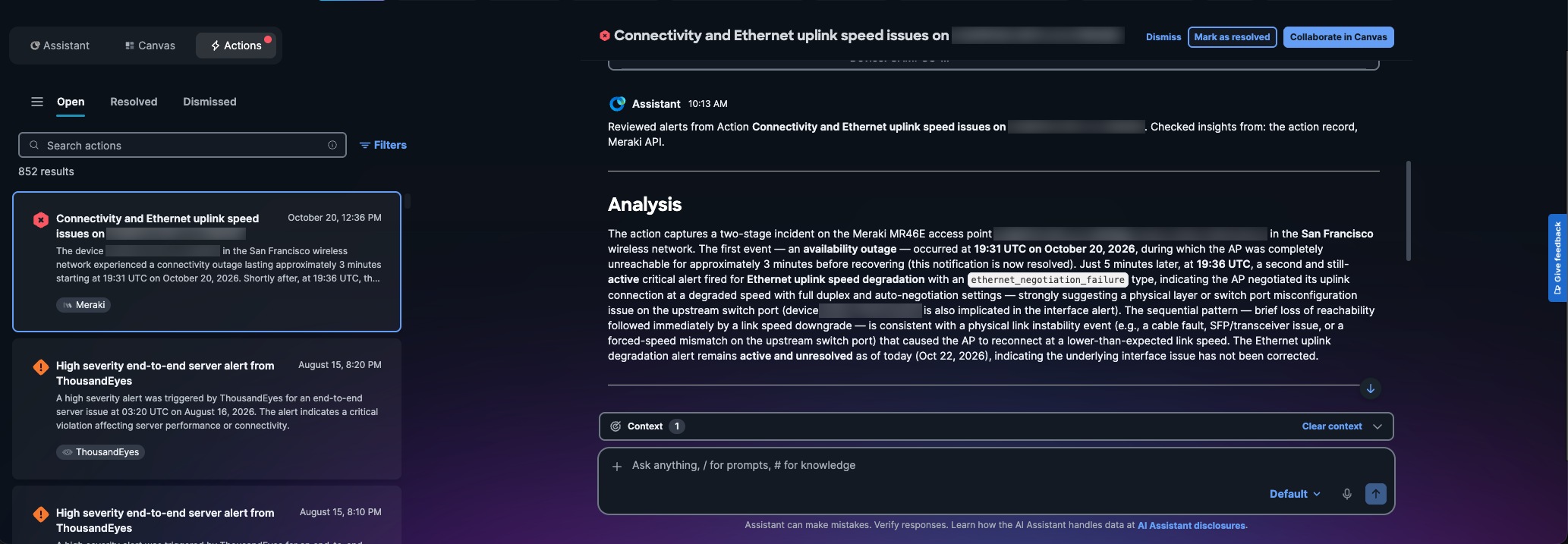
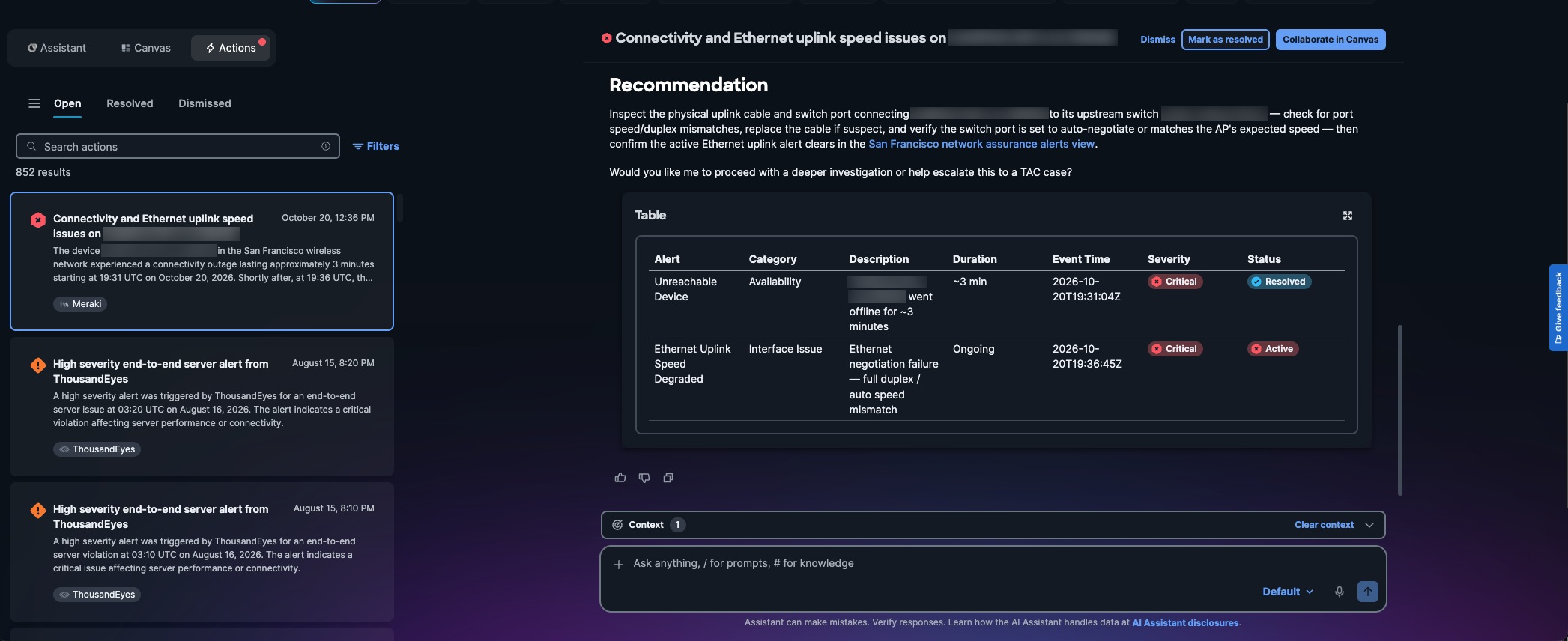
Review the analysis provided by Assistant.
The analysis includes a possible cause (for example, a physical link instability event).
-
Review Recommendation for the suggested next steps (for example, inspect the physical uplink cable and switch port connecting the campus device to its upstream switch).
The recommendation describes troubleshooting steps to fix the issue.
-
Evaluate the source evidence that supports the possible cause and recommendation.
-
If you have questions or need more detailed troubleshooting steps, enter a prompt in Assistant.
For example, you can enter this prompt:
Walk me through verifying that the switch port is set to auto-negotiate and matches the AP’s expected speed. You receive contextual, step-by-step guidance from Assistant tailored to the action. -
To continue the investigation in a shared workspace with your team, select Collaborate in Canvas.
Cisco Cloud Control preserves all related action context, chat history, and evidence in the new canvas workspace.
For example, you can:
-
Add cards to the canvas and then add annotations to explain important findings or decisions.
-
Select Share to copy the canvas link and share it with your team.
-
Select Generate summary to capture the current state of the investigation.
For more information, refer to Cisco Cloud Control Canvas.
-
You have now investigated the action and reviewed its related alerts, analysis, recommendation, and supporting evidence.
Resolve or dismiss actions
Follow these steps to assign an owner, review the action and follow its recommendation, and then resolve or dismiss it. You can also resolve or dismiss multiple open actions at once.
-
On the Cisco Cloud Control home page, select Actions.
-
Select an open action from the list.
-
If the action is unassigned, select yourself or another user from Unassigned.

Only Environment Admin users can assign actions to others. They can assign actions to Members with access to the relevant products or to other Environment Admin users, regardless of product access.
The selected user becomes the owner of the open action. The owner reviews it and decides whether to dismiss or resolve it.
-
Review the action:
-
Review the related alerts, analysis, recommendation, and supporting evidence.
-
If the action is resolved automatically because its original product alert was resolved, review the available resolution details.
-
-
If the action is valid, use Assistant to follow the recommended troubleshooting or remediation steps.
-
To resolve or dismiss the action:
-
If the recommended fix is applied, verify the fix and resolve the action:
-
Check that the affected devices or services work normally.
For example, confirm the active Ethernet uplink alert clears.
-
Select Mark as resolved.
-
If prompted, select Resolve to confirm.
-
For feedback, select one or more reasons for resolving this action. Then select Submit, or select Skip.
The action is moved to Resolved.
-
-
If the action is a false positive, inaccurate, or does not require action, dismiss it:
-
Select Dismiss.
-
If prompted, select Dismiss Alert to confirm.
-
For feedback, select one or more reasons for dismissing this action. Then select Submit, or select Skip.
The action is moved to Dismissed.
-
-
-
To resolve or dismiss multiple actions:
-
Under Open actions, select Select.
-
Select the check box beside each action, or select Select all <total number of actions> to select all open actions matching your current filters and search.
-
Select Resolve or Dismiss.
-
For the confirmation message, select Resolve or Dismiss Actions.
-
For feedback, select one or more reasons for dismissing or resolving these actions. Then select Submit, or select Skip.
The selected actions are moved to Resolved or Dismissed.
-
Cisco Cloud Control automatically removes resolved or dismissed actions older than 90 days. The data in the source product is not deleted.