
Licensing
Cisco Cloud Control Licensing brings license data from supported Cisco products into one experience, reducing the effort required to track licenses across multiple products. Use license data to assess license health by reviewing usage, balance, posture, expiration, and consumption details.
Cisco Cloud Control organizes license information across different licensing models, including SaaS subscriptions, Meraki co-term licenses, and on-premises models. The available details can vary by product or license type.
Licensing capabilities
With Licensing, you can do these tasks:
-
Review licenses across products: Use Licensing to review license information across supported Cisco products. Use search and filters to find a specific set of licenses within large and complex data sets.
-
Identify licenses that need attention: Use balance and posture information to identify licenses that are overused, fully used, or underused.
-
Review license ownership and consumption: View license entitlement, consumption, and associated devices. Use this information to understand which devices or entities are associated with the license.
-
Prepare for renewal planning: Review expiration and purchase information to identify licenses that are approaching expiration. Use this information to reduce service disruption risk and avoid last-minute renewal activity.
-
Analyze license data offline: Generate a CSV report when you need to share license information, review license data offline, or keep a record for planning and audit activities.
Supported products
Cisco Cloud Control supports licensing visibility for these products:
-
Meraki
-
Duo
-
Intersight (Cisco Compute)
-
ThousandEyes
-
Splunk Cloud Platform
-
Catalyst Center (Enterprise Switching and Wireless)
-
Nexus Dashboard
-
Nexus Hyperfabric
-
Security Cloud Control (Cisco Secure Access)

Cisco Cloud Control displays licenses for the product tenants that are based on your region and your authorized access.
Supported licensing models
Cisco Cloud Control supports these licensing models:
-
Subscription-based licenses: Time-bound licenses that are associated with a subscription, tenant, or organization. Usage is measured against entitled quantities, such as users, seats, requests, or other product-specific units.
-
On-premises licenses: Smart Licensing or traditional licenses that are associated with a customer account, Smart Account, Virtual Account, software instance, or device.
-
Meraki co-term licenses: Licenses that are associated with a Meraki organization. Usage is generally device-based and uses the organization-level co-term expiration.
License data availability
Use this information to understand when license data is shown, unavailable, or different by product and license model.
-
Cisco Cloud Control displays licenses for the product tenants that are based on your region and your authorized access.
-
When no licenses are associated with your account, licensing data is unavailable.
-
On-premises license data is available only when your account is linked to a Smart Account or Virtual Account.
-
If expected product data is not available, log in to those products to link them to your account.
-
License details can vary by product and license model.
Review license data
Follow these steps to review license health across supported Cisco products and narrow the license list for your task:
-
Select the Main menu
 and choose Licensing.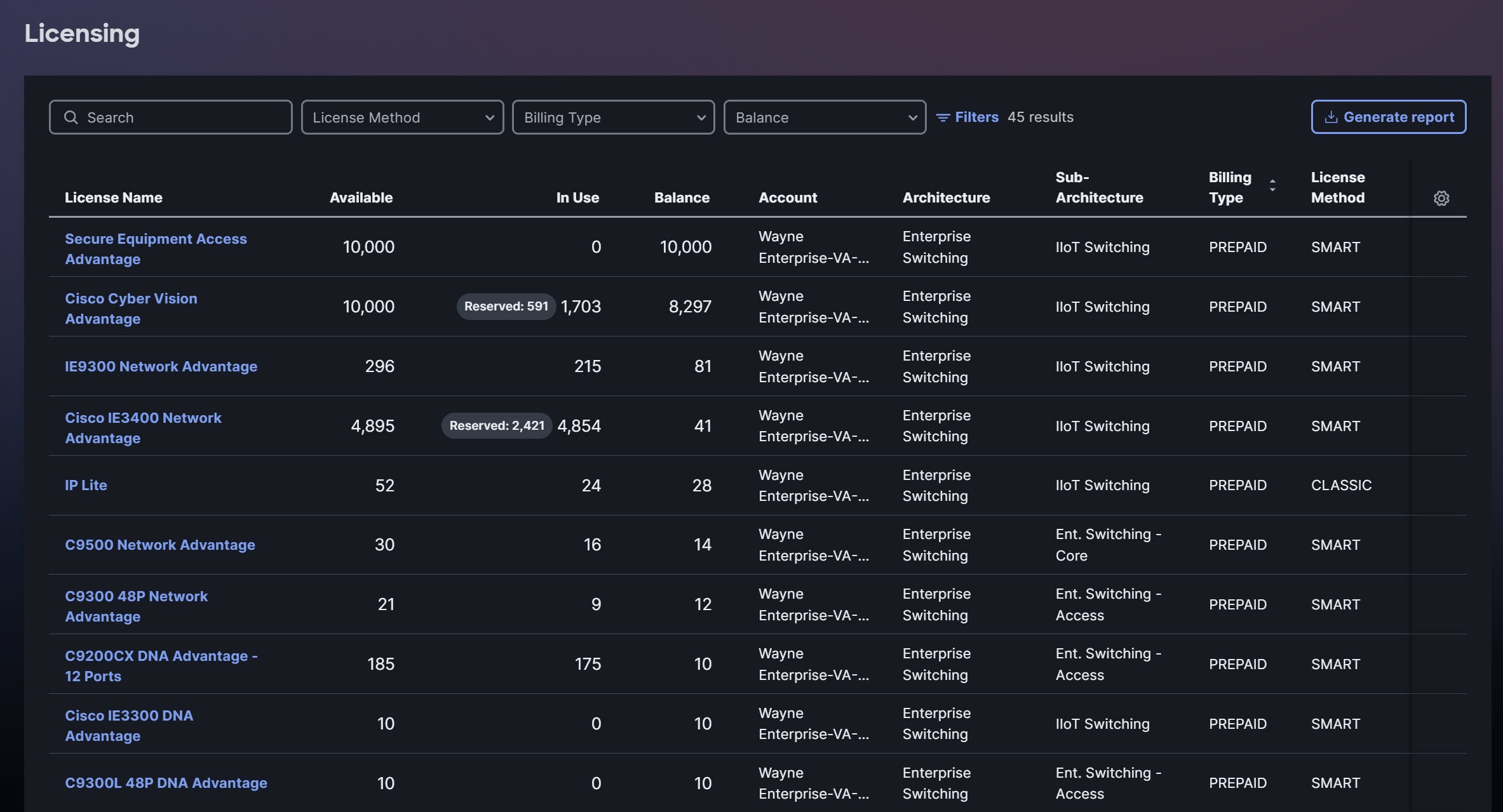
-
Review the listed licenses to identify licenses that need attention, such as licenses that are overused, fully used, or nearing expiration.
For more information, refer to License usage and balance details.
-
Use search and filters to narrow the results.
To change the columns that appear, use the table settings.
-
Select a license to view details.
For more information, refer to Review a selected license.
-
Generate a CSV report when you need to analyze license data offline or share it for renewal planning or audit preparation.
A generated report can include up to 10,000 records.
Review licenses by balance
Use this procedure to review licenses by balance.
-
Select the Main menu
and choose Licensing.Licensing displays a consolidated list of licenses across supported Cisco products.
-
Use Balance to identify licenses that are overused, fully used, unknown, or still have available capacity.
A negative balance indicates overuse and is marked with an alert icon.
-
Use search and filters to narrow the results.
-
Review the licenses that are most relevant to your task.
-
Your filters, search criteria, and table preferences remain available when you leave and return to Licensing.
-
You can bookmark or share the filtered URL.
-
License usage and balance details
Licensing includes these details:
-
License Name: Name of the license feature.
-
Available: Total number of licenses available, including entitled and purchased quantities.
-
In Use: Number of licenses in use by devices.
-
Balance: Number of licenses that remain available.
Balance can have these values:
-
Underused: The license has available units.
-
Fully used: All available licenses are in use.
-
Overused: Usage exceeds the available licenses. A negative balance indicates that the license is overused.
-
Unknown: The license balance cannot be calculated.
Cisco Secure Access balance data is not available in Cisco Cloud Control. To view balance usage details, go directly to the product dashboard.
-
-
Account: Virtual container where licenses are stored. This varies by product.
-
Architecture: High-level product architecture associated with the license, such as enterprise switching, data center networking, compute, or wireless.
-
Sub-Architecture: Product-specific category within an architecture, such as Ent. Switching - Access, IIoT Switching, NX9K, Intersight, Ent. - Wireless, SAN, or Ent. Switching - Core. The available values depend on the products and license data in your environment.
-
Billing Type: Payment structure for the license.
-
License Method: Model used to license the product, such as Smart Licensing or classic licensing.
License qualifiers
Some licenses include qualifiers that explain how the license is consumed or allocated.
-
Shared: The license quantity is shared across multiple entities, such as virtual accounts or networks.
-
Reserved: The license is reserved for a specific device or entity. Another device can use the license only after the reservation is removed or the license is released.
-
Substitution: A higher-tier license is used to satisfy a lower-tier license request when the requested license is unavailable. A negative quantity shows the license that was requested but is not available. A positive quantity shows the higher-tier license that is used as a substitute.
-
Free: Applies to Meraki offers, where the license is provided at no cost.
-
Pending: Indicates that license assignment operations or requests are in progress.
-
Product Dashboard: Indicates the consumption (in-use) data for the license.
Cisco Secure Access consumption data is not available in Cisco Cloud Control. To view traffic usage details, go directly to the product dashboard.
Review a selected license
Use License details to understand how a selected license is consumed, which devices or entities are associated with it, and which purchases or transactions apply to the license.
-
Select the Main menu
and choose Licensing. -
Select a license.
-
Review License details, including entitlement, consumption, associated devices, and purchase or transaction details.
-
In Associated devices or Purchases and transactions, use search to narrow the records for the selected license.
If a license does not have associated device information or purchase and transaction information, the corresponding tab is disabled.
Associated devices for a license
Use Associated devices to review which devices consume the selected license, how many licenses are requested, and whether the license use is authorized.
Associated devices includes these fields:
-
Device name: Device associated with the license.
-
Device identifier: Unique device identifier, such as a serial number or product-specific device ID.
-
Authorized for use: Number of licenses authorized for use.
-
Requested: Number of licenses requested by the device.
-
Last contact: Last communication timestamp from the device.
-
Trust established: Device trust establishment timestamp.
Purchases and transactions for a license
Use Purchases and transactions to review purchased quantities, license coverage dates, and related order details for the selected license.
Use this information to confirm license records and prepare for renewal discussions.
Purchases and transactions includes these fields:
-
Source type: Origin of the purchase or transaction record.
-
Product number: The SKU that identifies the product.
-
License quantity: Number of licenses purchased.
-
Expiration date: Date when the license coverage ends.
-
Transaction date: Date when the transaction occurred.
-
Order number: Unique identifier associated with the purchase or transaction.
-
Subscription reference: Unique identifier for the subscription.
-
Partner name: Partner or reseller billed for the transaction.
-
Buying Program Name: The purchase agreement type used to acquire the license, such as an Enterprise Agreement.