Remote Access

Expressway for Mobile and Remote Access Deployments

Expressway for Mobile and Remote Access for Cisco Unified Communications Manager allows users to access their collaboration tools from outside the corporate firewall without a VPN client. Using Cisco collaboration gateways, the client can connect securely to your corporate network from remote locations such as public Wi-Fi networks or mobile data networks.

You set up Expressway for Mobile and Remote Access as follows:
  1. Set up servers to support Expressway for Mobile and Remote Access using Cisco Expressway-E and Cisco Expressway-C.*

    1. See the following documents to set up the Cisco Expressway servers:
      • Cisco Expressway Basic Configuration Deployment Guide

      • Mobile and Remote Access via Cisco Expressway Deployment Guide

      * If you currently deploy a Cisco TelePresence Video Communications Server (VCS) environment, you can set up Expressway for Mobile and Remote Access. For more information, see Cisco VCS Basic Configuration (Control with Expressway) Deployment Guide and Mobile and Remote Access via Cisco VCS Deployment Guide.

    2. Add any relevant servers to the whitelist for your Cisco Expressway-C server to ensure that the client can access services that are located inside the corporate network.

      To add a server to the Cisco Expressway-C whitelist, use the HTTP server allow setting.

      This list can include the servers on which you host voicemail or contact photos.

  2. Configure an external DNS server that contains the _collab-edge DNS SRV record to allow the client to locate the Expressway for Mobile and Remote Access server.

  3. If you deploy a hybrid cloud-based architecture where the domain of the IM and presence server differs from the domain of the voice server, ensure that you configure the Voice Services Domain.

    The Voice Services Domain allows the client to locate the DNS server that contains the _collab-edge record.

    You can configure the voice services domain using one of the following methods:
    • Client configuration file (all Cisco Jabber clients)

    • Configuration URL (all Cisco Jabber clients except Cisco Jabber for Windows)

    • Installer options (Cisco Jabber for Windows only)


Important

In most cases, users can sign in to the client for the first time using Expressway for Mobile and Remote Access to connect to services from outside the corporate firewall. In the following cases, however, users must perform initial sign in while on the corporate network:
  • If the voice services domain is different from the services domain. In this case, users must be inside the corporate network to get the correct voice services domain from the jabber-config.xml file.

  • If the client needs to complete the CAPF enrollment process, which is required when using a secure or mixed mode cluster.


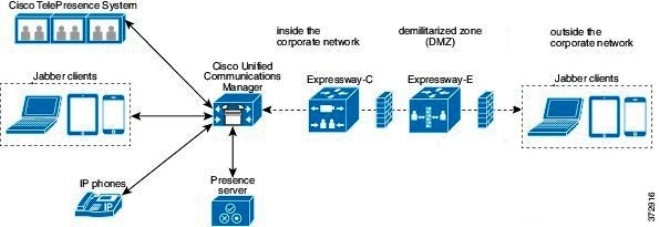
Figure 1. How the Client Connects to the Expressway for Mobile and Remote Access. The following diagram illustrates the architecture of an Expressway for Mobile and Remote Access environment.

Supported Services

The following table summarizes the services and functionality that are supported when the client uses Expressway for Mobile and Remote Access to remotely connect to Cisco Unified Communications Manager.

Table 1. Summary of Supported Services for Expressway for Mobile and Remote Access
Service Supported Unsupported

Directory

UDS directory search

X

LDAP directory search

X

Directory photo resolution

X

* Using HTTP white list on Cisco Expressway-C

Intradomain federation

X

* Contact search support depends on the format of your contact IDs. For more information, see the note below.

Interdomain federation

X

Instant Messaging and Presence

On-premises

X

Cloud

X

Chat

X

Group chat

X

High Availability: On-premises deployments

X

File transfer: On-premises deployments

X

Advanced options available for file transfer using Cisco Unified Communications Manager IM and Presence Service 10.5(2) or later, see the note below.

File transfer: Cloud deployments

X

Video screen share - BFCP

X (Cisco Jabber for mobile clients only support BFCP receive.)

IM-Only Screen Share

x

Audio and Video

Audio and video calls

X

* Cisco Unified Communications Manager 9.1(2) and later

Deskphone control mode (CTI) (desktop clients only)

X

Extend and connect (desktop clients only)

X

Remote desktop control (desktop clients only)

X

Silent Monitoring and Call Recording

X

Dial via Office - Reverse (mobile clients only)

X

Session persistency

X

Early media

X

Self Care Portal access

X

Graceful Registration

X

* Applies to Cisco Jabber for Android.

Jabber for Android supports graceful registration over Expressway for Mobile and Remote Access from Cisco Unified Communications Manager Release 10.5.(2) 10000-1.

Voicemail

Visual voicemail

X

* Using HTTP white list on Cisco Expressway-C

Cisco Webex Meetings

On-premises

X

Cloud

X

Cisco Webex screen share (desktop clients only)

X

Installation (Desktop clients)

Installer update

X

* Using HTTP white list on Cisco Expressway-C

X

Not supported on Cisco Jabber for Mac

Customization

Custom HTML tabs

X

Enhanced911 Prompt

X

*

To ensure that the web page renders correctly for all Jabber clients operating outside the corporate network, the web page must be a static HTML page because the scripts and link tags are not supported by the E911NotificationURL parameter. For more inforation, see the latest Parameter Reference Guide for Cisco Jabber.

Security

End-to-end encryption

X

CAPF enrollment

X

Single Sign-On

X

Advanced Encryption Standard (AES) 256 and TLS1.2

X

* Applies to Cisco Jabber for Android.

Advanced encryption is supported only on corporate Wi-Fi

Troubleshooting (Desktop clients only)

Problem report generation

X

Problem report upload

X

High Availability (failover)

Audio and Video services

X

Voicemail services

X

IM and Presence services

X

Directory

When the client connects to services using Expressway for Mobile and Remote Access, it supports directory integration with the following limitations.
  • LDAP contact resolution —The client cannot use LDAP for contact resolution when outside of the corporate firewall. Instead, the client must use UDS for contact resolution.

    When users are inside the corporate firewall, the client can use either UDS or LDAP for contact resolution. If you deploy LDAP within the corporate firewall, Cisco recommends that you synchronize your LDAP directory server with Cisco Unified Communications Manager to allow the client to connect with UDS when users are outside the corporate firewall.

  • Directory photo resolution — To ensure that the client can download contact photos, you must add the server on which you host contact photos to the white list of your Cisco Expressway-C server. To add a server to Cisco Expressway-C white list, use the HTTP server allow setting. For more information, see the relevant Cisco Expressway documentation.

  • Intradomain federation — When you deploy intradomain federation and the client connects with Expressway for Mobile and Remote Access from outside the firewall, contact search is supported only when the contact ID uses one of the following formats:
    • sAMAccountName@domain

    • UserPrincipleName (UPN)@domain

    • EmailAddress@domain

    • employeeNumber@domain

    • telephoneNumber@domain

  • Interdomain federation using XMPP — Expressway for Mobile and Remote Access doesn’t enable XMPP Interdomain federation itself. Cisco Jabber clients connecting over Expressway for Mobile and Remote Access can use XMPP Interdomain federation if it has been enabled on Cisco Unified Communications Manager IM and Presence.

Instant Messaging and Presence

When the client connects to services using Expressway for Mobile and Remote Access, it supports instant messaging and presence with the following limitations:

File transfer has the following limitations for desktop and mobile clients:
  • For Cisco Webex cloud deployments, file transfer is supported.

  • For on-premises deployments with Cisco Unified Communication IM and Presence Service 10.5(2) or later, the Managed File Transfer selection is supported, however the Peer-to-Peer option is not supported.

  • For on-premises deployments with Cisco Unified Communications Manager IM and Presence Service 10.0(1) or earlier deployments, file transfer is not supported.

  • For Expressway for Mobile and Remote Access deployments with unrestricted Cisco Unified Communications Manager IM and Presence Server, Managed File Transfer is not supported.

Audio and Video Calling

When the client connects to services using Expressway for Mobile and Remote Access, it supports voice and video calling with the following limitations.
  • Cisco Unified Communications Manager — Expressway for Mobile and Remote Access supports video and voice calling with Cisco Unified Communications Manager Version 9.1.2 and later.

    Expressway for Mobile and Remote Access is not supported with Cisco Unified Communications Manager Version 8.x.

  • Deskphone control mode (CTI) (Desktop clients only) — The client does not support deskphone control mode (CTI), including extension mobility.

  • Extend and connect (Desktop clients only) — The client cannot be used to:
    • Make and receive calls on a Cisco IP Phone in the office.

    • Perform mid-call control such as hold and resume on a home phone, hotel phone, or Cisco IP Phone in the office.

  • Dial via Office - Reverse (Mobile clients only) — The client cannot make Dial via Office - Reverse calls from outside the firewall.

  • Session Persistency — The client cannot recover from audio and video calls drop when a network transition occurs. For example, if a users start a Cisco Jabber call inside their office and then they walk outside their building and lose Wi-Fi connectivity, the call drops as the client switches to use Expressway for Mobile and Remote Access.

  • Early Media — Early Media allows the client to exchange data between endpoints before a connection is established. For example, if a user makes a call to a party that is not part of the same organization, and the other party declines or does not answer the call, Early Media ensures that the user hears the busy tone or is sent to voicemail.

    When using Expressway for Mobile and Remote Access, the user does not hear a busy tone if the other party declines or does not answer the call. Instead, the user hears approximately one minute of silence before the call is terminated.

  • Self care portal access (Desktop clients only) — Users cannot access the Cisco Unified Communications Manager Self Care Portal when outside the firewall. The Cisco Unified Communications Manager user page cannot be accessed externally.

    Cisco Expressway-E proxies all communications between the client and unified communications services inside the firewall. However, the Cisco Expressway-E does not proxy services that are accessed from a browser that is not part of the Cisco Jabber application.

Voicemail

Voicemail service is supported when the client connects to services using Expressway for Mobile and Remote Access.


Note

To ensure that the client can access voicemail services, you must add the voicemail server to the white list of your Cisco Expressway-C server. To add a server to Cisco Expressway-C white list, use the HTTP server allow setting. For more information, see the relevant Cisco Expressway documentation.


Cisco Webex Meetings

When the client connects to services using Expressway for Mobile and Remote Access, it supports only cloud-based conferencing using Cisco Webex Meetings Center. The client cannot access the Cisco Webex Meetings Server or join or start on-premises Cisco Webex Meetings.

When users use the Cisco Webex Meetings Servers for meetings or the meeting siteType is ORION, the client cannot access the Cisco Webex Meetings Server, and join or start on-premises Cisco Webex Meetings over Mobile and Remote Access (MRA).

To use the Webex Meetings option in Cisco Jabber for Android, ensure that the meeting client is installed before installing Cisco Jabber for Android.

Installation

Cisco Jabber for Mac — When the client connects to services using Expressway for Mobile and Remote Access, it doesn't support installer updates.

Cisco Jabber for Windows — When the client connects to services using Expressway for Mobile and Remote Access, it supports installer updates.

Note

To ensure that the client can download installer updates, you must add the server that hosts the installer updates to the white list of your Cisco Expressway-C server. To add a server to the Cisco Expressway-C white list, use the HTTP server allow setting. For more information, see the relevant Cisco Expressway documentation.


Security

When the client connects to services using Expressway for Mobile and Remote Access, it supports most security features with the following limitations.
  • Initial CAPF enrollment — Certificate Authority Proxy Function (CAPF) enrollment is a security service that runs on the Cisco Unified Communications Manager Publisher that issues certificates to Cisco Jabber (or other clients). To successfully enrol for CAPF, the client must connect from inside the firewall or using VPN.

  • End-to-end encryption — When users connect through Expressway for Mobile and Remote Access and participate in a call:
    • Media is always encrypted on the call path between the Cisco Expressway-C and devices that are registered to the Cisco Unified Communications Manager using Expressway for Mobile and Remote Access.

    • Media is not encrypted on the call path between the Cisco Expressway-C and devices that are registered locally to Cisco Unified Communications Manager, if either Cisco Jabber or an internal device is not configured with Encrypted security mode.

    • Media is encrypted on the call path between the Expressway-C and devices that are registered locally to Cisco Unified Communication Manager, if both Cisco Jabber and internal device are configured with Encypted security mode.

  • Single Sign-On (SSO) — If you have SSO enabled for your on-premises deployment, it also applies to your Expressway for Mobile and Remote access deployment. If you disable SSO, it is disabled for both on-premises and Expressway for Mobile and Remote access deployments.

Troubleshooting

Cisco Jabber for Windows only. Problem report upload — When the desktop client connects to services using Expressway for Mobile and Remote Access, it cannot send problem reports because the client uploads problem reports over HTTPS to a specified internal server.

To work around this issue, users can save the report locally and send the report in another manner.

High Availability (failover)

High Availability means that if the client fails to connect to the primary server, it fails over to a secondary server with little or no interruption to the service. In relation to high availability being supported on the Expressway for Mobile and Remote Access, high availability refers to the server for the specific service failing over to a secondary server (such as Instant Messaging and Presence).

Some services are available on the Expressway for Mobile and Remote Access that are not supported for high availability. This means that if users are connected to the client from outside the corporate network and the instant messaging and presence server fails over, the services will continue to work as normal. However, if the audio and video server or voicemail server fails over, those services will not work as the relevant servers do not support high availability.

Cisco AnyConnect Deployments

Cisco AnyConnect refers to a server-client infrastructure that enables the client to connect securely to your corporate network from remote locations such as Wi-Fi networks or mobile data networks.

The Cisco AnyConnect environment includes the following components:
  • Cisco Adaptive Security Appliance — Provides a service to secure remote access.

  • Cisco AnyConnect Secure Mobility Client — Establishes a secure connection to Cisco Adaptive Security Appliance from the user's device.

This section provides information that you should consider when deploying the Cisco Adaptive Security Appliance (ASA) with the Cisco AnyConnect Secure Mobility Client. Cisco AnyConnect is the supported VPN for Cisco Jabber for Android and Cisco Jabber for iPhone and iPad. If you use an unsupported VPN client, ensure that you install and configure the VPN client using the relevant third-party documentation.

For Samsung devices running Android OS 4.4.x, use Samsung AnyConnect version 4.0.01128 or later. For Android OS version above 5.0, you must use Cisco AnyConnect software version later than 4.0.01287.

Cisco AnyConnect provides remote users with secure IPsec (IKEv2) or SSL VPN connections to the Cisco 5500 Series ASA. Cisco AnyConnect can be deployed to remote users from the ASA or using enterprise software deployment systems. When deployed from the ASA, remote users make an initial SSL connection to the ASA by entering the IP address or DNS name in the browser of an ASA configured to accept clienteless SSL VPN connections. The ASA then presents a login screen in the browser window, if the user satisfies the login and authentication, it downloads the client that matches the computer operating system. After downloading, the client installs and configures itself and establishes an IPsec (IKEv2) or SSL connection to the ASA.

For information about requirements for Cisco Adaptive Security Appliance and Cisco AnyConnect Secure Mobility Client, see the Software Requirements topic.

Application Profiles

After you download the Cisco AnyConnect Secure Mobility Client to their device, the ASA must provision a configuration profile to the application.

The configuration profile for the Cisco AnyConnect Secure Mobility Client includes VPN policy information such as the company ASA VPN gateways, the connection protocol (IPSec or SSL), and on-demand policies.

ASDM

You can provision application profiles for Cisco Jabber for iPhone and iPad in one of the following ways:

We recommend that you use the profile editor on the ASA Device Manager (ASDM) to define the VPN profile for the Cisco AnyConnect Secure Mobility Client.

When you use this method, the VPN profile is automatically downloaded to the Cisco AnyConnect Secure Mobility Client after the client establishes the VPN connection for the first time. You can use this method for all devices and OS types, and you can manage the VPN profile centrally on the ASA.

For more information, see the Creating and Editing an AnyConnect Profile topic of the Cisco AnyConnect Secure Mobility Client Administrator Guide for your release.

iPCU

You can provision iOS devices using an Apple configuration profile that you create with the iPhone Configuration Utility (iPCU). Apple configuration profiles are XML files that contain information such as device security policies, VPN configuration information, and Wi-Fi, mail, and calendar settings.

The high-level procedure is as follows:
  1. Use iPCU to create an Apple configuration profile.

    For more information, see the iPCU documentation.

  2. Export the XML profile as a .mobileconfig file.

  3. Email the .mobileconfig file to users.

    After a user opens the file, it installs the AnyConnect VPN profile and the other profile settings to the client application.

MDM

You can provision iOS devices using an Apple configuration profile that you create with third-party Mobile Device Management (MDM) software. Apple configuration profiles are XML files that contain information such as device security policies, VPN configuration information, and Wi-Fi, mail, and calendar settings.

The high-level procedure is as follows:
  1. Use MDM to create the Apple configuration profiles.

    For information on using MDM, see the Apple documentation.

  2. Push the Apple configuration profiles to the registered devices.

To provision application profiles for Cisco Jabber for Android, use the profile editor on the ASA Device Manager (ASDM) to define the VPN profile for the Cisco AnyConnect Secure Mobility Client. The VPN profile is automatically downloaded to the Cisco AnyConnect Secure Mobility Client after the client establishes the VPN connection for the first time. You can use this method for all devices and OS types, and you can manage the VPN profile centrally on the ASA. For more information, see the Creating and Editing an AnyConnect Profile topic of the Cisco AnyConnect Secure Mobility Client Administrator Guide for your release.

Automate VPN Connection

When users open Cisco Jabber from outside the corporate Wi-Fi network, Cisco Jabber needs a VPN connection to access the Cisco UC application servers. You can set up the system to allow Cisco AnyConnect Secure Mobility Client to automatically establish a VPN connection in the background, which helps ensure a seamless user experience.


Note

VPN will not be launched because Expressway for Mobile and Remote Access has the higher connection priority even if VPN is set to automatic connection.

Set Up Trusted Network Connection

The Trusted Network Detection feature enhances the user experience by automating the VPN connection based on the user's location. When the user is inside the corporate Wi-Fi network, Cisco Jabber can reach the Cisco UC infrastructure directly. When the user leaves the corporate Wi-Fi network, Cisco Jabber automatically detects that it is outside the trusted network. After this occurs, Cisco AnyConnect Secure Mobility Client initiates the VPN to ensure connectivity to the UC infrastructure.


Note

The Trusted Network Detection feature works with both certificate- and password-based authentication. However, certificate-based authentication provides the most seamless user experience.


Procedure

Step 1

Using ASDM, open the Cisco AnyConnect client profile.

Step 2

Enter the list of Trusted DNS Servers and Trusted DNS Domain Suffixes that an interface can receive when the client is within a corporate Wi-Fi network. The Cisco AnyConnect client compares the current interface DNS servers and domain suffix with the settings in this profile.

Note 

You must specify all your DNS servers to ensure that the Trusted Network Detection feature works properly. If you set up both the TrustedDNSDomains and TrustedDNSServers, sessions must match both settings to be defined as a trusted network.

For detailed steps for setting up Trusted Network Detection, see the Trusted Network Detection section in the Configuring AnyConnect Features chapter (Release 2.5) or Configuring VPN Access (releases 3.0 or 3.1) of the Cisco AnyConnect Secure Mobility Client Administrator Guide for your release.


Set Up Connect On-Demand VPN

The Apple iOS Connect On Demand feature enhances the user experience by automating the VPN connection based on the user's domain.

When the user is inside the corporate Wi-Fi network, Cisco Jabber can reach the Cisco UC infrastructure directly. When the user leaves the corporate Wi-Fi network, Cisco AnyConnect automatically detects if it is connected to a domain that you specify in the AnyConnect client profile. If so, the application initiates the VPN to ensure connectivity to the UC infrastructure. All applications on the device including Cisco Jabber can take advantage of this feature.


Note

Connect On Demand supports only certificate-authenticated connections.


The following options are available with this feature:

  • Always Connect — Apple iOS always attempts to initiate a VPN connection for domains in this list.

  • Connect If Needed — Apple iOS attempts to initiate a VPN connection to the domains in the list only if it cannot resolve the address using DNS.

  • Never Connect — Apple iOS never attempts to initiate a VPN connection to domains in this list.


Attention

Apple plans to remove the Always Connect option in the near future. After the Always Connect option is removed, users can select the Connect If Needed option. In some cases, Cisco Jabber users may have issues when using the Connect If Needed option. For example, if the hostname for the Cisco Unified Communications Manager is resolvable outside the corporate network, iOS will not trigger a VPN connection. The user can work around this issue by manually launching Cisco AnyConnect Secure Mobility Client before making a call.


Procedure

Step 1

Use the ASDM profile editor, iPCU, or MDM software to open the AnyConnect client profile.

Step 2

In the AnyConnect client profile, under the Connect if Needed section, enter your list of on-demand domains.

The domain list can include wild-card options (for example, cucm.cisco.com, cisco.com, and *.webex.com).


Set Up Automatic VPN Access on Cisco Unified Communications Manager

Before you begin
  • The mobile device must be set up for on-demand access to VPN with certificate-based authentication. For assistance with setting up VPN access, contact the providers of your VPN client and head end.

  • For requirements for Cisco AnyConnect Secure Mobility Client and Cisco Adaptive Security Appliance, see the Software Requirements topic.

  • For information about setting up Cisco AnyConnect, see the Cisco AnyConnect VPN Client Maintain and Operate Guides.

Procedure

Step 1

Identify a URL that will cause the client to launch VPN on Demand.

  1. Use one of the following methods to identify a URL that will cause the client to launch VPN on Demand.

    • Connect if Needed
      • Configure Cisco Unified Communications Manager to be accessed through a domain name (not an IP address) and ensure that this domain name is not resolvable outside the firewall.

      • Include this domain in the "Connect If Needed" list in the Connect On Demand Domain List of the Cisco AnyConnect client connection.

    • Always Connect
      • Set the parameter in step 4 to a nonexistent domain. A nonexistent domain causes a DNS query to fail when the user is inside or outside the firewall.

      • Include this domain to the "Always Connect" list in the Connect On Demand Domain List of the Cisco AnyConnect client connection.

        The URL must include only the domain name. Do not include a protocol or a path (for example, use "cm8ondemand.company.com" instead of "https://cm8ondemand.company.com/vpn".

  2. Enter the URL in Cisco AnyConnect and verify that a DNS query on this domain fails.

Step 2

Open the Cisco Unified CM Administration interface.

Step 3

Navigate to the device page for the user.

Step 4

In the Product Specific Configuration Layout section, in the On-Demand VPN URL field, enter the URL that you identified and used in Cisco AnyConnect in Step 1.

The URL must be a domain name only, without a protocol or path.

Step 5

Select Save.

When Cisco Jabber opens, it initiates a DNS query to the URL (for example, ccm-sjc-111.cisco.com). If this URL matches the On-Demand domain list entry that you defined in this procedure (for example, cisco.com), Cisco Jabber indirectly initiates the AnyConnect VPN connection.


What to do next
  • Test this feature.

    • Enter this URL into the Internet browser on the iOS device and verify that VPN launches automatically. You should see a VPN icon in the status bar.

    • Verify that the iOS device can connect to the corporate network using VPN. For example, access a web page on your corporate intranet. If the iOS device cannot connect, contact the provider of your VPN technology.

    • Verify with your IT department that your VPN does not restrict access to certain types of traffic (for example, if the administrator set the system to allow only email and calendar traffic).

  • Verify that you set up the client to connect directly to the corporate network.

Set Up Certificate-Based Authentication

Cisco recommends that you use certificate-based authentication for negotiating a secure connection to Cisco Adaptive Security Appliance from Cisco AnyConnect Secure Mobility Client.

ASA supports certificates issued by standard Certificate Authority (CA) servers such as Cisco IOS CA, Microsoft Windows 2003, Windows 2008R2, Entrust, VeriSign, and RSA Keon. This topic gives you a, high-level procedure for setting up ASA for certificate-based authentication. See the Configuring Digital Certificates topic in the appropriate ASA configuration guide for step-by-step instructions.

Procedure


Step 1

Import a root certificate from the CA to the ASA.

Step 2

Generate an identity certificate for the ASA.

Step 3

Use the ASA identity certificate for SSL authentication.

Step 4

Configure a Certificate Revocation List (CRL) or an Online Certificate Status Protocol (OCSP).

Step 5

Configure the ASA to request client certificates for authentication.


What to do next

After you set up certificate-based authentication on ASA, you must distribute certificates to your users. You can use one of the following methods:
  • Distribute Certificates with SCEP

  • Distribute Client Certificate with Mobileconfig File

Distribute Certificates with SCEP

You can use Simple Certificate Enrollment Protocol (SCEP) on Microsoft Windows Server to securely issue and renew certificates for client authentication.

To distribute certificates with SCEP, you must install the SCEP module on Microsoft Windows Server. See the following topics for more information:

  • ASA 8.X: AnyConnect SCEP Enrollment Configuration Example

  • Simple Certificate Enrollment Protocol (SCEP) Add-on for Certificate Services

Distribute Client Certificate with Mobileconfig File

Use this procedure to create a mobile configuration file that includes a certificate. You can use this file to distribute the certificate to users.

Procedure

Step 1

Use the iPCU software to create a mobileconfig file and include the certificate (.pfx) file.

Step 2

Forward the mobileconfig file to the user.

Step 3

Use the Cisco ISE native supplicant provisioning process to distribute user certificates.

Step 4

Use the Enterprise MDM software to provision and publish certificates to registered devices.


Session Parameters

You can configure ASA session parameters to improve performance for secure connections. For the best user experience, you should configure the following ASA session parameters:
  • Datagram Transport Layer Security (DTLS) — DTLS is an SSL protocol that provides a data path that prevents latency and data loss.

  • Auto Reconnect — Auto reconnect, or session persistence, lets Cisco AnyConnect Secure Mobility Client recover from session disruptions and re-establish sessions.

  • Session Persistence — This parameter allows the VPN session to recover from service disruptions and re-establish the connection.

  • Idle Timeout — Idle timeout defines a period of time after which ASA terminates secure connections, if no communication activity occurs.

  • Dead-Peer Detection (DTD) — DTD ensures that ASA and Cisco AnyConnect Secure Mobility Client can quickly detect failed connections.

Set ASA Session Parameters

Cisco recommends that you set up the ASA session parameters as follows to optimize the end user experience for Cisco AnyConnect Secure Mobility Client.

Procedure

Step 1

Set up Cisco AnyConnect to use DTLS.

For more information, see the Enabling Datagram Transport Layer Security (DTLS) with AnyConnect (SSL) Connections topic in the Configuring AnyConnect Features Using ASDM chapter of the Cisco AnyConnect VPN Client Administrator Guide, Version 2.0.

Step 2

Set up session persistence (auto-reconnect).

  1. Use ASDM to open the VPN client profile.

  2. Set the Auto Reconnect Behavior parameter to Reconnect After Resume.

For more information, see the Configuring Auto Reconnect topic in the Configuring AnyConnect Features chapter (Release 2.5) or Configuring VPN Access chapter (releases 3.0 or 3.1) of the Cisco AnyConnect Secure Mobility Client Administrator Guide for your release.

Step 3

Set the idle timeout value.

  1. Create a group policy that is specific to Cisco Jabber clients.

  2. Set the idle timeout value to 30 minutes.

For more information, see the vpn-idle-timeout section of the Cisco ASA 5580 Adaptive Security Appliance Command Reference for your release

Step 4

Set up Dead Peer Detection (DPD).

  1. Disable server-side DPD.

  2. Enable client-side DPD.

For more information, see the Enabling and Adjusting Dead Peer Detection topic of the Configuring VPN chapter of the Cisco ASA 5500 Series Configuration Guide using the CLI, 8.4 and 8.6.


Group Policies and Profiles

You should use the ASA Device Manager (ASDM) to create group policies, client profiles, and connection profiles. Create your group policies first and then apply those policies to the profiles. Using the ASDM to create profiles ensures that Cisco AnyConnect Secure Mobility Client downloads the profiles after it establishes a connection to ASA for the first time. The ASDM also lets you manage and maintain your policies and profiles in a central location.

See the Cisco AnyConnect Secure Mobility Client Administrator Guide for instructions on creating policies and profiles with the ASDM.

Trusted Network Detection

Trusted Network Detection is a feature that automates secure connections based on user location. When users leave the corporate network, Cisco AnyConnect Secure Mobility Client automatically detects that it is outside the trusted network and then initiates secure access.

You configure Trusted Network Detection on ASA as part of the client profile. For more information, see the Trusted Network Detection topic in the Cisco AnyConnect Secure Mobility Client Administrator Guide for your release.

Tunnel Policies

Tunnel policies configure how Cisco AnyConnect Secure Mobility Client directs traffic over a secure connection and include the following:
  • Full Tunnel Policy — Lets you send all traffic over the secure connection to the ASA gateway.

  • Split Include Policy with Network ACL — Enables you to restrict secure connections based on destination IP addresses. For example, in an on-premises deployment, you can specify the IP addresses for Cisco Unified Communications Manager, Cisco Unified Presence, your TFTP server, and other servers to restrict the secure connection only to your client's traffic.

  • Split Exclude Policy — Allows you to exclude certain traffic from the secure connection. You can allow client traffic over the secure connection and then exclude traffic from specific destination subnets.

Survivable Remote Site Telephony

When the Cisco Unified Communications Manager application is unreachable or the WAN is down, use Cisco Unified Survivable Remote Site Telephony (SRST) to retain basic telephony services for your remote users. When connectivity is lost, the client fails over to the local router at the remote site.

Note

SRST versions 8.5 and 8.6 are supported.


SRST provides basic call control, when a system is in failover only start, end, hold, resume, mute, unmute, and dual-tone multifrequency signaling [DTMF]) are enabled.

The following services are not available during failover:

  • Video

  • Mid-call features (transfer, iDivert, call park, conferencing, send to mobile)

  • Dial via Office (DvO)

  • Ad hoc conferencing

  • Binary Floor Control Protocol (BFCP) sharing

For detailed instructions about configuring SRST, see the relevant release of the Cisco Unified Communication Manager Administration Guide.