Configuring Communication Services

This chapter includes the following sections:

Configuring HTTP

Before You Begin

You must log in as a user with admin privileges to perform this task.

Procedure
    Step 1   In the Navigation pane, click the Admin tab.
    Step 2   On the Admin tab, click Communications Services.
    Step 3   In the Communications Services pane, click the Communication Services tab.
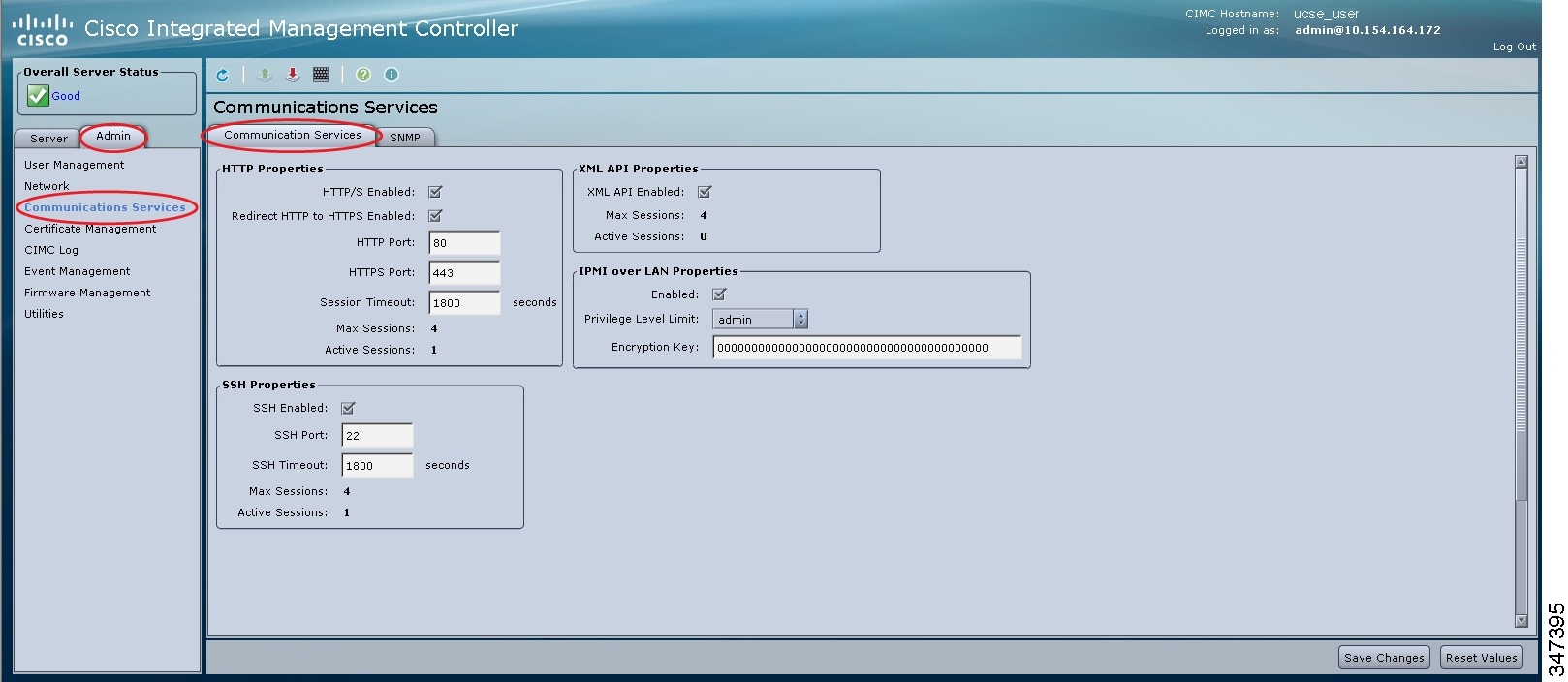
    Figure 1. Communication Services Tab


    Step 4   In the HTTP Properties area, update the following properties:
    Name Description

    HTTP/S Enabled check box

    Whether HTTP and HTTPS are enabled on the CIMC.

    Redirect HTTP to HTTPS Enabled check box

    If enabled, all attempts to communicate via HTTP are redirected to the equivalent HTTPS address.

    We strongly recommend that you enable this option if you enable HTTP.

    HTTP Port field

    The port to use for HTTP communication. The default is 80.

    HTTPS Port field

    The port to use for HTTPS communication. The default is 443

    Session Timeout field

    The number of seconds to wait between HTTP requests before the CIMC times out and terminates the session.

    Enter an integer between 60 and 10,800. The default is 1800 seconds.

    Max Sessions field

    The maximum number of concurrent HTTP and HTTPS sessions allowed on the CIMC.

    This value may not be changed.

    Active Sessions field

    The number of HTTP and HTTPS sessions currently running on the CIMC.

    Step 5   Click Save Changes.

    Configuring SSH

    Before You Begin

    You must log in as a user with admin privileges to configure SSH.

    Procedure
      Step 1   In the Navigation pane, click the Admin tab.
      Step 2   On the Admin tab, click Communications Services.
      Step 3   In the Communications Services pane, click the Communication Services tab.
      Figure 2. Communication Services Tab


      Step 4   In the SSH Properties area, update the following properties:
      Name Description

      SSH Enabled check box

      Whether SSH is enabled on the CIMC.

      SSH Port field

      The port to use for secure shell access. The default is 22.

      SSH Timeout field

      The number of seconds to wait before the system considers an SSH request to have timed out.

      Enter an integer between 60 and 10,800. The default is 1,800 seconds.

      Max Sessions field

      The maximum number of concurrent SSH sessions allowed on the CIMC.

      This value may not be changed.

      Active Sessions field

      The number of SSH sessions currently running on the CIMC.

      Step 5   Click Save Changes.

      Configuring the XML API

      XML API for the CIMC

      The Cisco CIMC XML application programming interface (API) is a programmatic interface to the CIMC for the E-Series Server. The API accepts XML documents through HTTP or HTTPS.

      For detailed information about the XML API, see the CIMC XML API Programmer’s Guide for Cisco UCS E-Series Servers.

      Enabling the XML API

      Before You Begin

      You must log in as a user with admin privileges to perform this task.

      Procedure
        Step 1   In the Navigation pane, click the Admin tab.
        Step 2   On the Admin tab, click Communications Services.
        Step 3   In the Communications Services pane, click the Communication Services tab.
        Figure 3. Communication Services Tab


        Step 4   In the XML API Properties area, update the following properties:
        Name Description

        XML API Enabled check box

        Whether API access is allowed on this server.

        Max Sessions field

        The maximum number of concurrent API sessions allowed on the CIMC.

        This value may not be changed.

        Active Sessions field

        The number of API sessions currently running on the CIMC.

        Step 5   Click Save Changes.

        Configuring IPMI

        IPMI over LAN

        Intelligent Platform Management Interface (IPMI) defines the protocols for interfacing with a service processor embedded in a server platform. This service processor is called a Baseboard Management Controller (BMC) and resides on the server motherboard. The BMC links to a main processor and other on-board elements using a simple serial bus.

        During normal operations, IPMI lets a server operating system obtain information about system health and control system hardware. For example, IPMI enables the monitoring of sensors, such as temperature, fan speeds and voltages, for proactive problem detection. If the server temperature rises above specified levels, the server operating system can direct the BMC to increase fan speed or reduce processor speed to address the problem.

        Configuring IPMI over LAN

        Configure IPMI over LAN when you want to manage the CIMC with IPMI messages.

        Before You Begin

        You must log in as a user with admin privileges to perform this task.

        Procedure
          Step 1   In the Navigation pane, click the Admin tab.
          Step 2   On the Admin tab, click Communications Services.
          Step 3   In the Communications Services pane, click the Communication Services tab.
          Figure 4. Communication Services Tab


          Step 4   In the IPMI over LAN Properties area, update the following properties:
          Name Description

          Enabled check box

          Whether IPMI access is allowed on this server.

          Privilege Level Limit drop-down list

          The highest privilege level that can be assigned to an IPMI session on this server. This can be one of the following:

          • read-only—IPMI users can view information but cannot make any changes. If you select this option, IPMI users with the "Administrator", "Operator", or "User" user roles can only create read-only IPMI sessions, regardless of their other IPMI privileges.

          • user—IPMI users can perform some functions but cannot perform administrative tasks. If you select this option, IPMI users with the "Administrator" or "Operator" user role can create user and read-only sessions on this server.

          • admin—IPMI users can perform all available actions. If you select this option, IPMI users with the "Administrator" user role can create admin, user, and read-only sessions on this server.

          Encryption Key field

          The IPMI encryption key to use for IPMI communications.

          Step 5   Click Save Changes.

          Configuring SNMP

          SNMP

          The Cisco UCS E-Series Servers support the Simple Network Management Protocol (SNMP) for viewing server configuration and status and for sending fault and alert information by SNMP traps. For information on Management Information Base (MIB) files supported by CIMC, see the MIB Quick Reference for Cisco UCS at this URL: http:/​/​www.cisco.com/​en/​US/​docs/​unified_computing/​ucs/​sw/​mib/​reference/​UCS_​MIBRef.html.

          Configuring SNMP Properties

          Before You Begin

          You must log in as a user with admin privileges to perform this task.

          Procedure
            Step 1   In the Navigation pane, click the Admin tab.
            Step 2   On the Admin tab, click Communications Services.
            Step 3   In the Communications Services pane, click the SNMP tab.
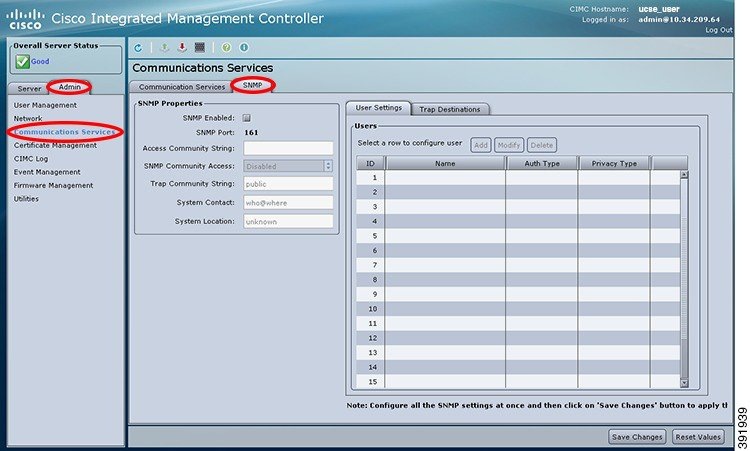
            Figure 5. SNMP Tab


            Step 4   In the SNMP Properties area, update the following properties:
            Name Description

            SNMP Enabled check box

            Whether this server sends SNMP traps to the designated host.

            Note   

            After you check this check box, you need to click Save Changes before you can configure SNMP users or traps.

            SNMP Port field

            The port the server uses to communicate with the SNMP host.

            This value cannot be changed.

            Access Community String field

            The default SNMP v1 or v2c community name or SNMP v3 username CIMC includes on any trap messages it sends to the SNMP host.

            Enter a string up to 18 characters.

            SNMP Community Access drop-down list

            This can be one of the following:

            • Disabled—This option blocks access to the information in the inventory tables.

            • Limited—This option provides partial access to read the information in the inventory tables.

            • Full—This option provides full access to read the information in the inventory tables.

            Trap Community String field

            The name of the SNMP community group to which trap information should be sent.

            Enter a string up to 18 characters.

            System Contact field

            The system contact person responsible for the SNMP implementation.

            Enter a string up to 64 characters, such as an email address or a name and telephone number.

            System Location field

            The location of the host on which the SNMP agent (server) runs.

            Enter a string up to 64 characters.

            Step 5   Click Save Changes.

            What to Do Next

            Configure SNMP trap settings as described in Configuring SNMP Trap Settings.

            Configuring SNMP Trap Settings

            Before You Begin

            You must log in as a user with admin privileges to disable platform event alerts.

            Procedure
              Step 1   In the Navigation pane, click the Admin tab.
              Step 2   On the Admin tab, click Communications Services.
              Step 3   In the Communications Services pane, click the SNMP tab.
              Figure 6. SNMP Tab


              Step 4   Click on Trap Destinations tab.
              Step 5   In the Trap Destinations area, you can do one of the following:
              • To modify the trap destination information, select a row that is enabled, and then click Modify.

              • To configure a new trap destination, select a row, and then click Add.

              Note   

              If the fields are not highlighted, select Enabled.

              Step 6   In the Trap Details dialog box, complete the following fields:
              Name Description

              ID field

              The trap destination ID. This value cannot be modified.

              Enabled check box

              If checked, then this trap is active on the server.

              SNMP Version drop-down list

              The SNMP version and model used for the trap. This can be one of the following:

              • V1

              • V2

              • V3

              Trap Type radio button

              If you select V2 for the version, this is the type of trap to send. This can be one of the following:

              • Trap: If this option is chosen, the trap will be sent to the destination but you do not receive any notifications.

              • Inform: When this option is chosen, you will receive a notification when a trap is received at the destination.

              User drop-down list

              The drop-down list displays all available users, select a user from the list.

              Destination IP field

              The IP address to which SNMP trap information is sent.

              Step 7   Click Save Changes.
              Step 8   To delete a trap destination, select the row, and then click Delete. Click OK in the confirmation prompt.

              Sending an SNMP Test Trap Message

              Before You Begin

              You must log in as a user with admin privileges to perform this task.

              Procedure
                Step 1   In the Navigation pane, click the Admin tab.
                Step 2   On the Admin tab, click Communications Services.
                Step 3   In the Communications Services pane, click the SNMP tab.
                Figure 7. SNMP Tab


                Step 4   Click the SNMP tab, and then click on the Trap Destinations tab.
                Step 5   In the Trap Destinations area, select the row of the desired SNMP trap destination.
                Step 6   Click Send SNMP Test Trap.

                An SNMP test trap message is sent to the trap destination.

                Note   

                The trap must be configured and enabled in order to send a test message.


                Configuring SNMP Users

                Before You Begin

                You must log in as a user with admin privileges to perform this task.

                Procedure
                  Step 1   In the Navigation pane, click the Admin tab.
                  Step 2   On the Admin tab, click Communications Services.
                  Step 3   In the Communications Services pane, click the SNMP tab.
                  Figure 8. SNMP Tab


                  Step 4   Enable SNMP if it is not enabled. In the SNMP Properties area, check the SNMP Enabled check box, and then click Save Changes.
                  Step 5   Under the User Settings tab in the Users area, do one of the following:
                  • Select an existing user from the table and click Modify.
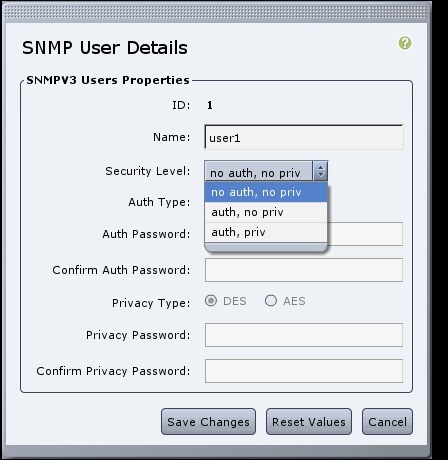
                  • Click Add to create a new user. The SNMP User Details dialog box appears.
                    Figure 9. SNMP User Details Dialog Box


                  Step 6   Update the following properties:
                  Name Description

                  ID field

                  The unique identifier for the user. This field cannot be changed.

                  Name field

                  The SNMP username.

                  Security Level drop-down list

                  The security level for this user. This can be one of the following:

                  • no auth, no priv—The user does not require an authorization password or a privacy password.

                  • auth, no priv—The user requires an authorization password but not a privacy password. If you select this option, CIMC enables the Auth fields described below.

                  • auth, priv—The user requires both an authorization password and a privacy password. If you select this option, CIMC enables the Auth and Privacy fields.

                  Auth Type field

                  The authorization type. This can be one of the following:

                  • MD5

                  • SHA

                  Auth Password field

                  The authorization password for this SNMP user.

                  Confirm Auth Password field

                  The authorization password again for confirmation purposes.

                  Privacy Type field

                  The privacy type. This can be one of the following:

                  • DES

                  • AES

                  Privacy Password field

                  The privacy password for this SNMP user.

                  Confirm Privacy Password field

                  The authorization password again for confirmation purposes.

                  Step 7   Click Save Changes.
                  Step 8   If you want to delete a user, select the user and click Delete.

                  Click OK in the delete confirmation prompt.


                  Managing SNMP Users

                  Before You Begin

                  You must log in as a user with admin privileges to perform this task.

                  Procedure
                    Step 1   In the Navigation pane, click the Admin tab.
                    Step 2   On the Admin tab, click Communications Services.
                    Step 3   In the Communications Services pane, click the SNMP tab.
                    Figure 10. SNMP Tab


                    Step 4   Under the User Settings tab in the Users area, update the following properties:
                    Name Description

                    Add button

                    Click an available row in the table then click this button to add a new SNMP user.

                    Modify button

                    Select the user you want to change in the table then click this button to modify the selected SNMP user.

                    Delete button

                    Select the user you want to delete in the table then click this button to delete the selected SNMP user.

                    ID column

                    The system-assigned identifier for the SNMP user.

                    Name column

                    The SNMP user name.

                    Auth Type column

                    The user authentication type.

                    Privacy Type column

                    The user privacy type.

                    Step 5   Click Save Changes.