Viewing Server Properties

This chapter includes the following sections:

Viewing Server Properties

Procedure
    Step 1   In the Navigation pane, click the Server tab.
    Step 2   On the Server tab, click Summary.
    Step 3   In the Server Properties area of the Server Summary pane, review the following information:
    Name Description

    Product Name field

    The model name of the server.

    Serial Number field

    The serial number for the server.

    PID field

    The product ID.

    UUID field

    The UUID assigned to the server.

    BIOS Version field

    The version of the BIOS running on the server.

    Description field

    A user-defined description for the server.


    Viewing CIMC Information

    Procedure
      Step 1   In the Navigation pane, click the Server tab.
      Step 2   On the Server tab, click Summary.
      Step 3   In the Cisco Integrated Management Controller (CIMC) Information area of the Server Summary pane, review the following information:
      Name Description

      Hostname field

      A user-defined hostname for the CIMC.

      IP Address field

      The IP address for the CIMC.

      MAC Address field

      The MAC address assigned to the active network interface to the CIMC.

      Firmware Version field

      The current CIMC firmware version.

      CPLD Version field

      The programable hardware logic version.

      Hardware Version field

      The printed circuit board version.

      Current Time field

      The current date and time according to the CIMC clock.


      Viewing SD Card Information

      Procedure
        Step 1   In the Navigation pane, click the Admin tab.
        Step 2   On the Admin tab, click Firmware Management.
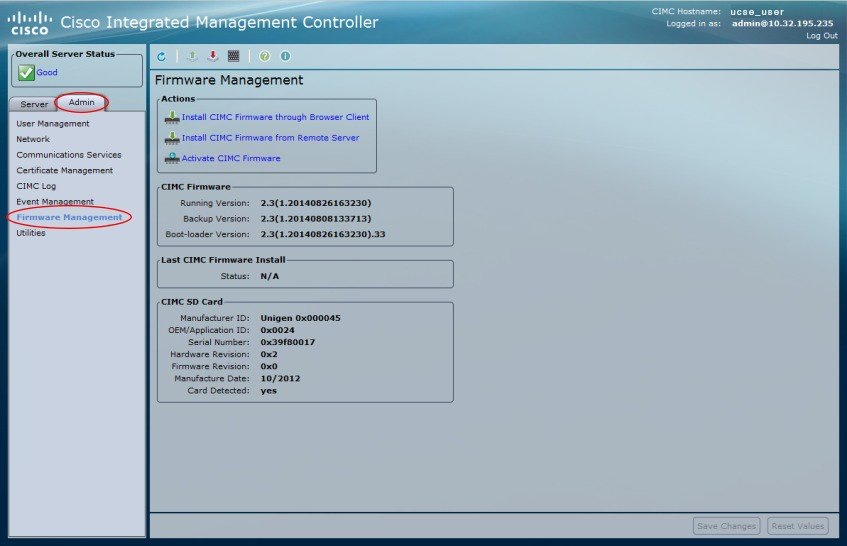
        Figure 1. Firmware Management


        Step 3   In the CIMC SD Card area, review the following information:
        Name Description

        Manufacturer ID field

        The vendor ID of the manufacturer.

        OEM/Application ID field

        The OEM or application ID for the SD card.

        Serial Number field

        The serial number for the SD card.

        Hardware Revision field

        The hardware revision for the SD card.

        Firmware Revision field

        The firmware version associated with the SD card.

        Manufacture Date field

        The date the SD card was manufactured, in the format mm/yy.

        Card Detected field

        If this field displays yes, the SD card is present and is functional.


        Viewing Router Information

        Procedure
          Step 1   In the Navigation pane, click the Server tab.
          Step 2   On the Server tab, click Summary.
          Step 3   In the Router Information area of the Server Summary pane, review the following information:
          Name Description

          Router Model field

          The model number of the router.

          Serial Number field

          The serial number of the router.

          Slot Number field

          The slot number of the router in which the server is installed.


          Viewing CPU Properties

          Procedure
            Step 1   In the Navigation pane, click the Server tab.
            Step 2   On the Server tab, click Inventory.
            Step 3   In the Inventory pane, click the CPUs tab.
            Step 4   Review the following information for each CPU:
            Name Description

            Socket Name field

            The socket in which the CPU is installed.

            Vendor field

            The vendor for the CPU.

            Status field

            The status of the CPU.

            Family field

            The family to which this CPU belongs.

            Speed field

            The CPU speed, in megahertz.

            Version field

            The CPU version.

            Number of Cores field

            The number of cores in the CPU.

            Signature field

            The signature information for the CPU.

            Number of Threads field

            The maximum number of threads that the CPU can process concurrently.


            Viewing Memory Properties

            Procedure
              Step 1   In the Navigation pane, click the Server tab.
              Step 2   On the Server tab, click Inventory.
              Step 3   In the Inventory pane, click the Memory tab.
              Step 4   In the Memory Summary area, review the following summary information about memory:

              Displayed for the E-Series Servers and the SM E-Series NCE. Not displayed for the EHWIC E-Series NCE and the NIM E-Series NCE.

              Name Description

              Memory Speed field

              The memory speed, in megahertz.

              Failed Memory field

              The amount of memory that is currently failing, in megabytes.

              Total Memory field

              The total amount of memory available on the server if all DIMMs are fully functional.

              Ignored Memory field

              The amount of memory currently not available for use, in megabytes.

              Effective Memory field

              The actual amount of memory currently available to the server.

              Number of Ignored DIMMs field

              The number of DIMMs that the server cannot access.

              Redundant Memory field

              The amount of memory used for redundant storage.

              Number of Failed DIMMs field

              The number of DIMMs that have failed and cannot be used.

              Memory RAS Possible field

              Details about the memory configuration the server supports. This can be one of the following:

              • Memory configuration can support mirroring

              • Memory configuration can support sparing

              • Memory configuration can support either mirroring or sparing

              • Memory configuration can support lockstep

              • Memory configuration cannot support RAS

              Memory Configuration field

              The current memory configuration. This can be one of the following:

              • Maximum Performance—The system automatically optimizes the memory performance.

              • Mirroring—The server maintains two identical copies of the data in memory. This option effectively halves the available memory on the server, because one half is automatically reserved for mirrored copy.

              • Sparing—The system reserves some memory for use in the event a DIMM fails. If that happens, the server takes the DIMM offline and replaces it with the reserved memory. This option provides less redundancy than mirroring, but it leaves more of the memory available for programs running on the server.

              • Lockstep—The system uses two memory channels at a time and provides a higher level of protection. This option is most reliable, but it reduces the total memory capacity by one-third.

              DIMM Location Diagram

              Displays the location of DIMMs in the physical server.

              Step 5   In the Memory Details table, review the following detailed information about each DIMM:
              Tip   

              Click a column header to sort the table rows, according to the entries in that column.

              Name Description

              Name column

              The name of the DIMM slot in which the memory module is installed.

              Capacity column

              The size of the DIMM.

              Channel Speed column

              The clock speed of the memory channel, in megahertz.

              Channel Type column

              The type of memory channel.

              Memory Type Detail column

              The type of memory used in the device.

              Bank Locator column

              The location of the DIMM within the memory bank.

              Manufacturer column

              The vendor ID of the manufacturer. This can be one of the following:

              • 0x2C00—Micron Technology, Inc.

              • 0x5105—Qimonda AG i. In.

              • 0x802C—Micron Technology, Inc.

              • 0x80AD—Hynix Semiconductor Inc.

              • 0x80CE—Samsung Electronics, Inc.

              • 0x8551—Qimonda AG i. In.

              • 0xAD00—Hynix Semiconductor Inc.

              • 0xCE00—Samsung Electronics, Inc.

              Serial Number column

              The serial number of the DIMM.

              Asset Tag column

              The asset tag associated with the DIMM, if any.

              Part Number column

              The part number for the DIMM assigned by the vendor.

              Visibility column

              Whether the DIMM is available to the server.

              Operability column

              Whether the DIMM is currently operating correctly.

              Data Width column

              The amount of data the DIMM supports, in bits.


              Viewing Power Supply Properties

              Procedure
                Step 1   In the Navigation pane, click the Server tab.
                Step 2   On the Server tab, click Inventory.
                Step 3   In the Inventory pane, click the Power Supplies tab.
                Step 4   Review the following information for each power supply:
                Tip   

                Click a column header to sort the table rows, according to the entries in that column.

                Name Description

                Device ID column

                The identifier for the power supply unit.

                Input column

                The input into the power supply, in watts.

                Max Output column

                The maximum output from the power supply, in watts.

                FW Version column

                The firmware version for the power supply.

                Product ID column

                The product identifier for the power supply assigned by the vendor.


                Viewing Storage Properties


                Note


                This procedure is applicable to E-Series Servers and the SM E-Series NCE. This procedure is not applicable to the EHWIC E-Series NCE and the NIM E-Series NCE.


                Procedure
                  Step 1   In the Navigation pane, click the Server tab.
                  Step 2   On the Server tab, click RAID.
                  Step 3   In the Storage Adapters area, review the information about the available adapter cards.

                  This area contains a table listing all RAID controllers on the server that can be managed through CIMC. To view details about a particular storage device, select it in the table and view the information in the tabs below.

                  If a particular storage device does not appear on this tab, it cannot be managed through CIMC. To view the status of an unsupported device, see the documentation for that device.

                  Tip   

                  Click a column header to sort the table rows, according to the entries in that column.

                  Step 4   In the Storage Adapters area, click a row to view the detailed properties of that adapter.

                  The properties of the selected storage adapter appear in the tabbed menu below the Storage Adapters area.

                  Step 5   Select the Controller Info tab and review the information.

                  If a RAID controller is selected in the Storage Adapters table, this tab shows the following information:

                  • Firmware versions

                  • PCI information

                  • Running firmware image information

                  • Virtual and physical drive counts

                  • General settings

                  • Capabilities

                  • Hardware configuration

                  • Error counters

                  Step 6   Select the Physical Drive Info tab and review the information.

                  This tab shows the following information for the controller selected in the Storage Adapters table:

                  • General drive information

                  • Identification information

                  • Drive status

                  • Security information

                  Step 7   Select the Virtual Drive Info tab and review the information.

                  This tab shows the following information for the controller selected in the Storage Adapters table and allows you to create, edit, and clear RAID configuration:

                  • General drive information

                  • Physical drive information


                  Viewing PCI Adapter Properties


                  Note


                  This procedure is applicable to E-Series Servers and the SM E-Series NCE. This procedure is not applicable to the EHWIC E-Series NCE and the NIM E-Series NCE.


                  Before You Begin

                  The server must be powered on, or the properties will not display.

                  Procedure
                    Step 1   In the Navigation pane, click the Server tab.
                    Step 2   On the Server tab, click Inventory.
                    Step 3   In the Inventory pane, click the PCI Adapters tab.
                    Step 4   In the PCI Adapters area, review the following information for the installed PCI adapters:
                    Name Description

                    Slot ID column

                    The slot in which the adapter resides.

                    Product Name column

                    The name of the adapter.

                    Vendor ID column

                    The adapter ID assigned by the vendor.

                    Sub Vendor ID column

                    The secondary adapter ID assigned by the vendor.

                    Device ID column

                    The device ID assigned by the vendor.

                    Sub Device ID column

                    The secondary device ID assigned by the vendor.


                    Viewing Power Statistics

                    Procedure
                      Step 1   In the Navigation pane, click the Server tab.
                      Step 2   On the Server tab, click Power Policies.
                      Step 3   In the Power Statistics area, review the information in the following fields:
                      Name Description

                      Current Consumption field

                      The power currently being used by the server, in watts.

                      Maximum Consumption field

                      The maximum number of watts consumed by the server since the last time it was rebooted.

                      Minimum Consumption field

                      The minimum number of watts consumed by the server since the last time it was rebooted.


                      Viewing the MAC Address of an Interface

                      Before You Begin

                      You must log in as a user with admin privileges to view the system-defined interface names and the MAC address that is assigned to each interface.

                      Procedure
                        Step 1   In the Navigation pane, click the Admin tab.
                        Step 2   On the Admin tab, click Network.
                        Step 3   In the Network pane, click the Network Settings tab.
                        Step 4   In the LOM Properties area, you can view the system-defined interface names and the MAC address that is assigned to each interface.

                        Viewing the Status of CIMC Network Connections

                        Before You Begin

                        You must log in as a user with admin privileges to view the status of the CIMC network connections; whether the link is detected (physical cable is connected to the network interface) or not detected.

                        Procedure
                          Step 1   In the Navigation pane, click the Admin tab.
                          Step 2   On the Admin tab, click Network.
                          Step 3   In the Network pane, click the Network Settings tab.
                          Step 4   In the Link State area, review the following information:
                          Name Description

                          Interface column

                          The system-defined name of the interface.

                          Link State column

                          The status of the CIMC network connection. This can be one of the following:

                          • Link Detected—A physical cable is connected to the network interface.

                          • No Link Detected—A physical cable is not connected to the network interface.