Managing User Accounts

This chapter includes the following sections:

Configuring Local Users

Before You Begin

You must log in as a user with admin privileges to configure or modify local user accounts.
Procedure
    Step 1   In the Navigation pane, click the Admin tab.
    Step 2   On the Admin tab, click User Management.
    Step 3   In the User Management pane, click the Local User tab.
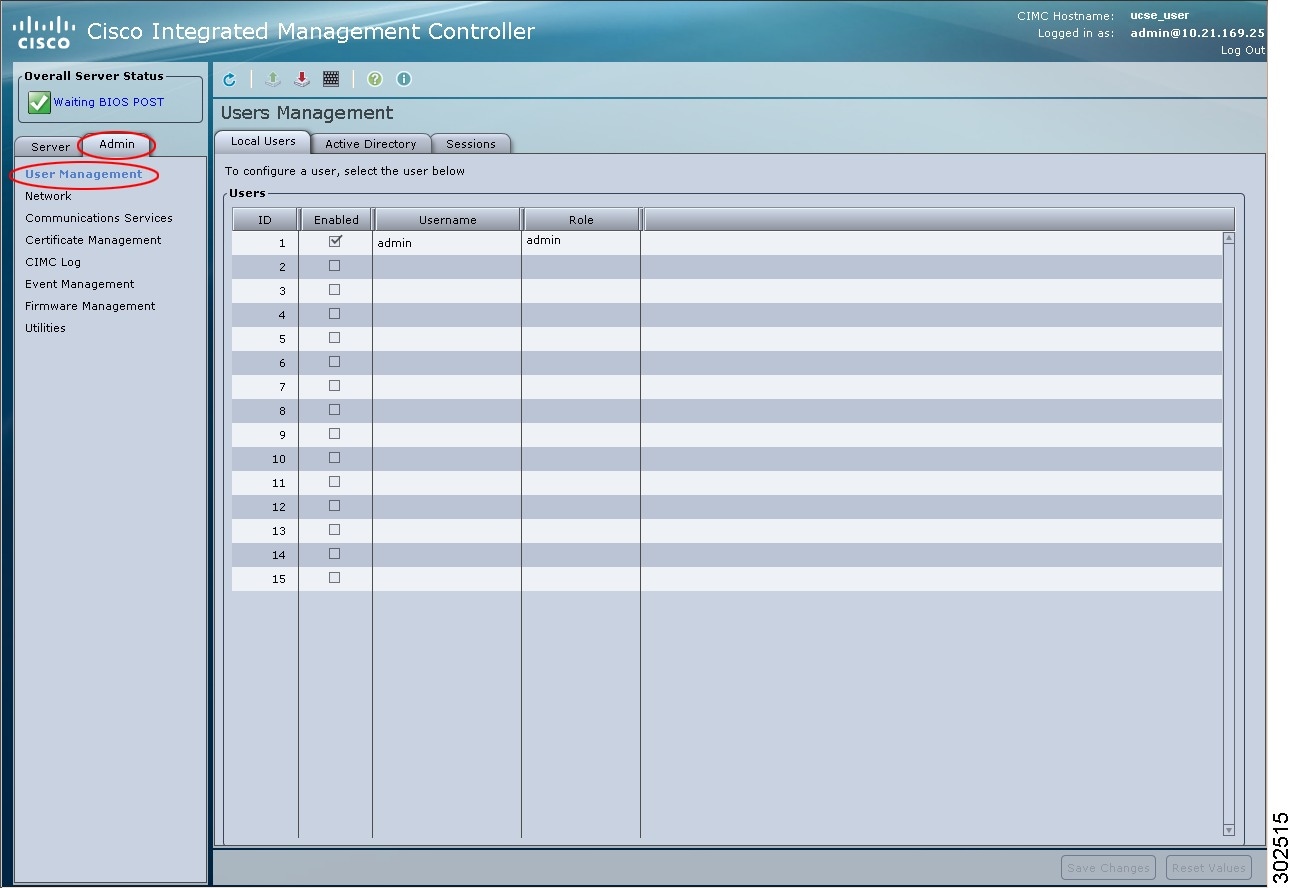
    Figure 1. Local Users Tab


    Step 4   To configure or modify a local user account, click a row.
    Step 5   In the User Details dialog box, update the following properties:
    Name Description

    ID column

    The unique identifier for the user.

    Enabled check box

    If checked, the user is enabled on the CIMC.

    Username column

    The username for the user.

    Role column

    The role assigned to the user. This can be one of the following:

    • read-only—This user can view information but cannot make changes.

    • user—This user can:

      • View all information

      • Manage the power control options such as power on, power cycle, and power off

      • Launch the KVM console and virtual media

      • Clear all logs

    • admin—This user can perform all actions available through the GUI, CLI, and IPMI.

    Step 6   Enter password information.
    Step 7   Click Save Changes.

    LDAP Servers (Active Directory)

    CIMC supports directory services that organize information in a directory, and manage access to this information. CIMC supports Lightweight Directory Access Protocol (LDAP), which stores and maintains directory information in a network. In addition, CIMC supports Microsoft Active Directory (AD). Active Directory is a technology that provides a variety of network services including LDAP-like directory services, Kerberos-based authentication, and DNS-based naming. The CIMC utilizes the Kerberos-based authentication service of LDAP.

    When LDAP is enabled in the CIMC, user authentication and role authorization is performed by the LDAP server for user accounts not found in the local user database. The LDAP user authentication format is username@domain.com.

    By checking the Enable Encryption check box in the LDAP Settings area, you can require the server to encrypt data sent to the LDAP server.

    Configuring the LDAP Server

    The CIMC can be configured to use LDAP for user authentication and authorization. To use LDAP, configure users with an attribute that holds the user role and locale information for the CIMC. You can use an existing LDAP attribute that is mapped to the CIMC user roles and locales or you can modify the LDAP schema to add a new custom attribute, such as the CiscoAVPair attribute, which has an attribute ID of 1.3.6.1.4.1.9.287247.1.

    Important:

    For more information about altering the schema, see the article at http:/​/​technet.microsoft.com/​en-us/​library/​bb727064.aspx.


    Note


    This example creates a custom attribute named CiscoAVPair, but you can also use an existing LDAP attribute that is mapped to the CIMC user roles and locales.


    The following steps must be performed on the LDAP server.

    Procedure
      Step 1   Ensure that the LDAP schema snap-in is installed.
      Step 2   Using the schema snap-in, add a new attribute with the following properties:

      Properties

      Value

      Common Name

      CiscoAVPair

      LDAP Display Name

      CiscoAVPair

      Unique X500 Object ID

      1.3.6.1.4.1.9.287247.1

      Description

      CiscoAVPair

      Syntax

      Case Sensitive String

      Step 3   Add the CiscoAVPair attribute to the user class using the snap-in:
      1. Expand the Classes node in the left pane and type U to select the user class.
      2. Click the Attributes tab and click Add.
      3. Type C to select the CiscoAVPair attribute.
      4. Click OK.
      Step 4   Add the following user role values to the CiscoAVPair attribute, for the users that you want to have access to CIMC:

      Role

      CiscoAVPair Attribute Value

      admin

      shell:roles="admin"

      user

      shell:roles="user"

      read-only

      shell:roles="read-only"

      Note   

      For more information about adding values to attributes, see the article at http:/​/​technet.microsoft.com/​en-us/​library/​bb727064.aspx.


      What to Do Next

      Use the CIMC to configure the LDAP server.

      Configuring LDAP Settings and Group Authorization in CIMC

      Before You Begin

      You must log in as a user with admin privileges to perform this task.

      Procedure
        Step 1   In the Navigation pane, click the Admin tab.
        Step 2   On the Admin tab, click User Management.
        Step 3   In the User Management pane, click the Active Directory tab.
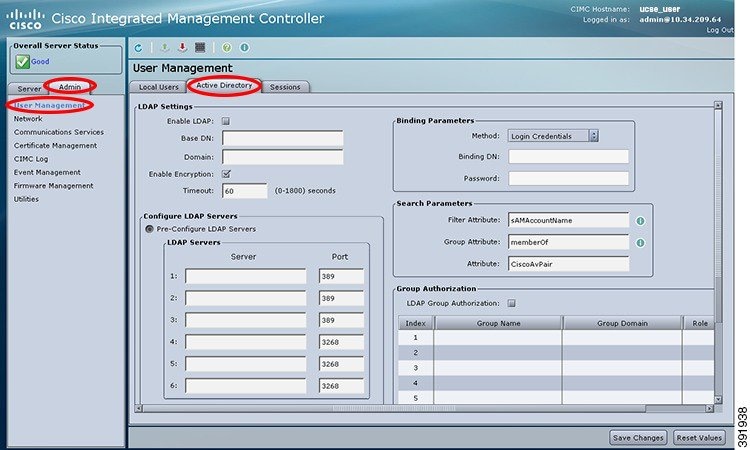
        Figure 2. Active Directory Tab


        Step 4   In the LDAP Settings area, update the following properties:
        Name Description

        Enable LDAP check box

        If checked, user authentication and role authorization is first performed by the LDAP server, and then by the user accounts that are not found in the local user database.

        Base DN field

        Base Distinguished Name. Specifies the location from where to load the users and groups.

        The Base DN must be in the dc=domain,dc=com format for Active Directory servers.

        Domain field

        The IPv4 domain name. All users must be in the IPv4 domain.

        This field is required unless you specify at least one Global Catalog server address.

        Enable Encryption check box

        If checked, the server encrypts all information it sends to the LDAP server.

        Timeout (0 - 1800) seconds field

        The number of seconds the CIMC waits until the LDAP search operation times out.

        If the search operation times out, CIMC tries to connect to the next server listed on this tab, if one is available.

        Note   

        The value you specify for this field could impact the overall time.

        Step 5   In the Configure LDAP Servers area, update the following properties:
        Name Description

        Pre-Configure LDAP Servers radio button

        If checked, the Active Directory uses the pre-configured LDAP servers.

        LDAP Servers area

        Server column

        The IP address of the six LDAP servers.

        If you are using Active Directory for LDAP, then servers 1, 2, and 3 are domain controllers, and servers 4, 5, and 6 are Global Catalogs. If you are not using the Active Directory for LDAP, then you can configure a maximum of six LDAP servers.

        Note   

        You can provide the IP address of the host name as well.

        Port column

        The port numbers for the servers.

        If you are using Active Directory for LDAP, then for servers 1, 2, and 3, which are domain controllers, the default port number is 389. For servers 4, 5, and 6, which are Global Catalogs, the default port number is 3268.

        LDAPS communication occurs over the TCP 636 port. LDAPS communication to a global catalog server occurs over TCP 3269 port.

        Use DNS to Configure LDAP Servers radio button

        If checked, you can use DNS to configure access to the LDAP servers.

        DNS Parameters area

        Source drop-down list

        Specifies how to obtain the domain name used for DNS SRV request. This can be one of the following:

        • Extracted—Uses the extracted-domain from the login ID.

        • Configured—Uses the configured-search domain.

        • Configured-Extracted—Uses the domain name extracted from the login ID instead of the configured-search domain.

        Domain to Search field

        A configured domain name that acts as a source for a DNS query.

        This field is disabled if the source is specified as Extracted.

        Forest to Search field

        A configured forest name that acts as a source for a DNS query.

        This field is disabled if the source is specified as Extracted.

        Step 6   In the Binding Parameters area, update the following properties:
        Name Description

        Method drop-down list

        This can be one of the following:

        • Anonymous—Requires NULL username and password. If this option is selected and the LDAP server is configured for anonymous logins, then the user can gain access.

        • Configured Credentials—Requires a known set of credentials to be specified for the initial bind process. If the initial bind process succeeds, then the distinguished name (DN) of the user name is queried and re-used for the re-binding process. If the re-binding process fails, then the user is denied access.

        • Login Credentials—Requires the user credentials. If the bind process fails, the user is denied access.

          Note   

          Login Credentials is the default option.

        Binding DN field

        The distinguished name (DN) of the user.

        This field is editable only if you have selected Configured Credentials option as the binding method.

        Password field

        The password of the user.

        This field is editable only if you have selected Configured Credentials option as the binding method.

        Step 7   In the Search Parameters area, update the following fields:
        Name Description

        Filter Attribute field

        This field must match the configured attribute in the schema on the LDAP server.

        By default, this field displays sAMAccountName.

        Group Attribute field

        This field must match the configured attribute in the schema on the LDAP server.

        By default, this field displays memberOf.

        Attribute field

        An LDAP attribute that contains the role and locale information for the user. This property is always a name-value pair. The system queries the user record for the value that matches this attribute name.

        The LDAP attribute can either use an existing LDAP attribute that is mapped to the CIMC user roles and locales or can modify the schema so that a new LDAP attribute can be created. For example, CiscoAvPair.

        Note   

        If you do not specify this property, the user cannot login. Although the object is located on the LDAP server, it should be an exact match of the attribute that is specified in this field.

        Step 8   (Optional)In the Group Authorization area, update the following properties:
        Name Description

        LDAP Group Authorization check box

        If checked, user authentication is also done on the group level for users that are not found in the local user database or who are not individually authorized to use CIMC in the Active Directory.

        Group Name column

        The name of the group in the LDAP server database that is authorized to access the server.

        Group Domain column

        The LDAP server domain the group must reside in.

        Role column

        The role assigned to all users in this LDAP server group. This can be one of the following:

        • read-only—This user can view information but cannot make changes.

        • user—This user can:

          • View all information

          • Manage the power control options such as power on, power cycle, and power off

          • Launch the KVM console and virtual media

          • Clear all logs

        • admin—This user can perform all actions available through the GUI, CLI, and IPMI.

        Step 9   Click Save Changes.

        Viewing User Sessions

        Procedure
          Step 1   In the Navigation pane, click the Admin tab.
          Step 2   On the Admin tab, click User Management.
          Step 3   In the User Management pane, click the Sessions tab.
          Step 4   View the following information about current user sessions:
          Tip   

          Click a column header to sort the table rows, according to the entries in that column.

          Name Description

          Session ID column

          The unique identifier for the session.

          Username column

          The username for the user.

          IP Address column

          The IP address from which the user accessed the server.

          Type column

          The method by which the user accessed the server. For example, CLI, vKVM, and so on.

          Action column

          If your user account is assigned the admin user role, this column displays Terminate if you can force the associated user session to end. Otherwise it displays N/A.

          Note   

          You cannot terminate your current session from this tab.