- Auto Anchor SSID between Wireless LAN Controllers acting as MC
- Enabling Central Web Authentication on ISE
- Configuring Auto Anchor and Mobility Groups on Wireless Services
- Configuring Wireless Multicast on Wireless LAN Controllers
- Converged Access Consolidated Quick Reference Templates for Wireless LAN
- Converged Access Controller AP Join Issue Troubleshoot with Traces
- Converged Access Controllers MAC Address Entry for Network Mobility Service Protocol
- Configuration Example: Converged Access Management through Prime Infrastructure with SNMP v2 and v3
- Converged Access Path Maximum Transmission Unit Discovery
- Third-Party Certificate Installation on Converged Access Wireless LAN Controllers
- Configuration Example: Converged Access for WLC EAP-FAST with Internal RADIUS Server
- Converged Access and WLC Local EAP Authentication Configuration Example
- Configuration Example: Custom Web Authentication with Local Authentication
- Dynamic VLAN Assignment with Converged Access and ACS 5.2 Configuration Example
- Configuration Example: External RADIUS Server EAP Authentication
- External Web Authentication on Converged Access
- Installing Wireless Services
- Local Web Authentication with External RADIUS Authentication
- Local Web Authentication on Converged Access
- PEAP Authentication with Microsoft NPS Configuration
- QoS on Converged Access Controllers and Lightweight Access Points
- Configuration Example: TACACS Administrator Access to Converged Access Wireless LAN Controllers
- Configuration Example: Unified Access WLC Guest Anchor with Converged Access
- VideoStream Troubleshooting
- Custom Web Authentication Locally Hosted on WLC or an External Server
- Wireless Converged Access Chromecast Configuration Example
- Web Passthrough Configuration Example
- Configuration Examples: WPA2-PSK and Open Authentication
Installing Wireless Services
Installing Wireless Services document describes the steps to install and prepare wireless services on the Cisco Catalyst 3850 Series Switches. This document also describes the initial configuration and the procedure to join the Access Points (AP) for Cisco Catalyst 3850 Series Switches.
- Supported Platforms and Releases
- About Unified Access Cisco 3850 Series Switch
- Cisco Catalyst 3850 Series Switch: Initial Configuration
Supported Platforms and Releases
The information in this document is based on Cisco Catalyst 3850 Series Switch.
 Note | The information in this document is based on the devices in a specific lab environment. The devices used in this document started with a default configuration. If your network is live, make sure that you understand the potential impact of the commands. |
About Unified Access Cisco 3850 Series Switch
The Cisco Catalyst 3850 Series Switch is an enterprise class stackable access layer switch that provides full convergence between wired and wireless networks on a single platform. Powered by IOS-XE software, wireless service is supported through the Control and Provisioning of Wireless Access Points (CAPWAP) protocol. Cisco's new Unified Access Data Plane (UADP) ASIC powers the switch and enables uniform wired and wireless policy enforcement, application visibility, flexibility, and application optimization. This convergence is built on the resilience of the Cisco StackWise-480. The Cisco Catalyst 3850 Series switch supports full IEEE 802.3at Power over Ethernet Plus (PoE+), modular and field-replaceable network modules, redundant fan, and power supplies.
The following figure displays the components of Cisco Catalyst 3850 Series Switch:
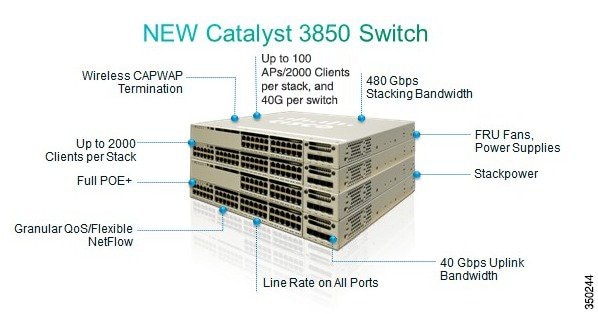
Cisco Catalyst 3850 Series Switch: Initial Configuration
Use the following setup script to configure Cisco Catalyst 3850 Series Switch:
--- System Configuration Dialog ---

Enable secret warning
----------------------------------
In order to access the device manager, an enable secret is required
If you enter the initial configuration dialog, you will be prompted
 for the enable secret
If you choose not to enter the intial configuration dialog, or if you
 exit setup without setting the enable secret,
please set an enable secret using the following CLI in configuration mode-
enable secret 0 <cleartext password>
----------------------------------
Would you like to enter the initial configuration dialog? [yes/no]: yes

At any point you may enter a question mark '?' for help.
Use ctrl-c to abort configuration dialog at any prompt.
Default settings are in square brackets '[]'.


Basic management setup configures only enough connectivity
for management of the system, extended setup will ask you
to configure each interface on the system

Would you like to enter basic management setup? [yes/no]: yes
Configuring global parameters:

  Enter host name [Switch]: sw-3850-1

  The enable secret is a password used to protect access to
  privileged EXEC and configuration modes. This password, after
  entered, becomes encrypted in the configuration.
  Enter enable secret: Cisco123

  The enable password is used when you do not specify an
  enable secret password, with some older software versions, and
  some boot images.
  Enter enable password: Cisco123

  The virtual terminal password is used to protect
  access to the router over a network interface.
  Enter virtual terminal password: Cisco123

  Do you want to configure country code? [no]: yes

  Enter the country code[US]:US

Note :  Enter the country code in which you are installing this 3850 Switch and
 the AP(s). If your country code is not recognized, enter one that is compliant
 with the regulatory domain of your own country

Setup account for accessing HTTP server? [yes]: yes
    Username  [admin]: admin
    Password  [cisco]: cisco
    Password is UNENCRYPTED.

  Configure SNMP Network Management? [no]: no

Current interface summary

Any interface listed with OK? value "NO" does not have a valid configuration

Interface              IP-Address      OK? Method Status   Protocol
Vlan1                  unassigned      NO  unset  up       down
GigabitEthernet0/0     unassigned      YES unset  up       up
GigabitEthernet2/0/1   unassigned      YES unset  down     down
GigabitEthernet2/0/2   unassigned      YES unset  down     down
GigabitEthernet2/0/3   unassigned      YES unset  down     down
...

...
...
GigabitEthernet2/0/46  unassigned      YES unset  down     down
GigabitEthernet2/0/47  unassigned      YES unset  down     down
GigabitEthernet2/0/48  unassigned      YES unset  up       up
GigabitEthernet2/1/1   unassigned      YES unset  down     down
GigabitEthernet2/1/2   unassigned      YES unset  down     down
GigabitEthernet2/1/3   unassigned      YES unset  down     down
GigabitEthernet2/1/4   unassigned      YES unset  down     down
Te2/1/1                unassigned      YES unset  down     down
Te2/1/2                unassigned      YES unset  down     down
Te2/1/3                unassigned      YES unset  down     down
Te2/1/4                unassigned      YES unset  down     down

Enter interface name used to connect to the
management network from the above interface summary: vlan1

Configuring interface Vlan1:
  Configure IP on this interface? [yes]: yes
    IP address for this interface: 192.0.2.2
    Subnet mask for this interface [255.255.255.0] : 255.255.255.0
    Class C network is 192.0.2.5, 24 subnet bits; mask is /24
The following configuration command script is created:
hostname sw-3850-1
enable secret 4 vwcGVdcUZcRMCyxaH2U9Y/PTujsnQWPSbt.LFG8lhTw
enable password Cisco123
line vty 0 15
password Cisco123
  ap dot11 24ghz shutdown
  ap dot11 5ghz shutdown
  ap country US
  no ap dot11 24ghz shutdown
  no ap dot11 5ghz shutdown

username admin privilege 15 password 0 cisco
no snmp-server
!
no ip routing

!
interface Vlan1
no shutdown
ip address 192.0.2.1 255.255.255.0
!
interface GigabitEthernet0/0
shutdown
no ip address
!
interface GigabitEthernet2/0/1
!
interface GigabitEthernet2/0/2
!
interface GigabitEthernet2/0/3
...

...

...
interface GigabitEthernet2/0/46
!
interface GigabitEthernet2/0/47
!
interface GigabitEthernet2/0/48
!
interface GigabitEthernet2/1/1
!
interface GigabitEthernet2/1/2
!
interface GigabitEthernet2/1/3
!
interface GigabitEthernet2/1/4
!
interface TenGigabitEthernet2/1/1
!
interface TenGigabitEthernet2/1/2
!
interface TenGigabitEthernet2/1/3
!
interface TenGigabitEthernet2/1/4
!
end


[0] Go to the IOS command prompt without saving this config.
[1] Return back to the setup without saving this config.
[2] Save this configuration to nvram and exit.

Enter your selection [2]:    2
The enable password you have chosen is the same as your enable secret.
This is not recommended.  Re-enter the enable password.
Changing country code could reset channel and RRM grouping configuration.
 If running in RRM One-Time mode, reassign channels after this command.
 Check customized APs for valid channel values after this command.
Are you sure you want to continue? (y/n)[y]: y
% Generating 1024 bit RSA keys, keys will be non-exportable...
[OK] (elapsed time was 1 seconds)

Building configuration...
Compressed configuration from 4414 bytes to 2038 bytes[OK]
Use the enabled mode 'configure' command to modify this configuration.

Press RETURN to get started
Joining Access Points
To enable wireless services, run ipservices or an ipbase license.
Note | Use the boot system switch all flash:packages.conf command to boot the switch from internal flash memory. Connect the Access Points to access mode switch ports in the same VLAN. |
-
To enable wireless on the switch, use the following commands. sw-3850-1(config)# wireless management interface vlan <1-4095>
-
Define the Mobility Controller
-
To define Cisco Catalyst 3850 Series Switch as the mobility controller, use the following command: sw-3850-1(config)# wireless mobility controller
Note
This configuration change requires reboot. -
If Cisco Catalyst 3850 is the Mobility Agent, do the following:
-
To the Mobility Controller IP address with the following command: sw-3850-1(config)# wireless mobility controller ip a.b.c.d
-
Enter the following commands on the Mobility Controller: 3850MC(config)# wireless mobility controller peer-group <SPG1> 3850MC(config)# wireless mobility controller peer-group <SPG1> member ip w.x.y.z
-
-
-
Ensure license availability.
To ensure that the active Access Point Licenses are available on the Mobility Controller, use the following commands. The Mobility Agent uses the licenses that are activated on the Mobility Controller. sw-3850-1# show license right-to-use summary License Name Type Count Period left ---------------------------------------------- ipservices permanent N/A Lifetime apcount base 0 Lifetime apcount adder 100 Lifetime ---------------------------------------------- License Level In Use: ipservices License Level on Reboot: ipservices Evaluation AP-Count: Disabled Total AP Count Licenses: 100 AP Count Licenses In-use: 3 AP Count Licenses Remaining: 97
-
To activate the Access Point count license on the Cisco Catalyst 3850 Series Switch, enter the following command with the required Access Point count on the Mobility Controller: sw-3850-1# license right-to-use activate apcount <count> slot <#> acceptEULA
-
Configure the Access Point discovery process.
To enable the Access Points to join the controller, the switch port must be set as an access port in the wireless management VLAN. Use the following command if VLAN100 is used for the wireless management interface: sw-3850-1(config)# interface gigabitEthernet1/0/10 sw-3850-1(config-if)# switchport mode access sw-3850-1(config-if)# switchport access vlan 100
-
To configure web access, use the following command. sw-3850-1(config)# username admin privilege 15 password 0 admin sw-3850-1(config)# ip http server
-
To access the GUI, log on to http:// mgmt_ip/ webui/
-
Define the login credentials in the initial configuration dialog box. After successful authentication, the Wireless Controller Home page displays, as shown in the following figure.
Figure 2. Wireless Controller Home Page 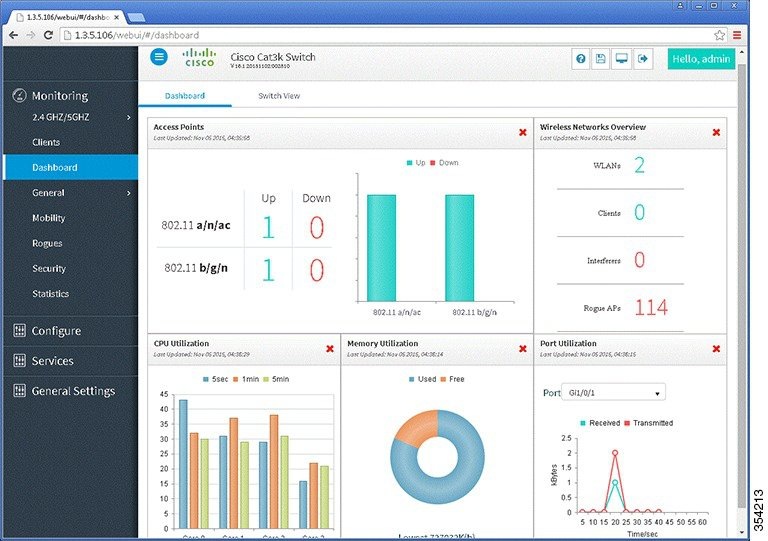
-
-
To ensure that the proper country code is configured on the switch that is compliant with the regulatory domain of the country in which the Access Points are deployed, use the following command.
sw-3850-1# show wireless country configured

 Configured Country.............................: US  - United States
 Configured Country Codes
  US  - United States : 802.11a Indoor,Outdoor/ 802.11b / 802.11g
sw-3850-1(config)# ap dot11 24ghz shutdown

sw-3850-1(config)# ap dot11 5ghz shutdown

sw-3850-1(config)# ap country BE

Changing country code could reset channel and RRM grouping configuration.
If running in RRM One-Time mode, reassign channels after this command.
Check customized APs for valid channel values after this command.
Are you sure you want to continue? (y/n)[y]: y

sw-3850-1(config)# no ap dot11 24ghz shut
sw-3850-1(config)# no ap dot11 5ghz shut
sw-3850-1(config)# end
sw-3850-1# write memory

Building configuration...
Compressed configuration from 3564 bytes to 2064 bytes[OK]


sw-3850-1# show wireless country configured

 Configured Country.............................: BE  - Belgium
 Configured Country Codes
    BE  - Belgium : 802.11a Indoor,Outdoor/ 802.11b / 802.11g
Verifying Access Points
sw-3850-1# show ap summary

Number of APs: 1

Global AP User Name: Not configured
Global AP Dot1x User Name: Not configured

AP Name              AP Model  Ethernet MAC    Radio MAC           State
------------------------------------------------------------------------------

APa493.4cf3.232a     1042N     a493.4cf3.231a  10bd.186e.9a40      Registered
Troubleshooting Access Point Issues
sw-3850-1# debug capwap ios detail
CAPWAP Detail debugging is on

sw-3850-1# debug capwap ios error
CAPWAP Error debugging is on

sw-3850-1# debug capwap ios event
CAPWAP Event debugging is on

sw-3850-1# debug capwap ios packet
CAPWAP Packet debugging is on

sw-3850-1# debug capwap ios rf
CAPWAP Redundancy debugging is on

sw-3850-1# debug capwap ios stacking
CAPWAP Stacking debugging is on
 Feedback