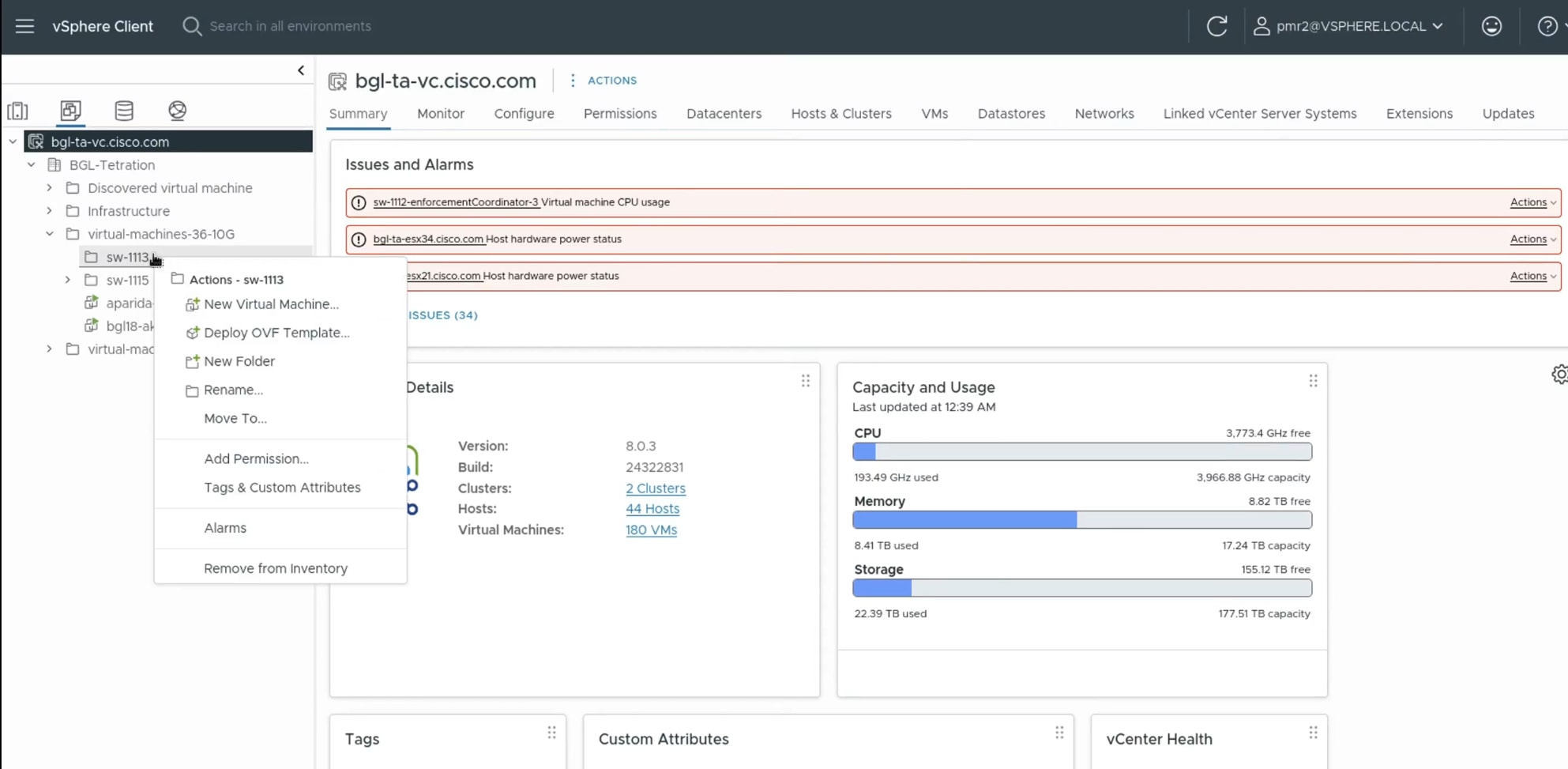
Learn how to deploy the Infrastructure Management OVA using the VMware vSphere web interface.
Use this procedure to deploy the Infrastructure Management Open Virtual Appliance (OVA), a single-file package based on the Open Virtualization Format (OVF) template, using the VMware vSphere web interface.
Procedure
|
1. |
Log in to the VMware vSphere web interface. |
|
2. |
Create a new folder with the intended site name of the cluster to organize your deployment. |
|
3. |
Initiate the OVF Template deployment.
-
Right-click the target cluster where you want to deploy the OVA.
-
Select Deploy OVF Template.
|
|
4. |
Perform these steps in the Deploy OVF Template wizard. 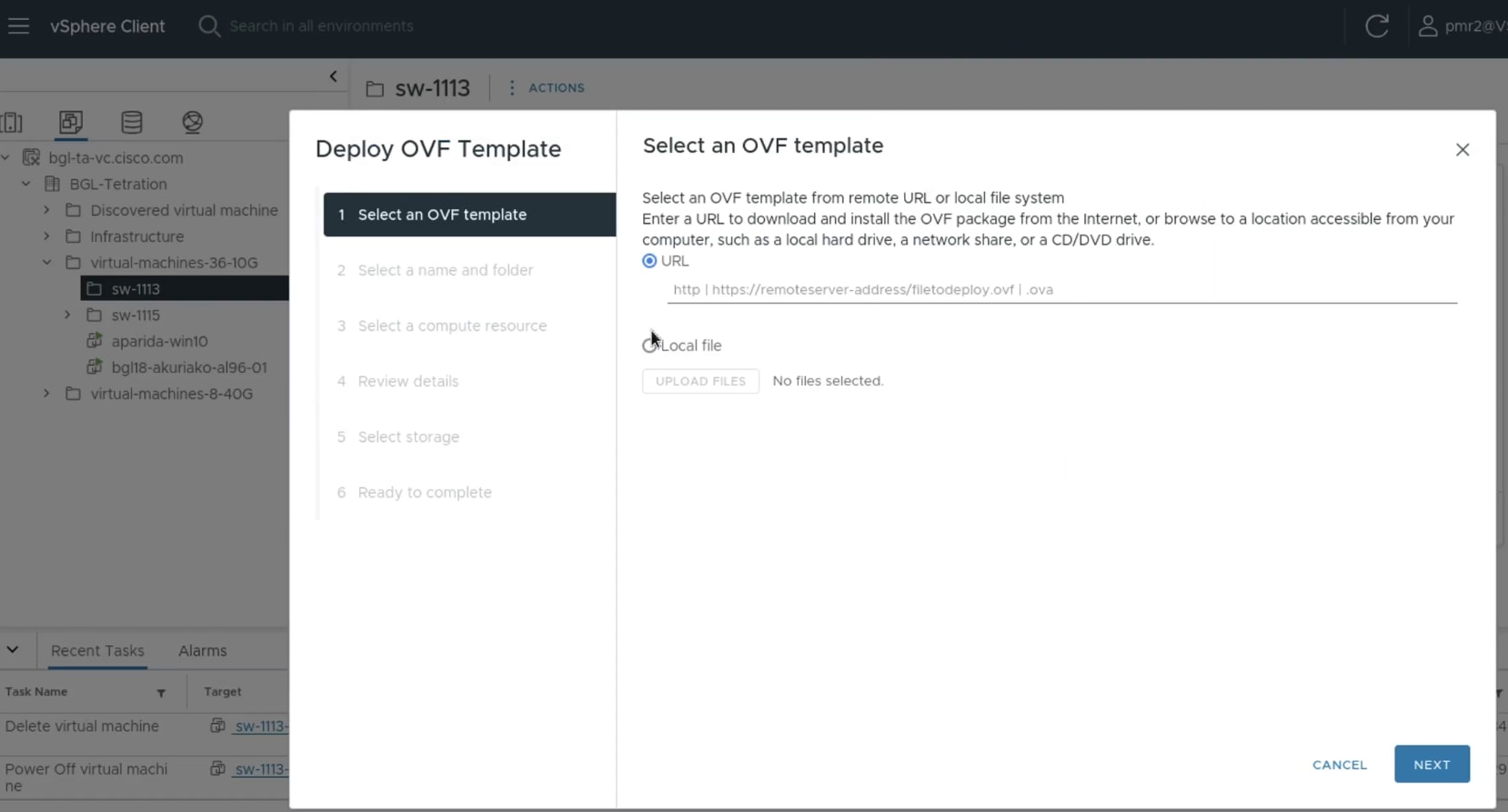
-
Select an OVF template Choose Local File and then Upload Files to browse and select the downloaded OVA file from your local system. Click Next.
-
Select a name and folder
-
Enter the Infrastructure virtual machine name.
-
Select the Secure Workload deployment folder that carries the cluster site name. Click Next.
-
Select a compute resource Choose the host or cluster where the virtual machine will run. This determines the compute resources allocated to the virtual machine. Click Next.
-
Review details Review the details of the OVF template, including hardware requirements and any warnings or information and click Next.
-
License agreements Review the licensing agreement, and if you agree to the terms, click Accept and click Next.
-
Select storage Choose the datastore that you want for the deployment. You can leave all other options at their default settings, unless the environment requires other settings. Click Next.
Select networks Choose the appropriate network mapping for each category and click Next. 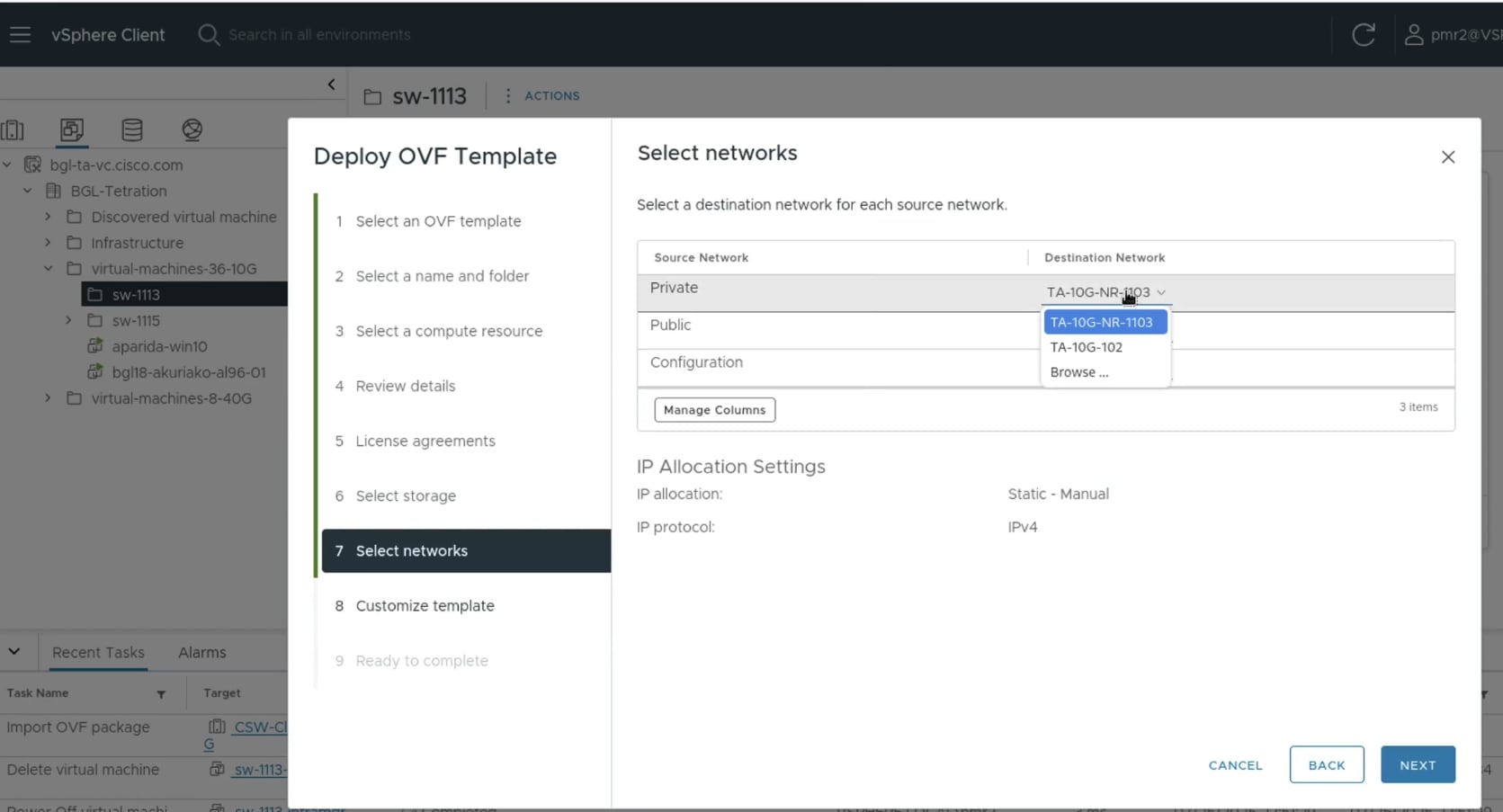
-
Configuration: Enter the routable network where the infrastructure manager can be reached during the deployment phase of the cluster bring up. Use a network that is different from the public network.
-
Private: Enter the non-routed internal network that Secure Workload will use for internal communication.
-
Public: Enter the routable network where the GUI, collectors, and virtual IP addresses will be reachable.
-
Customize template Enter the infrastructure manager reachability details for the configuration network and click Next.
-
IP Address: Enter the dotted quad notation of the IP address for the infrastructure manager.
-
Netmask: Enter the dotted quad notation of the netmask for the network.
-
Gateway: Enter the dotted quad notation gateway IP for the orchestrator on the configuration network.
-
Ready to complete Confirm all of your configuration parameters and click Finish. The Infrastructure Management OVF deployment begins. The deployment typically completes within a few minutes.
Note
You may need to refresh the VMware vSphere session to access the virtual machine.
|
|
5. |
Power on the deployed Secure Workload Infrastructure Management virtual machine.
|
|
6. |
Access the Secure Workload Infrastructure Management interface.
|
The Cisco Secure Workload Infrastructure Management Setup page appears.