Overview
How to power on the Secure Firewall 6100 and confirm it started successfully by checking the front-panel LEDs for power and system status.
System power is controlled by a power button located on the rear of the firewall. The power button provides a soft notification that supports graceful shutdown of the system to reduce the risk of system software and data corruption.
The first time you boot up the firewall, Firewall Threat Defense initialization can take approximately 15 to 30 minutes.
Before you begin
It's important that you provide reliable power for your firewall (for example, using an uninterruptable power supply (UPS)). Loss of power without first shutting down can cause serious file system damage. There are many processes running in the background all the time, and losing power does not allow the graceful shutdown of your system.
Procedure
| 1. | Attach the power cord to the firewall, and connect it to an electrical outlet. |
||||||||||||||||
| 2. | Turn the power on using the power button located on the rear of the chassis, adjacent to the power cord. 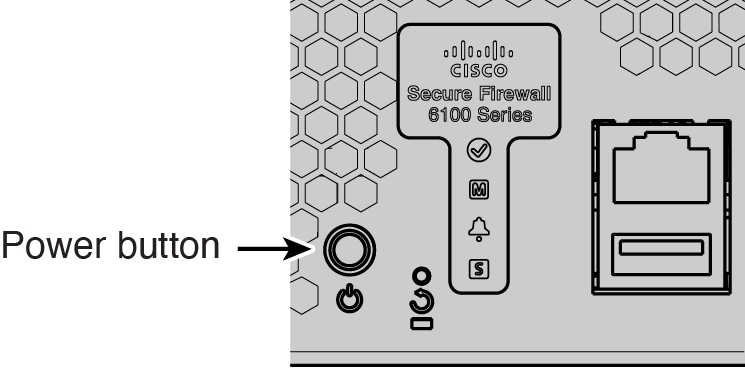
|
||||||||||||||||
| 3. | Check the LEDs for the current status. 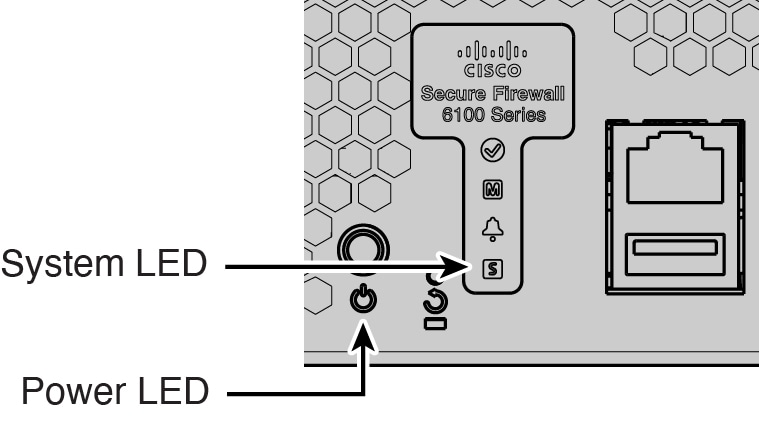
|