Cisco Cyber Vision Classic UI Administration Guide, Release 5.6.0

PDF

Cisco Cyber Vision Classic UI Administration Guide, Release 5.6.0

Secure Equipment Access

Want to summarize with AI?

Log in

Explains how secure equipment access solutions provide secure remote access for operations teams to manage and troubleshoot operational technology assets while reducing the need for on-site service visits.


A secure equipment access solution is a Cisco offering that

  • provides secure remote access for operations teams to manage and troubleshoot operational technology assets,

  • eliminates the need for costly on-site service visits,

  • enables Zero Trust Network Access gateway functionality.

For more details, see the SEA documentation on Cisco DevNet.

Integration with Cyber Vision

You can integrate SEA with Cyber Vision for unified management in the Cyber Vision Center. The integration requires the SEA agent (an IOx application) to run on your network device. You install the SEA agent and the Cyber Vision sensor app with the same workflow. One IOx application packages both runtimes.
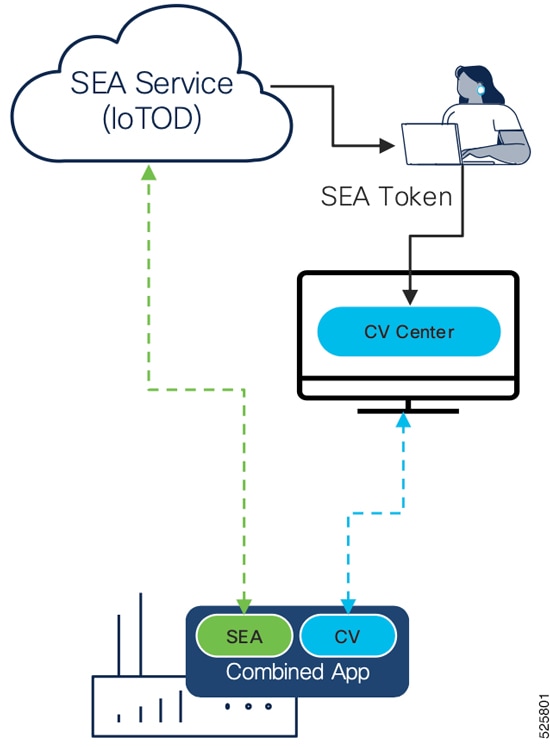
Figure 1. Integrate Cyber Vision with SEA
CV integration with SEA

Feature history table

Feature

Release Information

Feature Description

Enable Cyber Vision Center as an SEA Gateway

Release 5.5.x

The Secure Equipment Access agent can run directly on the Cyber Vision Center. This setup eliminates the need to host the agent within an IOx application. When you enable the Center as an SEA gateway, you provide secure, remote access to the Center and its network resources through the IoT Operations Dashboard. You do not need direct inbound access.


Integrate Cisco Cyber Vision Center with SEA

Enable seamless, unified management of Secure Equipment Access (SEA) and Cisco Cyber Vision through Cisco Cyber Vision Center. The integration simplifies deployment and ongoing management of both components on the same device while keeping their operations separate.

Before you begin

Ensure that you have administrative access to Cisco Cyber Vision Center and tenant administrator access to the SEA organization that you intend to connect with Cisco Cyber Vision.

Procedure

  1. Log in to Cisco Cyber Vision Center, and then choose Admin > Integrations > SEA from the main menu.

  2. On the SEA page, in the Configuration section, select a region from the drop-down list and click Connect.

  3. Log in to the IoT Operations Dashboard with your IoT OD credentials.

  4. On the IoT Operations Dashboard, click Connect.

  5. On the SEA page, verify the details in the Configuration section.

  6. Click Enable SEA.

  7. (Optional) Click Validate configuration to validate the configuration.

A success message appears on the SEA page, indicating that SEA is configured.

What to do next

Install the compatible sensors. For more information, refer to the Cisco Cyber Vision Sensor Application for Cisco Switches Installation Guide.


Enable Cyber Vision Center as an SEA Gateway

Configure your Cyber Vision Center as a Secure Equipment Access (SEA) gateway.

Enabling Cyber Vision Center as an SEA gateway removes the need for an external IOx application. This setup offers secure remote support and allows centralized asset management through the IoT Operations Dashboard.

Before you begin

Ensure your Cyber Vision Center is connected to SEA.

Procedure

  1. Log in to Cyber Vision Center.

  2. From the main menu, choose Admin > Integrations > SEA.

  3. (Optional) In the Center as gateway section, optionally enter a name for your center.

    If you do not add a center name, Cyber Vision Center uses the Center's Fully Qualified Domain Name (FQDN) from Admin > Web Server Certificate.

  4. Click Enable Center as Gateway.

  • Your Cyber Vision Center contacts the SEA tenant and registers itself as a new SEA agent. Log in to SEA and choose System Management > Network Devices to view the new agent. The new network device appears in the list.

  • Once you enable Center as gateway, a direct link to the IoT OD SEA dashboard becomes available. If you have access to multiple tenants in IoT OD, select the correct tenant to view your new network device.

What to do next

Add new assets to your center as needed. These assets will be reachable through your Center, which now acts as a gateway. You can manage and access other assets directly from the Center. For more information, see Manually Add Assets in the IoT Operations Dashboard (IoT OD) documentation.